







Windows 11 KB5124008 is here, and it comes with at least five of the most requested features, including a smaller taskbar and Bing-free Windows Search. It’s a massive release, and it also makes File Explorer load faster. In addition to Windows Update, Microsoft has posted direct download links for KB5124008 offline installers (.msu).
KB5124008 is labeled as a Patch Tuesday update, so it’s supposed to install automatically unless you’ve deferred Windows Update using Group Policy or Windows Update pause controls. It won’t install during active hours if you’ve set that up or allowed Windows to do it for you.
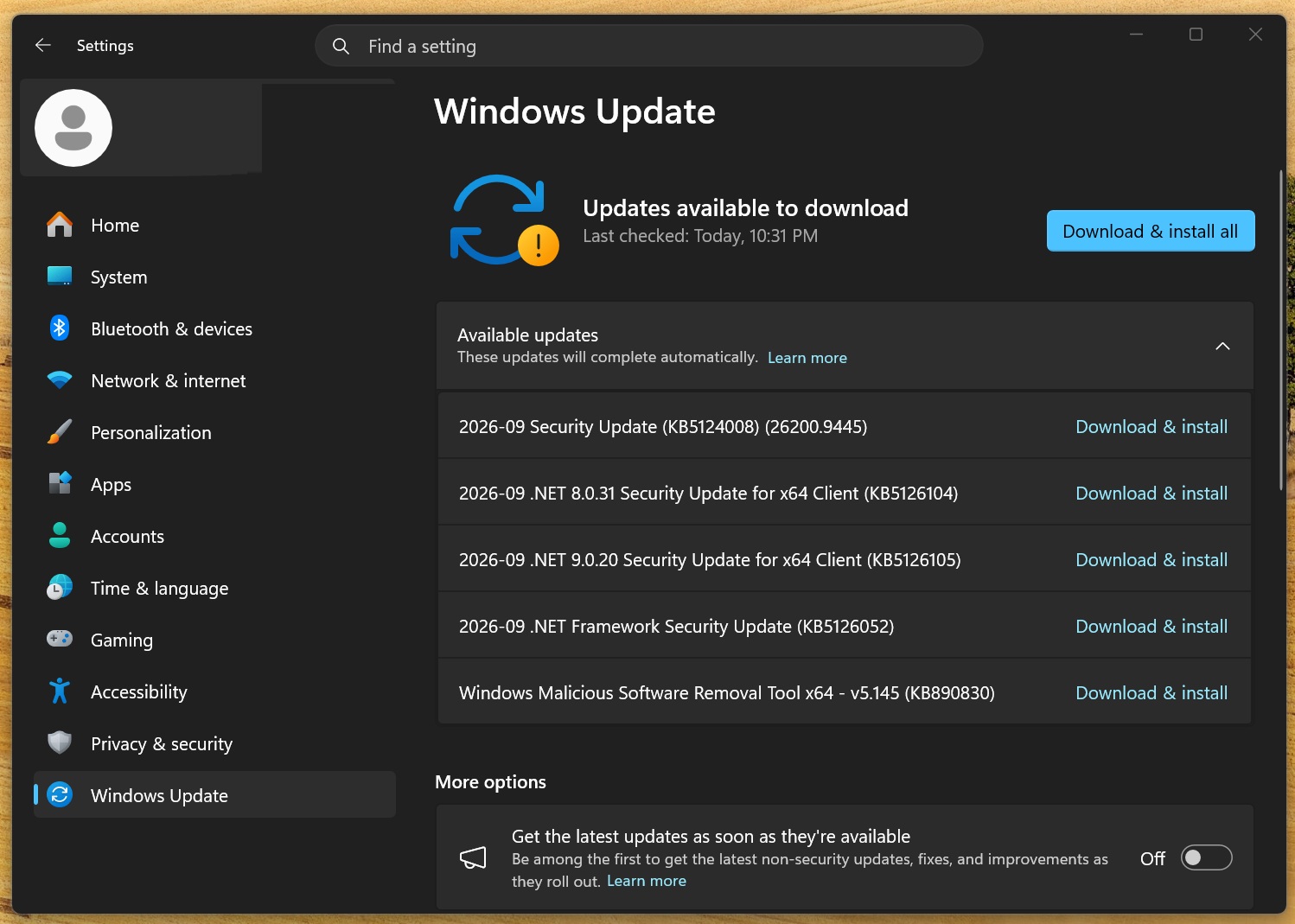
On our PCs, today’s cumulative update shows up as “2026-09 Security Update (KB5124008) (26200.9445).” The installation process depends entirely on your hardware, but also on whether you’ve installed or skipped previous updates. If you installed the August 2026 optional update, today’s update will install relatively faster.

Windows 11 25H2 bumps to Build 26200.9445 when you install the September 2026 Update, and those on version 24H2 will have their PCs advance to Build 26100.9445. This is the second-to-last update for Windows 11 24H2, as support for the 2024 OS version ends in October 2026, alongside 15 Microsoft products this year.
In addition to the cumulative update, Microsoft has published .NET Framework updates, depending on the version you use. Here’s what shows up on my PC:
- 2026-09 .NET 8.0.31 Security Update for x64 Client (KB5126104)
- 2026-09 .NET 9.0.20 Security Update for x64 Client (KB5126105)
- 2026-09 .NET Framework Security Update (KB5126052)
And as always, there’s a new security tool update called “Windows Malicious Software Removal Tool x64 – v5.145 (KB890830).”
Download Links for Windows 11 KB5124008
Windows 11 KB5124008 Direct Download Links: 64-bit and ARM-64 | I am dropping the Update Catalog links for anybody who prefers downloading the .msu installers, which install the update locally, but you should use Windows Update (Settings) for faster installation and a smaller download.
Here are the sizes for the September 2026 Patch Tuesday update:
| Build Number | Size | OS Version | Architecture |
|---|---|---|---|
| 26200.9445 | 4934.9 MB | Windows 11 25H2 | x64-based |
| 26200.9445 | 4771.5 MB | Windows 11 25H2 | arm64-based |
| 26100.9445 | 4934.9 MB | Windows 11 24H2 | x64-based |
| 26100.9445 | 4771.5 MB | Windows 11 24H2 | arm64-based |
To download Windows 11 Build 26200.9445, open Settings > Windows Update and check for updates.
Note: In our tests, Windows Latest observed that the September 2026 Update takes up to 30 minutes to download on some PCs, and another 15 minutes to finish installation. I am not able to figure out why it’s taking so long, but we’ve reached out to Microsoft with our findings. For now, you can safely install the September Patch Tuesday update.
What’s new in Windows 11 Build 26200.9445 (25H2) / Build 26100.9445 (24H2)?
All the features listed below are rolling out gradually, which means they may or may not show up today, but can be force-enabled if you don’t have patience.
1. Movable taskbar rolling out on Windows 11
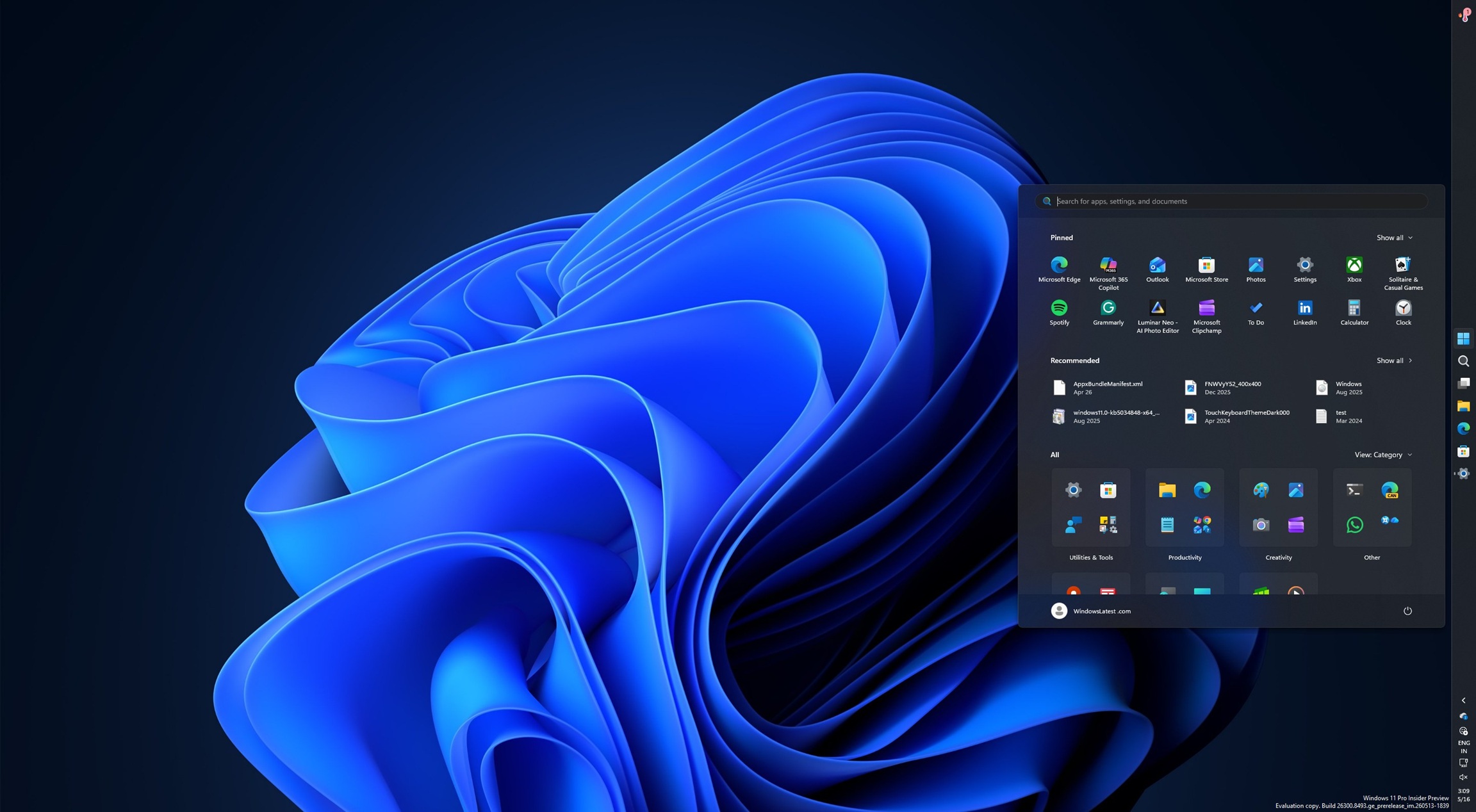
After almost five years of waiting, denial, and lies, Windows 11 is finally restoring Windows 10-era features, and one of my personal favorites is the ability to move the taskbar to the sides or top (my preferred spot!).
With Windows 11 KB5124008, Microsoft turned on the movable taskbar, and you can configure it from Settings > Personalization > Taskbar.
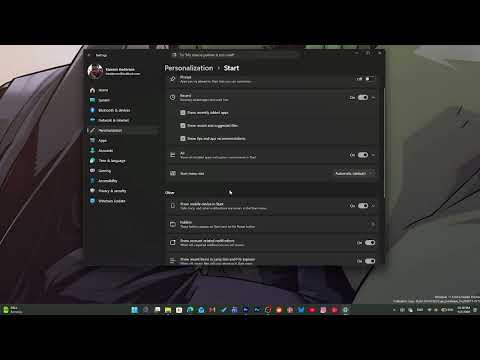
However, Microsoft told Windows Latest that the movable taskbar is being rolled out in stages, so you may not see it right away. Once you have it, you can turn it on from Settings, as I’ve shown in the screenshot below:
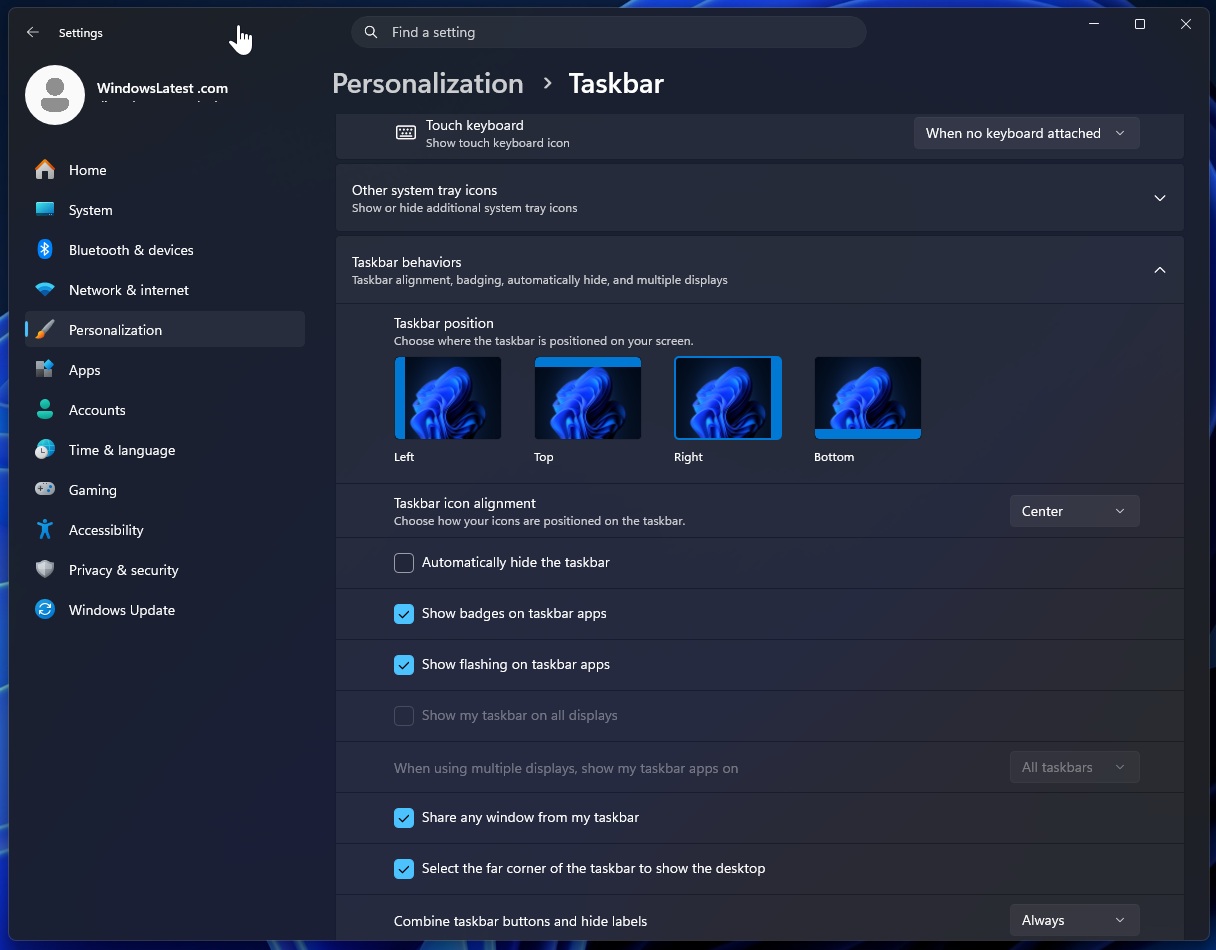
There’s no other way to find out if the feature is enabled, as you can’t hold and drag the taskbar around the screen like you could on Windows 10. Previously, it was possible to unlock the taskbar and move it around, but Windows 11 doesn’t support that level of flexibility yet, and personalization options are strictly locked to Settings.
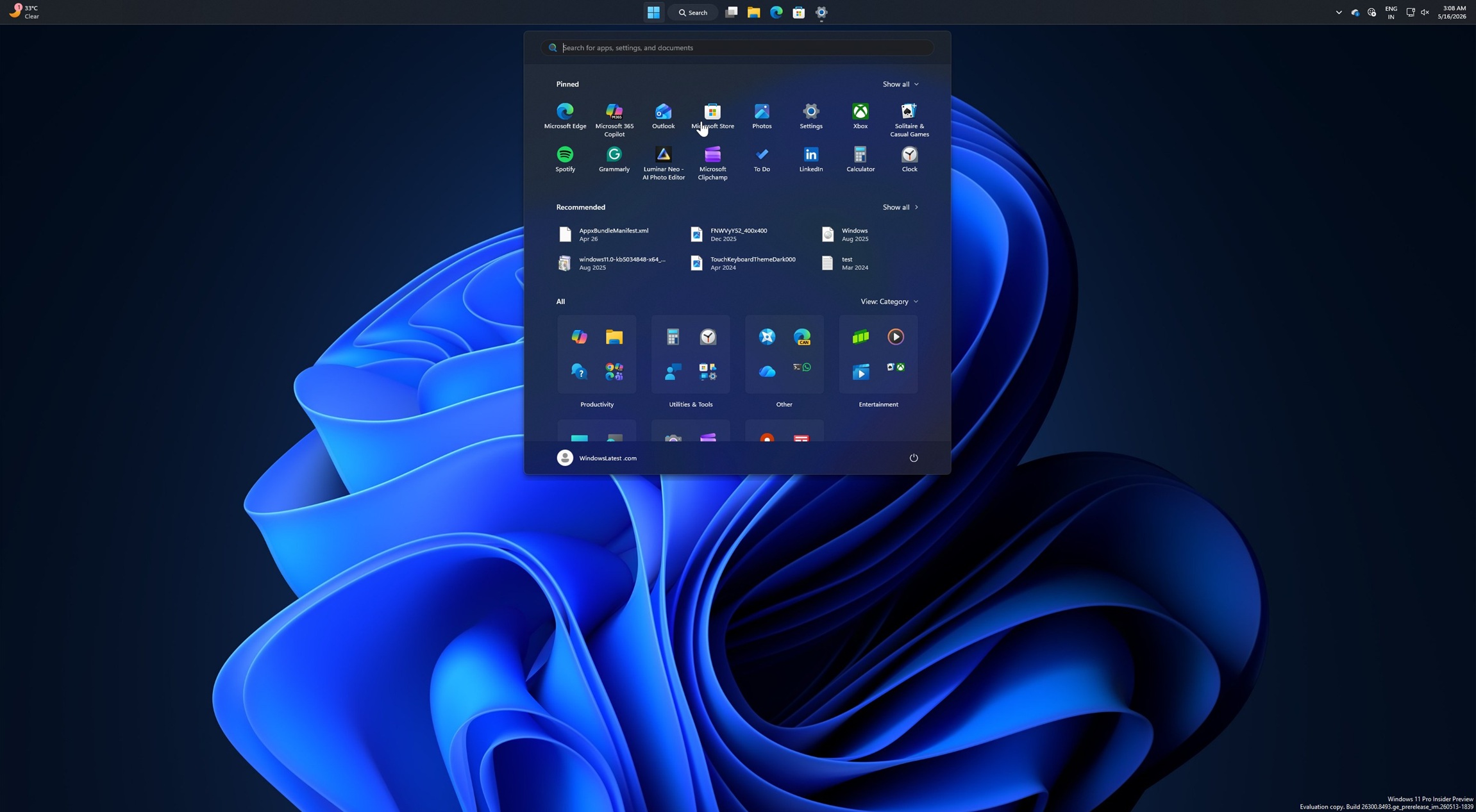
In terms of appearance, when you move the taskbar to the top, for example, the Start menu and Search also adapt to the new position. It’s just like how it used to work on Windows 10, or the experience you could previously force-enable using third-party apps, except it’s now official.
But what took so long? Did Microsoft fix some software limitation to bring back the movable taskbar? I don’t think so.
You couldn’t move the taskbar on Windows 11 because Microsoft simply did not prioritize it over its other adventures. After years of outrage, Microsoft decided to listen to some of the top feedback, and that’s why you’re seeing the feature today. There have been no fundamental changes to the underlying taskbar code that suddenly made moving it possible.
Five years ago, when Windows 11 rolled out, and Microsoft was asked why you couldn’t move the taskbar, make it smaller, or even resize the Start menu, it told the world that it would disrupt the flow.
“When you think about having the taskbar on the right or the left, all of a sudden, the reflow and the work that all of the apps have to do to be able to have a wonderful experience in those environments is just huge,” Microsoft explained in a video seen by Windows Latest. That video was published in 2021 and is no longer available.
Microsoft also had to rebuild the taskbar from scratch for Windows 11, so other features, like the ability to make it smaller, have been missing until now.
2. You can now make the taskbar smaller
I’d be lying if I said Windows 11 never supported a “smaller taskbar.” It does, but the catch is that the feature shrinks the icons on the taskbar, not the taskbar itself, and that’s a major difference, not just some poorly worded toggle.
Until now, if you opened the Taskbar behaviours page in Settings and toggled on “Show smaller taskbar buttons,” you’d notice that the feature shrinks the icons, but the taskbar still takes up all the space!
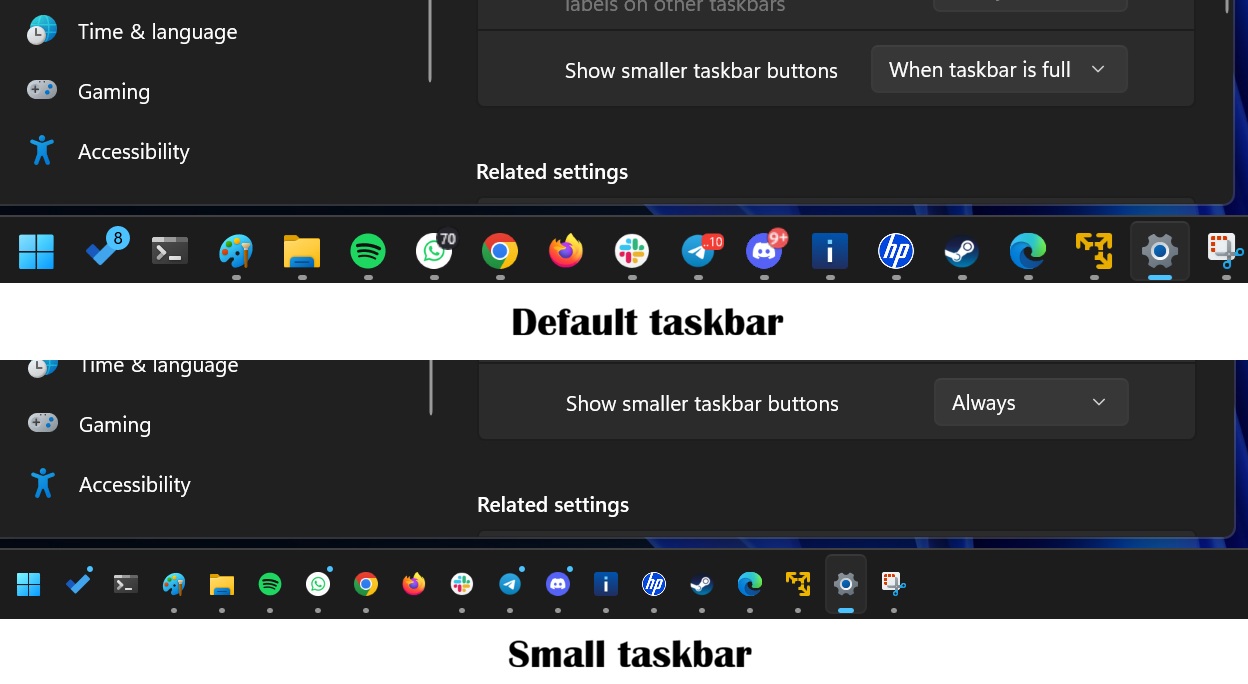
Now, look at how Windows 10 did things. If you enabled smaller taskbar buttons, it also made the taskbar itself smaller, which made sense because why would you want smaller icons inside a massive taskbar if the whole point was to accommodate more apps?
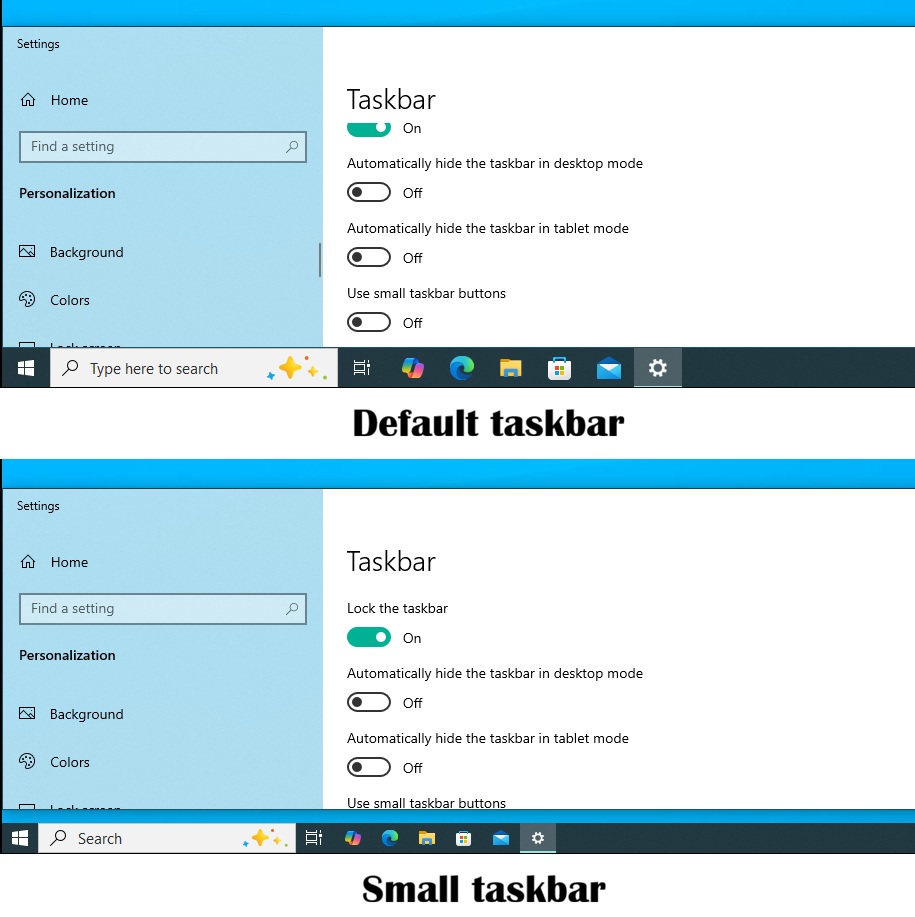
With Windows 11 KB5124008, Microsoft is now restoring the same behaviour, and Windows 11 finally supports the real “smaller taskbar” experience.
For example, here’s what happens when I make the taskbar buttons smaller:
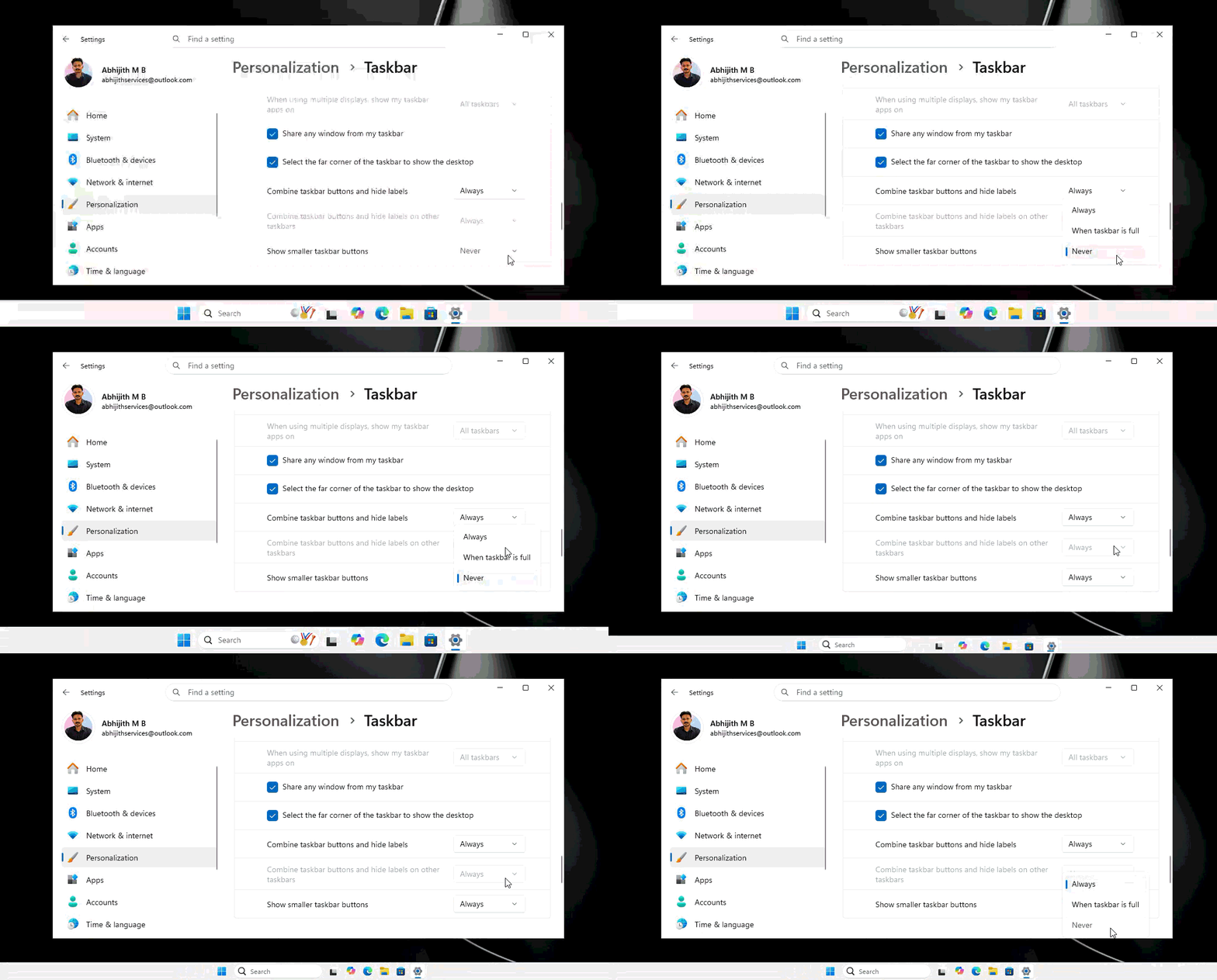
Just like on Windows 10, the taskbar itself now becomes smaller.
It’s a nice change, but other options are still missing. For example, Windows 10 had a “Lock the taskbar” feature. If unlocked, you could move the taskbar and resize it by dragging with the pointer. You can’t do that on Windows 11 because the OS locks it by default, and we don’t know when Windows 10-like customization will arrive.
At IFA 2026, Microsoft confirmed that it’s working to add more customization options to Windows 11, and it even admitted that it was adding some of these features back “again,” taking a jibe at its own misadventure of removing Windows 10-era features. Here’s a clip from IFA where Microsoft makes that quite evident:
3. You can now resize the Start menu
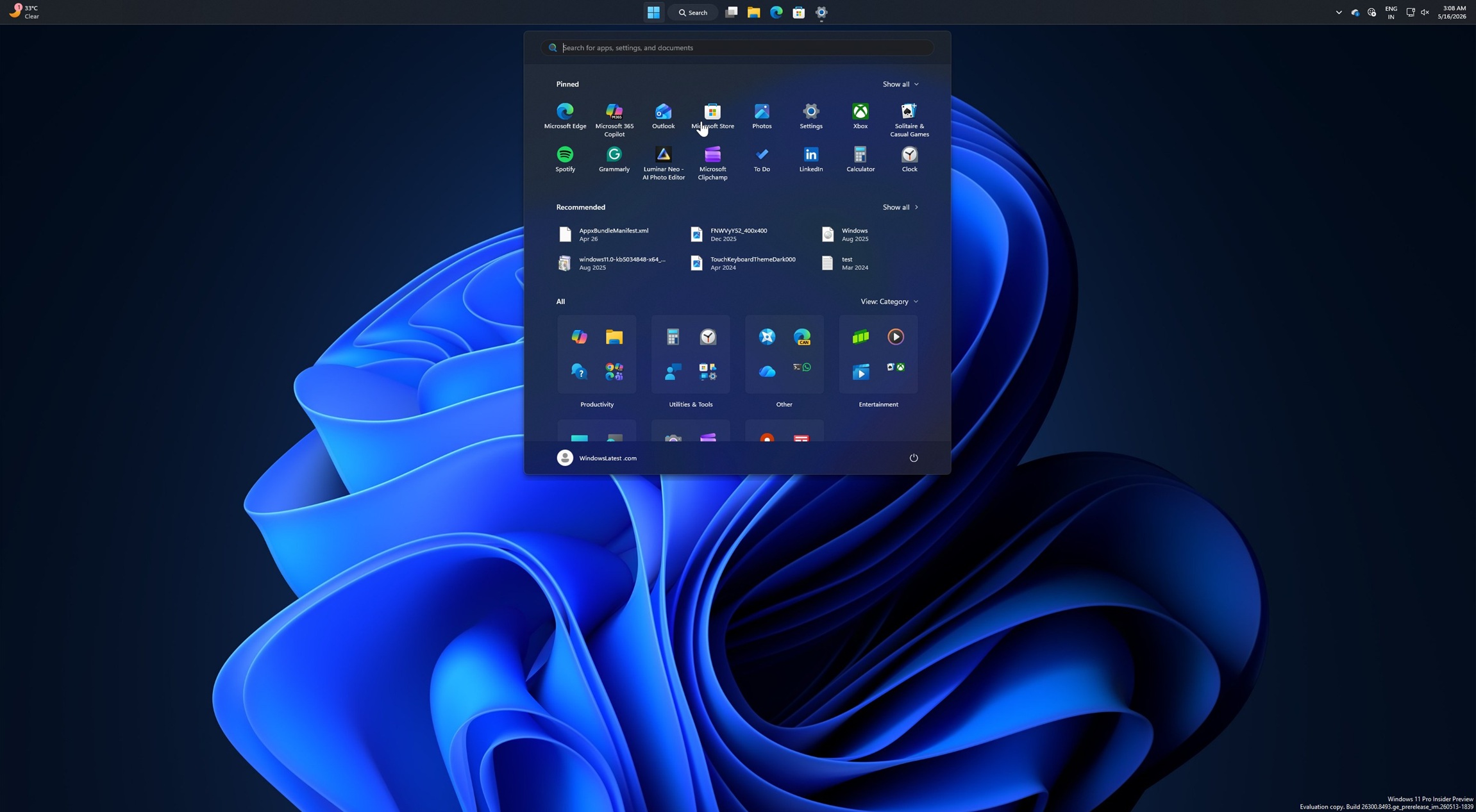
If you’ve got a 13-14-inch laptop and installed recent Windows updates that turn on the Categories layout in the Start menu, you’ve probably noticed how it can take up most of the screen unless you manually change the display scaling settings.
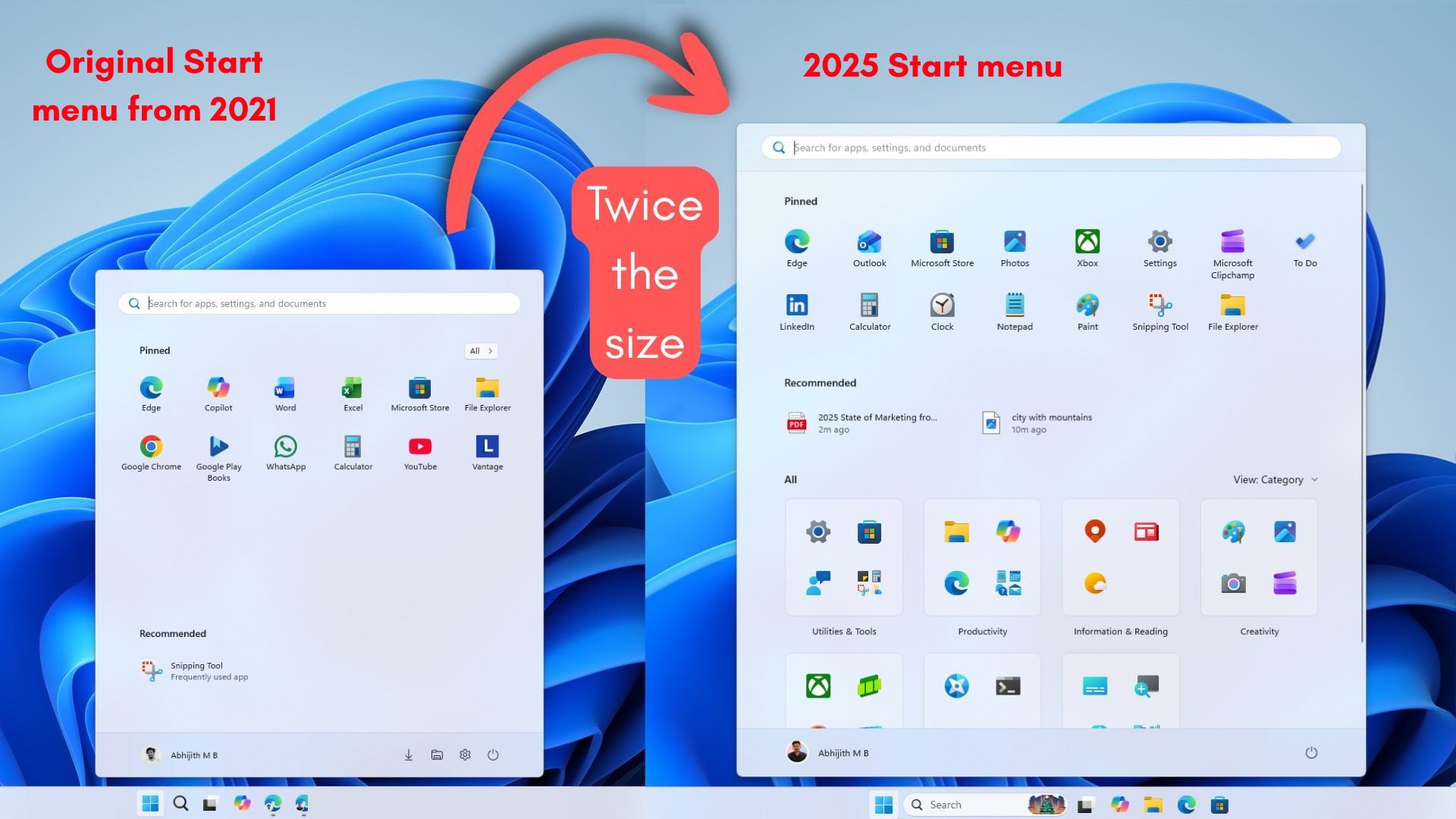
When you deliberately reduce display scaling, you make everything on Windows smaller, including the Start menu, but that’s not the perfect way to get rid of the huge Start menu.
With Windows 11 KB5124008, Microsoft is finally adding back a resizable Start menu, so you can now choose between “Large,” “Small,” and “Automatic” options. I tested it on my PC, and here’s how it works:
Large makes the Start menu take up more than 70% of the screen, giving you more space for pinned apps or the Recommended feed. You can choose Small if you want a more compact Start menu, or Automatic if you want Windows to decide the size based on your display and scaling settings.
But we’re not getting Windows 10-like controls where you could simply drag and resize the Start menu, make it smaller, show just the apps list, remove Live Tiles, or make it full screen. For comparison, here’s how Windows 10 allowed you to resize it:
Those features are not coming, at least not yet, and I don’t have any answers from Microsoft. If I were you, I wouldn’t keep my hopes up.
4. You can now fully customize the Start menu in Windows 11
Earlier this year, Microsoft added the ability to hide the Recommended feed, but it was a botched implementation. We noticed that when you turned off the Recommended feed in the Start menu, you also disabled the Recent section in File Explorer and the taskbar’s jump list (right-click menu).
With Windows 11 KB5124008, Microsoft has decoupled the toggle and renamed it from “Recommended” to “Recent.”
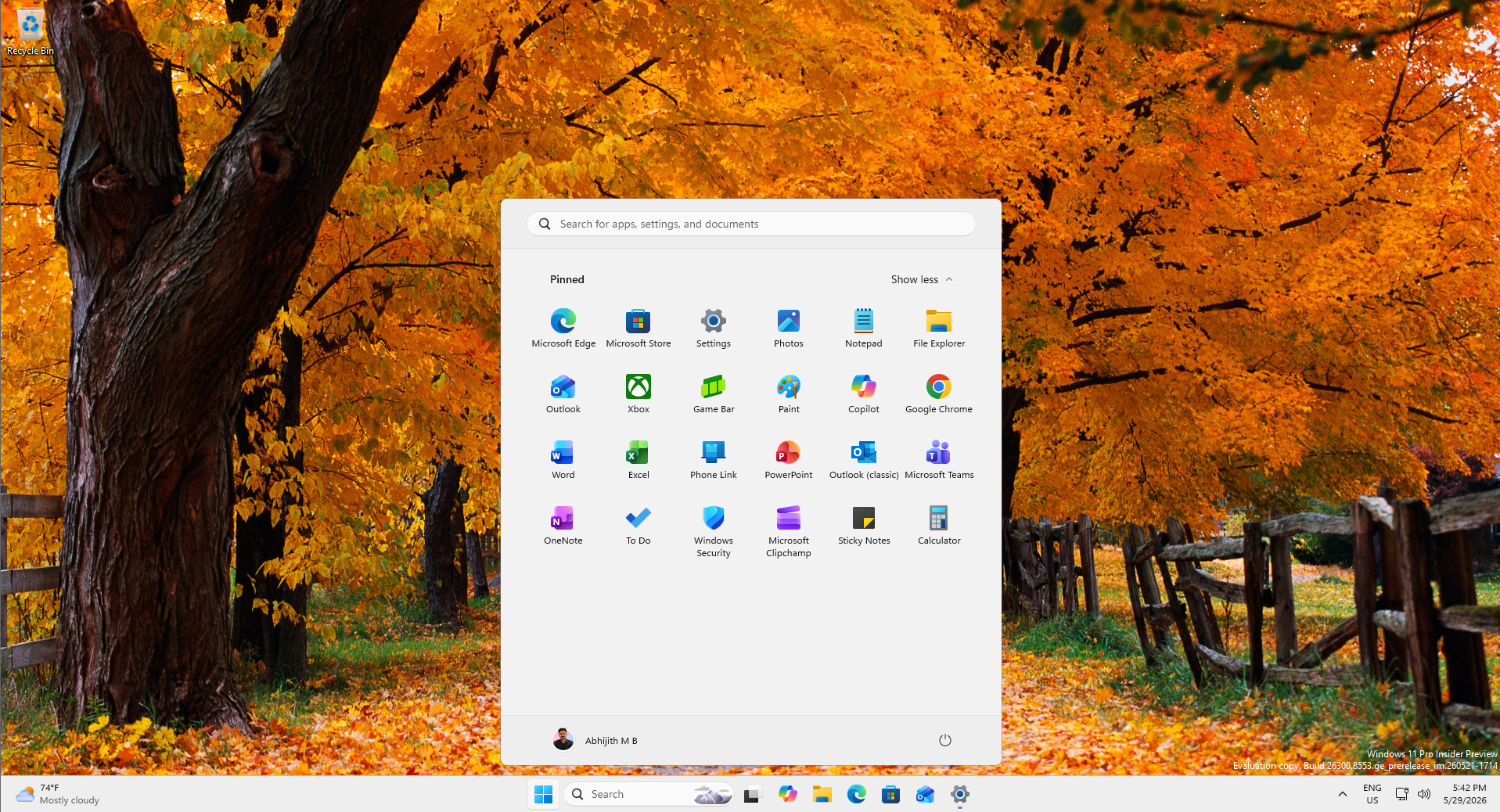
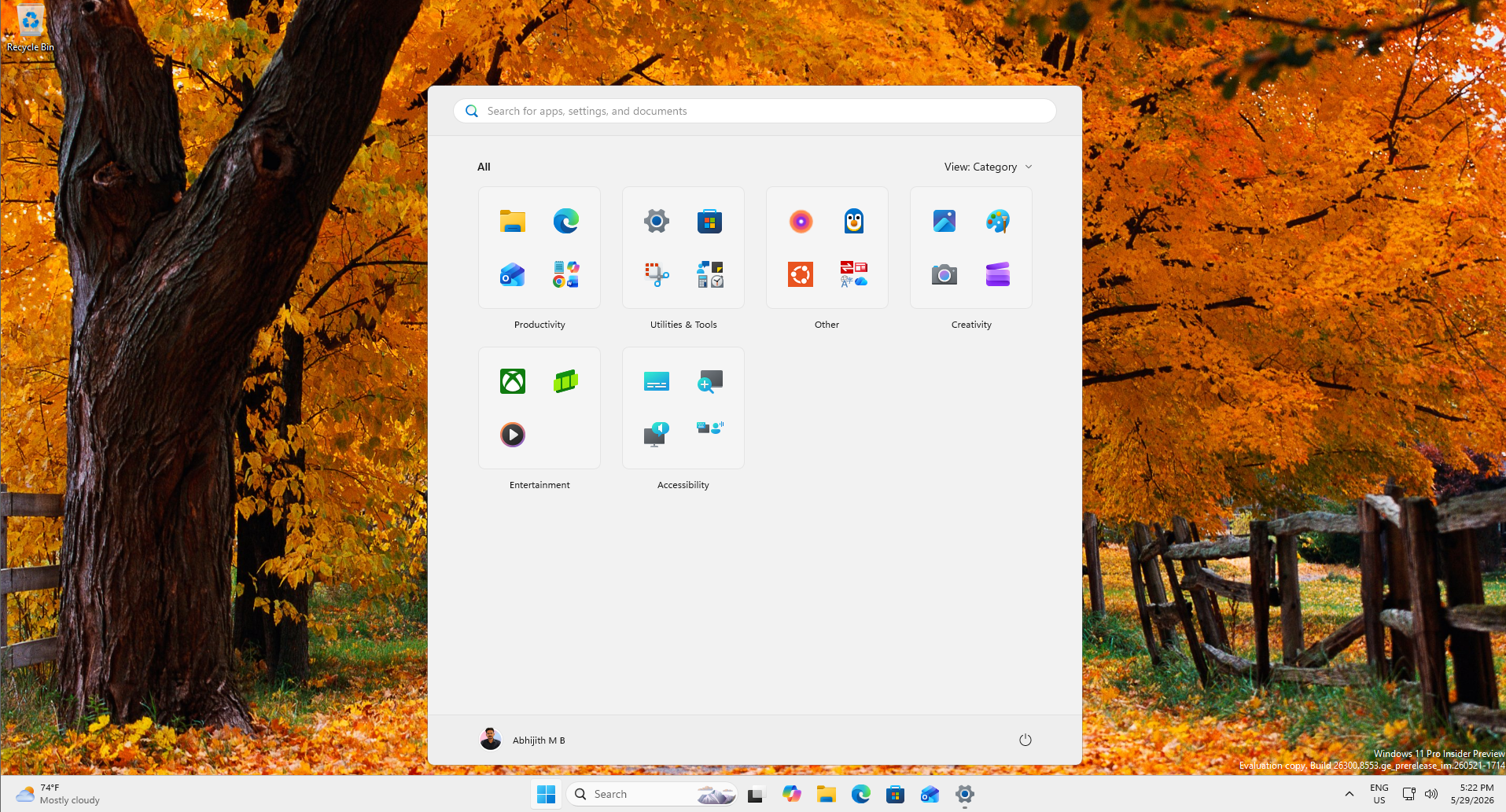
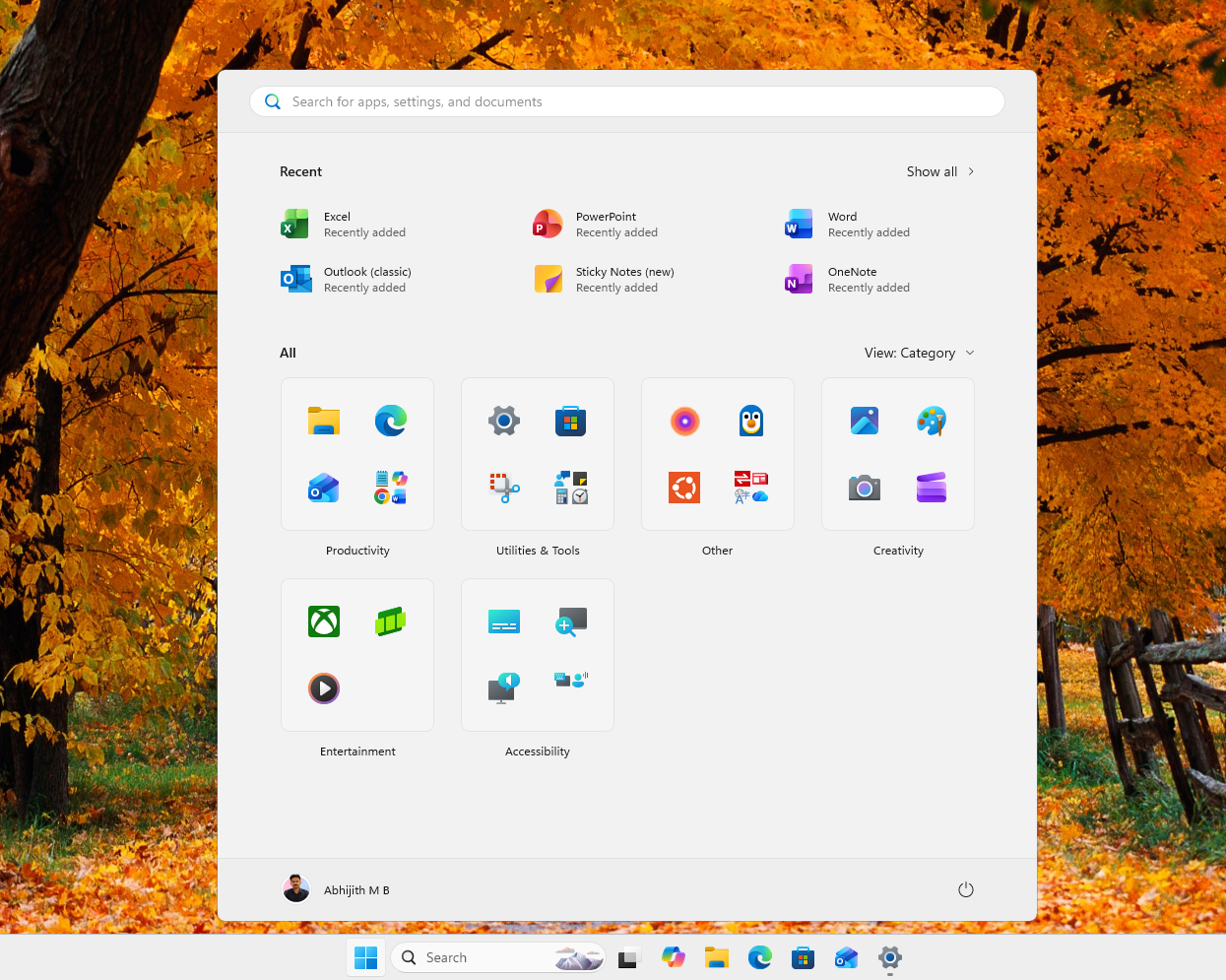
It is also possible to fully customize the Start menu layout, so you can now choose to hide certain sections, such as “Pinned,” and just have your Recent section with the All apps list. Or you can turn off Pinned and Recent, and just have the installed apps list.
5. You can finally remove Bing and Microsoft Store results from Windows Search
There’s another notable feature in Windows 11 KB5124008 that lets you remove Bing and Microsoft Store results from Windows Search.
Windows has never allowed you to disable Bing in Windows Search, so nobody really anticipated this. And I can bet those who work at Microsoft wouldn’t have expected a Bing-free Search experience either if you had asked them last year. A lot has changed in 2026, and it’s largely due to recent backlash.
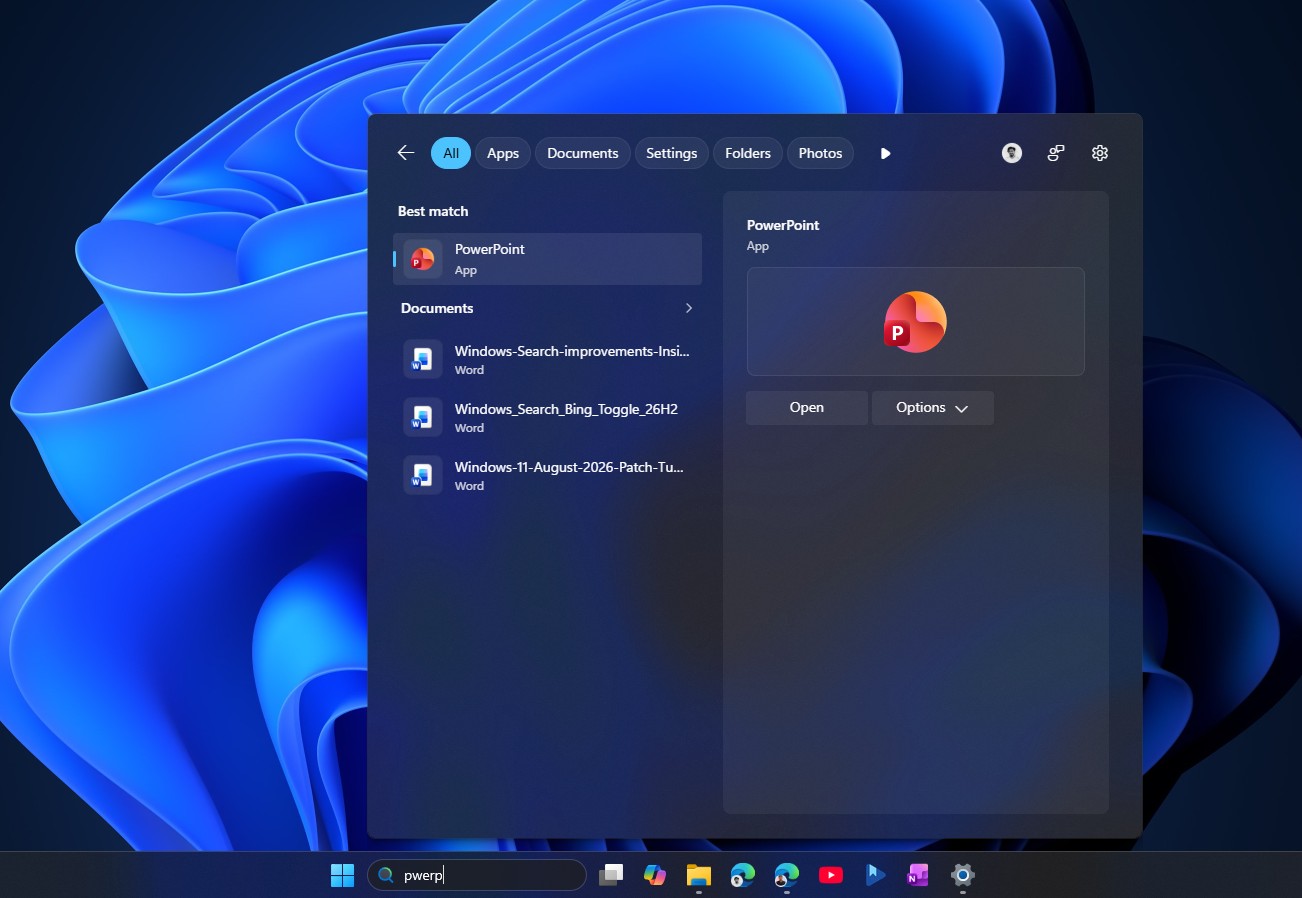
Windows 11 now lets you entirely disable Bing and Microsoft Store results, so when you search for your images, apps, or files, you’ll only see local results. And it makes the Search experience a lot faster. You don’t have to make any changes to the Windows Registry or switch your region to the EU to achieve any of this.
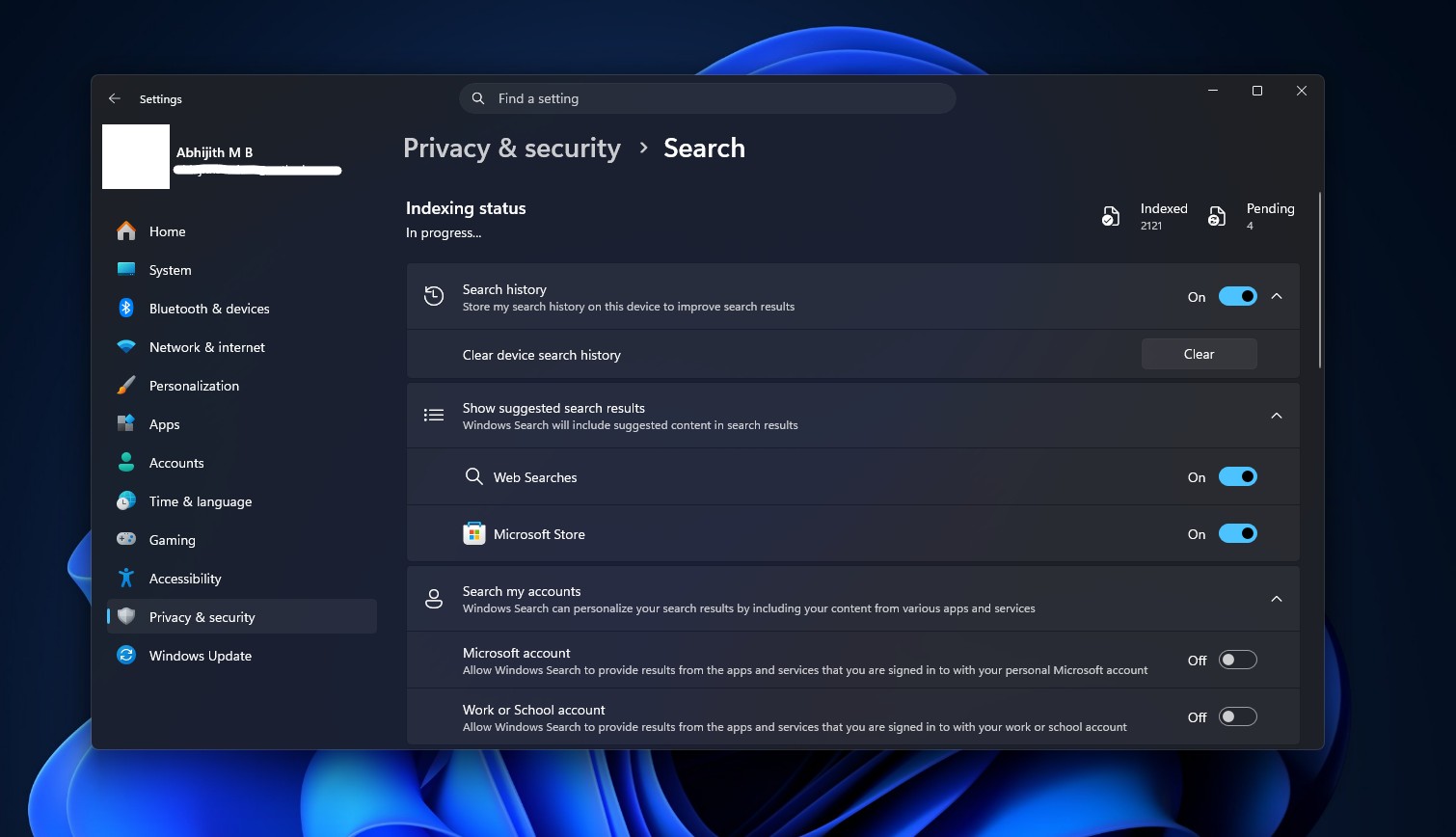
When you install Windows 11 KB5124008, and you’re lucky enough to be included in the gradual rollout, you can open Settings > Privacy & security > Search and turn off the toggles for Web Searches and Microsoft Store.
And now, if you try to search on Windows 11, you’ll only see local results.
5. File Explorer now loads faster
Windows 11 KB5124008 also makes File Explorer load faster, especially if the default page is set to ‘Home.’
File Explorer’s Home tab is usually slower than “This PC,” but it’s finally catching up, and you’ll notice a visible difference after deploying the September 2026 Update. However, it’s more noticable on low-end PCs with 8GB of RAM. And no, it’s not the preloading feature that Microsoft tested a long time ago.
6. Cursor, wallpaper, and Office issues finally fixed
Microsoft has finally patched a bug where the cursor disappears or changes size and ends up looking different from the standard cursor. This issue was found in Windows 11 KB5120998, which broke cursor personalizations, including pointer style and cursor.
The same August update also ended up breaking desktop wallpaper and replaced it with a solid black color. Another bug has been fixed where Microsoft Teams and Outlook apps would crash on ARM-based PCs. Another notable change is the removal of WMIC, a command-line tool mostly used by enterprises, but exploited by ransomware bad actors even on consumer PCs.
Last but not least, Microsoft argues that Windows 11 KB5124008 rolls out a Secure Boot certificate to more PCs, but if you have firmware compatibility issues, you still won’t get it.

Microsoft originally noted that it’s not aware of any known issues, but over the past few hours, Windows Latest has come across a number of bugs in the September 2026 Update, including broken Claude Cowork. At the same time, Microsoft warns you not to skip the update due to hundreds of critical security fixes, so you’ve a difficult choice to make.
Update: This article was updated on September 12 with more information on known issues.