








No, Microsoft doesn’t recommend turning off the page file just because your PC has 32GB of RAM. Windows uses the page file to increase how much memory it can promise to apps and to save crash dumps when your PC hits a BSOD, which is black on Windows 11 now. Microsoft says the right size depends on each PC’s peak workload and “can’t be generalized,” which is why Windows sizes it automatically by default.
32GB is common on gaming PCs now, and Microsoft even called it the “no worries” gaming upgrade earlier this year. Yet I’ve seen several tweaking guides and Reddit threads still tell 32GB owners to kill the page file for more SSD space and faster games.
Windows 11 keeps a hidden page file even if you have plenty of RAM
The page file is a hidden file called pagefile.sys, which Windows keeps in the root of your C: drive by default. I was young when I learnt about this and thought of RAM as a desk and the page file as a drawer. It’s an easy analogy, because Windows can move data that apps changed but haven’t used in a while into that drawer, freeing RAM for whatever you’re doing right now.
Apps and DLLs already on your drive don’t usually head to page files, since Windows can reload them from their original files. Only modified data, like unsaved text in Notepad, can end up in the page file.
It’s a habit of most of us to check the Task Manager for RAM usage, but it also shows the page file’s bigger job. Under Performance > Memory, “In use” is the RAM your PC is using right now, while “Committed” is the memory Windows has promised to apps, shown against a limit that equals your RAM plus the page file.
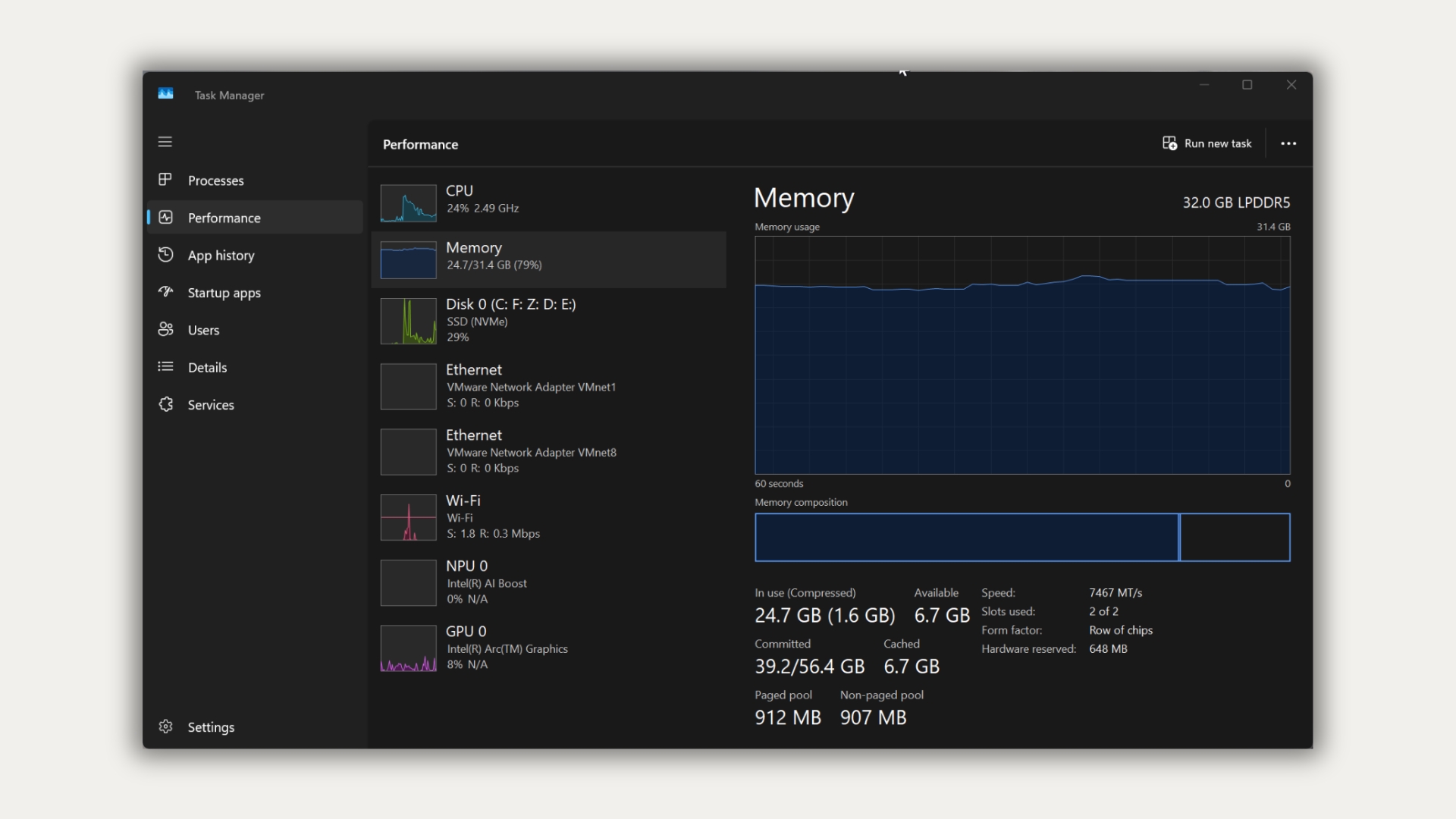
On my 32GB gaming PC, Task Manager shows 24.7GB in use, but 39.2GB committed out of a 54.4GB limit. On the 8GB laptop we used to test Windows 11 26H2 this week, the limit was 10GB.
Turning off the page file shrinks how much memory Windows can promise to apps
Often, apps ask Windows to commit memory they don’t immediately need to use. Microsoft’s Raymond Chen explained back in 2009 that commit “is merely a promise that when you need the page, it will be there.” Windows doesn’t assign physical RAM until the app uses it.
However, every promise still counts against the commit limit. With the page file turned off, Microsoft says the limit drops to slightly less than your installed RAM. So, a 32GB PC can’t promise apps more than about 32GB, even if Task Manager shows several gigabytes of RAM free.
Once the limit is hit, Microsoft warns that apps and the system itself “might not get committed memory,” which “can cause freezing, crashing, and other malfunctions.” Games are no exception, as Nixxes, the studio behind PlayStation’s PC ports, tells players hitting its video memory crash, “We recommend letting Windows automatically manage the virtual memory size.” Egosoft’s troubleshooting page for X4 Foundations also asks players not to restrict the page file.
Mark Russinovich, who co-created Sysinternals and is now Microsoft Azure’s CTO, wrote in 2008 that a few workloads may run better without one, but a page file usually means more usable memory, “never mind that Windows won’t be able to write kernel crash dumps without a paging file sized large enough to hold them.”
Microsoft says let Windows size the page file, with one exception
Microsoft’s documentation says page file sizing “depends on the system crash dump setting requirements and the peak usage or expected peak usage of the system commit charge.” Even two identical PCs can need different sizes.
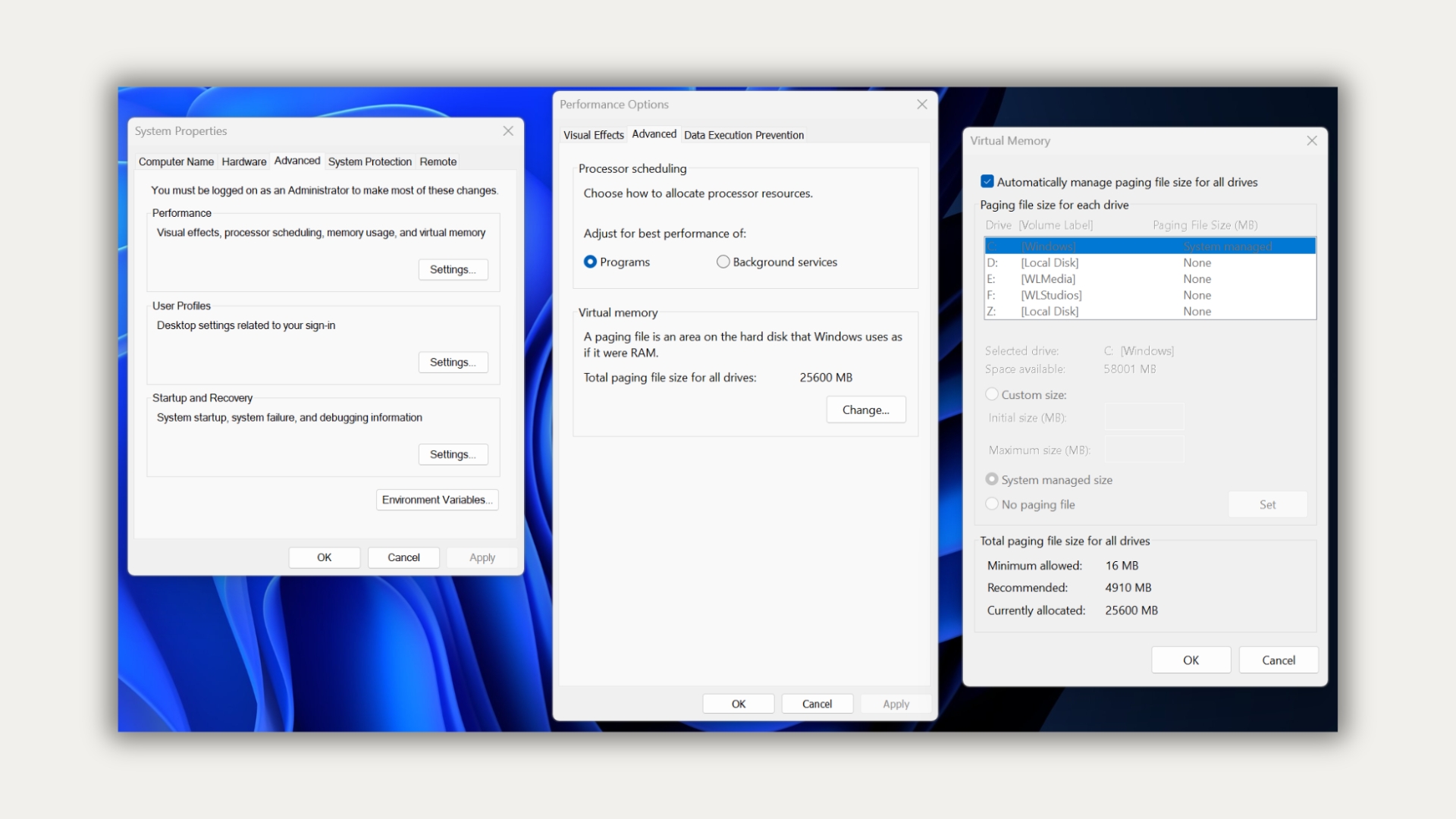
Fortunately, the default “Automatically manage paging file size for all drives” checkbox takes care of it. Windows starts with a small page file and grows it when committed memory crosses 90% of the limit. For a 32GB PC, the limit is 96GB (three times RAM), capped at one-eighth of the drive, which, if my math is right (and it always is), is around 60GB on a 512GB SSD.
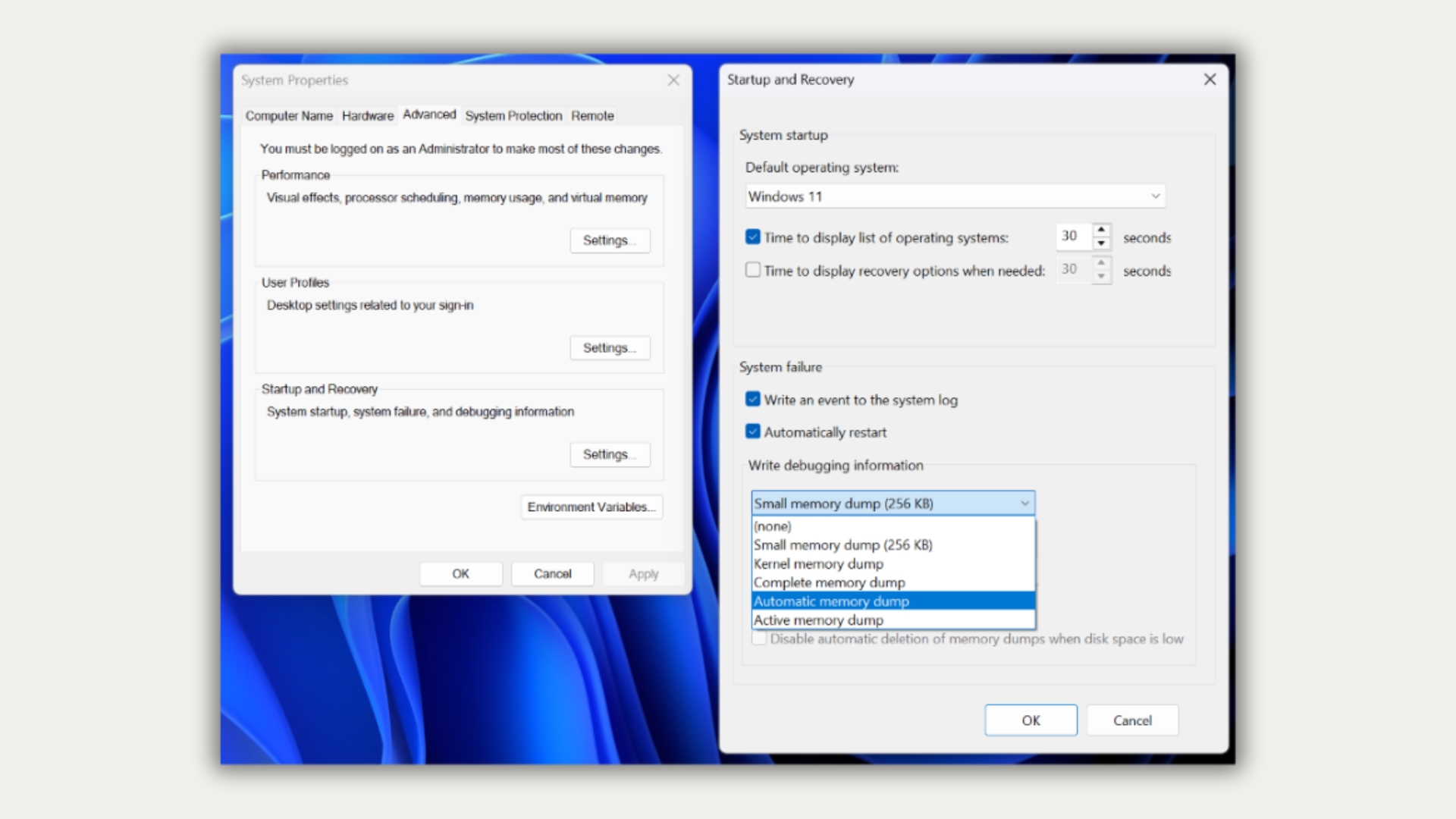
Crash dumps are the other side of the coin. Windows defaults to an “Automatic memory dump,” which needs only a small page file. If your PC crashes again within four weeks, Windows raises the page file to the smaller of your RAM or 32GB, so a 32GB PC can end up with a 32GB pagefile.sys. Without a page file, or a dedicated dump file that admins can instead set up, Windows can’t save that dump.
Microsoft does mention a caveat, as apps that allocate memory more often can hit random “out-of-memory” errors while an automatic page file is still growing. In that case, Microsoft suggests a custom size, with the initial size set to 1.5 times your RAM.
For power users, Russinovich’s method is better. Run everything you normally use together, note the peak commit charge (Process Explorer shows it under System Information), and subtract your RAM. If the result is negative, size the page file for your crash dump setting.
Does turning off the page file make games faster on a 32GB PC?
If your peak commit is well under 32GB, Windows has little to no reason to write to the page file during a game, so there isn’t much speed to gain by turning it off. However, you would lose the safety net when a game, a few dozen Chrome tabs and Discord push past that limit.
Microsoft also says a page file showing 100% usage isn’t a performance problem, as long as the commit limit isn’t reached. And not every hard page fault is a page file read, as Windows counts reads from EXE and DLL files as hard faults, too. So, game stutter isn’t automatically Windows dumping RAM onto your SSD.
On my PC, the system-managed pagefile.sys takes up 25.6GB, which is all the SSD space you’d get back.
If your 32GB PC is running fine, the page file is one Windows setting you don’t need to optimize. Have you ever turned off the page file on your gaming PC?