




Windows 11 KB5120998 is now available, and it’s one of the biggest updates of the year, particularly if you care about the Taskbar, Start menu, and Search more than anything else. You can install it via Windows Update, or Microsoft has also posted direct download links for KB5120998 offline installers (.msu).
KB5120998 is an optional update, and it won’t download and install automatically for good reasons, but it’s almost as stable as the Patch Tuesday releases in most cases. It shows up as “2026-08 Preview Update (KB5120998) (26200.9278)” and can be downloaded by clicking on Download & install.
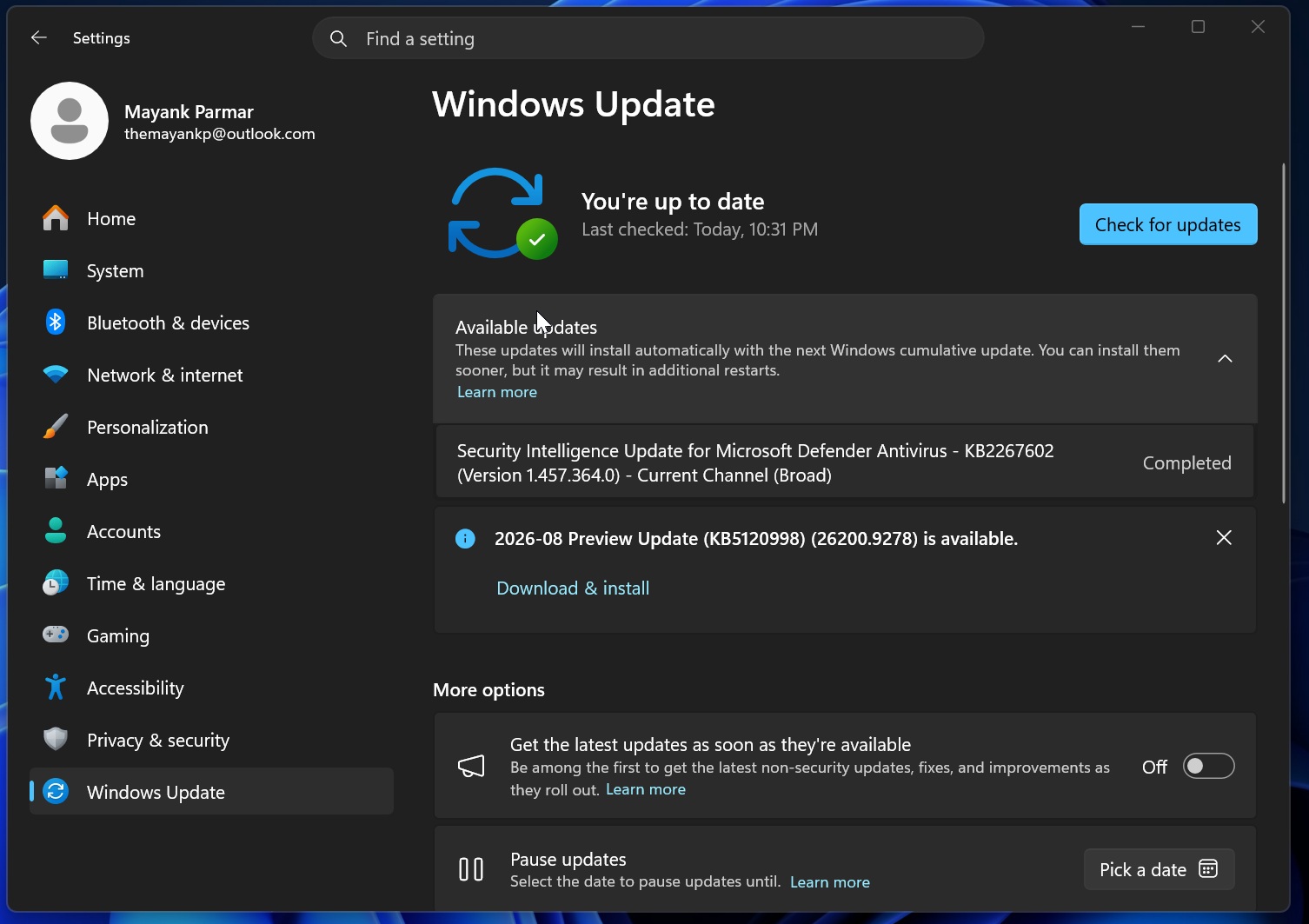
The update is automatically installed in the background if you have enabled the “Get the latest updates as soon as they’re available” toggle. In our tests, Windows Latest observed that KB5120998 bumps Windows 11 25H2 to Build 26200.9278 and version 24H2 to Build 26100.9278.
Note: Windows 11 will get everything included in today’s optional update via September 2026 Patch Tuesday, a mandatory update scheduled for September 8.
Download Links for Windows 11 KB5120998
Windows 11 KB5120998 Direct Download Links: 64-bit and ARM64 | You should always use Windows Update to download these monthly updates, but you can also rely on the Update Catalog, particularly when Windows Update is throwing errors.
Compared to Windows 10, Windows 11’s monthly updates downloaded via Update Catalog are almost seven times larger, as some need more than 5GB of bandwidth. That’s because monthly Windows updates also include AI models, which are applied to supported PCs only, but are still part of the download. They do not apply/install on regular PCs.
| Build Number | Size | OS Version | Architecture |
|---|---|---|---|
| 26200.9278 | 4960.7 MB | Windows 11 25H2 | x64-based |
| 26200.9278 | 4960.7 MB | Windows 11 25H2 | arm64-based |
| 26100.9278 | 4796.9 MB | Windows 11 24H2 | x64-based |
| 26100.9278 | 4796.9 MB | Windows 11 24H2 | arm64-based |
What’s new in Windows 11 Build 26200.9278 (25H2) / Build 26100.9278 (24H2)?
All features are rolling out gradually and will be enabled over the coming days. Don’t be surprised if you do not find anything new after updating to Windows 11 Build 26200.9278 or newer.
1. Windows 10’s movable taskbar is now on Windows 11
The wait is finally over, as Windows 11 KB5120998 lets you move the taskbar to the top, left, or right sides, similar to Windows 10 and other versions.
Microsoft is restoring the movable taskbar feature in Windows 11 five years after its launch, and I still remember that the company once justified its removal for “animations” and better “flow” of the interface. In 2021, Microsoft explained that it used a data-driven approach to identify features that should be added first to Windows, and the “movable” taskbar never made the cut.
When Windows 11 shipped, it included a new taskbar, built from scratch, and it did not have features like the ability to move it around the screen or even drag and drop apps via the taskbar, which was later added back. For a movable taskbar, Microsoft argued that it could not add it immediately.
“When you think about having the taskbar on the right or the left, all of a sudden the reflow and the work that all of the apps have to do to be able to have a wonderful experience in those environments is just huge,” Microsoft’s product head said in a now-private video.
The video was published in 2021, shortly after Windows 11’s public rollout.
Interestingly, Windows 10 was able to move the taskbar without any visible problems, so the justification never made any sense. Regardless, five years later, Microsoft has debunked itself and is now rolling out the movable taskbar to everyone with today’s optional update:
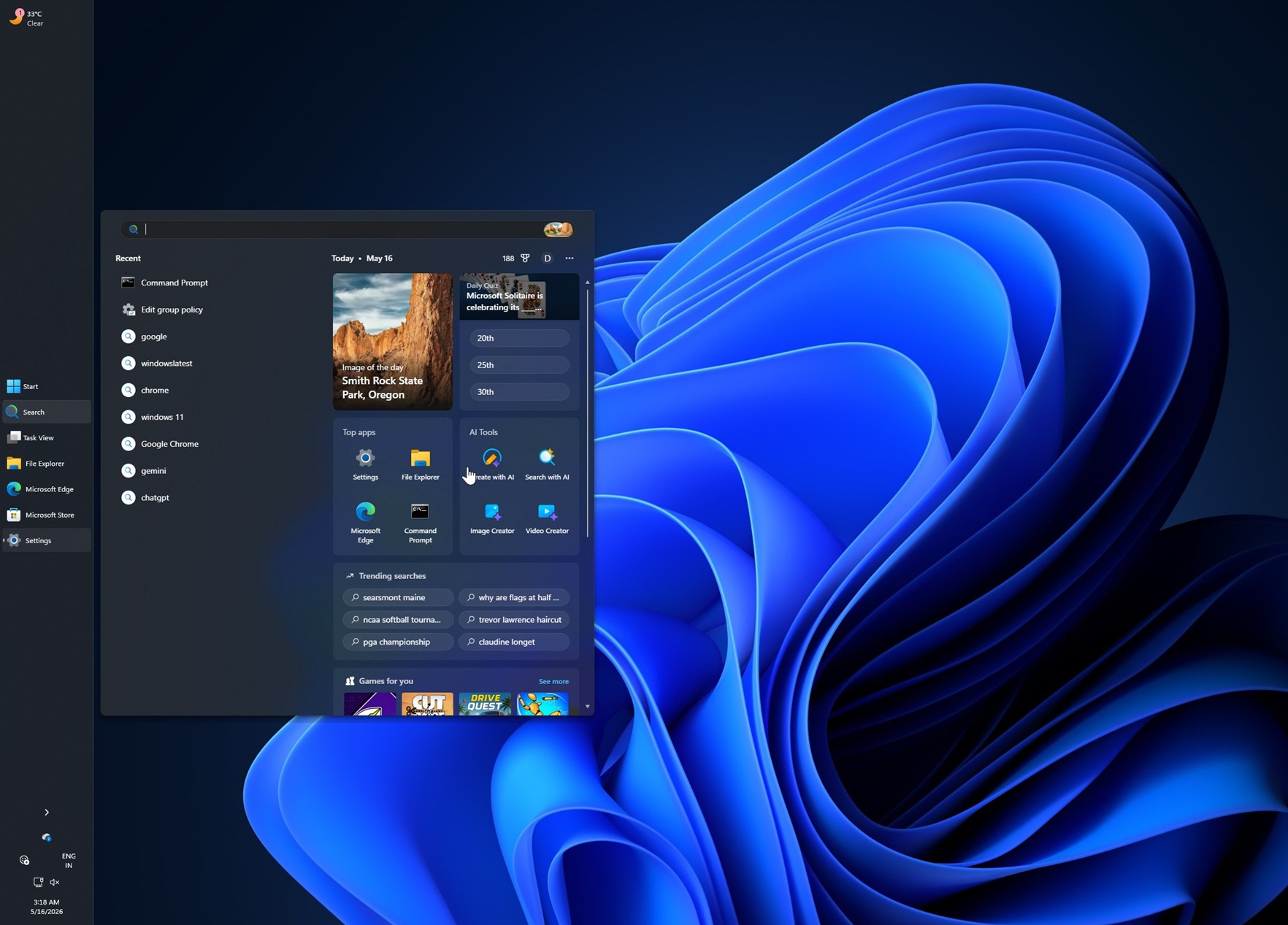
But you can’t just get started with the movable taskbar right away. On Windows 10, you could hold and drag the taskbar to any corner of the screen, and that moved it, but in the case of Windows 11, that implementation isn’t ready just yet.
Instead, you need to open Settings > Personalization > Taskbar > Taskbar behaviors > Taskbar position, and choose your preferred layout.
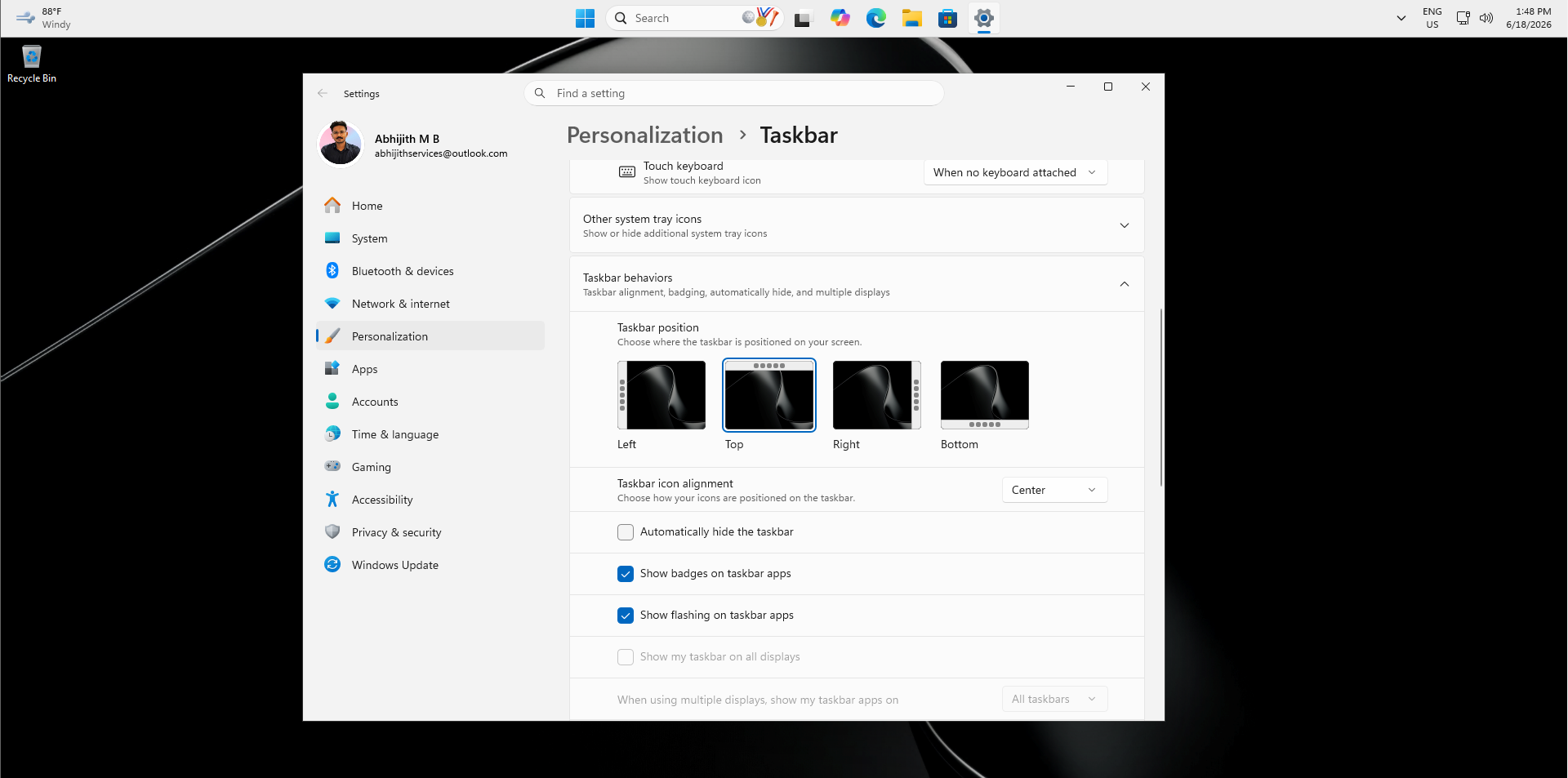
As you can see, you can choose “left, top, right, and bottom” as your preferred taskbar layout. You don’t need to restart to apply these changes.
I personally use the top taskbar because it allows me to easily switch back and forth between apps, browser tabs, and tabs in Windows Terminal.
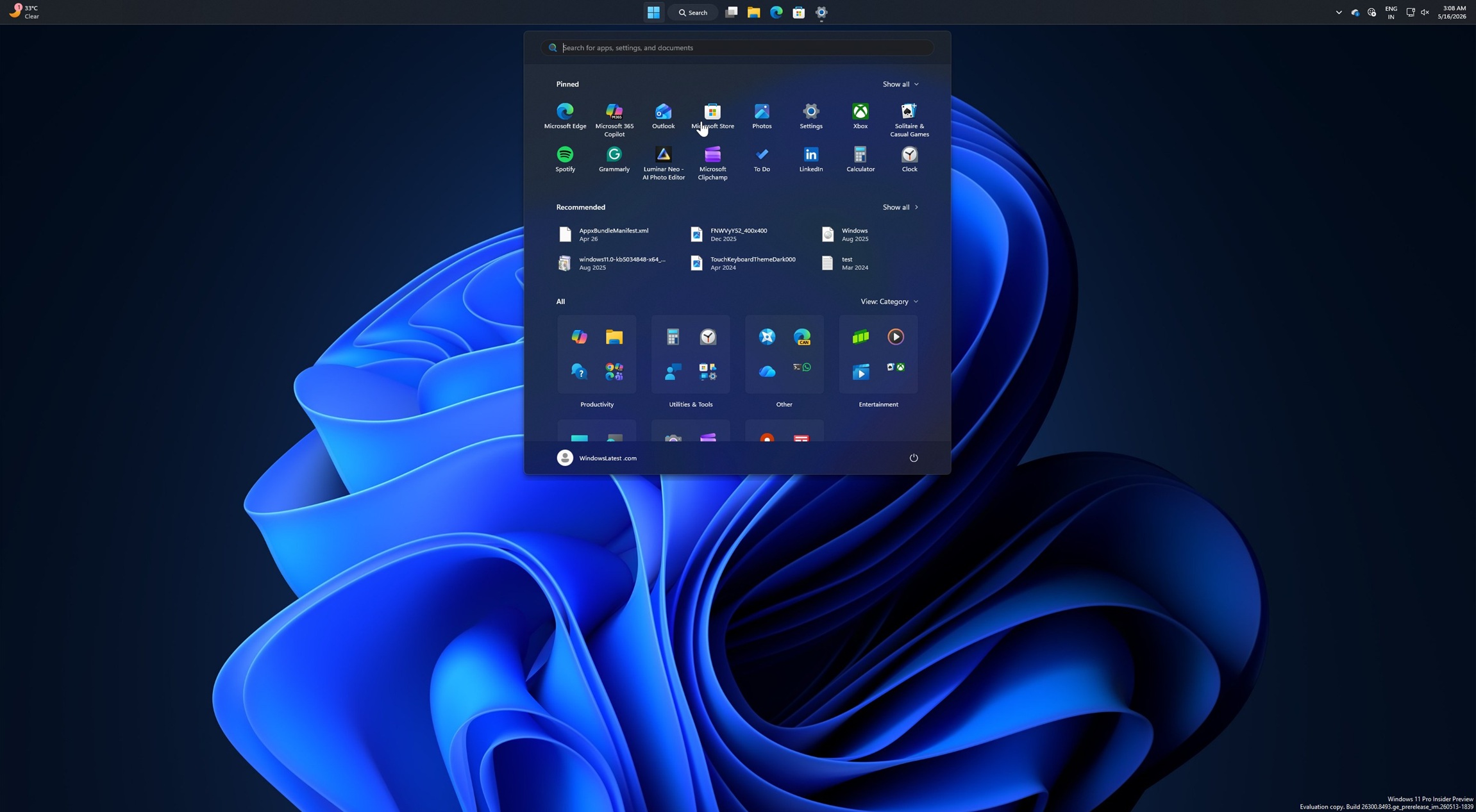
Microsoft sources previously told Windows Latest that it’ll add back the ability to move the taskbar by dragging it to any side of the screen, similar to Windows 10. For now, you have to rely on Windows Settings to customize the layout.
Smaller taskbar is finally here!
I can’t help but droll over all the highly anticipated Windows 11 features rolling out today, and one of my personal favorites, but a nifty change, is the smaller taskbar.
If you recall, Windows 10 has a feature that lets you make the taskbar smaller, so it uses less screen space and makes it easier to see more apps/open windows on the taskbar. It is an optional feature that needs to be turned on, and it worked far better than whatever the current implementation is on Windows 11.
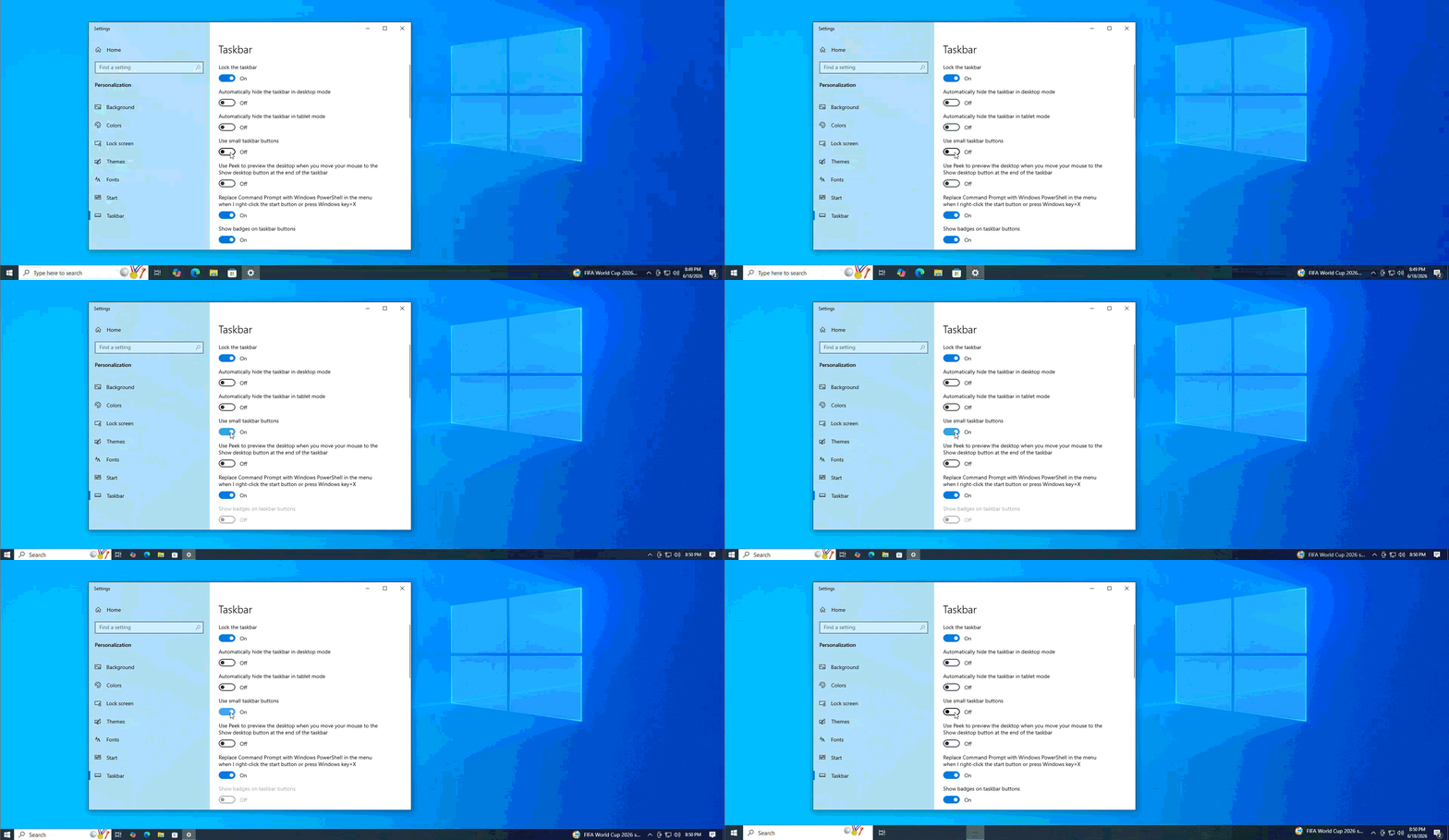
In the case of Windows 11, you have a smaller taskbar buttons feature, which makes the taskbar icons and everything smaller, but the taskbar itself remains big. So while you can have more apps on the taskbar, you cannot reduce its screen space, and it clearly looks odd.
With Windows 11 KB5120998, Microsoft is adding back a Windows 10-like smaller taskbar, so you can also shrink the taskbar, not just the icons.
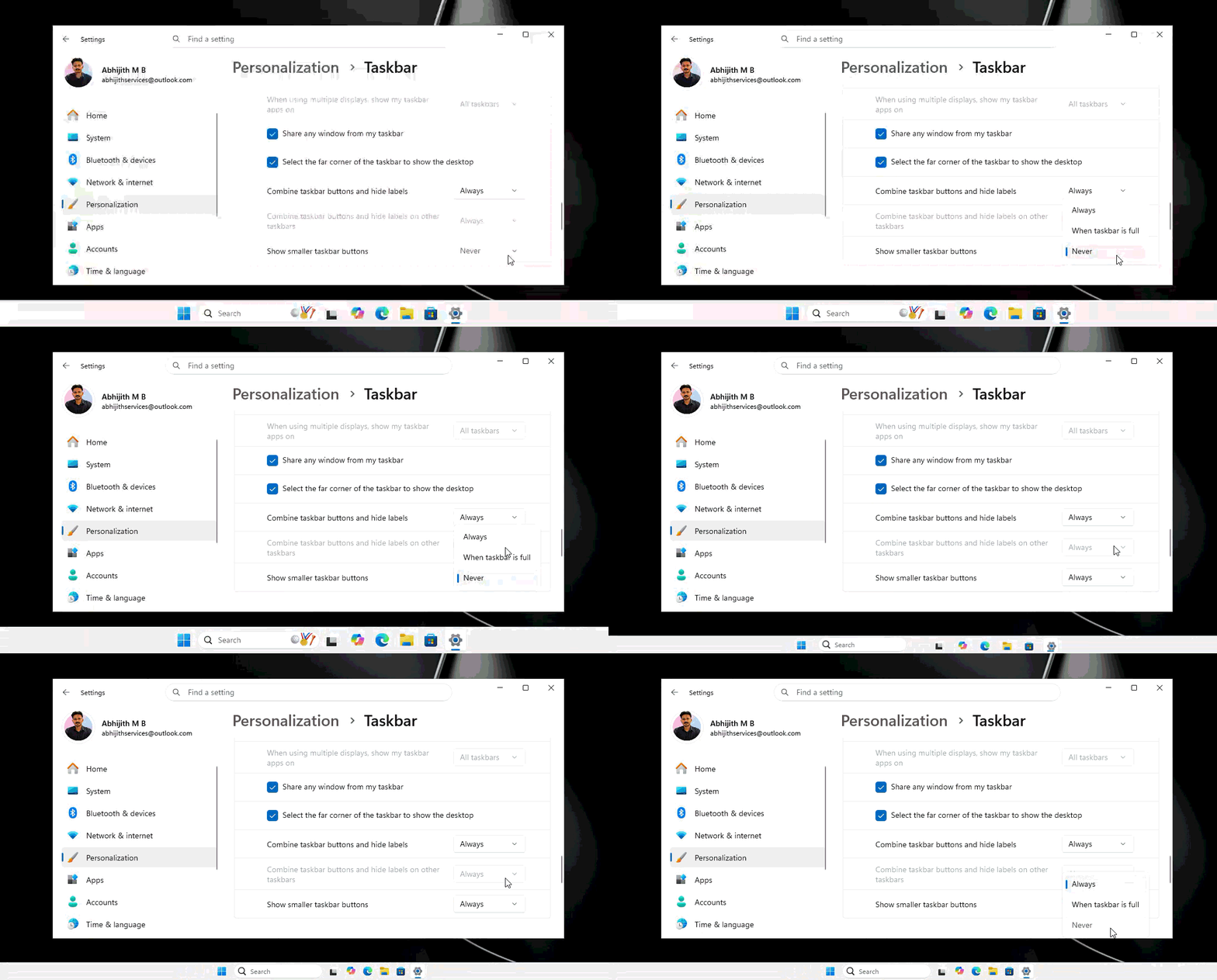
You can enable it from Settings > Personalization > Taskbar > Show smaller taskbar buttons.
2. Resizable Start menu is finally rolling out on Windows 11
Unlike Windows 10, Windows 11 barely lets you customize the Start menu because Microsoft assumes its designers have already found the best fit for everyone, but that’s far from reality.
Most users want to customize their Start menu, change the layout, modify the categories, or at least resize the menu that can take over your screen!
Windows Latest has been complaining about how the new Start menu with the Categories layout takes up to 70% of screen space on PCs with smaller screen sizes, or, in fact, the now-standard 14-inch laptop screen. It’s barely usable on my Spectre until I manually change the scaling settings to make everything smaller, including the Start menu.
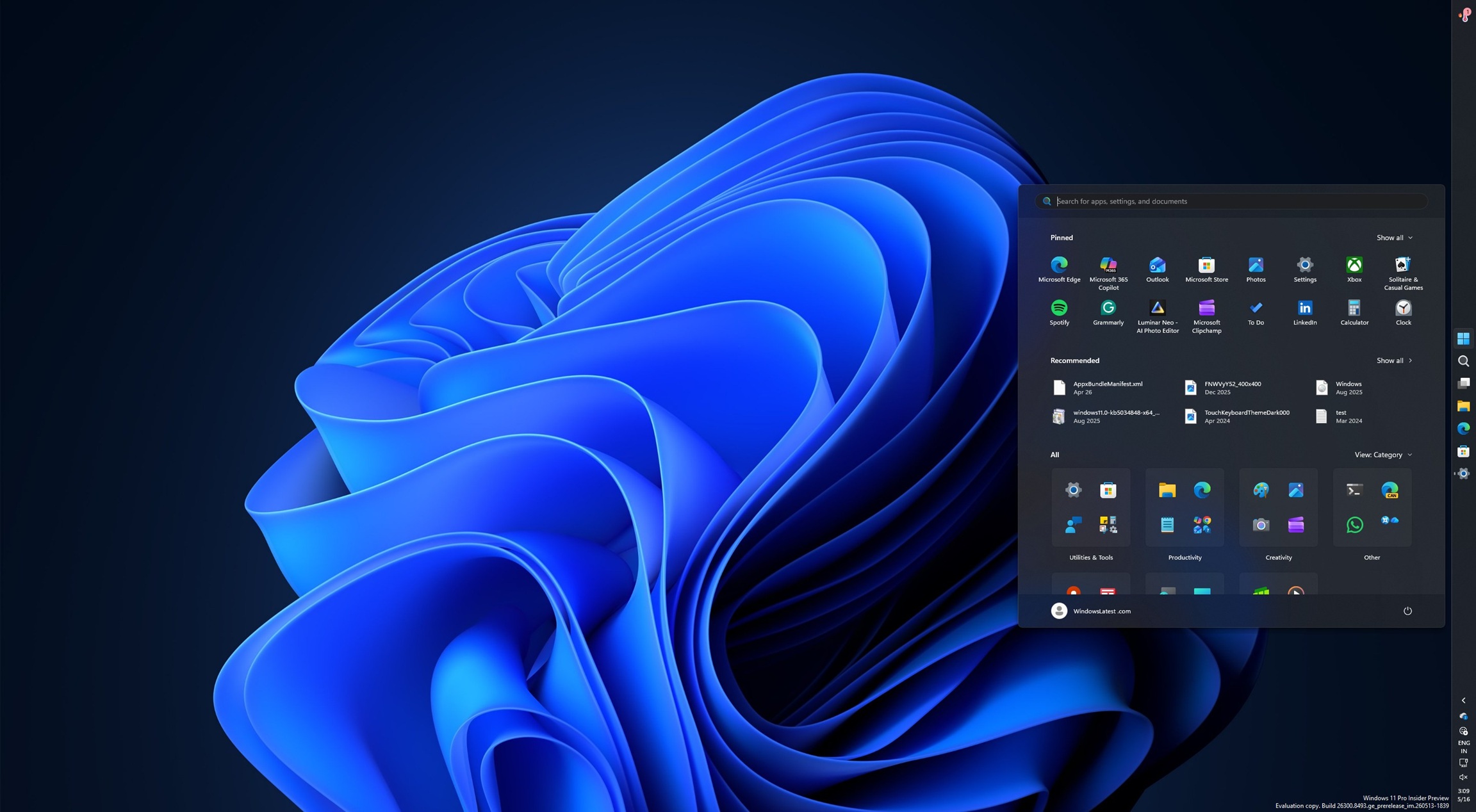
For example, here’s what my Start menu looks like after Windows 11’s update that shipped earlier this year:
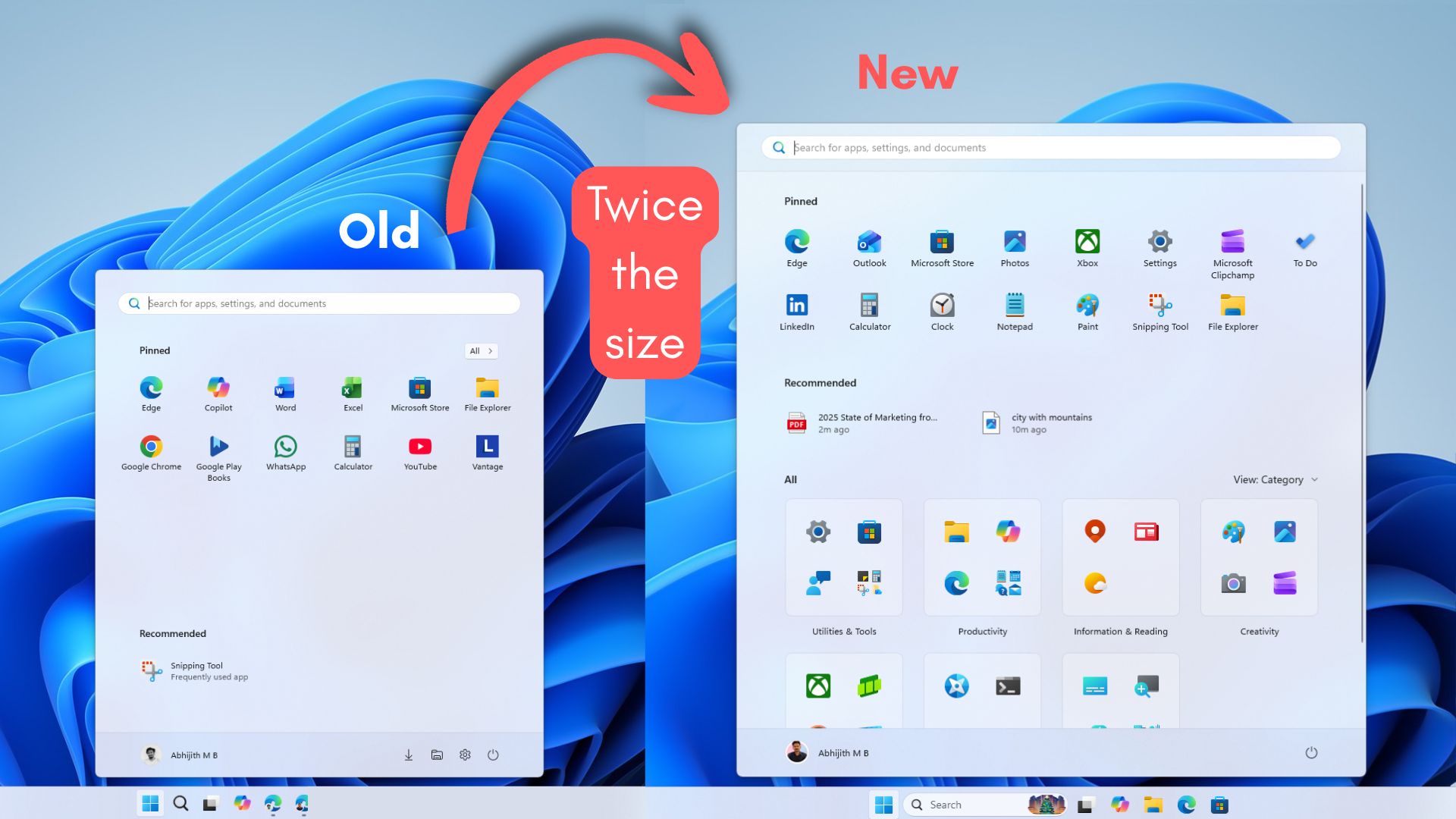
It’s bigger, bulkier, and takes up all my screen space. This is finally getting “fixed.” Sort of.
Windows 11 KB5120998 lets you change the size of the Start menu without playing with scaling settings. If you go to Settings > Personalization > Start, you can now choose the Start menu size. By default, it automatically adapts to the screen resolution, but you can switch between Small and Large.
There are three options available:
- Automatic (Default)
- Small
- Large
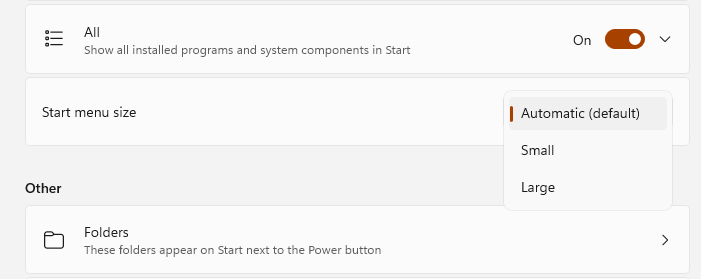
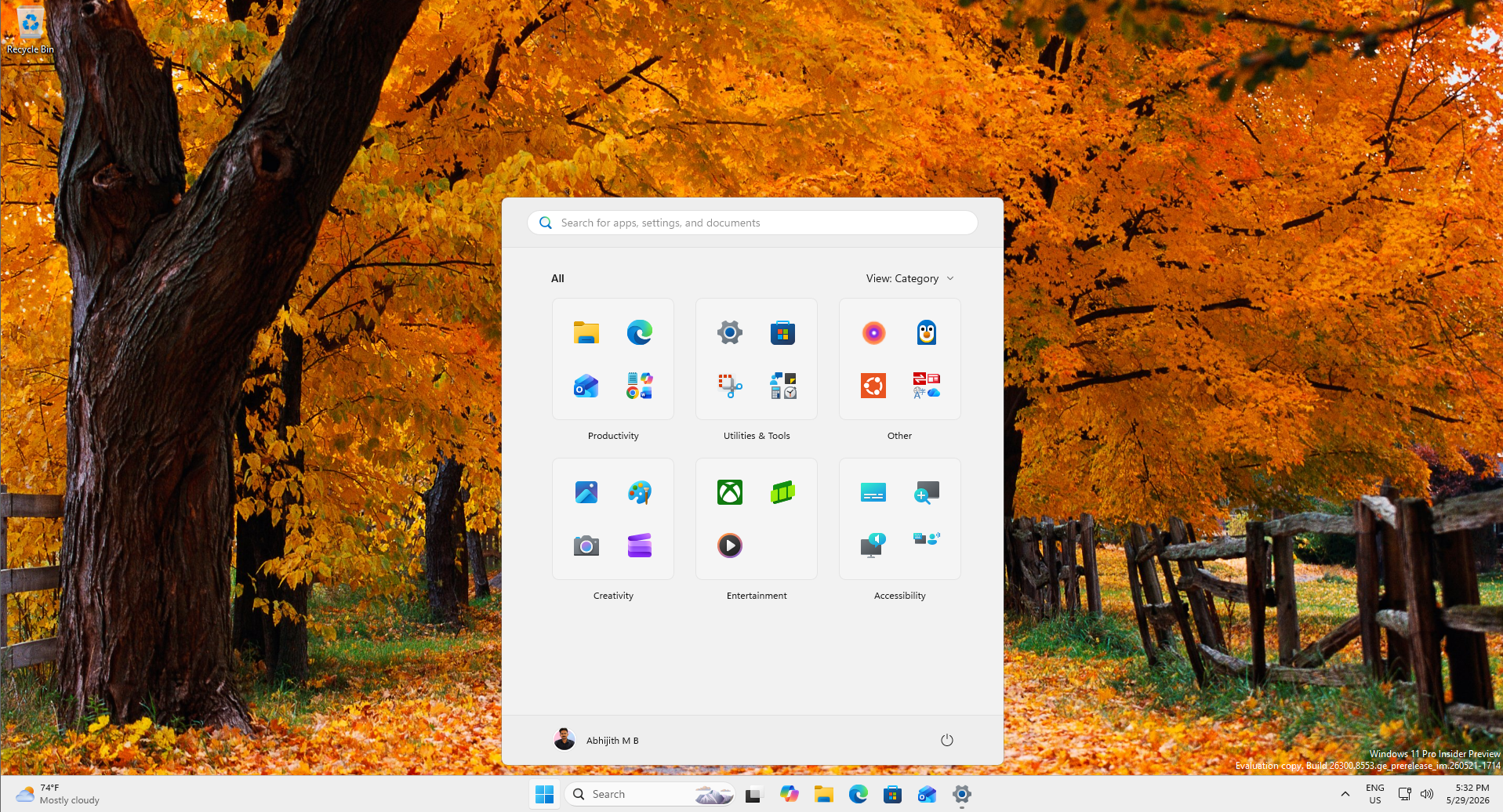
By default, the Start menu is set to automatic size, which means it’ll automatically adapt to the screen resolution/size, and it’s what we have right now. Here’s what it looks like when I switched to “Small” in Windows 11 KB5120998:
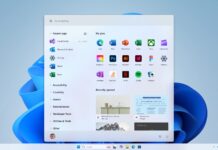
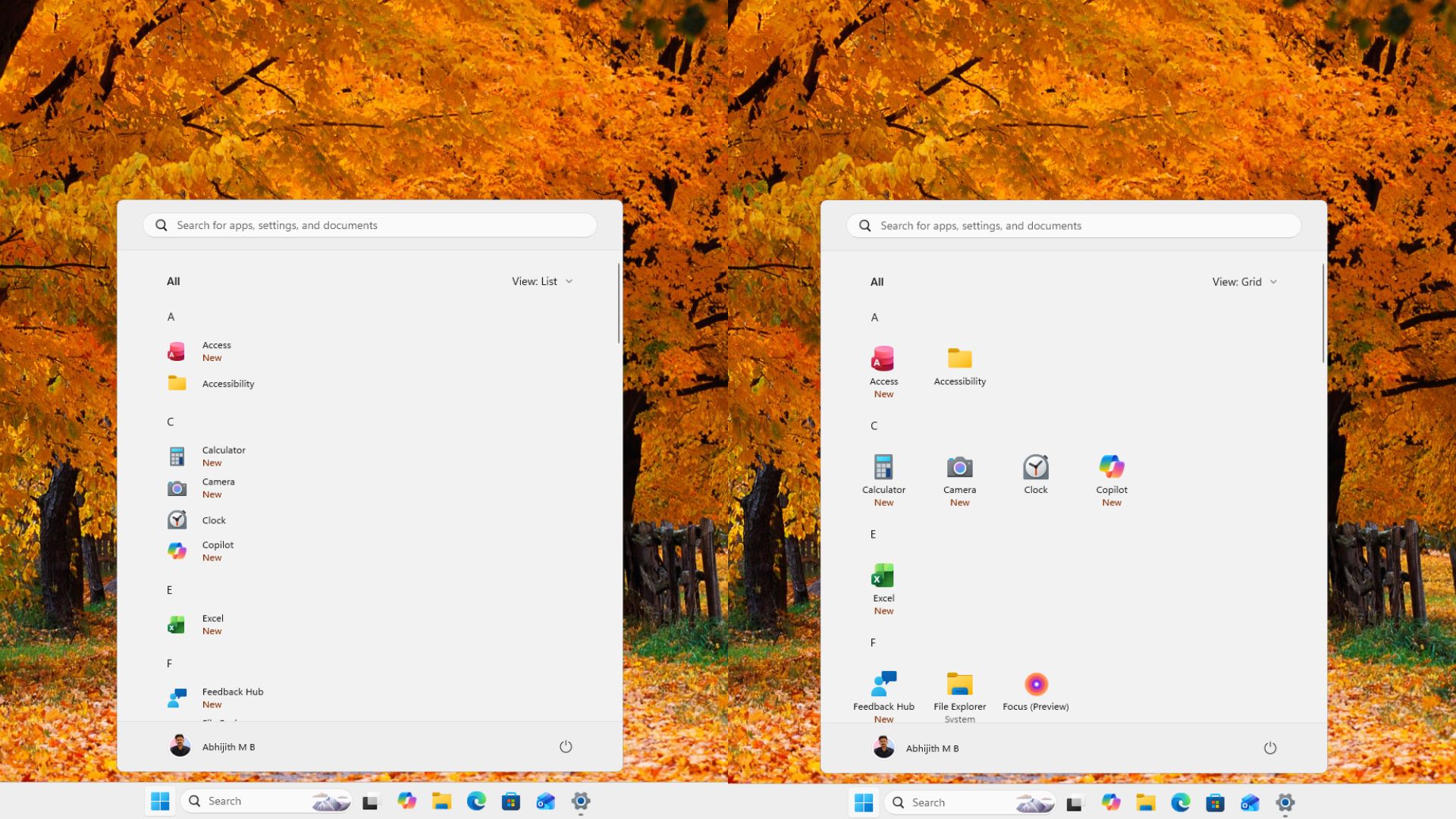
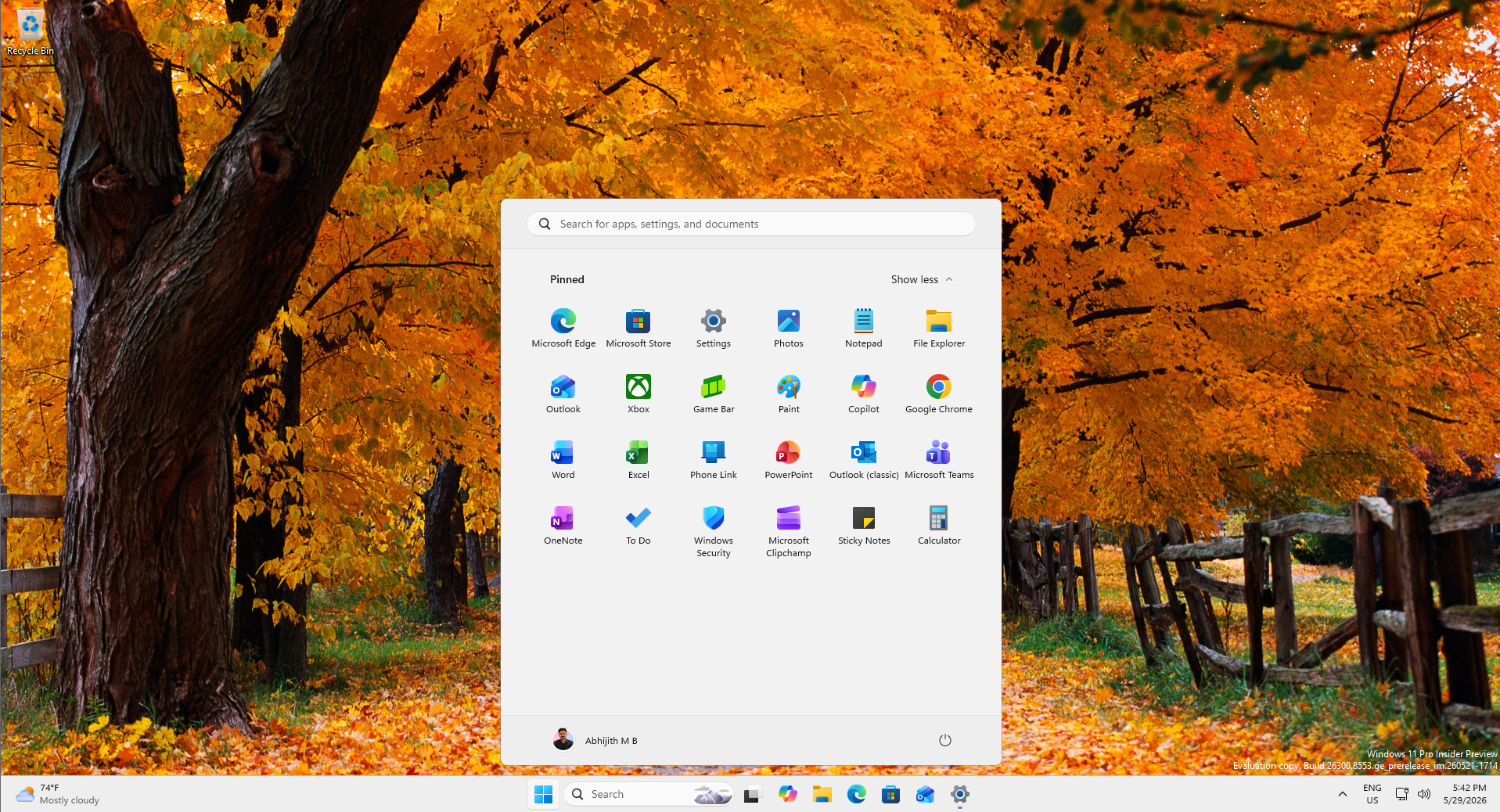
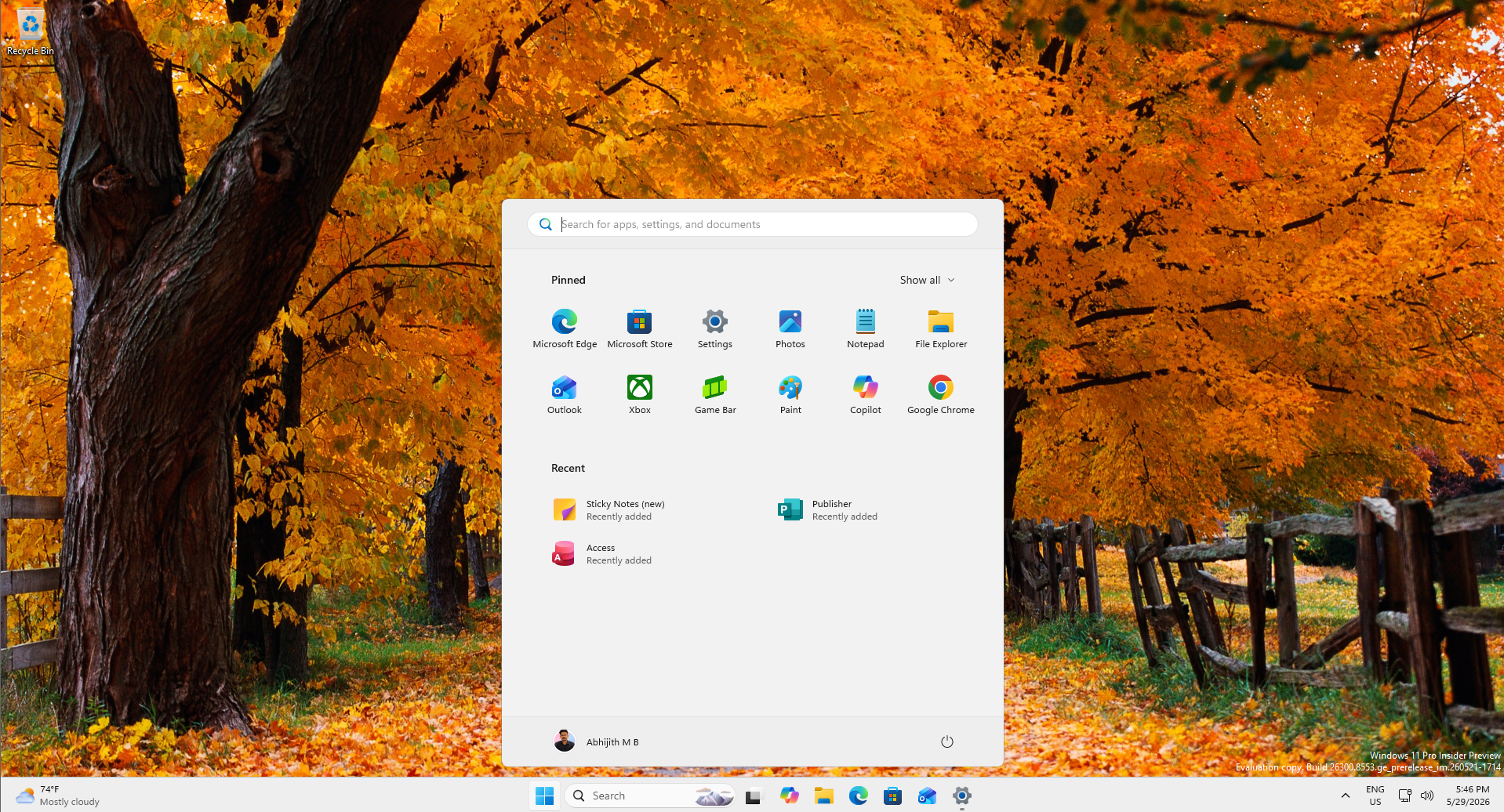
Start menu is also adding more customization options, and you can now remove the Sections you don’t like. That means you can turn off any of the sections: Pinned, Recent (formerly Recommended), and All Apps. Microsoft wants to give you full control over what appears in the Start menu, and I don’t think they could have done a better job than this.
For example, I turned off the Pinned and Recent sections, and I’ve got just the All Apps list in the screenshot below:
 Or you can just have a Start menu with apps that matter to you by retaining the Pinned view:
And of course, if you prefer the “Recent” section, which has always been there, you can turn it back on:
It is worth noting that the ability to turn off the Recommended/Recent feed was added to Windows 11 earlier this year, but when you disabled it, you also broke the Recent integration in File Explorer and the taskbar’s jump list (right-click).
Microsoft is fixing that, as it has decoupled the two settings, and turning off Recent/Recommended in the Start menu no longer affects other areas.
Last but not least, Windows Latest noticed that it’s now possible to disable your name and profile picture in Start, which may not sound like a huge deal unless you frequently share your screen for livestreams and gameplay.
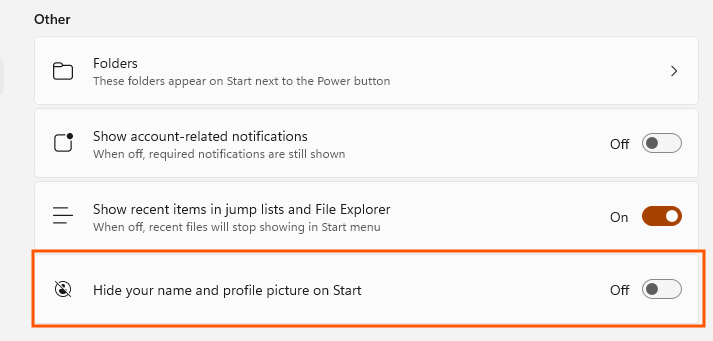
3. Windows Search without Bing and Microsoft Store
This is probably the most exciting change, and the only thing most people were waiting. You can now turn off Bing in Windows Search, and even Microsoft Store results, which means Windows Search will now only show local results. This includes your files, pictures, and, of course, Windows apps.
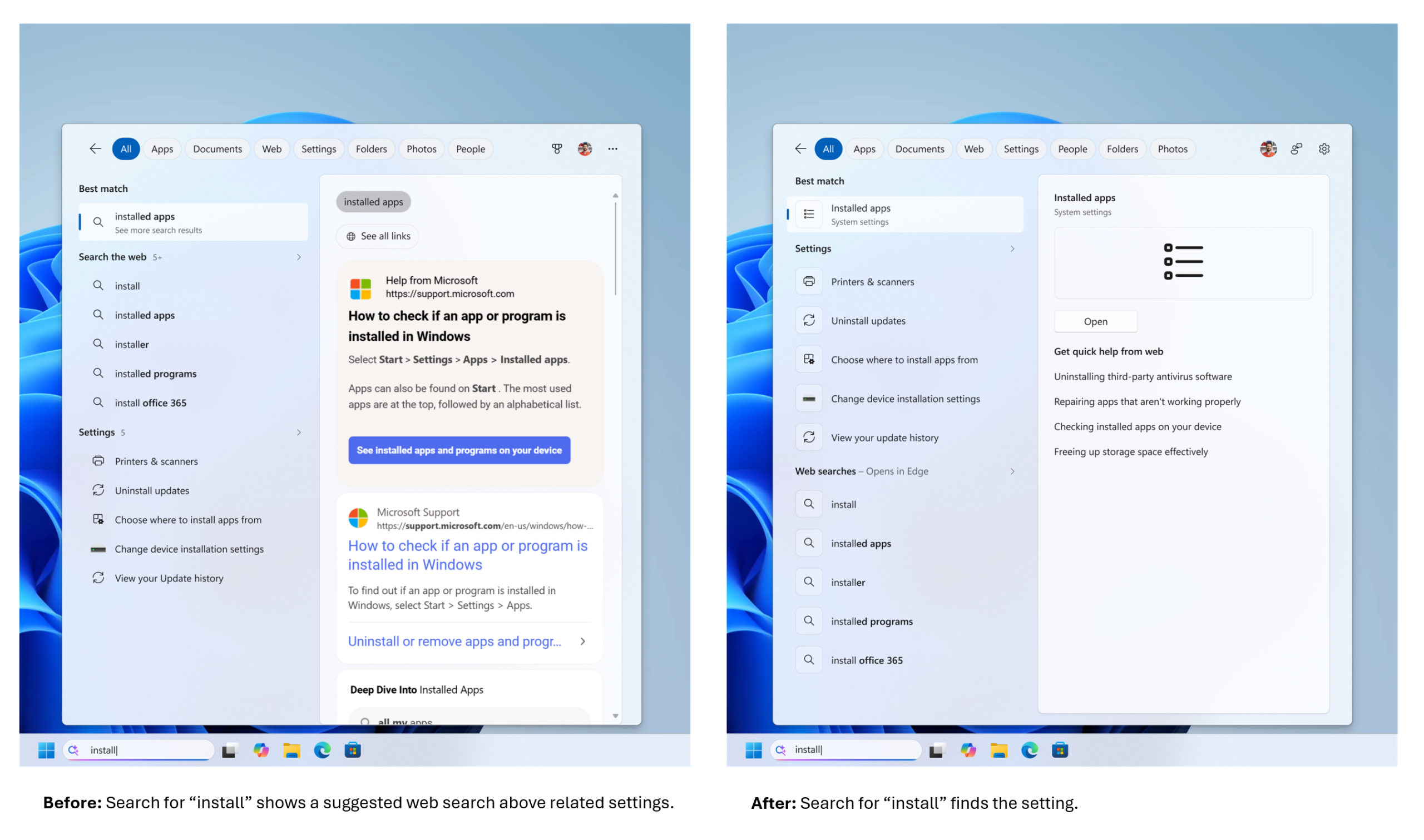
Microsoft also confirmed that it’ll now do a better job of surfacing items that you actually want, so the results will be much easier to scan and clearer.
You can turn off Bing and Microsoft Store results in Settings > Privacy & security > Search.
4. Better performance and dozens of fixes
Windows 11 KB5120998 also comes with several notable bug fixes, but Windows Latest found one noteworthy change, and that is a faster system tray. Microsoft appears to have patched up the system tray area, so all the icons inside the system tray (^) or around will load faster.
Likewise, File Explorer’s Home now launches faster, so if you’ve left “Home” as the default tab, it’ll now load faster. For those unaware, switching to “This PC” already made File Explorer launch faster. Now, those improvements are coming to the Home tab as well.
Last but not least, File Explorer scrolling should feel smoother, and icons or menus will feel more responsive.
All these new features are gradually rolling out, but you can force-enable them by following our guide. Again, you don’t have to force-enable anything, as one day, all new Windows 11 features will show up on your PC, but nobody can tell you when.