







Microsoft says it has finished rolling out the August 2026 update for Outlook, and there are quite a few notable changes. But the highly anticipated “All inboxes” view isn’t live for everyone yet. I’m told it’s still rolling out and is gated behind “Controlled Feature Rollout,” which limits access to reduce potential issues.
Starting with the August 2026 update, you can now delete up to 100 contacts in New Outlook at once. Previously, you could only remove 10 contacts. For comparison, Outlook Classic has no such limitation and allows you to delete as many contacts as you want in a single go. We’re not getting that experience in New Outlook, at least not yet.
Quick Parts now inside the context menu
Microsoft is also letting you access Quick Parts from the context menu when you’re drafting an email. If you’ve never used Quick Parts, it’s one of the most useful features in a corporate setup, where you can insert reusable content. In a way, you’re configuring a template and manually importing it into newer emails, so you don’t have to type it all again.
Quick Parts was added to New Outlook a long time ago, but it was inside the ribbon menu, so you had to move the cursor around, select the reusable piece of content, and insert it. But with the feature now integrated into the right-click menu, you can right-click anywhere in an email and quickly add a Quick Part.
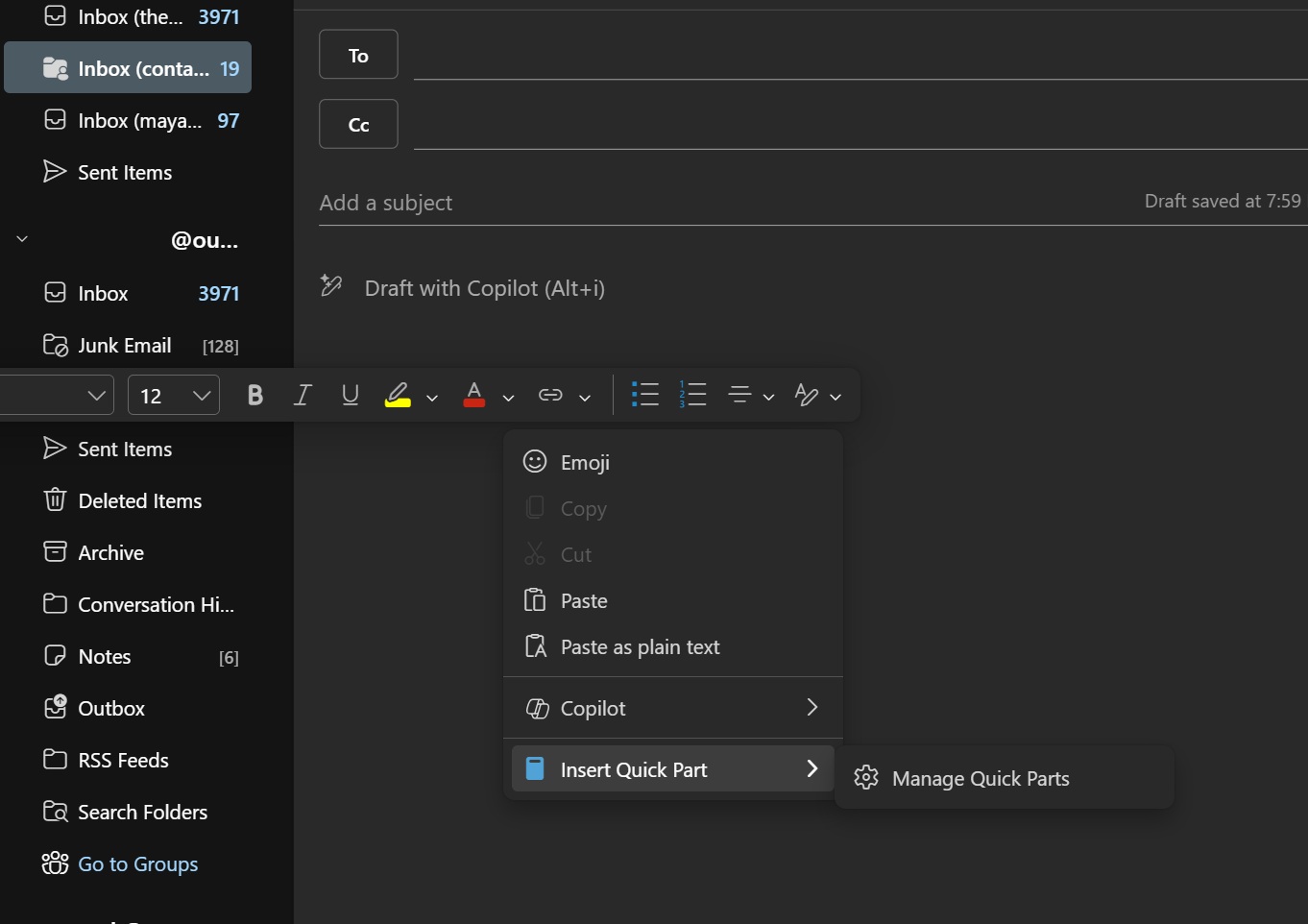
For example, if you’re sharing your office address, you can right-click at the bottom of the email and add the address using Quick Parts. Of course, you first need to save the content as a Quick Part, which can again be done using the right-click menu. You can save a block of text and keep reusing it.
Other improvements for New Outlook include a shortcut for Go to Folder and better offline support
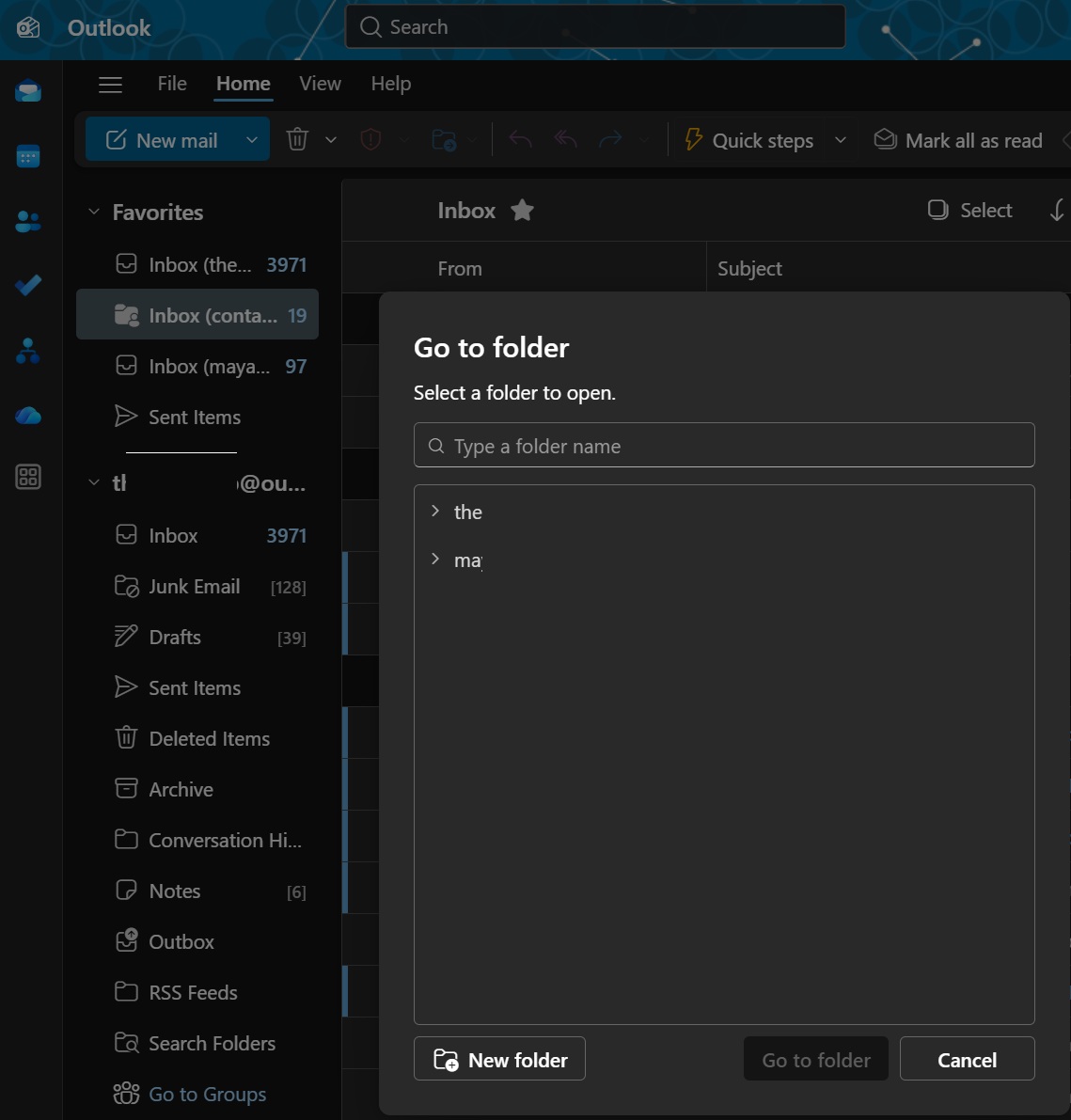
You can now press Ctrl+Y to open the Go to Folder dialog and type the folder you’d like to open, as the focus is automatically placed on the search box. Or you can select one of the email folders, as I’ve shown in the screenshot below:
Microsoft has been trying to make Outlook work better offline after switching it to a web crap/wrapper, and it recently added support for attaching files while offline. Now, you can also view the Focused and Other inbox views in offline mode.
Last but not least, the message list now shows a fourth content column if you apply filters or sort it.
What’s coming to New Outlook
As I noted at the outset, you’ll soon be able to turn on a new All inboxes view, which lets you view multiple Outlook inboxes on a single screen and manage everything from there.
You’ll be able to delete an email, move it to a different folder, mark items as favourites, forward messages, and use the other options you typically have in a normal inbox.
The difference is that instead of a single inbox, you’ll have content from all your mailboxes in one place. This is still being rolled out, so you may not see it yet.
Speaking of gradual rollouts, Microsoft is also rolling out the ability to transfer ownership of a meeting or recurring meeting series to another person in your organization.
The new organizer needs to accept the transfer before it’s completed, and the feature works with Outlook for Windows, Outlook on the web, and Teams calendar. This should be useful for long-running meetings when the original organizer no longer needs to manage them.
Microsoft is also expanding the Offline settings in New Outlook.
You can now set the “Days of email to save” option, so if you choose to save the last 30 days of email, you won’t be able to view anything older than that without an internet connection. This feature is available under Settings > General > Offline:
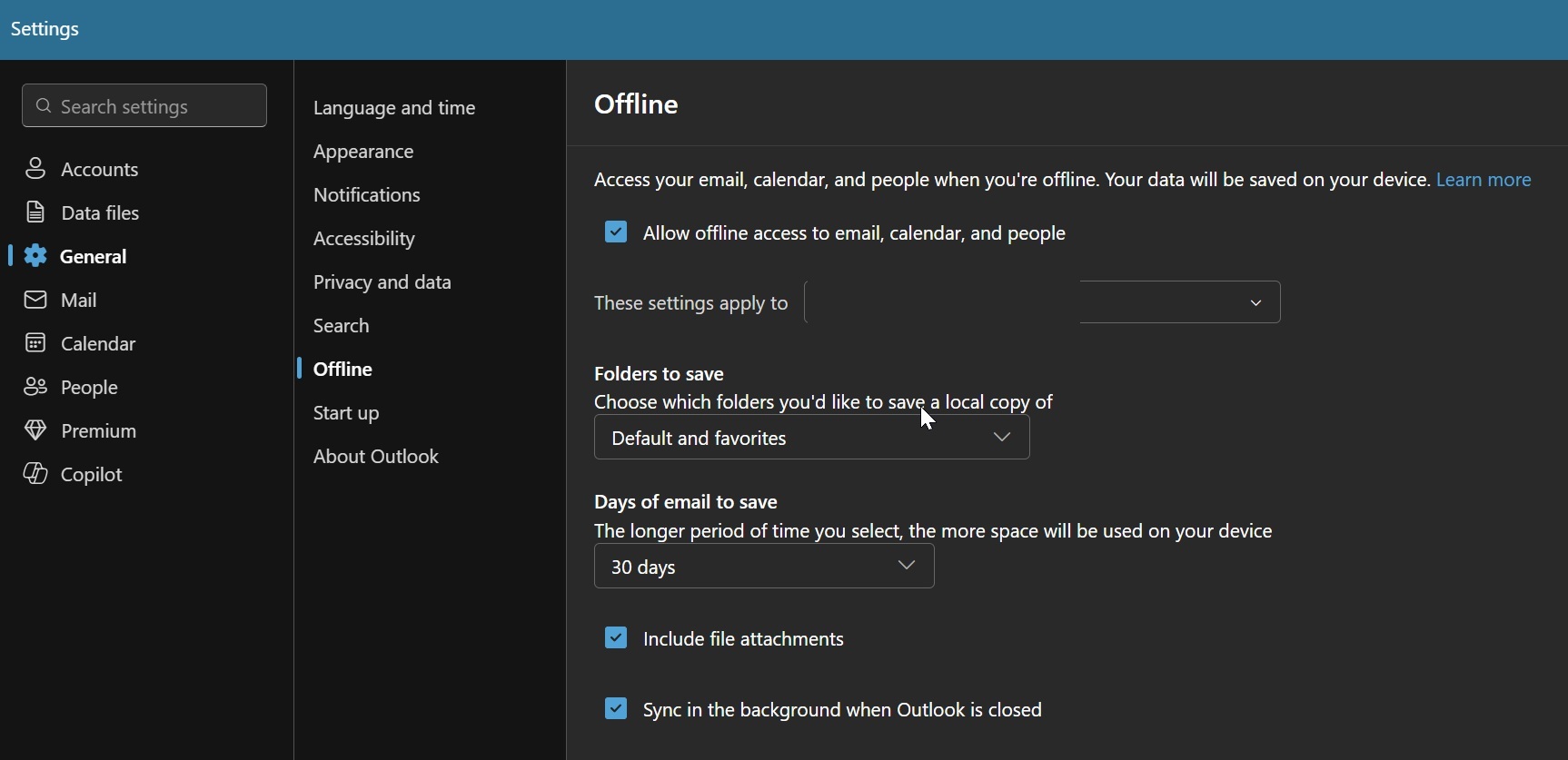
By default, Outlook saves your emails and attachments for up to 30 days, but you can increase that to 180 days or reduce it to 7 days. There’s also a middle ground of 60 days.
Tenant admins will also be able to define the default value for “Days of email to save” and decide whether users are allowed to change it.
Another upcoming improvement will let you manage multiple inbox rules at the same time. You’ll be able to select all rules or just the ones you want, and then delete, enable, or disable them in one action instead of managing each rule individually.