






Windows 10 never needed a menu to move the taskbar, because you could unlock the taskbar and drag it to any edge with the mouse or touchpad. Even easier if you had a touchscreen. But when Windows 11 launched, out of all the frustrations it had, the biggest one was the removal of a movable taskbar.
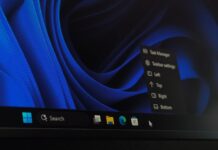
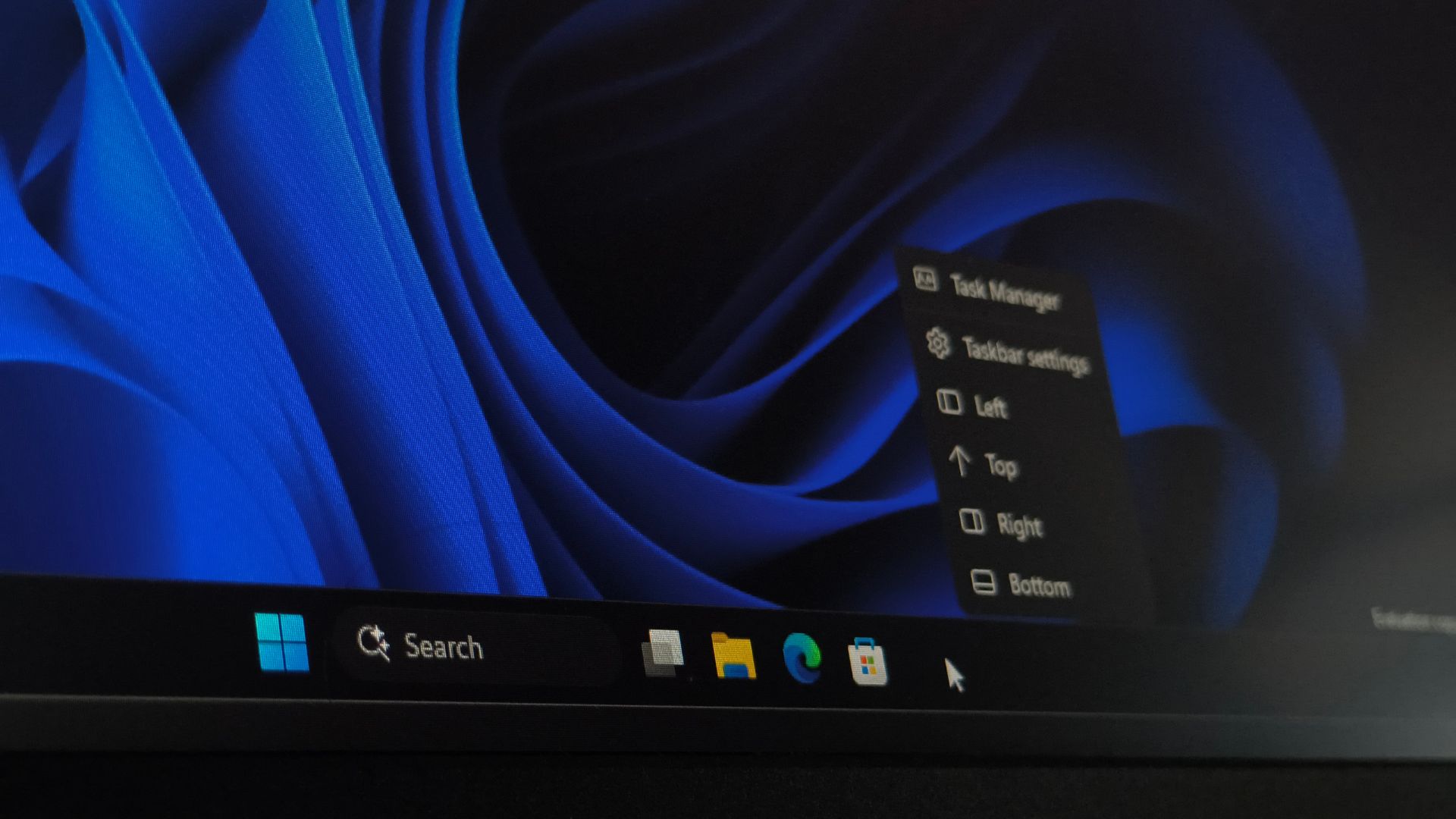
Fortunately, we have it now. But if you hate how you have to go to Settings every time to move it, you’ll be mildly pleased to know that Microsoft is testing a new right-click menu in the taskbar in Windows 11 Insider Preview Build 26340.9750, with dedicated buttons to move it to the left, top, right, or bottom of the screen without opening Settings.
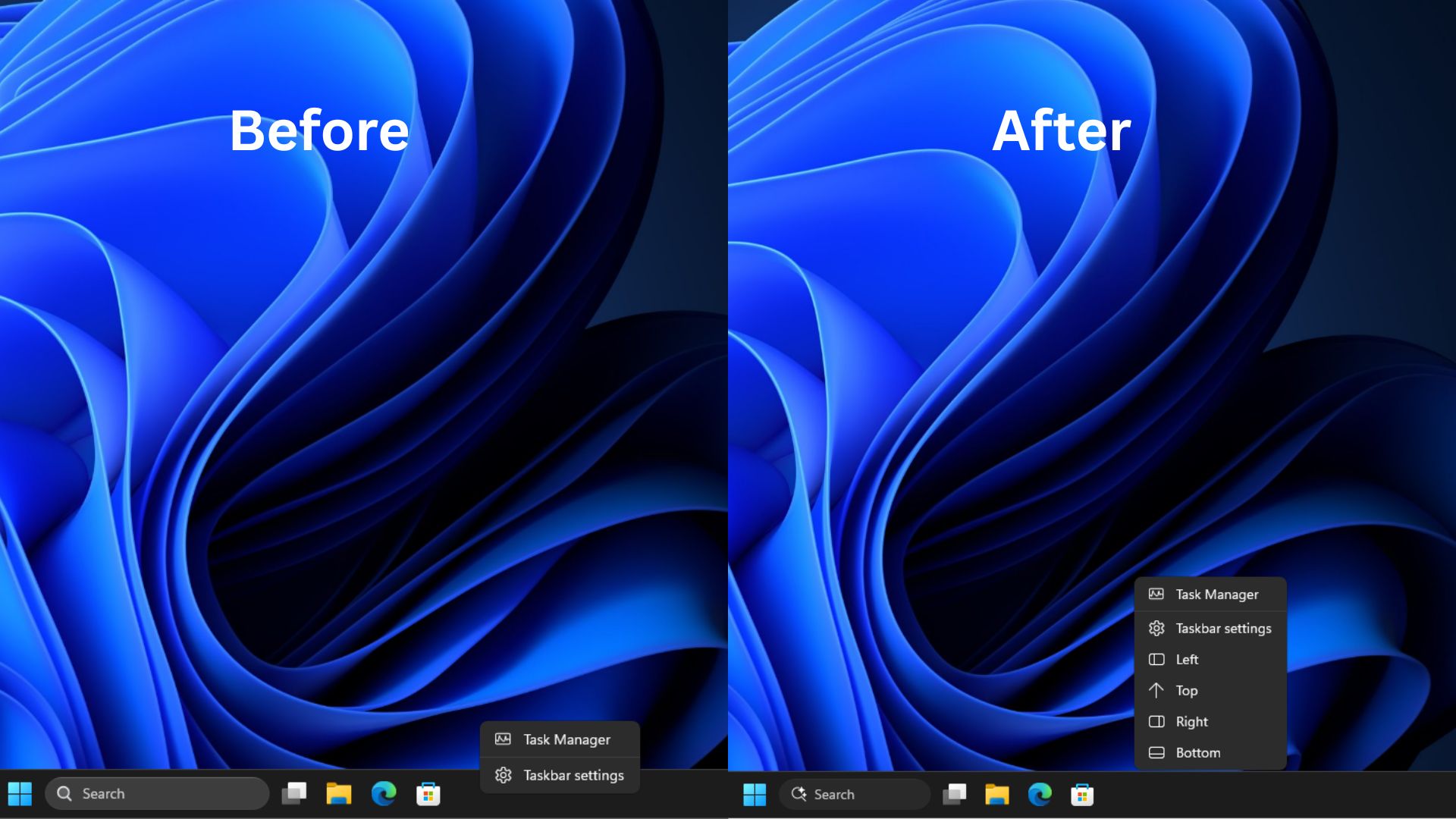
Windows Latest enabled the hidden menu manually and tested it. It works, and it’s quick, but is it a real fix?
Windows 11’s hidden right-click menu moves the taskbar without opening Settings
The new menu shows Task Manager and Taskbar settings, followed by four buttons: Left, Top, Right, and Bottom. Build 26340.9750 rolled out to the Experimental channel last week, but the menu is hidden, and it doesn’t show up in Feature flags (the list of features Insiders can turn on themselves). Microsoft hasn’t announced it either, so there’s no word on when, or if, it ships.
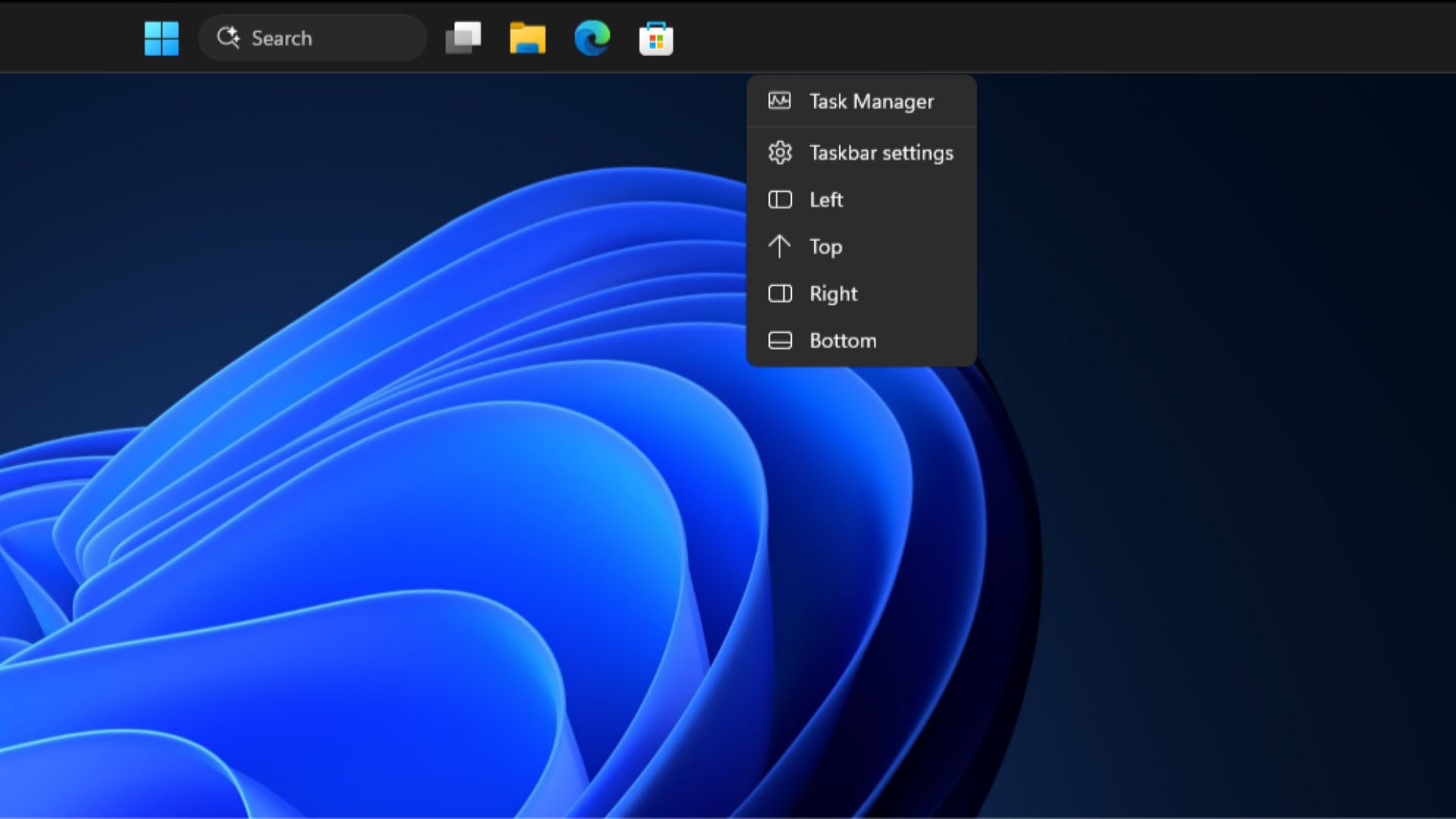
I tested it on my underpowered virtual machine, and switching positions was fairly quick every time. There were no jitters, and the minor lag you see in the testing video is just my VM being slow.
I then opened an app and moved the taskbar around it to check for scaling issues, and found none. It was again as quick as expected, except for the movement from Bottom to Left, which I hope is due to the VM.
My curiosity got the best of me, so I also tried each button with the Start menu open, and it handled that fine. But not well, because if you look closer at the last position, Start menu appears to have some scaling issue.
The one thing I couldn’t test was the new Windows Search, because right-clicking the taskbar closes the Search UI.
Now, for the funny bit: we’ve seen this menu before. On April 1, Windows Latest published a video that a Microsoft engineer posted (and later deleted) of the movable taskbar running on an internal build, and this same menu was right there, arrow icon and all. You can check the date here, and it’s March 31.
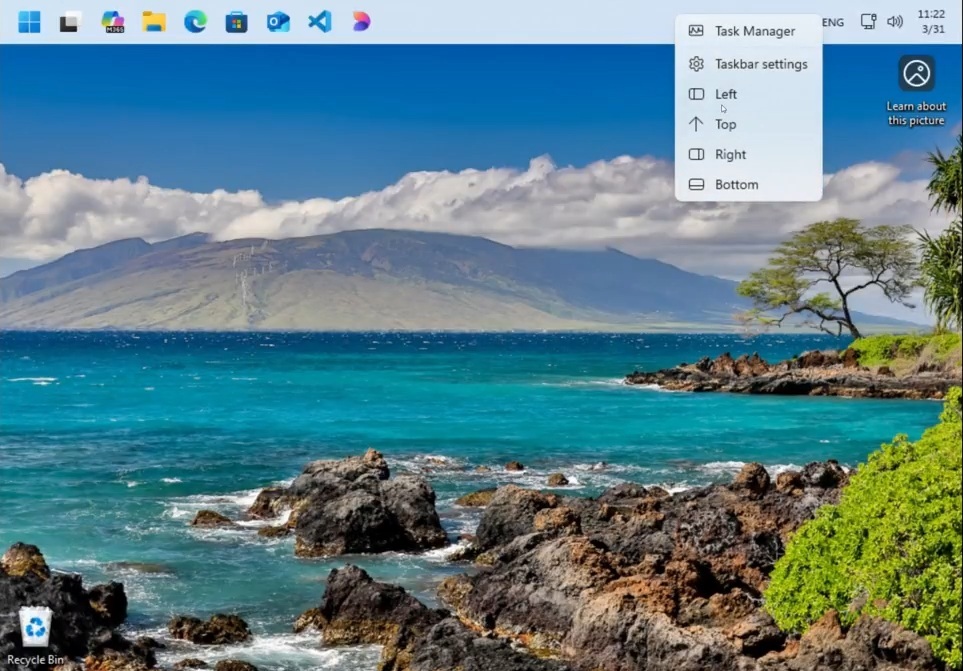
At the time, we were told the menu was only used internally to debug the movable taskbar, and that you’d have to move it from Windows Settings.
It turned out to be true when we got hands-on for the first time with the movable taskbar on Insider builds, and later when it reached regular PCs as well.
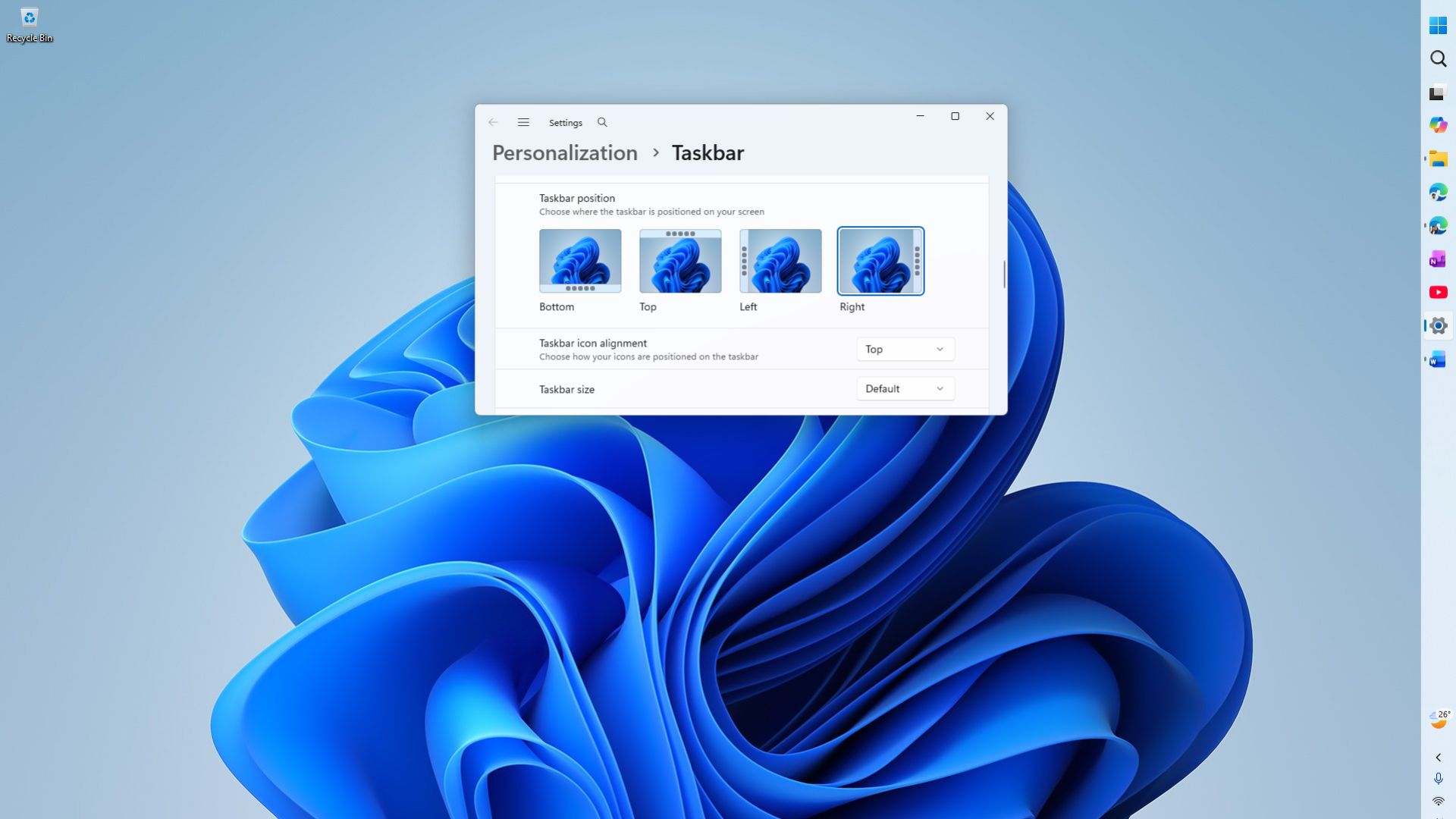
However, six months later, the debug menu has made it into a public Insider build. Microsoft could simply be testing it more widely, or it could be leftover code, but I’d love it if the menu made it to everyone.
Windows 10 let you drag the taskbar, but Windows 11 still makes you open Settings
Windows 11 lost the ability to move the taskbar at launch in 2021. Microsoft brought it back to Experimental channel Insiders on May 15, and regular Windows 11 24H2 and 25H2 PCs started getting it with the September 2026 update as a gradual rollout. Now, you have to go to Settings > Personalization > Taskbar > Taskbar behaviors and pick a position.
When I used Windows 10, I never needed the menu. While reading or writing articles, I dragged the taskbar to the side for more vertical room, and for PowerPoint or regular apps, I dragged it to the top or bottom, depending on my mood. It took a second, maybe less.
Windows 11 brought the positions back after five years, but not the dragging bit, which was disappointing to say the least. Microsoft’s May announcement says it is “evaluating additional features like different taskbar positions per monitor and drag and drop,” so at least it isn’t off the table.
Funnily enough, Microsoft once said moving the taskbar was too much work. In an AMA a few months after Windows 11 launched, then product manager Tali Roth said, “When you think about having the taskbar on the right or the left, all of a sudden the reflow and the work that all of the apps have to do to be able to have a wonderful experience in those environments is just huge,” as we explained in December.
So, what changed? I can’t help but wonder if AI sped things up, since Microsoft’s design boss Diego Baca recently said designers are using AI to contribute code fixes. Of course, Microsoft hasn’t mentioned the use of AI to work on the taskbar, so it’s purely my guess, but probably a good one.
Auto-hide still doesn’t work when the taskbar is at the top or sides
Annoyingly, if you move the taskbar anywhere other than the bottom, the “Automatically hide the taskbar” toggle is greyed out with a note that says, “This setting is only available when the taskbar is at the bottom.” Microsoft warned about it back in May, saying “Auto-hide and tablet-optimized taskbar are not yet supported in alternate positions,” and even after five months, it hasn’t changed.
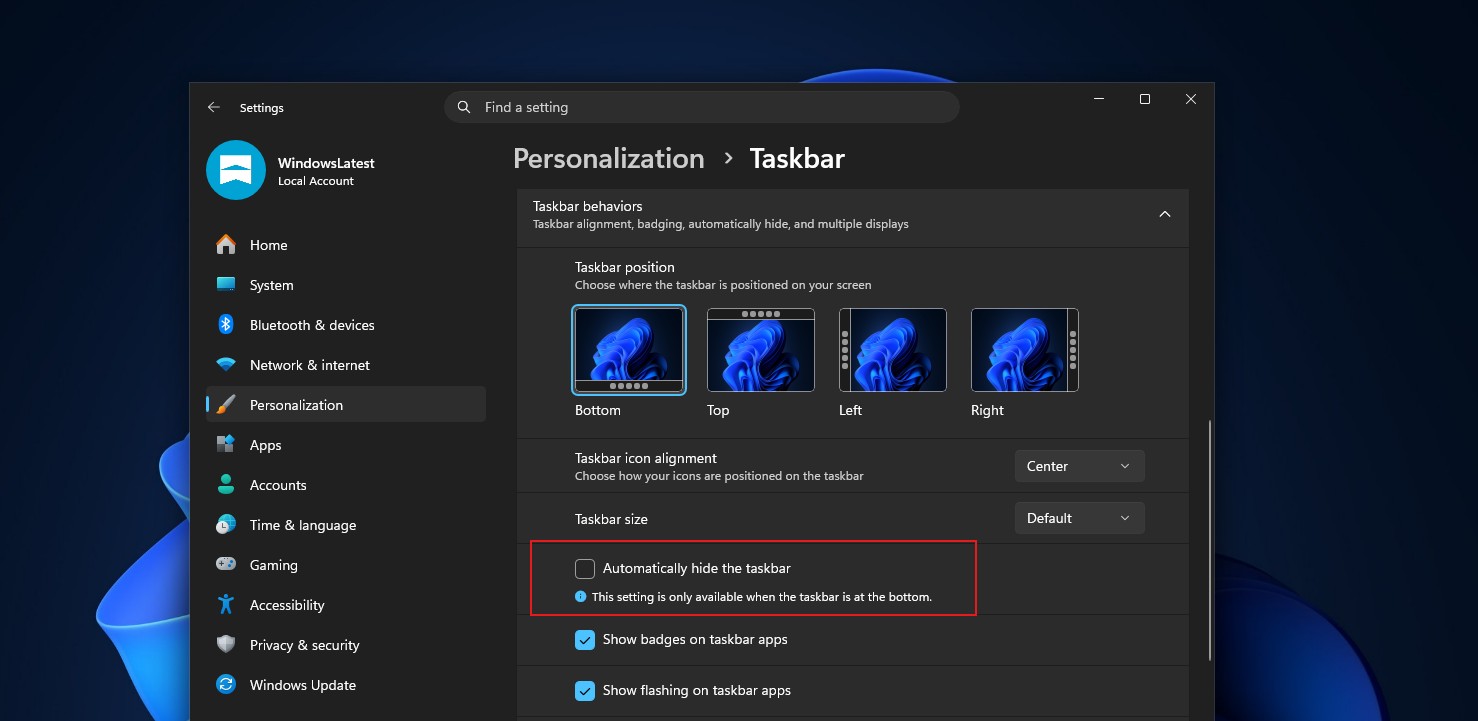
To be honest, I was expecting this to arrive before the ability to move the taskbar without opening settings.
For a vertical taskbar, auto-hide is half the point, as it keeps the screen clean until you need it. Mikhail Parakhin, Microsoft’s former head of Windows, once called a vertical taskbar with auto-hide one of the best productivity setups. Unsurprisingly, he called the new taskbar “not usable yet,” since auto-hide doesn’t work and he can’t adjust its size either.
Coming back to the new buttons to move the taskbar, I have a gripe with it. The menu has Left, Right, and Bottom; each gets an icon showing a panel on that edge, but Top gets a plain up arrow. The same inconsistency was there in the March internal build as well, so I hope Microsoft fixes it before the menu officially reaches Insiders.
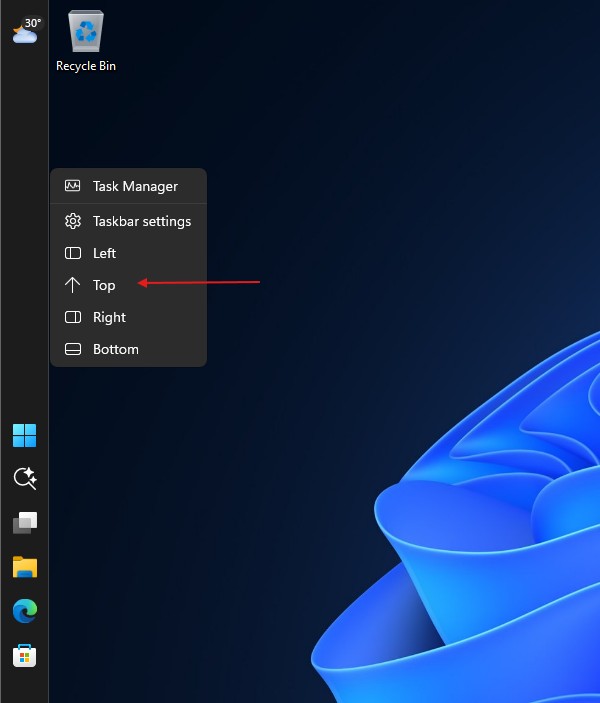
Of course, this right-click menu is the quickest way to move the Windows 11 taskbar, and it worked well in my testing. But if Windows can switch taskbar positions with buttons, adding drag and drop shouldn’t be that difficult. Would you use the right-click menu, or are you holding out for drag and drop?