







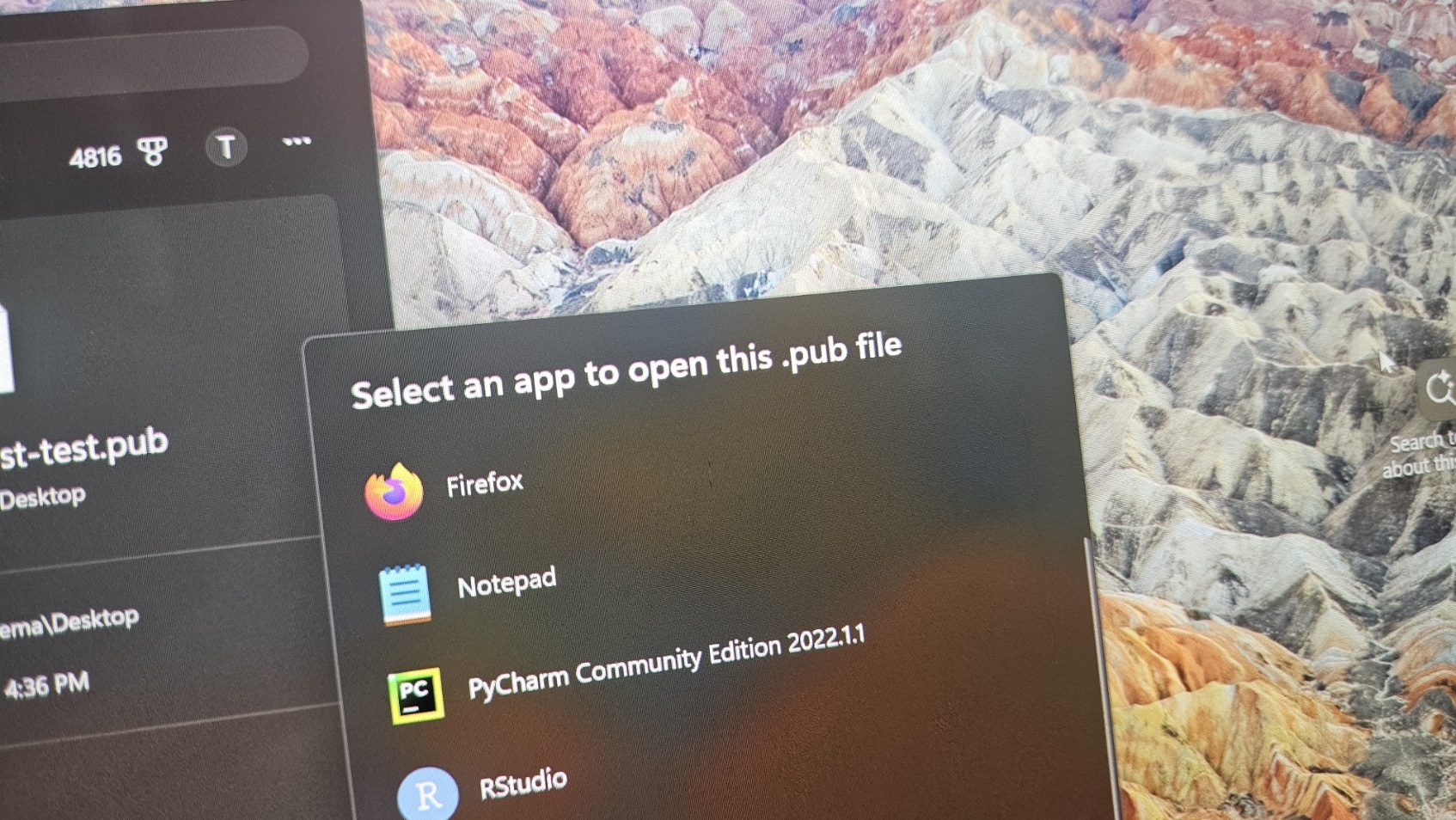
Microsoft Publisher has been retired, and it has already stopped working on some PCs, but some of you might still be able to access the Office app. If you’re on a Microsoft 365 subscription, it was supposed to start disappearing on October 1. The perpetual versions (Office 2021 and LTSC 2021) lose support on October 13.
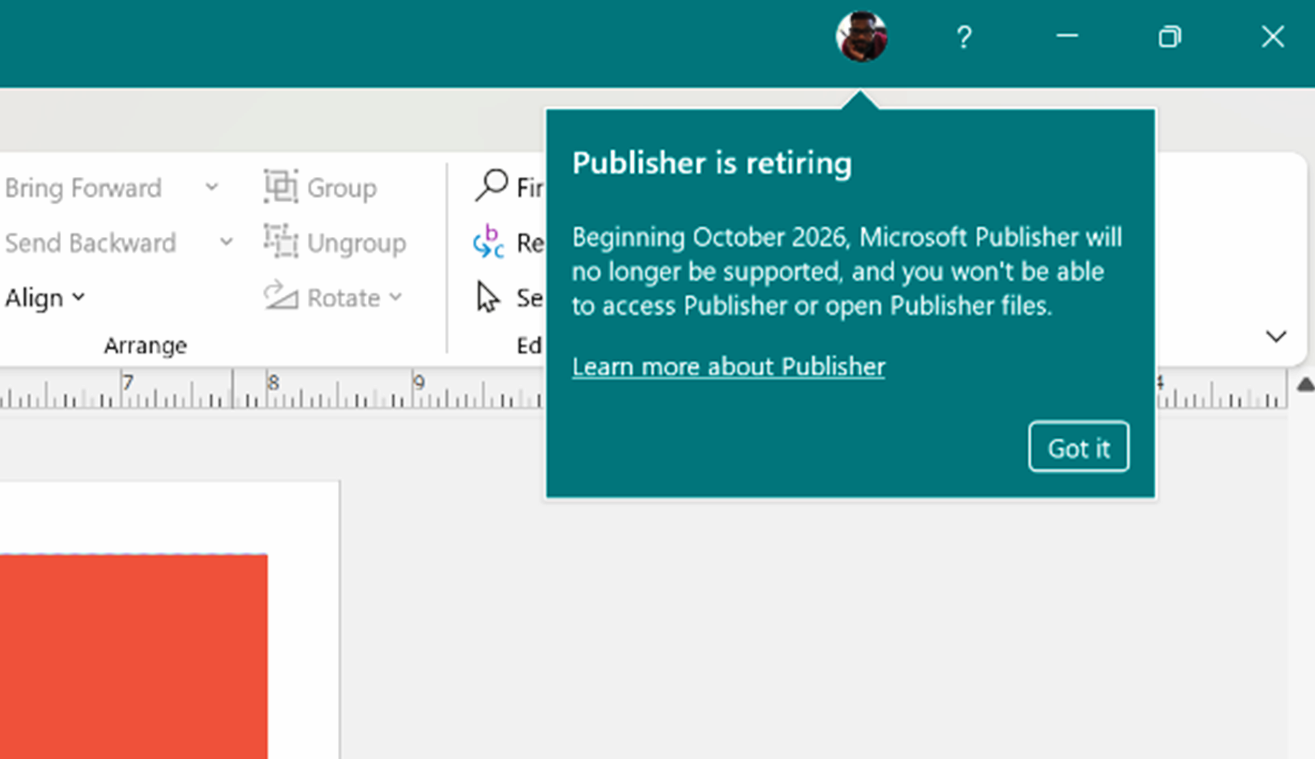
Microsoft is not killing Publisher out of the blue. We’ve known about Publisher’s end of support for years now, which, according to Microsoft, has been more than enough to inform everyone who cares about Publisher. However, many small offices, church admins, and school secretaries are only now finding out.
Publisher was never the app most people talked about, but quite a lot of us previously used it to create .pub files for our designs, and it just sat there quietly. It was best used to create a quick newsletter or bake sale flyers for twenty years, and now some users are suddenly finding out that they can no longer access their .pub files.
What to do with your .pub files if Microsoft Publisher already stopped working?
If you still see “Microsoft Publisher” when you search in the Windows Start menu, make sure you start backing up all your .pub files. Just open File Explorer and search for .pub on your PC, OneDrive, and SharePoint. Save the .pub files locally and open them using Microsoft Publisher.
Once you’ve found the files, open them using Publisher, click on ‘File,’ and use Save As. Finally, choose .PDF as your preferred file format. Unlike Word and other file formats, .PDF is usually best at preserving the content styling, which is why it’s being recommended as an alternative to .pub by Microsoft.
But can you edit your .pub files now?
Sadly, editing a .pub is the harder bit. Microsoft’s route is PDF first, then open the PDF in Word and let Word convert it. Microsoft admits that the straightforward process may shift a bit when Publisher files contain overlapping and graphically intensive content.
Now, if you have a bunch of files, you can automate the conversion process. Before you walk out for the day, it should be noted that you can use PowerShell scripts, which should help with bulk exports.
How to convert multiple Publisher files to PDF using PowerShell
I’ve personally converted hundreds of .PUB files without even opening Microsoft Publisher, so I can recommend these steps:
- First, download Microsoft’s PowerShell script and save it to your Downloads folder. Make sure the file is called Convert-PubFileToPDF.ps1.
- Open your Downloads folder in File Explorer, type powershell in the address bar, and press Enter. This opens PowerShell in that folder.
- Now, let’s say you have all your Publisher files in a folder called C:\Documents\.
- Copy and paste the following command into PowerShell:
.\Convert-PubFileToPDF.ps1 -Filter "C:\Documents\*.pub"This will convert all the .pub files in that folder to PDF. If you also have Publisher files inside subfolders, you can use the following command instead:
.\Convert-PubFileToPDF.ps1 -Filter "C:\Documents\*.pub" -RecurseIn the above example, we’re using the -Recurse option to tell PowerShell to look inside subfolders as well. And if you’ve got files in other locations, you just need to replace C:\Documents\ with the actual location of your Publisher files.
If you only want to convert a single file, you can also use:
.\Convert-PubFileToPDF.ps1 -Filter "C:\Documents\MyFile.pub"Before undergoing a bulk export, remember that if a PDF has an identical name to a preexisting one, the system will skip the file. Make sure to rename or clear out old files before you run it on a whole folder.
For anyone on a perpetual license, you can sigh in relief. Per Microsoft’s own FAQ on the matter, you can still install and use it after support ends. The catch is that you won’t get fixes or updates. For a lot of people, that’s all they really need.
Microsoft Publisher alternatives are MS Word and PowerPoint
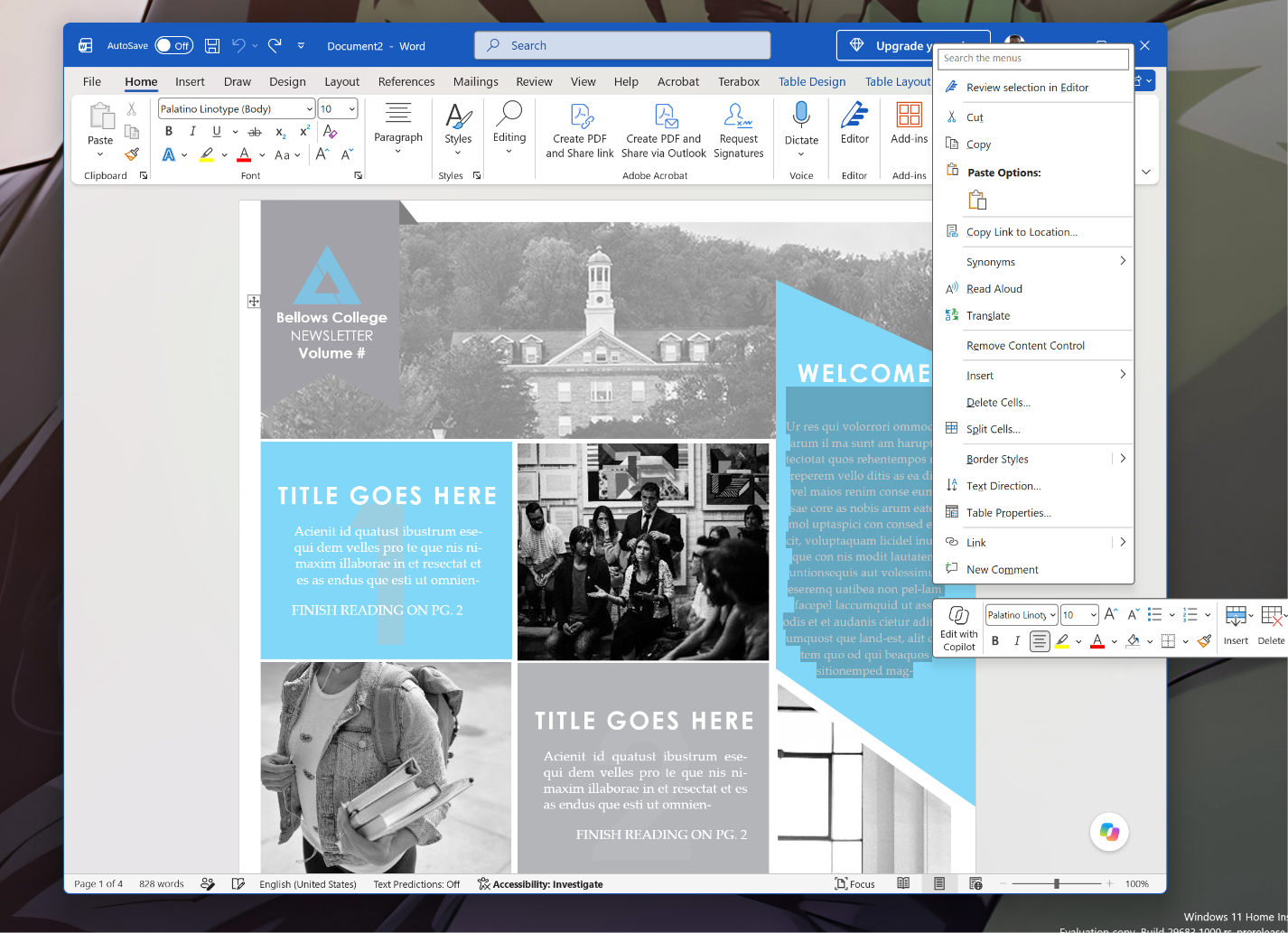
Microsoft doesn’t have a “single” app that directly replaces Microsoft Publisher. Instead, it recommends using both Word and PowerPoint. For most uses, Microsoft says MS Word is more than enough.
For example, if you want to make ads, flyers, brochures, certificates, business cards, calendars, and greeting or compliment cards, you can use either Word or PowerPoint. But if you want to create banners, posters, or signs, Microsoft recommends PowerPoint as a viable alternative.
Microsoft Word wins for text-based edits, so if you want to create an invoice or an application, you should use Word. Other use cases for MS Word include forms, envelopes, labels, letterheads, newsletters, programs, and folded paper projects. Most of these tasks were previously taken care of using Publisher.
Also, this advice is only for creating these items from scratch. Once you convert a .pub file to .pdf, you can no longer edit it as a Publisher file. And when Microsoft 365’s Publisher access disappears, you can no longer even open .pub files unless you convert them to .PDF using the PowerShell script I shared above.
You can also use third-party apps like Canva, Affinity Publisher, or Scribus. But you might still miss Publisher for various reasons. For example, Canva is a lightweight app, and it’s fine for a bake sale flyer, but less fine for a 12-page calendar with a complex design.
I personally prefer Affinity because it can open PDFs made from Publisher, and it lets you work on them as if they were natively made. You should check your fonts first, since missing ones are usually what breaks things, and you’ll need to edit the missing elements manually, as I’ve been doing:
Some people remain hesitant about jumping to Affinity now that it’s tied to Canva, worried that its storied one-time price will eventually morph into a subscription model, as everything does.
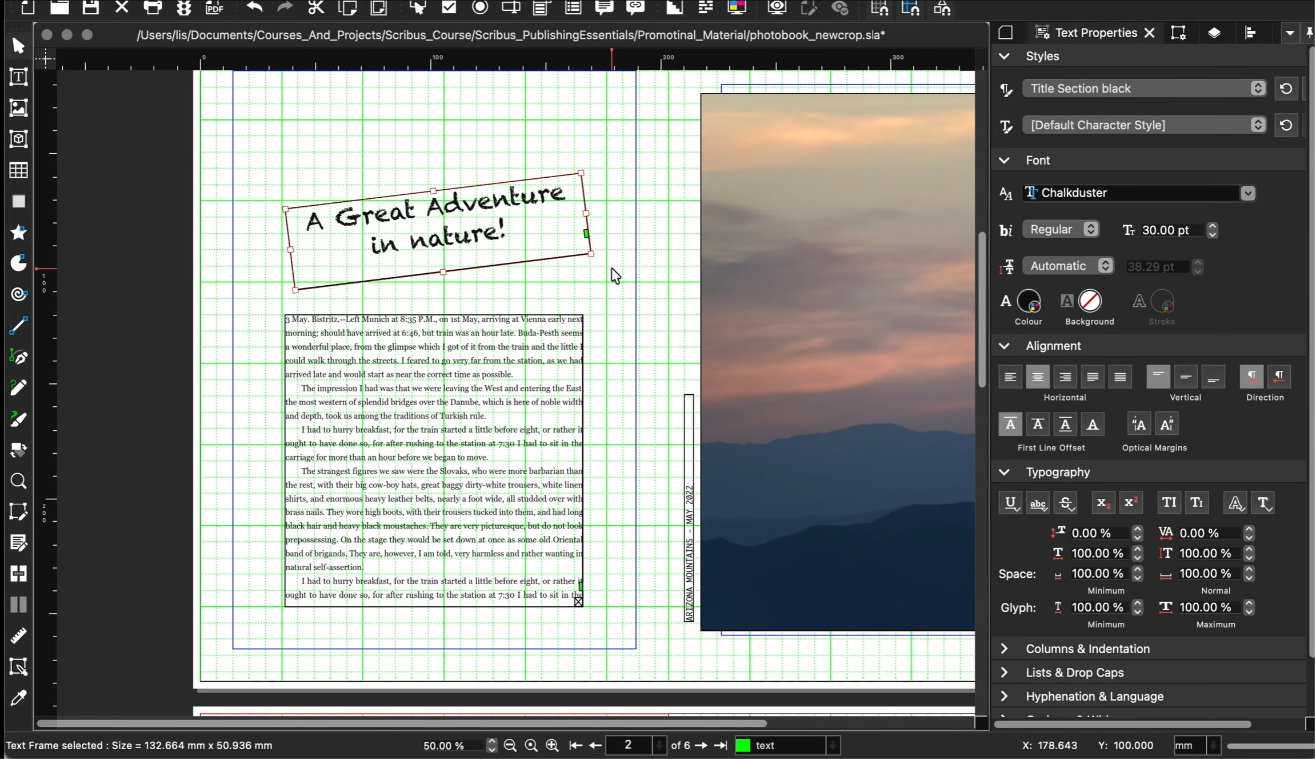
Your other option is Scribus, which is actually free and open source, and it also converts and imports .pub files directly. This is especially useful because you don’t need Publisher installed to move content over. It does take some time to get used to the UI and workflows, but the overall payoff may be worth it for you, though.