




Microsoft is rolling out the October 2026 Patch Tuesday update for Windows 11, and it’s the last one Windows 11 24H2 Home and Pro will ever get. We’ve been testing these changes since the optional release, and I can tell you there’s no headline feature, but File Explorer can finally preview your downloaded PDFs again, the Copilot key can be remapped, and Bluetooth gets a long list of fixes.
The update is KB5127648, and it moves Windows 11 26H2 to 26300.9711, 25H2 to Build 26200.9711 and 24H2 to 26100.9711. It’s a mandatory security update that includes every change from the September 22 optional update, KB5124010.
Like every recent release, the October update arrives in two phases. Features in the gradual rollout reach PCs over time, so you might only see a new build number after installing it. Fixes in the normal rollout go to all eligible PCs as soon as you install the update.
What’s new in the Windows 11 October 2026 Patch Tuesday update
- File Explorer previews downloaded PDFs again and adds a “Preview anyway” button for HTML files
- Copilot key can be remapped to Right Ctrl or the Context Menu key
- Open apps maximized, a new accessibility setting
- Bluetooth fixes for audio, microphones, LE Audio and the Settings page
- Emoji 17.0, including distorted face, fight cloud and hairy creature
- Touchpad single-finger scrolling and automatic scrolling
- Tips widget for the Widgets board and lock screen
- Camera roll backup to OneDrive from Settings
- Magnifier toolbar refresh
- Desktop background fixes and DIB image support
- PC-to-PC Migration is removed
- File History and domain trust bugs are fixed
Windows 11 24H2 Home and Pro reach end of updates with the October 2026 update
Windows 11 24H2 Home and Pro reach end of updates on October 13, 2026, so this Patch Tuesday release is the last security update they’ll get. After today, those PCs won’t receive security fixes, fixes for known issues, time zone updates or technical support. Enterprise and Education editions of 24H2 will be supported until October 12, 2027, though.
Microsoft had already warned that KB5124010 would be the final preview update for 24H2. If you’re still on it, the easiest move is to install Windows 11 26H2, which Microsoft started rolling out on September 29.
You don’t need a full reinstall for the Windows 11 2026 Annual release, because Windows 11 24H2, 25H2 and 26H2 share one codebase, so 26H2 comes as an enablement package that’s only about 174KB on x64 PCs.
Most 26H2 features are already dormant on your PC after monthly updates, and the package’s job is only to switch them on with one restart. It’s funny that the big Windows this year is smaller than a typical photo from your phone.
Interestingly, in our testing, 26H2 also came with a noticeable performance boost, which Microsoft hasn’t mentioned.
Note that Home and Pro editions get updates until October 10, 2028. Windows 11 26H1, which is based on a different Windows core, won’t get 26H2. The October update also goes to 25H2, 26H2, and 24H2 Enterprise and Education PCs.
Secure Boot certificates keep rolling out ahead of the October 19 deadline
Secure Boot certificates used by most Windows PCs started expiring in June 2026, and Microsoft has been replacing them on consumer and non-managed business PCs through Windows Update. PCs without the new certificates still start and install updates normally.
October 19 is the big date when the Microsoft Windows Production PCA 2011 certificate, which signs the Windows boot loader, expires. To check your PC, open Windows Security > Device security > Secure Boot. If Windows says the certificate updates are applied, you’re good. If not, keep Windows Update on and look for a firmware update from your PC maker, as some PCs need one first.
Secure Boot has come up in almost every Patch Tuesday update this year, including June’s, and Microsoft says the new certificates will keep arriving over the coming months.
New features rolling out gradually with the October 2026 update
Remember, with this update, you’ll get the code for all following features, but Microsoft has a phased rollout method, and you may not get these features right away after updating.
File Explorer finally previews downloaded PDFs again
Since October 2025, File Explorer has refused to preview files downloaded from the internet, because a preview of an HTML file with external references could leak NTLM hashes. In our testing, even a PDF from our OneDrive showed a warning instead of a preview, and the usual workaround was unblocking the file in Properties.
With the October update, non-HTML files like PDFs preview automatically again. HTML files still show the warning, but you now get a Preview anyway button to acknowledge it and see the file. 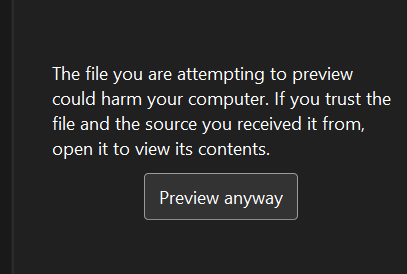
File Explorer also picks up smaller changes.
- Home remembers whether a section was expanded or collapsed, so you pick up where you left off. We noticed it right after installing the optional update.
- Thumbnail previews for cloud files in the Details pane are more reliable, and the pane is reorganized so file properties are easier to find.
- Clicking near the right side of the address bar to edit it no longer clears its contents.
File Explorer has been getting fixes almost every month since May, and the preview pane change is the one I’ve personally wanted the most.
Windows 11 now lets you remap Copilot key to Right Ctrl or Context Menu
Copilot+ PCs are no longer Microsoft’s main priority, but that doesn’t mean the company is giving up on the idea or removing the Copilot key. However, if you hate the idea and buy yourself a sticker to cover the key, you can now remap the Copilot key to something more useful.
In our tests, Windows Latest observed that the Copilot key can now be remapped from Settings > Bluetooth & devices > Keyboard:

As you can see in the screenshot above, you can remap the Copilot key to “Context menu,” which is almost a right-click. Or you can use “Search,” which would open Windows Search (same as Win+S).
Touchpad adds single-finger scrolling and automatic scrolling
Precision touchpads get two more gestures in Settings > Bluetooth & devices > Touchpad.
- Single-finger scrolling lets you scroll vertically with one finger, starting from the left or right edge of the touchpad. Once I turned this on, I cannot look back. This is my favorite creature comfort feature in this update.
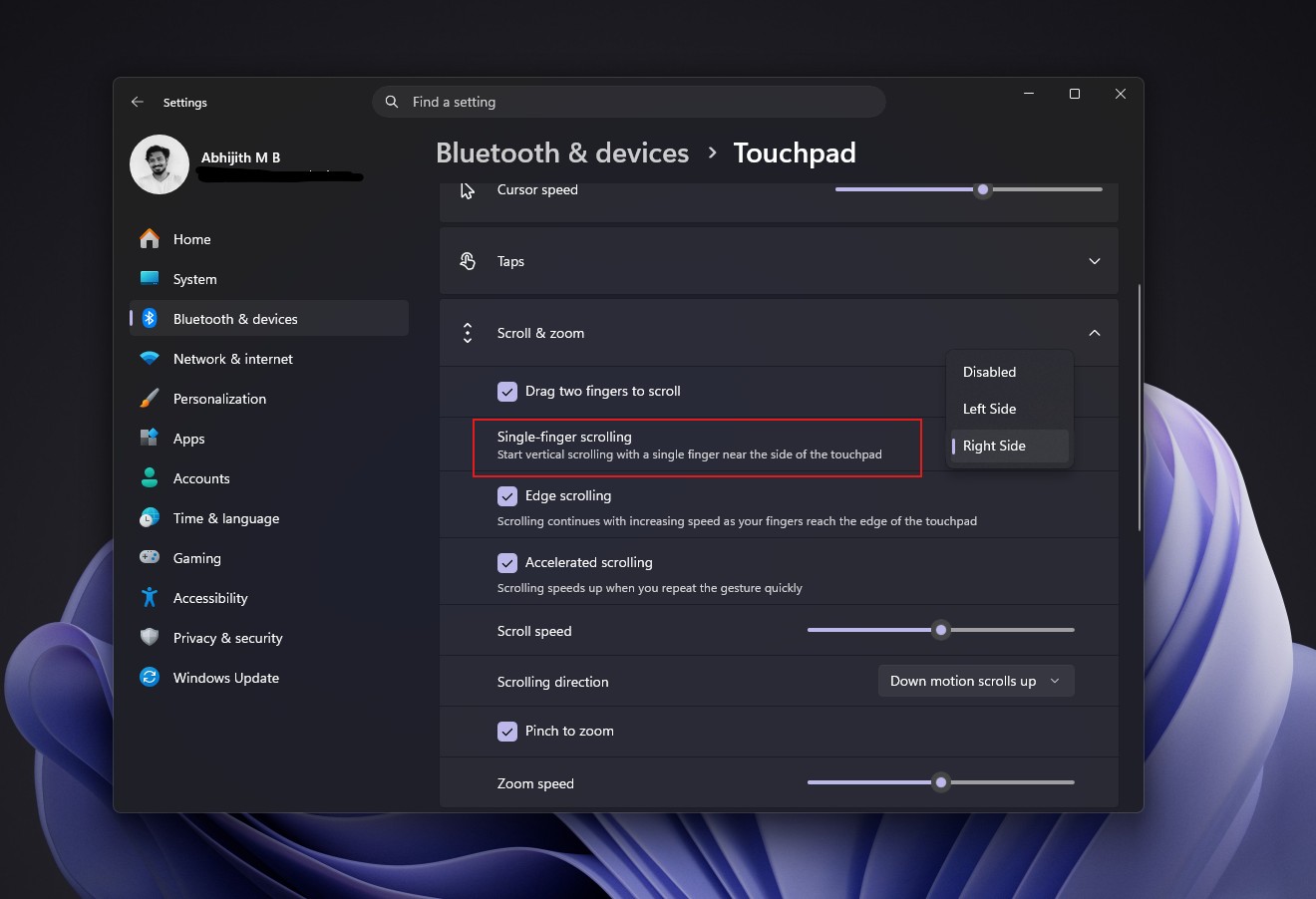
- Automatic scrolling keeps scrolling without lifting your fingers when you move them near the edge of the touchpad.
Both of these add to the scroll speed and accelerated scrolling controls from the July optional update (KB5101684) and reached every PC in August.
Magnifier gets a refreshed toolbar
Magnifier’s toolbar now has updated icons that match Windows 11’s design, along with refined spacing and padding. Views, zoom controls, keyboard shortcuts and Read Aloud work like before.
Screen tint and sharper Magnifier controls came in July, so accessibility tools are clearly getting attention this year, which we must appreciate Microsoft for.
A new Tips widget comes to Widgets and the lock screen
The Tips widget shows short guidance about Windows features. To add it (for some reason), open the Widgets board, select Add widgets and choose Tips. You can also add it to your lock screen from Settings > Personalization > Lock screen.
Ironically, Microsoft spent months making Widgets quieter, and now it’s adding a widget that’s basically a feature tour. To be fair, it’s optional.
Camera roll backup arrives in Settings
You can now back up the photos on your phone to OneDrive from Windows 11 Settings. Turn it on from the Settings Home or Accounts page, then finish setup on your phone by scanning a QR code. Microsoft says it’s only for eligible users, so it may not show up on every PC.
Desktop background fixes and DIB image support
After an August bug that reset wallpapers or turned them black, Microsoft is cleaning up desktop backgrounds.
- Settings > Personalization > Background is more reliable.
- DIB image files can be used as desktop backgrounds.
- Slideshow transitions work more reliably on newly created accounts.
- Background previews in Settings are sharper, and they display better on portrait-mode monitors.
- More reliable processing of quick, back-to-back wallpaper changes are processed more reliably.
- Slideshow wallpapers now work with multiple desktops.
Settings gets app version numbers and a smarter time picker
- Settings > Apps > Installed apps now shows the version number at the top level for packaged apps, as it already did for other apps.
- The time picker respects your 12-hour or 24-hour preference in places like active hours and Night light scheduling.
- The Printers & scanners page under Bluetooth & devices is more reliable.
- The Allow multiple apps to use camera at the same time option in Camera settings is saved more reliably. Multi-App Camera came in June, and its toggle didn’t always work.
The Settings app has been getting a steady redesign since April update, and these small fixes make it closer than ever to the Control Panel.
PC-to-PC Migration is gone, and Microsoft wants you to use Windows Backup
PC-to-PC Migration let you move files and settings straight from your old PC to a new one over your local network, without uploading anything to the cloud. Microsoft has removed it, and now recommends Windows Backup, which uses OneDrive (obviously!)
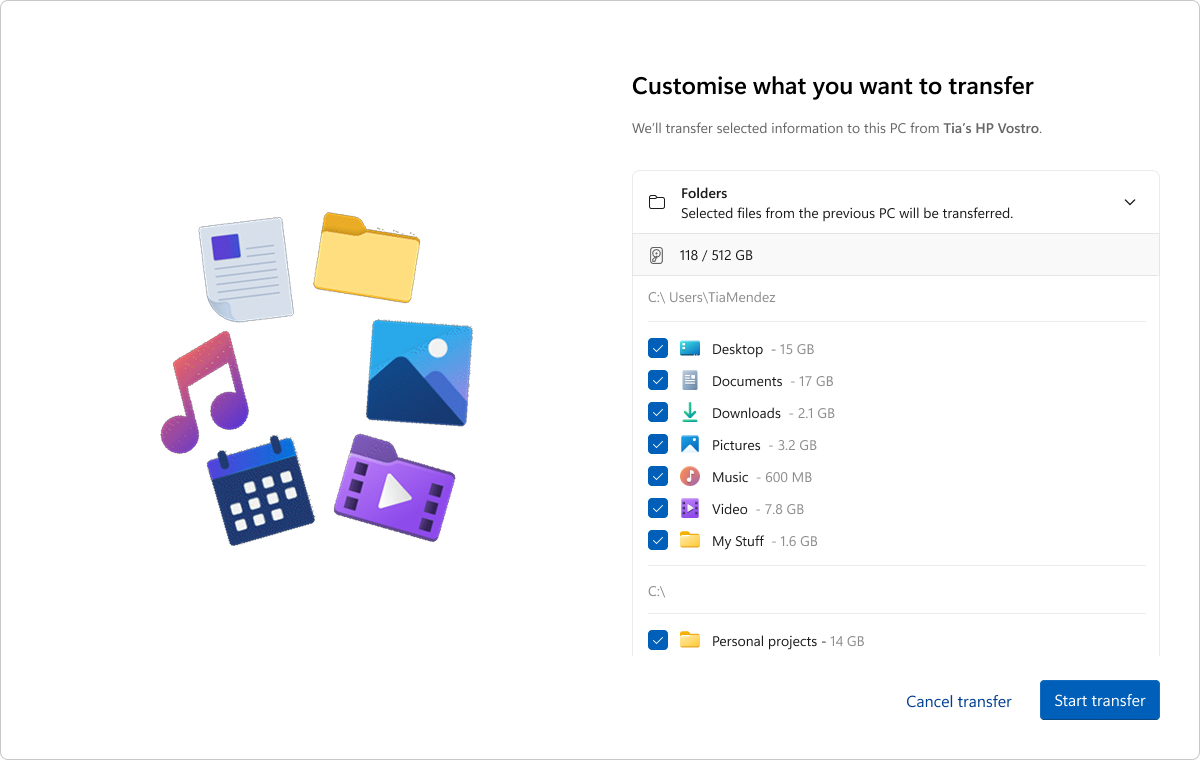
Considering OneDrive’s free tier is just 5GB, losing a local transfer tool is definitely a step back for anyone moving a lot of files. Also, we may not always have reliable internet, Microsoft.
Fonts, WinRE, kiosk mode and power improvements
- The Ebrima font now supports the Garay and Beria Erfe scripts, making it the first Microsoft font to support both. Garay was encoded in Unicode 16.0 and Beria Erfe in Unicode 17.0. Adlam glyphs in Ebrima are also refined to match the current Unicode standard.
- A new recovery remote management plug-in for Windows Recovery (WinRE) lets MDM providers extend WinRE management.
- In kiosk mode, Windows + Tab is disabled in restricted UX kiosks, and Windows + A and Windows + C are disabled in single-app kiosks. Kiosk fixes also showed up back in February
- Display and performance improve on plugged-in laptops that wrongly detect a switch from AC power to battery.
Microsoft says feature availability depends on your device and market, but if it’s any consolation, Redmond’s design boss admits some features take a while to show up even after the update is installed.
Fixes shipping in the normal rollout
- File History is fixed. The September update broke File History backups and restores to external drives and network locations, and showed a false “Reconnect your drive” message. Backups started working again in our testing, so the bug from the September Patch Tuesday release should finally be gone for everyone.
- Domain trust is restored. After the September 14 emergency update, domain-joined PCs could lose their secure trust relationship with Active Directory, blocking sign-ins with valid domain credentials. It affected devices using Machine Identity Isolation in unsupported environments.
- The bug that made the built-in camera to stop working in the Camera app and other apps has been fixed.
- Sysmon, which became built into Windows 11 in March, gets three fixes.
- Header validation for executable files is fixed, as truncated or malformed files could cause unpredictable memory use and unreliable tampering detection.
- The Sysmon file system filter driver no longer causes a stop error when the archive directory fails to open during file monitoring.
- Sysmon no longer generates false Event ID 25 process tampering alerts for smss.exe.
AI components are updated in the background
Image Search, Content Extraction, Semantic Analysis and Settings Model are updated to version 1.2608.951.0. They install silently, Microsoft doesn’t publish detailed changelogs for them, and you don’t need to do anything.
How to install the October 2026 Patch Tuesday update
Open Settings > Windows Update and select Check for updates. The update installs automatically unless you’ve paused updates, and it needs a restart.
To get the gradual rollout features sooner, turn on Get the latest updates as soon as they’re available on that page. Even then, some features can take days or weeks to appear.
If you’re still on Windows 11 24H2 Home or Pro, install this update first, then move to 26H2. I’d install it as soon as it shows up, if only for the File History fix and Bluetooth improvements, and of course, the single finger scrolling feature.