
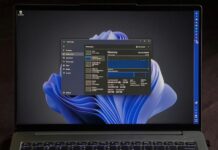




Microsoft has released Windows 11 26H2, but if you install it expecting Windows 11 to suddenly look or feel different, you’ll probably be disappointed. Most of what Microsoft lists as new has already reached PCs through monthly updates.
John Cable, Microsoft’s Vice President of Product Management for Windows Servicing and Delivery, calls it a “predictable and low-disruption update”. It’s surprising to see the marketing line of a company being true.
Jokes aside, on a PC running 24H2 or 25H2, 26H2 is a tiny download and a single restart, as Microsoft promised back in June.
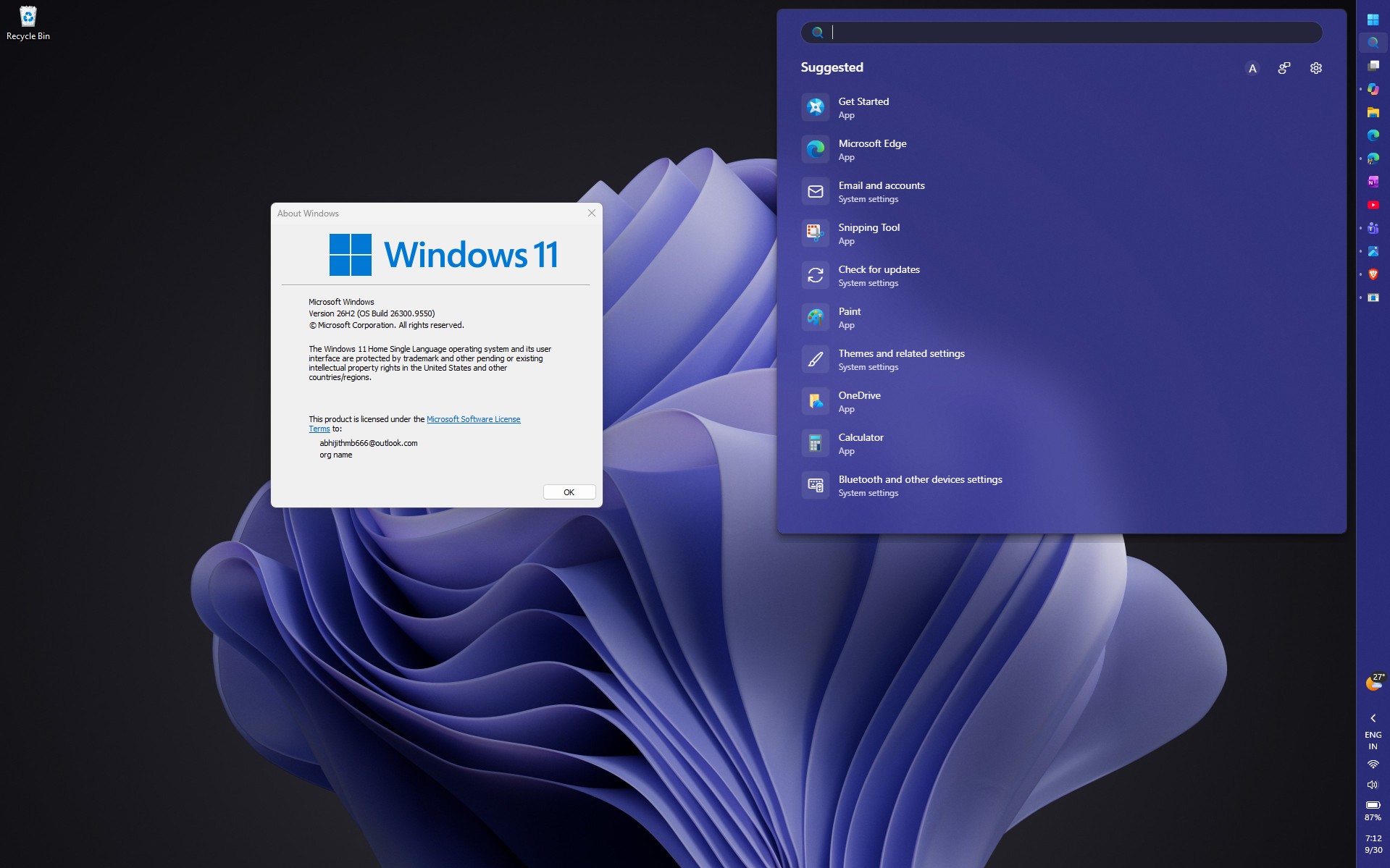
Ironically, Microsoft’s announcement says 26H2 “brings together” what 25H2 received over the past year, so an up-to-date PC already has most of it. Then there’s the performance boost many of us noticed, which Microsoft didn’t mention.
So, if Microsoft calls 26H2 a feature update, what did you get when you installed it?
Windows 11 26H2 is a “master switch” for code already on your PC
Windows 11 24H2, 25H2, and 26H2 share one servicing branch and codebase. New feature code reaches 24H2 and 25H2 through monthly cumulative updates, so your PC gets 26H2’s features much before it becomes 26H2.
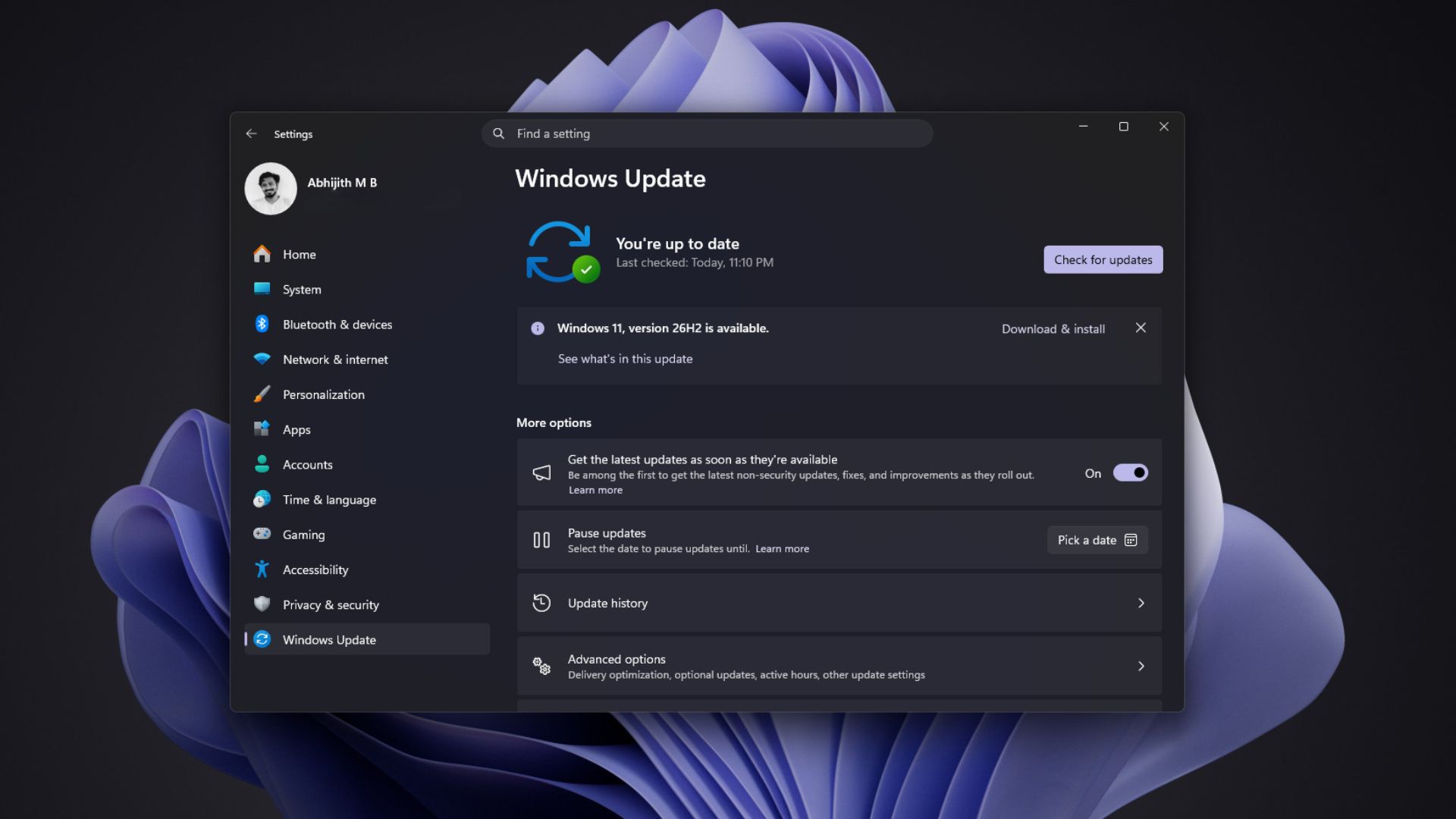
Personally, I would like new features to come onto Insiders, and months of testing later, everything new comes to all PCs in one single annual update. It would also bring about an excitement factor for the otherwise despised Windows updates.
Anyway, Microsoft’s support document for KB5121794 says those features stay “in an inactive and dormant state” until the enablement package, a “quick-to-install ‘master switch’,” turns them on. The package is just 174KB on x64 PCs (yes, kilobytes).
Jason Leznek, Principal Product Manager for Windows Servicing and Delivery, has a better phrase for this in his Windows IT Pro Blog, saying: “The difference between versions is simply which features are enabled.”
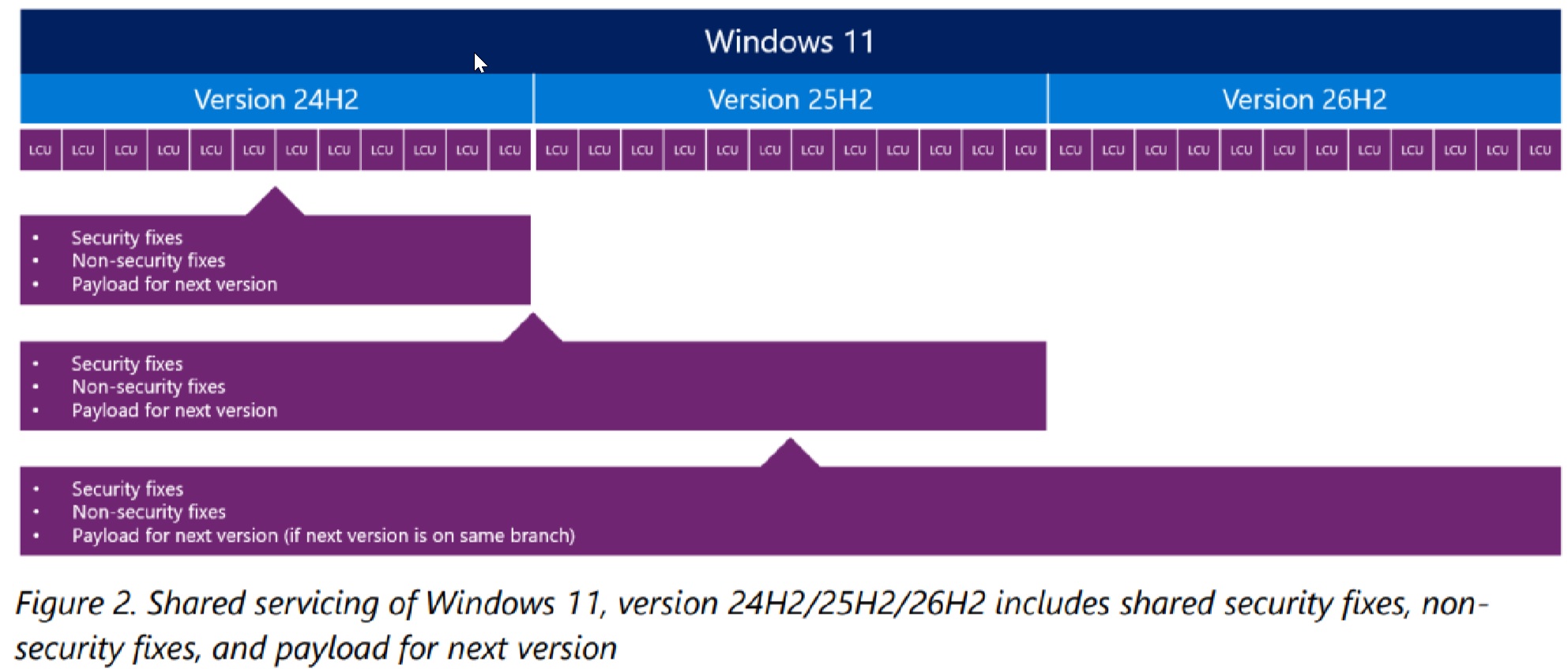
The package also resets the lifecycle, giving Home and Pro editions updates until October 10, 2028. In my opinion, that’s the main reason 26H2 exists, as 24H2 Home and Pro lose updates on October 13, 2026. When we tested 26H2 in Release Preview in August, the only visible change on my test PC was the build number moving to 26300.9278.
Windows 11 26H1 PCs, which came on select new Arm laptops, are the exception. Microsoft says 26H1 is “based on a different Windows core” (build 28000), so those PCs won’t get 26H2 and will move to a future release, where they’ll all share 27H2.
Most of Windows 11 26H2’s feature list has already reached your PC
Going by Microsoft’s official posts, here’s everything your PC will get enabled:
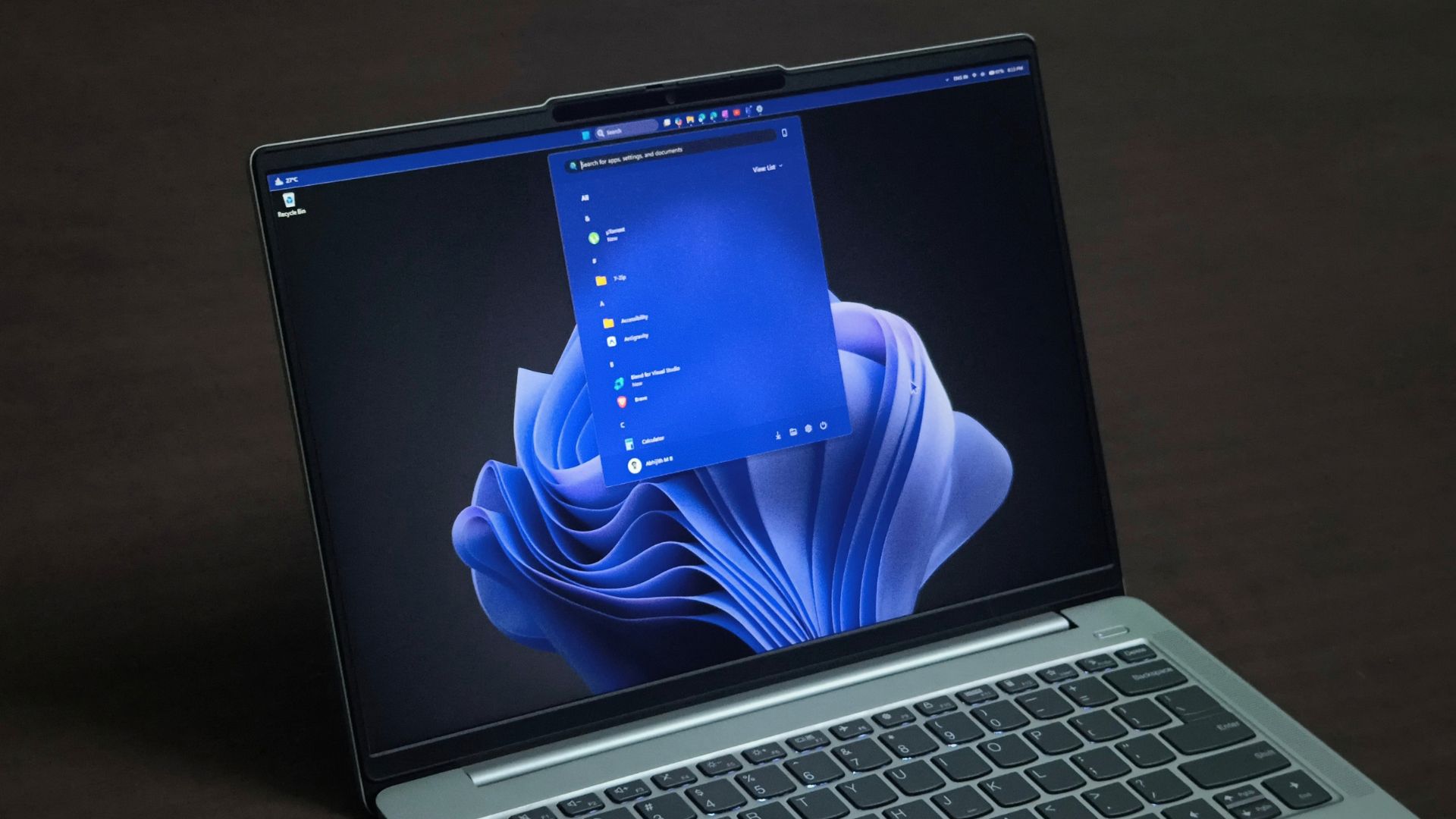
- The Start menu gets Small and Large sizes, and you can hide the Pinned, Recent, or All sections.
- The taskbar can move to the top, left, or right, and a smaller taskbar option is available.
- Windows Search previews results, won’t be affected much by typos and partial app names, labels each result type, and lets you turn off web and Microsoft Store suggestions.
- File Explorer adds AI actions for images, Copilot summaries for OneDrive and SharePoint files (with Microsoft 365 and a Copilot license), more archive formats, and a faster Home.
- Settings Agent: An AI assistant inside Settings lets you find and change system options using natural language.
- Task Manager: Adds dedicated tracking for NPU usage and AI workloads alongside CPU and GPU graphs.
- Narrator: Generates richer, AI-powered image descriptions for visual content.
- Voice Access: Supports more languages and adds Voice Isolation to filter out background noise.
- Magnifier: Adds finer zoom controls to adjust your viewing scale.
- Android Integration: Lets you resume tasks on your PC right where you left off on your Android phone.
- Windows Share: Work and school accounts can install relevant apps directly from the share dialog.
- Camera: Multi-App Camera lets multiple apps stream from your webcam at the same time. Basic Camera gives a simplified fallback mode designed to resolve webcam compatibility issues.
- Shared Audio: Broadcasts audio to multiple Bluetooth devices simultaneously.
- Windows Hello: Expands compatibility for more fingerprint reader hardware.
- Smart App Control: Adds more management controls to protect against untrusted apps.
- Widgets: Adds better notification controls to reduce annoying popups.
- Gaming: Brings deeper Xbox integration and smoother performance on supported hardware.
- Networking: Improves connection reliability for shared network folders and local drives.
However, fully updated 24H2 and 25H2 PCs already had the code for almost all of these. The redesigned Start menu reached everyone in July, and the movable taskbar, resizable Start menu, and Bing-free Search started rolling out with the September 8 update, KB5124008.
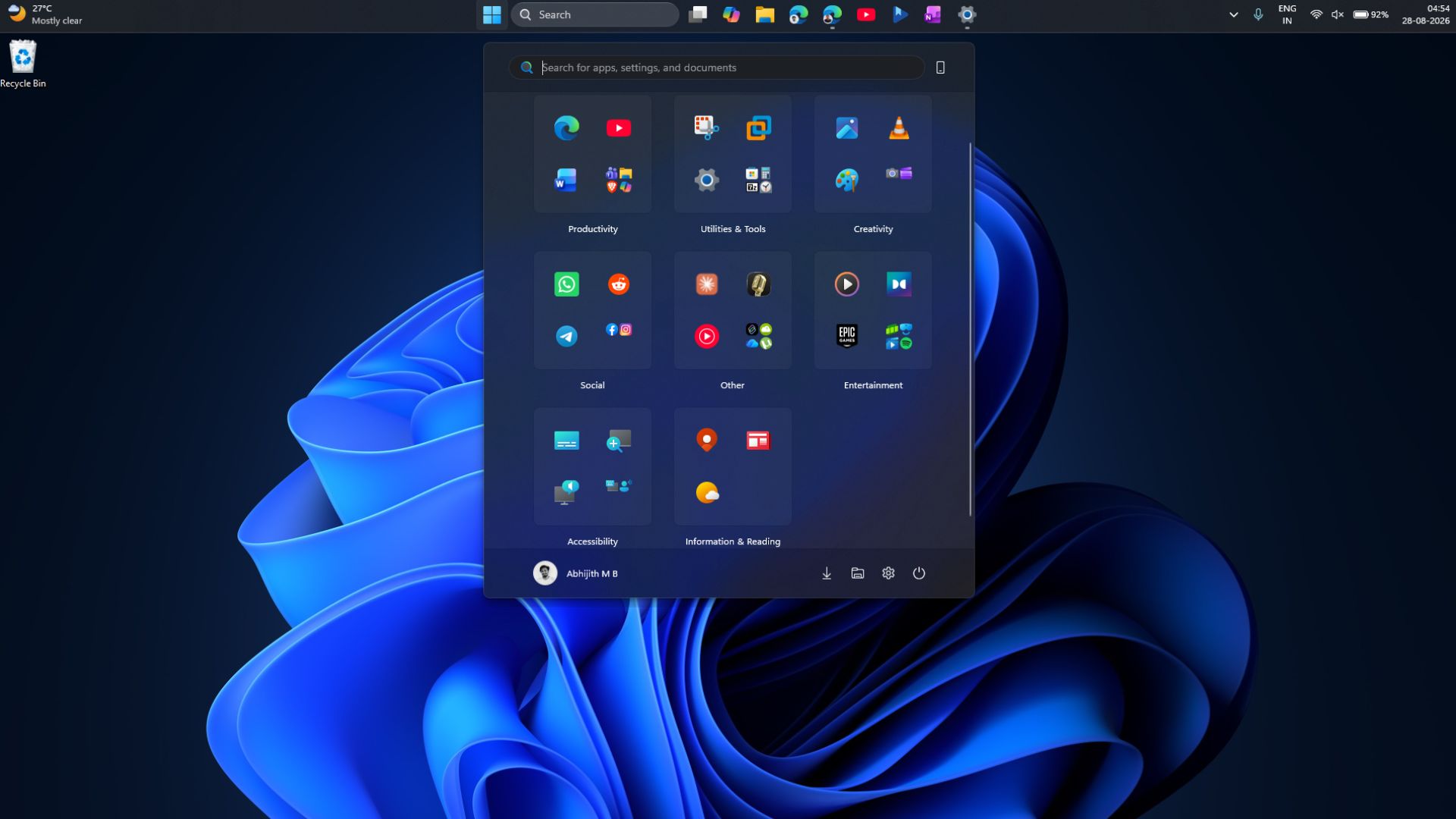
If Windows Update hasn’t given you 26H2 yet, you can download and install it manually. If you want a clean install with the 2026 Windows 11 annual release, you need to download the 26H2 ISO, which is a full 7.9GB image.
26H2 changes the defaults on work PCs
For commercial devices, 26H2 turns on features previously held back by “temporary commercial controls,” including Windows settings backup, app-specific actions from the taskbar, and some File Explorer enhancements. For IT admins, these are the closest thing 26H2 has to new features.
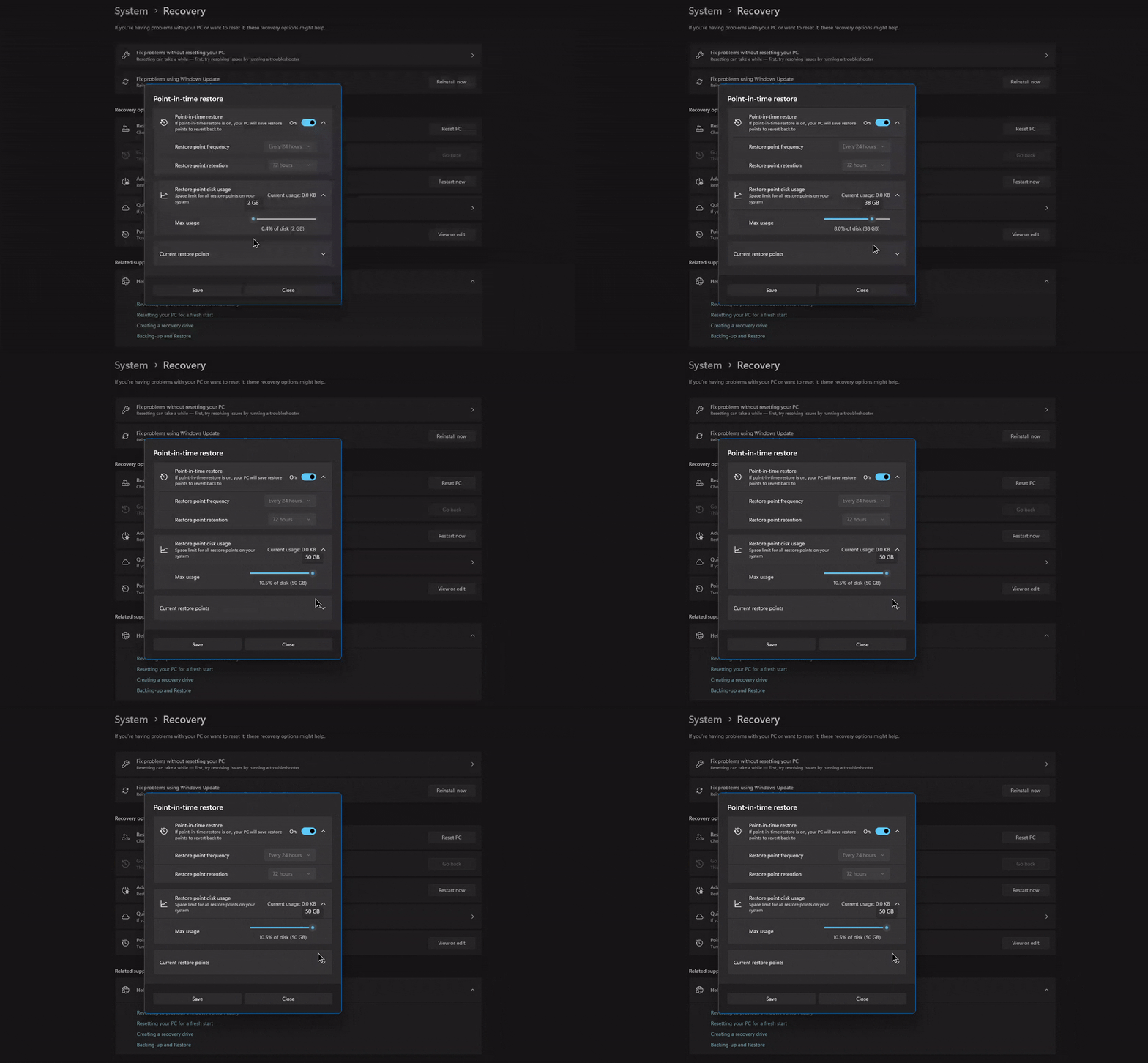
Point-in-time restore was already on by default for Home and unmanaged Pro PCs, but Microsoft’s documentation says it will be off on enterprise-managed systems “until Windows 11, version 26H2.” In both cases, it only turns on automatically if the OS volume is 200GB or larger.
Shared code also means shared bugs. Microsoft confirmed that apps and games using Windows’ built-in AC-3 (Dolby Digital) decoder might crash after KB5124010 on 26H2, 25H2, and 24H2 alike, so skipping 26H2 won’t protect you from it, if that’s any reassurance!
The biggest 26H2 improvement Microsoft didn’t put on the feature list
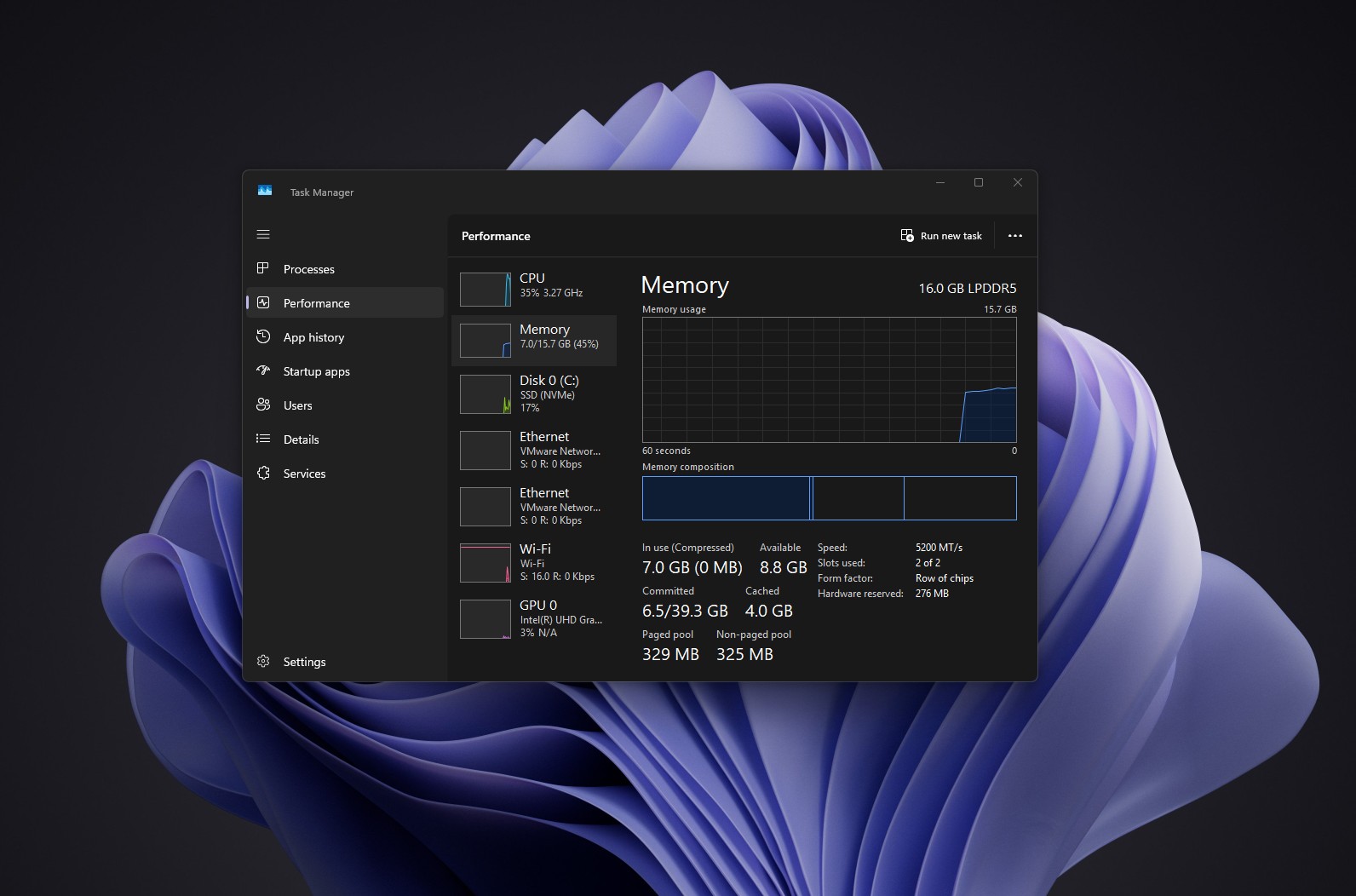
I installed 26H2 on my three-year-old 16GB RAM laptop, and right after a restart, Task Manager showed 7GB in use out of 15.7GB. Earlier, it would cross 10GB before I even opened an app.
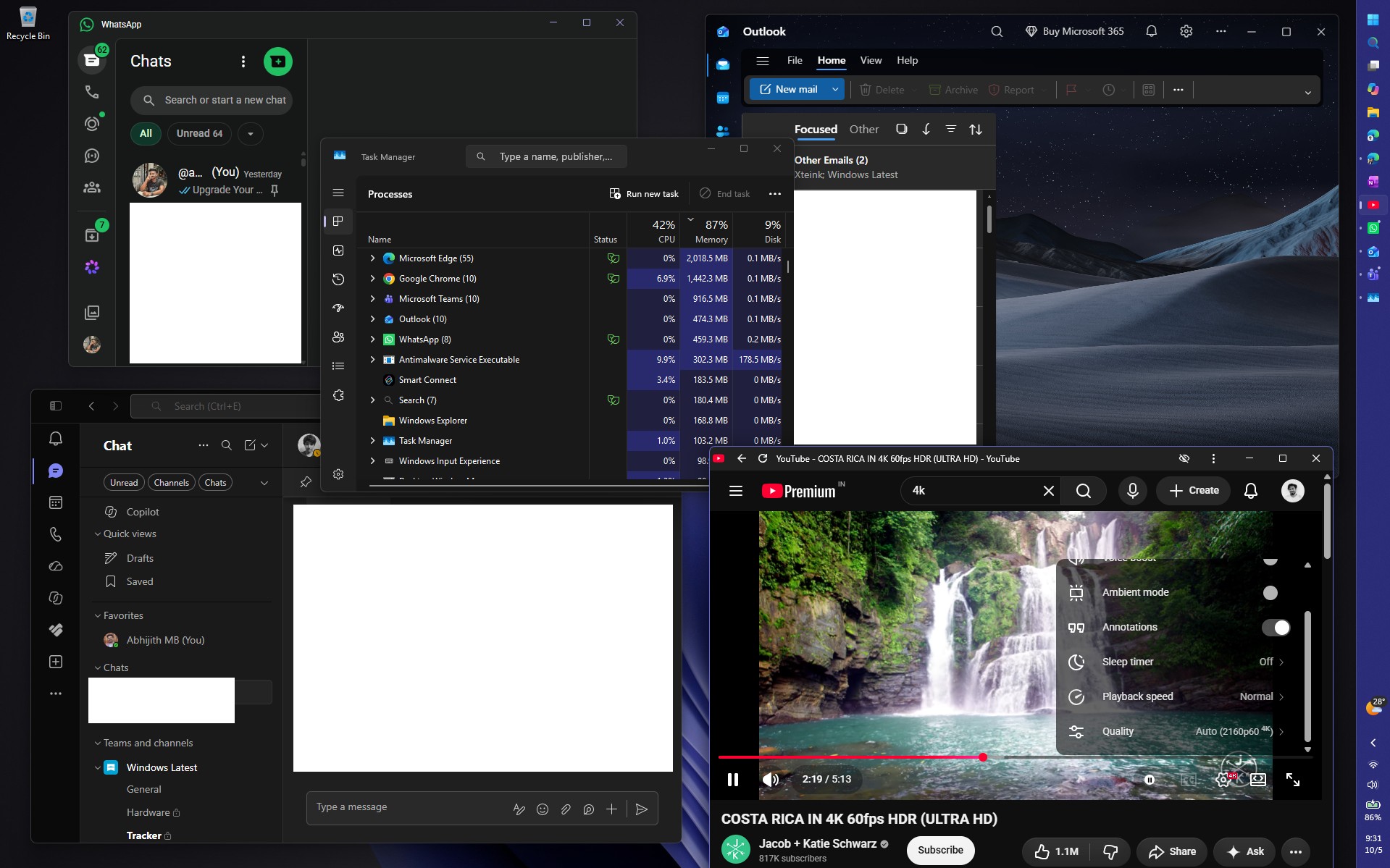
With Edge full of heavy tabs, WhatsApp, Teams, Outlook, and a 4K 60fps YouTube video running together, memory usage hovered around 87%, whereas milder workloads used to push it to 95% (I’ve always regretted buying a laptop with soldered RAM).
A Reddit user saw boot RAM usage drop by around 2GB on a 48GB PC, while one 8GB PC owner saw no change at all. So, your mileage may vary drastically.
To be clear, Microsoft hasn’t listed lower RAM usage as a 26H2 feature, so I can’t credit the enablement package for it. Startup apps and cached memory can swing these numbers. Either way, Windows and Devices president Pavan Davuluri has cited the “rising cost of memory” as the reason Microsoft is improving the memory manager, memory compression, WinUI, and WebView2.
Low Latency Profile is easy to measure, though. It pushes the CPU close to its maximum frequency for one to three seconds when you open Start, Search, or an app, and in our tests, WhatsApp, the RAM-hogging Weather app, and all apps opened much faster.
Gradual rollouts kept it off many PCs since June, and 26H2 should switch it on for most of them. The way I see it, 26H2 is when a year of Microsoft’s optimization work shows up on most PCs at once.
How to verify whether your PC really has Windows 11 26H2
1. Check Windows specifications in Settings
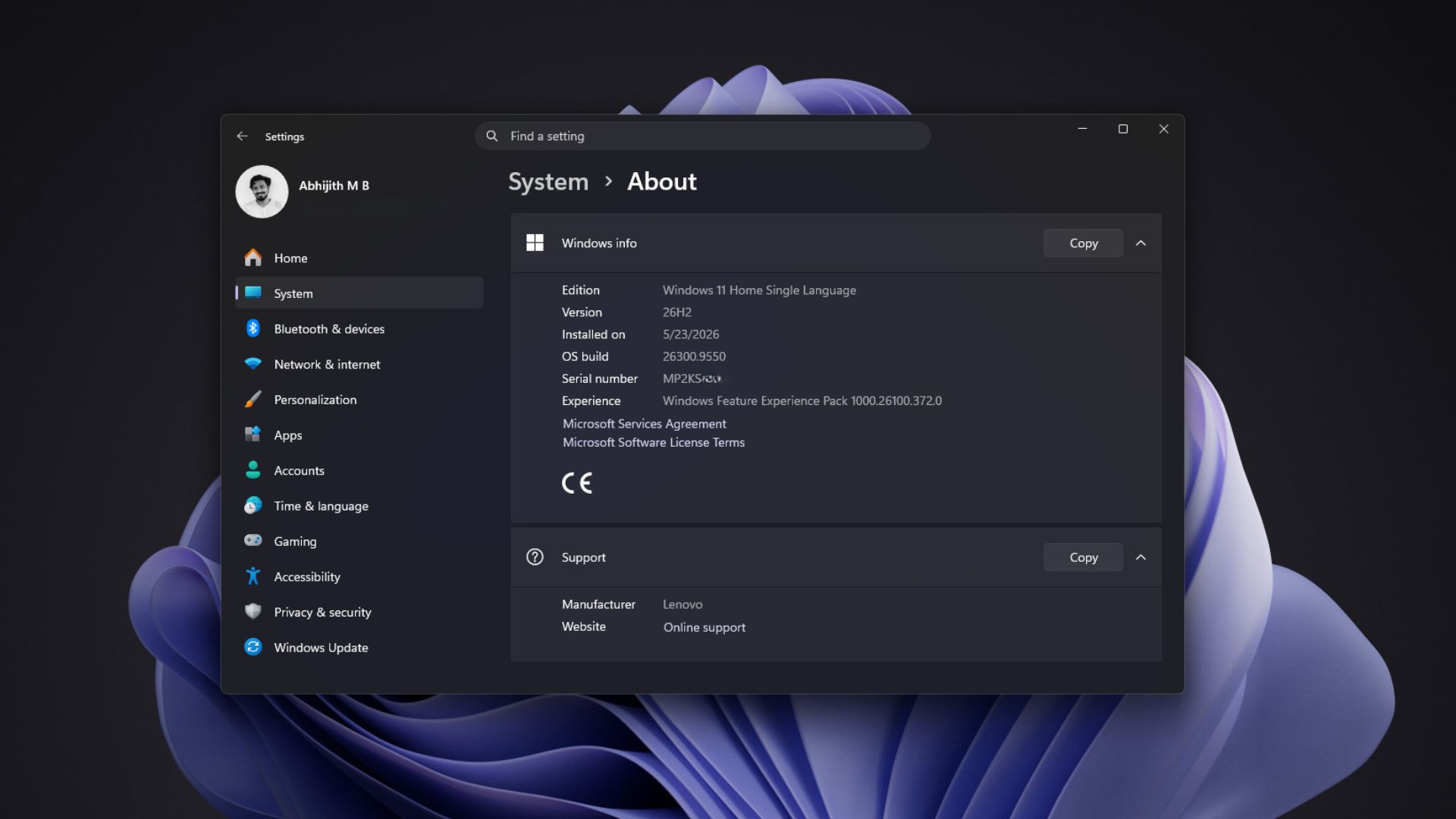
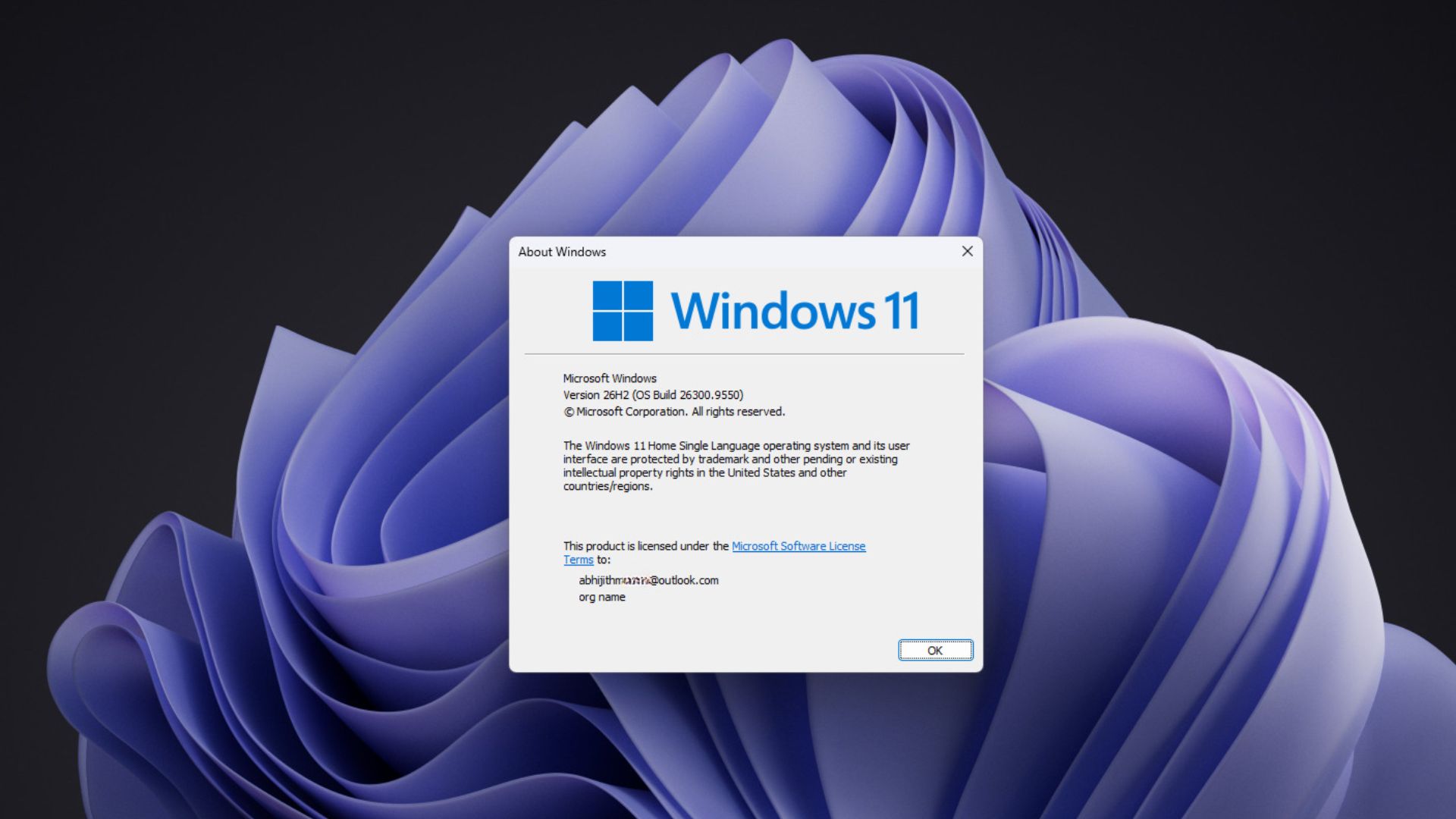
Open Settings > System > About and look under Windows specifications, which according to Microsoft lists your Edition, Version, and OS build. On 26H2, Version shows 26H2 and the OS build starts with 26300 (26300.9550 or higher if you’re fully updated). A build starting with 26200 or 26100 means you’re still on 25H2 or 24H2, respectively.
2. Run winver
Press Win + R, type winver, and press Enter to open the About Windows box, which shows the version and OS build (I wonder when this dialog would get WinUI dark mode treatment).
If 26H2 isn’t showing up at all, it’s probably not your PC’s fault. In Microsoft’s announcement, Cable says the company is “releasing version 26H2 using a controlled feature rollout” and may place safeguard holds on PCs with known compatibility issues.
Seeing 26H2 doesn’t guarantee every feature either. In my August test, the movable taskbar, resizable Start menu, and new Search were hidden after the version bump until I forced them on with ViVeTool, so two PCs on 26H2 can still look different.
Windows 11 26H2 packages a year of work under one version number
Windows 11 26H2 sounds like a big annual update because Microsoft calls it one, but almost everything interesting happened through 2026, with each monthly update. Faster app launches, a quicker File Explorer, and Point-in-time restore on more PCs are good enough reasons to install it.
However, Microsoft has some explaining to do about the RAM drop many of us are seeing, and I’m hoping the October 7 Windows event clears it up.