







Microsoft has begun rolling out the June 2026 Patch Tuesday update for Windows 11, and from our testing, we can say without hesitation that it is the most feature-packed monthly update the OS has seen in a long time.
The update, KB5094126 (OS build 26200.8655 and 26100.8655), applies to Windows 11 version 25H2 and 24H2, and brings a mix of hardware-level improvements, AI-powered enhancements, major performance upgrades, accessibility refinements, and critical security changes.
Unlike the last few months, where the new feature count was relatively modest, June’s Patch Tuesday is a refreshingly long list. There is something in here for nearly everyone, from casual users who just want a snappier Start menu, to IT admins worried about Secure Boot 2023 cert deadlines, to developers who keep an eye on what’s changing under the hood.
As with most recent Windows updates, the June 2026 release follows a two-phase rollout. A gradual rollout delivers features to devices over time, so you may not see everything the moment you install it. A normal rollout is the general release that goes to all eligible devices at the same time, and carries security-critical changes.
What’s new in the Windows 11 June 2026 Patch Tuesday Update
Here is a summary of everything coming in the June 2026 update:
- Low Latency Profile now rolls out broadly, accelerating app launches, Start menu, Search, and Action Center.
- Secure Boot certificate updates roll out immediately to all eligible devices as part of the normal rollout.
- Shared Audio lets two people listen from a single Windows 11 PC at the same time via Bluetooth LE Audio.
- Task Manager gets new NPU usage columns and an Isolation column for AppContainer processes.
- Multi-App Camera lets multiple apps access the same camera stream simultaneously.
Windows Setup now lets you choose a custom user folder name during installation. - Magnifier improvements include clearer screen reader announcements and support for protected content.
- Windows Hello is refined so that face and fingerprint sign-in always defaults back as the primary method.
- Windows Search now finds files with as few as two characters.
- Storage settings now let you specify the Dev Drive size in gigabytes.
- USB4 display reliability and USB3 recovery against hardware faults are improved.
- Times New Roman gets an updated rendering for Greek and Cyrillic scripts.
- Personalization improvements fix accent color accuracy and wallpaper persistence.
- Task Scheduler now saves column width adjustments across sessions.
- Microsoft Store gets improved download performance and better error reporting.
- A fix lands for the 0x800f0922 error that prevented some PCs from completing updates when the EFI System Partition had limited space.
Low Latency Profile is the headline feature, even though Microsoft doesn’t call it that
The biggest new addition in the June 2026 Patch Tuesday update is underplayed behind a seemingly unremarkable changelog entry: “[General Performance] This update accelerates app launch and core shell experiences such as Start menu, Search, and Action Center.”
What Microsoft is shipping here is the Low Latency Profile for Windows 11, a CPU boost technique that can make budget PCs feel noticeably faster in daily use.
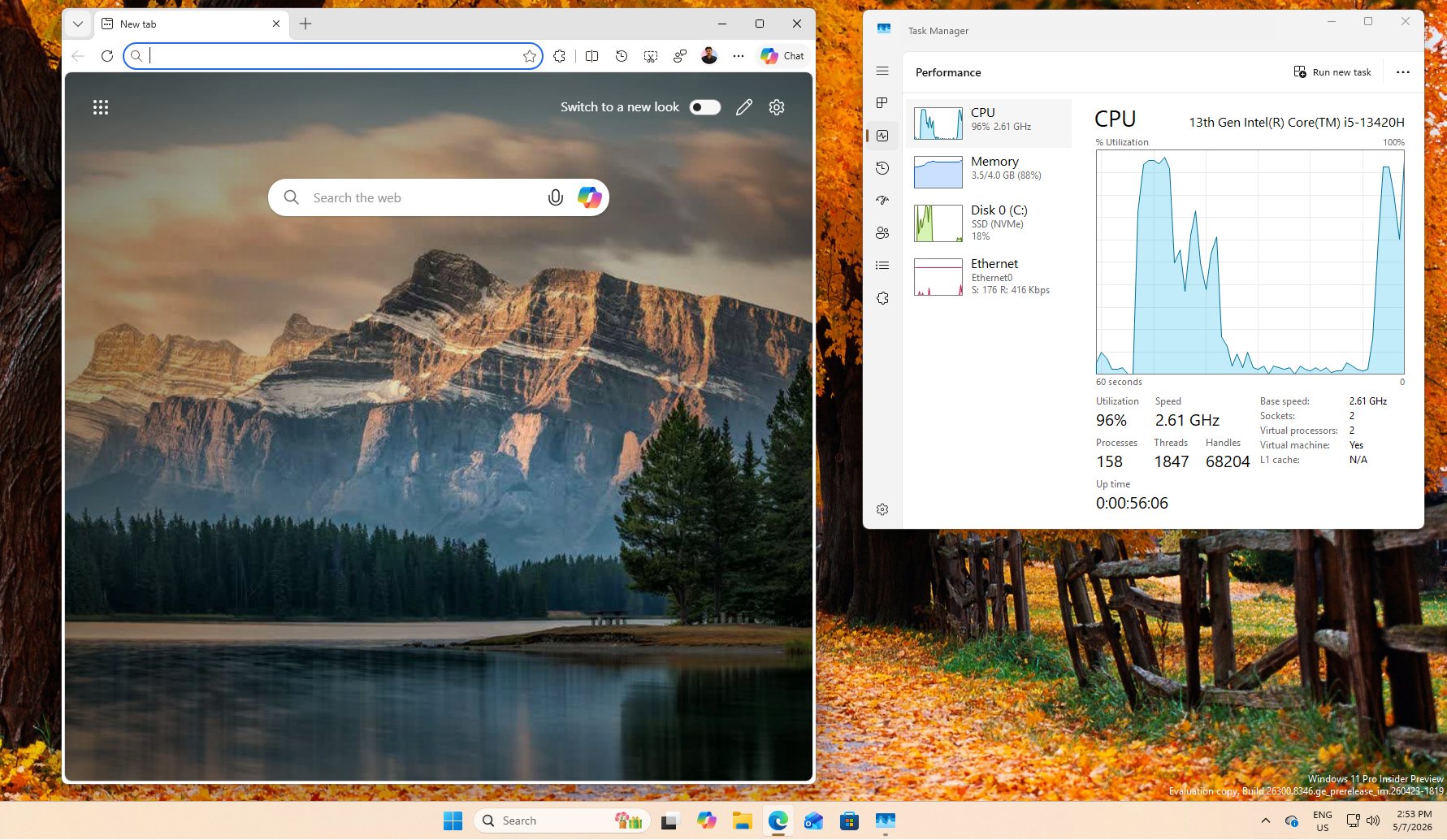
Low Latency Profile works by triggering short, precise CPU bursts at the exact moment you open the Start menu, Search, Action Center, or any app. Windows normally has to wait for the CPU scheduler to allocate resources.
With the CPU boost active, the OS bypasses that and briefly spikes CPU activity for 1 to 2 seconds, so the shell responds much faster than it otherwise would. We tested Windows 11’s hidden Low Latency Profile and found that the difference is most visible on mid-range and older hardware.
However, if you already have a fast PC, you would notice the core system loads more smoothly, which is what I noticed when I enabled Low Latency Profile after installing the May 2026 optional update on my regular PC.
Also, since there is no toggle to turn the feature on or off, you can manually find out whether your PC has the Low Latency Profile enabled after installing the June Security update.
Low Latency Profile is part of the gradual rollout phase, so it will arrive on your device over time, and forcing it early is unnecessary.
We did cover how to turn on Low Latency Profile in Windows 11 25H2 using ViVeTool when it was still behind CFR in the May Optional update. But now that the June Patch Tuesday update is shipping, we’d recommend simply letting it roll out on its own.
Secure Boot certificate updates are mandatory and rolling out right now
One of the more urgent inclusions in the June 2026 update is the Secure Boot certificate rollout, and unlike most of the other changes, it is arriving as part of the normal rollout, meaning it lands immediately when you install the update.
Secure Boot is a security feature that helps ensure that only trusted software runs when a PC boots up. Windows 11 PCs were running on Secure Boot certificates originally issued in 2011, but now Microsoft is updating them to 2023 certificates, and these older ones are expiring in June 2026.
We have been covering the Secure Boot 2023 certificate situation closely for months, and the June deadline has always been the key date to watch. Fortunately, Windows 11 now tells you if your Secure Boot certificates have already been enabled or if it needs your attention.
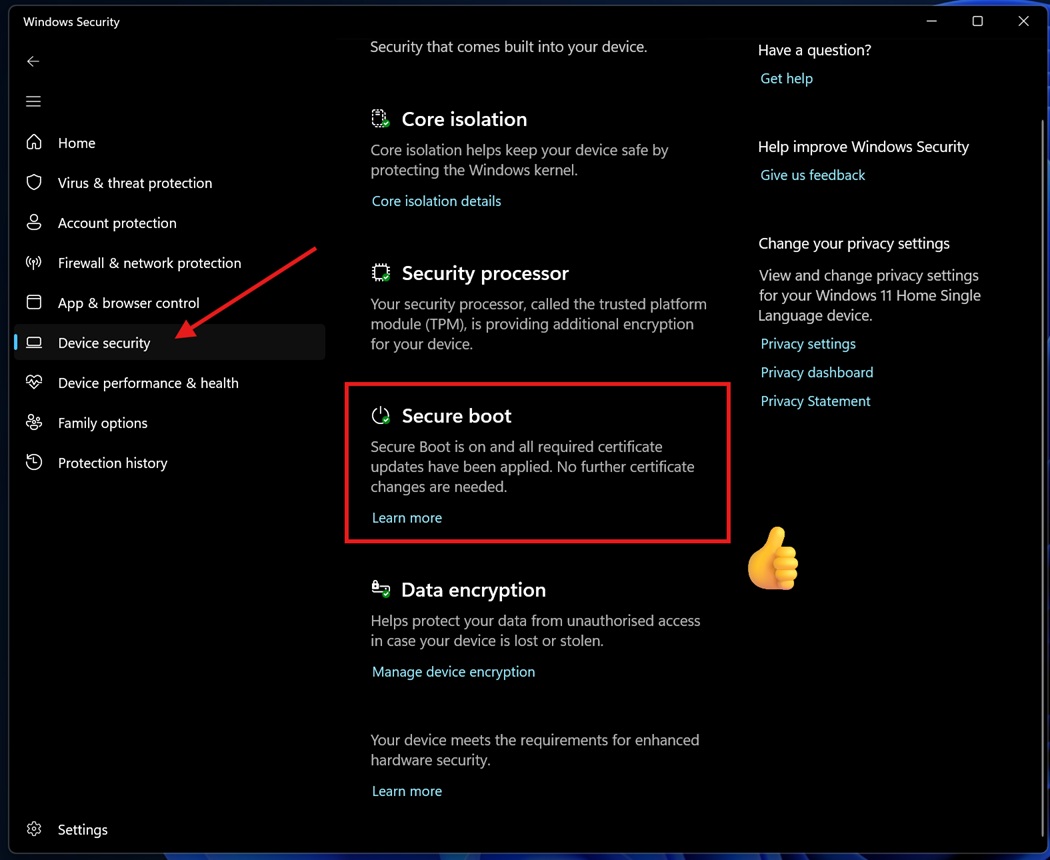
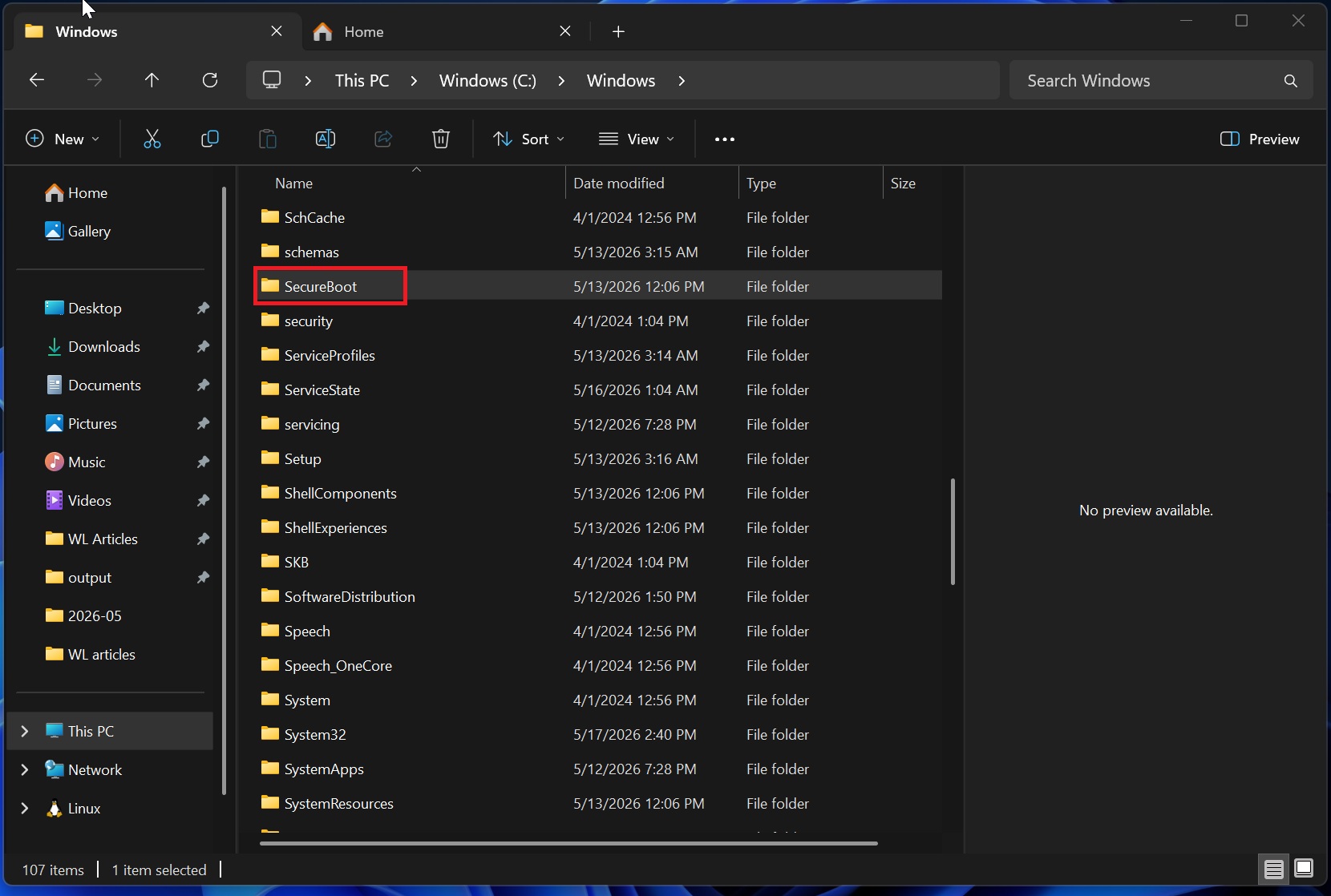
In most cases, for regular users, rest assured that your PC has already received the 2023 certificates several months before. You may see a new Secure Boot folder appear in Windows 11. Microsoft confirmed that it isn’t a bug.
You may run into trouble only if you’re using very old hardware that does not officially support Windows 11, or if you’re managing enterprise devices.
Such devices that haven’t updated their certificates in time could face problems booting securely. We reported earlier in the year that Secure Boot 2023 updates were failing across some PCs.
With the June update, Windows quality updates now include additional high-confidence device targeting data, which broadens the pool of devices eligible to automatically receive the new Secure Boot certificates. Crucially, devices only receive the new certificates after demonstrating sufficient successful update signals, so Microsoft is maintaining a controlled rollout even within the mandatory release.
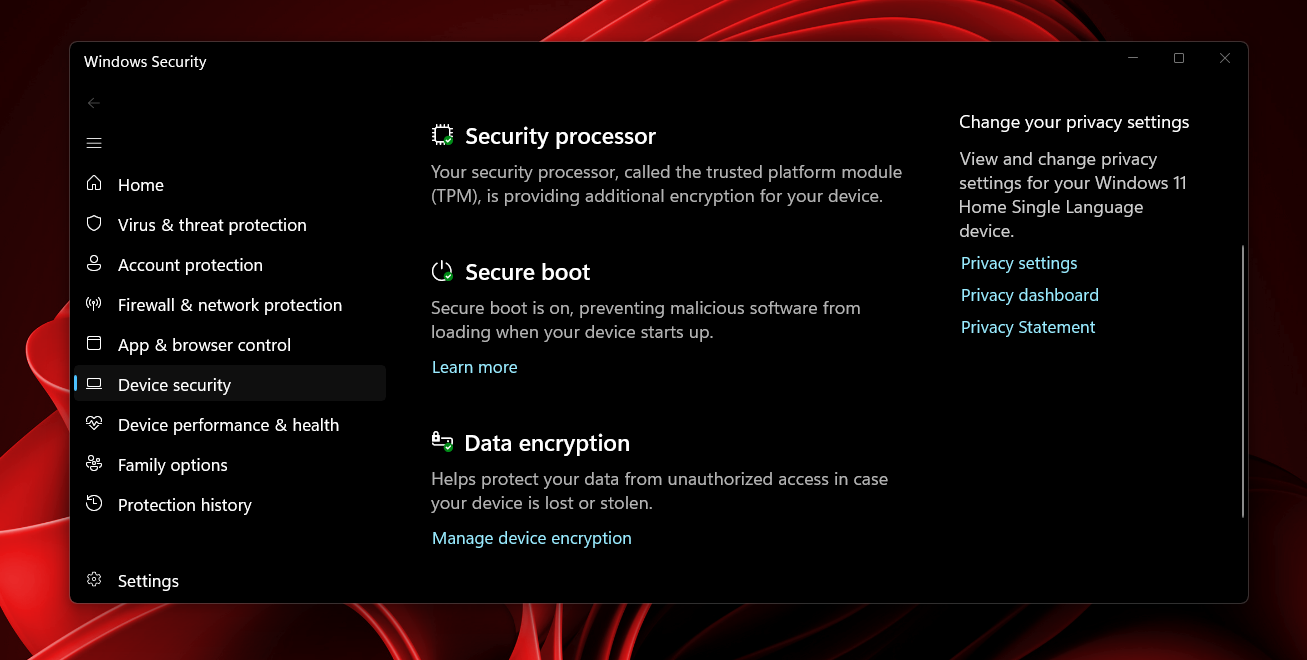
There is also a new Group Policy and MDM setting called LimitSecureBootRequiredServiceData, available under Computer Configuration > Administrative Templates > Windows Components > Secure Boot. When enabled, Windows limits the Secure Boot service data it sends by suppressing the event normally sent to Microsoft. Enterprise IT admins with strict telemetry policies will want to note this.
As Microsoft recently answered what users must do as the Windows 11 Secure Boot deadline hits, the simplest action for most people is to install the June update as soon as it is available.
It is also worth pointing out that OEM-side problems have complicated the rollout for some users. HP admitted that its latest BIOS update was bricking Windows 11 with a BitLocker loop, blocking the Secure Boot 2023 fix. And more broadly, it is not just Microsoft’s updates causing grief here, as OEMs are bricking Windows 11 PCs with their own firmware.
New features rolling out gradually with the Windows 11 June 2026 Update
Most of the new features in the June Patch Tuesday update are delivered via Microsoft’s Controlled Feature Rollout system. If you install the update and some of the features below aren’t visible yet, that is completely expected behavior.
Shared Audio brings two-person listening from one PC
A brand new feature called Shared Audio, which Apple users have had for a while, lets two people listen to the same audio from a single Windows 11 PC at the same time. It uses Bluetooth LE Audio broadcast technology to make the experience easy to set up.
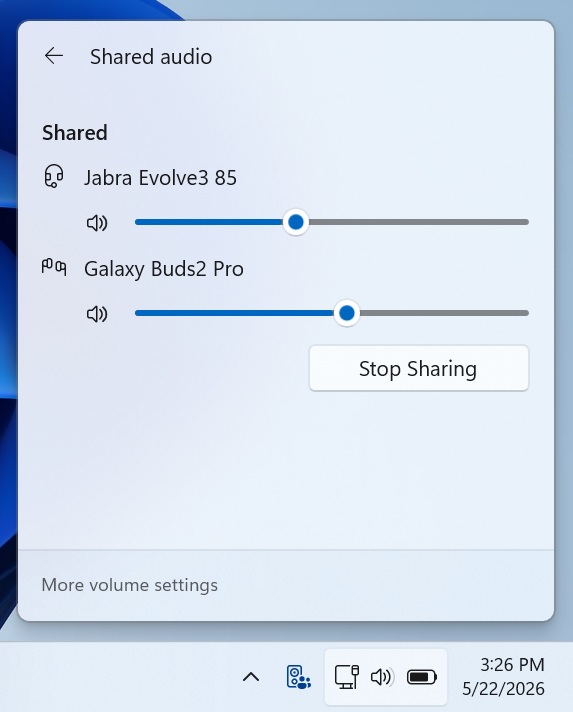
Shared Audio in Windows 11 has been in testing for a while. The use cases are exactly what you’d expect, like watching a movie together on a flight, or studying side by side while listening to the same music.
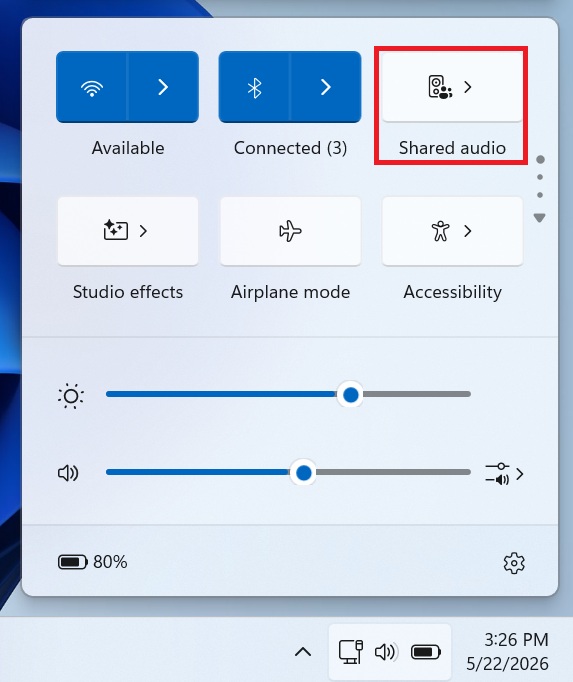
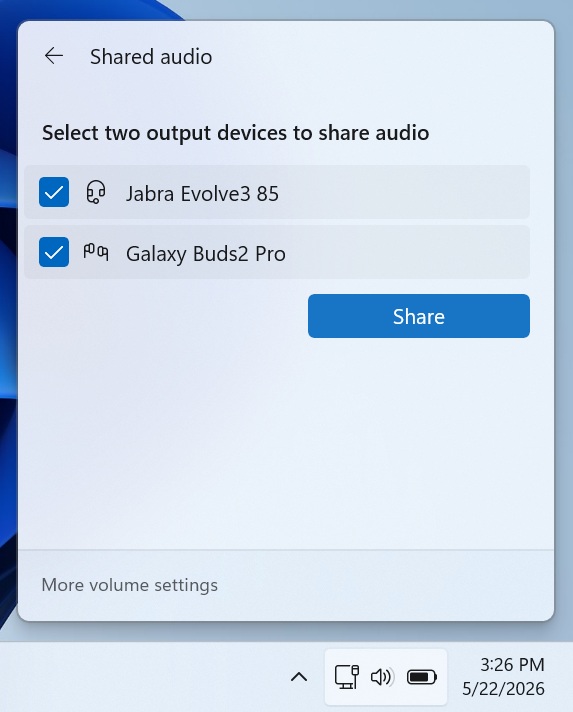
To start sharing audio, open Quick Settings from the taskbar, select Shared Audio, choose two supported paired and connected devices, and then select Start sharing.
Task Manager gets deeper NPU visibility across processes and apps
Task Manager on Windows 11 already showed a basic NPU tile on the Performance page, with a utilization graph and shared memory readout for the NPU.
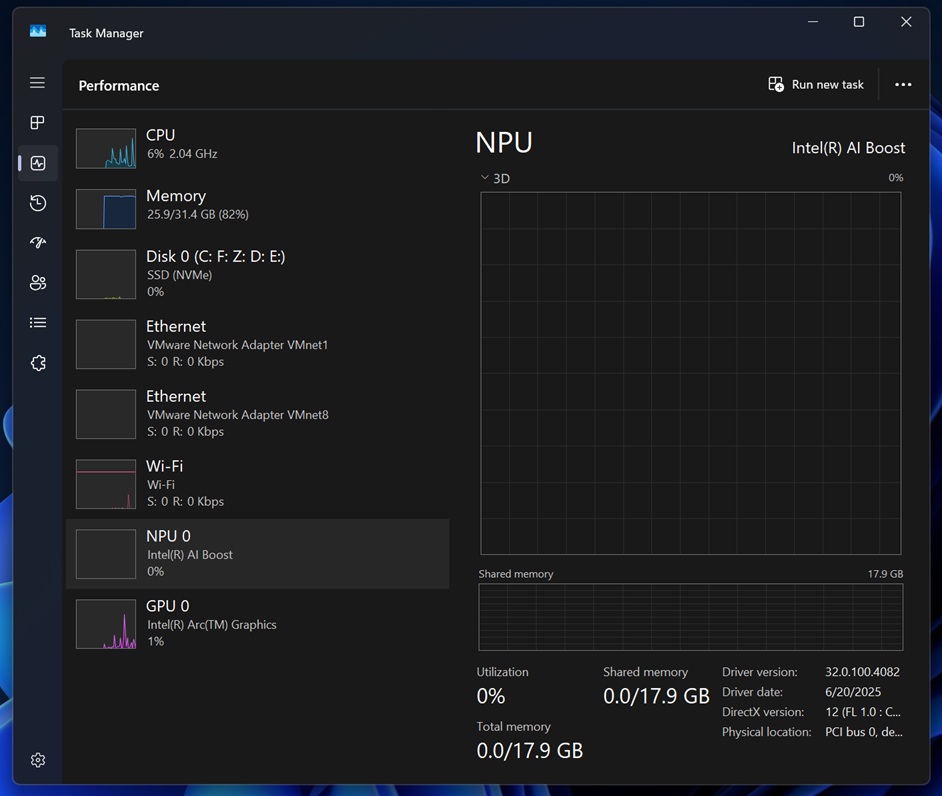
The June 2026 update extends NPU awareness from the Performance page into the process-level view where it has not existed before.
New optional NPU and NPU Engine columns are now available on the Processes, Users, and Details pages. Up to this point, if you wanted to know whether a specific application was using the NPU, there was no way to tell from Task Manager.
Now you can sort any running process by its NPU load and see at a glance which apps are tapping the neural processor and which are not. For anyone running Copilot+ features, local AI models, or transcription tools, this directly answers a question that was previously unanswerable without digging into developer APIs.
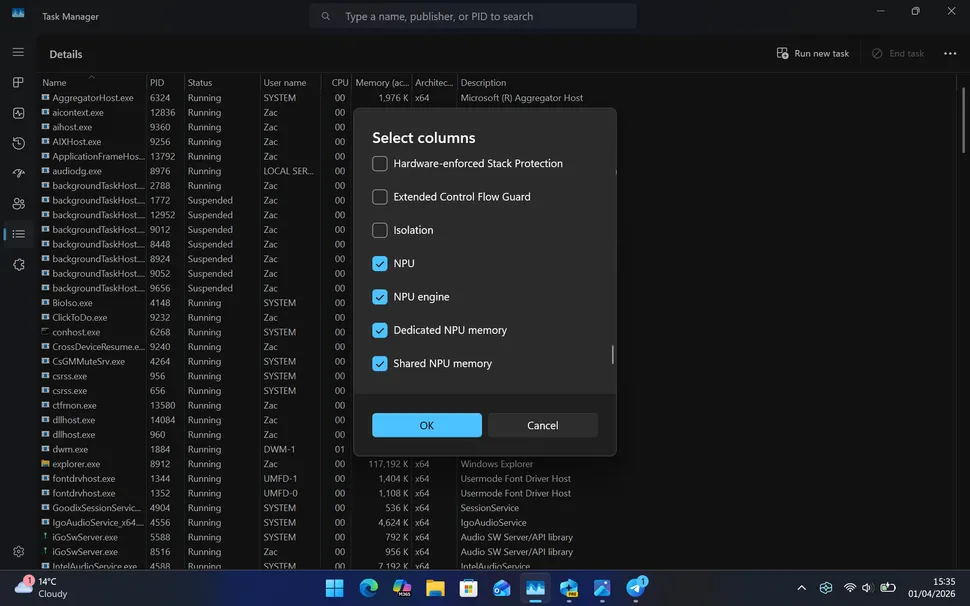
The Details page goes further still, adding NPU Dedicated Memory and NPU Shared Memory columns. Previously, the Performance tile showed shared memory at the system level.
The new columns let you see, at the per-process level, how each individual application is using NPU memory resources, and whether it is pulling from dedicated NPU memory or borrowing from shared system memory.
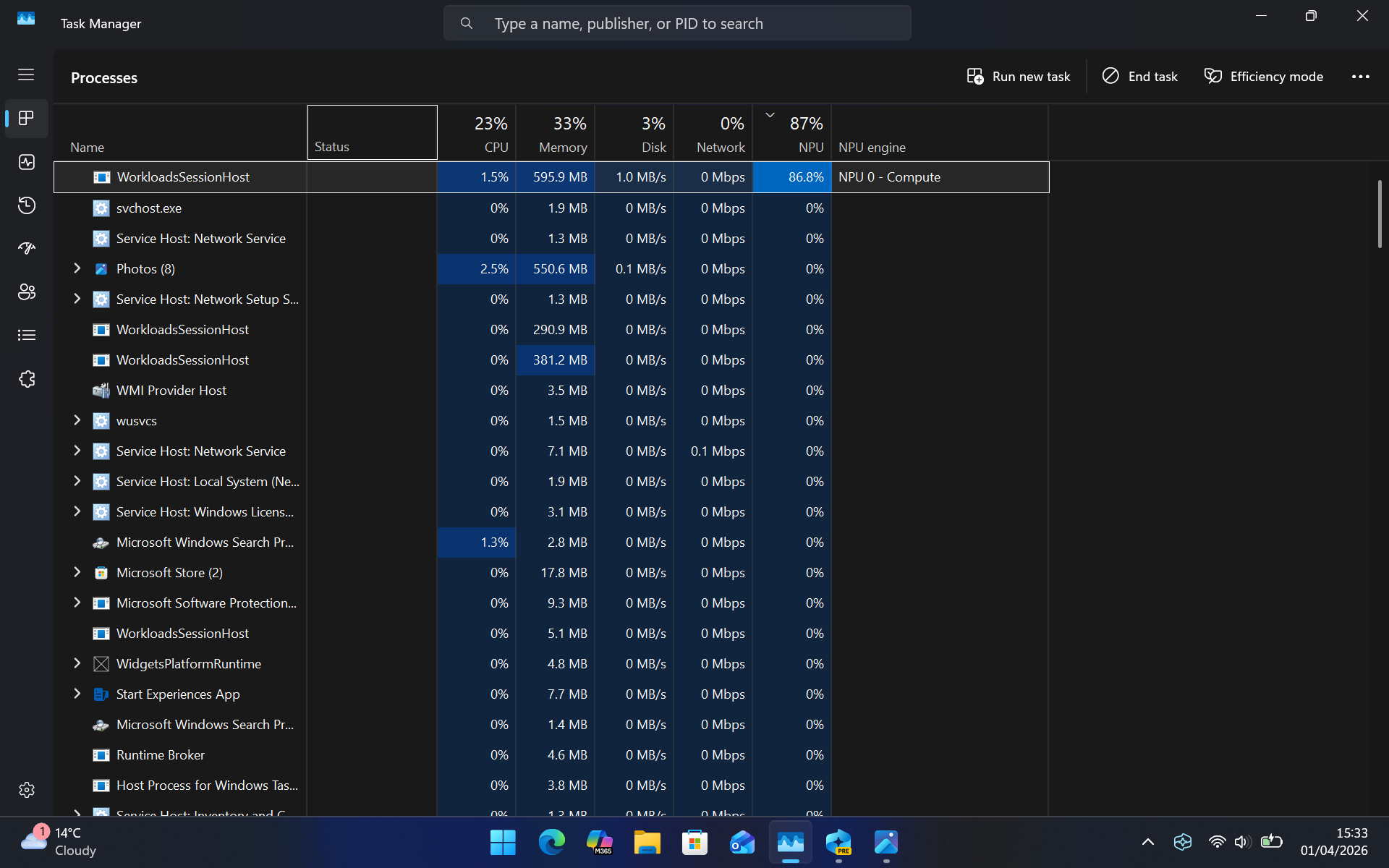
There is also a separate addition on the Performance page itself where neural engines that are part of a GPU now appear there alongside the existing NPU entry.
On modern processors from Intel and AMD, AI acceleration is sometimes distributed across both a discrete NPU and neural engine blocks embedded within the GPU silicon. Previously, the Performance page only showed the standalone NPU. Now both are represented, giving a more complete picture of what AI-related activity is running on the hardware.
Rounding out the Task Manager update is a new optional Isolation column on the Processes and Details pages, which shows which apps are running inside an AppContainer sandbox. AppContainer is the security boundary Windows uses for sandboxed applications, including most apps from the Microsoft Store.
For IT admins and power users, this makes it easier to see at a glance which processes have restricted system access and which are running with full permissions.
To add any of these new columns, right-click any column header inside Task Manager and select them from the menu. One additional fix also ships with this update where the CPU speed display on the Performance page is corrected for virtual machines, which could previously show unrealistically high clock speeds after the VM resumed from hibernate.
Multi-App Camera ends the one-app-at-a-time camera lock
Windows 11 has long had an annoying limitation when it comes to webcams where only one application could access your camera at a time.
If Teams was already using your webcam, opening OBS to record yourself would result in an error. Zoom and Teams couldn’t share a camera. Any application that grabbed the camera first would hold it exclusively until it was closed.
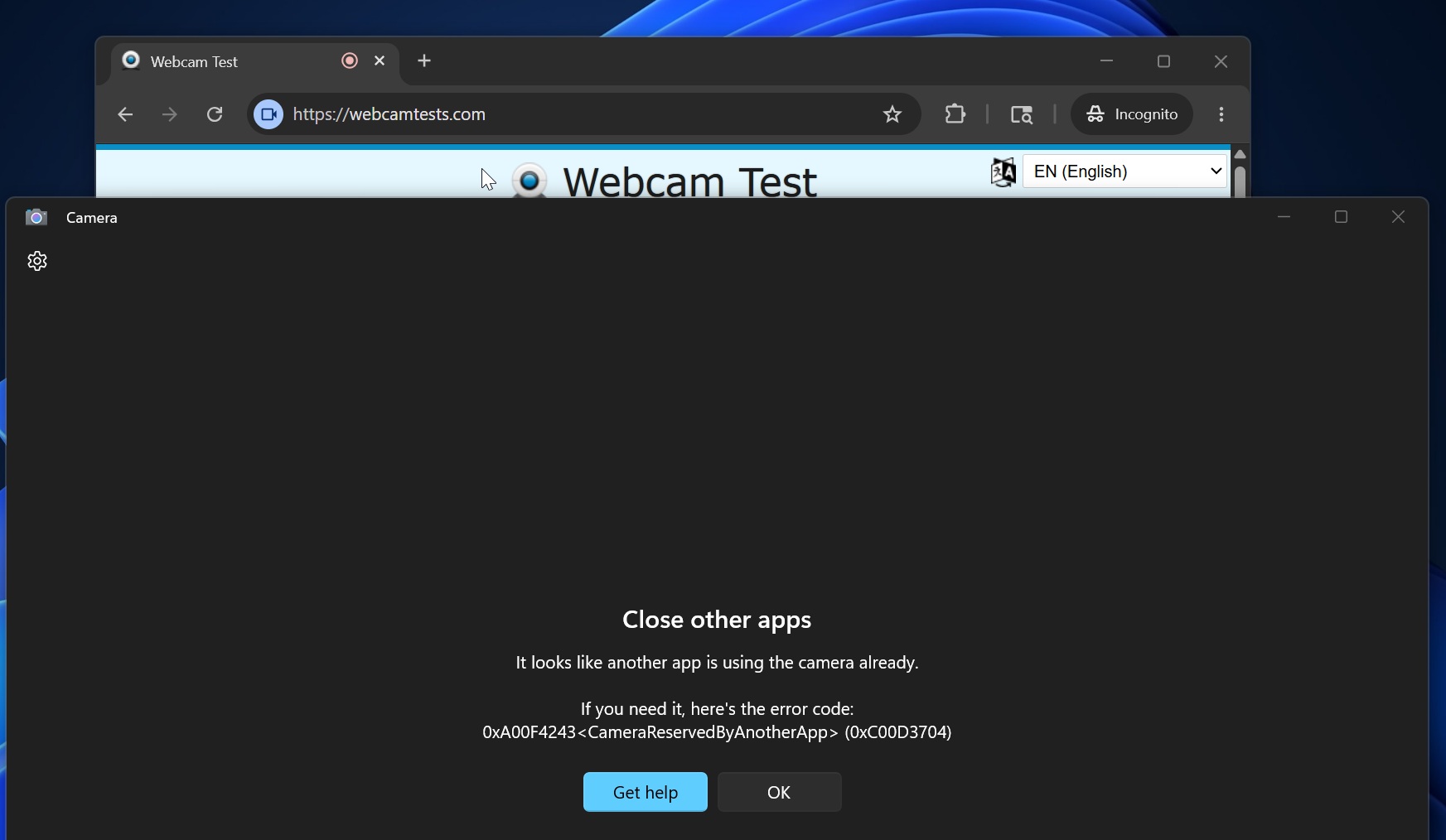
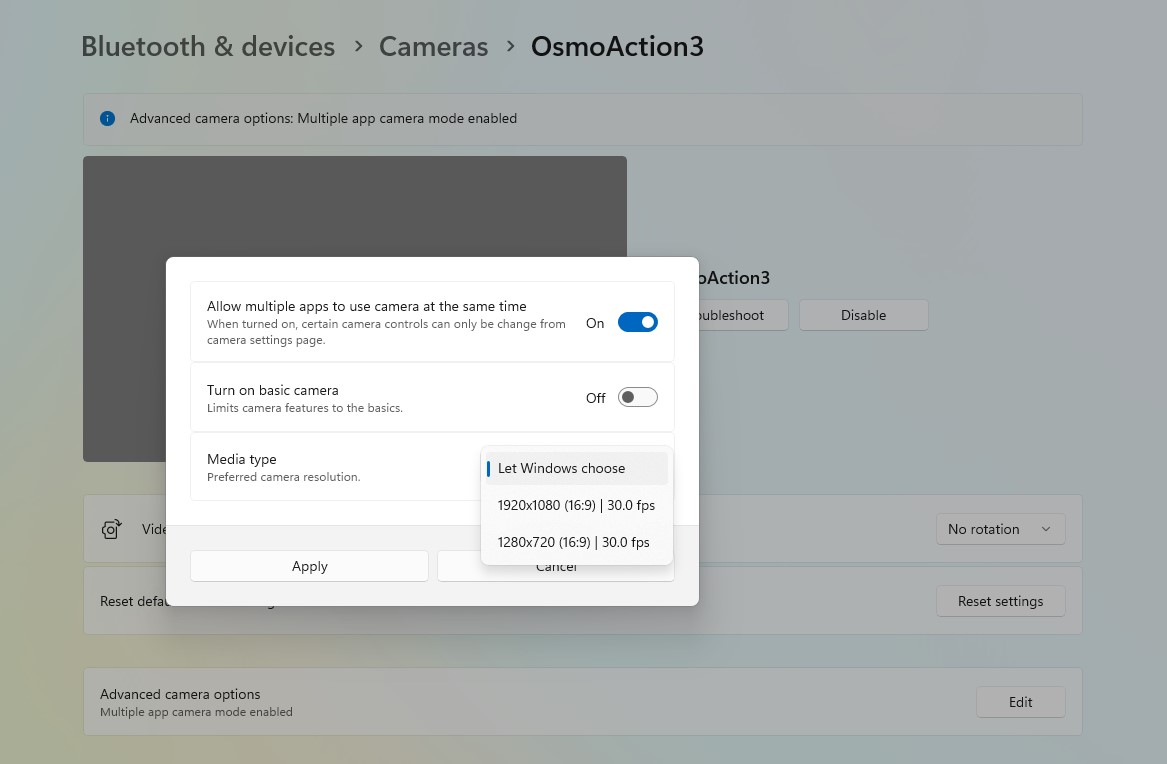
The June 2026 update ends that with Multi-App Camera, a new feature that allows multiple applications to access the same camera stream simultaneously.
We have already tested the feature. Once enabled, you can run a video call and a recording app at the same time, or any other combination of camera-dependent tools, without one blocking the other.
Basic camera mode for troubleshooting
Alongside Multi-App Camera, Microsoft is also adding Basic Camera mode. When enabled, Windows falls back to its built-in generic camera driver, bypassing the OEM’s camera driver entirely.
If your camera works in Basic Camera mode but not normally, it is a clear signal that the OEM driver is the source of the problem. Enterprise admins can configure both modes through Group Policy, under Computer Configuration > Administrative Templates > Windows Components > Camera > Configure Camera Options.
Windows Setup finally lets you pick your own user folder name
A long-standing frustration with Windows 11 setup is getting fixed in the June update.
Previously, when you set up a new device with a Microsoft account, Windows would automatically generate your user profile folder name by truncating part of your email address. The result was usually an awkward string like “iluvb” or “john_” in your C:\Users directory, which could not easily be changed after setup without advanced tools.
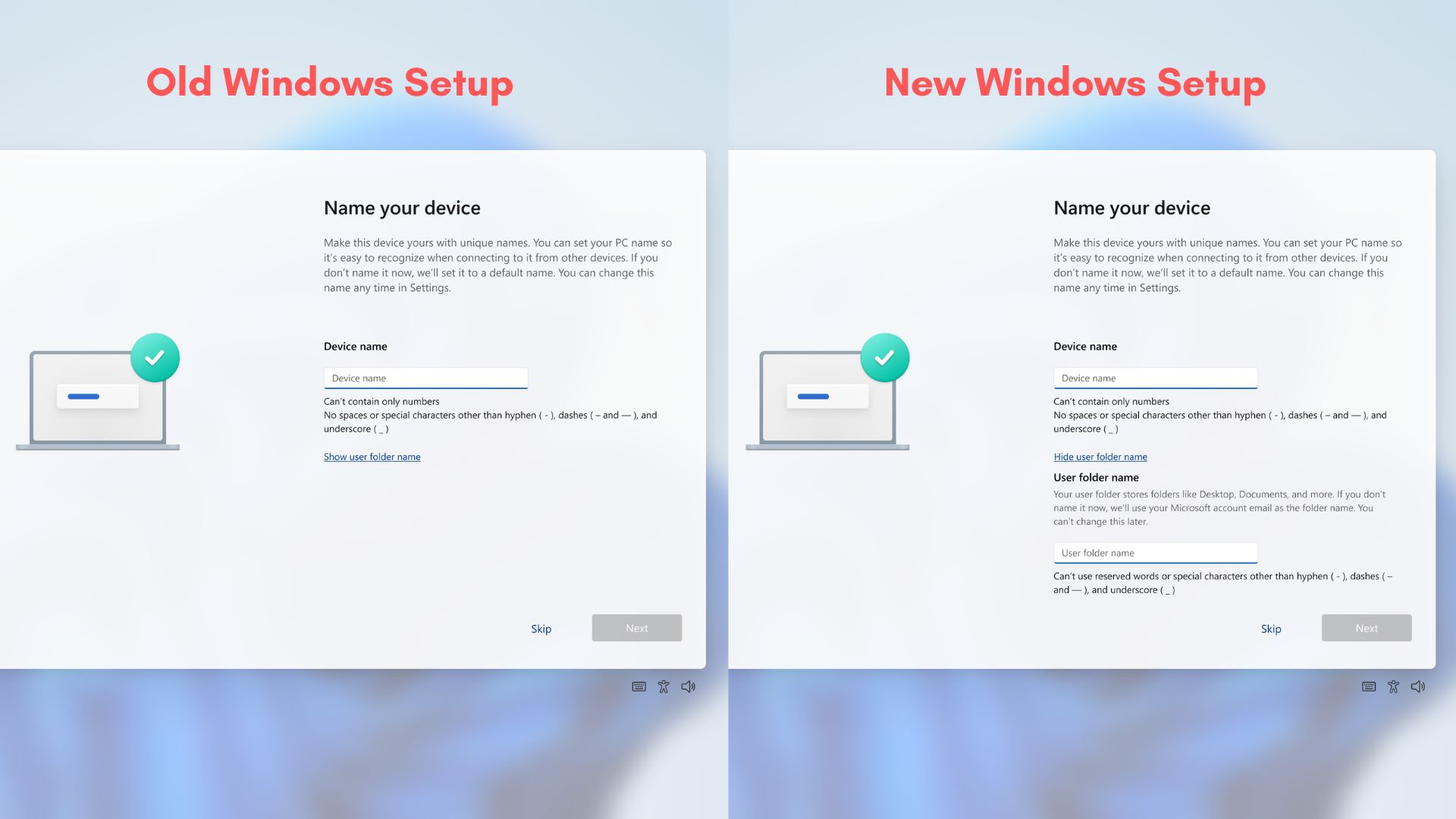
With the June Patch Tuesday update, it now ships to everyone. During Windows setup, the Device Name page now includes an option to enter a custom name for your user folder. If you skip the step, Windows uses the default behavior and continues setup as usual.
One important caveat is that the option is only available during initial setup. Existing installations cannot use it to rename their profile folder.
Magnifier gets clearer screen reader support and protected content magnification
Magnifier receives two distinct new capabilities in the June update, both aimed at users who rely on it for accessibility. The first is clearer and more consistent announcements when Magnifier is used alongside a screen reader.
Previously, transitioning between zoom levels or switching views in Magnifier could produce incomplete or inconsistent audio feedback. Now, you hear clear announcements when you zoom in or out, switch views, toggle color inversion, or turn Magnifier on and off, which makes it easier to use the feature confidently without visual confirmation.
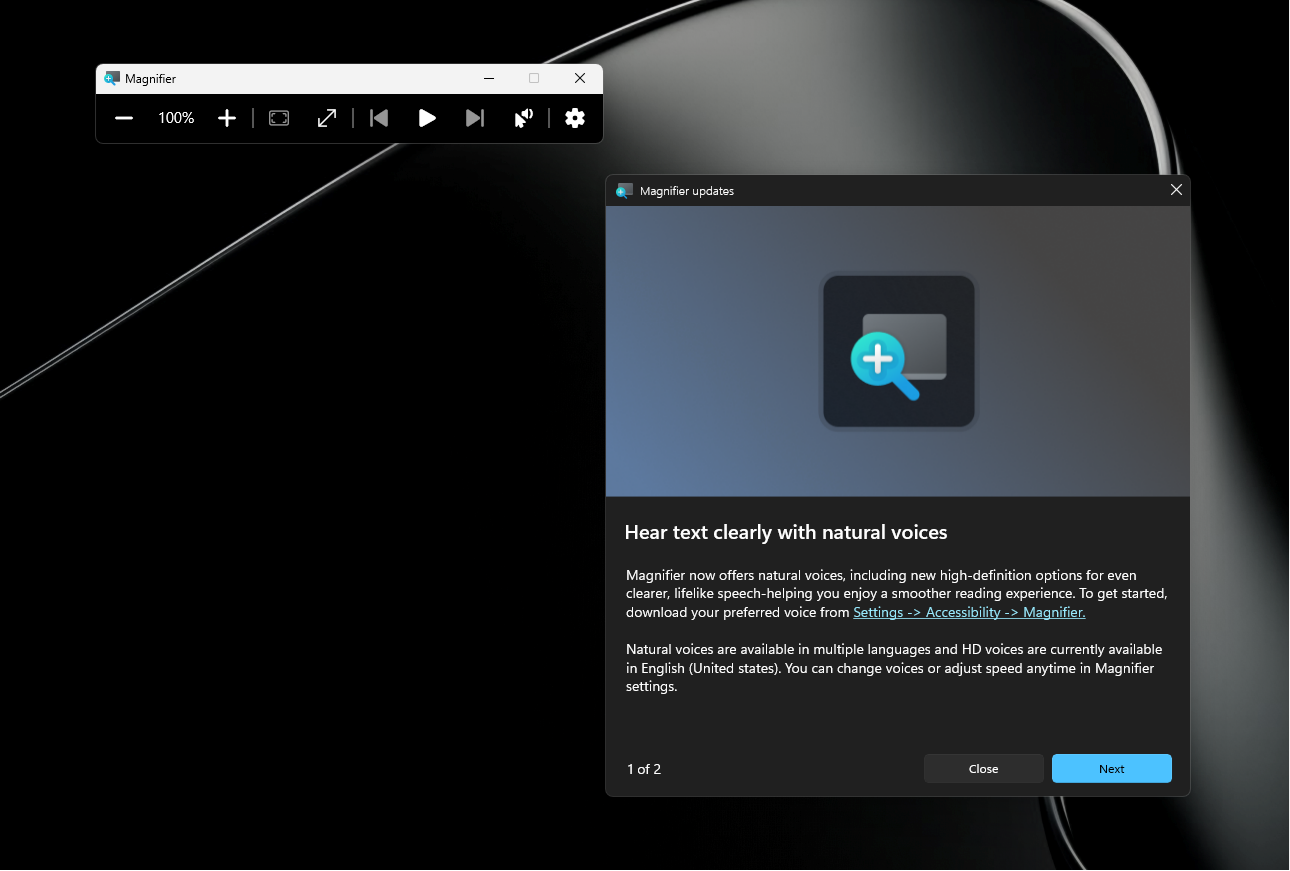
The second new capability is the magnification of permitted protected content.
Until now, Magnifier was blocked from zooming into certain protected areas of the screen, such as DRM-protected video or secure UI surfaces, which was particularly frustrating for users with visual impairments who needed to use Magnifier everywhere. The June update resolves this with support for permitted protected content.
There is also a smoothness improvement when moving the Magnifier in lens mode, which reduces the jitteriness that some users found distracting.
Windows Hello now defaults to face and fingerprint sign-in every session
Previously, if you signed in with your PIN even once, Windows could quietly make PIN the default for subsequent logins, pushing biometric sign-in into the background. This was especially noticeable on devices that occasionally prompt for a PIN after a restart or standby.
After the update, when Windows Hello face or fingerprint is set up and available, biometric sign-in becomes the default method again every time you sign in, regardless of which method you used last. Windows does make a sensible exception, though.
If you use your PIN three times in a row consecutively, Windows keeps PIN as the default until you switch back to another method. For everyday use, this means you’ll be greeted by the face or fingerprint prompt at the lock screen consistently.

Two additional Windows Hello improvements are also included. The Windows Biometric Service (WinBio) is optimized to reduce the latency between when a device resumes from Modern Standby and when biometric sign-in becomes available.
On some devices, there was a noticeable delay before Windows Hello would respond after waking up. The update also fixes unexpected authentication blocks in Windows Hello Enhanced Sign-in Security, caused by missing secure enrollment metadata on some devices.
Windows Search now returns results with just two characters
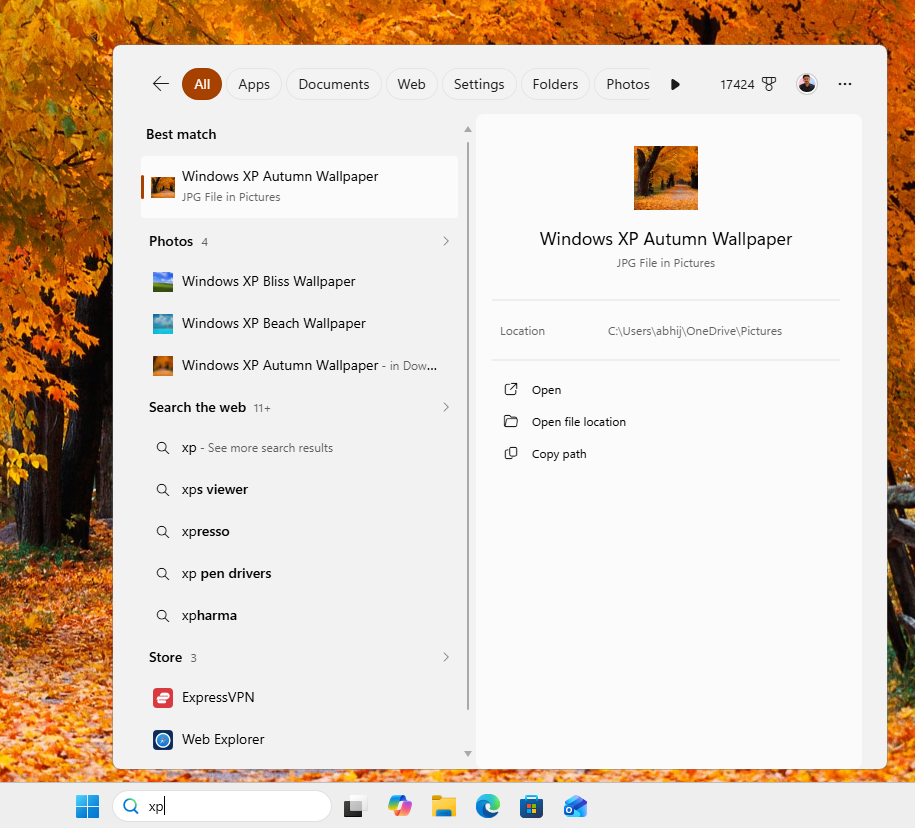
Windows Search is getting a big improvement in indexing with the June update. Previously, typing very short strings into the search box, particularly one or two characters, would return no useful results.
With the June update, Windows Search now finds and prioritizes files with as few as two characters entered. For those of us who work with short filenames, abbreviations, or codes, this closes a real gap in the search experience.
System and performance improvements in the June 2026 update
Dev Drive size can now be set in gigabytes, and UAC prompts are reduced in Storage settings
A useful quality-of-life improvement is here in the Storage section of Settings. The Dev Drive creation dialog now supports specifying size in gigabytes rather than only megabytes. Given that Dev Drives are typically measured in tens or hundreds of gigabytes, being forced to enter the value in megabytes was an unnecessary difficulty.
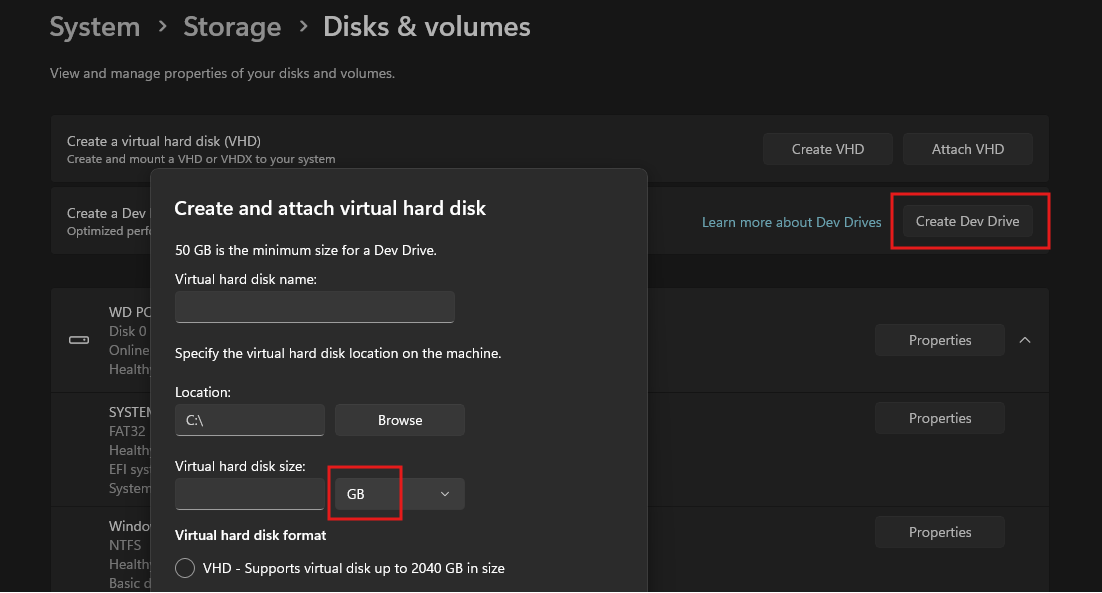
The gigabyte option is also now available when resizing volumes in Settings > System > Storage.
In the same Storage settings area, a separate fix reduces an unnecessary UAC prompt. Previously, simply opening the Storage settings page would immediately trigger a User Account Control elevation prompt, even before you clicked anything sensitive.
With the June update, the UAC prompt only appears when you choose to view temporary files, rather than firing immediately on page load.
Wallpaper persistence and accent color matching are both improved
Two Personalization-related fixes ship with the June update. The first addresses accent color accuracy when the automatic accent color selection is enabled.
Windows can pull a matching accent color from your wallpaper, but the color it picked was sometimes slightly off from the dominant color in the image. The fix improves the accuracy of that color matching.
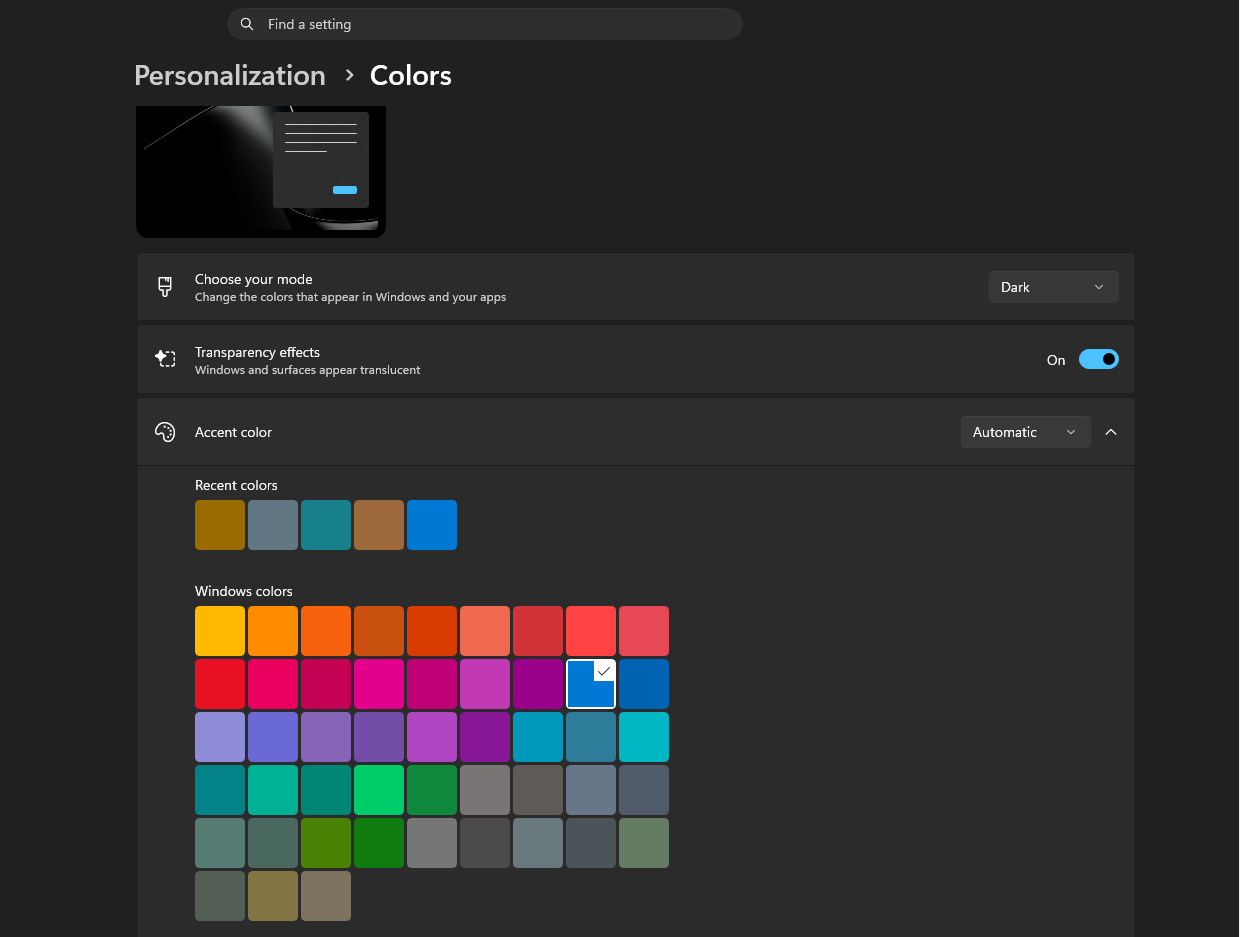
The second fix addresses wallpaper persistence across restarts and upgrades. Some users experienced their custom wallpaper reverting to a solid color after a reboot or a Windows update, particularly with large-resolution wallpapers. The June update improves the reliability of wallpaper persistence across these scenarios.
USB4 displays and USB3 fault recovery are improved
Displays connected via USB4 docks and hubs now light up more consistently when the PC comes out of standby. The inconsistency in wake-from-standby display detection for USB4-connected monitors has been a recurring complaint from users with docking station setups, and the June update fixes it
The USB3 stack also receives resiliency improvements, with additional recovery measures added against certain unexpected hardware faults and conditions.
In practice, these changes are intended to prevent USB devices from going unresponsive or dropping off after encountering a hardware error condition, which would previously require a physical reconnect or reboot to resolve.
Sensors and HID power hygiene improvements extend battery life
A fix is here for apps that were capable of keeping the sensor hub powered on even when they didn’t need to, which drained battery in standby.
The June update improves resiliency against this misbehavior, which should help Windows 11 laptop and tablet battery life on devices where sensor-hungry apps are installed.
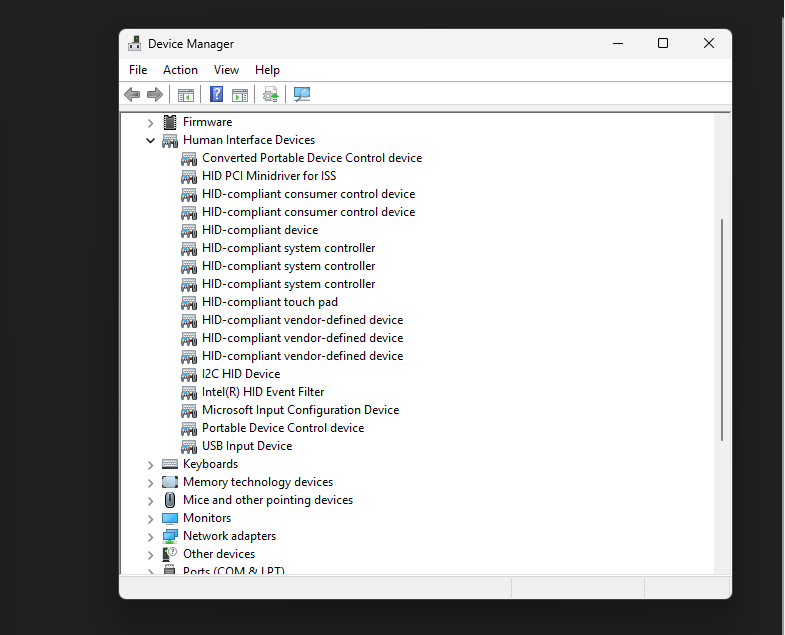
On the HID side, battery life improvements are included for failed HID devices, where a broken or disconnected peripheral could, in some cases, keep certain parts of the HID stack active and consuming power.
The update also improves power hygiene against applications that might initiate HID transfers during standby, which is a known category of battery drain on Windows devices.
Input and clipboard improvements
Several input-related fixes are included in the June update. The touch keyboard on the sign-in screen is now more reliable, including when entering or changing a password, which was an area of intermittent failure for touchscreen devices. Explorer.exe is also more stable when closing the input switcher.
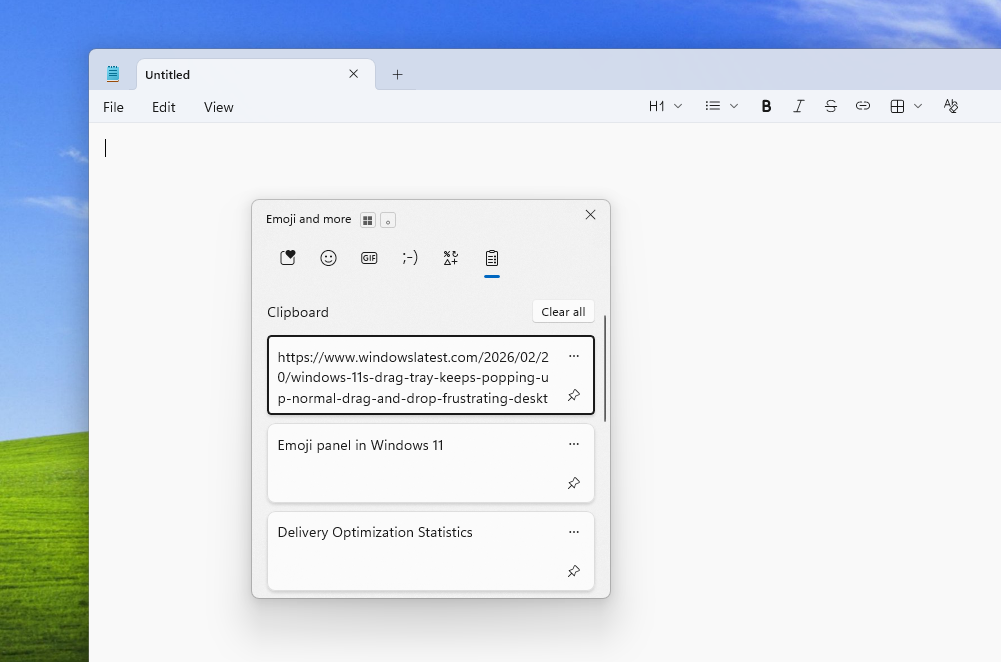
Performance when opening or navigating to clipboard history is also improved, which will be welcome for anyone who relies on Windows + V regularly.
Times New Roman renders more accurately in Greek and Cyrillic
The Times New Roman font family receives an update to improve the rendering of combining diacritical marks across Greek and Cyrillic scripts.
Diacritical marks, which are accents and modifiers that attach to base letters, were being positioned incorrectly in some cases, resulting in visual inconsistencies and readability issues for users working in these scripts.
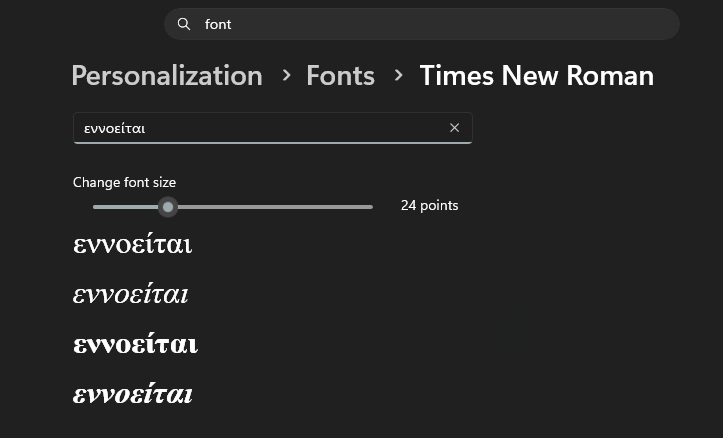
The update addresses the mark positioning issues to produce more accurate and visually consistent text across both scripts.
Task Scheduler saves your column layout between sessions
A small but useful fix arrives for Task Scheduler. Column width adjustments made in the task list view are now saved across sessions. Previously, resizing columns to see more of a task’s details would be forgotten after closing and reopening Task Scheduler, requiring users to readjust every time. The update makes those layout preferences persistent.
Desktop app shortcut loading is more reliable
The June update includes a reliability improvement for loading desktop icons. Some users experienced missing or broken shortcuts on the desktop after certain actions or restarts, and the update addresses the stability of the shortcut loading process.
Microsoft Store improves download performance and error reporting
Two improvements ship for the Microsoft Store. First, underlying changes improve download performance and bandwidth usage, which should translate to faster app downloads and updates from the Store.
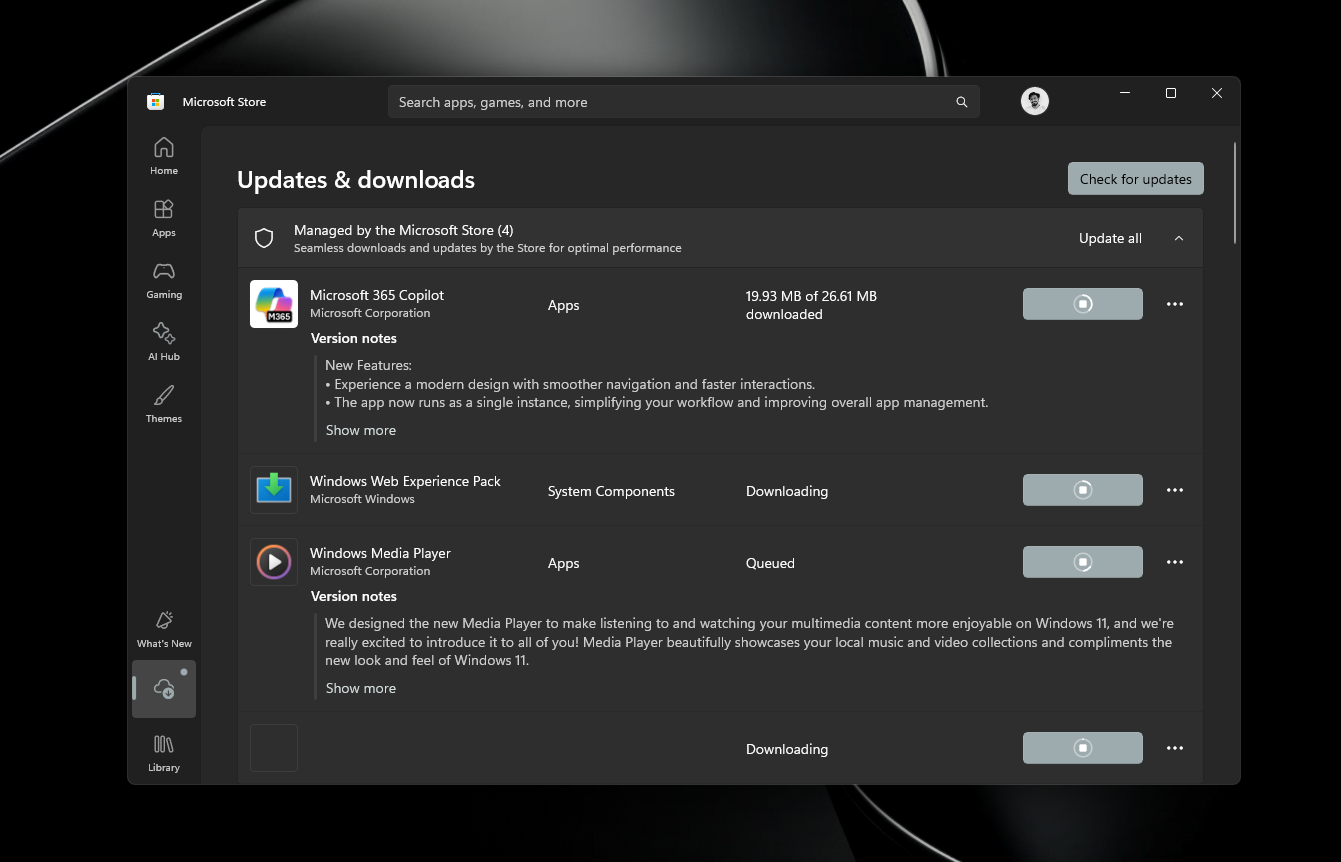
Second, error reporting is improved for cases where a download fails specifically because Windows Update group policy settings are enabled and interfering. Previously, the Store could show an unhelpful error in this scenario. The update makes the failure message more accurate and actionable.
System-wide reliability improvements
The June update includes a broad pass of reliability improvements across Windows 11. Areas covered include the sign-in and lock screens, File Explorer, touch gestures on touchscreen devices, and Settings when changing themes.
Normal rollout: EFI System Partition update error is fixed
A notable bug fix arrives as part of the normal rollout phase of the June update. Some devices were failing to complete update installation with error code 0x800f0922 when the EFI System Partition had limited free space, particularly when only 10 MB or less was available.
The issue was especially common on devices that had already installed the May 2026 security update KB5089549, which may have consumed additional EFI partition space. Devices that were previously getting stuck on this error should now complete the June update installation successfully.
AI components are updated in the background
Alongside all the visible changes, the June 2026 Patch Tuesday update also refreshes several internal AI components used across Windows 11. The following components are updated to version 1.2605.856.0:
- Image Search
- Content Extraction
- Semantic Analysis
- Settings Model
Microsoft does not publish detailed changelogs for these components, but they power features like intelligent Windows Search, recommendations, and other AI-assisted behaviors throughout the OS. Updates to these components happen silently in the background and do not require any action from the user.
Servicing stack update and known issues
Microsoft is also shipping a servicing stack update alongside the main release, identified as KB5094135 (Build 26100.8648).
Servicing stack updates improve the component that handles installing Windows updates, making the overall patching process more reliable and consistent. Servicing stack updates are generally invisible to the user, but they are important infrastructure for ensuring future patches install correctly.
As of release, Microsoft says it is not aware of any known issues with the June 2026 update. For a month this feature-dense, that is a good sign.
How to install the June 2026 Patch Tuesday update
To install the June 2026 Patch Tuesday update, go to Settings > Windows Update > Check for updates. The update will appear as KB5094126 and move your PC to Build 26200.8655 or 26100.8655, depending on whether you are running Windows 11 25H2 or 24H2.
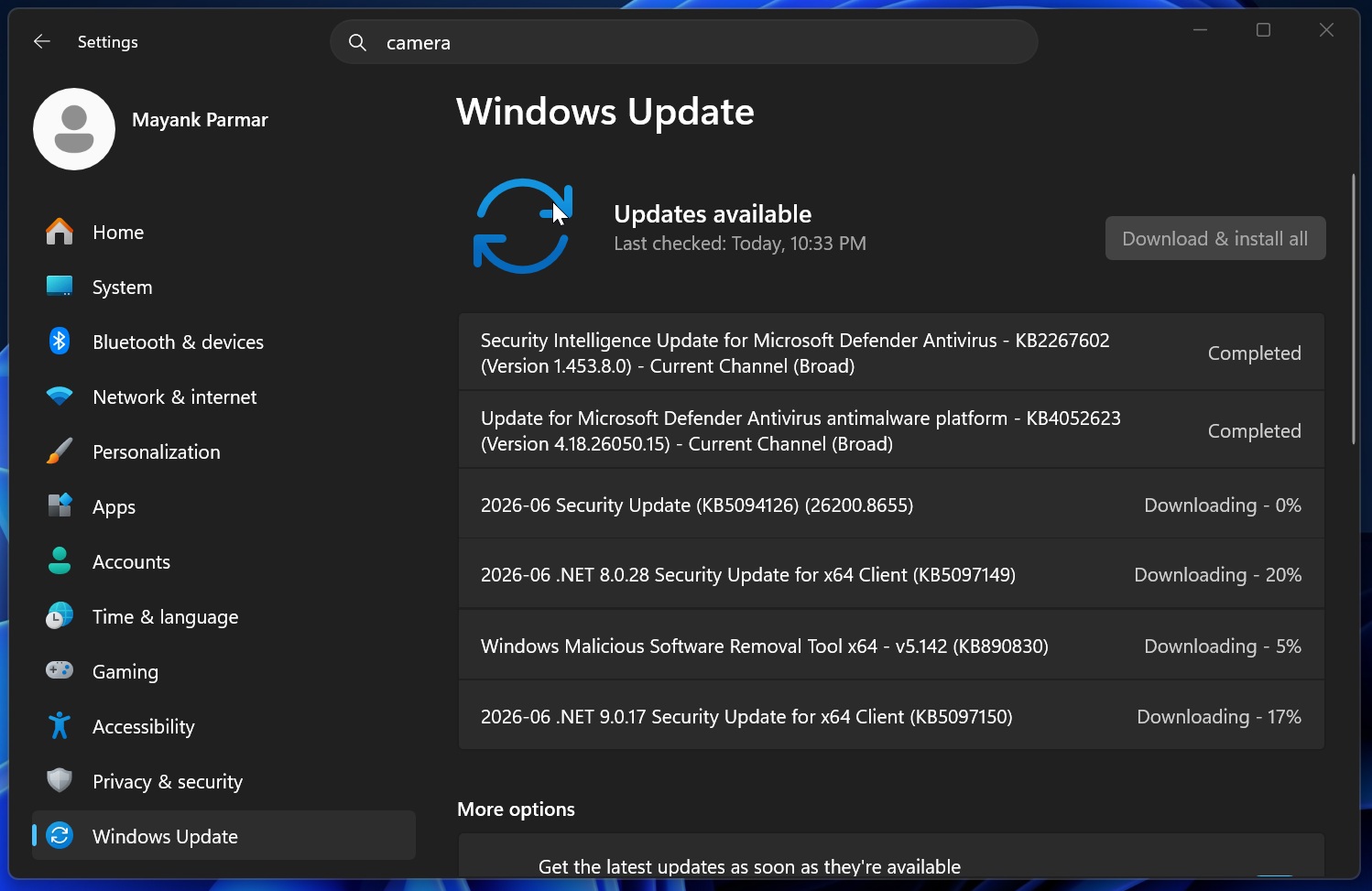
Since many of the new features are part of the gradual rollout, even after installing the update, some changes may take a few more days to appear on your device. That is completely normal, and there is nothing broken if you do not see the Low Latency Profile effects or Shared Audio right away.
As Microsoft works to fix Windows 11, this is an update we would recommend everyone install as soon as they get it.