







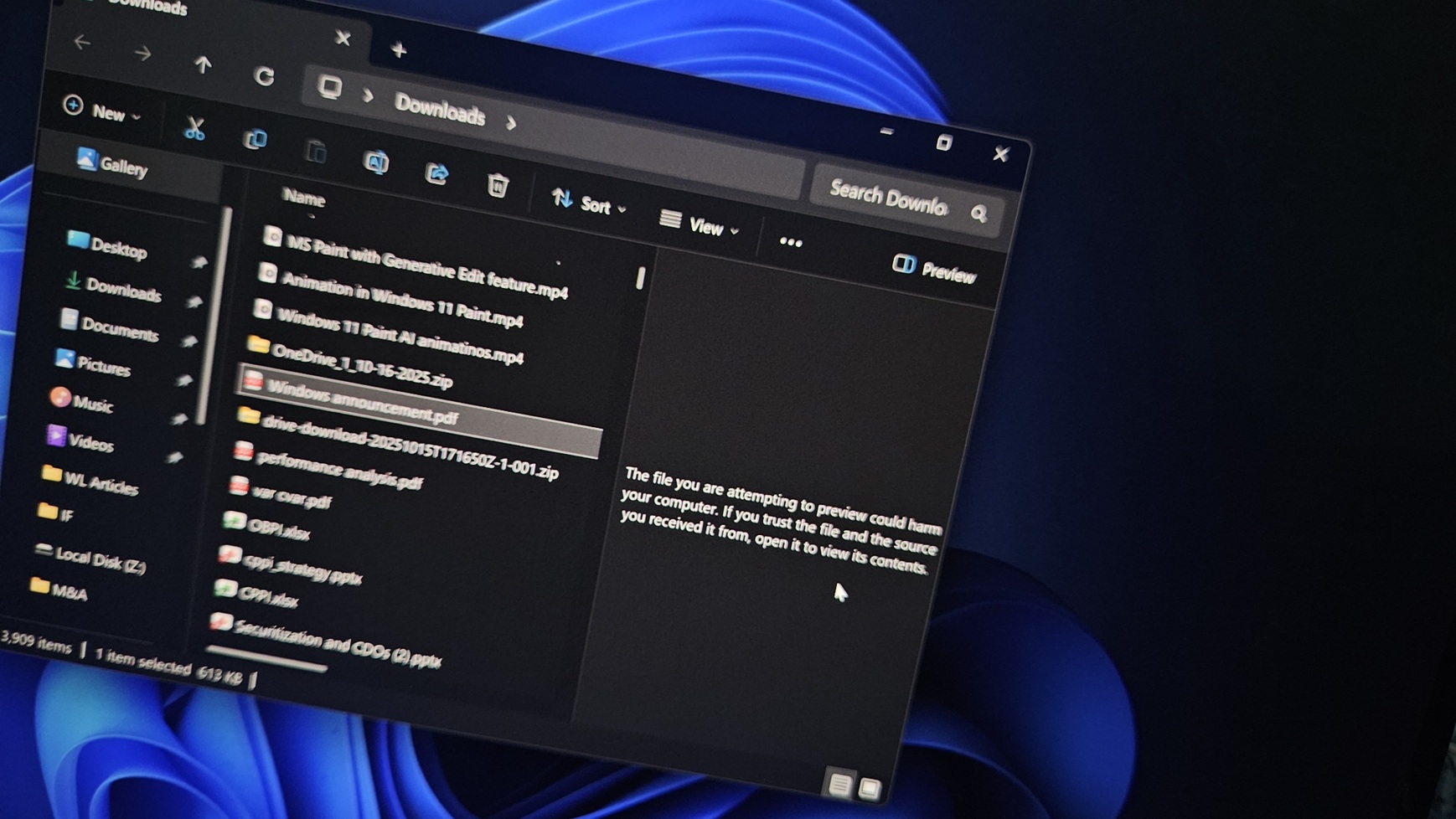
Microsoft told Windows Latest that it disabled the File Explorer Preview pane in Windows 11 25H2 and 24H2 for internet downloaded files. This causes “The file you are attempting to preview could harm your computer. If you trust the file and the source you received it from, open it to view its contents” error, but you can easily unblock your files.
In a statement to Windows Latest, Microsoft clarified that when you create a file locally, you can still preview it, but File Explorer Preview won’t work for files downloaded from the internet due to security reasons. This change is even live in Windows 10 with its last update (KB5066791).
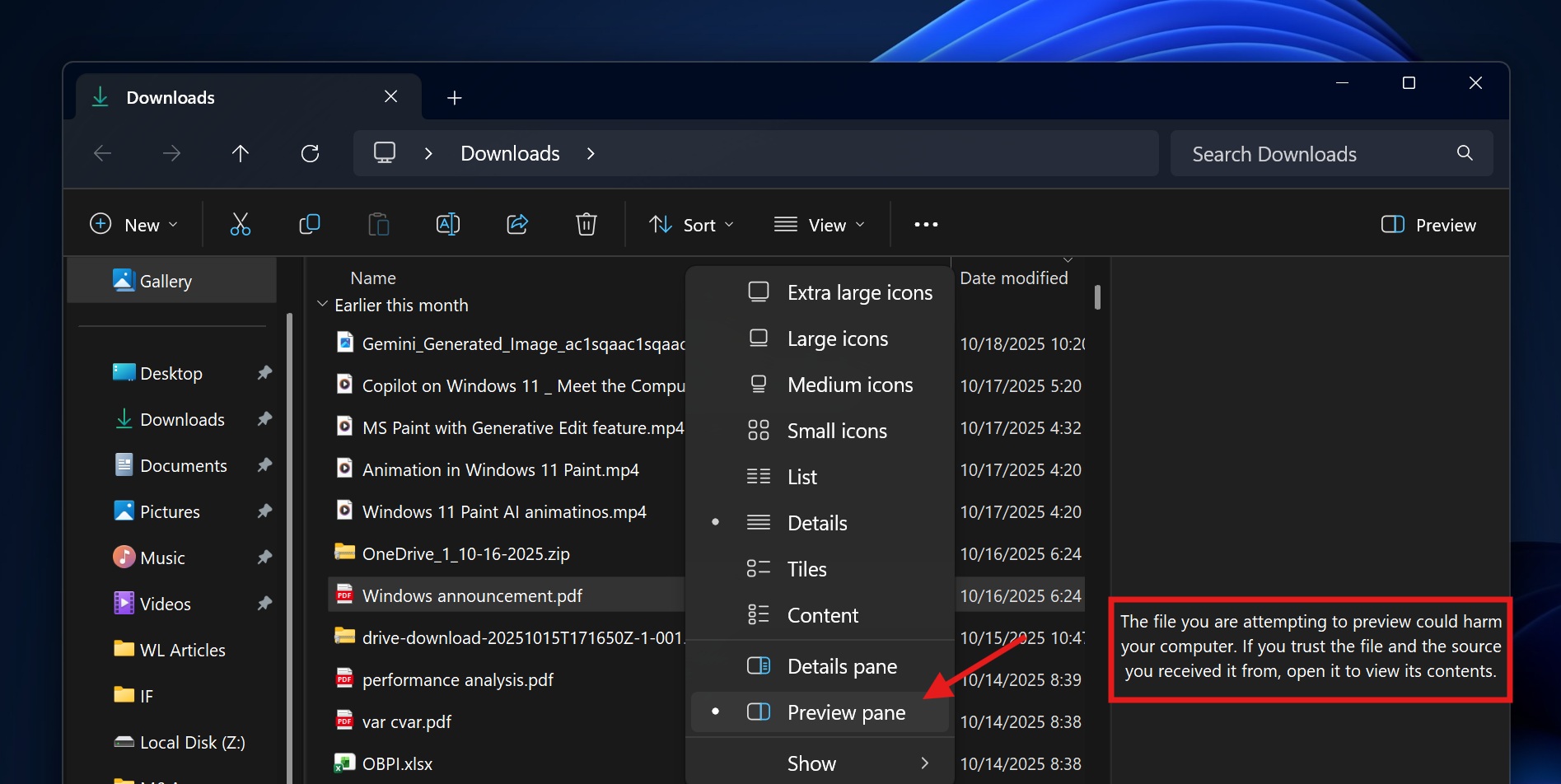
For those unaware, File Explorer has two panes by default. When you click on ‘View,’ it lets you toggle between Details and Preview. While the Details pane gives a brief breakdown of file information, such as the author of the file, creation time & date, the Preview Pane lets you quickly preview the file’s content without opening it.
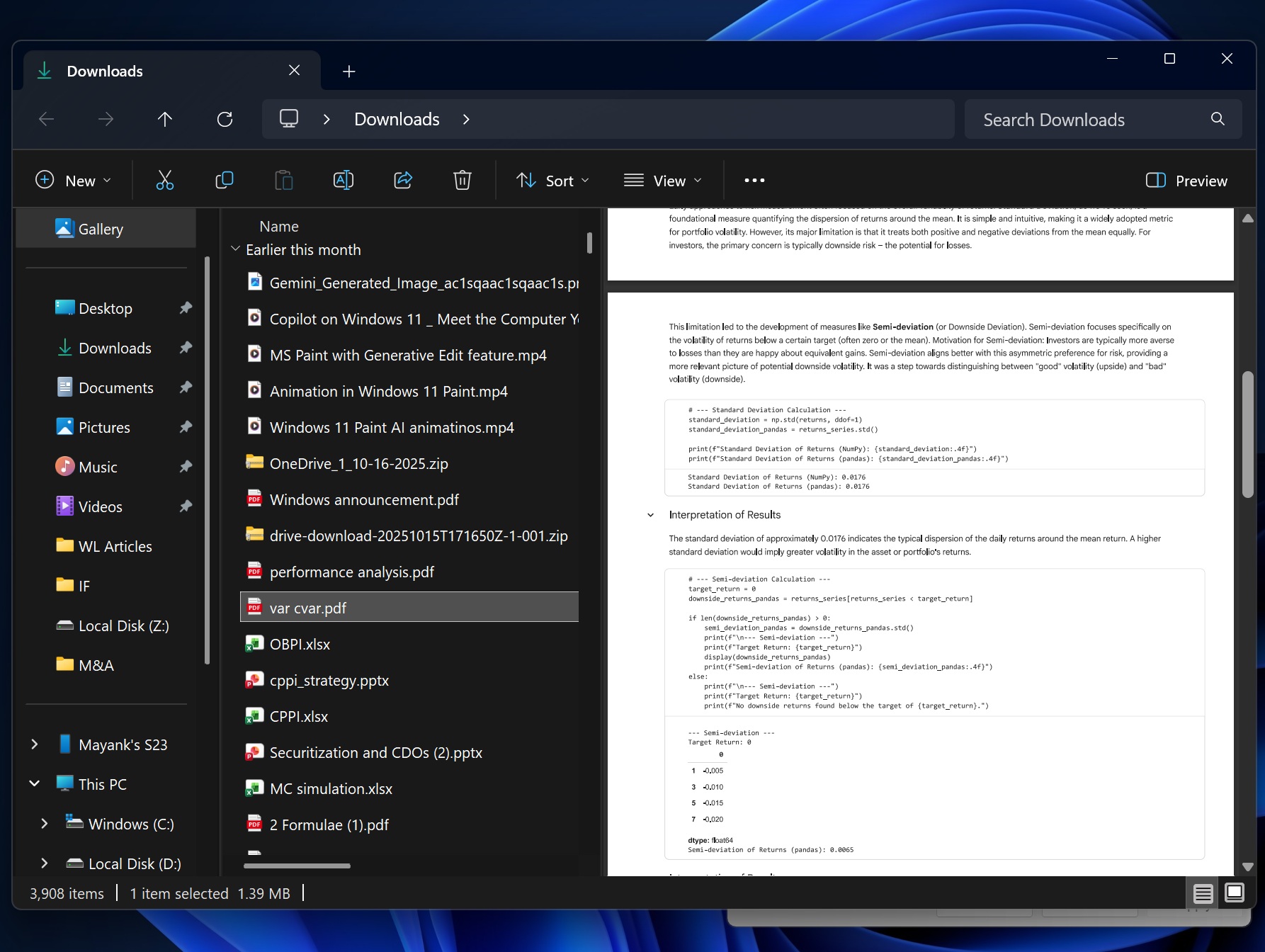
You just need to select the document, and its preview will automatically appear on the right side of File Explorer. Other file formats, such as .docx and even .py (Python), are also supported.
However, File Explorer now shows the following error when you try to preview files downloaded from the internet or a remote network:
The file you are attempting to preview could harm your computer. If you trust the file and the source you received it from, open it to view its contents.
This error shows up for everyone after installing Windows 11 KB5066835 (Build 26200.6899 / 26100.6899 and newer affected).
Why does the File Explorer Preview Pane no longer work for some files?
Microsoft disabled File Explorer previews for Internet-downloaded files to stop a quiet NTLM hash leak.
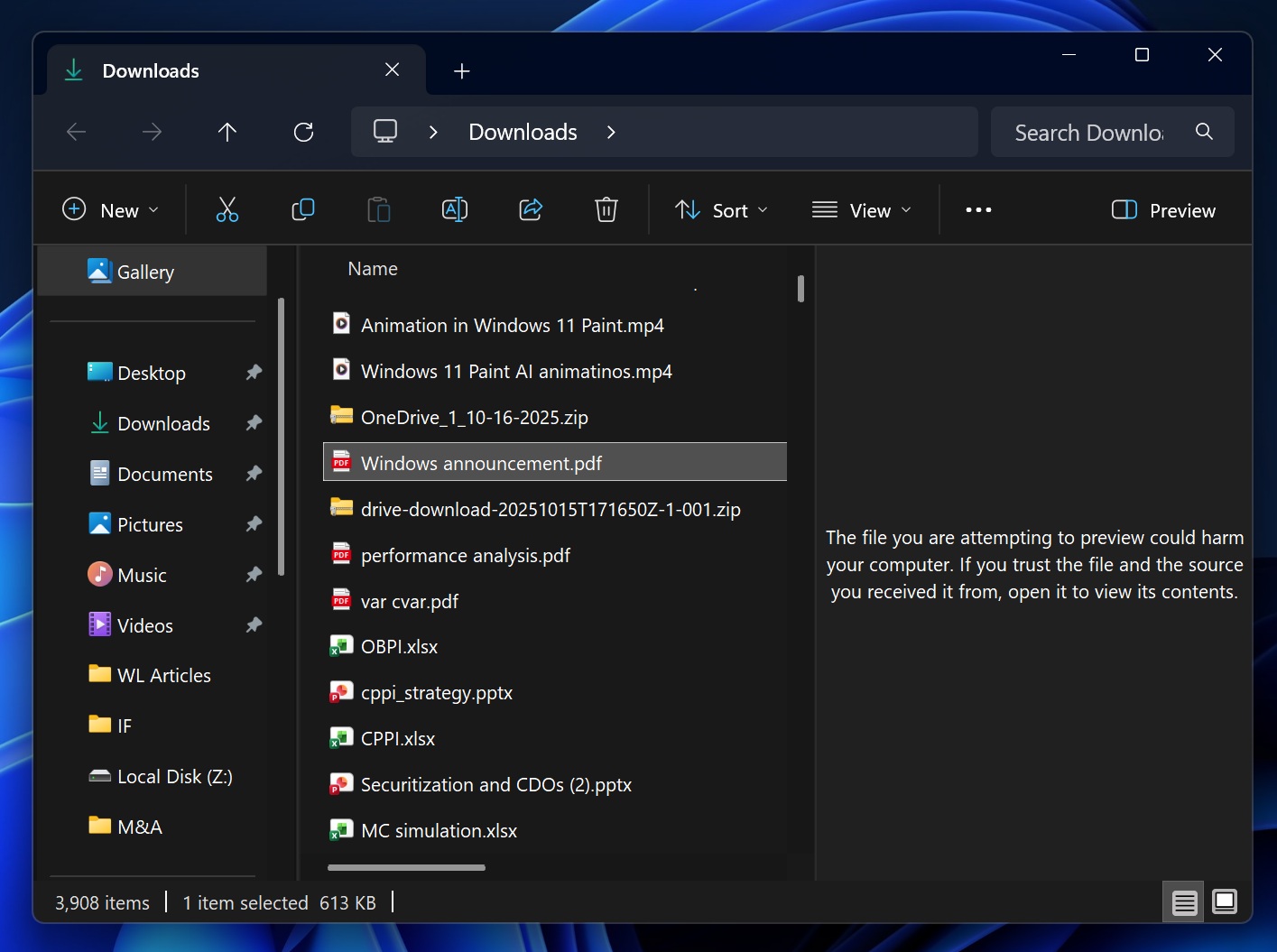
Specifically, if a file has been marked as “Mark of the Web (MotW),” it’ll be blocked. For those unaware, a file has a Mark of the Web (MotW) tag when it’s downloaded from the following sources:
- random internet websites.
- apps like SharePoint.
- email attachments.
- Mostly anything downloaded using a browser like Edge or Chrome
When you select a downloaded file, the Windows preview handler inside File Explorer may load things it references, such as images, fonts, etc. If any of those points to a UNC path (like \\server\…\windows.png) or a file: URL, Windows can reach out over SMB during the preview and send NTLM credentials.
What are NTLM credentials?
Microsoft has turned off the preview feature in File Explorer for downloaded files to block this path. Unfortunately, this change also affects consumers, not just enterprise customers.
“Starting with Windows security updates released on and after October 14, 2025, File Explorer automatically disables the preview feature for files downloaded from the internet,” Microsoft told Windows Latest in a statement. “If you are confident in the safety of both the file and its source, you may remove the internet security block.”
How to unblock previews in File Explorer
If you trust the file, you just need to right-click the file in Explorer, select Properties, and check ‘Unblock’ under the security section.
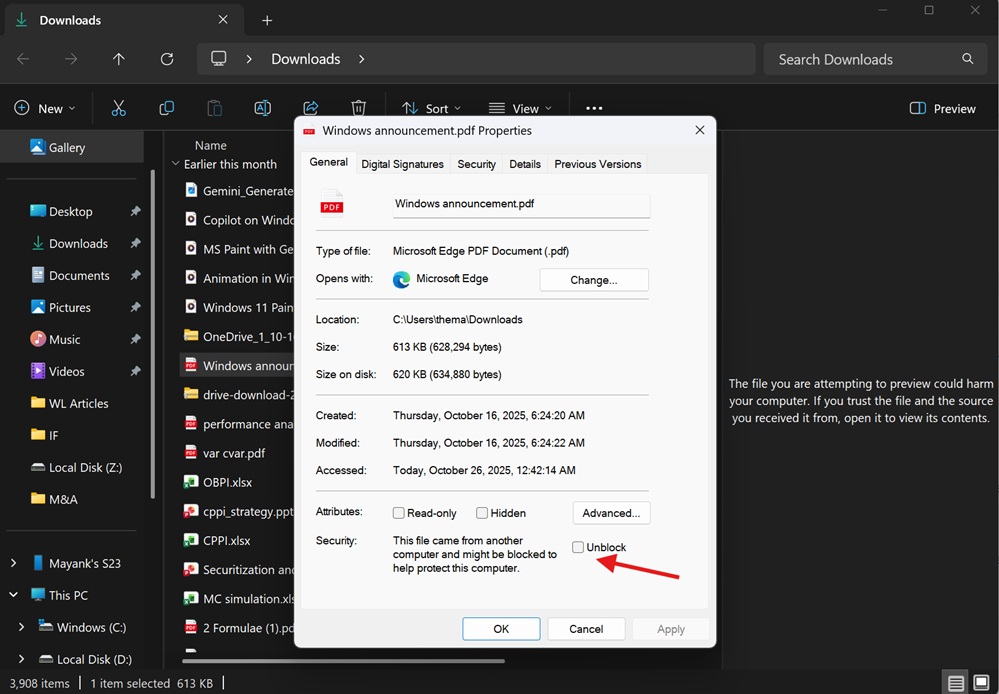
While it’s a simple workaround, it still defeats the whole purpose of ‘quickly‘ previewing files in Explorer. If you need to click four times to see a preview, you might as well open the file, which would not take more than two clicks. However, thankfully, there’s a PowerShell script that lets you unblock all files in a specific path.
In PowerShell, you just need to run the following command:
Unblock-File -Path "C:\Users\admin\downloads\*.pdf"
In the above script, you need to replace ‘admin’ with your user profile name. If you don’t know your user profile folder name, open PowerShell and run the following command: echo $HOME
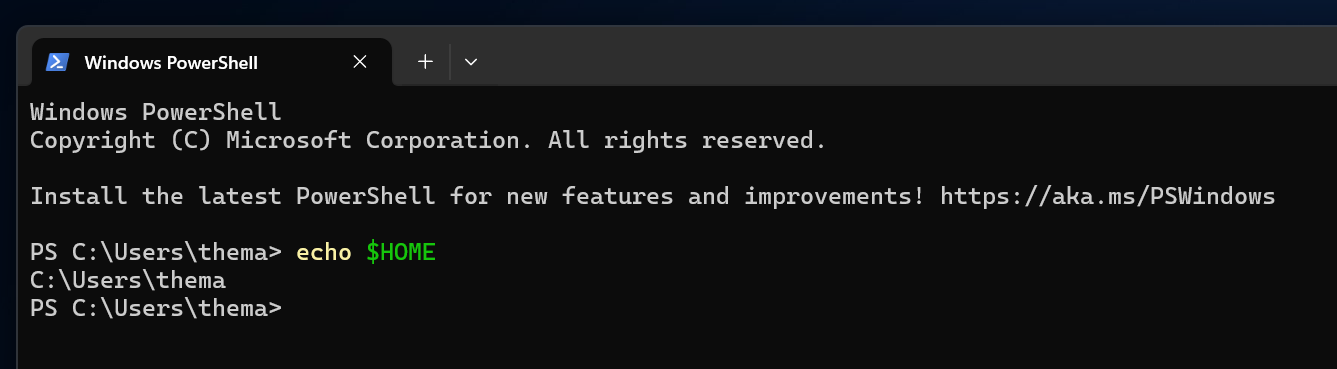
echo $HOME gives you the user profile folder.
The “Unblock-File” script unblocks all existing .pdf files in your preferred folder. However, new files added to the folder will still be blocked and must be unblocked individually, or you can run the script again.
I’ve been experimenting with how Windows handles these file previews. I found some interesting patterns. For example, if you want to unblock files in the primary folder and subfolders, you can use the following script
Get-ChildItem -Path "$HOME\Downloads" -File -Recurse | Unblock-File
You can replace “Downloads” with your preferred folder. $HOME simply pings your user profile folder.
Now, if you want to unblock files by pattern anywhere (example: every *.pdf on C drive), you can try this command:
Get-ChildItem -Path "C:\" -File -Recurse -Include *.pdf -ErrorAction SilentlyContinue | Unblock-File
As long as you trust what you download, this should be good to go. You can run the same script for other paths or file types.
How to turn off “The file you are attempting to preview could harm your computer” for future downloads?
All workarounds I shared only apply to existing files. What if you download a new file from the internet? Can you still preview it? No, you will need to run the command again or right-click the file, select Properties, go to the Security tab and unblock it.
Automatically run the script via a scheduled task
You cannot run the script every time because it’s annoying, but you can use Windows Scheduler to automatically run the script. To do this, open Notepad, paste the following script:
$target = Join-Path $HOME 'Downloads'
Get-ChildItem -Path $target -File -Recurse | Unblock-File
Save this file as C:\Scripts\Unblock-Downloads.ps1. Now, open PowerShell, and run the following command:
schtasks /Create /SC HOURLY /MO 1 /TN "Unblock Downloads" /TR "powershell -NoProfile -ExecutionPolicy Bypass -File C:\Scripts\Unblock-Downloads.ps1" /RL HIGHEST
You can change /SC schedule to MINUTE, DAILY, etc. This allows you to view the internet downloaded files after they land, and you don’t have to run the script manually.
Registry script to fix “The file you are attempting to preview could harm your computer”
You can also use the Windows Registry editor to turn off Windows 11’s new security feature and reopen the exact risk Microsoft is closing. This is not recommended, but if you trust the files you downloaded, you can run the following script:
New-Item -Path "HKCU:\Software\Microsoft\Windows\CurrentVersion\Policies\Attachments" -Force | Out-Null
New-ItemProperty -Path "HKCU:\Software\Microsoft\Windows\CurrentVersion\Policies\Attachments" `
-Name "SaveZoneInformation" -PropertyType DWord -Value 1 -Force | Out-Null
The above script applies to the current user only and turns off the internet-downloaded files-related security feature that blocks previews in File Explorer.
In the above case, we’re setting SaveZoneInformation to “1,” which means “Do not preserve zone info” (in other words, we’re asking Windows not to write MotW). This allows previews to work in File Explorer.
You can change the value to “2” if you want to block file previews again.
You can modify the script to run for all users:
New-Item -Path "HKLM:\Software\Microsoft\Windows\CurrentVersion\Policies\Attachments" -Force | Out-Null
New-ItemProperty -Path "HKLM:\Software\Microsoft\Windows\CurrentVersion\Policies\Attachments" `
-Name "SaveZoneInformation" -PropertyType DWord -Value 1 -Force | Out-Null
This change is rolling out as part of Windows October 2025 Patch Tuesday, which is the same update that broke WinRE (Windows Recovery Environment) and even LocalHost.