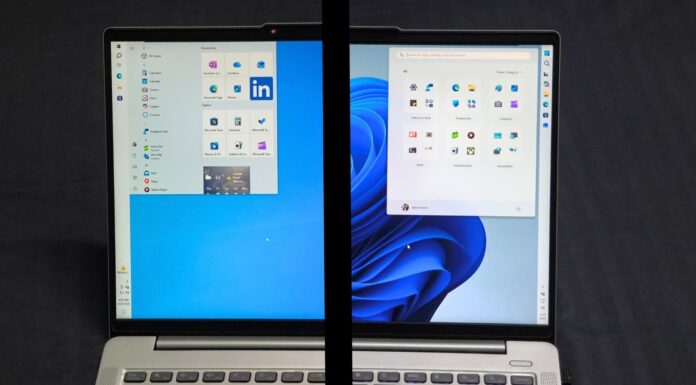








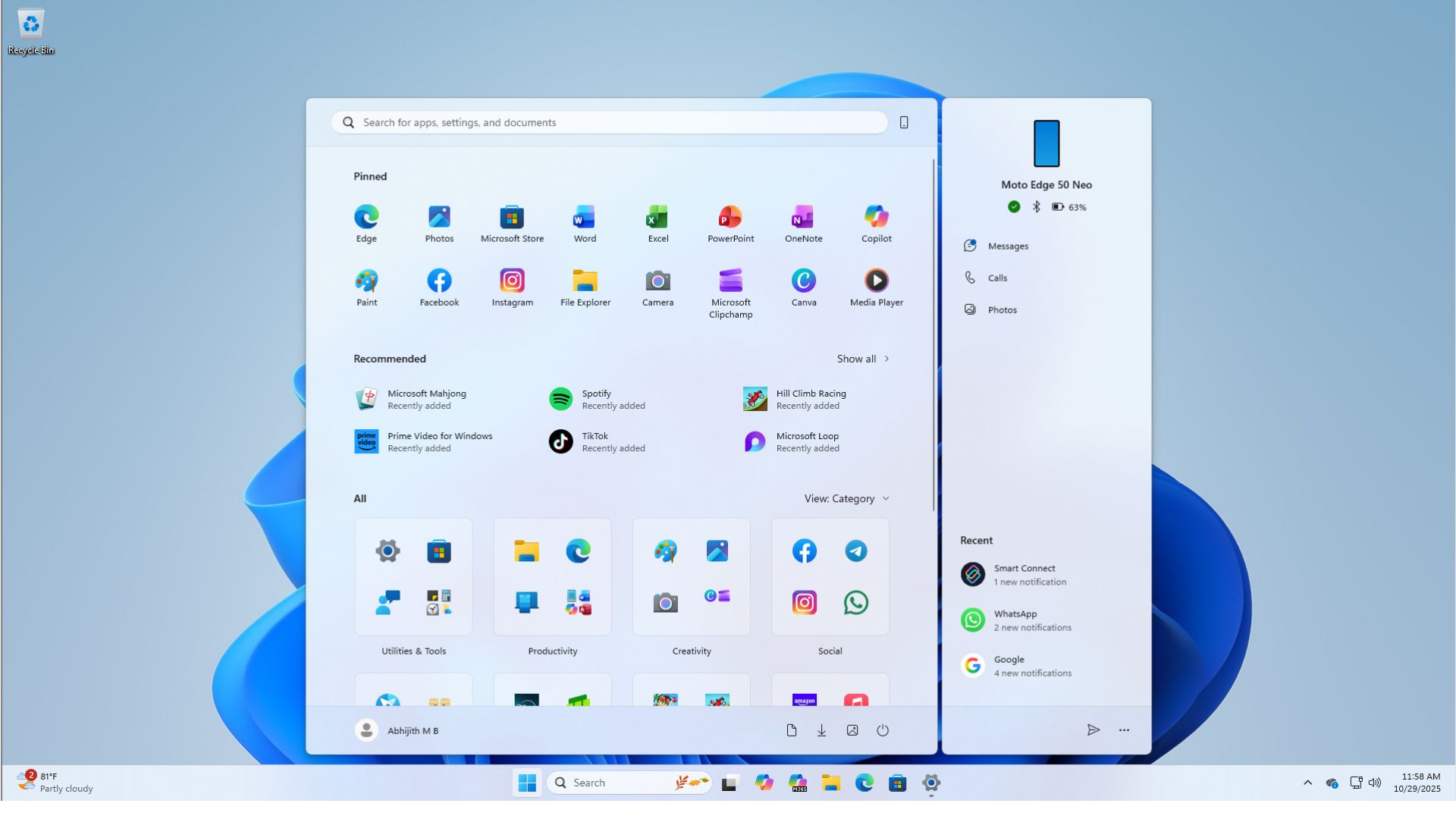
Windows 11 KB5089549 is now rolling out with Xbox mode, and performance-related features, including a faster taskbar, reliable Windows Hello, and more. In addition to Windows Update, Microsoft has posted the direct download links for KB5089549 offline installers (.msu).
KB5089549 is a mandatory update, and it will download or install automatically unless Windows Updates are paused on your PC. It shows up as “2026-05 Security Update (KB5089549) (26200.8455).” That means Windows 11 25H2 is getting updated to 26200.8455. In case of Windows 11 24H2, today’s update bumps the OS to Build 26100.8455.
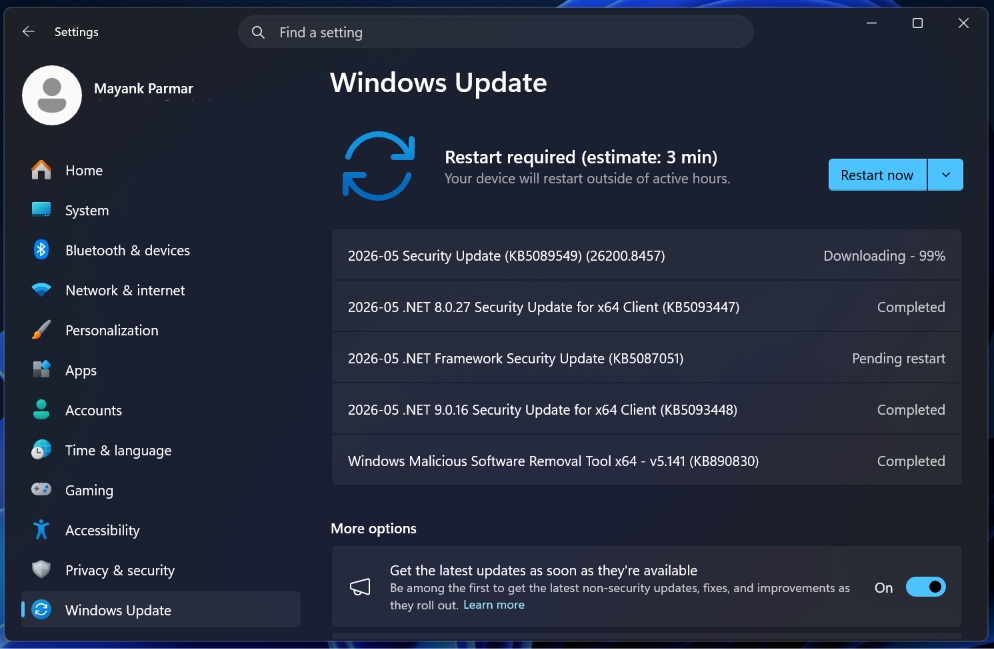
In addition, Microsoft has posted updates for the .NET Framework, which is used by many Windows apps, including apps made by the company. Here’s what you’ll see alongside today’s Patch Tuesday when you check for updates:
- 2026-05 .NET 8.0.27 Security Update for x64 Client (KB5093447)
- 2026-05 .NET Framework Security Update (KB5087051)
- 2026-05 .NET 9.0.16 Security Update for x64 Client (KB5093448)
All these updates begin downloading automatically in the background or when you choose to check for updates.
Download Links for Windows 11 KB5089549
Windows 11 KB5089549 Direct Download Links: 64-bit and ARM-64 | You can use Update Catalog when Windows Update is having issues, but remember that updates downloaded via Catalog are massive in size. For example, May 2026’s Patch Tuesday sits at about 5.2GB for x64 systems and 4.7GB for arm64:
| Build Number | Size | OS Version | Architecture |
|---|---|---|---|
| 26200.8455 | 5232.8 MB | Windows 11 25H2 | x64-based |
| 26200.8455 | 5232.8 MB | Windows 11 25H2 | arm64-based |
| 26100.8455 | 4711.2 MB | Windows 11 24H2 | x64-based |
| 26100.8455 | 4711.2 MB | Windows 11 24H2 | arm64-based |
To download Windows 11 Build 26200.8455, open Settings > Windows Update, and check for updates.
What’s new in Windows 11 Build 26200.8455 (25H2) / Build 26100.8455 (24H2)?
New features are gradually rolling out and won’t show up immediately, but if you enable “Get latest updates as soon as they’re available,” you might get the improvements faster:
1. Xbox Mode for all Windows 11 PCs
One of the most visually and functionally striking additions in Windows 11 KB5089549 is the brand-new Xbox Mode. I have been testing the Xbox mode for over two months now, but the feature is now generally available.

For years, PC gamers have used the Xbox Game Bar overlay for quick access to performance metrics, volume controls, and party chat. However, Microsoft is taking a colossal leap forward by introducing a dedicated, full-screen console-like experience directly onto the Windows 11 desktop.
Inspired heavily by the Xbox Series X/S dashboard, Microsoft designed the Xbox mode to transform your Windows 11 PC, laptop, or tablet into a dedicated gaming console. When I activated it during my testing, the standard Windows desktop, taskbar, and notifications faded away entirely, replaced by a streamlined interface that puts your game library front and center.
However, you will need a controller to use Xbox Mode on your PC. Using it with a keyboard and mouse is borderline impossible, which is understandable!
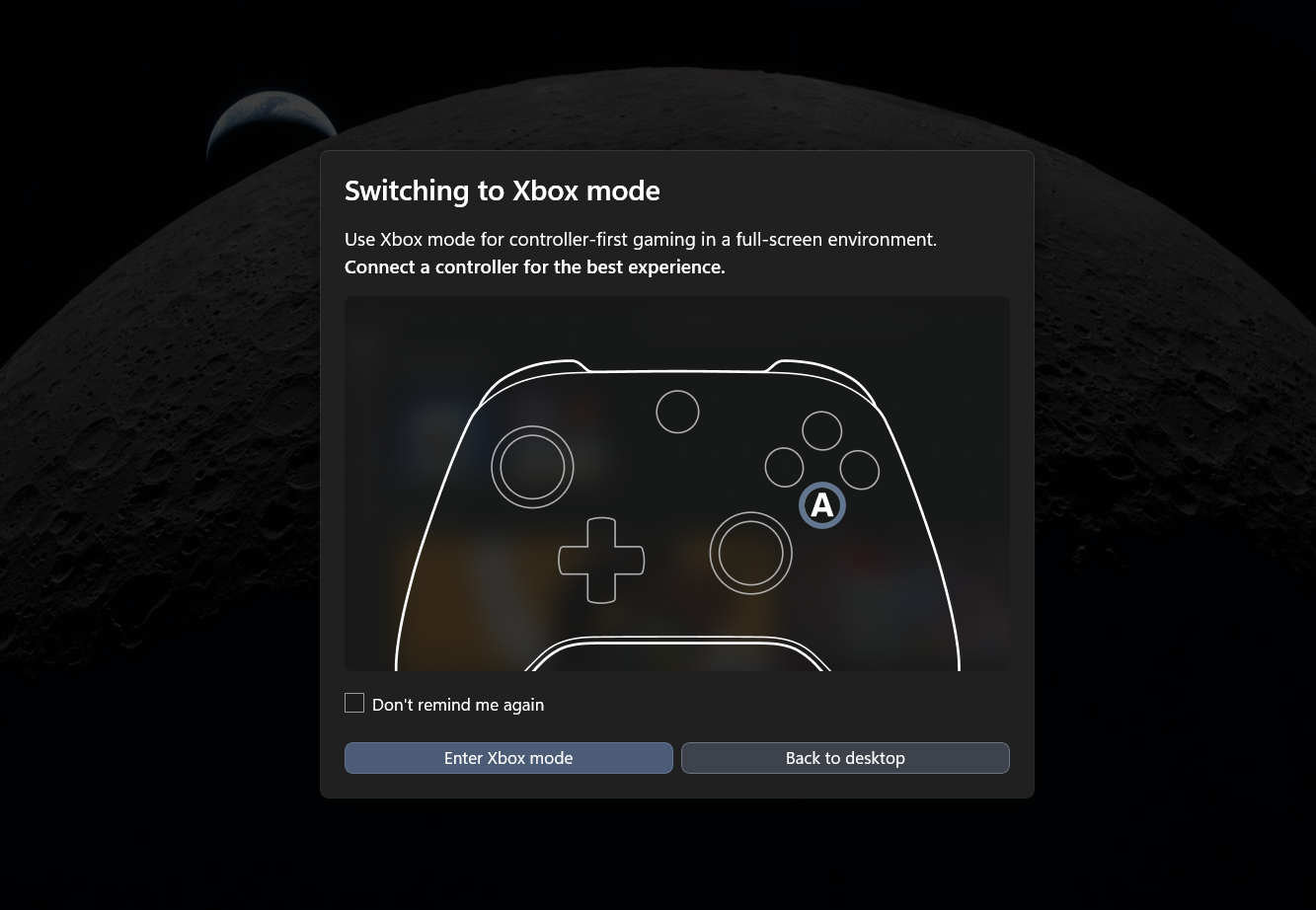
The goal here is deep immersion. Xbox mode minimizes all background distractions, suppressing non-critical notifications and other apps. It is built specifically for those moments when you just want to lean back in your chair, pick up an Xbox controller, and focus entirely on your gaming session without Windows 11 getting in the way.
And as a result, you’ll see a noticeable improvement in RAM usage and performance.
After installing Windows 11 KB5089549, if you want to turn on the Xbox mode, go to Settings > Gaming > Xbox mode. You can also customize the experience here.
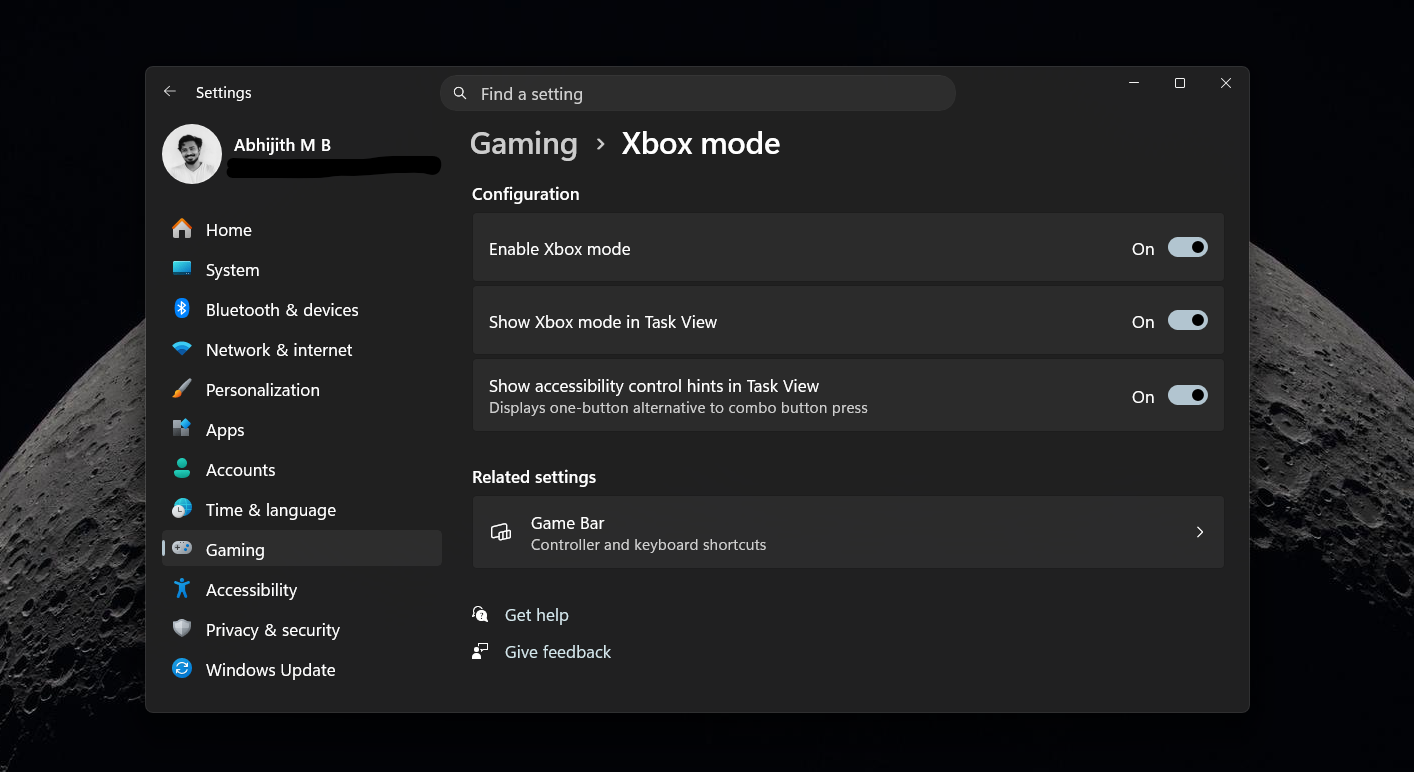
If you don’t see the Xbox mode in your PC, it’s because of Microsoft’s controlled feature rollout (CFR), which enables features gradually on all PCs. But if you want to try it now, you can force-enable Xbox mode by following our guide.
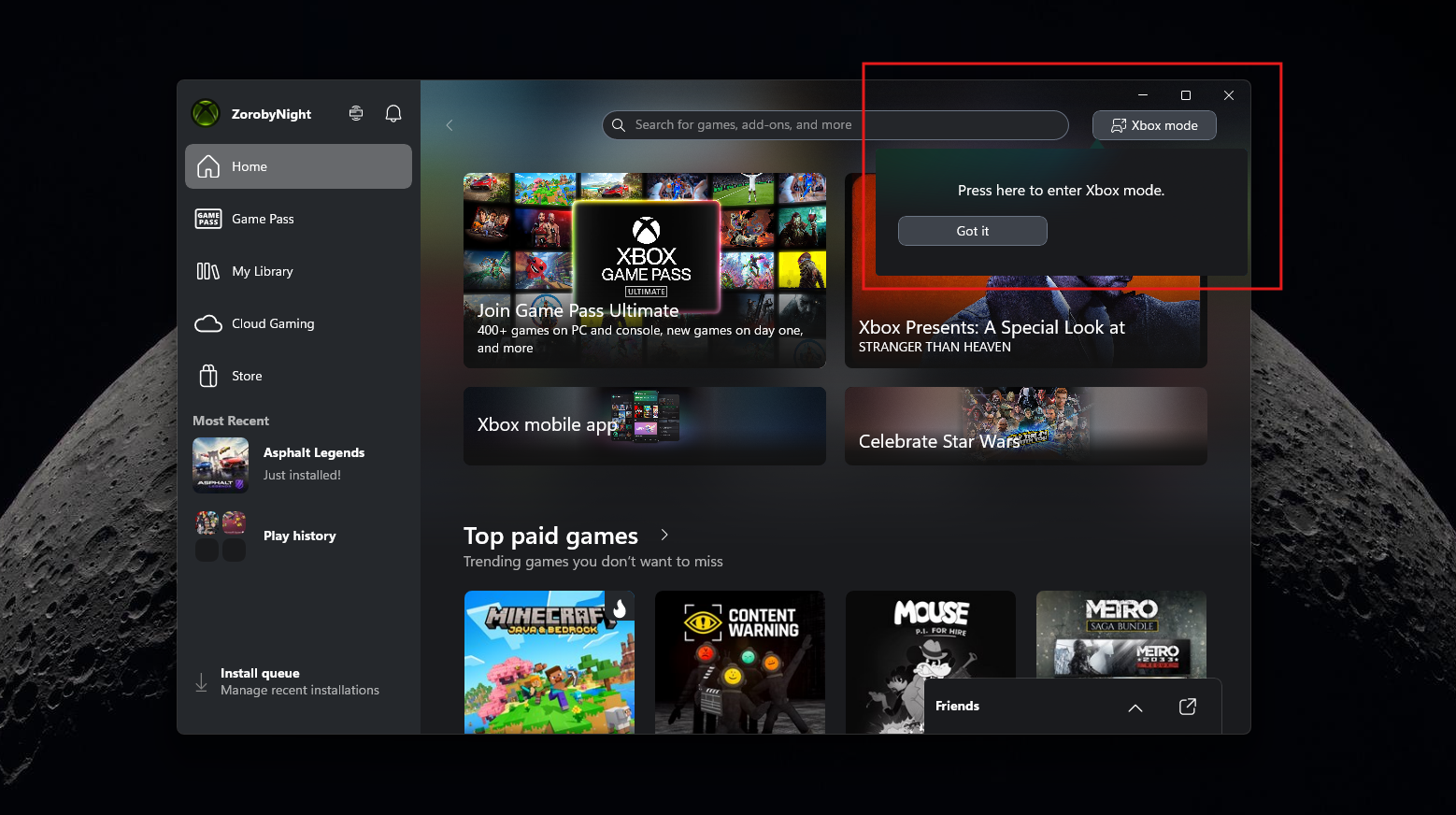
After enabling, you can enter Xbox mode directly through a new toggle in the Xbox app or, most conveniently, by pressing the Windows logo key + F11 on your keyboard.
If you use a handheld gaming PC or frequently connect your laptop to a television, this new interface eliminates the need for clunky mouse-and-keyboard navigation between your gaming sessions.

2. File Explorer gets substantial fixes and wider Archive support
File Explorer is the backbone of the Windows operating system, and it has undeniably struggled with performance and bugs since the transition to Windows 11’s modern UI frameworks (that isn’t exactly modern). Thankfully, Windows 11 KB5089549 delivers a good suite of fixes that power users will absolutely love.
First and foremost, Microsoft has finally fixed the dreaded “white flash.” If you use Windows 11 in dark mode, you have likely experienced this visual glitch. Previously, when opening ‘This PC’ or resizing the Details pane, the screen would briefly flash a blinding white before the dark mode theme rendered. This was a very unpleasant experience in dimly lit desk setups.
Microsoft was already working on a fix for the white flash in File Explorer, and in my testing of build 26200.8455, the white flash is completely gone.
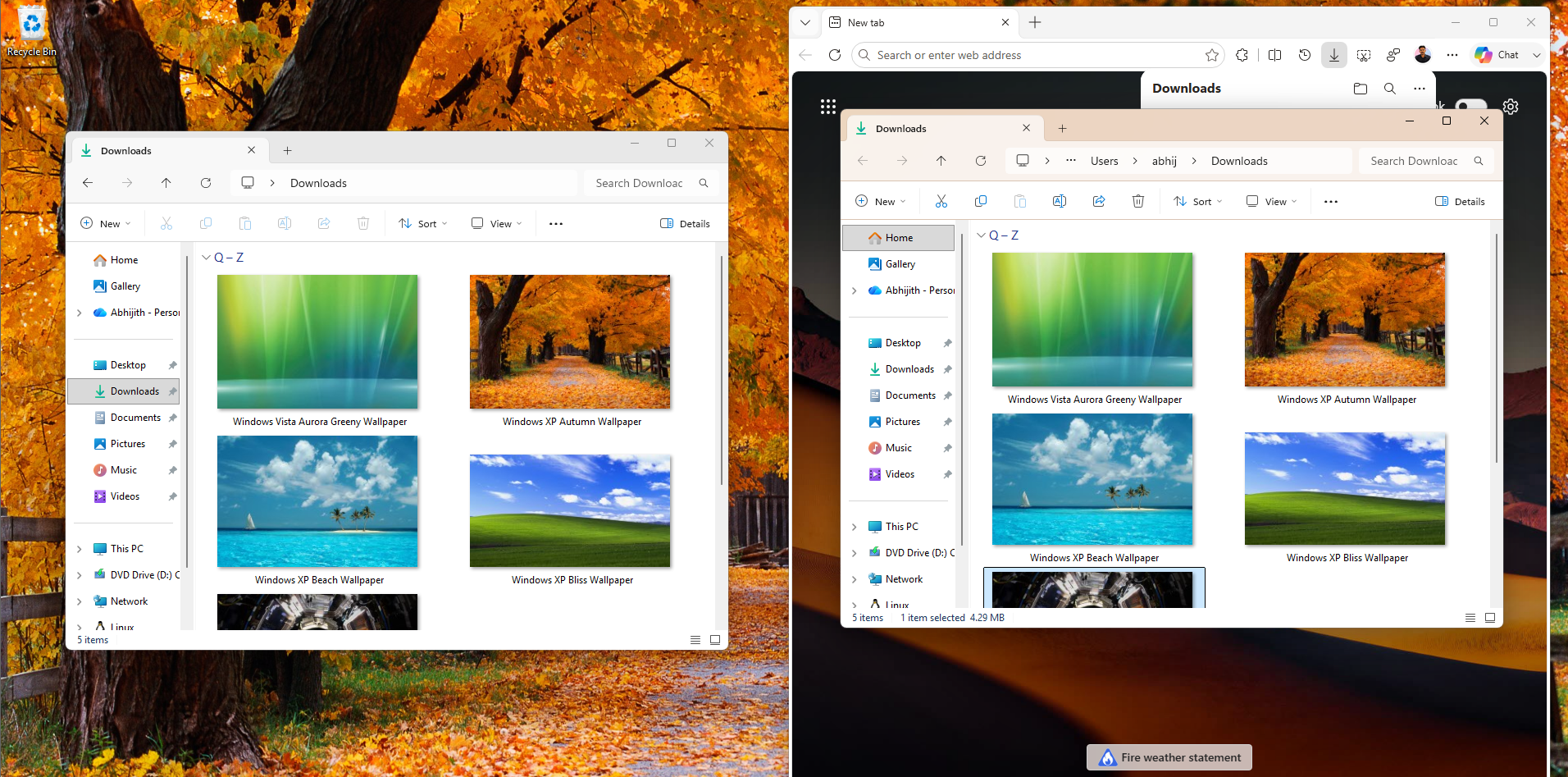
Another annoying issue has been the persistence or the lack of it in the View and Sort preferences. Historically, if a third-party application launched File Explorer directly into a specific location, such as your Downloads or Documents folder, Windows would conveniently “forget” your preferred layout, reverting to a default Details view.
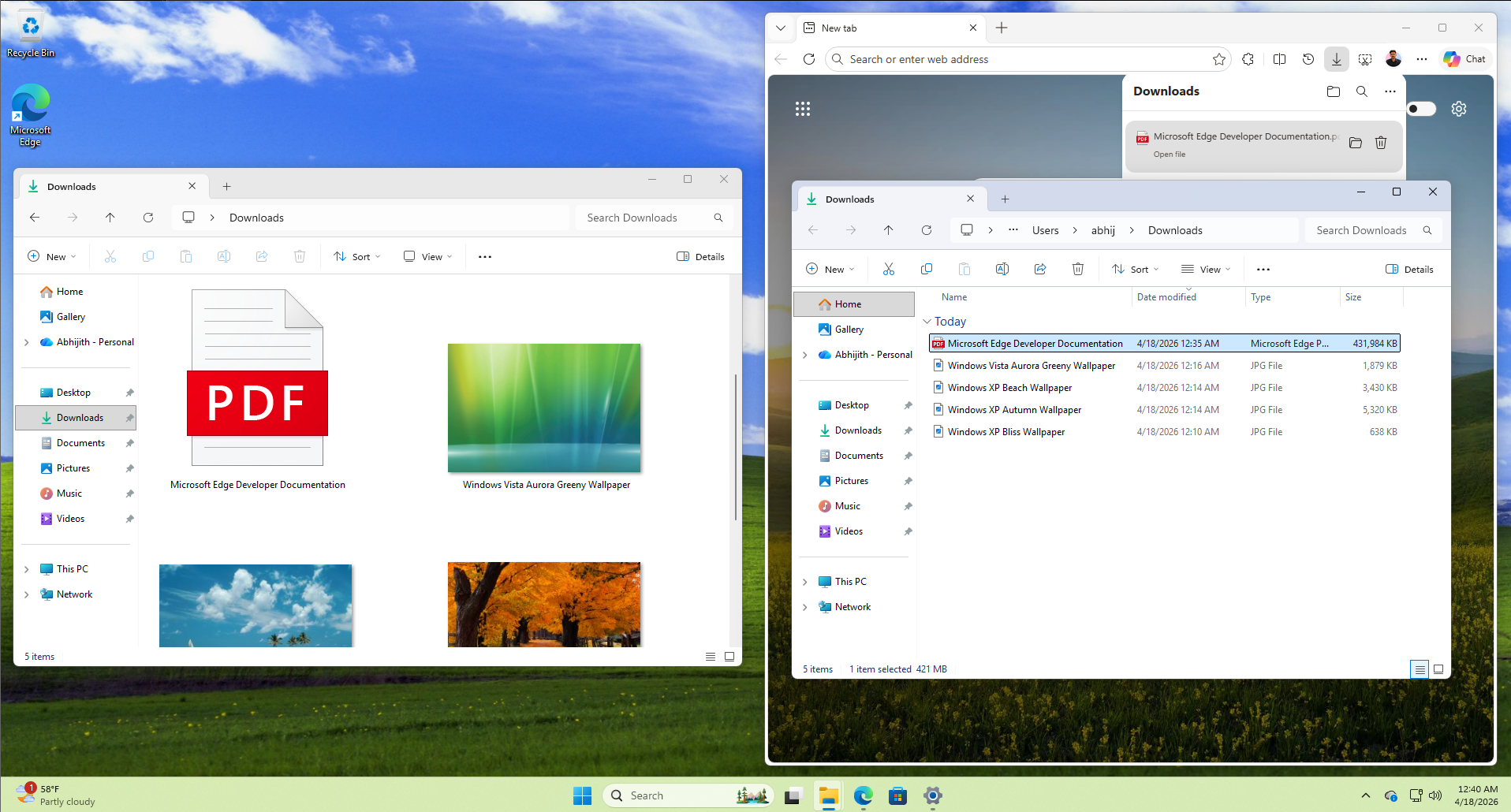
The View and Sort preference issue was fixed in Indiser builds less than a month ago, and Microsoft quickly brought it to all PCs with this new update. Your custom View and Sort preferences are now strictly preserved, no matter how the folder is opened.
Microsoft is also expanding File Explorer’s native archiving capabilities. After adding native support for RAR and 7z files in previous updates, the May 2026 update further expands this list to natively extract and interact with uu, cpio, xar, and NuGet Packages (nupkg). This native integration continues to reduce the need for third-party extraction tools like WinRAR or 7-Zip.
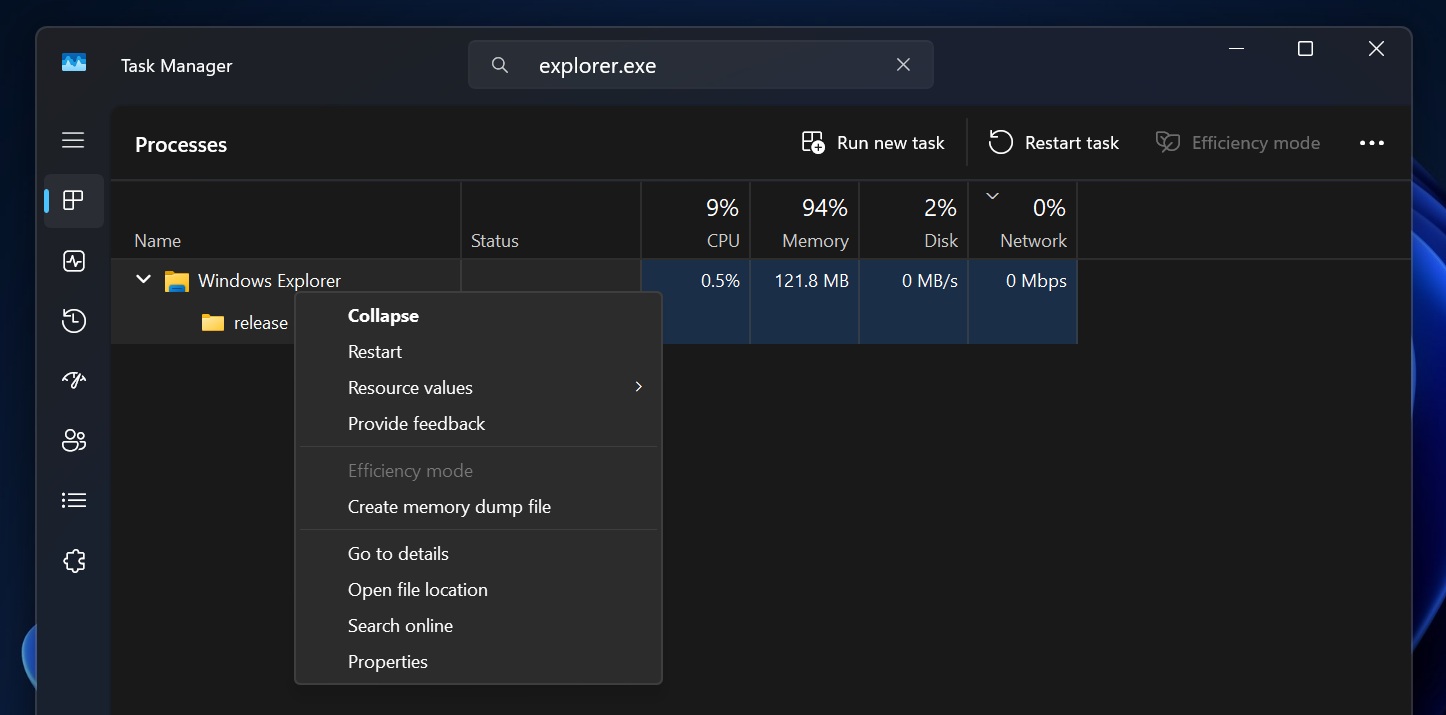
Finally, the reliability of the explorer.exe process has been heavily improved with Windows 11 KB5089549. The system is now significantly better at ensuring that relevant explorer.exe background processes terminate when you close your File Explorer windows, preventing zombie processes from silently eating up your CPU cycles.
Note that the File Explorer is getting many more improvements soon, as we first reported that Microsoft is already working on replacing the 31-year-old File Explorer Properties Dialog box with a new WinUI3 version.
We already got confirmation that Microsoft is fixing the File Explorer’s performance issues, with real optimizations and not just pre-loading.
3. Input enhancements with better haptics, voice typing, and keyboards
Windows 11 KB5089549 brings significant changes to how you interact with your PC, particularly if you use touchscreens, styluses, or voice commands.
If you own compatible hardware, Windows 11 now supports deep haptic feedback effects for everyday OS interactions. You will feel a physical “bump” or vibration when performing specific actions, such as snapping a window to the side of the screen, resizing a window layout, or aligning objects in Microsoft PowerPoint.
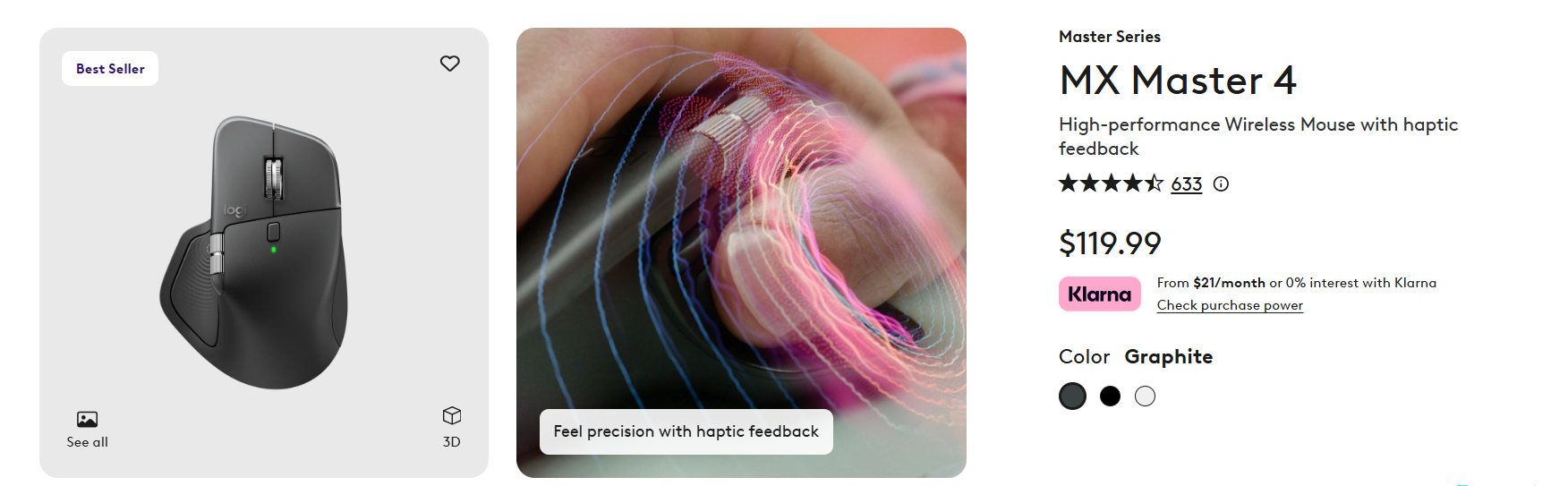
Apart from laptops with haptic touchpads, currently, this premium haptic experience is supported natively on the Surface Slim Pen 2, the ASUS Pen 3.0, and the MSI Pen 2. However, Microsoft explicitly notes that support for additional compatible devices, including select precision mice like the Logitech MX Master 4, will become available as hardware partners push out firmware updates.
You can fine-tune or disable these haptic signals by navigating to Settings > Bluetooth & devices > Mouse, Touchpad, or Pen > Haptic signals. Microsoft also improved the reliability of setting custom tools under Settings > Bluetooth & Devices > Wheel.
Voice typing has also received a much-needed visual overhaul. Previously, activating voice typing would summon a rather intrusive full-screen overlay that distracted from the text field you were focusing on.
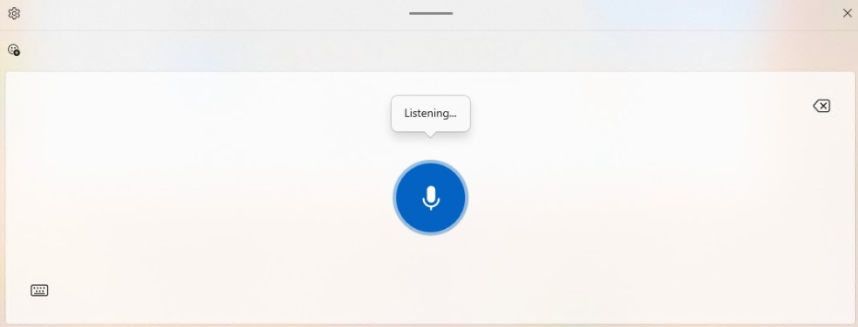
The updated design completely removes this full-screen overlay. Now, when you trigger voice typing, the listening animations are displayed directly on the dictation key itself. This simpler, intuitive design keeps your focus entirely on your document. Microsoft also notes that they have improved the persistence of the “Fluid Dictation” setting in voice typing, ensuring it remembers your preferences across multiple reboot sessions.
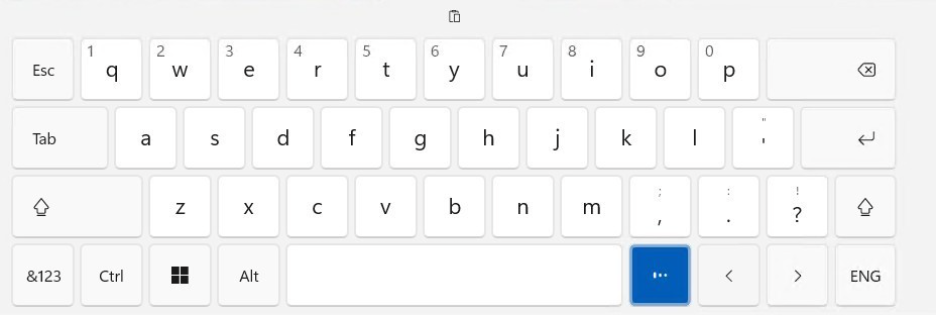
For keyboard users, the Arabic 101 Legacy keyboard layout has made a return and is now officially available to add under Time & Language > Language & Region. This is a welcome addition for users who preferred the classic keyboard design used before the recent AltGr changes.
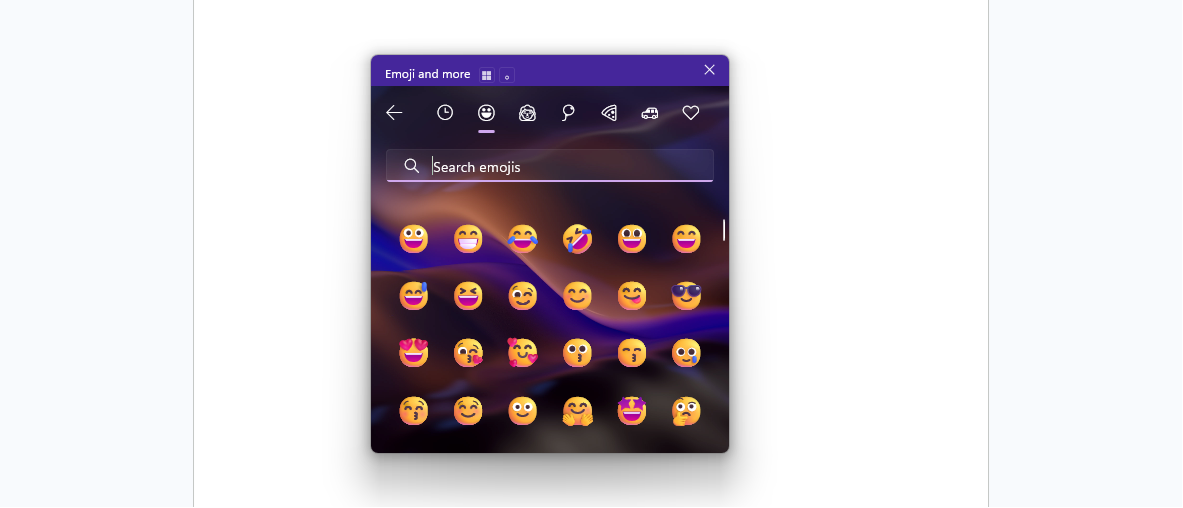
Furthermore, the update improves the reliability of typing when using the ADLaM keyboard layout and fixes critical navigation bugs within the Windows emoji panel (accessed via Win + Period).
4. Taskbar Agents are here
Microsoft is actively preparing the Windows 11 Taskbar for the next generation of AI and background automation. Windows 11 KB5089549 introduces a brand-new “Agents on Taskbar” API, which provides a new way for the operating system to monitor and report on long-running AI tasks.
This experience supports agents across both first- and third-party applications. The first official adopter of this new feature is the “Researcher” agent within the Microsoft 365 Copilot app. When you ask Researcher to compile a massive report or analyze extensive data, you no longer need to keep the app open. Instead, Windows will display the agent’s progress directly on the taskbar.
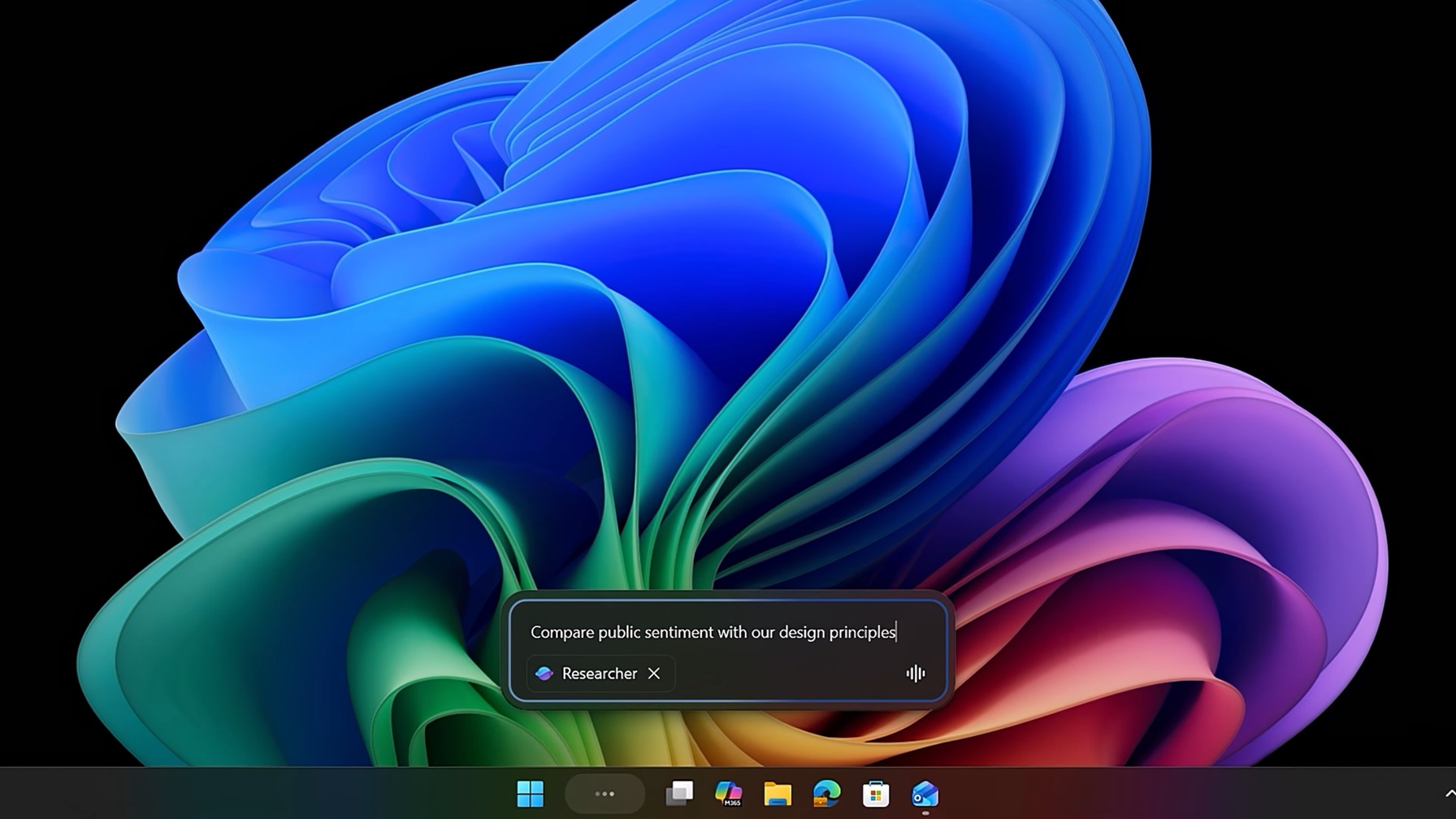
Hovering over the Microsoft 365 Copilot icon reveals real-time progress of the background task. Once the report is completely ready, Windows triggers a subtle notification. Clicking the notification or the taskbar icon instantly returns you to the app to review your newly generated results. Developers can leverage this functionality using the Windows.UI.Shell.Tasks API immediately.
5. Drop Tray is now less distracting
With Windows 11 KB5089549, the OS’s built-in sharing interface has been tweaked. The feature formerly known as “Drag Tray” and was in Nearby Sharing is now found under Settings > System > Multitasking with an official rename to “Drop Tray.”
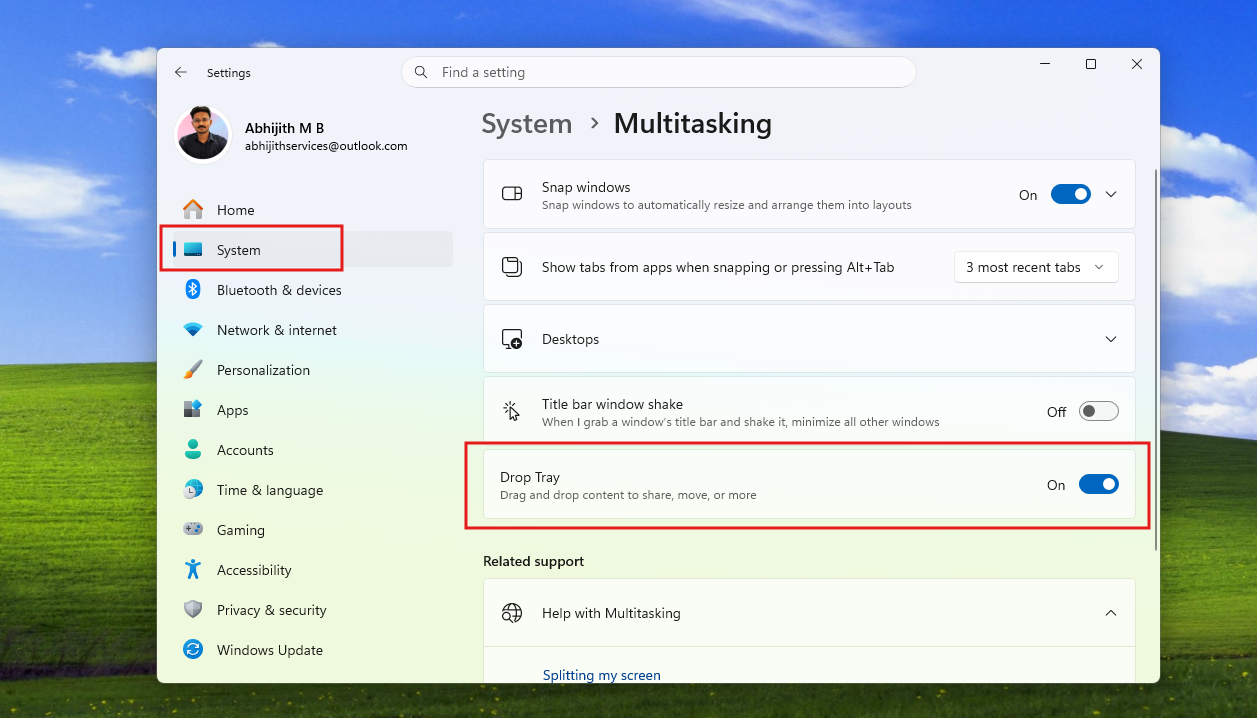
Alongside the name change, Drop Tray now utilizes a significantly smaller peek view. I tested the new Drop Tray fully, and this quality-of-life improvement prevents the tray from opening unintentionally when your mouse cursor is working near the top of the screen, which was an issue for people who keep folders on the top of the desktop.
6. Lifting the 30-year FAT32 limit and Storage fixes
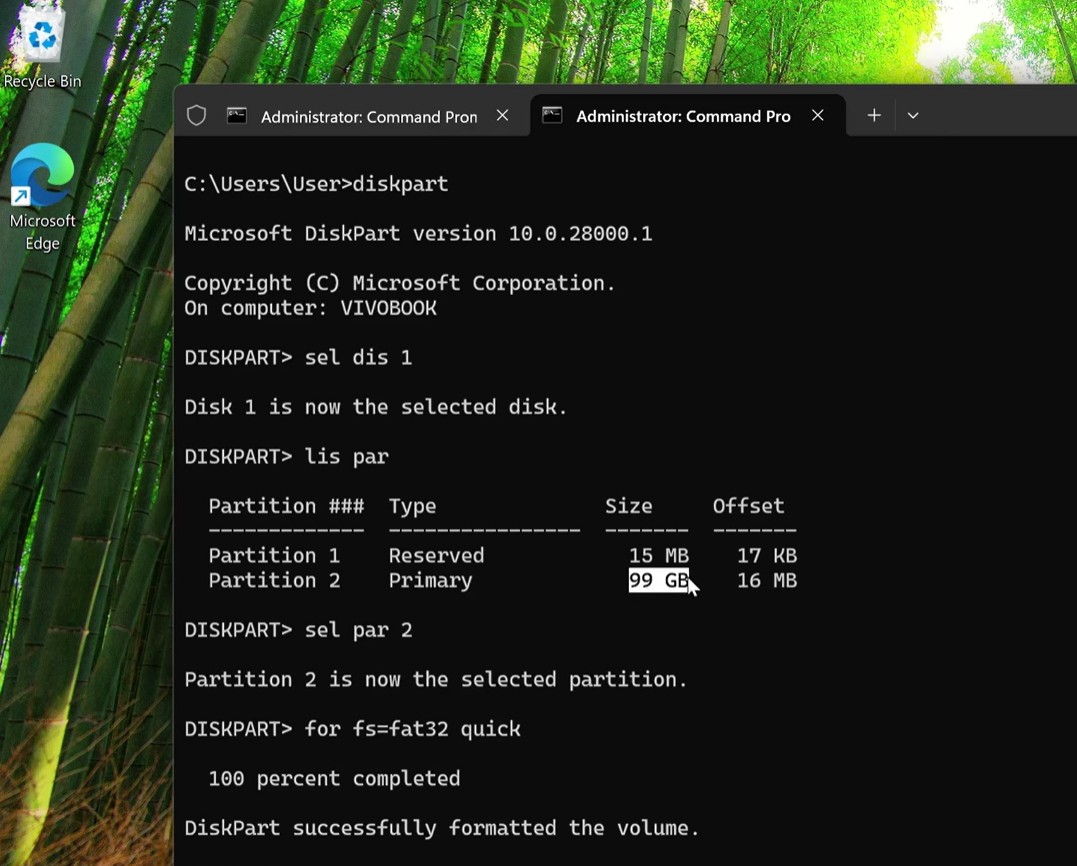
One of the most historically significant changes in the Windows 11 KB5089549 update is buried deep within the command line. Microsoft has officially increased the size limit for formatting FAT32 volumes.
For exactly 30 years, dating all the way back to the Windows 95 era, Windows has arbitrarily limited FAT32 formatting to a maximum of 32GB. This limit was originally implemented as a temporary measure by former Microsoft developer Dave Plummer, yet it somehow survived through Windows 98, XP, Windows 7, Windows 10, and the first few years of Windows 11.
With this update, you can now format FAT32 volumes up to a respectable 2TB directly from the command line. While modern file systems like NTFS and exFAT are vastly superior for internal storage, FAT32 remains the gold standard for universal compatibility across older hardware, cameras, and external devices. Lifting this artificial 32GB limit is a massive win for power users everywhere.
And something that I personally find satisfying is that Microsoft has also improved the performance of the modern storage settings.
If you have multiple large hard drives or high-capacity SSDs, you may have noticed that navigating to Settings > System > Storage > Advanced Storage Settings > Disks & Volumes could cause the Settings app to hang or lag, and in my case, take up to 15 seconds.
This update optimizes how Windows queries large volumes, making that menu load significantly faster, almost instantly in my testing.
7. Critical Security Updates, including Secure Boot, drivers, and Batch files
While new features are exciting, Patch Tuesday is fundamentally about securing the operating system. Windows 11 KB5089549 includes several critical security shifts that system administrators need to be aware of.
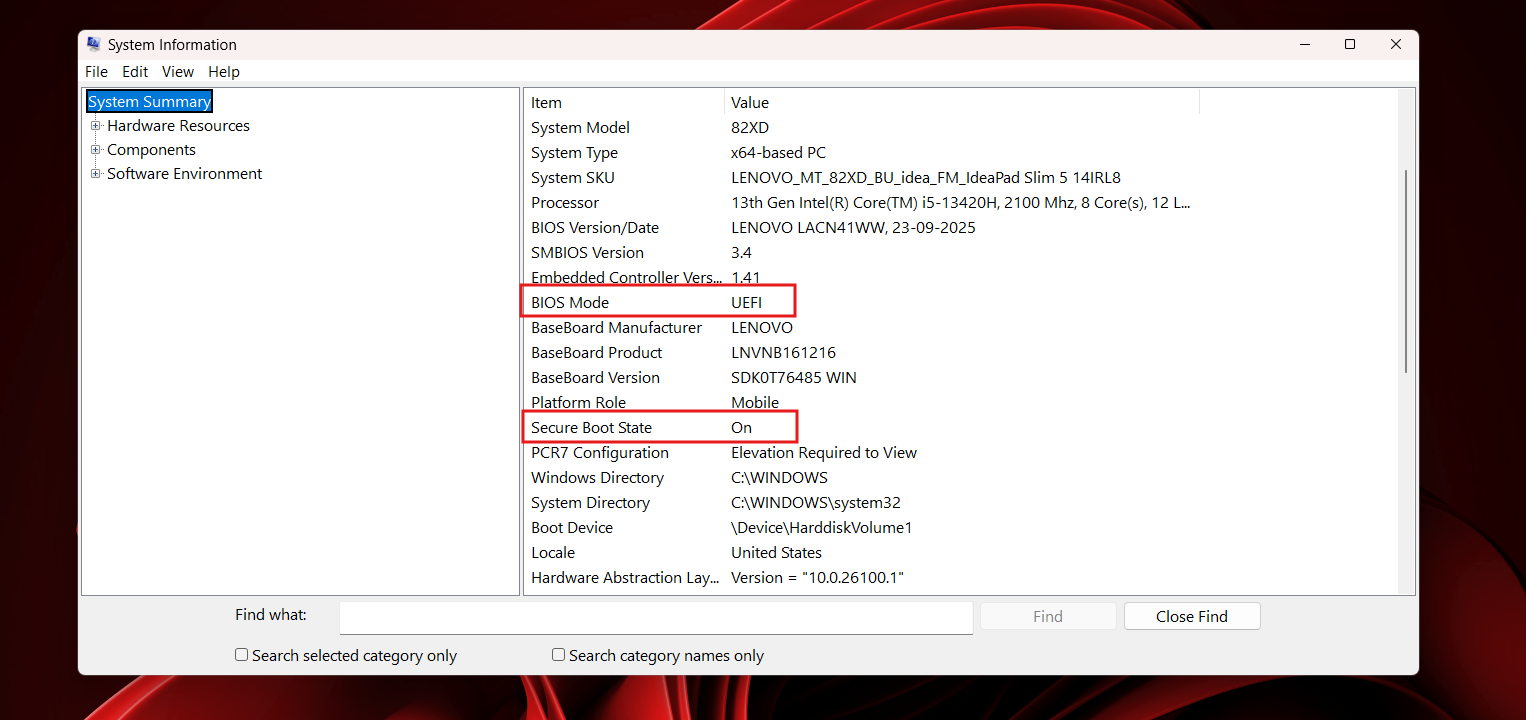
Most importantly, Microsoft has issued a prominent warning regarding Windows Secure Boot certificates. The Secure Boot certificates used by the vast majority of Windows devices globally are scheduled to expire starting in June 2026. If a device’s UEFI firmware is not updated with the new certificates in time, it will completely lose the ability to boot securely.
To resolve the issue, this update includes additional high-confidence device targeting data. Devices will now automatically receive the new Secure Boot certificates, but only after demonstrating sufficient successful update signals. A controlled, phased rollout helps devices from getting bricked by incompatible firmware.
The Windows kernel is also getting stricter. Microsoft is updating its Windows Driver Policy by changing how the OS trusts third-party drivers, as part of their new “secure by default” initiative. Moving forward, the default trust for cross-signed drivers is being removed. Only drivers that pass through the Windows Hardware Compatibility Program (WHCP), alongside a specific allow-list of trusted legacy drivers, will be permitted. When a device installs this update, Windows will quietly audit driver compatibility for at least 100 hours and three reboots before officially enforcing the block.
For enterprise, administrators and Application Control for Business authors, now have granular control over how the system processes CMD scripts and batch files. By adding the LockBatchFilesWhenInUse DWORD value (set to 1) to the HKEY_LOCAL_MACHINE\Software\Microsoft\Command Processor registry key, Windows will physically lock batch files during execution, helping prevent malicious actors from altering a batch file’s code while it is actively running.
Microsoft has also introduced Policy-Based Removal of Preinstalled Microsoft Apps. This update adds support for a dynamic app removal list to the “Remove Default Microsoft Store packages” policy for Windows Enterprise and Education users, allowing IT admins to remove additional MSIX/APPX-packaged apps using Group Policy.
Additionally, Enterprise State Roaming (ESR) can now be seamlessly managed through Windows Backup for Organizations policies, making setup infinitely easier for IT administrators.
And last, Microsoft improved event logging related to CVE-2024-30098 by including the name of the affected application, making it easier to identify applications that use smart card certificates.
8. General Reliability, AI Components, and other fixes with the May Patch Tuesday update
Rounding out the mandatory May 2026 release is a laundry list of bug fixes, AI updates, and performance enhancements.
First, Microsoft has updated several core AI components for Windows 11 PCs. The Image Search, Content Extraction, Semantic Analysis, and Settings Model components have all been upgraded to version 1.2604.515.0 for smoother operation of on-device AI workloads.
Other notable fixes in Windows 11 KB5089549 include:
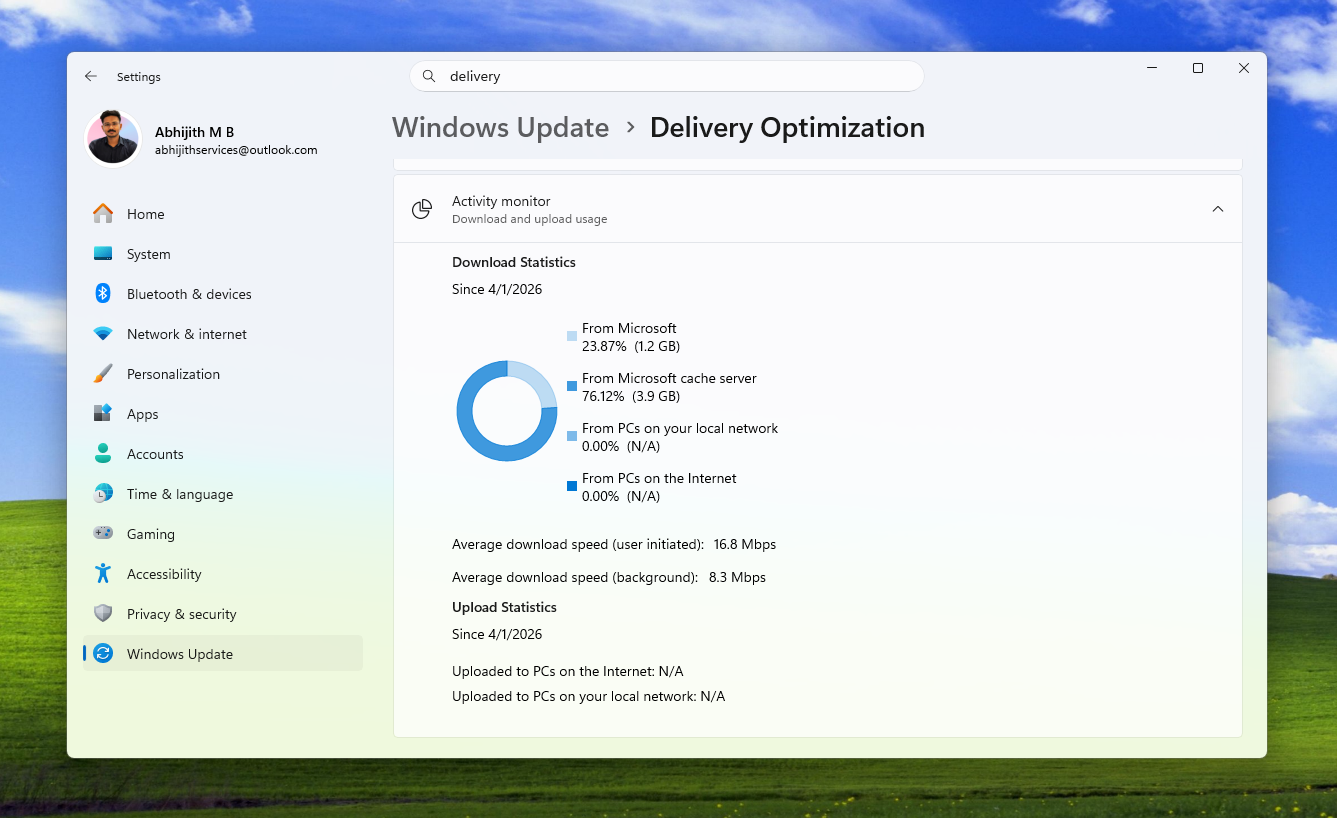
- Delivery Optimization: The background service responsible for peer-to-peer Windows updates has received a crucial memory management fix. It will no longer suffer from memory leaks that caused it to use an unexpectedly large amount of system RAM.
- Microsoft Store: The update patches several notorious and vague download errors, specifically eliminating the frustrating 0x80070057, 0x80240008, and 0x80073d28 error codes when installing applications.
- Windows Hello: If you have ever lost your fingerprint data after a major OS upgrade, this update fixes the persistence of Windows Hello Fingerprint data. It also improves the overall reliability of Windows Hello Face recognition at sign-in.
- Remote Desktop: Microsoft patched a known issue where the Remote Desktop Connection security warning dialog would render incorrectly (often stretched or squished) on multi-monitor setups where the screens utilized different scaling percentages. They also addressed error 0xc000009a, improving Kerberos authentication reliability within Remote Desktop sessions utilizing Remote Credential Guard.
- Audio and Printing: This update improves third-party driver compatibility with the midisrv.exe audio process. For printers, it adds a brand-new icon to the print settings menu to clearly show when a printer actively supports Windows Protected Print Mode.
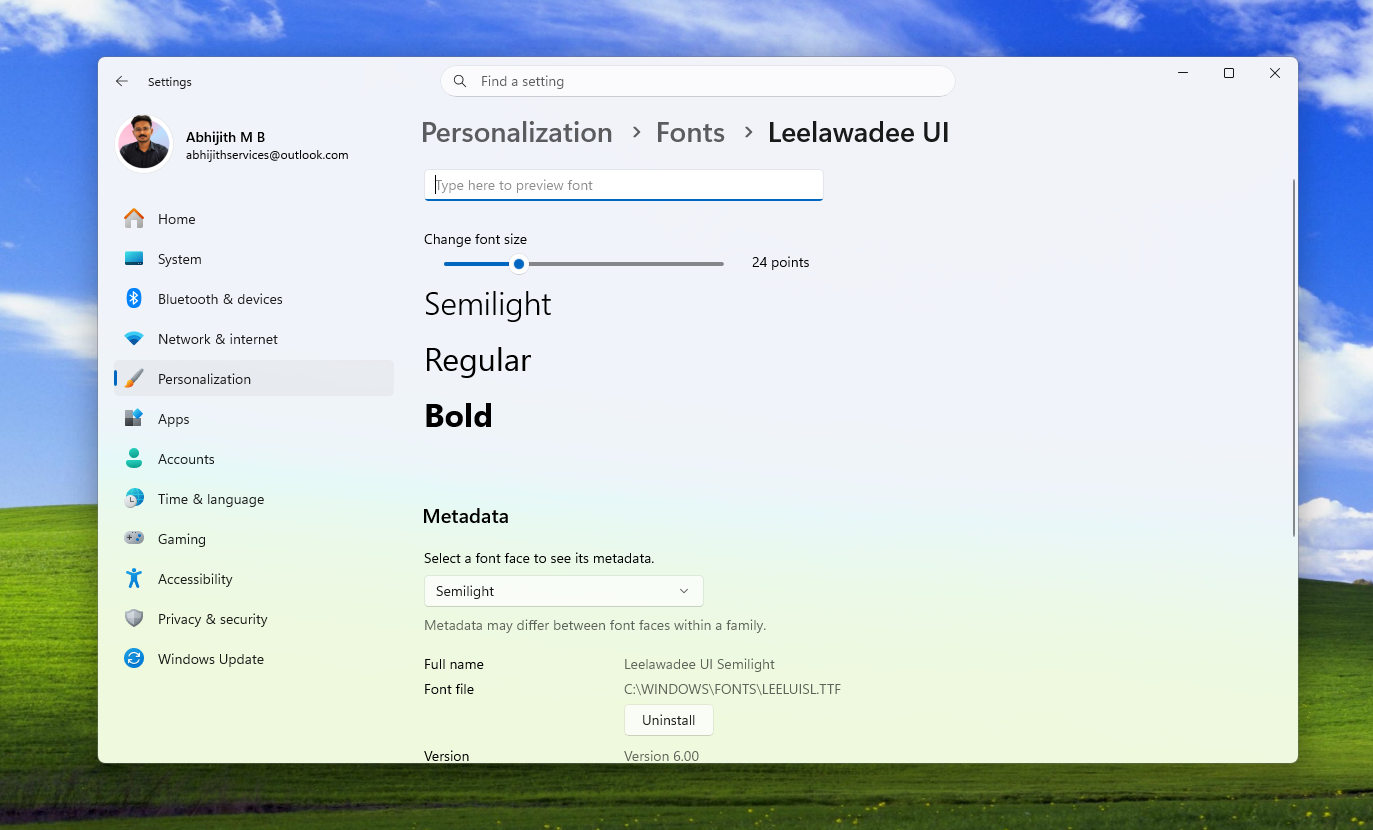
- Fonts: The Leelawadee UI font family has been updated to enhance glyph sequencing, rendering, and positioning for Thai, Lao, Khmer, and Lontara scripts.
- General Performance: The operating system now launches your designated startup apps noticeably faster after booting up the device. Also, the taskbar and system tray area have received foundational code changes to improve load reliability at sign-in.
- Display: The update improves the persistence and availability of color profile options for supported monitors.
- Kiosk Mode: This update simplifies configuration for allowed packaged apps in kiosks when Microsoft Edge is one of the allowed apps.
Finally, the update includes the latest Windows 11 Servicing Stack Update (KB5088467 – Build 26100.8247), which is the component responsible for installing these Windows updates.
We recommend you install Windows 11 KB5089549 (May 2026 Update)
The May 2026 Patch Tuesday update (KB5089549) is a monumental release for Windows 11 versions 24H2 and 25H2. Between the introduction of the immersive Xbox Mode, the complete eradication of File Explorer’s dark mode white flash, and the historic removal of the FAT32 formatting limit, this update delivers tangible, everyday improvements to the user experience.
Coupled with critical security changes to Secure Boot and kernel driver, this is not an update you want to delay.
What about known issues in the May 2026 update?
Microsoft told Windows Latest that it’s not aware of any major known issues. In our tests, we have not come across major OS-breaking problems, but we’re still testing the update across our devices, and we’ll be sharing more details soon.
Have you installed the May 2026 Patch Tuesday update on your PC yet? Let me know your thoughts, or if you’ve run into any installation issues, in the comments below!