






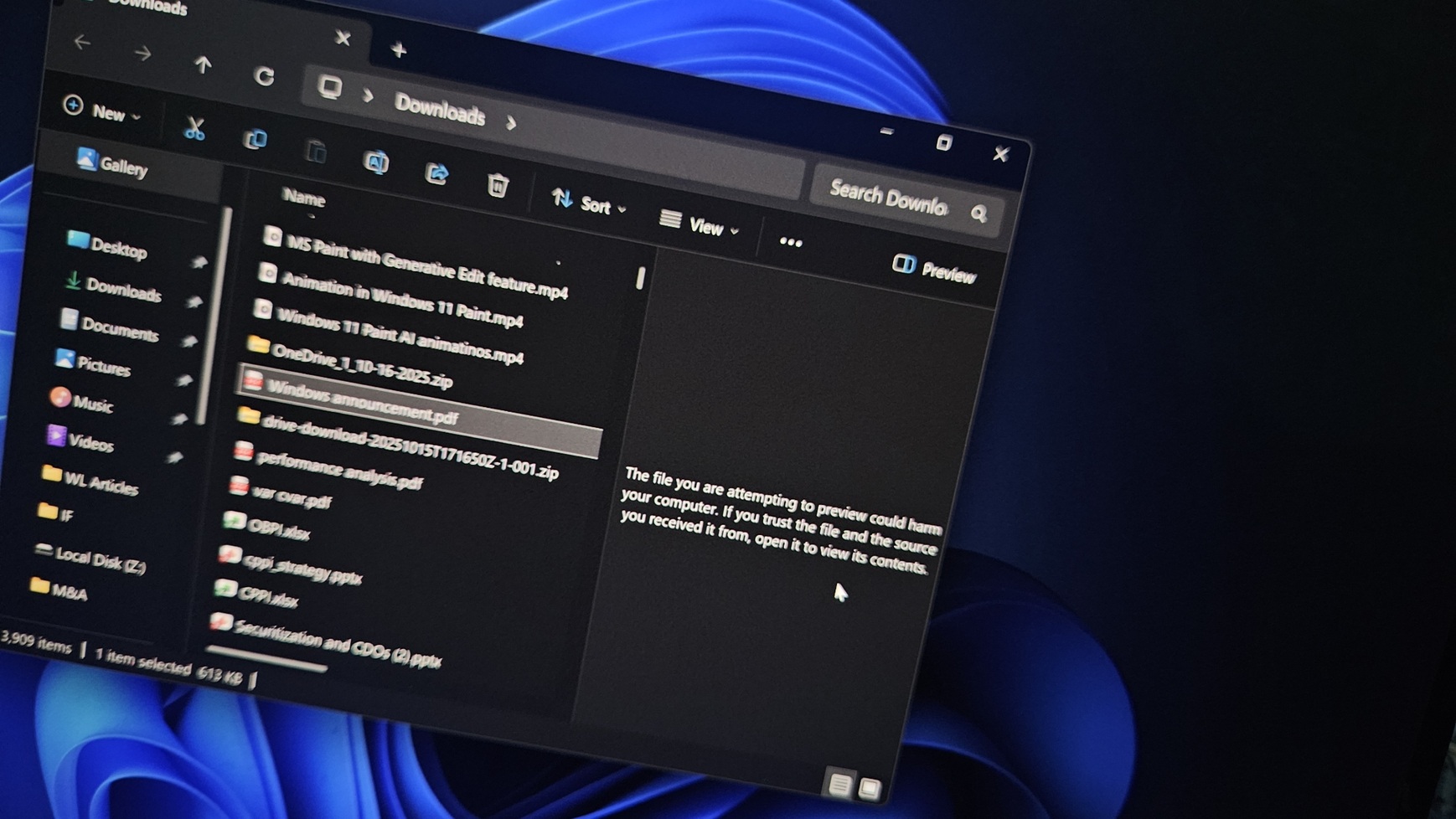
Windows 11’s File Explorer preview is coming back for downloaded files with a new “Preview anyway” button, and it’ll begin rolling out in the coming weeks.
In early October 2025, I noticed that File Explorer no longer showed previews in the Preview pane for files downloaded from the internet, and some of us assumed it was odd behaviour or a bug:
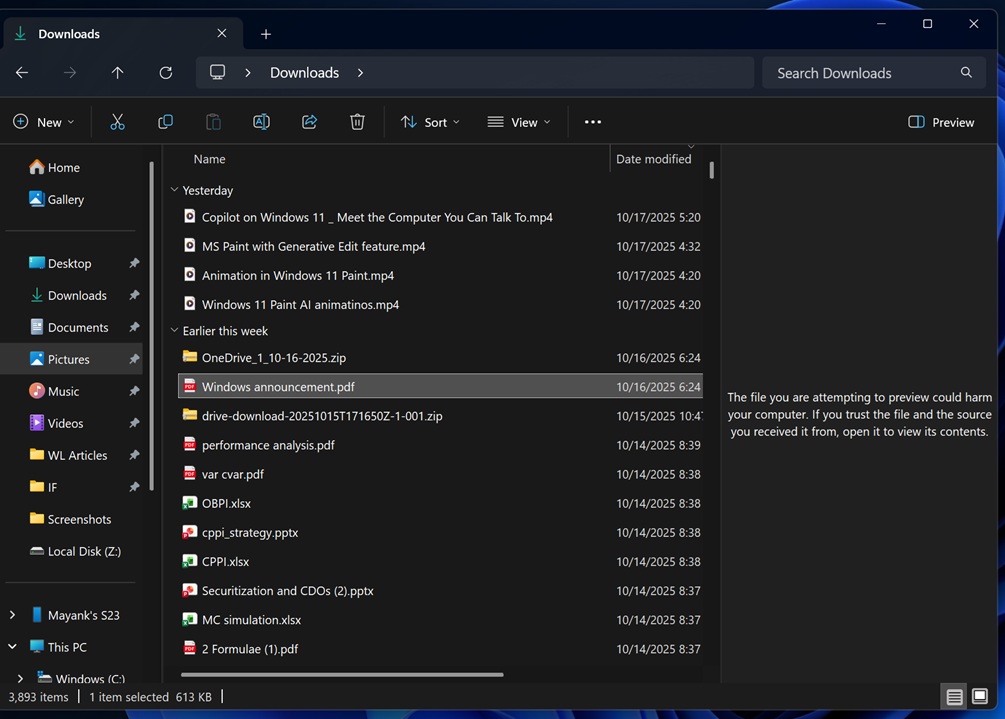
Microsoft later confirmed that it intentionally blocked File Explorer previews for security reasons, which made it difficult to quickly glance over your PDFs and other documents.
For those unaware, File Explorer has two panes. One is the “Details” pane, which shows information about a selected file, such as its size, the date it was created, and more. It can also show in-depth metadata for images, such as their dimensions and even exposure time, without opening the file. The Details pane continues to work normally after recent updates.
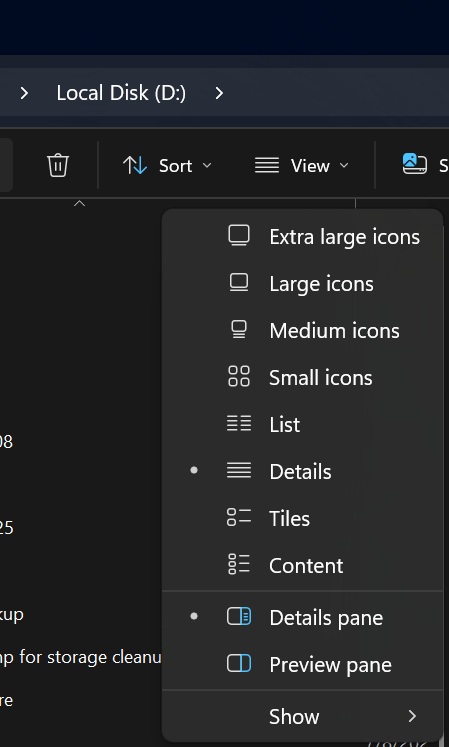
The second, and probably the one most of us use more often, is the “Preview pane.” It lets you quickly look inside PDFs, documents, images, and other files without opening them in an Office app, Adobe Acrobat, Microsoft Edge, or another program.
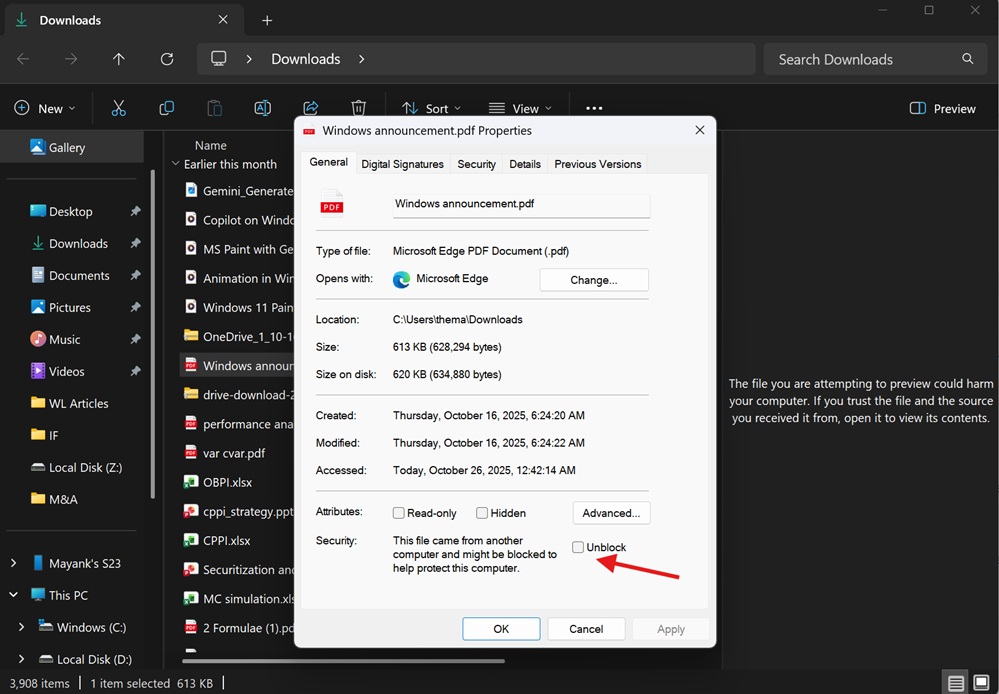
But since the October 2025 security change, that convenience disappeared for files downloaded from the internet. Here’s what it looks like when I try to preview a file downloaded from my own cloud storage:
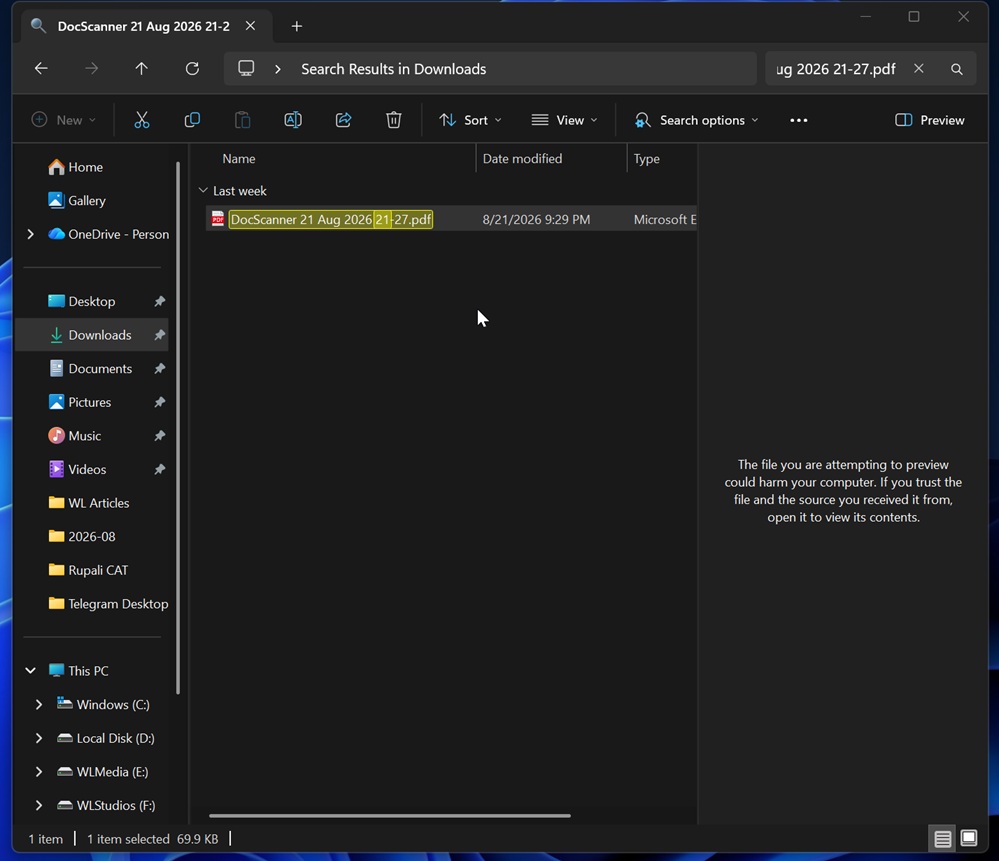
File Explorer warns that “the file you are attempting to preview could harm your computer. If you trust the file and the source you received it from, open it to view its contents,” but it doesn’t tell you what to do next.
If you’ve Binged the problem already, you probably know that you need to right-click the file, open Properties, and check the “Unblock” option under Security to allow it to be previewed.
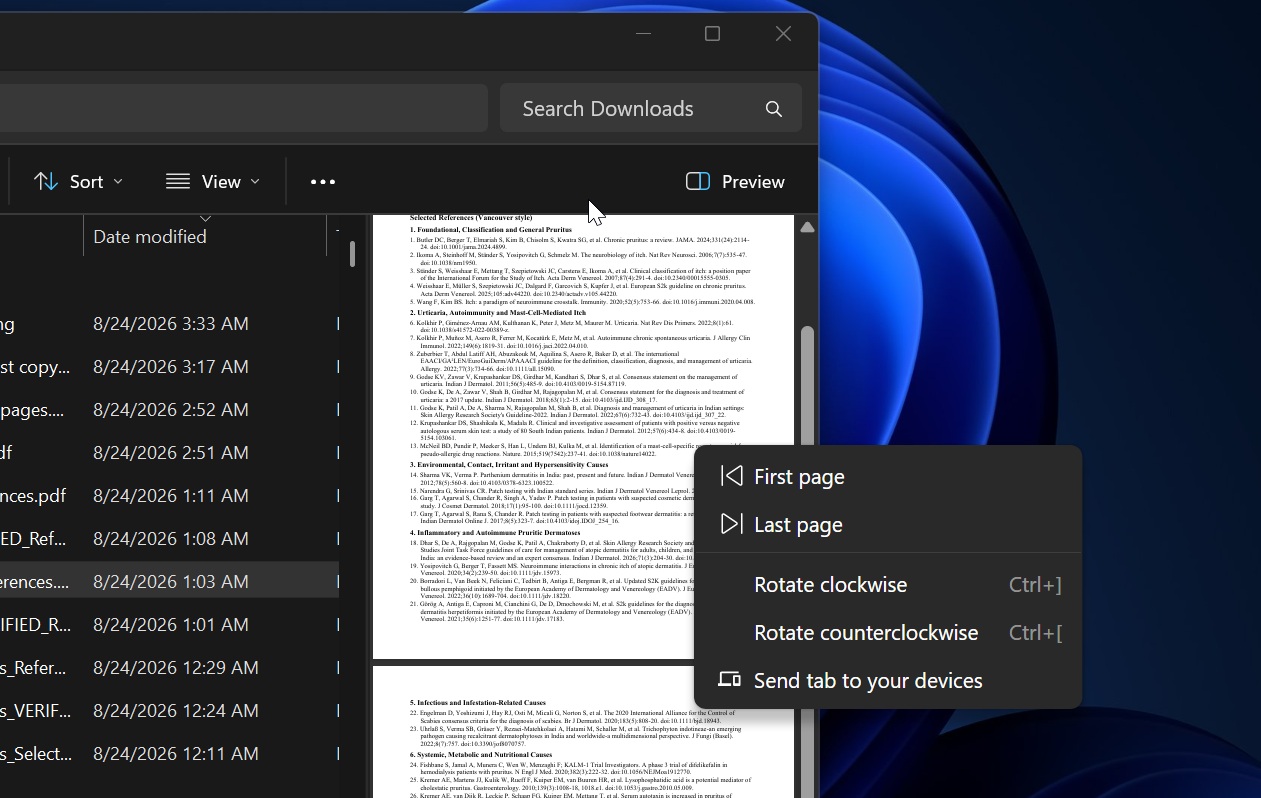
For comparison, if the same PDF was created locally on the PC, File Explorer’s Preview pane would work normally:
Why did Microsoft block File Explorer previews for downloaded files?
The restriction was introduced on October 14, 2025, after Microsoft found that previewing unsafe files could potentially leak NTLM hashes.
Since File Explorer cannot simply assume that every downloaded file is safe, Microsoft decided to disable the Preview pane by default for files marked as coming from the internet.
“This change mitigates a vulnerability where NTLM hash leakage might occur if users preview files containing HTML tags (such as , , and so forth) referencing external paths. Attackers could exploit this preview feature to capture sensitive credentials,” Microsoft noted in a support document.
In our tests, Windows Latest found that the restriction applies to files carrying the Mark of the Web, including many files downloaded through browsers, email attachments, cloud storage, and other internet sources.
Until now, if you trusted one of those files, your options were to manually unblock it through Properties or rely on PowerShell scripts to automate the process.
Windows 11 is getting a “Preview anyway” button
Microsoft is finally addressing that inconvenience without simply undoing the security protection. Windows Latest spotted that the company is testing a new “Preview anyway” button that lets you override the warning for a file you trust.
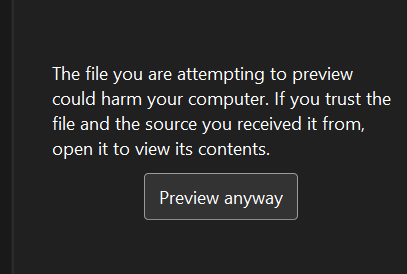
The feature was first noted in release notes for Windows Insiders in April 2026:
“New! Adds ‘preview anyway’ button to preview pane in File Explorer for files downloaded from the internet after viewing warning.”
However, the change never shipped outside Insider testing at the time. We’re now expecting it to begin rolling out in the coming weeks, possibly as soon as next month.
Once it arrives, File Explorer will still warn you about downloaded files, but if you recognize and trust the file, you’ll be able to click “Preview anyway” and view it directly in the Preview pane.
That’s a much better middle ground, as the company keeps the security restriction in place by default, while you no longer have to dig through Properties or run PowerShell commands just to preview a file you already trust.