






Microsoft is killing a really nice feature called the “PC-to-PC” transfer tool that it quietly built for Windows 11 and rolled out in stages, so there’s a high chance you’ve never heard of it before. This tool allowed you to transfer files using Wi-Fi/LAN, versus using the OneDrive sync approach of the Windows Backup app.
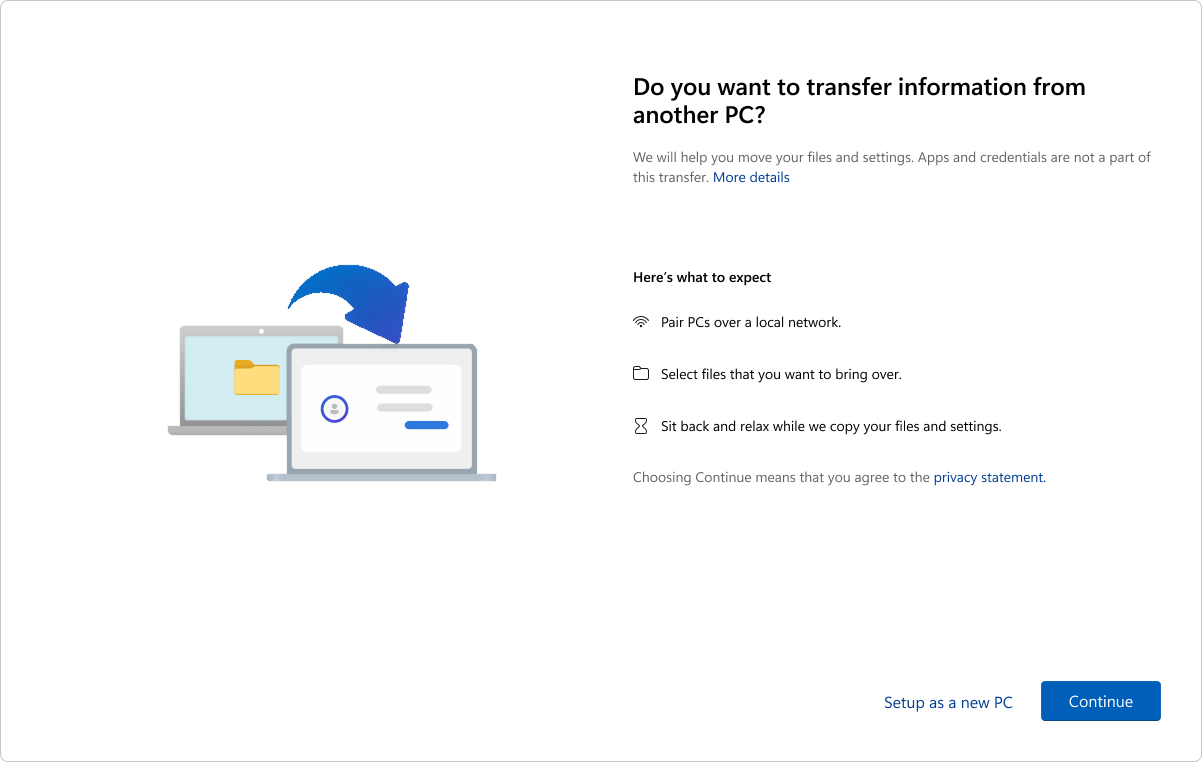
In an updated support document spotted by Windows Latest, Microsoft noted that Windows 11’s PC-to-PC migration feature is no longer available, and it now recommends Windows Backup, which uses OneDrive to back up your files.
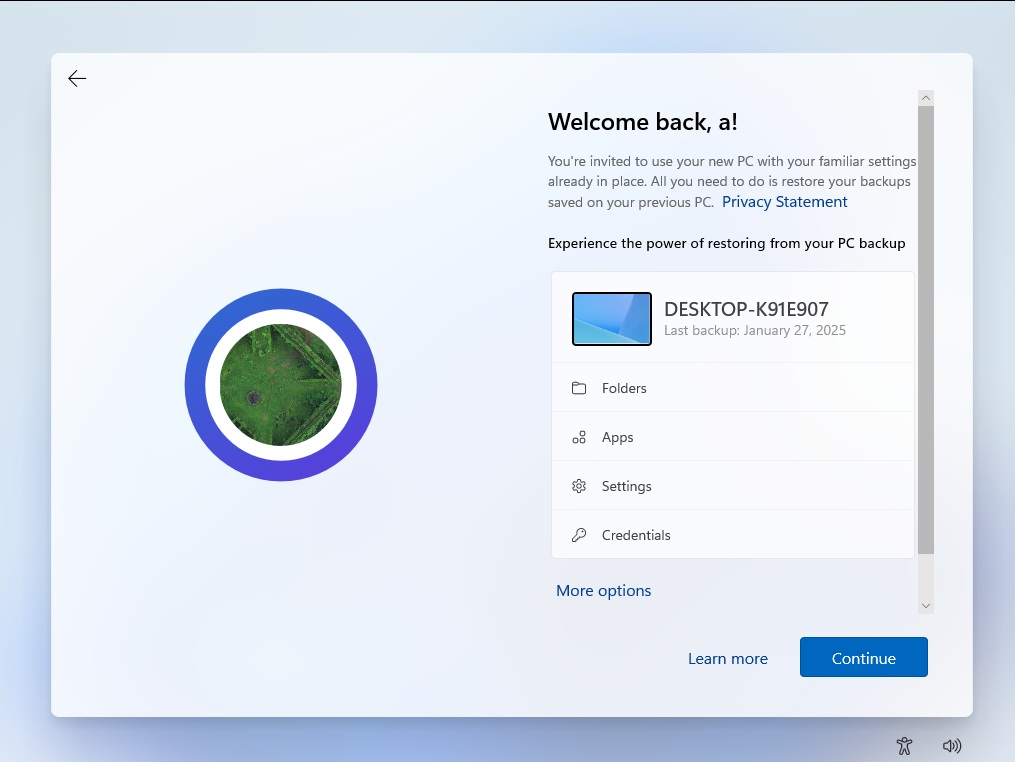
Now, if you want to set up a new PC with files and settings from another PC using this approach, you need to restore a backup linked to your Microsoft account and access your synced files through OneDrive.
But is that a big deal? I think so, and those who used the PC-to-PC migration feature or the Windows 7-era Easy Transfer tool would probably agree.
With the PC-to-PC transfer tool, you could connect two PCs to the same network and simply move your files over without uploading anything to the cloud.
On the other hand, Windows Backup’s OneDrive-based approach works in a different way. It looks for backups linked to your Microsoft account and offers to restore your settings, while your files sync through OneDrive. But those files count against your OneDrive storage, so if you use a free account, you only have 5GB, and only files you’ve synced can be restored this way.
For comparison, you didn’t have to deal with a cloud storage cap with the PC-to-PC transfer tool.
“When you’re setting up your new PC, this experience is designed to transfer your important data from your previous PC to your new one. This means you can start using your new PC with all your files, settings, and preferences intact,” Microsoft said when describing the idea behind the PC-to-PC transfer tool in an old support document, and listed the “same Wi-Fi or LAN network” as one of the requirements.
In fact, it clearly noted that the PC-to-PC transfer tool does not bring anything from OneDrive, so if you have files in your cloud storage, you’d need to sign in to OneDrive separately on the new PC.
Unfortunately, Microsoft is now pulling the feature and has confirmed the details in an updated support document.
“PC-to-PC Migration is no longer available,” the company noted in a document, adding that the feature had been introduced through a phased rollout.
Microsoft tried bringing back Windows 7-style Easy Transfer with Windows 11’s PC-to-PC transfer, and is now killing it in favor of OneDrive. What happened?
Windows Latest first tested the PC-to-PC transfer tool in July 2025 when it began appearing with monthly cumulative updates, and to be clear, the tool itself lives inside the Windows Backup app. That means, if you have access to the feature and open Windows Backup, you’re given the choice between the OneDrive solution and this local tool.
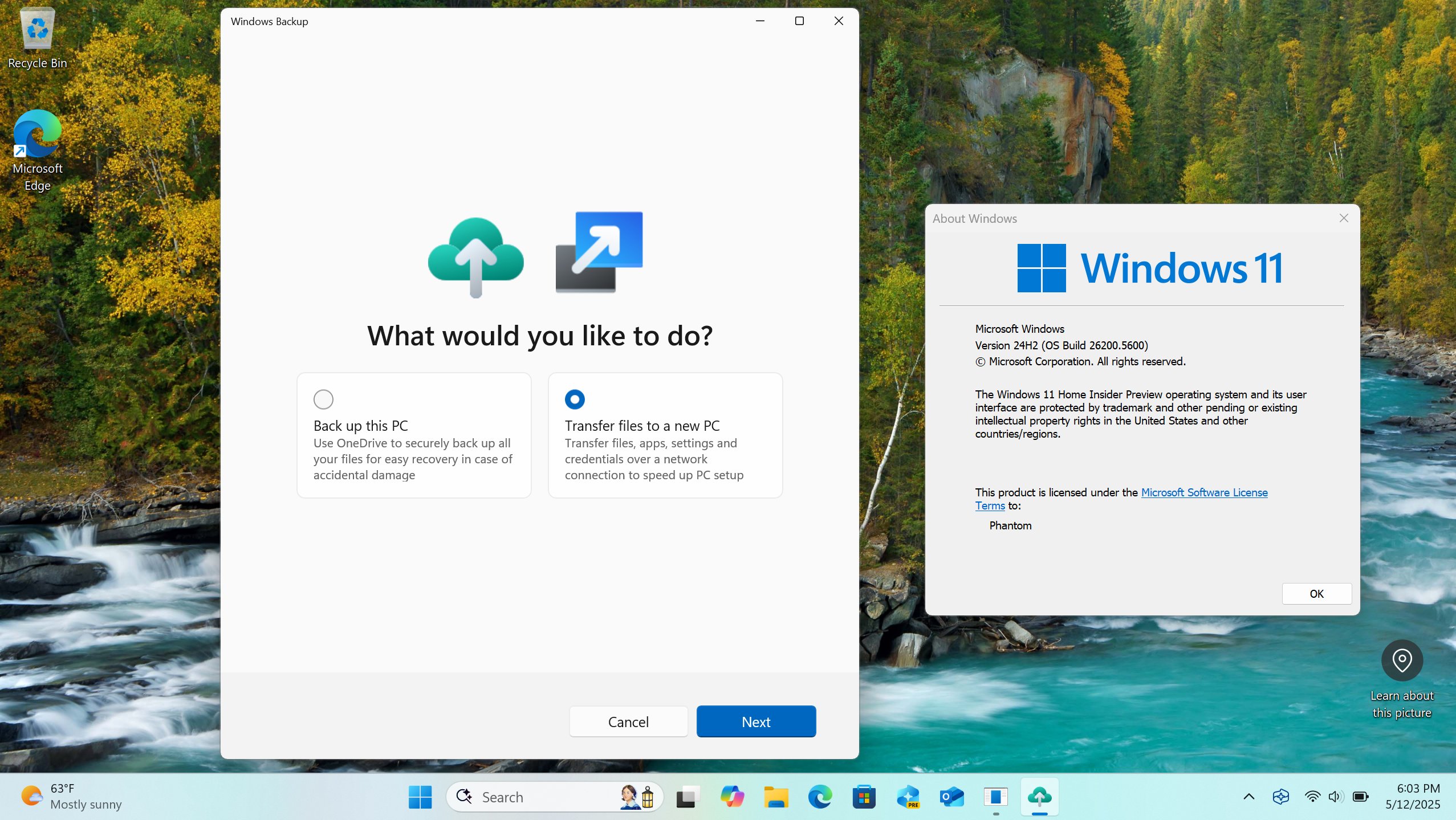
To get started, similar to Windows 7’s Easy Transfer, you would click on “Transfer information to a new PC,” and then pair the two PCs using a one-time code. Once connected, you’re given the option to transfer files and folders.
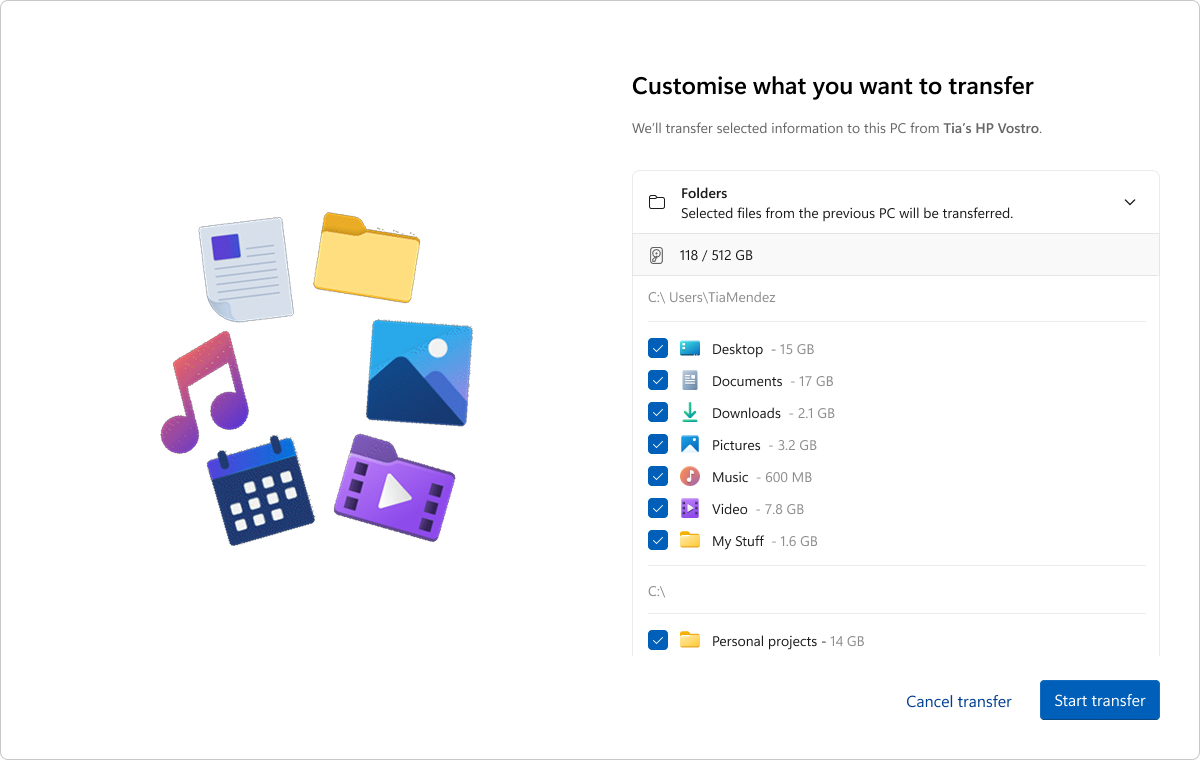
You can choose what you want to move, so it’s not a blanket transfer. For example, you can deselect the Downloads folder if the new PC has less storage, and proceed with other folders.
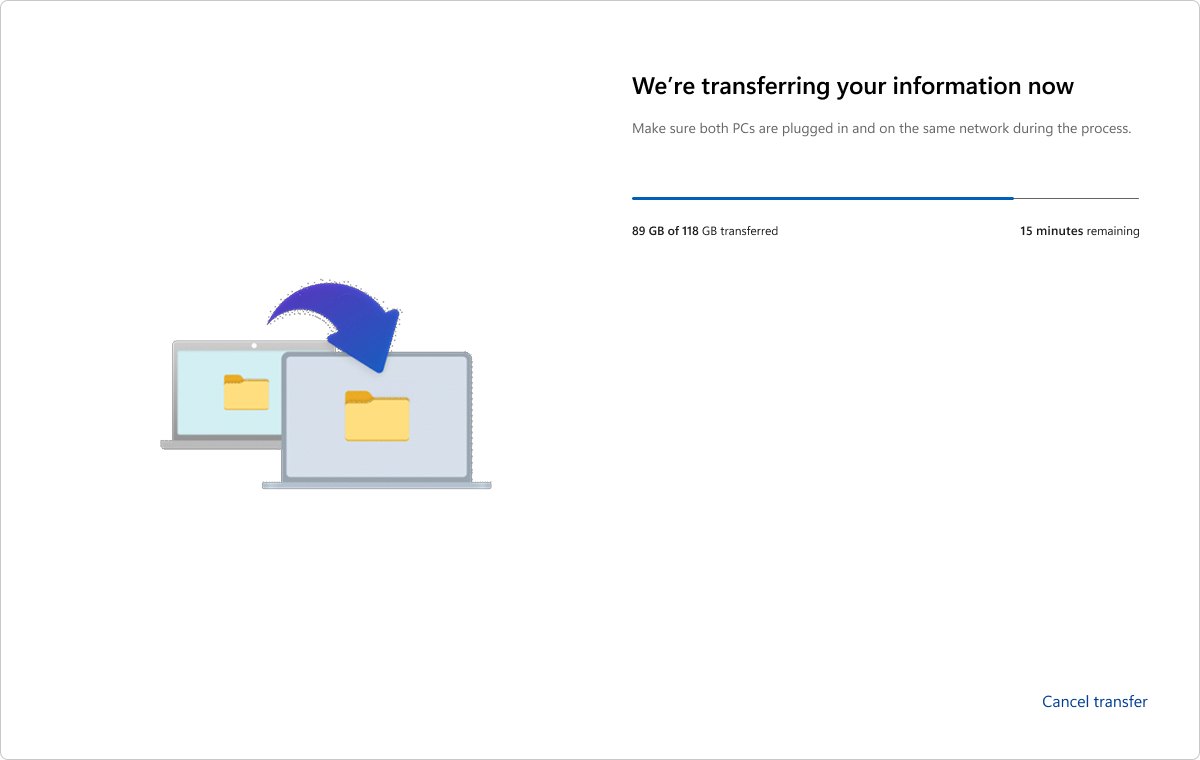
In my tests, I noticed that the PC-to-PC migration tool not only moved your documents, photos, videos, and other files, but also your settings, like wallpaper and theme. All of that happened locally, without uploading the files to OneDrive.
But there were certain limitations. For example, you could not move saved passwords, sign-in credentials, or installed apps using the local tool. Those needed to be restored or reinstalled separately. Here’s the full comparison between the two tools:
| What changes? | PC-to-PC transfer | OneDrive-backed Windows Backup |
|---|---|---|
| How your files move | Directly over Wi-Fi/LAN. | Through OneDrive sync. |
| Storage cap | No cloud cap. The new PC just needs enough space. | Limited by your OneDrive storage, with 5GB free. |
| Windows settings | Moves supported settings, like wallpaper and theme. | Restores supported settings from your backup. |
| Installed apps | Not transferred. | App pins are restored, but apps need to be reinstalled. |
| Microsoft account | Already required on the new PC. | Required for backup and restore. |
Even with those restrictions, the PC-to-PC migration tool was far better than OneDrive-based backups for moving to a new PC.
Now, Microsoft has removed the local option from Windows 11 and is recommending its OneDrive-based approach to sync files or folders across PCs or set up a new device.