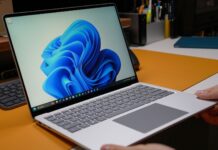

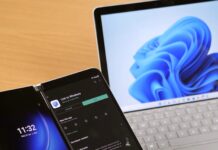
Five years after launch, Windows 11 finally has a right-click menu that opens instantly and lets you decide what goes in it. It’s the headline feature of a huge November 2026 Patch Tuesday update, easily one of the best this year, as Edge also opens quicker, taskbar previews animate smoothly as butter, and 26H2 PCs get the memory improvements Microsoft promised for 8GB laptops.
The update is called KB5132061, and it moves Windows 11 26H2 to Build 26300.9974 and 25H2 to Build 26200.9974. It’s a mandatory security update that includes every change from the October 28 optional update, KB5127936, which we’ve been running on our PCs for almost two weeks.
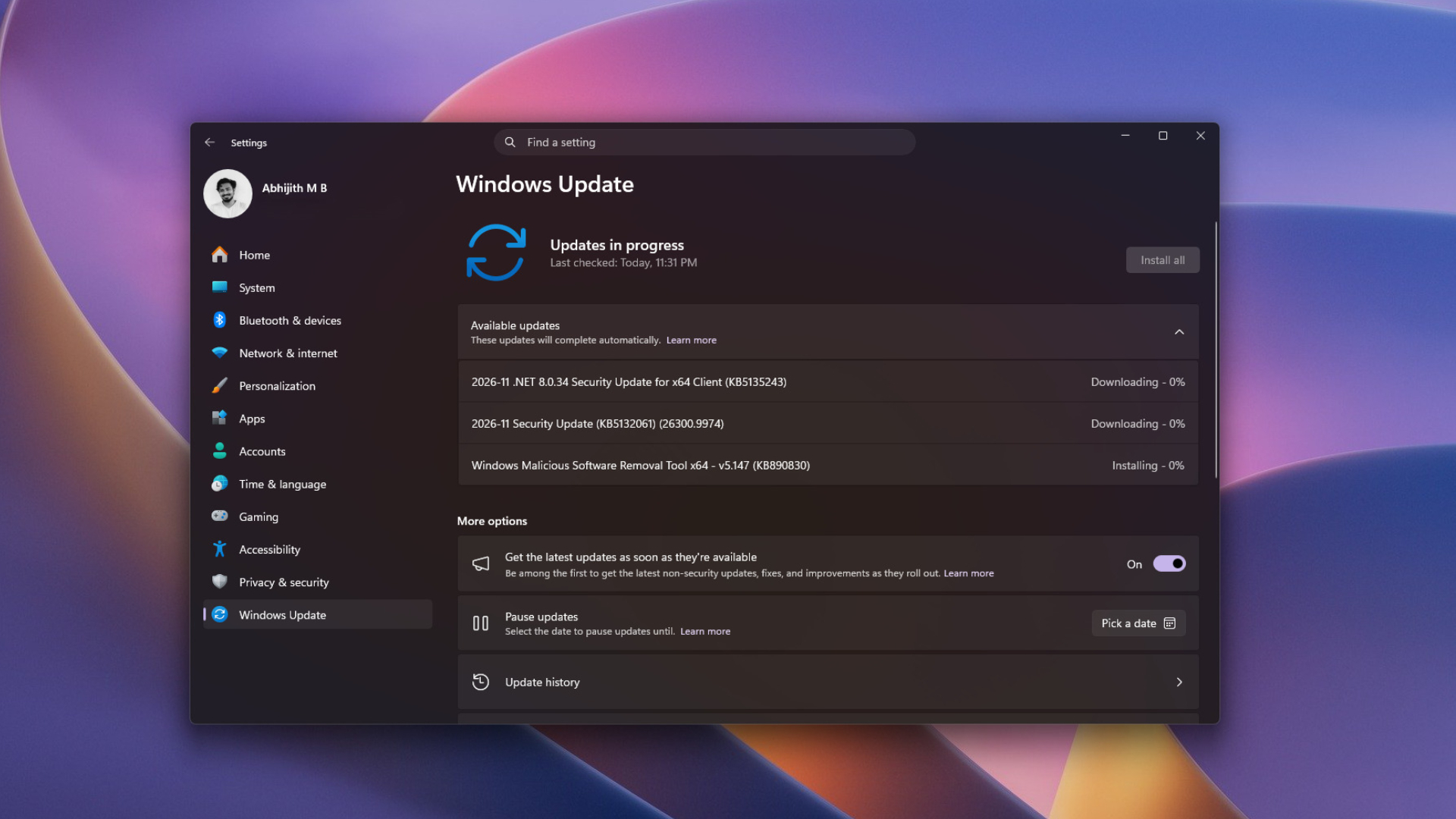
Features in the gradual rollout reach PCs over time, so you might only see a new build number today. Changes in the normal rollout, which include most bug fixes, apply as soon as the update installs.
What’s new in the Windows 11 November 2026 Patch Tuesday update
- Customizable, faster right-click menu (gradual)
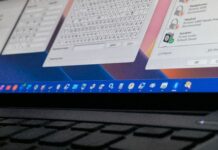
- Smoother taskbar app preview animations (gradual)
- Phone Link message previews on hover in Start (gradual)
- Edge opens up to 33% faster with accelerated app launch (normal)
- Xbox mode gets Exit to Desktop and Power buttons (gradual)
- Cloud rebuild reinstalls Windows without a USB drive (gradual)
- WinRE reuses your saved Wi-Fi networks (gradual)
- Restore Summary after restoring a backup (gradual)
- Modern Standby resumes instantly more often (gradual)
- Memory integrity turns on for more PCs (gradual)
- Modern AutoPlay and dark Folder Options (gradual)
- Cleaner File Explorer search results and ~ shortcut (gradual)
- Regrouped Privacy & security page in Settings (gradual)
- Device Info card in more countries (gradual)
- Magnifier per-monitor zoom and contrast toggle (gradual)
- Narrator reads math equations (gradual)
- Live Captions can skip screen reader audio (gradual)
- Unicode 17.0, IPv6 CLAT and a DPAPI warning (gradual)
- Smart App Control, Always On VPN and AMD audio fixes (normal)
Windows 11 24H2 Home and Pro won’t get the November 2026 update
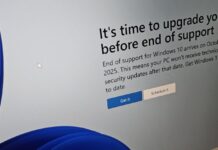
Windows 11 24H2 Home and Pro reached the end of updates on October 13, so those PCs aren’t getting today’s update. 24H2 Enterprise and Education still get monthly security fixes until October 12, 2027, but none of the features in this article.
Today is also the last update for Windows 11 23H2 Enterprise and Education. If you’re on 24H2, moving to Windows 11 26H2 takes only a small enablement package and one restart.
Windows 11 26H2 now meets Microsoft’s bar for faster 8GB RAM PCs
In a November 3 blog post, Windows boss Pavan Davuluri said you need Windows 11 26H2 Build 26300.9818 or later to get the latest performance and memory improvements. With the November update, every 26H2 PC crosses that build automatically.
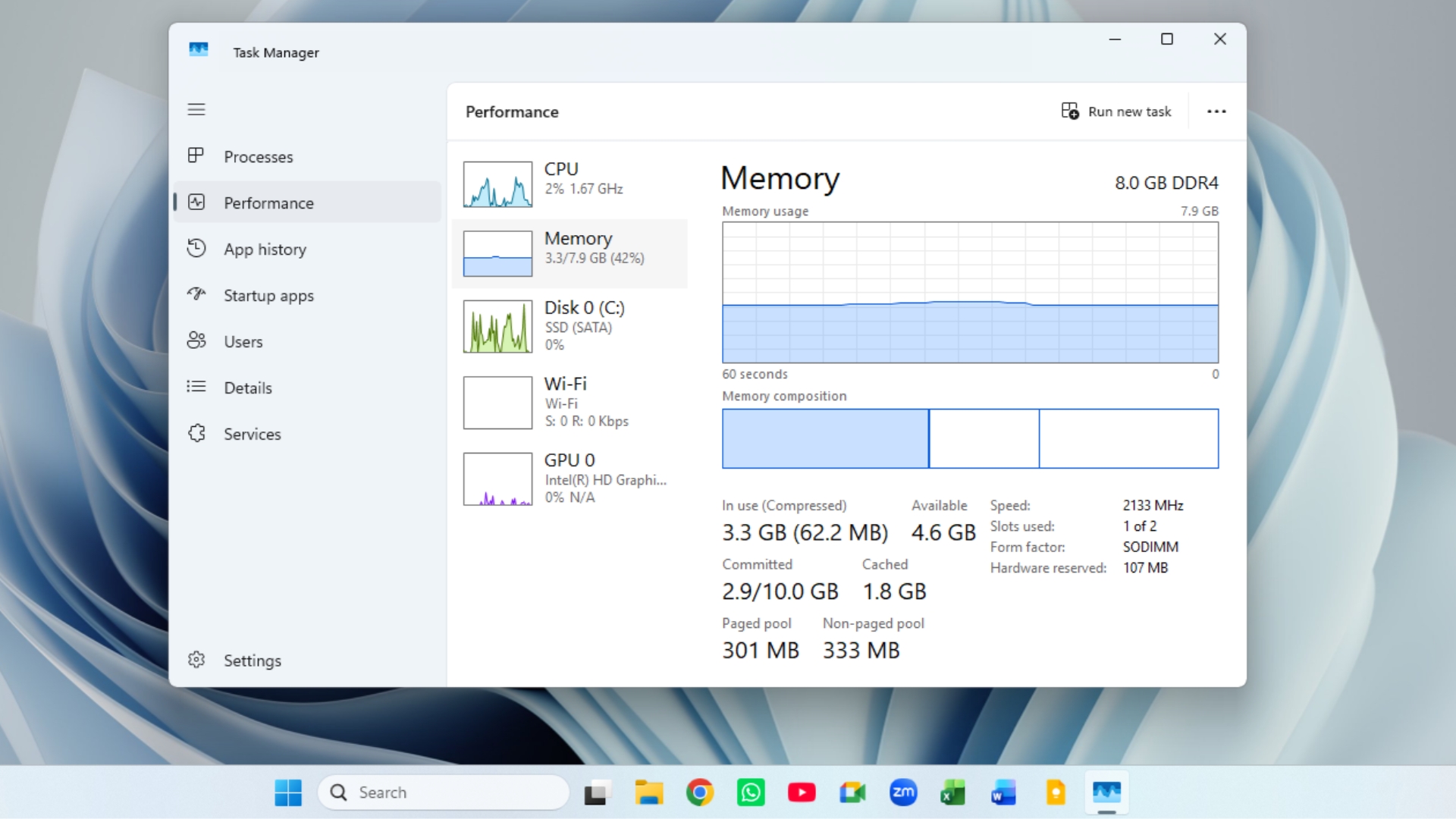
On 8GB PCs, Windows can now keep up to 2GB more of your active data in RAM, so an Edge tab you left open an hour ago is less likely to reload. Microsoft also says Start, Search, right-click, Settings, and File Explorer respond up to 20% faster than on the January 2026 builds, and Widgets now loads only when you open it, saving about 200MB on PCs with 8GB or less.
We tested 26H2 on an 8GB laptop before Microsoft’s blog went live, and RAM usage after a restart dropped from 5GB to 3.3GB.
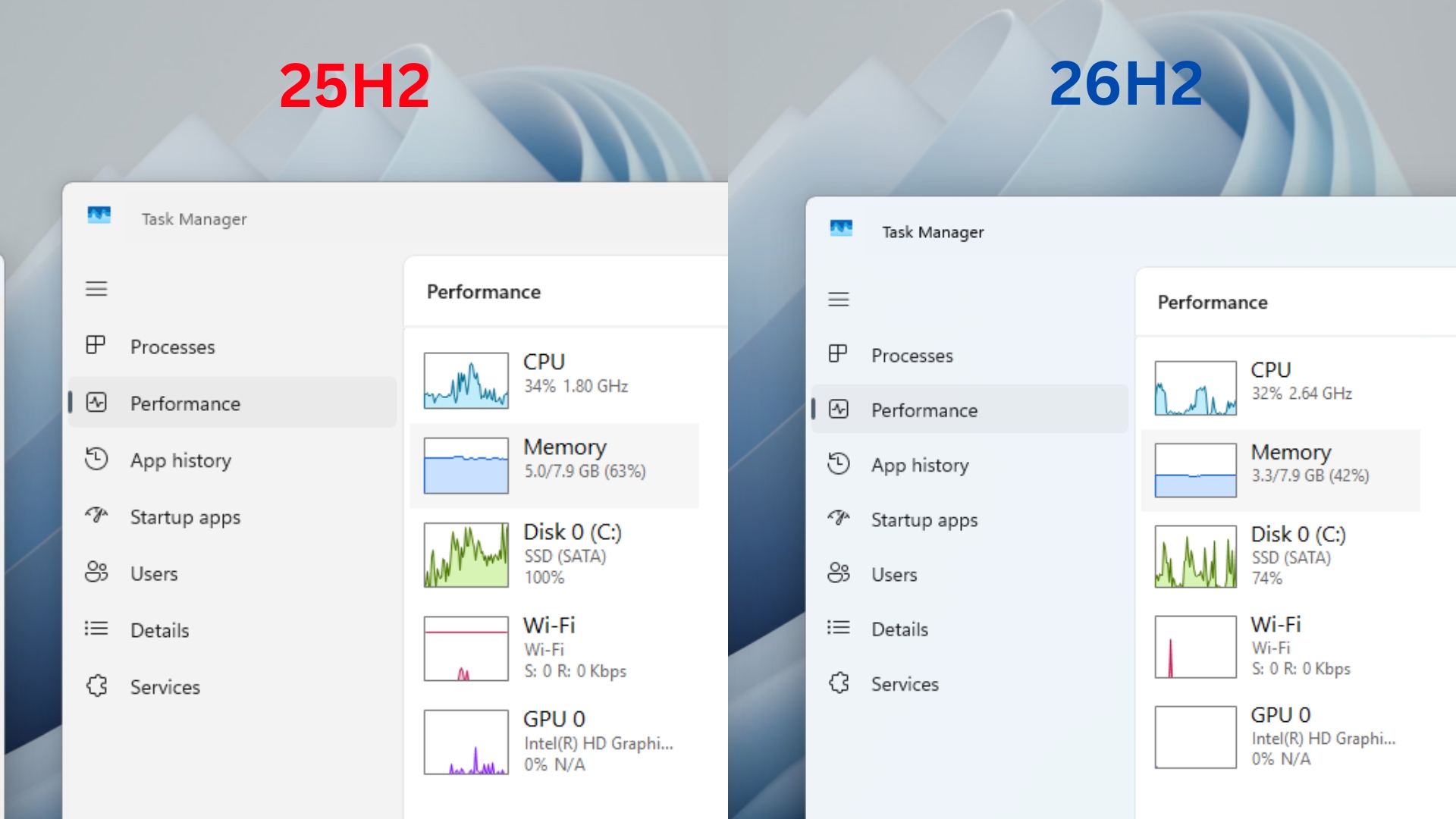
Microsoft’s footnotes measure the 20% figure on Build 26300.9550 from September, so 26H2 PCs already had part of it. If you’re still on 25H2, moving to 26H2 is the easiest way to get everything Microsoft listed, even if I think comparing today’s 8GB laptops with 16GB PCs from 2021 is a bit of a stretch.
The new Windows 11 right-click menu is faster and finally customizable
My favorite change in this update is the new context menu, and after using it on my daily PC since the optional update, I can’t go back. Before the update, right-clicking an image gave me 20 items below the icon row, including seven app extensions like Ask Copilot and Edit with Clipchamp, and the menu took a good one to two seconds to settle.
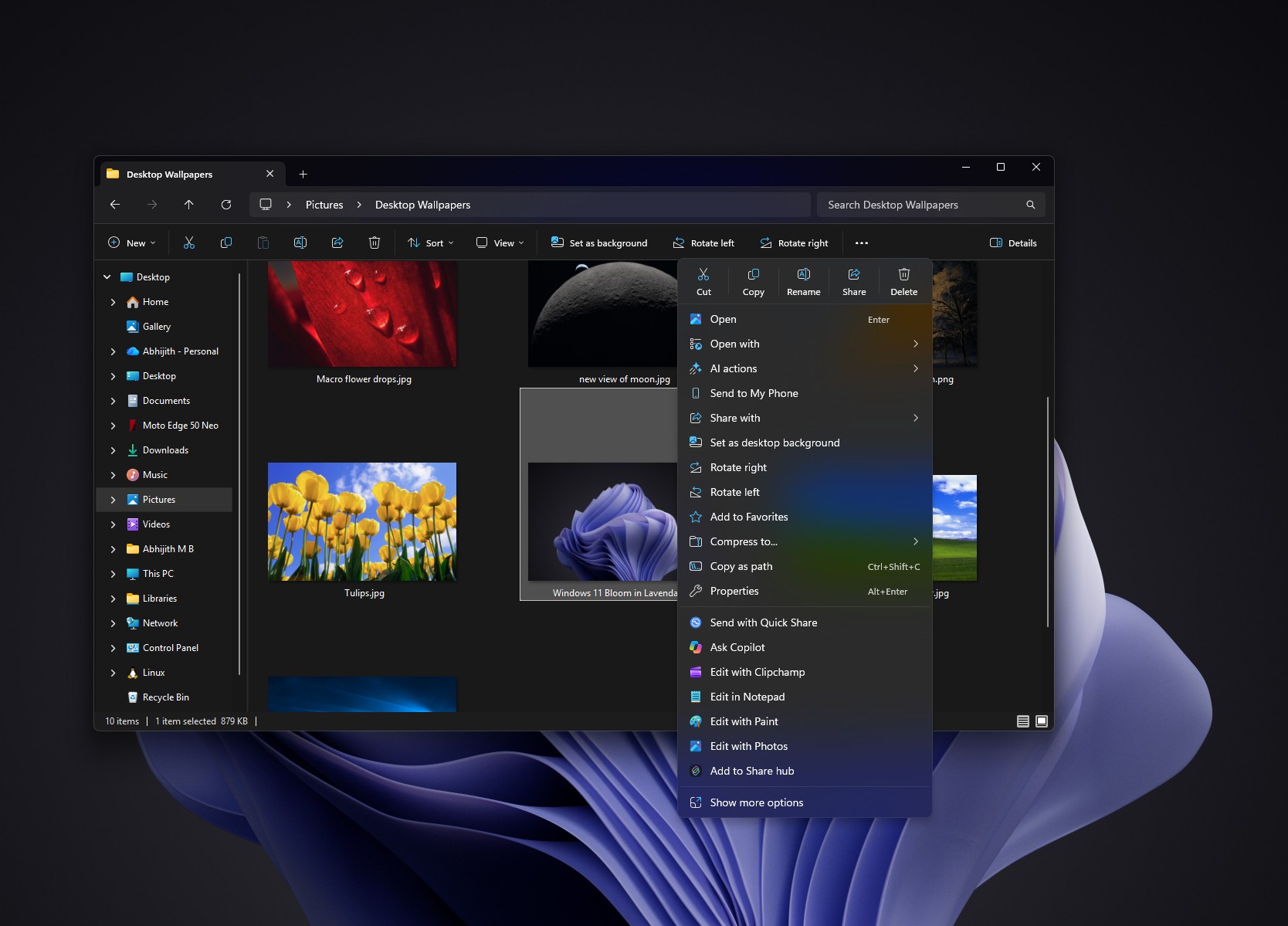
The new default menu for that image has just eight items, and it appears fully loaded the moment I right-click. App extensions now load only when you open their submenu, so they can’t slow down the main menu anymore. I covered every setting in the new right-click menu in detail, but here’s the short version.
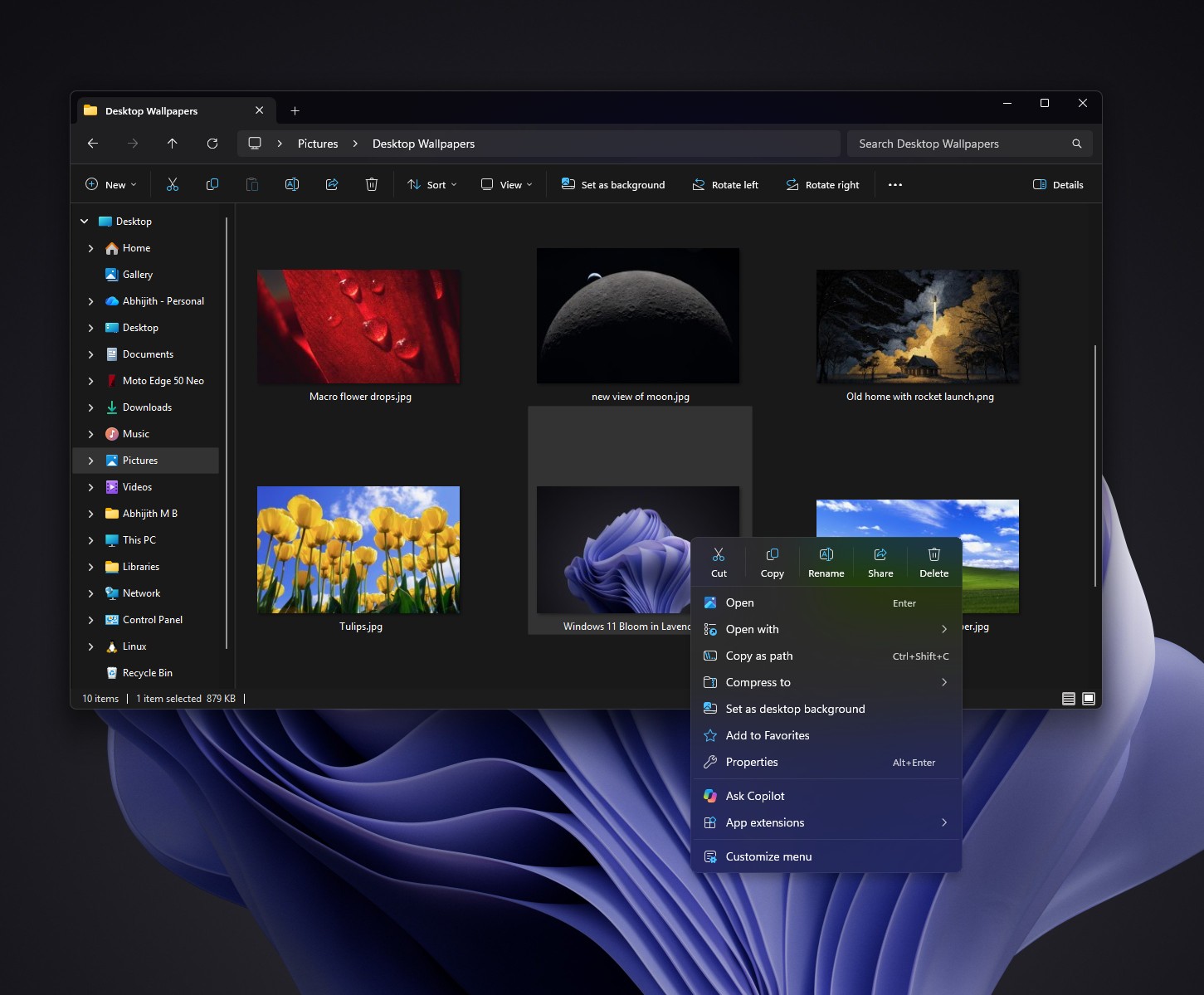
Select Customize menu at the bottom of the context menu, and it opens Settings > Personalization > Context menu. From there, you can:
- Turn Windows commands like Send to, Create shortcut, and Copy as path on or off
- Add Print to the menu
- Pick which app extensions show in the main menu, keep the rest in a submenu, or hide the submenu
- Show Cut, Copy, Paste, Rename, Delete, and Share as regular menu items instead of a row of icons
- Move Properties to the bottom, like in Windows 10
On my PC, Ask Copilot showed up in the main menu by default, and turning it off took one click. If you use older apps like 7-Zip that only appear in the legacy menu, hold Shift and right-click on the desktop, or turn on Show more options from that settings page.
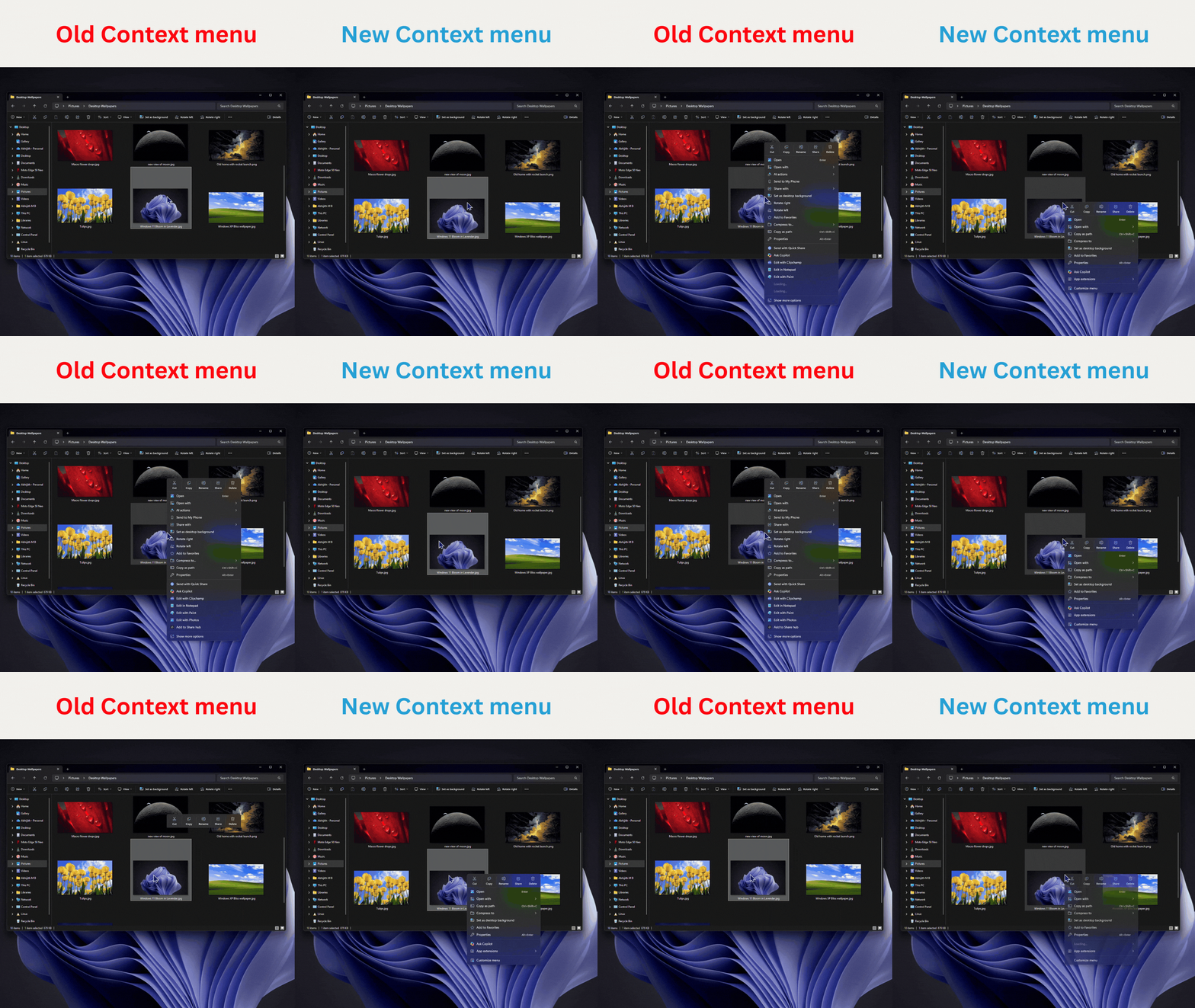
Microsoft admitted in August that the right-click menu had become “cluttered and sluggish,” and three months later, the fix is here. Better late than never.
Taskbar previews now glide between apps, as they should have in 2021
Microsoft says the update improves the animations of app window previews as you move your mouse across taskbar icons. In our tests, the previews move buttery smooth from one app to the next. The video below doesn’t do any justice to how smooth it is, and is slightly choppy for some other reason.
It’s a small thing, but it’s the kind of polish that made macOS feel premium for years. Microsoft has been fixing taskbar animations piece by piece since we force-enabled a fly-up animation in a Beta build last year.
If you dock your laptop to an external monitor, the taskbar also remembers its multi-monitor settings more reliably when you connect or disconnect displays.
Phone Link lets you read messages from the Start menu without opening anything
The Phone Link panel in Start, which arrived in April 2025, now lets you hover over a recent message or notification to preview it. You don’t have to open Phone Link or pick up your phone just to read a text, and you can turn the previews off from Phone Link > Settings > Start menu personalization.
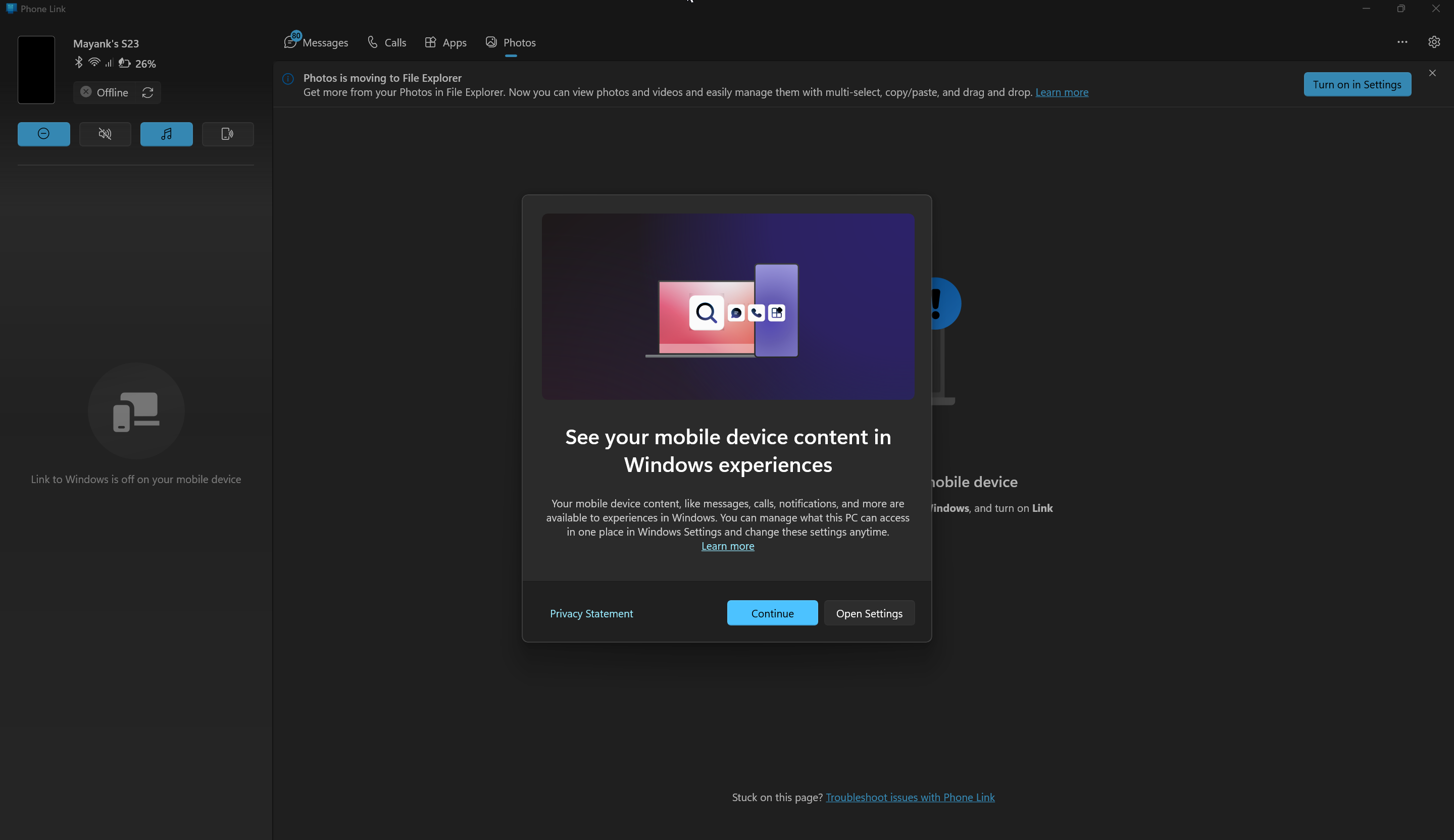
Of course, previews only help if the connection holds, and unfortunately, Windows 11 still loses Android phones after sleep on some PCs, although Microsoft is working on a fix.
Microsoft Edge opens up to 33% faster with accelerated app launch
Interestingly, faster Edge launches are part of the normal rollout, so every PC with Edge 150 or later gets them once the update installs, and it’s clear that Microsoft is very confident about this feature.
When Edge is already running in the background, which is most of the time thanks to Startup Boost, Windows used to start a temporary Edge process just to find the running one, pass on your link, and close. With accelerated app launch, Edge registers itself with Windows when it first opens, and Windows later launches straight to it.
The Edge team says most people will see launches about 15% faster, and up to 33% faster under heavy multitasking. In our tests on a virtual machine with 4GB of RAM, opening Edge from the taskbar while Microsoft Store and Paint were open went from sluggish to snappy. The first launch after a restart wasn’t faster because Edge wasn’t running.
Edge is the only app using it for now, but Firefox is testing accelerated launches too. I’m all for fixes that remove work Windows didn’t need to do, unlike preloading File Explorer to hide how slow it opens.
XBOX mode now lets you exit to the desktop with just a controller
Xbox mode arrived in May, but getting out of it without a keyboard was frustratingly awkward. The November update refreshes Gaming Task View with a navigation bar at the bottom, which has an Exit to Desktop button and a Power options button for Lock, Sign out, Shut down, and Restart.
Open apps show up as large cards you can switch between with LB and RB. We tried the new Gaming Task View when it reached Insiders, and on a handheld, you no longer need a keyboard just to shut it down. However, Microsoft says availability may depend on your device and market.
Cloud rebuild can reinstall Windows 11 from the internet, even when it won’t boot
Cloud rebuild is a new recovery option that downloads a Windows image and your drivers from Windows Update and reinstalls Windows 11, with no USB drive needed. Unlike the cloud download in Reset this PC, it works even when Windows can’t start.
You can start it from Settings > System > Recovery > Rebuild PC, which restarts into the Windows Recovery Environment (WinRE). If Windows fails to boot repeatedly, the PC enters WinRE on its own, and you can pick Troubleshoot > Recovery and uninstall > Cloud rebuild. Windows then shows the target build, edition, and language before you confirm.
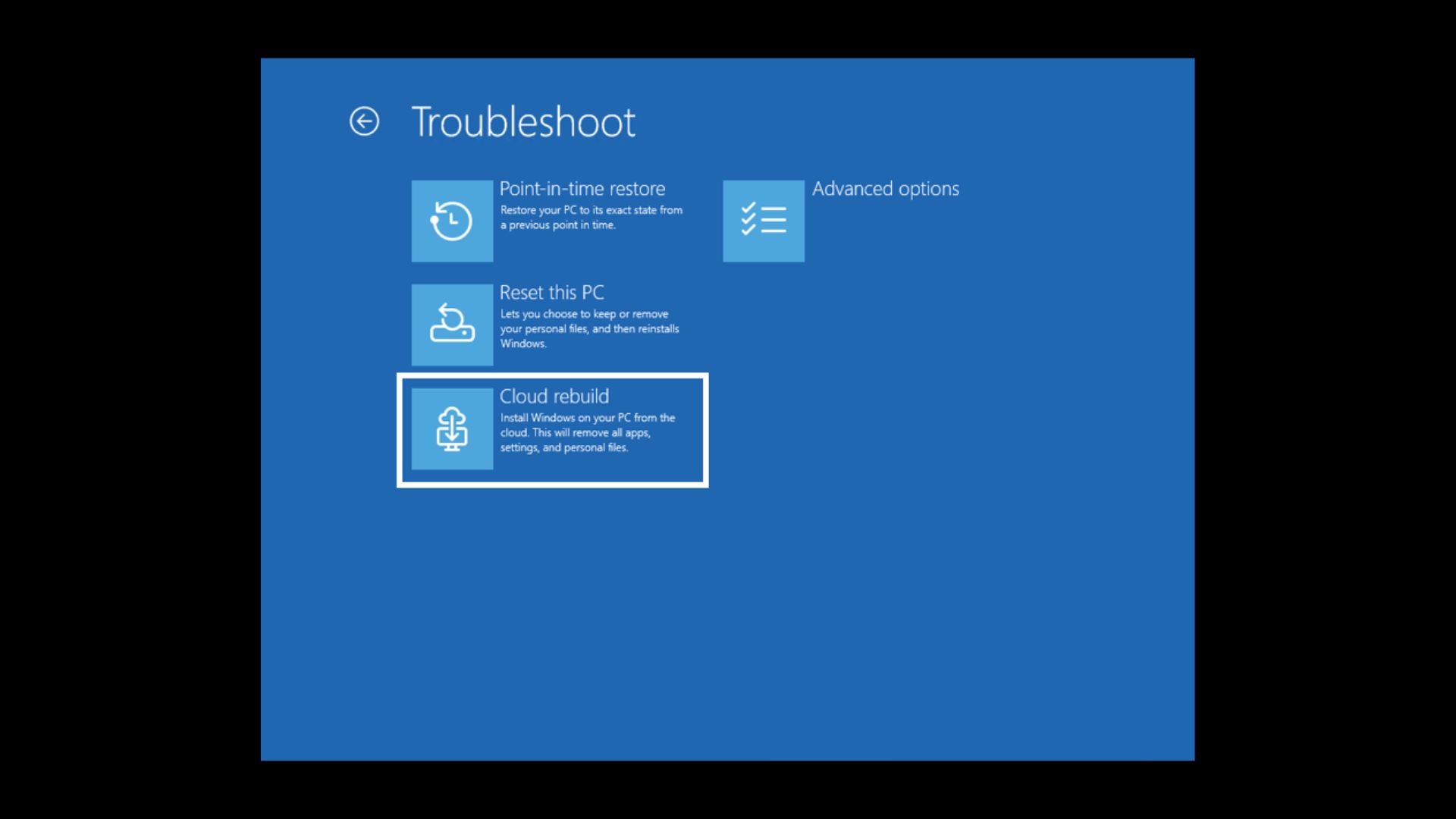
Keep in mind it’s a clean reinstall. You can remove your files, or remove them and sanitize the drive with the storage hardware’s erase feature, which can’t be undone. IT admins can trigger it remotely through the Recovery CSP. If you only want to undo a bad update without losing files, Point-in-time restore from July is the better option.
WinRE uses your saved Wi-Fi, and Windows Backup tells you what it restored
Recovery tools like Cloud Rebuild and Quick Machine Recovery need the internet, and WinRE couldn’t use your Wi-Fi unless the credentials were set up in WinRE beforehand. Now, WinRE automatically reuses eligible Wi-Fi profiles saved in Windows, including certificate-based networks. It’s on by default, and IT admins can turn it off.
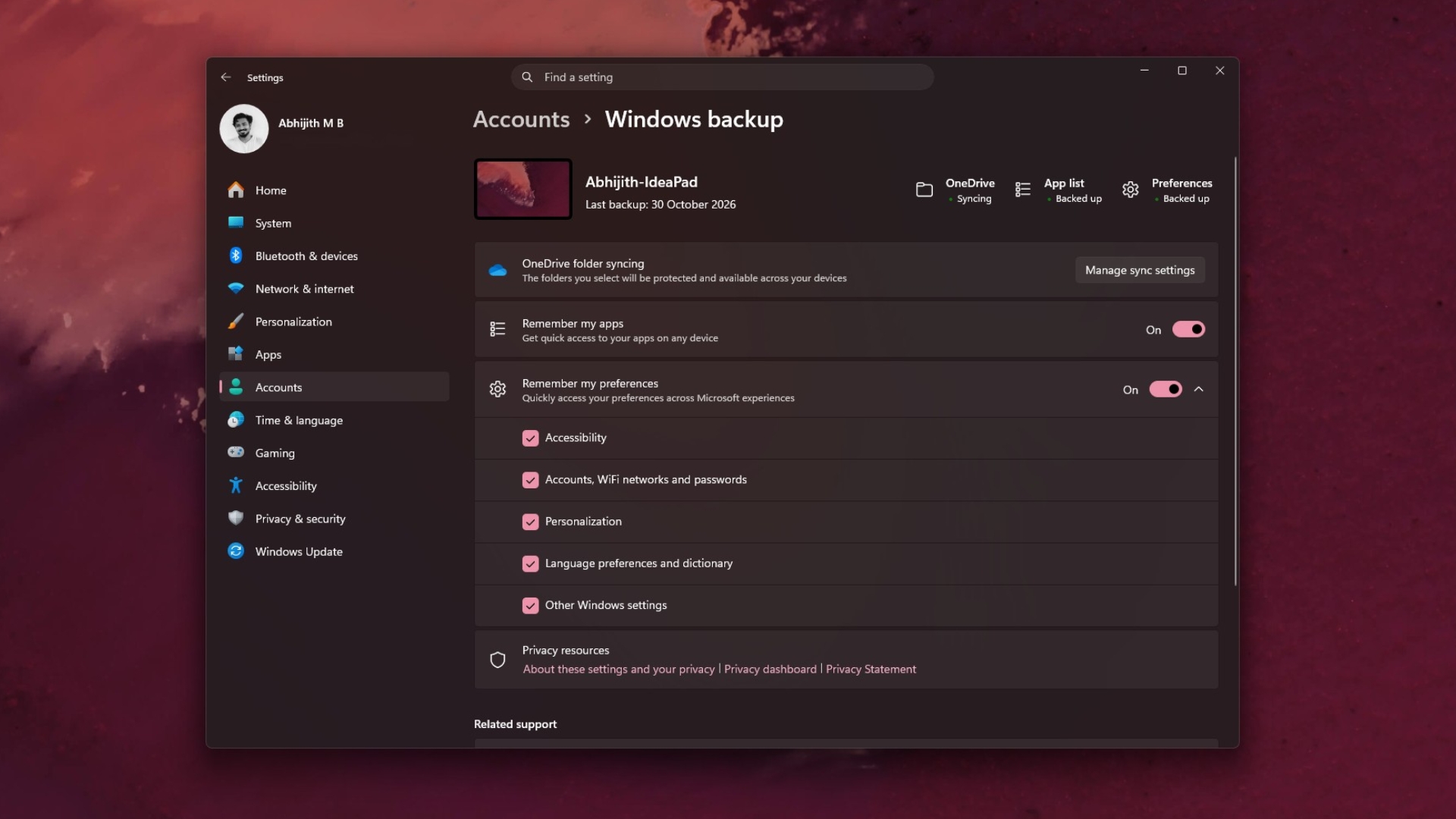
Windows Backup also gets a Restore Summary. After you restore a backup to a new PC, Windows shows which settings and Microsoft Store apps came back, giving you another reason to back up to OneDrive. Ironically, Microsoft removed PC-to-PC Migration last month to push people toward Windows Backup, so it’s good to at least know what made the trip.
Memory integrity is turning on automatically on more Windows 11 PCs
Memory integrity, or Hypervisor-Protected Code Integrity (HVCI), checks drivers and kernel code before they run to block malicious drivers. Supported PCs may now have it turned on during updates, but Microsoft says it respects choices you or your IT admin already made.
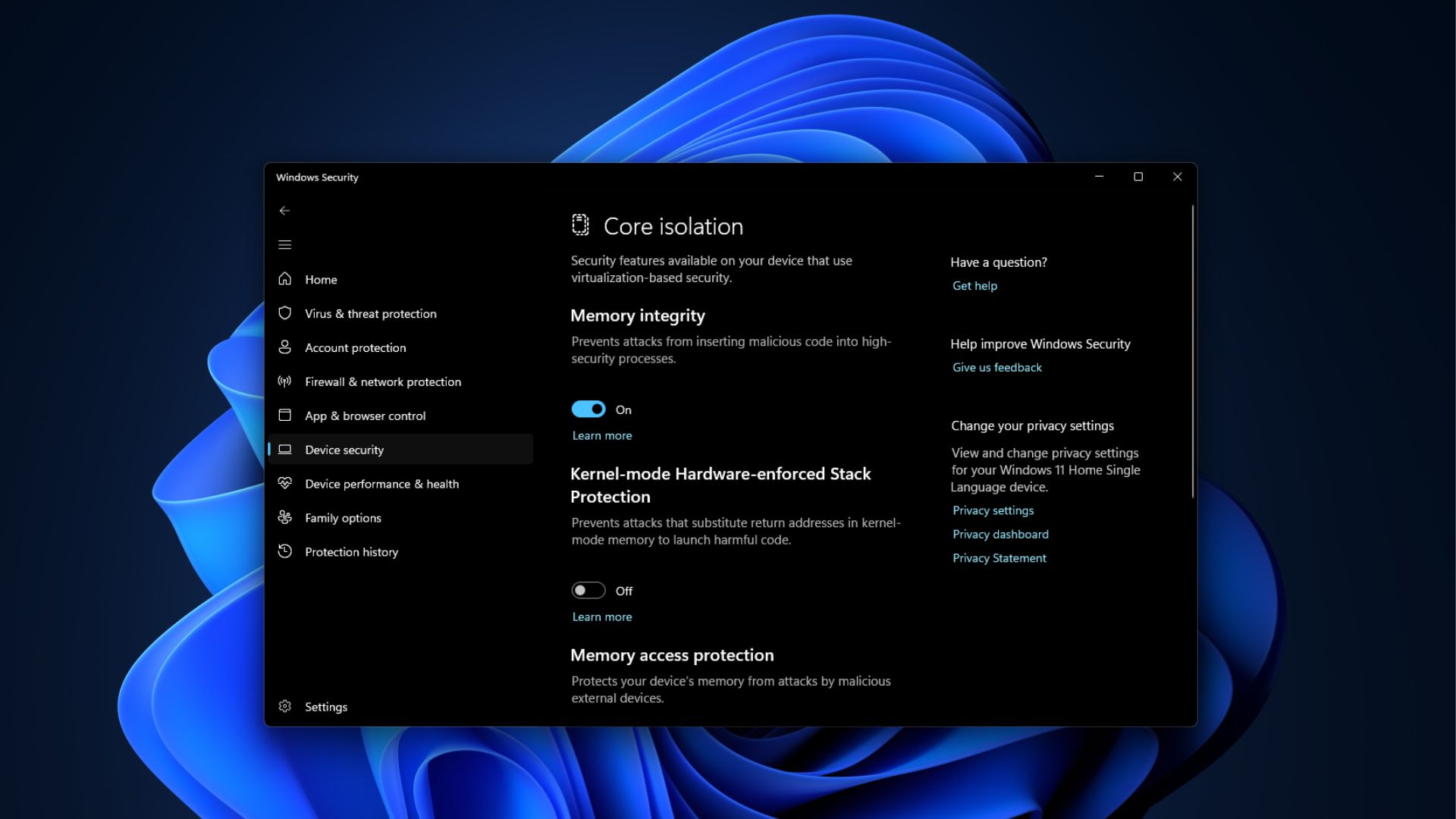
You can check it under Windows Security > Device security > Core isolation, and as we explained when Microsoft announced the change in September, it’s best left on unless you notice a random game or driver breaking.
Smaller changes for families, languages, and IT admins
- Family Safety shows clearer messages when an app is blocked by age-restricted parental controls.
- Windows Spotlight on the lock screen is more reliable.
- Windows now supports Unicode 17.0 text shaping, covering 4,803 new characters and four new scripts, Beria Erfe, Sidetic, Tai Yo and Tolong Siki.
- IPv6 CLAT support for Wi-Fi and Ethernet lets IPv4-only apps work on IPv6-only networks. It needs SLAAC-based addressing, doesn’t support WSL yet, and can be turned on with netsh or Group Policy.
- Data Protection API (DPAPI) now warns before prompt-based protect and unprotect operations, which Microsoft will retire in April 2027.
- Policy-based in-box app removal, which came in May, now works in multi-session environments on Enterprise and Education (normal rollout).
Fixes shipping in November Security update’s Normal rollout
- Smart App Control can be turned on again. After the October 13 update, the option was grayed out on some PCs where it had been turned off, as Microsoft confirmed in its KB5127648 release notes.
- Non-admin users can connect through Remote Desktop to PCs with Administrator protection turned on, instead of getting error 0xC000000D. The “Specify thumbprints of certificates representing trusted .rdp publishers” policy can also be set through Intune again.
- Always On VPN connections no longer get stuck on Connecting after the September update, or show “The specified port is already in use.”
- HDMI and DisplayPort audio works again on certain AMD graphics cards.
- Nested virtualization is available again in WSL2 on AMD processors.
- Windows Sandbox no longer closes unexpectedly with error 0x80370106.
- BitLocker handles pre-boot PIN retries better, so repeated submissions don’t trigger a TPM lockout and recovery.
- PCs no longer fail to start after using the PS_UpdateAndCompareCIPolicy CIM method in Application Control.
- TPM attestation certificate enrollment no longer hangs with some third-party key storage providers.
- Smart cards support RSA-3072 keys on supported PIV cards.
- Windows PowerShell and the PowerShell ISE now include “5.1” in their names, though some Start menu shortcuts may keep the old names.
Some USB audio devices are still broken, and Secure Boot certificates keep rolling out
Microsoft still lists the USB audio bug from September as a known issue. Some USB Audio Class 1.0 devices may fail to start with Code 10, produce no sound, or leave volume stuck at zero. The September 14 emergency update fixed the 8-channel and 3D audio part, but the rest is still pending two months later.
Secure Boot certificates used by most PCs started expiring in June, and Microsoft is still delivering the newer ones through Windows Update. PCs without them will keep starting and installing updates normally. So, don’t worry if you didn’t get them already.
AI components and servicing stack update
Image Search, Content Extraction, Semantic Analysis, and Settings Model are updated to version 1.2610.1063.0 in the background. The update also ships with new servicing stack update, which improves how Windows installs updates.
How to install the November 2026 Patch Tuesday update
Open Settings > Windows Update and select Check for updates. You’ll see KB5132061 available. The update installs automatically unless you’ve paused updates, and it needs a restart. To get updates sooner, turn on “Get the latest updates as soon as they’re available” on that page.
Since the update is cumulative, it also brings along the October 26 out-of-band fix that delivered updated root certificates to PCs that can’t get certificate trust list updates. IT admins adding this update to Windows images should include the boot.stl file in the installation media, or devices may fail to boot from it with error 0xc0430001.
I recommend that you install the November 2026 Patch Tuesday update as soon as it shows up, just for the new right-click menu and RAM improvements. With no Windows 12 in 2027, Windows 11 is going to be around for a while, and these are the kind of updates that I wish Microsoft would continue to give us.