



Windows 11 KB5132061 is now rolling out with a new setting that lets you modify the right-click menu and provides faster performance for apps like Edge and Firefox. It also makes the right-click menu load faster. Like all updates, the November 2026 Patch Tuesday update is out via Windows Update; Microsoft has also posted direct download links for the KB5132061 offline installer (.msu).
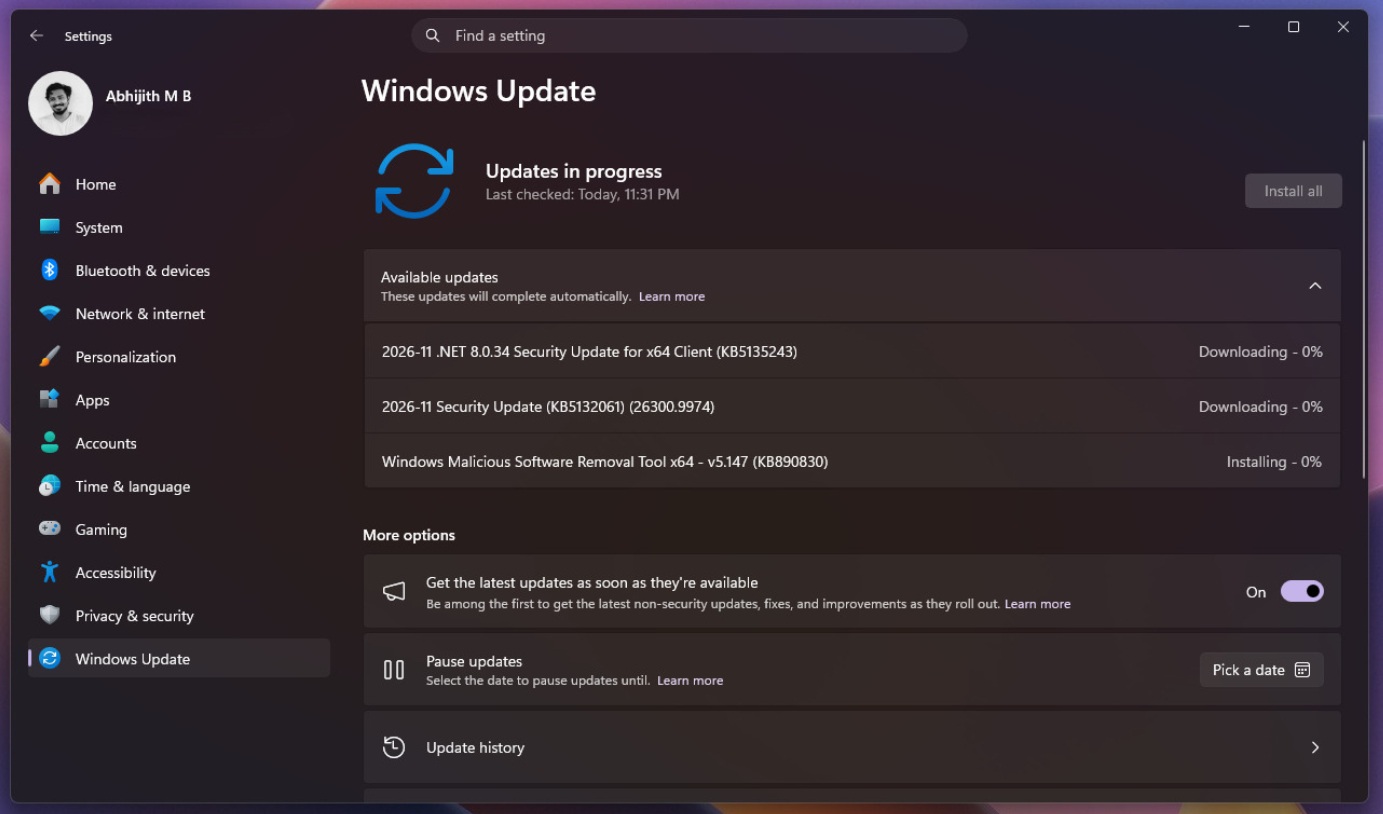
Windows 11 KB5132061 is a mandatory security update, so it’ll download and install automatically without your permission, as long as Windows Update is turned on and allowed to check for updates. In my tests, today’s update showed up as “2026-11 Security Update (KB5132061) (26300.9974)” and installed automatically within a few minutes.
If you’re on Windows 11 26H2, you’ll be getting Build 26300.9974. In the case of Windows 11 25H2, the build number is 26200.9974, but there are no visible differences, as the two versions are based on the same core release (version 24H2).
Also, if you still have Windows 11 24H2 for some reason, you won’t get new updates, as its support ended in October 2026.
In addition to the November 2026 cumulative update, Microsoft has also published other updates, such as an update for .NET Framework.
For example, I also saw “2026-11 .NET 8.0.34 Security Update for x64 Client (KB5135243)” when I checked for updates. And of course, you’d also get a new version of the malicious software removal tool, called “Windows Malicious Software Removal Tool x64 – v5.147 (KB890830).”
Download Links for Windows 11 KB5132061
Windows 11 KB5132061 Direct Download Links: 64-bit and ARM64 | Today’s update is also available via the Update Catalog, so I’ve added the links to offline installers (.msu), but most people don’t need these. I recommend using Update Catalog only when a) you’ve got hundreds of PCs, or b) Windows Update is failing repeatedly.
Updating via Windows Update in Settings is not only faster, but the download is also smaller. For comparison, if you install today’s update via Windows Update, it would be around 1-1.5 GB in size, but that number rises to 5GB if you use Update Catalog. Windows 10 updates used to be under 300MB via Windows Update and close to 900MB via Update Catalog. Windows 11 updates are larger in size due to the fact that they now come bundled with AI models for supported PCs.
Here are the sizes for the November 2026 Patch Tuesday update:
| Build Number | Size | OS Version | Architecture |
|---|---|---|---|
| 26300.9974 | 5062.9 MB | Windows 11 26H2 | x64-based |
| 26300.9974 | 4906.0 MB | Windows 11 26H2 | arm64-based |
| 26200.9974 | 5062.9 MB | Windows 11 25H2 | x64-based |
| 26200.9974 | 4906.0 MB | Windows 11 25H2 | arm64-based |
To download Windows 11 Build 26300.9974 (26H2) or Build 26200.9974 (25H2), open Settings > Windows Update and check for updates.
What’s new in Windows 11 Build 26300.9974 (26H2) / Build 26100.9974 (25H2)?
Everything in today’s update is rolling out gradually, so it’s entirely possible you’ll not notice any visible differences immediately.
1. Customizable context menu
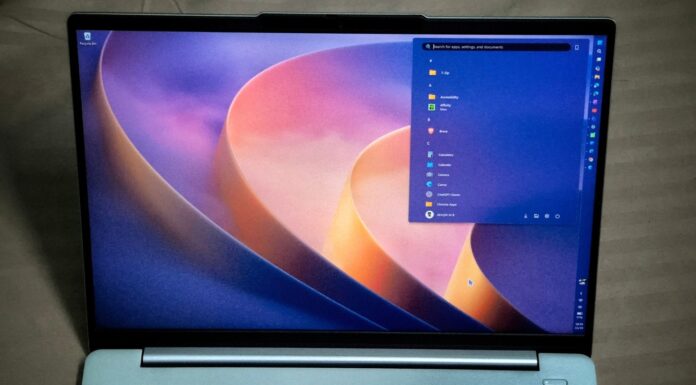
Windows 11’s right-click menu is getting a huge upgrade, and you can now fully customize it. That means if you install today’s update (KB5132061) and get access to the “Customize menu” feature, you can choose what appears when you right-click anywhere in Windows 11, including File Explorer.
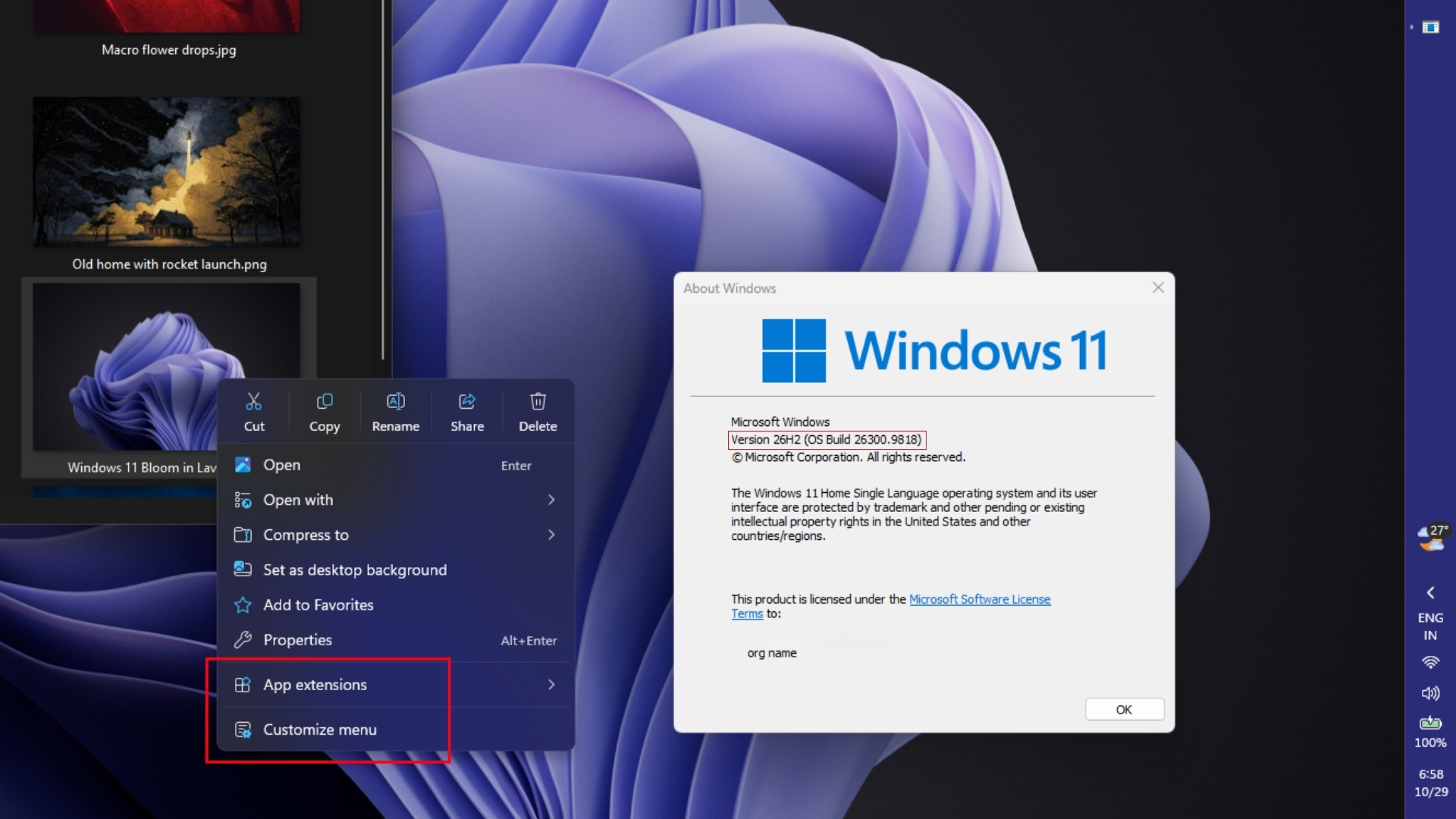
For example, if you previously right-clicked on an image, you’d see options like “Edit in Paint” or “Edit in Notepad,” which are useful, but some of you would rather just choose the Photos option, which opens the image in the Microsoft Photos app. There are also other options, such as rotate, which rotates the image; then you have options like compress to zip, and more.
The more apps you have, the more extensions you have, and now Windows 11 lets you fully customize the menu, including removing the options you don’t want.
AutoPlay and Folder Options finally get dark mode, and File Explorer search is easier to read
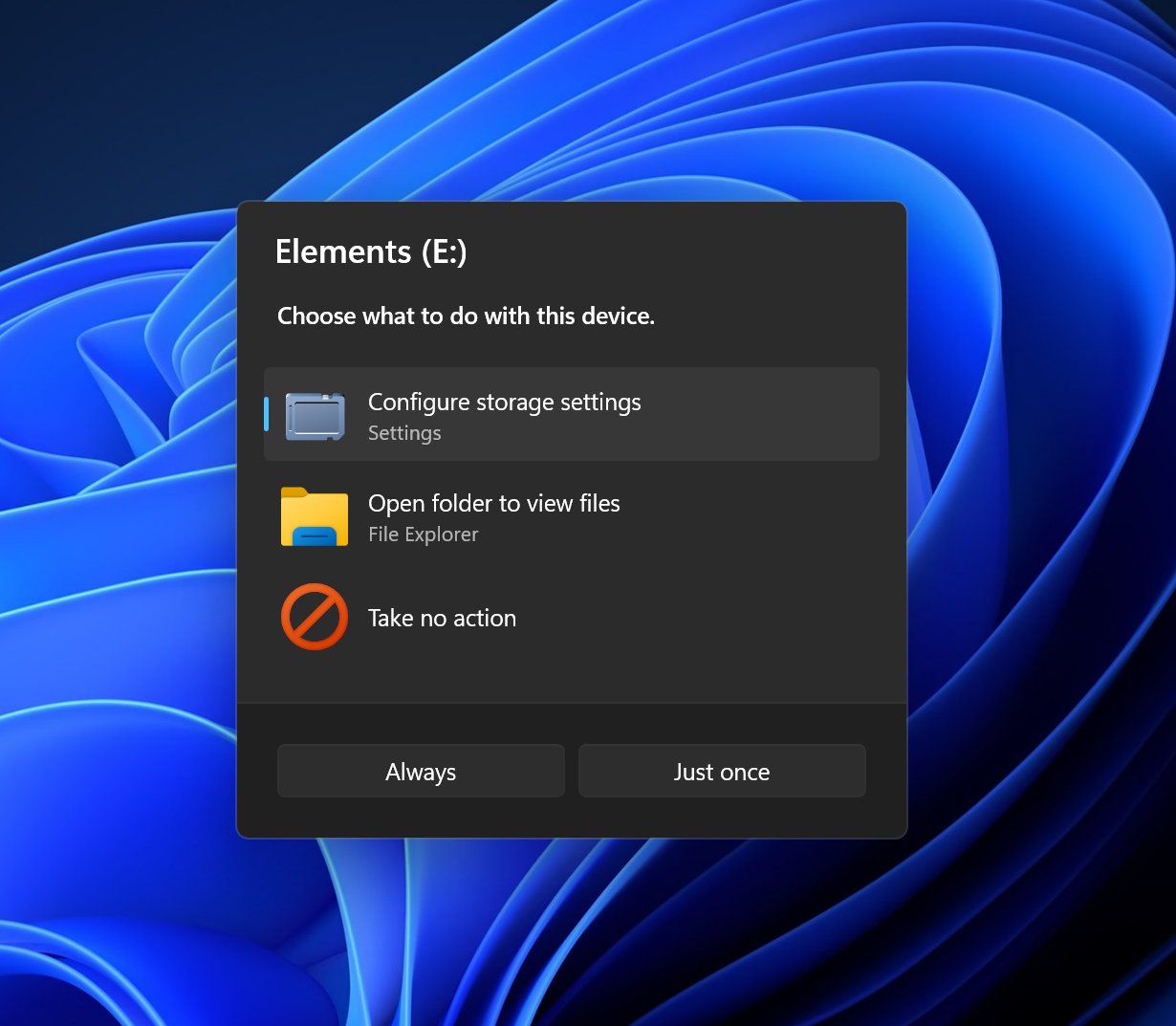
The AutoPlay dialog, which shows up when you connect a phone, camera or USB drive, gets a modern design with dark mode and text scaling support in Windows 11 KB5132061.
AutoPlay notifications also stay in the notification center, so you can open them later, which is a nifty addition, as I have previously removed devices and reconnected them just to get the notification again.
After readable file sizes in August, File Explorer picks up three smaller useful changes.
- Search results show the file name, location, and date in a consistent layout, which makes them easier to scan.
- Typing ~ in the address bar takes you to your user folder, so ~\AppData opens AppData without the usual long path.
- The Folder Options dialog supports dark mode.
Microsoft says it’s finally replacing Windows 11’s ancient dialog boxes, and AutoPlay and Folder Options are two fewer to worry about. Funnily enough, the Properties dialog you open from the shiny new right-click menu still looks like it’s from Windows 95, as its modern WinUI version is still in development.
Settings regroups privacy controls, and the Device Info card reaches more countries
Settings has been getting a steady redesign since the April update, and the Privacy & security page is next. With Windows 11 KB5132061, Camera, Microphone, and Location controls are now grouped together, and the main page shows which apps used them, which used to be hidden in linked pages.
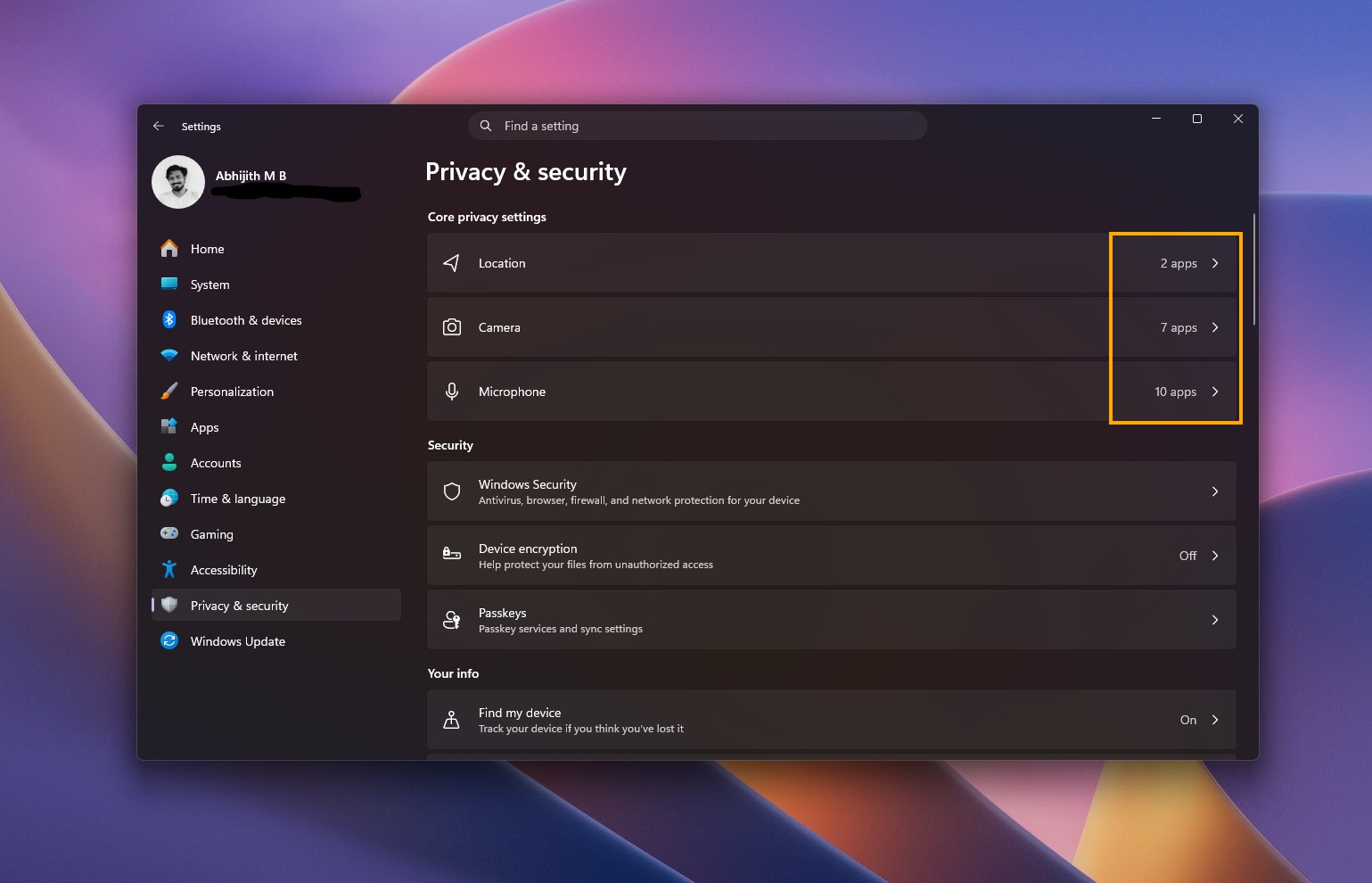
The Device Info card on the Settings home page, which shows key specs and usage at a glance, is expanding beyond the US to more markets. It needs a Microsoft account, and the full details are still under Settings > System > About. Microsoft has also made small visual tweaks to the temporary files section under Settings > System > Storage.
Magnifier gets per-monitor zoom, and Narrator can now read math
Accessibility tools got a lot of attention in October, and Magnifier gets three more upgrades with Windows 11 KB5132061:
- A contrast theme toggle on the Magnifier toolbar reduces glare while keeping the original colors in photos, videos, and charts. It uses a dark theme by default.
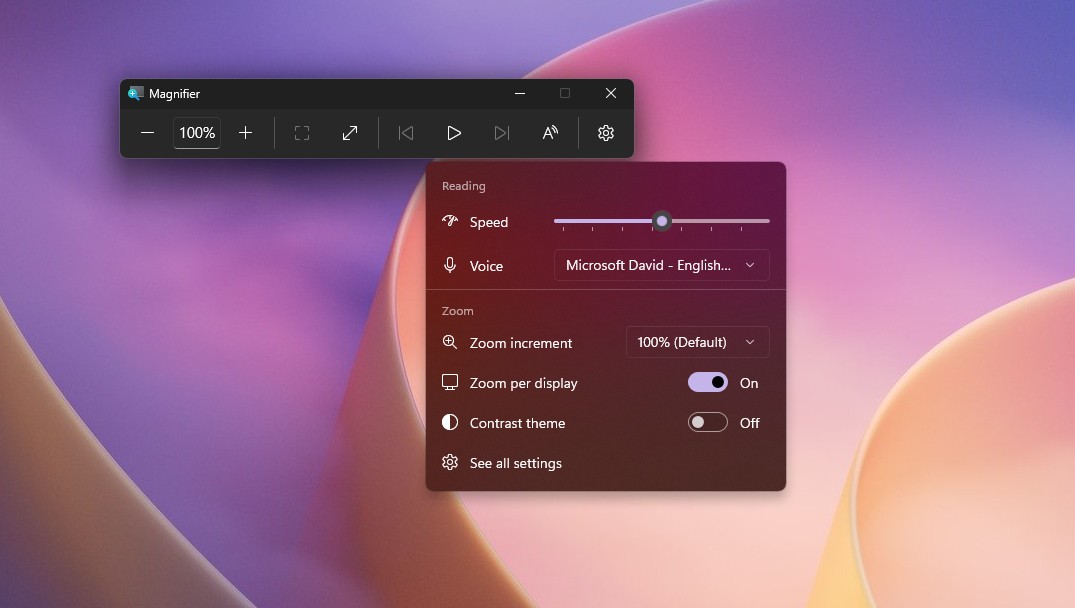
New Contrast theme toggle in Magnifier. Credit: Windows Latest - Per-monitor zoom, which is on by default, gives each display its own zoom level when your monitors are set to Extend. Point at a display and press Windows key + Plus or Minus, or use Ctrl + Alt with the mouse wheel.
- Viewport locking keeps one display’s magnified view in place while you work on another. Press Ctrl + Windows key + K to lock or unlock a display.
Narrator can now read and navigate math equations in Word, PowerPoint and web pages in Edge 153.0.4234.32 and Chrome 153.0.8010.18 or later. Press Narrator key + Alt + N and use the arrow keys to move through an equation. It supports English (US and UK), Traditional Chinese, Finnish, German and Spanish.
Live Captions also gets an Include screen reader audio setting, which is off by default, so captions won’t transcribe Narrator, JAWS or NVDA unless you turn it on in Settings > Accessibility > Captions.
Microsoft says it’s not aware of any major issues in Windows 11 KB5132061.