






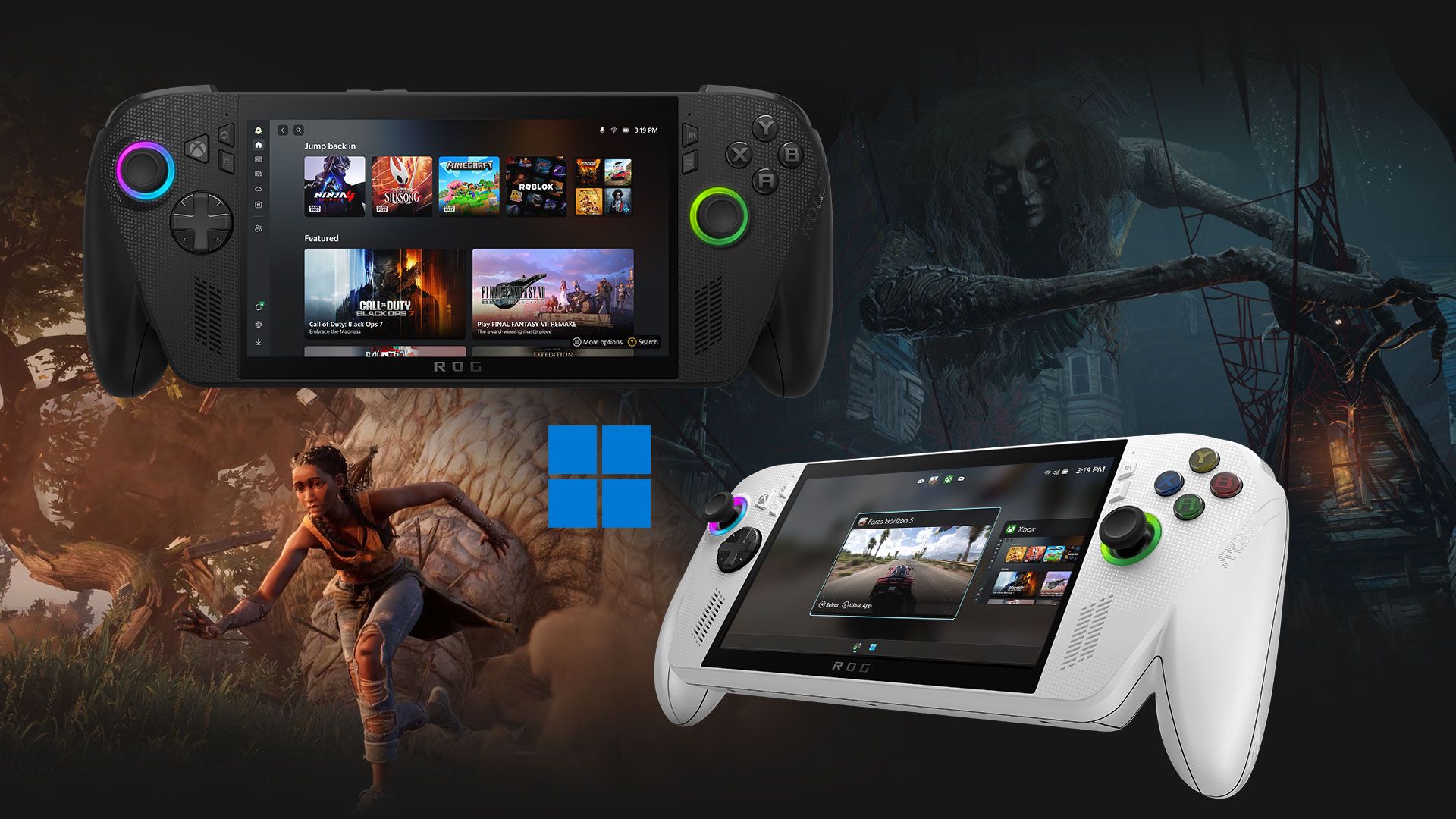
Microsoft is testing a new Gaming Task View for Windows 11’s XBOX mode, with a navigation bar that lets you exit to the desktop or restart and shut down your PC using just a controller. Windows 11 is also getting a Battery Status widget that shows the charge of your PC and connected accessories, like a headset or mouse, on the Widgets board and the lock screen.
Both features are rolling out gradually to Windows Insiders, and I tried them on Build 26340.9750. Neither are groundbreaking in any way, but they fix two small annoyances that Windows users have put up with for far too long.
Windows 11’s XBOX mode gets a Gaming Task View with power options
In the release notes for build 26340.9750, Microsoft says it’s “introducing a refreshed Gaming Task View experience in XBOX mode, featuring a new navigation bar that provides quick access to Exit to Desktop and Power Options.” The update came on October 16 for Insiders in the Experimental channel and in the Beta channel with build 26220.9739.
Gaming Task View shows your open apps as large cards, and you can move between them with the LB and RB buttons. At the bottom, there’s now a small bar with two buttons, one to exit to the desktop and one for power.
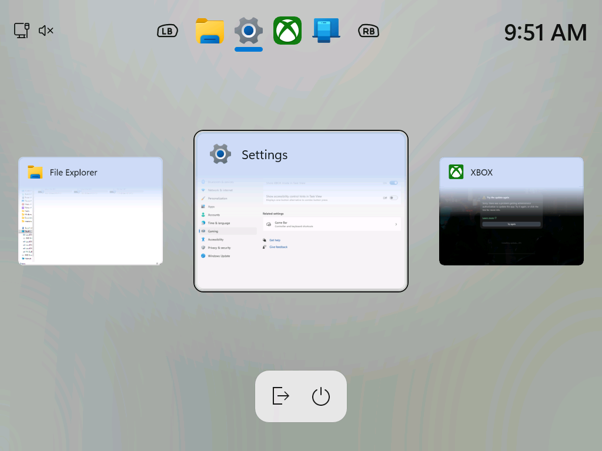
Selecting the power button opens a menu with Lock, Sign out, Shut down and Restart. It is a basic addition, but that is the point. Power controls should be easy to reach on a handheld, a PC connected to a TV, or any setup used mainly with a controller.
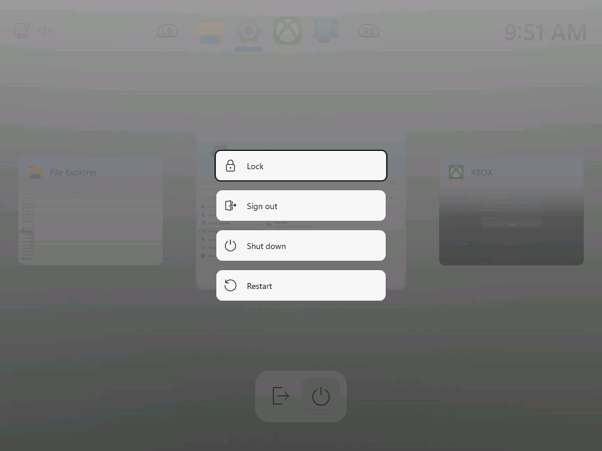
When we first tested Xbox mode earlier this year, getting back to the desktop was done by pressing Windows key + Tab and selecting “Windows desktop.” On a TV or a handheld, it was a struggle finding a keyboard, which is what a console-style interface is supposed to avoid.
XBOX mode is where Microsoft’s next XBOX starts
XBOX mode started as the full screen experience on the ROG Xbox Ally handhelds. Microsoft later renamed it and rolled it out to Windows 11 PCs in May, including desktops and laptops.
Microsoft is also working on Project Helix, its next XBOX, and CTO Scott Van Vliet recently said that “Helix OS is being built on Windows,” even as reports claim some XBOX executives didn’t want Windows on its next handheld. If the next XBOX is effectively a Windows 11 gaming PC with a TV-first shell, small things like a controller-friendly power menu are a must-have.
Two modest Insider updates make Windows 11 easier to use with a controller and simpler to keep charged.
Windows 11’s Battery Status widget shows your PC and accessories in one place
The Battery Status widget first showed it’s face in build 26340.9616 on October 7. Microsoft says it “provides a unified view of battery levels for your PC and peripheral devices, helping you quickly assess power status without hunting through multiple UI locations.”
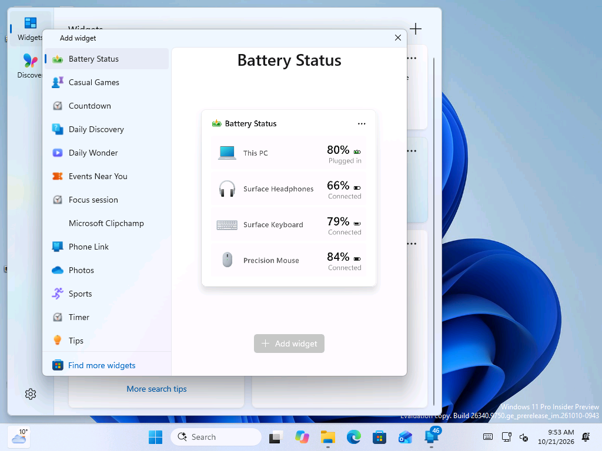
To add it, open the Widgets board, select Add widgets and choose Battery Status. The preview in the widget picker shows the PC at 80% along with Surface Headphones, a Surface Keyboard and a Precision Mouse, so Microsoft clearly has its own accessories in mind.
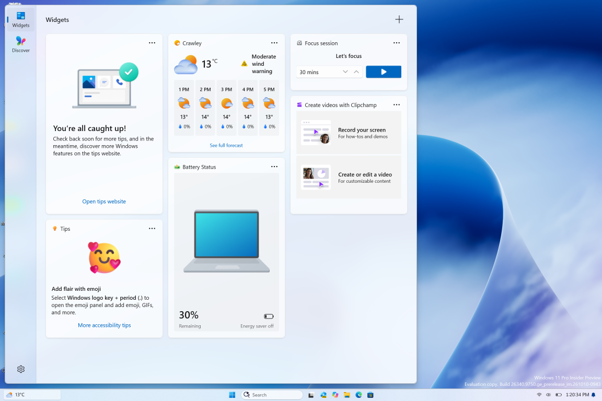
On my Surface Laptop, the widget showed the laptop’s charge at 30% with Energy saver turned off, along with a picture of the device.
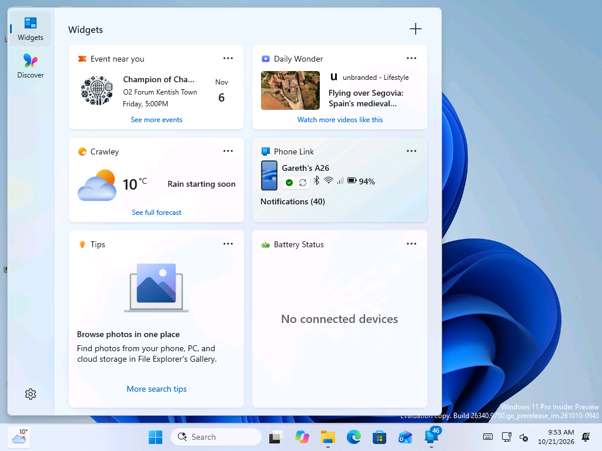
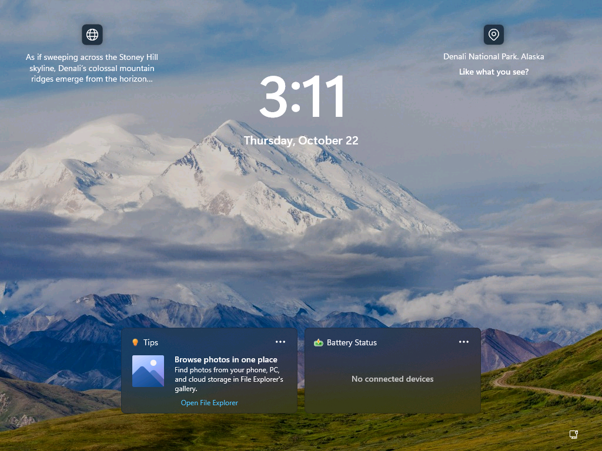
On a virtual machine with no battery, the widget simply says “No connected devices.” Ironically, the Phone Link widget right next to it showed my A26 phone at 94%, so the phone that Windows already knows about doesn’t count as a connected device here.
You can also add Battery Status to the lock screen next to other widgets, which is handy if you want to check your devices before signing in.
Microsoft hasn’t published a list of supported devices. Windows 11 already shows battery levels for some Bluetooth accessories in Settings > Bluetooth & devices, so how many third-party mice, keyboards, and headsets the widget picks up will decide if it’s useful.
Two small fixes Windows 11 should have had sooner
For me, adding Power Options to Xbox mode is the more important of the two. If Microsoft wants Windows handhelds and living-room PCs to feel console-like, restarting or shutting down the device shouldn’t depend on a keyboard.
Still, I would probably use the Battery Status widget more often. I rarely open the Widgets board, but showing several battery levels in one place gives it a practical job. I’d also like to see Microsoft fix more of these everyday frustrations.