





Windows 11 KB5132057 is a big release as it ships with a new Search experience built from scratch. Today’s optional update also makes searching “This PC” in File Explorer a tad faster, similar to Windows Search, and there are a bunch of other fixes. Microsoft has published direct download links for the KB5132057 offline installer (.msu), but Windows Update is the better option for most people.
KB5132057 is an optional update, so you’re not going to wake up and find it installed on your PC without your permission unless you’ve opted in. However, Microsoft warns that toggling on “Get the latest updates as soon as they’re available” installs today’s optional update automatically, but even then, Windows will respect your active hours.
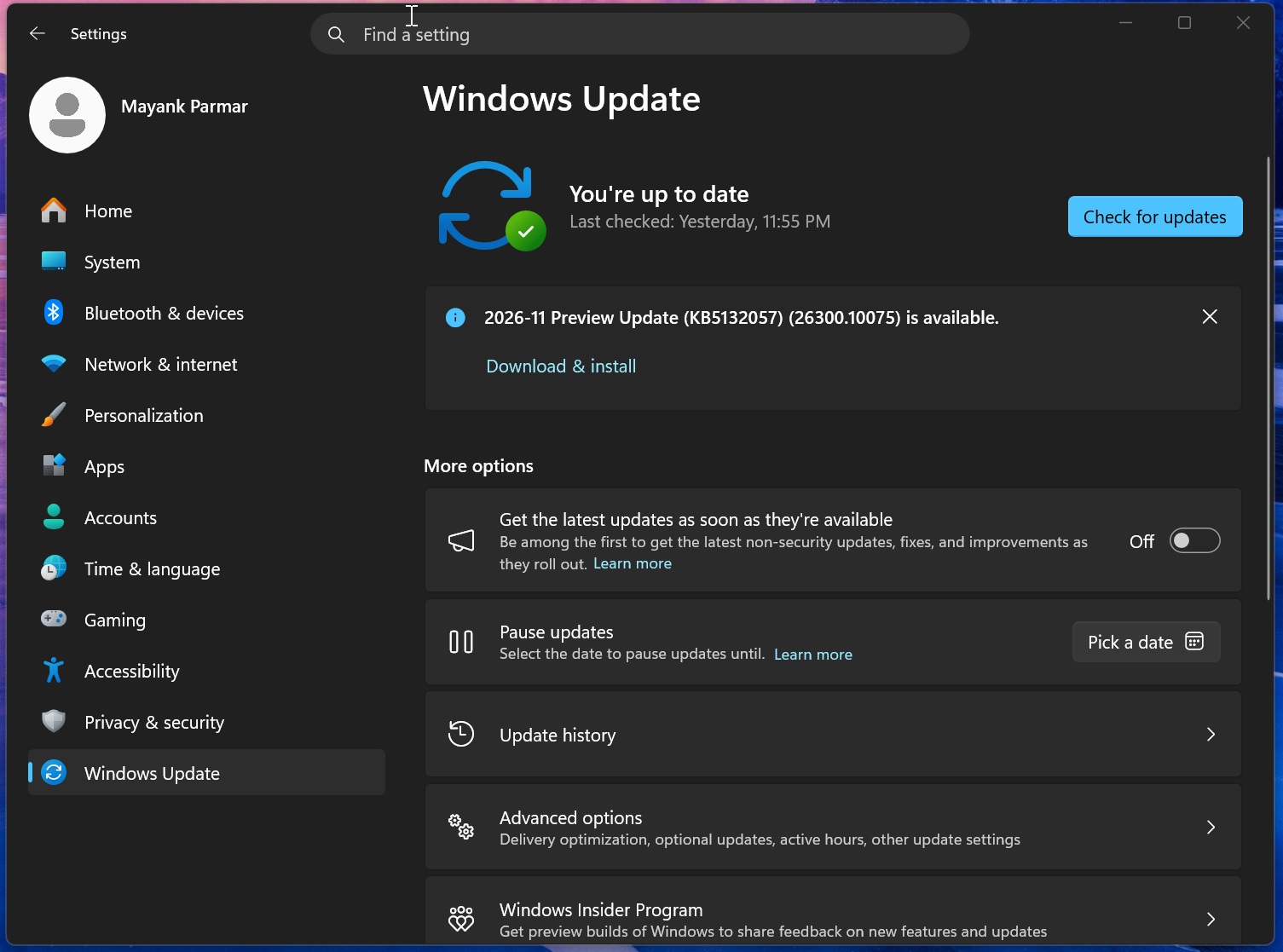
The update shows up as “2026-11 Preview Update (KB5132057) (26300.10075)” on PCs with Windows 11 26H2. If you’re on version 25H2, you’ll see Build 26200.10075 with no visible differences. For those on Windows 11 24H2 Home or Pro, Microsoft wants you to upgrade to version 25H2 or 26H2 to continue receiving updates.
In our tests, Windows Latest observed that November 2026’s optional update takes approximately ten minutes to finish downloading and applying. Your PC should reboot only once, but as I’ve reported in the past, if you’ve got a pending Windows Secure Boot certificate refresh or a firmware update related to it, expect the PC to boot twice or even thrice (do not panic!).
Note: If you choose to skip today’s update, which is optional, these changes will also be included in the December 8 Patch Tuesday update. That means you don’t miss out on anything, as a future cumulative update will have everything from the previous releases, including November’s optional update. Some features are rolling out gradually, so they may not show up on every PC immediately.
Download links for Windows 11 KB5132057
Windows 11 KB5132057 direct download links: 64-bit and ARM64 | This downloads the optional update as an .msu file, so you can install it without using Windows Update in Settings. I’ve got simple advice for everyone confused between Update Catalog and Windows Update: use the former only when Windows Update via Settings isn’t working.
| Build number | Size | OS version | Architecture |
|---|---|---|---|
| 26300.10075 | 5044.1 MB | Windows 11 26H2 | x64-based |
| 26300.10075 | 4958.1 MB | Windows 11 26H2 | arm64-based |
| 26200.10075 | 5044.1 MB | Windows 11 25H2 | x64-based |
| 26200.10075 | 4958.1 MB | Windows 11 25H2 | arm64-based |
Today’s update is also almost 5GB in size, and that has been the case since Microsoft began bundling Windows updates with offline AI models for supported PCs. Even if your PC does not support AI locally, the Windows Update package would include the models, contributing to the increased size.
Also, all Windows updates are cumulative, so they include changes from past releases as well, including the October 2026 update, which added the customizable right-click menu.
What’s new in Windows 11 Build 26300.10075 (26H2) / Build 26200.10075 (25H2)?
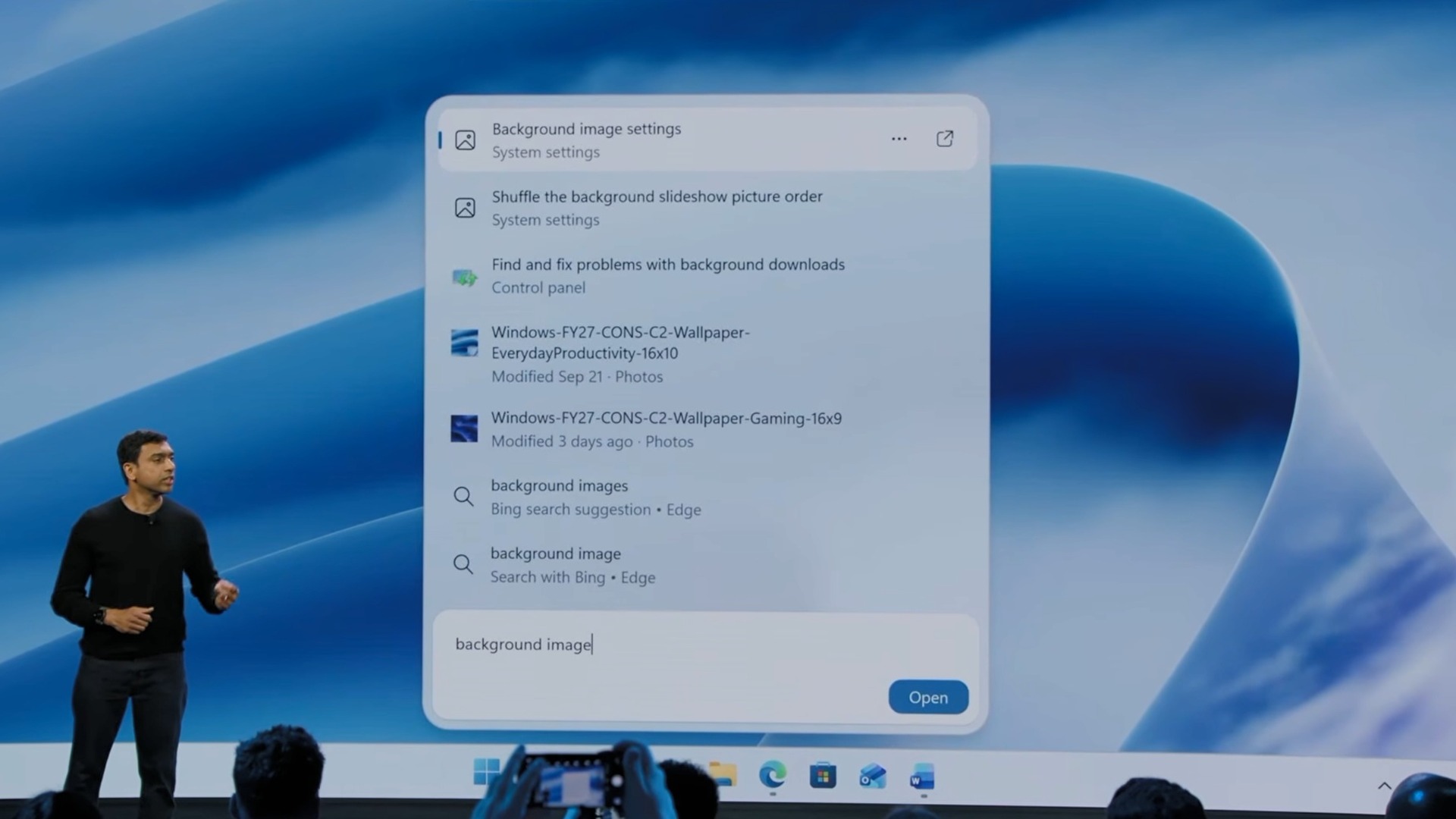
Windows 11 Build 26300.10075 is one of the biggest updates of the year, and the flagship new feature is redesigned Windows Search. Plus, Microsoft now lets you turn on the modern Run dialog from Settings > System > Advanced.
There are also improvements for Windows Hello, which allow it to better recognize you. Similar to how phones increase brightness during face unlock, Windows Hello now brightens your display while it tries to recognize you.
Here’s everything you need to know about today’s optional update.
1. This is the new Windows Search experience
If you remember, a few months ago, Microsoft added the ability to turn off Bing in Windows Search and even block Microsoft Store results. Search also started to find files with just two characters and recognized typos instead of sending you to Bing.com. All those improvements were already a big deal for the neglected Search on Windows 11, but today’s update radically changes the feature.
Until now, Windows Search has been based on WebView2, which means every time you opened the taskbar’s Search, you were calling Microsoft Edge. That contributed to more RAM usage, and it’s also why Search might have felt laggy. But it changes today, as Microsoft has rewritten Search in WinUI.
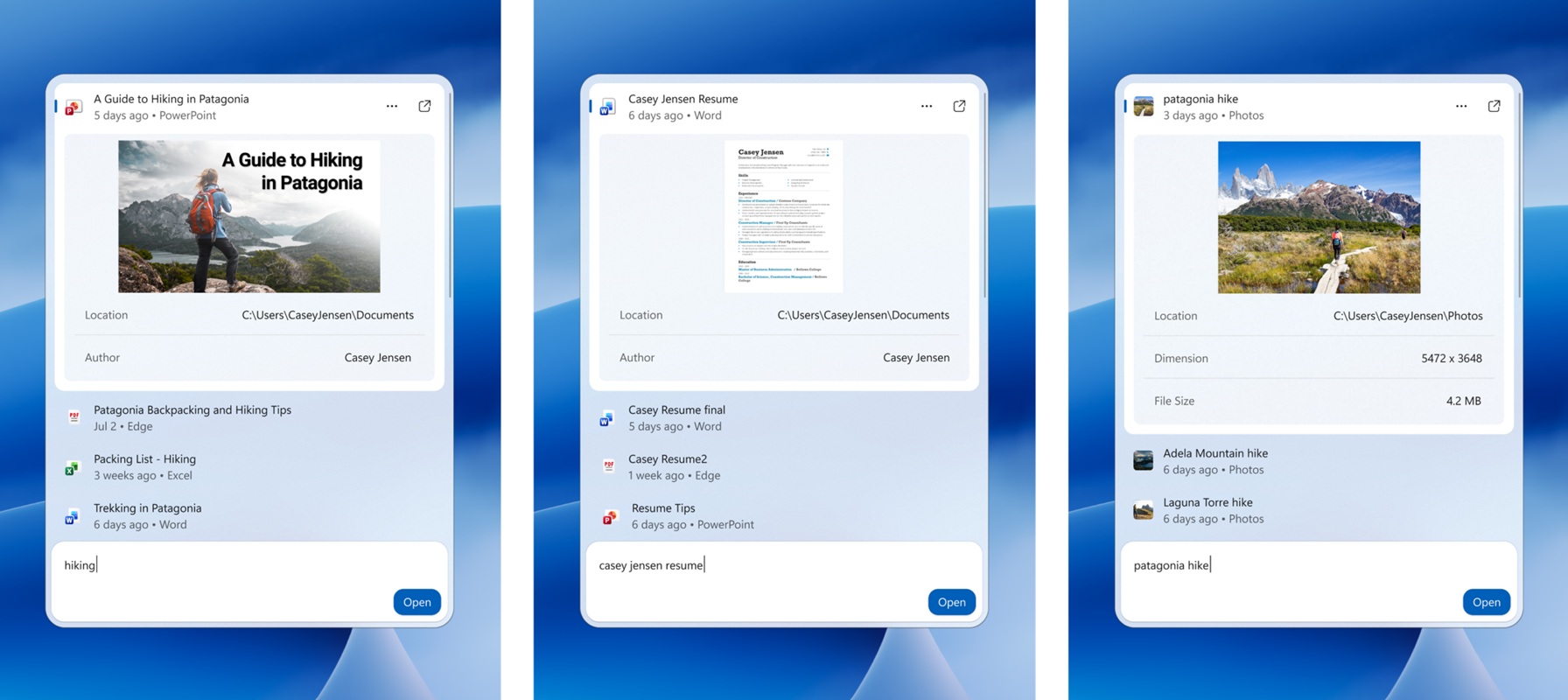
Microsoft told Windows Latest that Search is fully native and built for performance, but more changes are currently in development. For now, you’d notice that Search is easily using 15–20% less RAM than before, depending on your use case. You’re going to feel that it’s faster and noticeably less resource-intensive.
Search has a new UI and a feature called “Actions”
Windows Search’s UI is a lot different from what we have presently. For example, the current Search is more of a dashboard, but the new Search has a single-list UI, so it’s easier to focus on what you’ve been trying to find.
Microsoft made the new Search UI smaller and opted for a single-list view because it found that most people click on the results on the left and barely bother with the preview pane we currently have on the right side.
Finally, we’re getting a feature called inline actions with this new Search. With actions, you can change Settings directly from the search panel instead of opening and navigating to the appropriate place. For example, if you search for “turn off Bluetooth,” you’ll see the toggle within the Search panel.
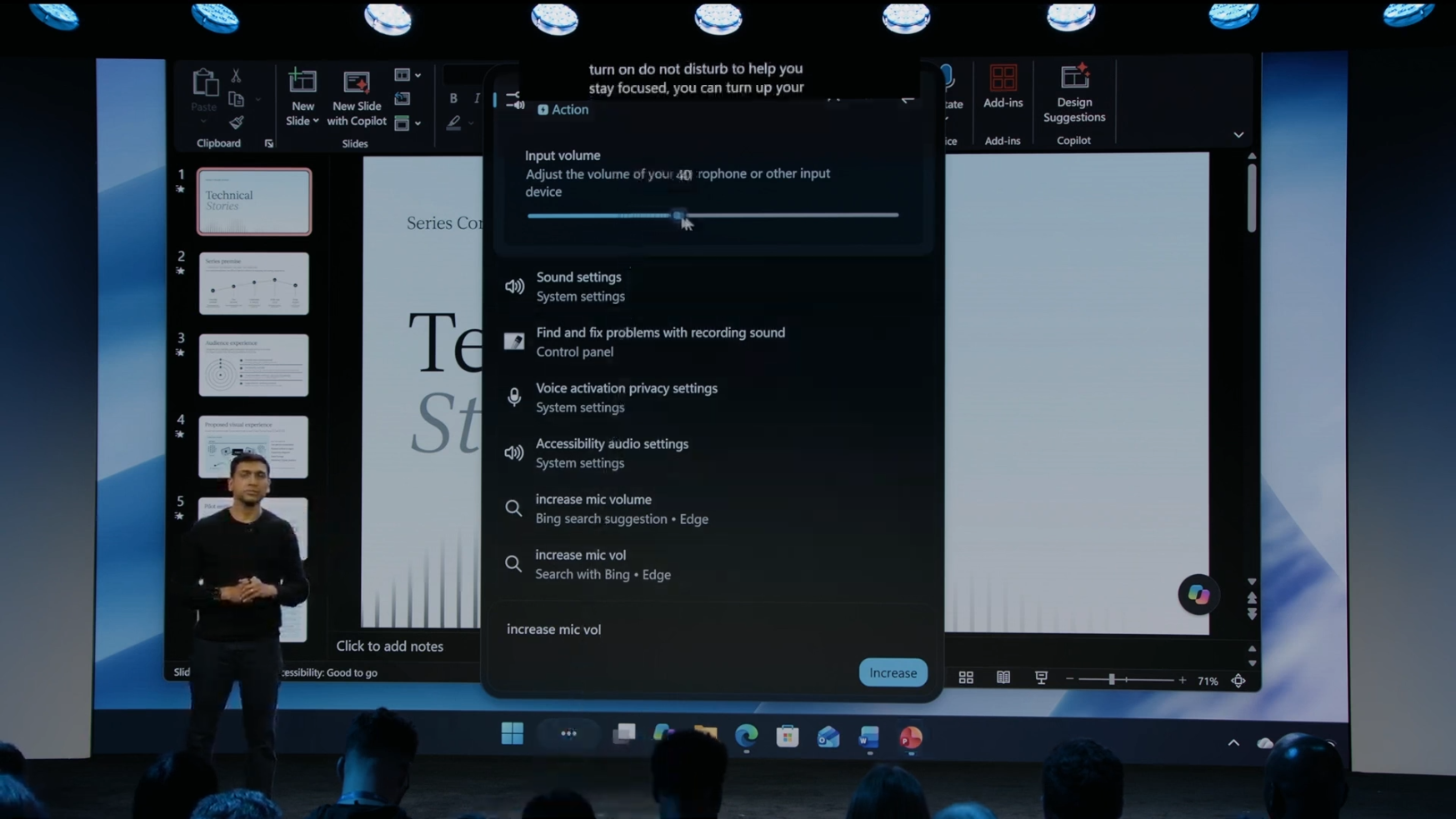
It’s a neat idea, and it would be interesting if Microsoft eventually adds support for third-party apps.
2. Modern Windows Run is finally here, but you need to turn it on manually
Windows 11 KB5132057 comes with a modern Windows Run dialog built in WinUI, and it looks beautiful, but Microsoft is aware of the fact that people would find a reason to still dislike it, so it’s decided to ship it as an optional feature. If you’ve installed the update and have access to the feature, you can go to Settings > System > Advanced and turn it on.
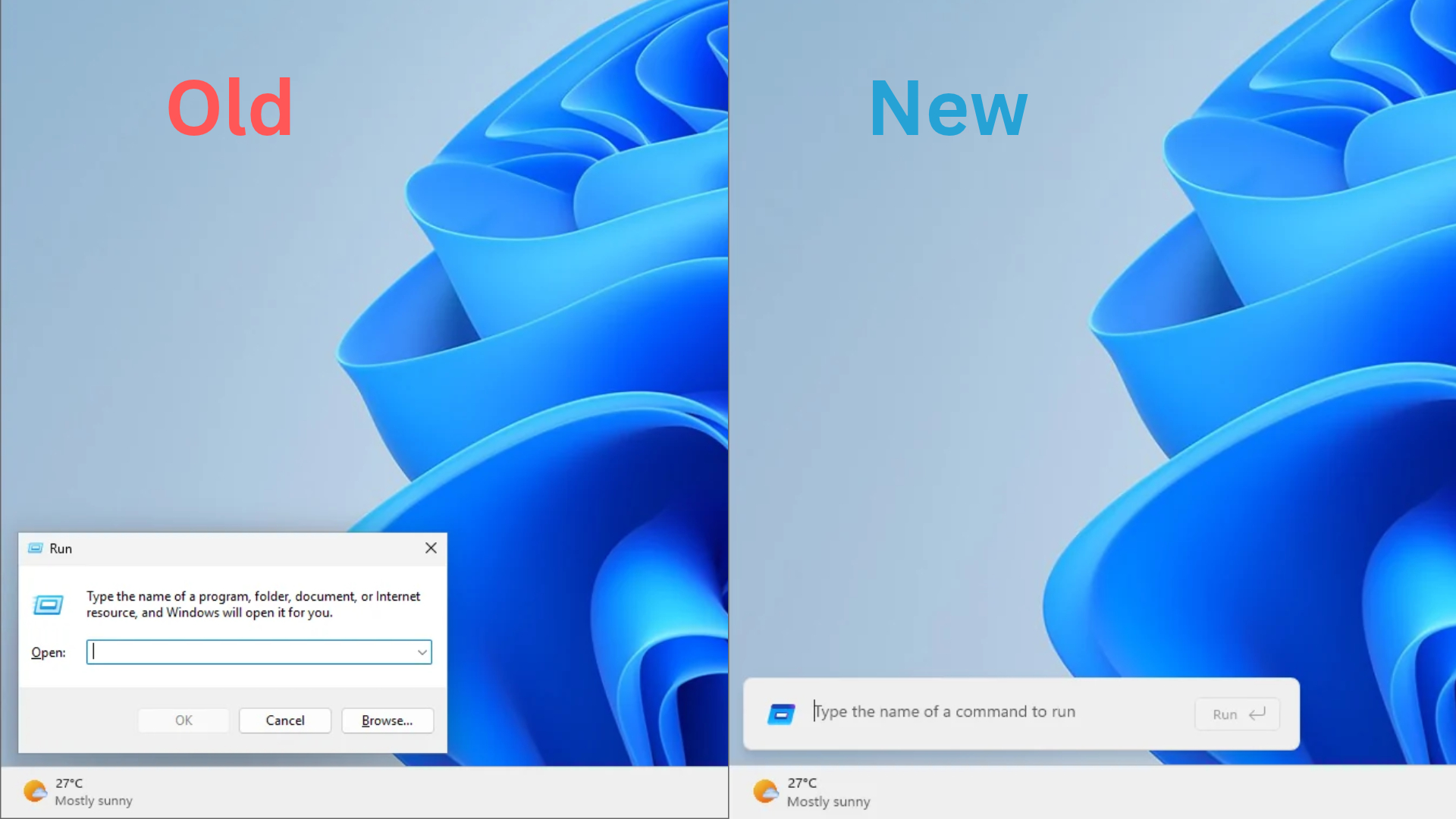
I’ve been using modern Run for three months, and it’s as good as the legacy version. There are no visible performance downgrades or bugs. In fact, Microsoft argues that modern Run opens in 94ms, compared to 103ms for the legacy version. According to the company, the time it takes to show is faster than the legacy version, and it’ll get better from here.
This modern Run wasn’t some AI-coded random project, as Microsoft actually brought the PowerToys team in to work on the feature. Modern Run also lets you use ~\ to navigate to your user directory, which is similar to how you’d change directories in Windows Command Line. But at the same time, Microsoft has dropped the “Browse” button.
Microsoft previously confirmed that only 0.0038% of users, from a sample of 35 million users, clicked the Browse button in Run. Some people also used Run to remove formatting from text, while others used it to jump straight to a program. For example, I use it to open winver, as it’s faster than going the Search route.
KB5132057 does not automatically replace the legacy Run with modern Run, so you’ve got to go to Advanced settings and toggle it on. You can turn it off if you want to go back to how Run has always been, but remember that you cannot use the two versions simultaneously.
3. You can now turn off the Sticky Keys pop-up
If you press the Shift key five times, you’ll see a pop-up asking if you’d like to turn on Sticky Keys. Whether you want it or not, the pop-up remains part of Windows, and until now, there was no way to turn it off directly from the prompt.
So if you’re in a game and press the key five times, and the game is unable to block it, you’d automatically find yourself on the desktop.
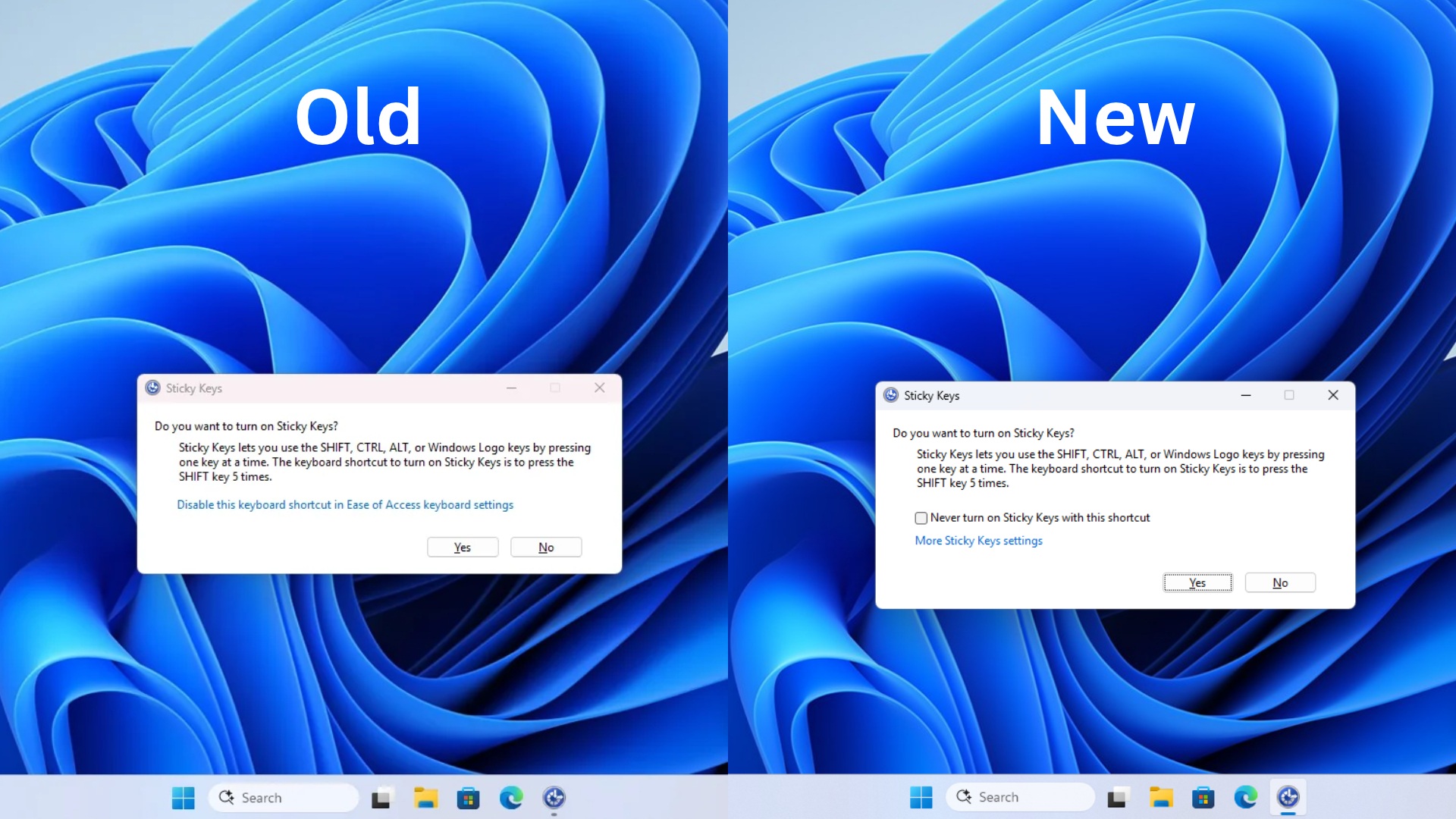
With Windows 11 KB5132057, Microsoft now lets you turn off the Sticky Keys shortcut directly from the pop-up. You can also manage its notifications and sounds from Settings > Accessibility > Keyboard > Notification preferences.