




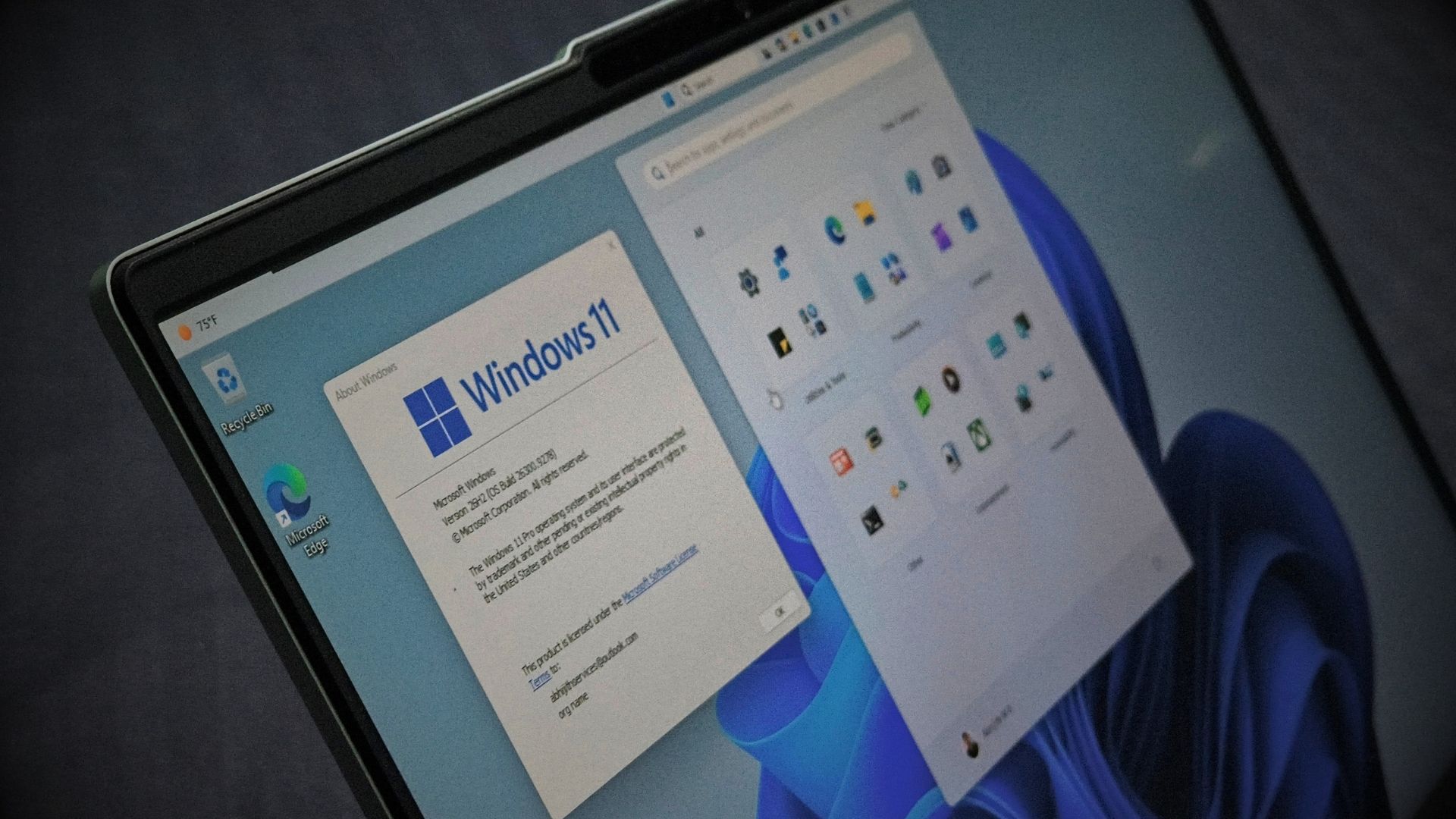
Windows 11, version 26H2 has reached the Release Preview Channel, which is the last stop before general availability. It is not coming to your PC anytime soon, though.
We covered the details of this year’s feature update back on August 24, and going by Microsoft’s usual pattern, 26H2 will most certainly arrive in the last week of September or early October, with a wider rollout only starting by the end of the year or early 2027.
If you are wondering what it is like to use 26H2, I installed it on my Release Preview build test PC and went through everything Microsoft changed
We are testing 26H2 to prove that it essentially contains nothing new. When a new Windows version drops, it is easy to assume you are missing out on major changes, but our hands-on testing shows exactly why you have no reason to get excited about this update.
Windows 11 26H2 is an enablement package, and this is everything you need to know
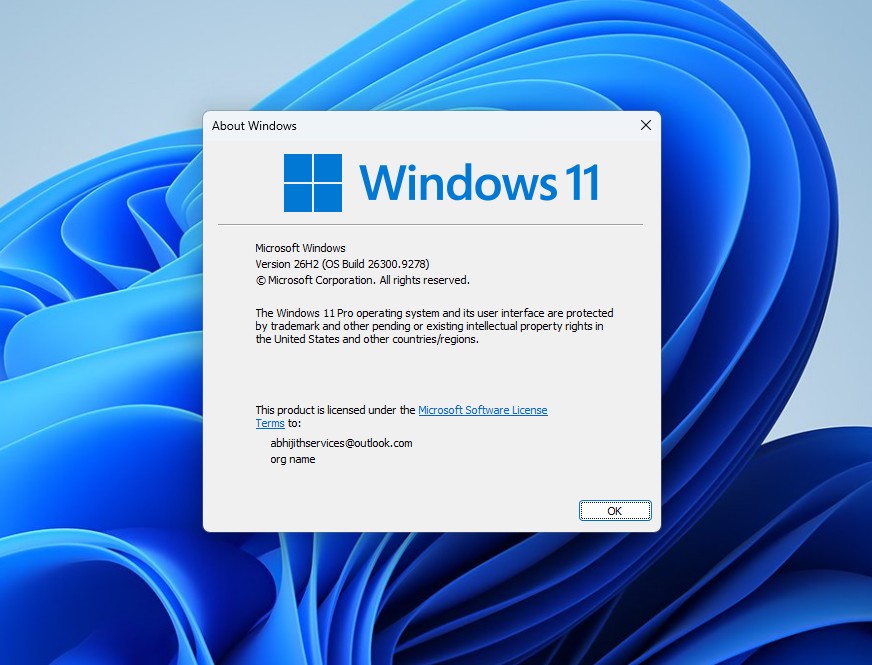
The update arrived on August 27, 2026, as build 26300.9278. In its announcement, Microsoft called it “this year’s annual feature update,” but that label punches way above its weight for a release that comes as an enablement package (eKB), the lightweight mechanism that turned 24H2 into 25H2 last year.
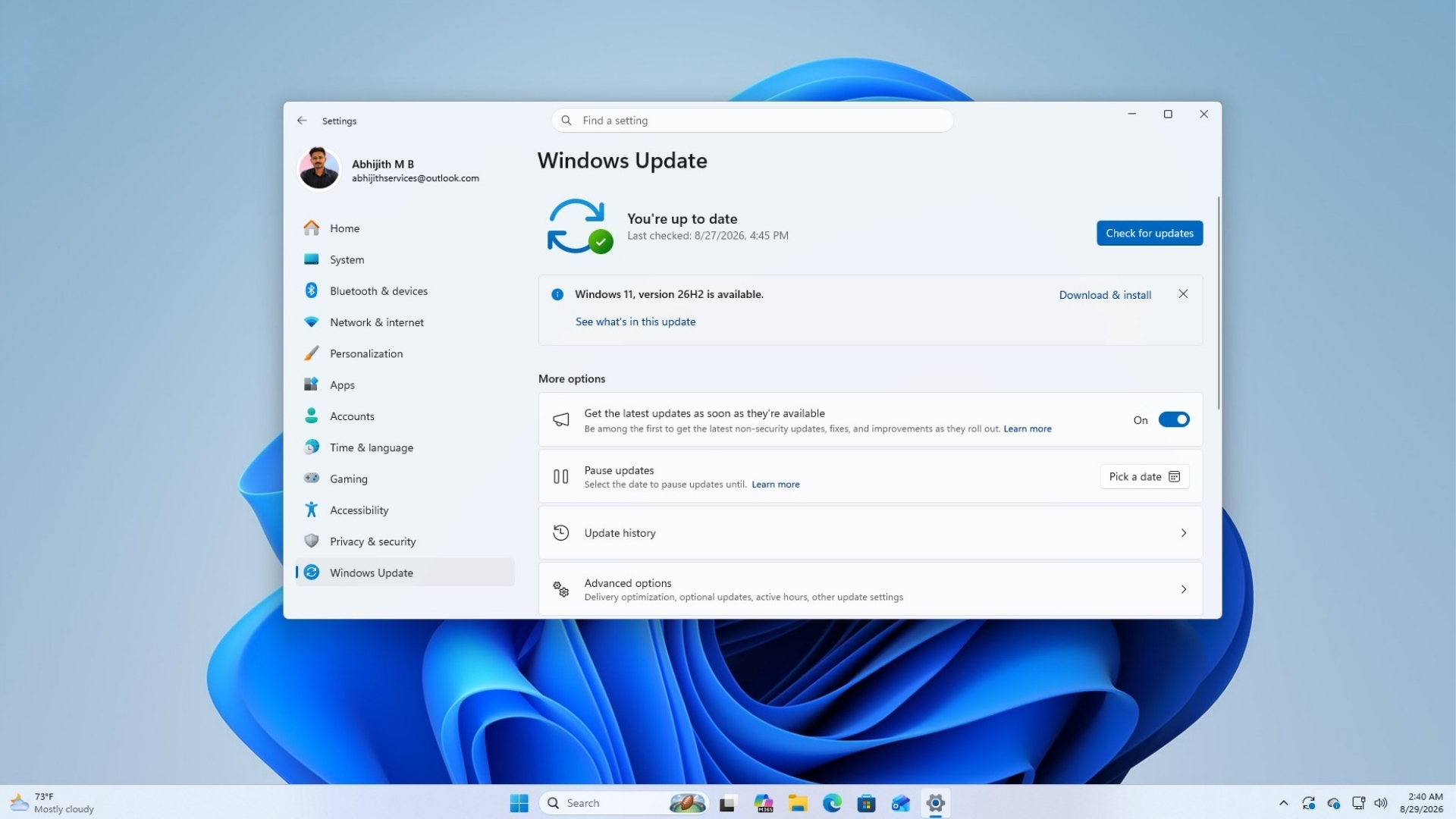
An enablement package means Windows 11 24H2, 25H2, and 26H2 all run on one shared servicing branch. Microsoft confirmed the reasoning in its announcement, stating, “This means that Windows 11, versions 24H2, 25H2, and 26H2 use a shared servicing branch. It also means that they share the same new features and enhancements delivered through our continuous innovation efforts.”
In English, it means 26H2 does not add anything that has not already reached 24H2 or 25H2 through a monthly update! It just flips a switch that turns on features already sitting dormant on your drive, the way 25H2 did before it.
Then why are we testing 26H2?
Because 26H2 is just a tiny, 174KB master switch that activates code you already received in prior monthly patches; it brings zero exclusive standalone features. Us testing this package proves how empty the update really is.
So what does change with the update? Three things, and none of them are features.
Build number moves to 26300
Once you update to 26H2, your OS build number changes from 26200 (25H2) or 26100 (24H2) to 26300. It is purely a version label. It has nothing to do with how Windows behaves.
Windows lifecycle resets for another year
Now this is the reason 26H2 exists. Windows 11 24H2 Home and Pro editions reach end of updates on October 13, 2026, with Enterprise and Education supported until October 12, 2027.
Moving to 26H2 buys you another full support cycle, since Microsoft resets the lifecycle clock with each annual version bump even when the code barely changes. Skipping 26H2 and staying on 25H2 is not a problem either, since 25H2 support is until October 2027 for Home and Pro.
Some features move from optional to on by default
For commercial and managed devices, 26H2 turns on a handful of things that existed already but were switched off for enterprises.
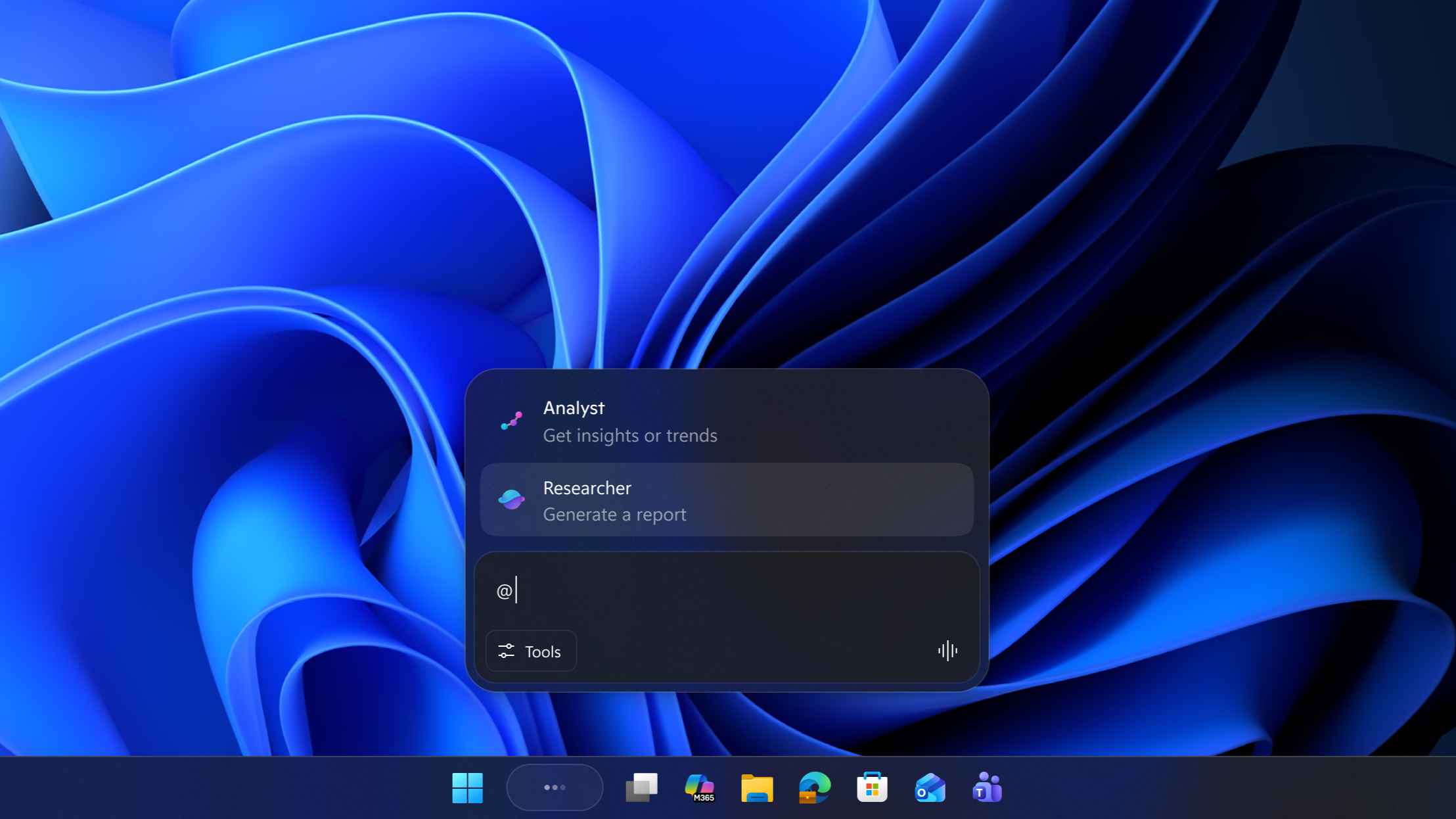
Microsoft names three: Windows settings backup, app-specific actions from the taskbar, and File Explorer enhancements.
In case you’re wondering, “app-specific actions from the taskbar” is agents in the taskbar, which we covered months ago. However, I wasn’t able to find it in my test PC.
Consumers do not get anything new here, since these features already came to Home and Pro editions through regular monthly updates. Consumer-facing changes like the File Explorer improvements and the new Start menu Microsoft shipped earlier this year work under the same principle.
Every other detail Microsoft confirmed about the 26H2 rollout
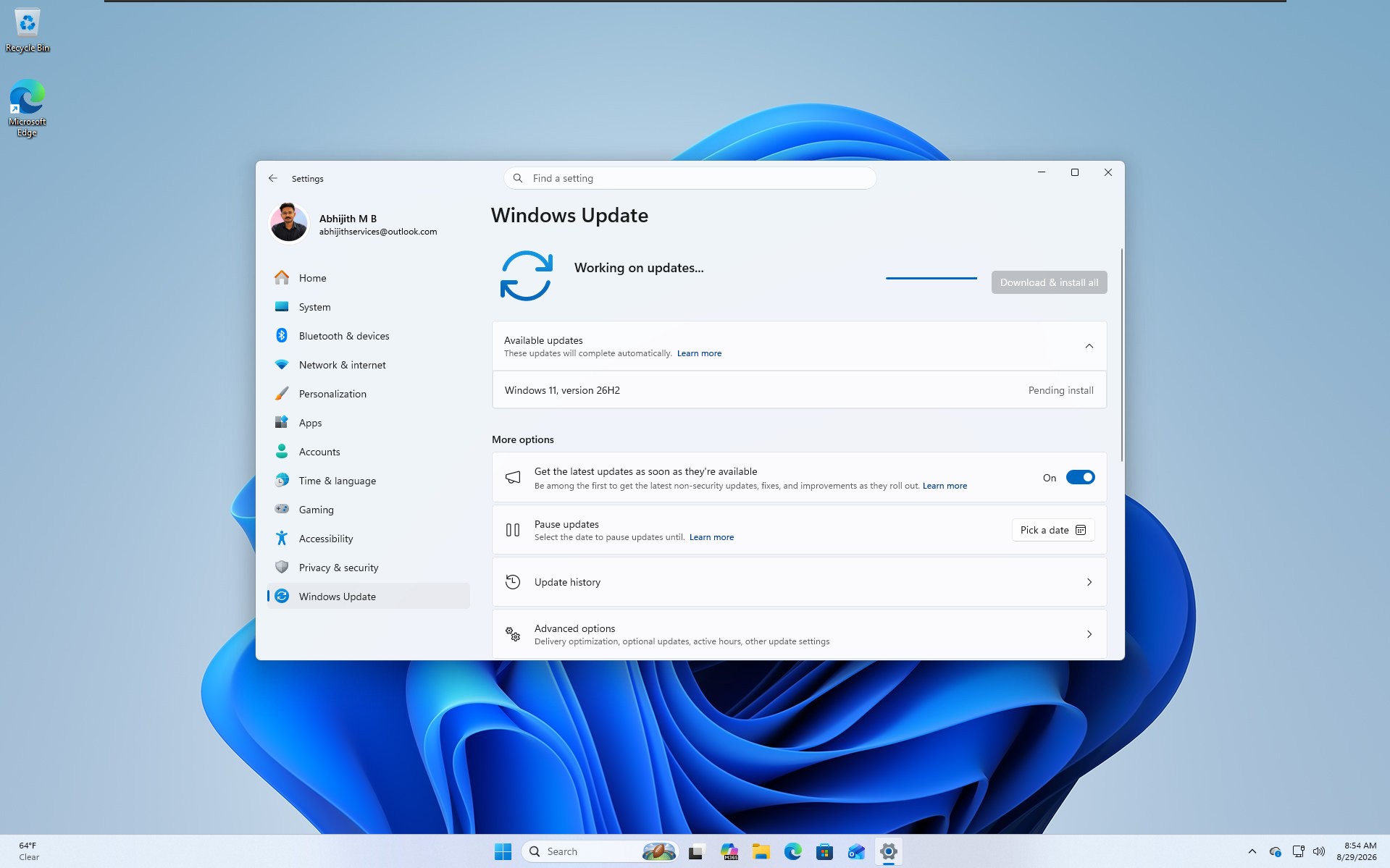
Release Preview Channel Insiders can install 26H2 through Windows Update’s “seeker” experience right now, provided the PC meets Windows 11’s hardware requirements and is already enrolled in Release Preview. Once installed, the PC keeps receiving monthly servicing updates normally afterward, just like any other Windows 11 version.
Commercial customers enrolled in the Windows Insider Program for Business can deploy 26H2 through Windows Update client policies and WSUS starting now, with Azure Marketplace availability following shortly after.
IT admins running into problems during that validation phase can request Microsoft Support, per the announcement. ISOs for a clean install of 26H2 are also being prepared for the Windows Insider ISO download page, though Microsoft has not published them yet.
Redmond is also testing Media Creation Tool and ISO support for 26H2 ahead of the public rollout. Even though 26H2 is a minor enablement package on existing PCs, clean installs will work the way they always have.
This is how the three supported versions line up on the servicing branch and support dates:
| Windows 11 version | Servicing branch | Home and Pro support ends | Enterprise and Education support ends |
|---|---|---|---|
| 24H2 | 24H2 / Germanium | October 13, 2026 | October 12, 2027 |
| 25H2 | 24H2 / Germanium | October 12, 2027 | October 10, 2028 |
| 26H2 | 24H2 / Germanium | Expected around October 2028 | Expected around October 2029 |
Given all three share a branch, joining the Windows Insider Program just to try 26H2 early is not worth it. You are better off staying on 25H2, since the two are functionally identical.
We tested 26H2 to show you that it doesn’t have any new features!!!
Testing 26H2 gets expectedly frustrating, because we already knew that it would be an enablement package. But the whole pitch behind an enablement package is that it flips on features that already exist on your PC. So, my assumption going in was that updating to 26H2 would immediately switch on the taskbar repositioning, Start menu resizing, and Search redesign that Microsoft mentioned in the August 14 Release Preview build, negating any need for a tool like ViVeTool.
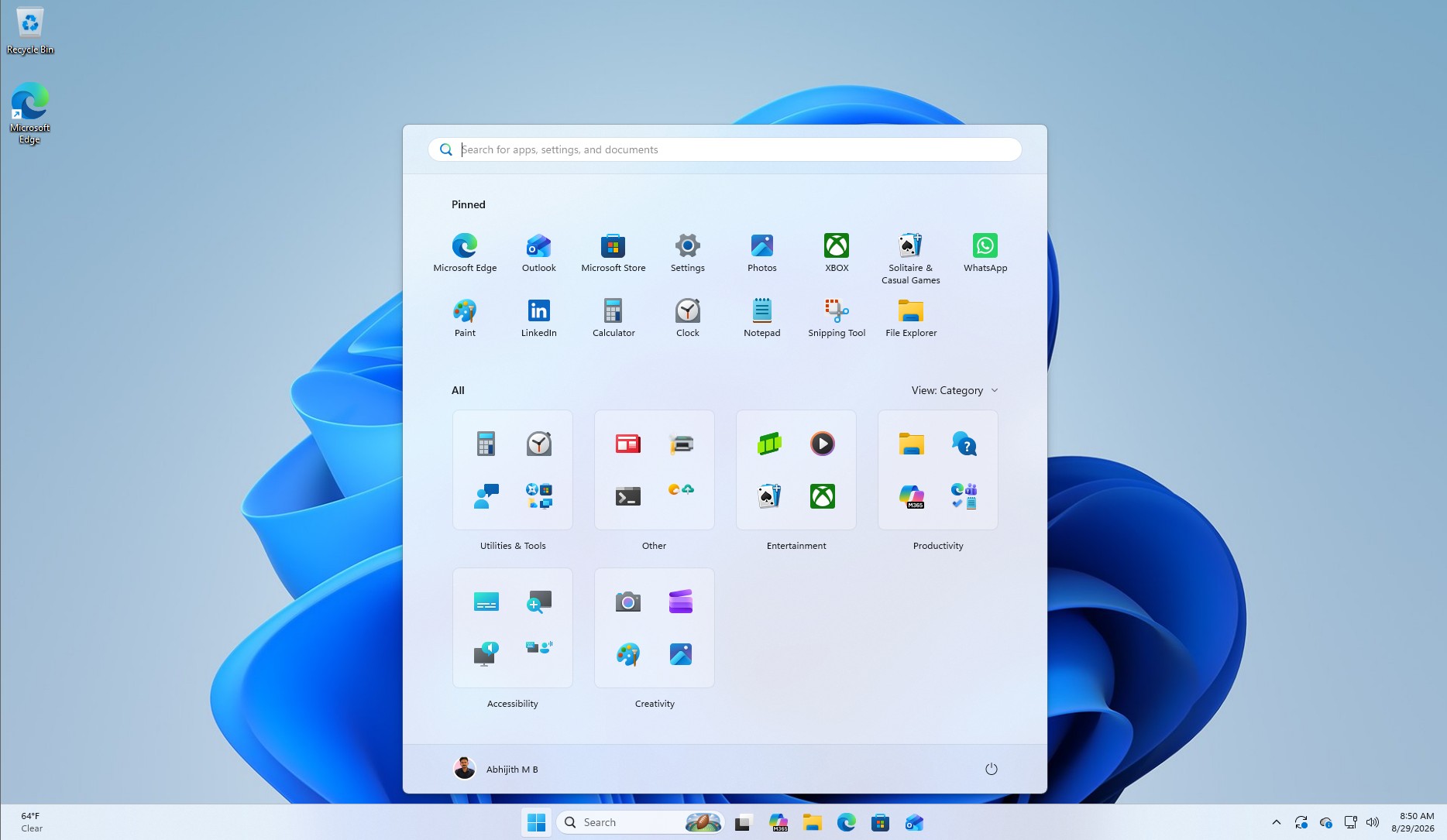
It did not happen that way. My test PC took the 26H2 update, but none of the three biggest features showed up automatically. Microsoft still gates them behind Controlled Feature Rollout, or CFR, even after the version bump. I do not like this. An enablement package is supposed to mean the code is already there and ready, yet CFR still decides who sees it and when.
I ended up doing what Windows Latest has already covered for the August optional update, forcing every feature on with ViVeTool instead of waiting for my turn in the rollout. By the time your PC gets 26H2, these will be the big features it will already have:
The taskbar can move to any side of the screen
For the first time since Windows 11 launched in 2021, the taskbar is not locked to the bottom of the screen. Under Settings > Personalization > Taskbar > Taskbar behaviors > Taskbar position, you can choose Left, Top, Right, or Bottom. Tooltips, flyouts, and animations follow the taskbar wherever you place it, and keeping taskbar icons uncombined works regardless of position.
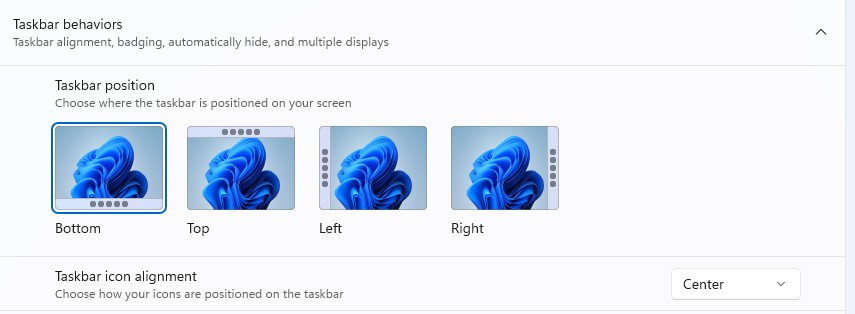
There is a limitation, though. The search box and the smaller taskbar variant only work when the taskbar stays at the top or bottom.
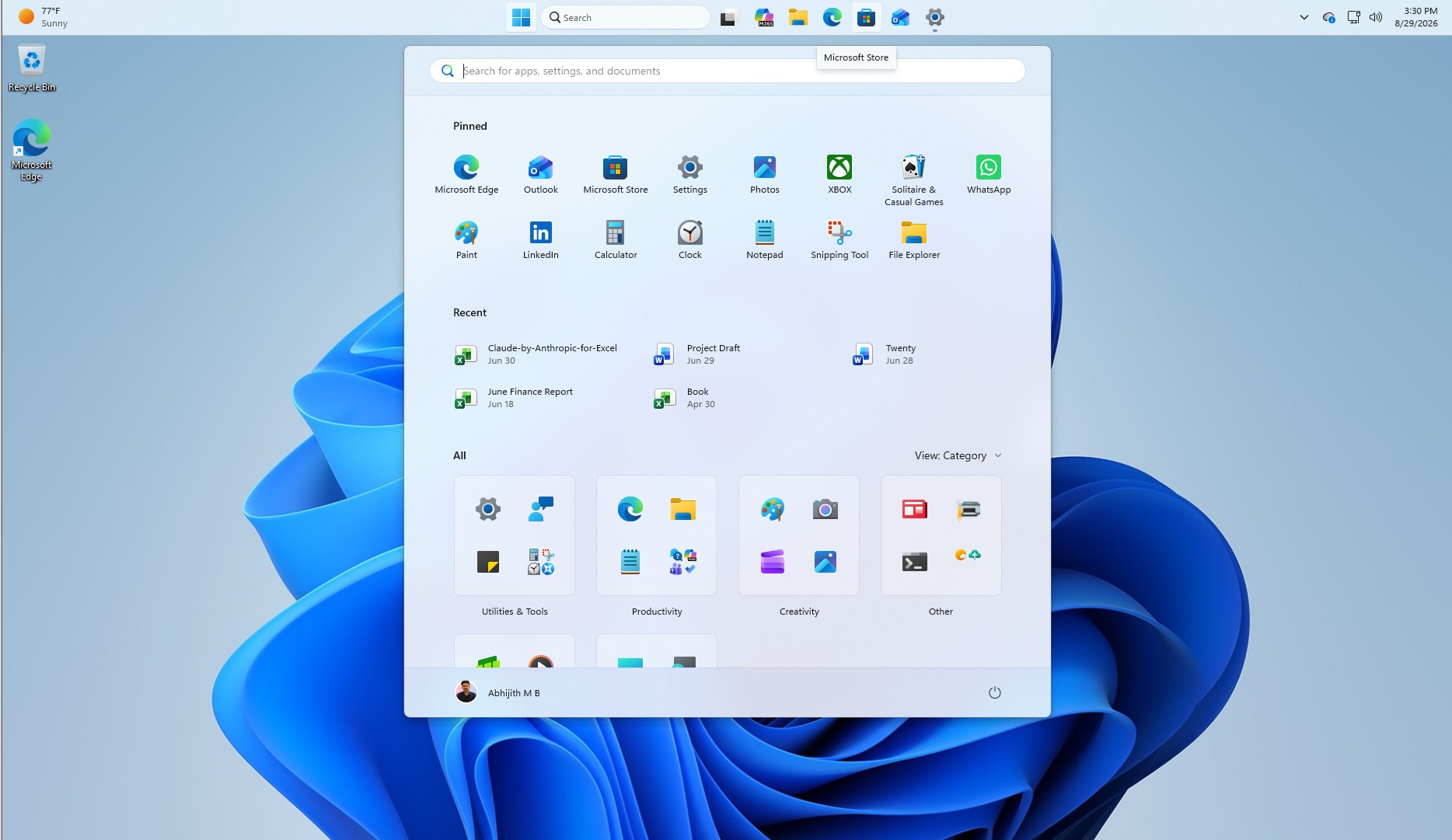
A smaller taskbar option for tighter screens
Along with repositioning, Settings > Personalization > Taskbar > Taskbar behaviors > Taskbar size now offers a Small option next to Default. Switching to Small shrinks both the icons and the taskbar’s height while keeping Start, Search, and the system tray fully usable. It is a surprisingly useful option on smaller laptop displays. The Taskbar behaviors section on the settings page is also expanded by default now.
The Start menu finally stops eating your whole screen
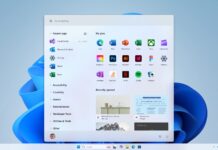
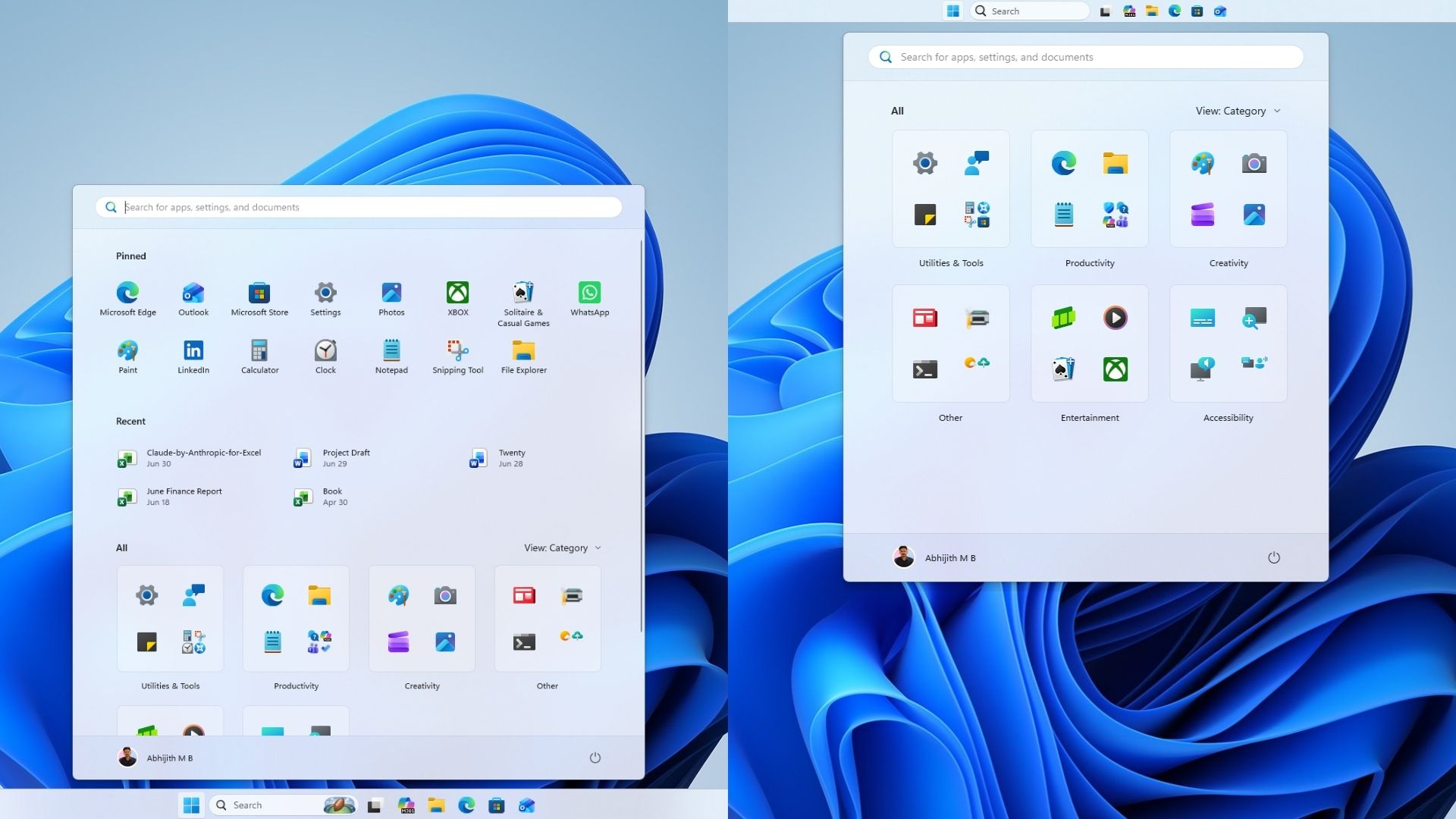
It addresses a complaint that had been building since the redesigned Start menu shipped, where it could take up as much as 70 percent of the display on smaller laptops. Settings > Personalization > Start now has a Start menu size dropdown with Automatic, Small, and Large options, so you are no longer stuck with whatever size Microsoft picked for you.
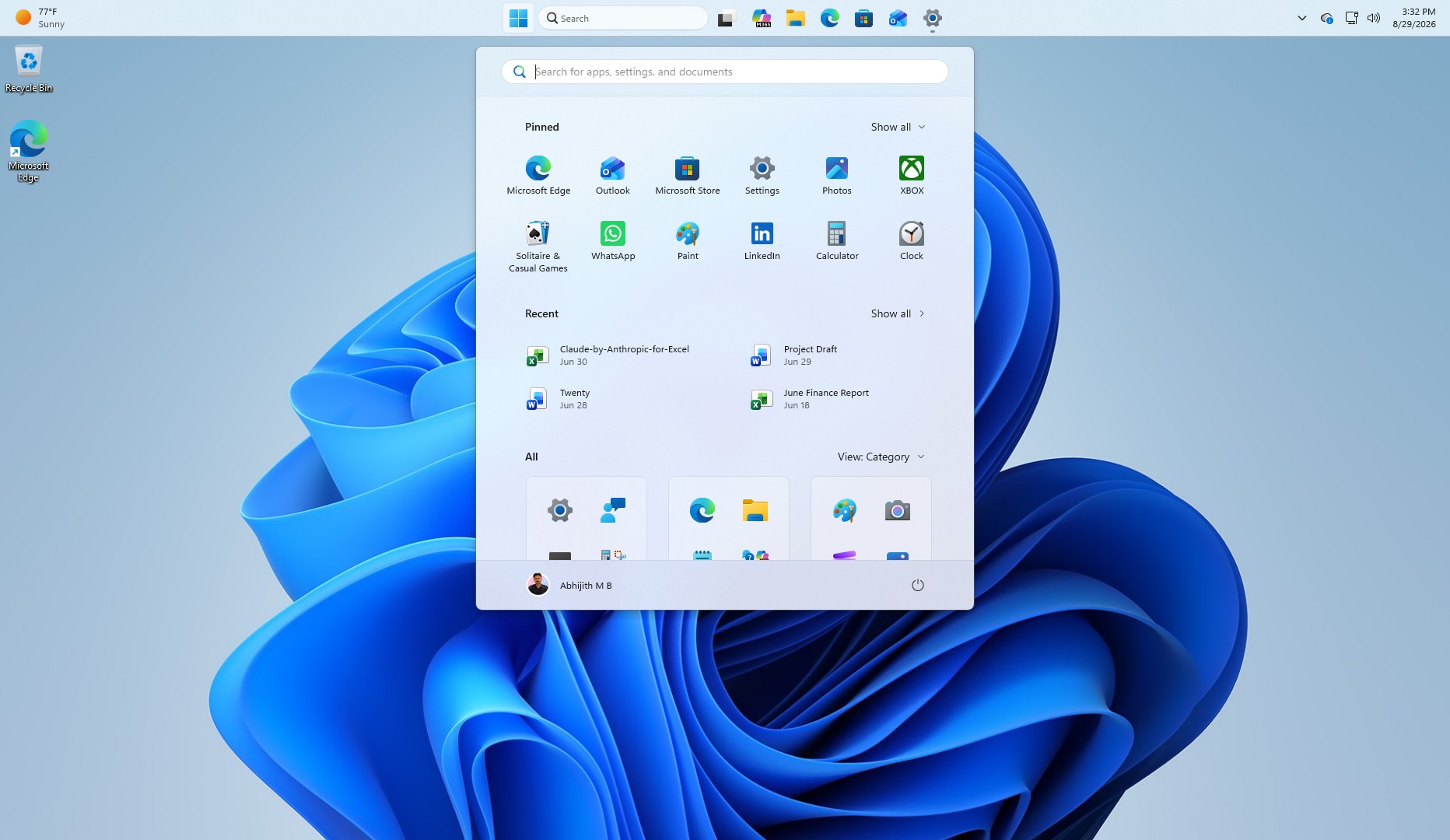
The old Recommended section is renamed Recent, both in Start and on the Start settings page, and you can independently show or hide Pinned, Recent, and All through separate toggles.
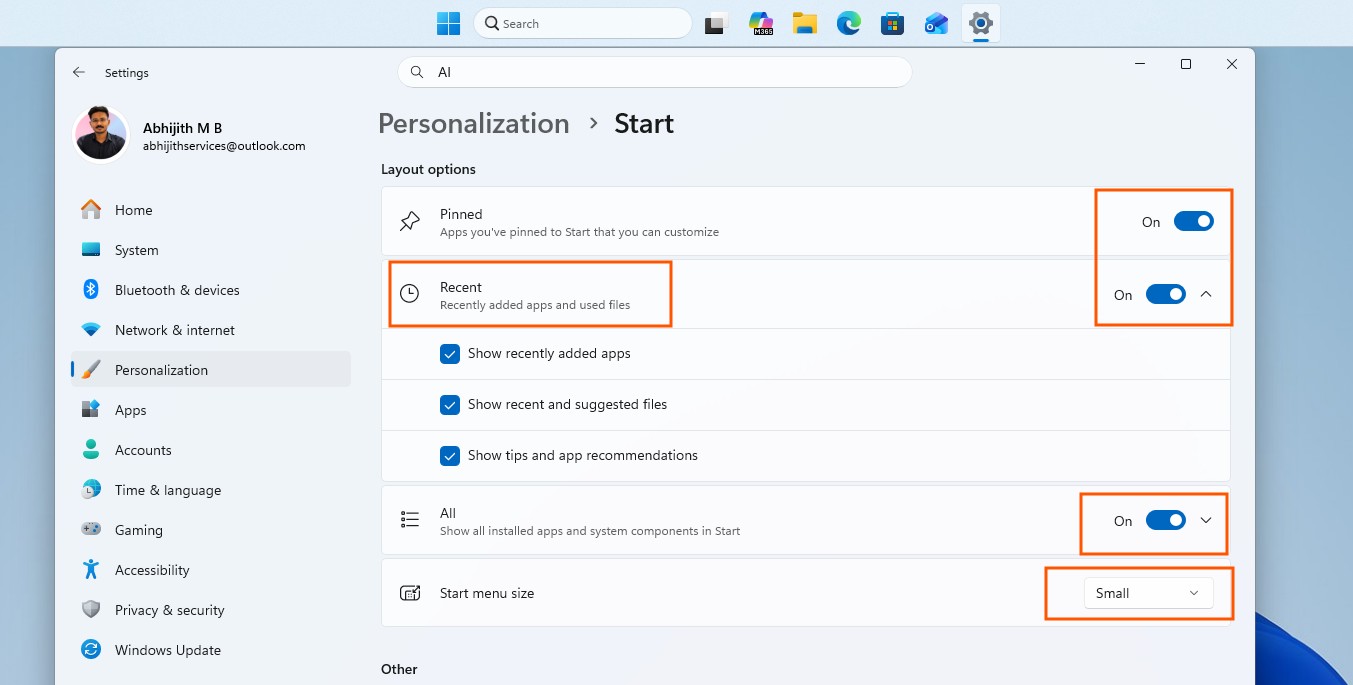
Microsoft also decoupled Recent in Start from File Explorer’s jump list, so turning off Recent no longer wipes your recent files list in File Explorer as an unrelated side effect, which used to happen. There is also a new option to hide your name and profile picture on the Start menu, which is good for those who stream, screen share, or record their desktop regularly.
Windows Search drops Bing and Store results if you want it to
This is the feature I would want Microsoft to add to all PCs as soon as possible, irrespective of the version. Settings > Privacy & security > Search now has a Show suggested search results section where you can independently turn off Web Searches and Microsoft Store suggestions.
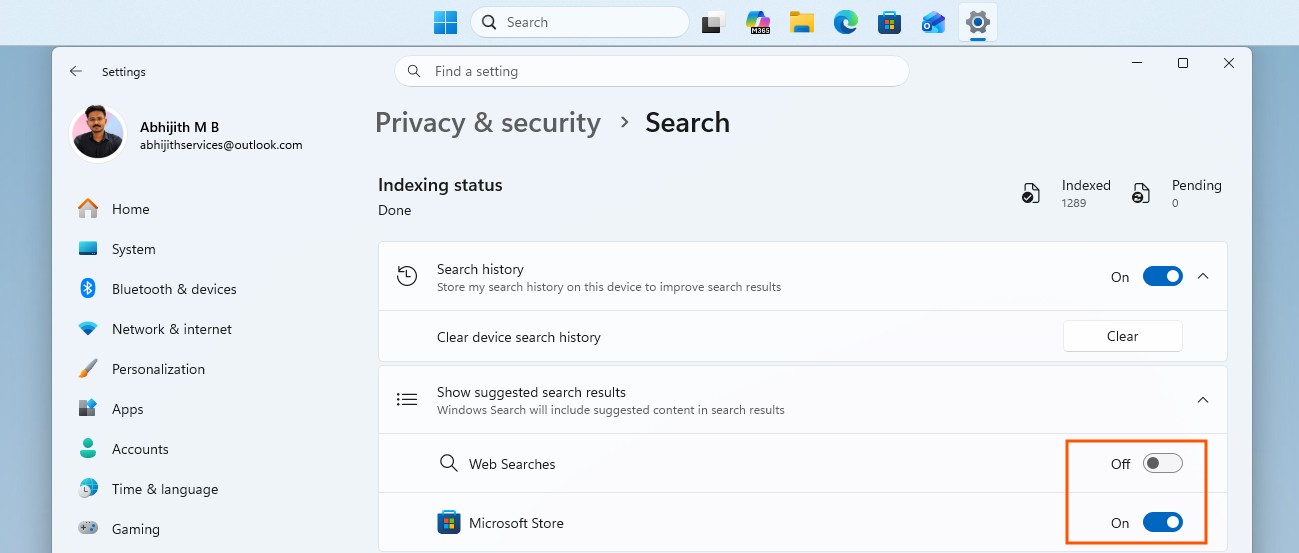
With both switched off, Search shows only what exists on your PC, apps, settings, and files, and a query with no local match doesn’t show anything, instead of showing a web result.
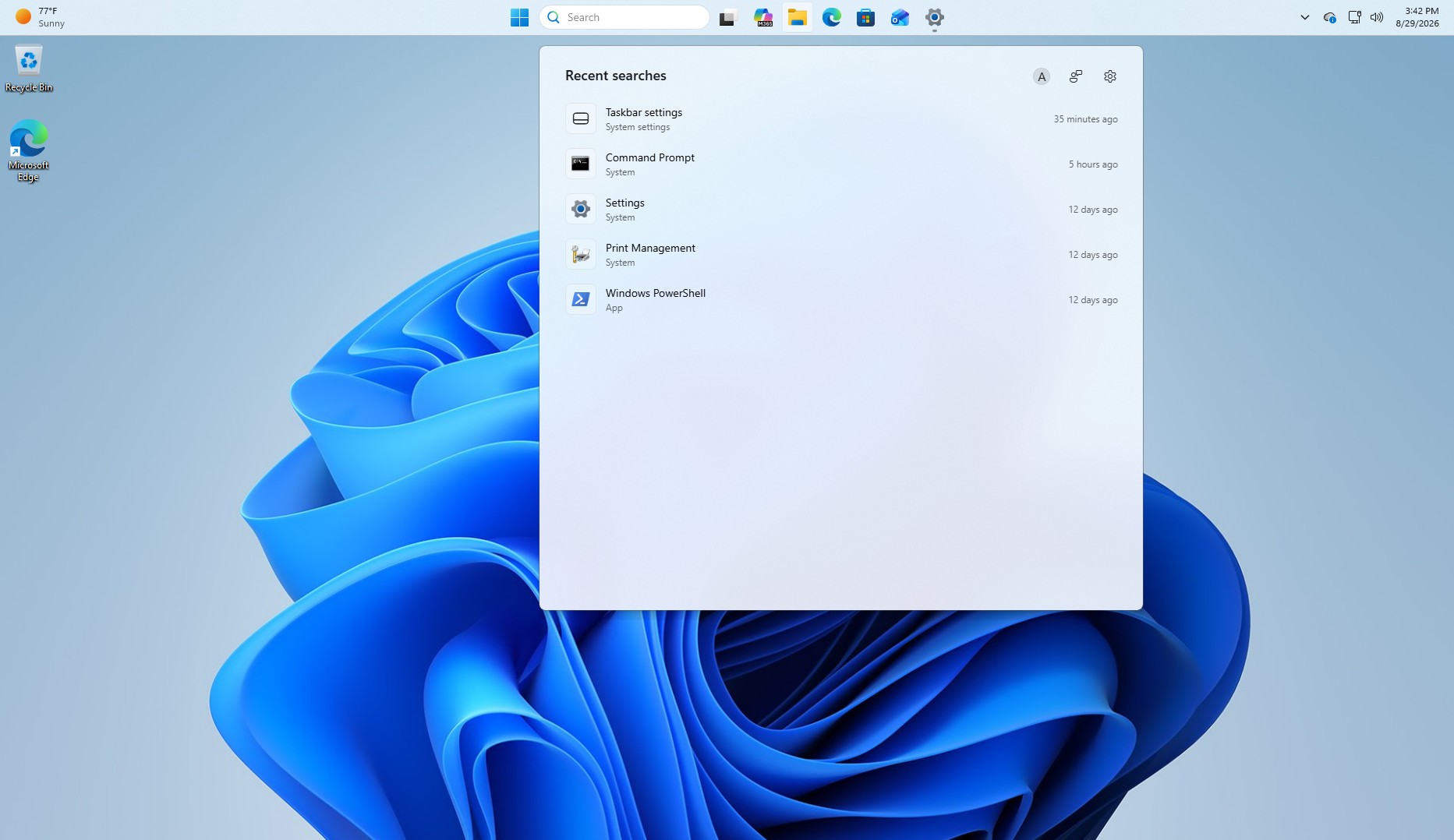
The Search home is also less cluttered by default, leading with your recent searches instead of promotional tiles, and this needs no toggle. Search results now also have a label telling whether it is an app, file, setting, web result, or Store suggestion.
Administrator protection quietly resumes after being paused
It has a longer backstory. Microsoft first disclosed Administrator protection in October 2025 through KB5067036, describing it as a way to move away from free-floating admin rights toward just-in-time privilege elevation. Rather than a process holding admin rights indefinitely once granted, Windows creates a temporary, isolated admin token for the specific task and destroys it once that task finishes.
The feature was paused shortly after, in December 2025, while Microsoft resolved an application compatibility issue. The August 14 Release Preview build marks its resumption since then. It remains off by default, and turning it on requires OMA-URI through Microsoft Intune or a Group Policy setting, so this is squarely an IT admin feature.
Microsoft is also explicit that Administrator protection is not a formal security boundary; it hardens against elevation-of-privilege attacks through profile separation instead of guaranteeing complete protection.
Again, as I said, this is also not explicitly coming with 26H2, but once the new Windows version number reaches your PC, it will also have this feature, just like all the other ones.
Everything else changing under the hood
A long list of smaller items rounds out when you use a PC with 26H2, once it arrives after a big update. File Explorer Home launches faster and feels more responsive, and the Recommended carousel on Home now supports touch scrolling. Progress indicators across startup, sign-in, restart, shutdown, and update installation now share a consistent, modern look instead of the mismatched styles Windows has had for years.
Windows Share adds the ability for work and school account holders to discover and install relevant apps from the share window itself, controllable through Settings > System > Share. Switching between virtual desktops is smoother now too, a change I noticed within a few minutes of testing since I keep several desktops open at once.
On the input side, Windows fixed reliability issues with the Japanese IME that were causing typing to hang, and voice typing now remembers your automatic punctuation and launcher settings between sessions. Display settings navigation is more reliable, and your brightness level now persists correctly after Energy Saver turns itself off. Task Manager shows app history information more reliably, and PCs that were manually put to sleep now correctly return to sleep after finishing an update, even when automatic sleep is set to off, which had been a persistent annoyance.
Networking picks up two fixes: better resiliency around VPN-related background processes that could stop responding, and a corrected netsh wlan show wlanreport output for Japanese users. On the cryptography side, the post-quantum algorithm ML-KEM can now be used as a standalone algorithm for TLS key exchange, not just as part of the hybrid groups Microsoft added previously, which is relevant for organizations already preparing their infrastructure for post-quantum standards.
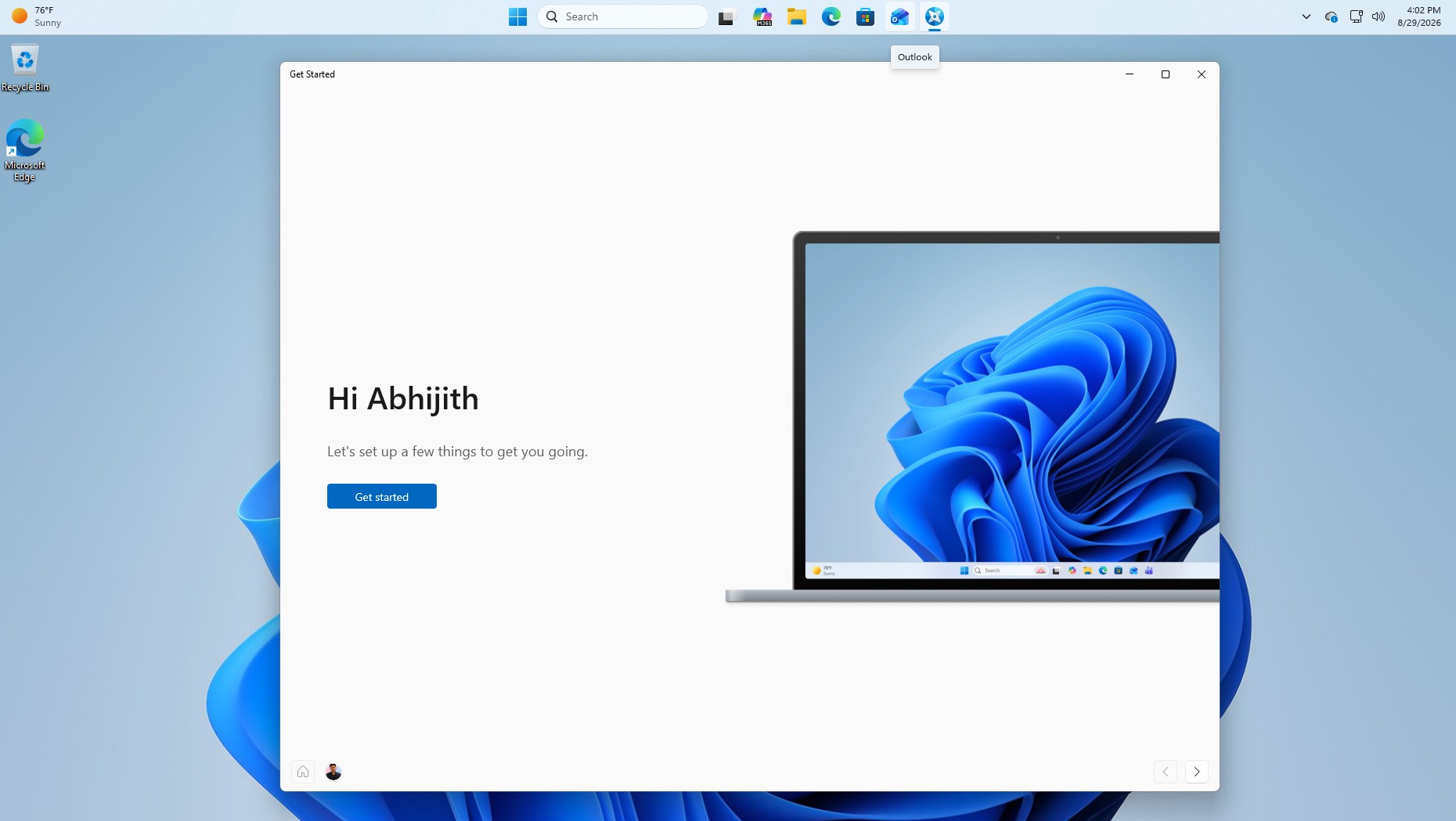
Windows Setup also got two changes: a streamlined secondary keyboard selection screen that is easier to skip when you do not need it, and an updated Get Started app with new pages for app installation, site pinning, and themes.
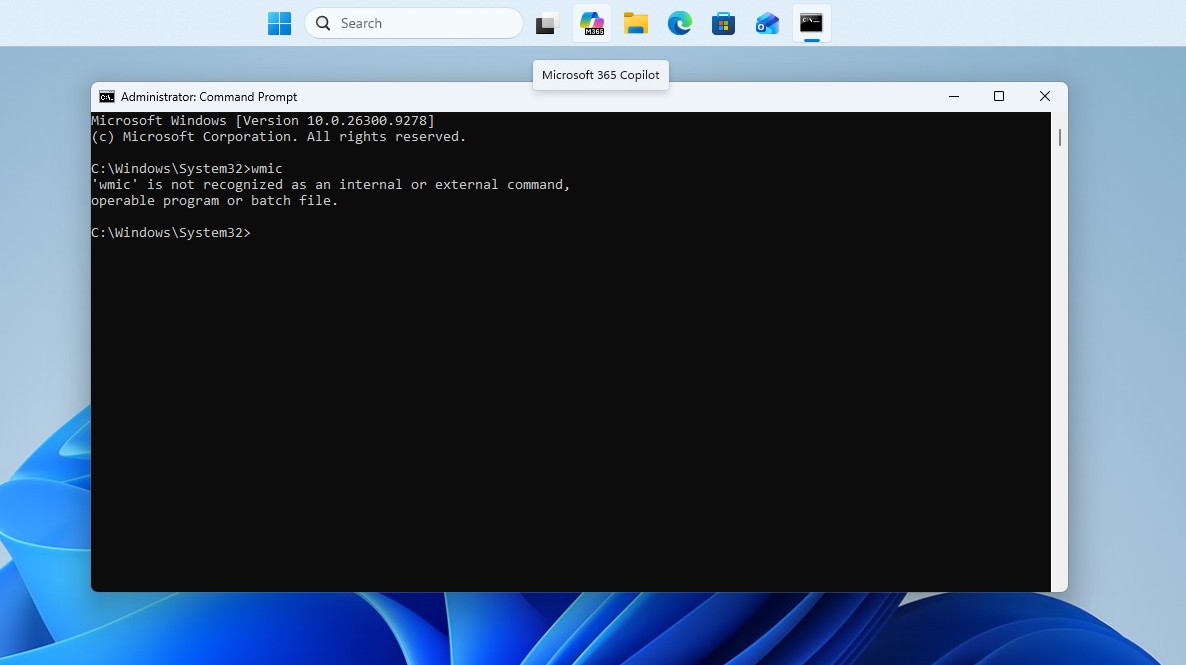
WMIC is gone, and it is not coming back
Starting with this build, Windows 11 24H2 and 25H2 no longer include the Windows Management Instrumentation Command-line utility at all. WMIC had already been removed from new installations and pulled as a Feature on Demand, so this closes the last path back to it. WMI itself, the management infrastructure it depends on, is completely unaffected; only the wmic.exe command-line wrapper is gone. We covered WMIC’s removal in detail when Microsoft first confirmed it, and confirmed again afterward that the tool is fully gone with no way to restore it once you are on this build.
26H2 in Release Preview brings nothing you cannot already get
Every feature described above already exists in the August 14 optional update, KB5120998, which is available to every Windows 11 25H2 and 24H2 user right now, without an Insider Program. Updating to 26H2 changes your build number and resets your support lifecycle. It does not hand you a single capability that 25H2 cannot also run once Microsoft flips that CFR switch.
There is also a reason to wait before installing KB5120998. Windows Latest has been tracking widespread reports of custom cursors reverting to a default, oversized pointer and desktop wallpapers resetting to solid black after installing the update. Microsoft has since acknowledged the reports but has not shipped a fix yet.
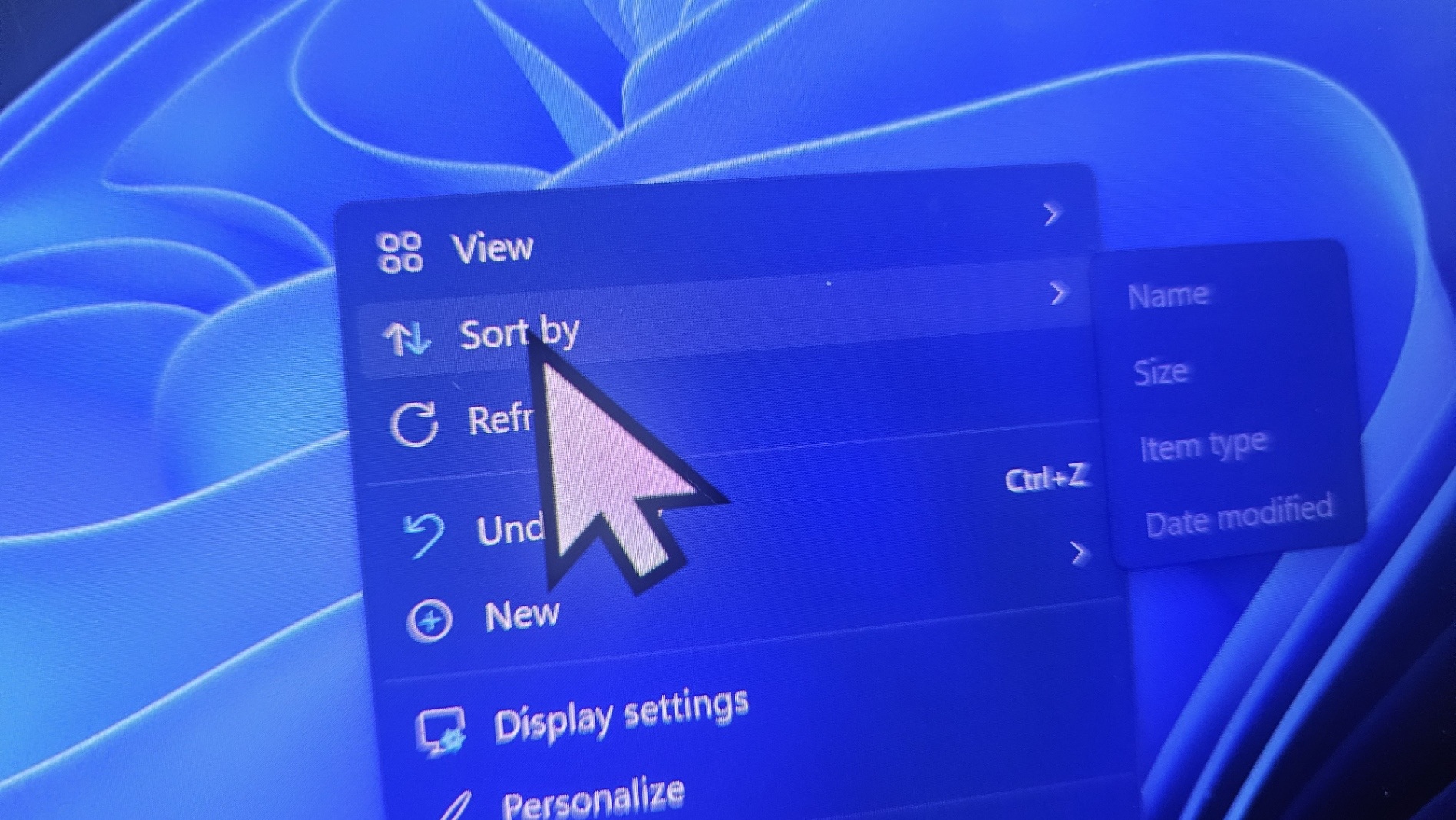
I get why Microsoft runs things this way. Apple can push out a full annual macOS release (above 12GB) as a single update because its user base and hardware matrix are a fraction of what Windows has. As Microsoft’s desktop OS runs on a far wider spread of hardware, configurations, and enterprise deployments, Controlled Feature Rollout helps avoid risking the scale of problems a bad rollout would cause. However, spreading features out across monthly updates and consolidating them into an annual version bump is boring, to say the least.
If you want these three features now, the August 2026 optional update already has them, and our guide has the ViVeTool commands you’ll need to force-enable them. If you would rather wait, they arrive for everyone with the September 8, 2026 Patch Tuesday update regardless of which version you are running. Either way, there is no reason to seek out Release Preview or 26H2. You are not missing anything by staying where you are.