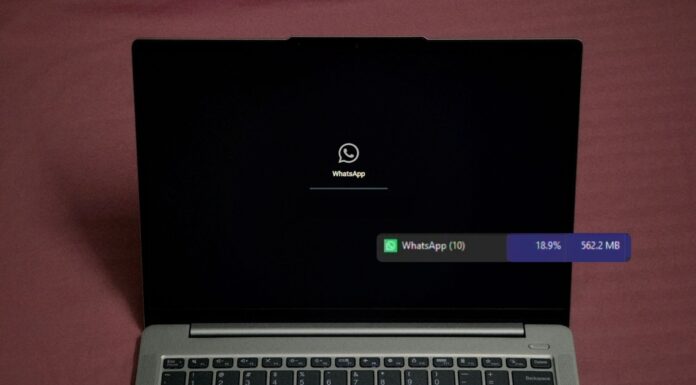



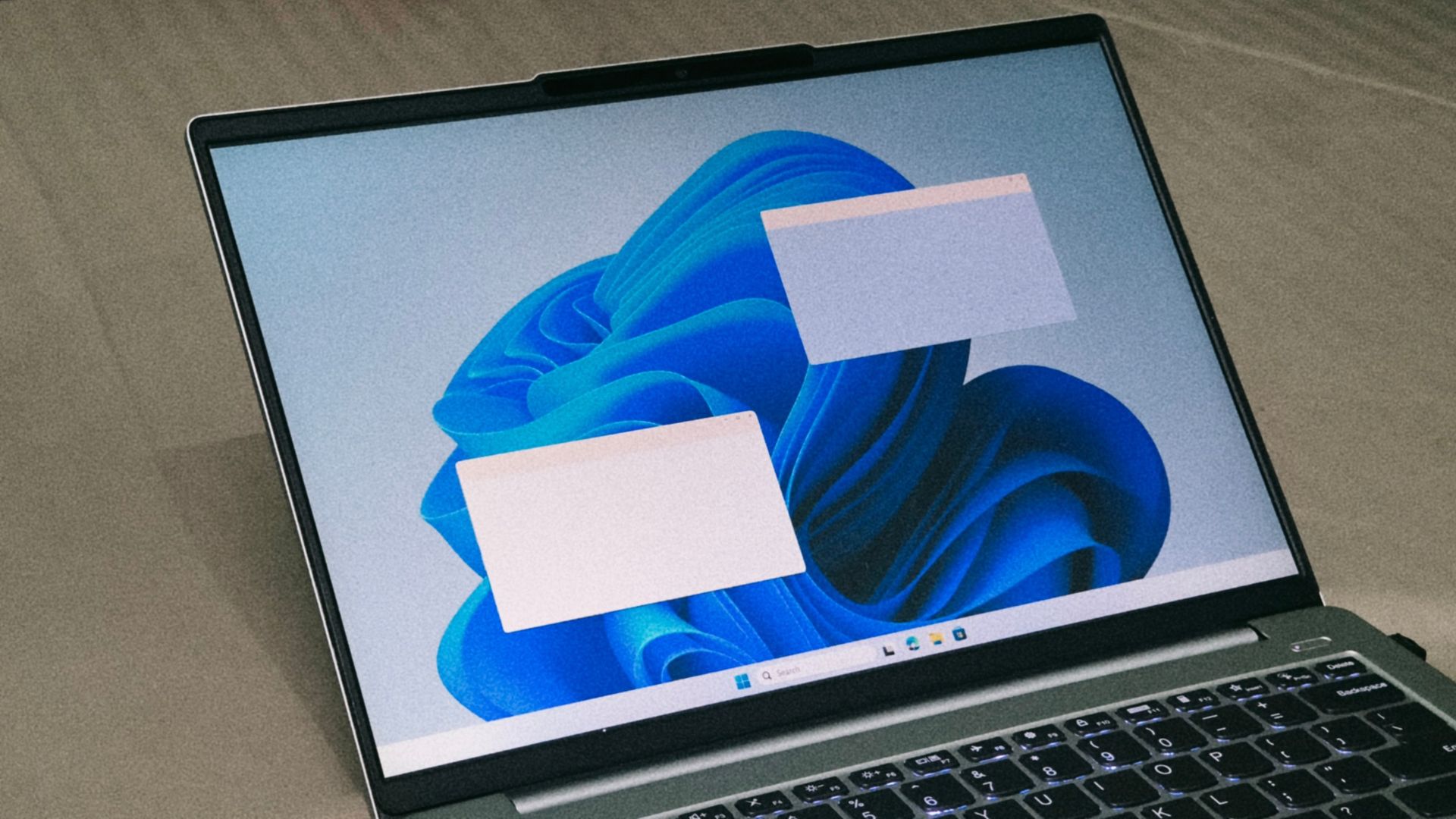
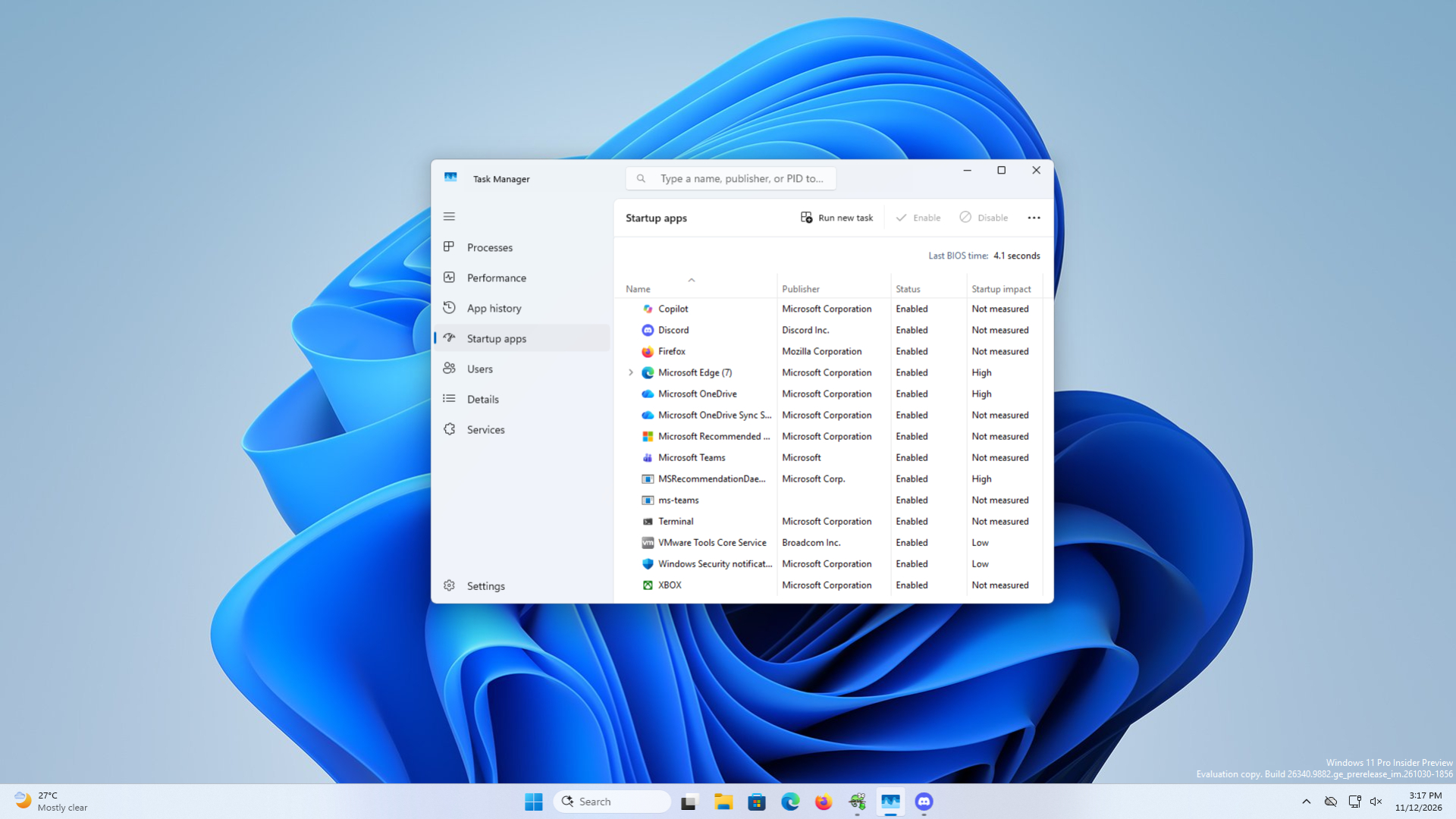
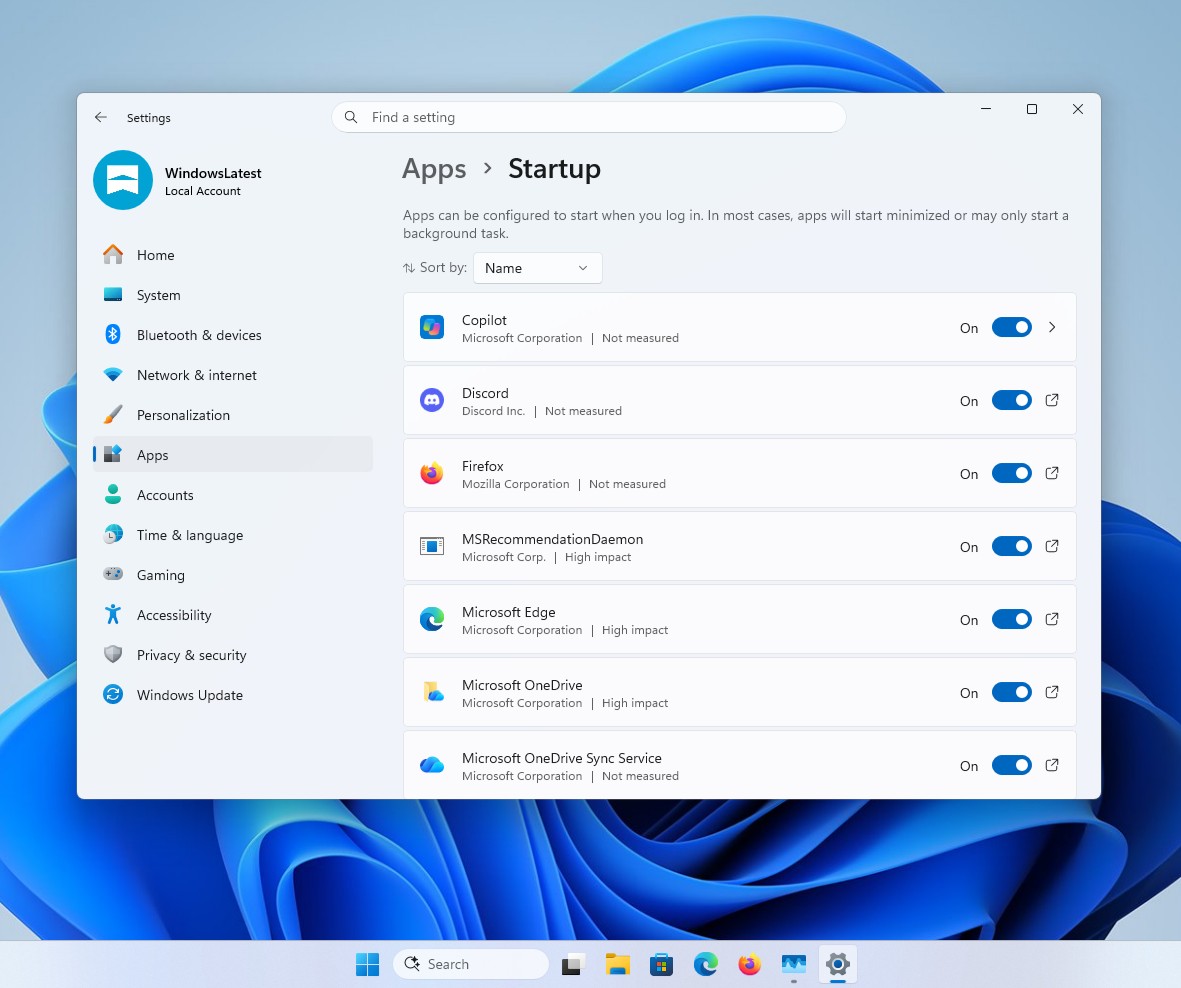
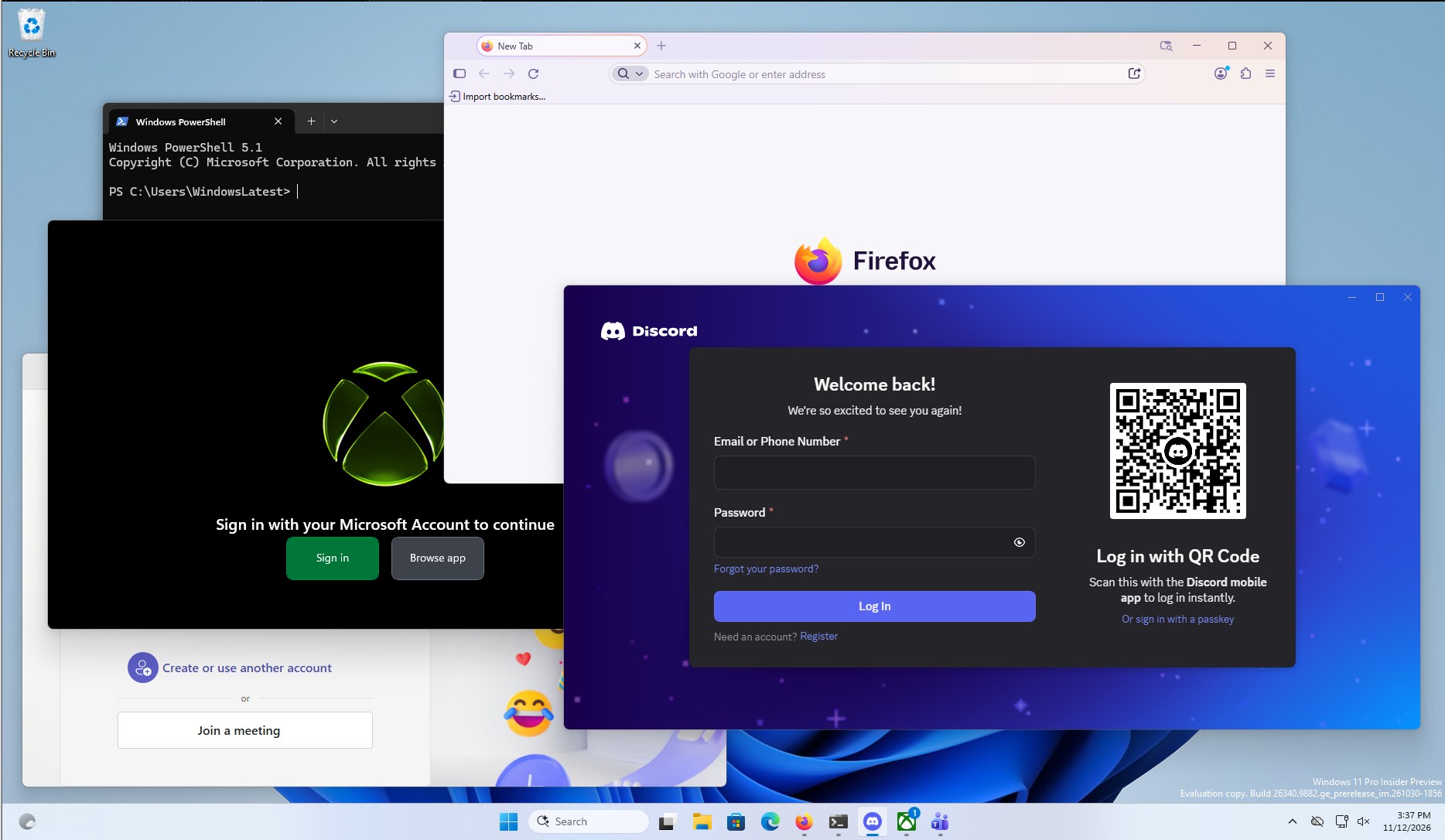
If, like me, you have also cursed your PC after turning it on and not seeing Discord, Teams, your VPN, and that mouse utility you need, and then they trickle in one by one over the next minute or two, just know that it’s not your PC’s fault. Windows 11 is purposely holding back these startup apps, and for good reason.
A Reddit user says a registry tweak with just two values cut the time his startup apps took to finish loading from 2 minutes 30 seconds to 30 seconds. I tested it on my PC and it actually reduced the time for startup apps to show up. Yes, the delay is necessary for some PCs, especially lower-end ones, but the question is, should you open the Registry Editor to turn it off? And if you plan to do so, we’ll tell you how.
A Windows 11 user reduced his startup app wait time from 2.5 minutes to 30 seconds
In a post on r/Windows11, a self-described power user, who goes by u/PersianMG on Reddit, has an insane number of startup services, including 30 apps, six AutoHotkey scripts, and a bunch of other services on a high-spec Windows 11 PC, noticed that while the OS loaded quickly, these apps showed up bit by bit. He checked Windows Performance Toolkit and found that there were large idle periods, and no single app was to blame for being slow.
He then created a “Serialize” key in the registry with two values set to 0, and he mentioned that the time his startup apps took to load went from 2 minutes 30 seconds to 30 seconds flat. In a reply, he says the apps used to start launching about 1 minute 50 seconds into boot, while they now begin at around 20 seconds and finish in five. This is a massive difference. But, of course, it depends on the PC configuration as well.
One user with a Core Ultra 270K Plus PC with an RTX 5080 noticed the time reduced from 90 seconds to 47 seconds just by setting WaitForIdleState to 0, and got to 36 seconds after reordering apps with Startup Delayer. Another user found the startup completion dropping from 140 to 113 seconds, while others saw a 3 to 6 second difference, which is still respectable.
People have been running into startup app delays for years. A user complained about slow startup apps on r/WindowsHelp two years ago, and the fix that worked used this very registry key. In a February 2024 Microsoft Q&A thread, a Windows 11 23H2 user said apps in shell:startup were delayed by up to 1 to 3 minutes after the desktop appeared.
Apart from the obvious frustration, users would assume that this is their PC’s problem and consider upgrading components, which is a considerably more expensive affair than it was a year ago.
I also wonder if Microsoft has even thought about people realising this is a Windows problem, making the OS even more despicable.
Windows deliberately delays startup apps, and Microsoft has explained why
Microsoft’s documentation for the Run and RunOnce registry keys says, “The system does not provide guarantees about how promptly the programs in the Run key are run.” It goes on to say Windows “may choose to delay” programs in the Run key and the Startup group until they’re less likely to interfere with what you’re doing or with each other.
Microsoft’s Raymond Chen explained the reasoning in a 2016 Old New Thing post, titled “Startup apps start up when I tell them“. Funnily enough, it starts with a magazine that timed Windows 8’s boot by putting Notepad in the Startup group. Chen laughed, because he controls when startup apps launch and could make Windows look faster or slower by tweaking a Sleep value.
According to Chen, Explorer gets visible things ready first, the Startup group is among the last items it processes, and there’s a “bonus extra delay” on top. When a dozen programs load off the disk at once, the PC gets so busy that users can’t even open the Start menu.
Over the years, Windows Vista ran startup programs at low CPU and disk priority for 60 seconds, while Windows 8 waited for each program to “settle down” before launching the next one.
It made sense in the hard drive days. But on a PC with an NVMe SSD and 32GB of RAM, Windows literally wastes time waiting for an “idle” moment while the hardware has plenty to spare. Work laptops loaded with security agents might take ages to reach this idle state.
What StartupDelayInMSec and WaitForIdleState do
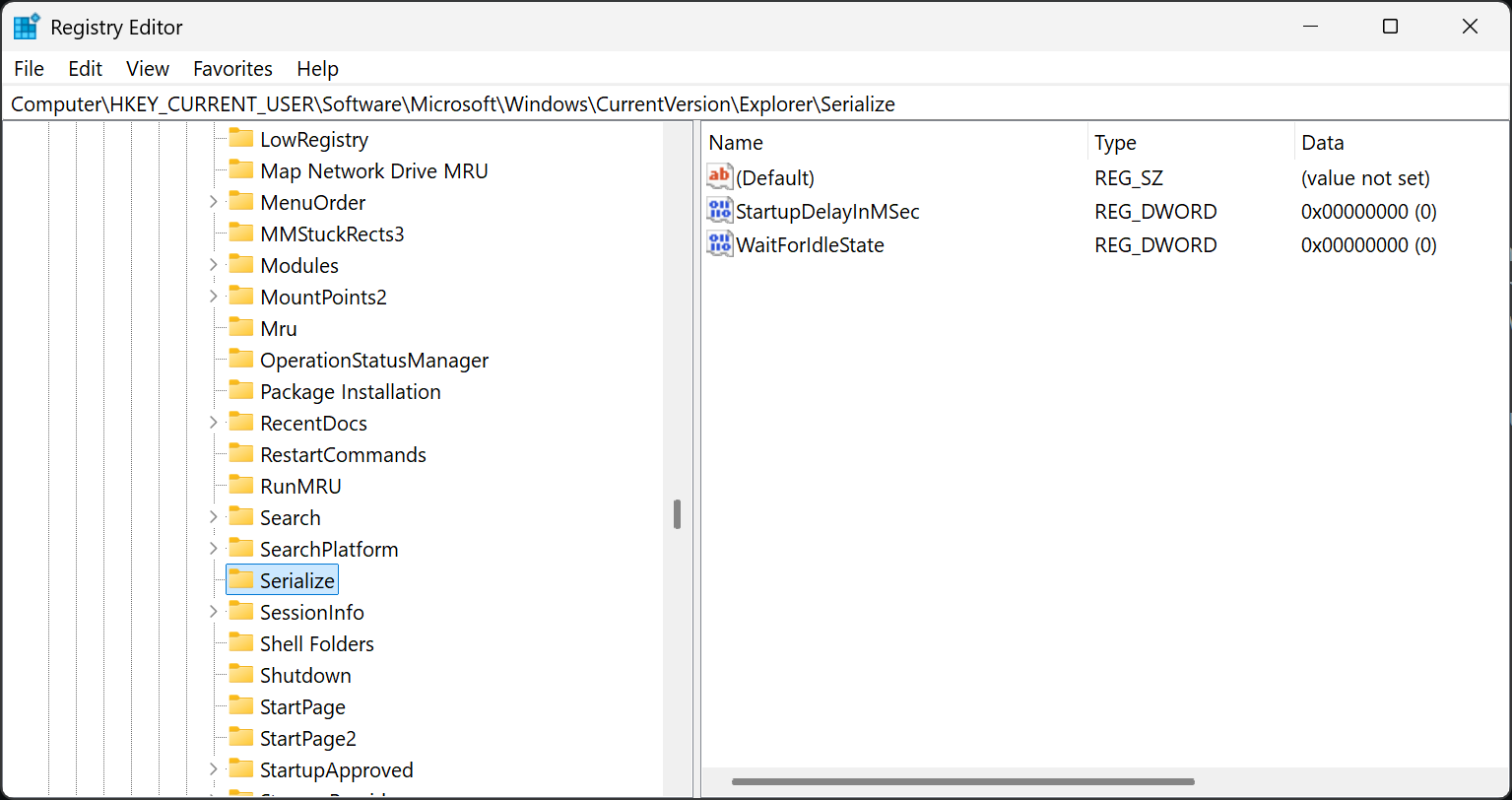
StartupDelayInMSec controls the fixed delay before Explorer launches your startup apps, while WaitForIdleState decides whether Windows waits for the system to go idle first. The Wintoys developer says WaitForIdleState is only needed on Windows 11 24H2 and later.
Note that Microsoft documents the delay, but doesn’t mention these two values. The fix comes from the community, and Microsoft can change how it works at any time.
How to disable the startup app delay in Windows 11
Create a restore point first. The key is under HKEY_CURRENT_USER, so you don’t need admin rights, although your work PC may block registry edits.
- Press Win + R, type regedit, and press Enter.
- Go to HKEY_CURRENT_USER\Software\Microsoft\Windows\CurrentVersion\Explorer.
- Right-click Explorer, select New > Key, and name it Serialize. Most PCs won’t have it already.
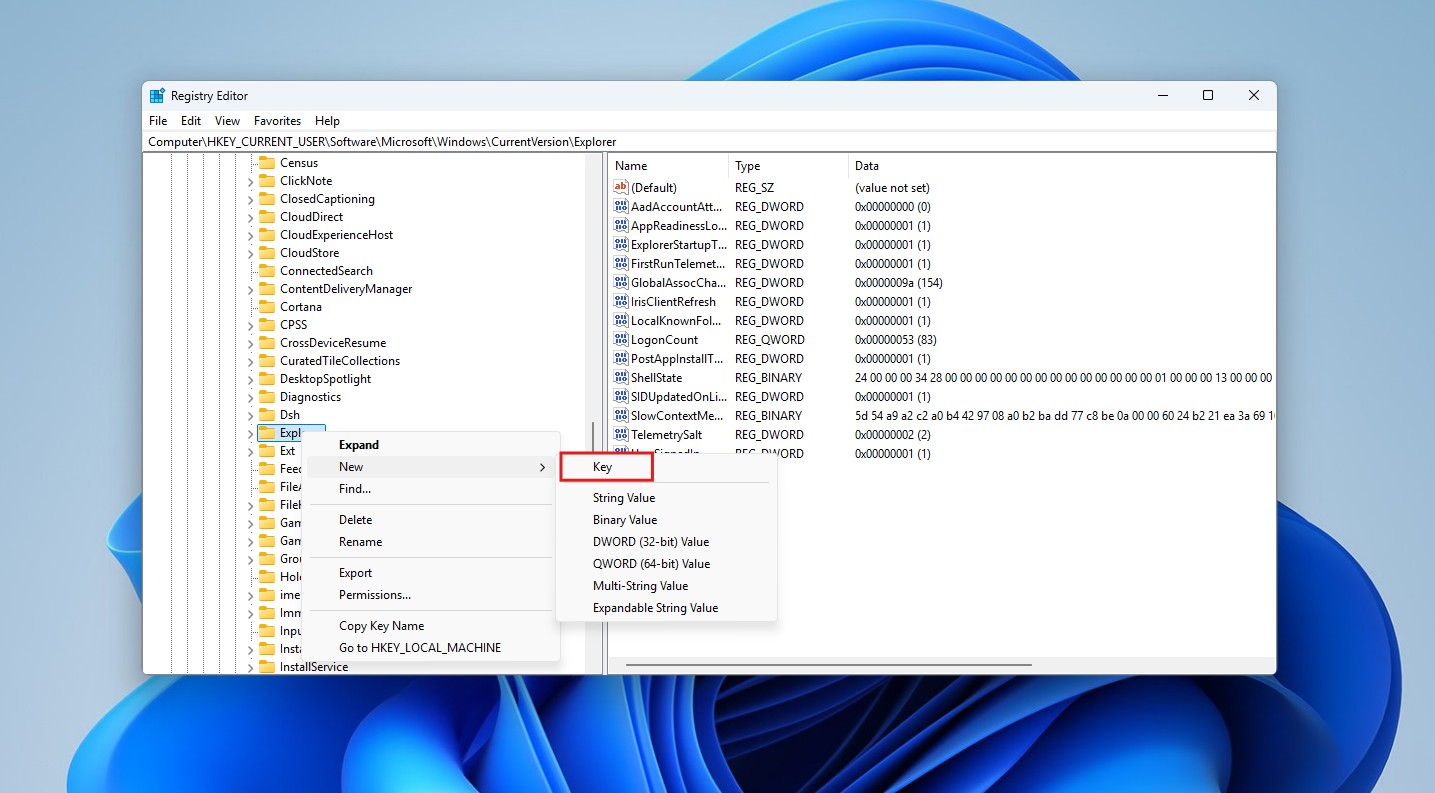
Creating a new Key in Explorer. Credit: Windows Latest - Click Serialize, right-click the empty space on the right, select New > DWORD (32-bit) Value, and name it StartupDelayInMSec. Its value is 0 by default.
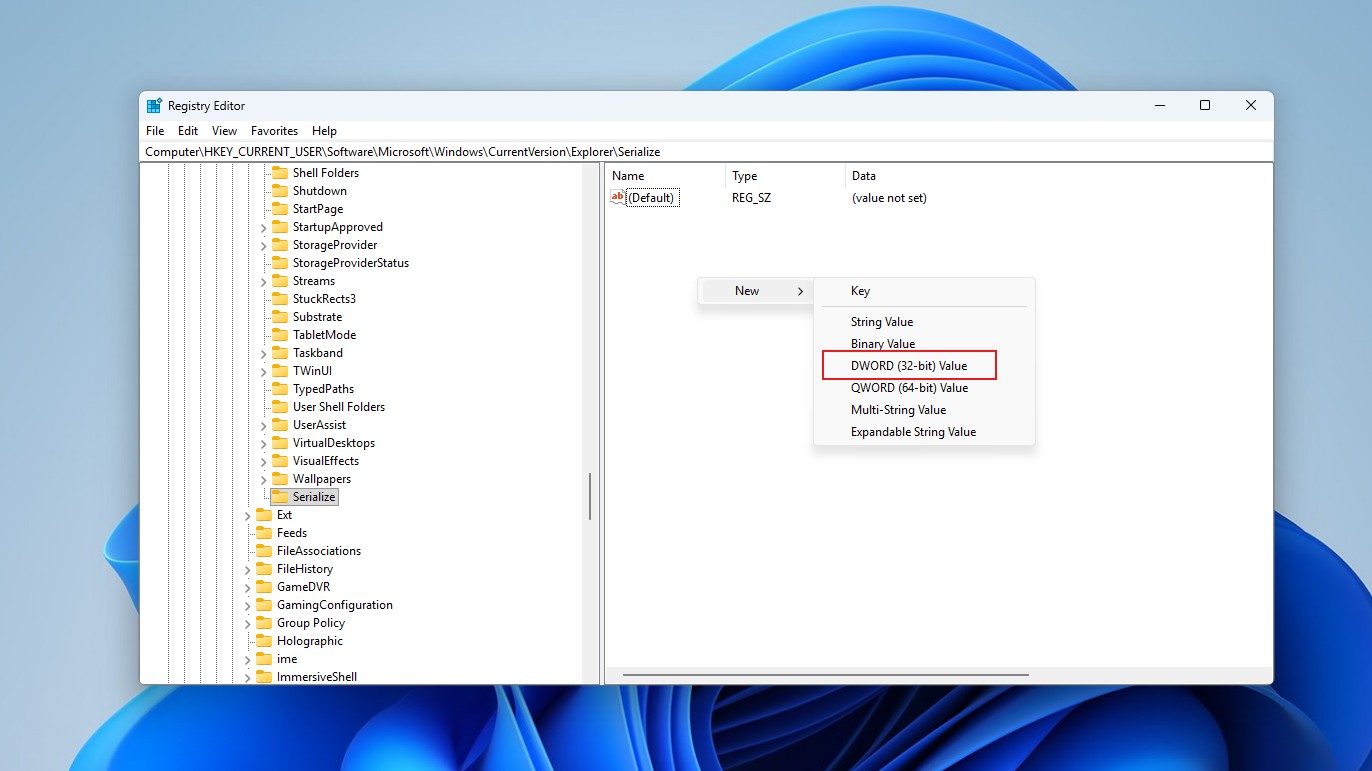
Creating new DWORD in Serialize. Credit: Windows Latest - Create another DWORD (32-bit) Value called WaitForIdleState, and leave it at 0 too.
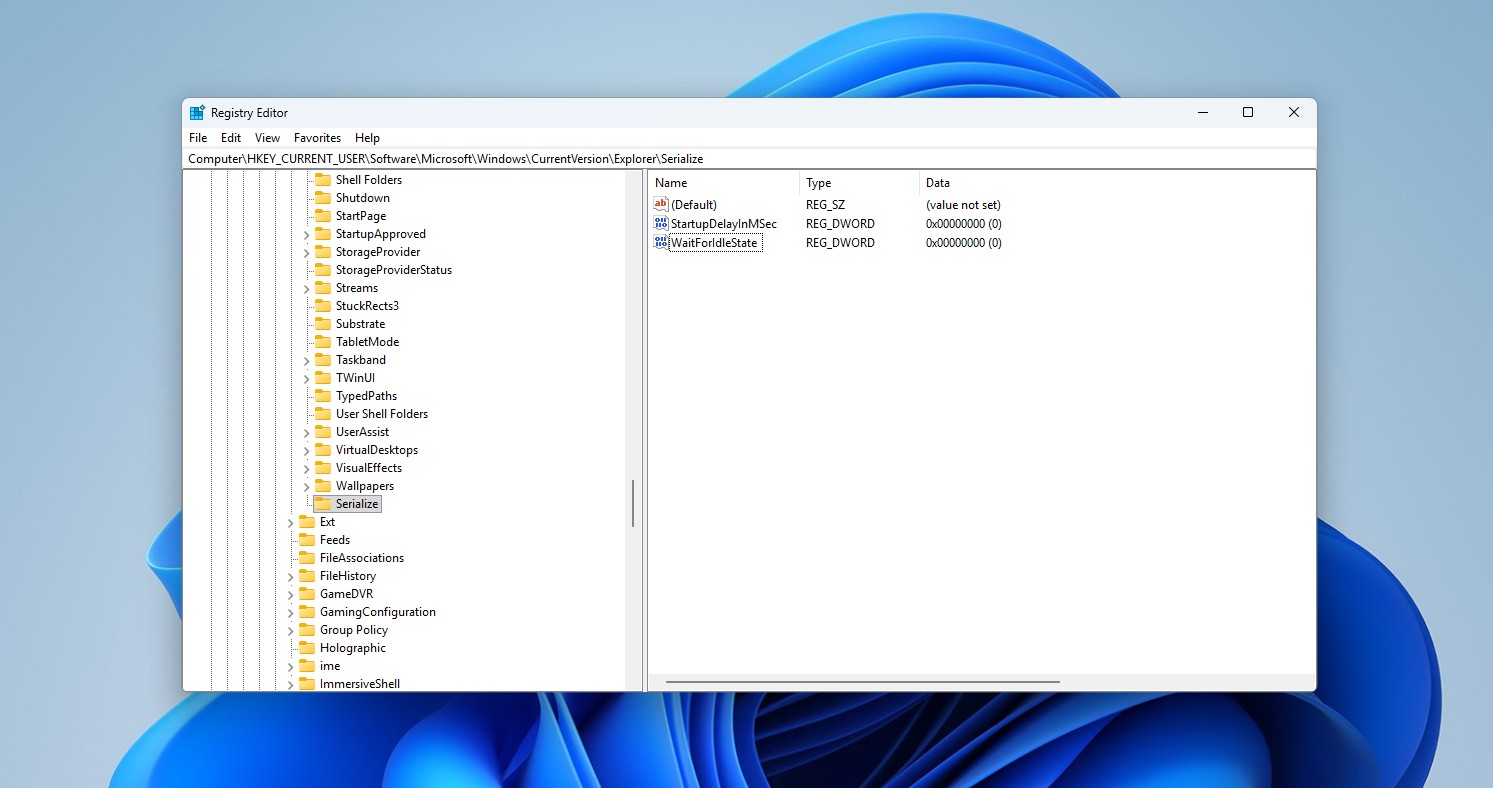
StartupDelayInMsec and WaitForIdleState set to zero in Serialize. Credit: Windows Latest - Restart your PC.
I checked on my underpowered VM, and before creating these keys, Startup apps took several minutes to show up, but after enabling them, they showed up in about a minute. But since my VM is slow to begin with, it’s best to not do this and I actually keep most startup apps disabled.
If your startup apps are still slow, double-click StartupDelayInMSec and change it to 1. The Wintoys developer says 0 isn’t accepted on every system or Windows version, and several users in the thread said 1 worked for them. To undo the change, just delete the Serialize key.
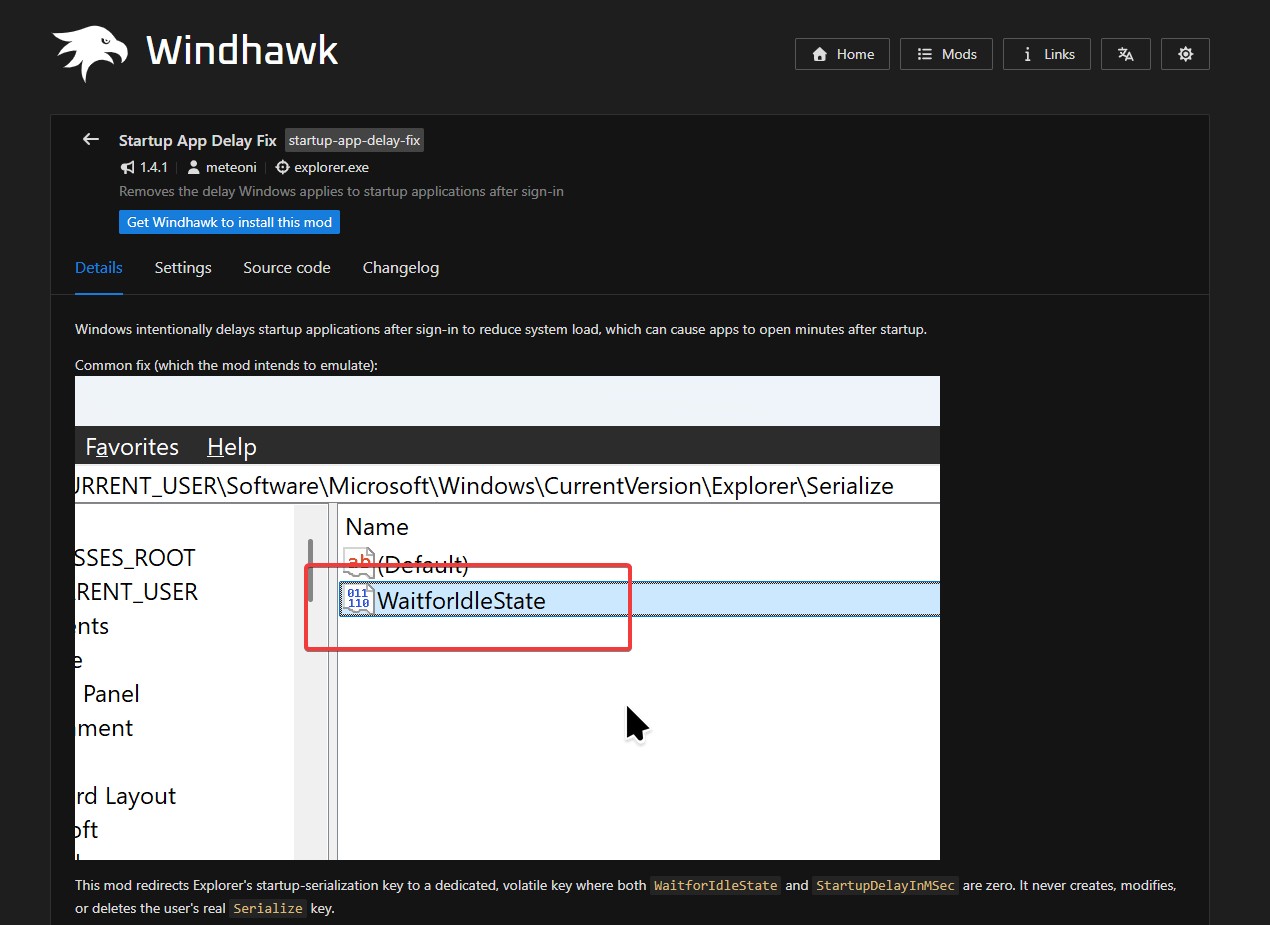
If you don’t want to mess with the registry, the Windhawk mod Startup App Delay Fix or a toggle in Wintoys will do it for you.
The startup delay tweak has limits, and weaker PCs may want to keep it
The tweak only changes when Windows lets your apps start, so each app still loads at its usual speed. According to the Wintoys developer, it also doesn’t affect most Microsoft Store apps.
On a low-end laptop, launching 30 apps at once can bring back the mess Microsoft was trying to avoid. Like disabling SysMain or deleting Prefetch, a performance tweak that works wonders on one PC can do nothing, or worse, on another.
Credit where it’s due, Microsoft has worked on faster app launches this year, from skipping a pointless extra process to the Low Latency Profile CPU boost. Perhaps the best thing is the RAM optimization in 8GB and more PCs, which we have proven to free up almost 2GB of extra RAM.
But my question to Microsoft is: if Settings > Apps > Startup already lets you turn startup apps on and off, why not add an “Optimized startup” toggle that’s on by default? One Redditor typed out the prompt for Claude to build it. Your move, Microsoft.