





Deleting the Windows Prefetch folder doesn’t make your PC faster, and it can make apps open slower. In 2005, Microsoft developer Ryan Myers explained that Windows XP used Prefetch files to load apps faster, so clearing them forced Windows to rebuild that data and temporarily slowed things down. Two decades later, Windows 11 still has a Prefetch folder, and “delete Prefetch” is still a staple of Windows cleanup guides.
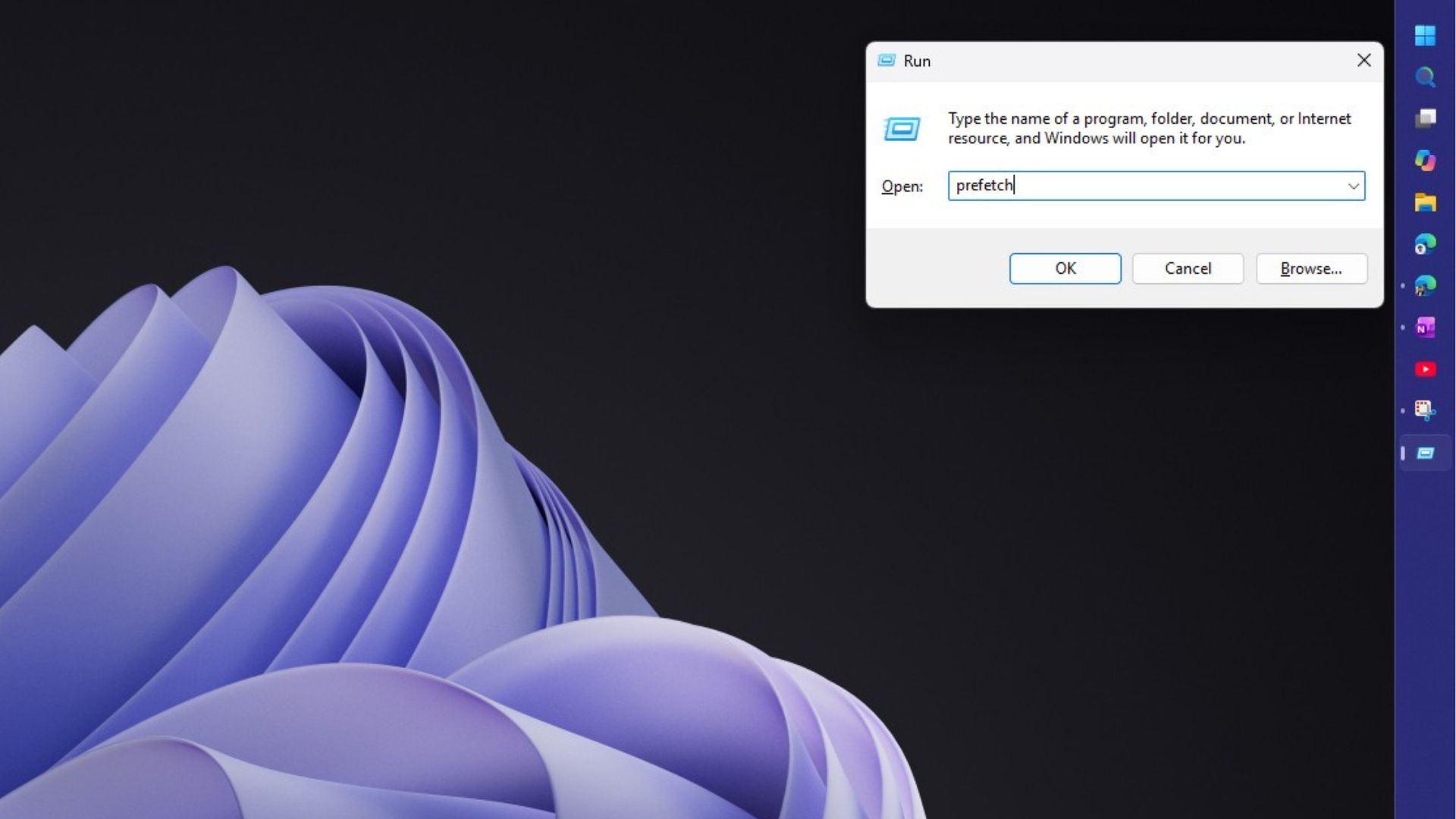
I’ll admit, I was doing this until very recently. Win + R, type prefetch, Ctrl + A, Delete, and the satisfying feeling of seeing all those files getting deleted and assuming that my PC was somehow lighter. So, I tested it on Windows 11.
Windows wasn’t loading every Prefetch file into RAM
The cleanup advice you see about Prefetch on YouTube and blogs was based on the wrong assumption that every .pf file in the folder is loaded into memory and slows down your PC. Windows only looks for an app’s Prefetch file when you launch that app. If you haven’t opened an app in months, its .pf file does nothing except take up a little space on your drive.
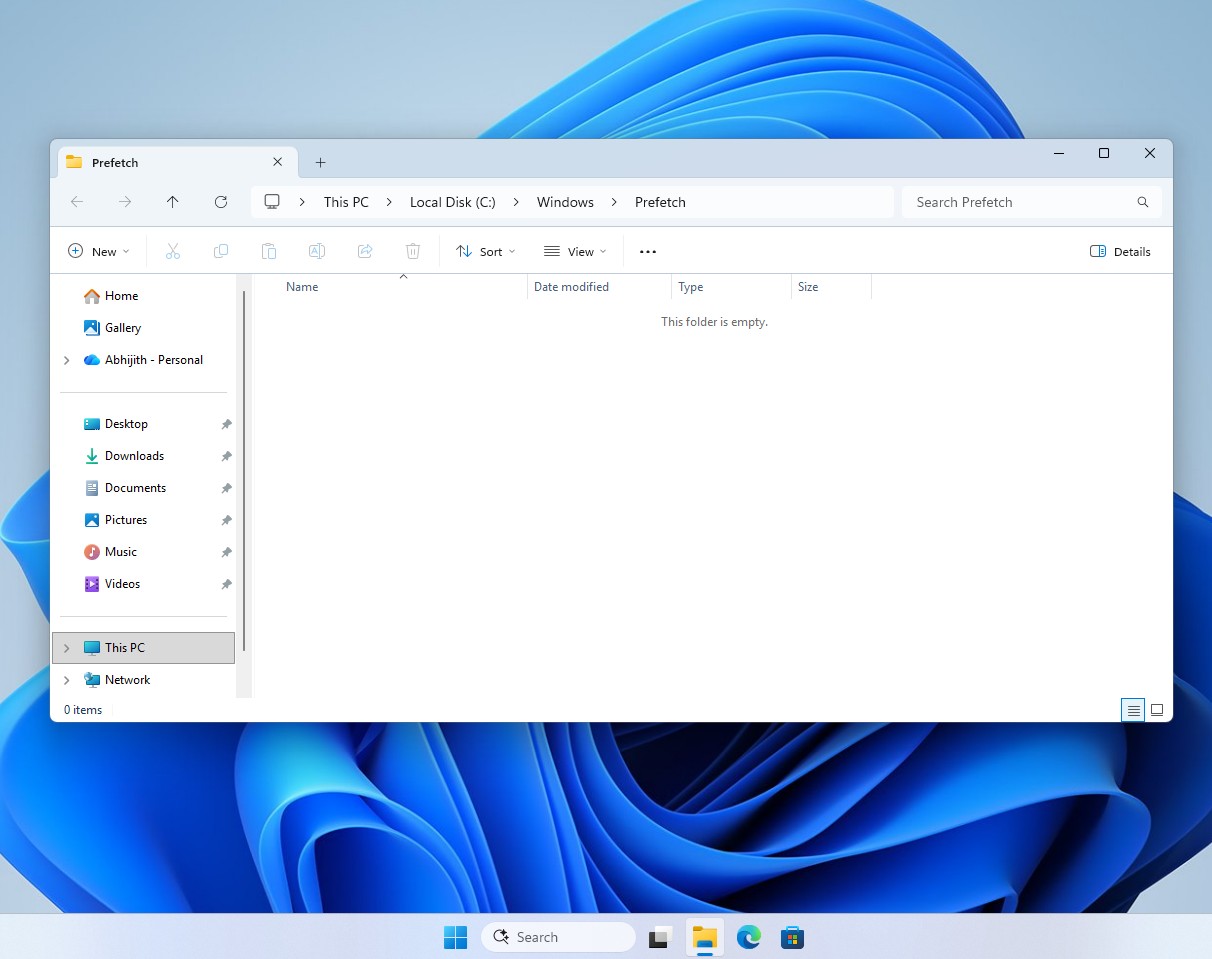
Prefetch files aren’t copies of your apps. They’re lists of pages and files to read, which is why deleting them doesn’t free any meaningful space.
Prefetch also isn’t Superfetch, now called SysMain, which preloads apps you use often into spare RAM, and turning it off is a totally different ballgame.
The truth is, Windows didn’t need us to take the role of a janitor. Microsoft’s OS already kept the Prefetch folder under control.
I tested whether deleting Prefetch makes Windows 11 slower
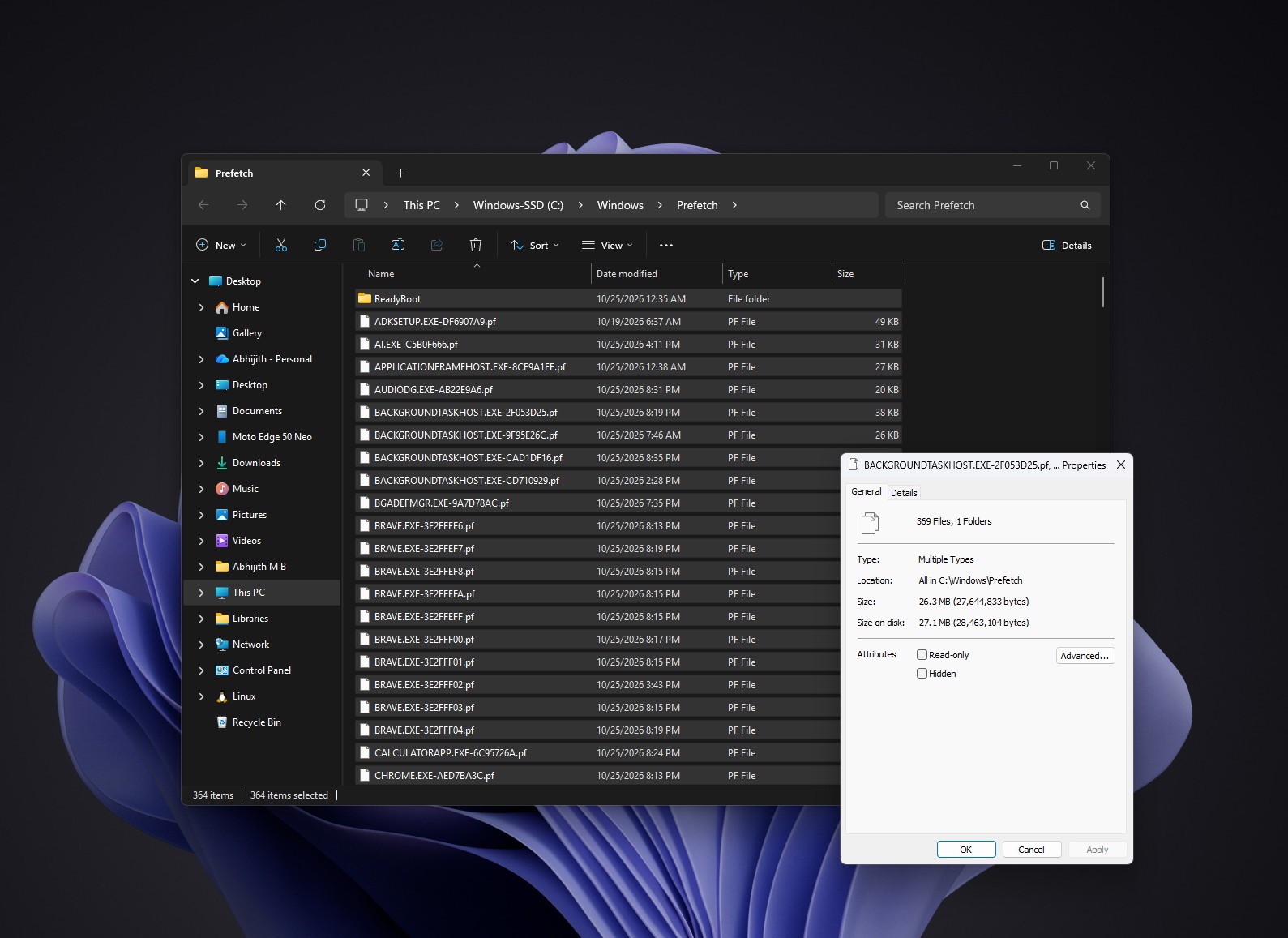
Unlike XP, Windows 8 and later, including Windows 11, keep up to 1,024 Prefetch files and delete the oldest ones first, according to Microsoft’s incident response team. On my daily driver PC, just last week I used Microsoft’s PC Manager to clear out some temporary files, and because of that, there are only 364 items in my Prefetch folder, with the .pf files taking up about 27MB.
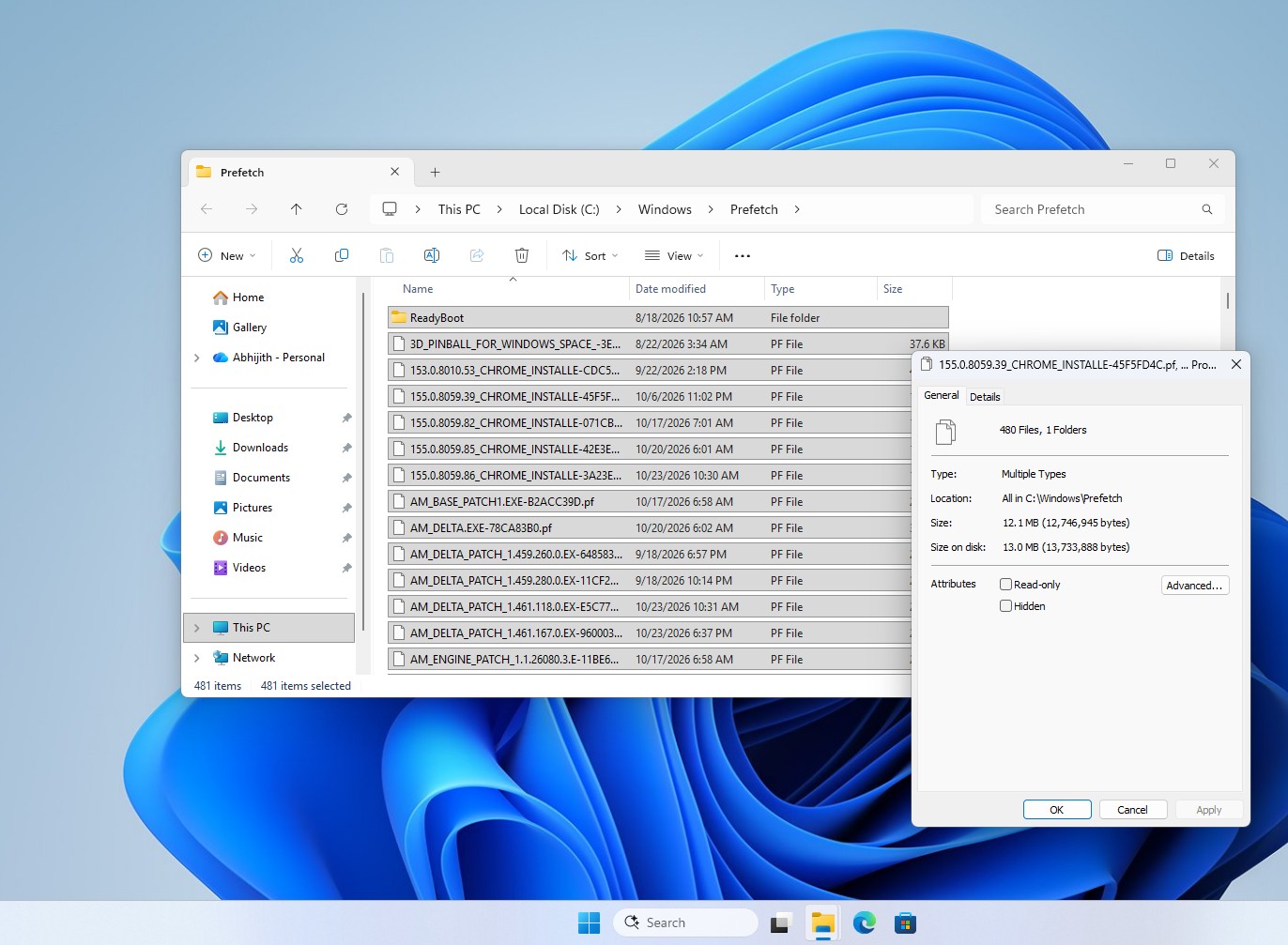
My test PC with very few apps in it hasn’t been cleaned, and it has 481 items in the Prefetch folder, using up only 13MB on the disk.
I first compared the app opening speed on my PC before and after deleting .PF files in the Prefetch folder, and the differences are so minute that I couldn’t capture it. However, after deleting files in the Prefetch folder, and a restart later, there was a noticeable delay in opening apps that are already slow to open, like Clipchamp (Microsoft’s built-in video editor). Most other apps like Word, Edge, Chrome, saw only slight delays.
So, I chose to do the same on my underpowered VM, with 4GB RAM and a dual-core processor. Here, there was a noticeable delay in opening apps after clearing the Prefetch folder. The video below shows the delay while opening the MS Store:
So, yes, for regular PCs, there is a slight slowdown while opening apps after deleting the files in the Prefetch folder, but it’s not noticeable enough to make a difference.
It’s understandable that the difference on a fast SSD won’t be as dramatic as on XP-era hard drives, and not to mention the processors that improved both in power and efficiency. Microsoft said in 2009 that Prefetch and Superfetch were “designed to improve performance on traditional HDDs,” where random reads were the bottleneck. In fact, Windows 7 turned off app launch prefetching on SSDs with good random read performance.
I don’t have a Windows 7 PC with me, but WinPoin tested the trick on Windows 7 in 2013, and their PC took 61 seconds to boot without Prefetch, compared to 45 seconds with it. Word 2010 took 7 seconds instead of 5.
Not everyone found it slower, though. In 2006, Steve Wiseman measured a Windows XP MacBook (yes, you read that correctly) booting in 37 seconds instead of 52 after clearing Prefetch, but he also changed a Prefetch registry setting in the process, and admitted it slows down app launches.
Windows 11 still uses Prefetch, and deleting it won’t speed up your PC
Microsoft’s incident response team says Prefetch is “designed to speed up the subsequent launch of applications” and that it’s “enabled by default on Windows desktop operating systems,” though not on Windows Server.
As expected, Microsoft’s tips to improve PC performance in Windows don’t mention Prefetch. The software giant suggests disabling startup apps, uninstalling apps you don’t use, running Storage Sense or Disk Cleanup, and installing updates. Honestly, startup apps are the biggest culprits in most Windows PCs, and I wish Microsoft had a way to address this for the non-techy among the 1.6 billion Windows users.
As for Prefetch, there are valid reasons to clear the files. Each .pf file stores how many times an app ran and up to eight recent launch times, which is why I previously listed it among the things Windows 11 quietly keeps about you. If that bothers you, deleting the files is fine, as long as you know you’re giving up a little launch speed for privacy, not gaining any.
If your PC feels slow, the culprit is almost always a startup app or an app hogging your CPU in Task Manager. Prefetch is one of the few folders on your PC that’s working for you, so let’s just leave Windows to manage it.