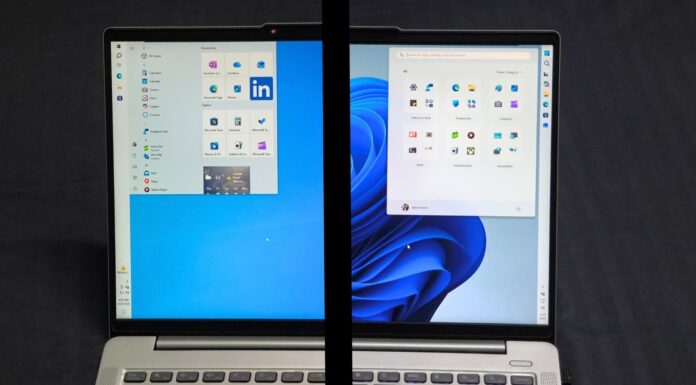





Windows 11’s CPU boost feature is now silently active while opening apps too, after installing the August 2026 security update (Build 26200.9168+). We tested this on the same PC, before and after installing the update, and can confirm all types of apps now launch faster.
The feature responsible is called Low Latency Profile. It works by spiking your CPU to near-maximum frequency for one to three seconds the moment you interact with something, then letting it drop back to idle almost immediately after.
In case you’re wondering, this isn’t a lazy workaround and has real engineering logic behind it, and Microsoft has already defended it against people assuming otherwise.
Low Latency Profile rolled out to nearly everyone back in June 2026, but until now, it only covered Windows shell elements, such as the Start menu, Search, Notification Center, and similar flyouts.
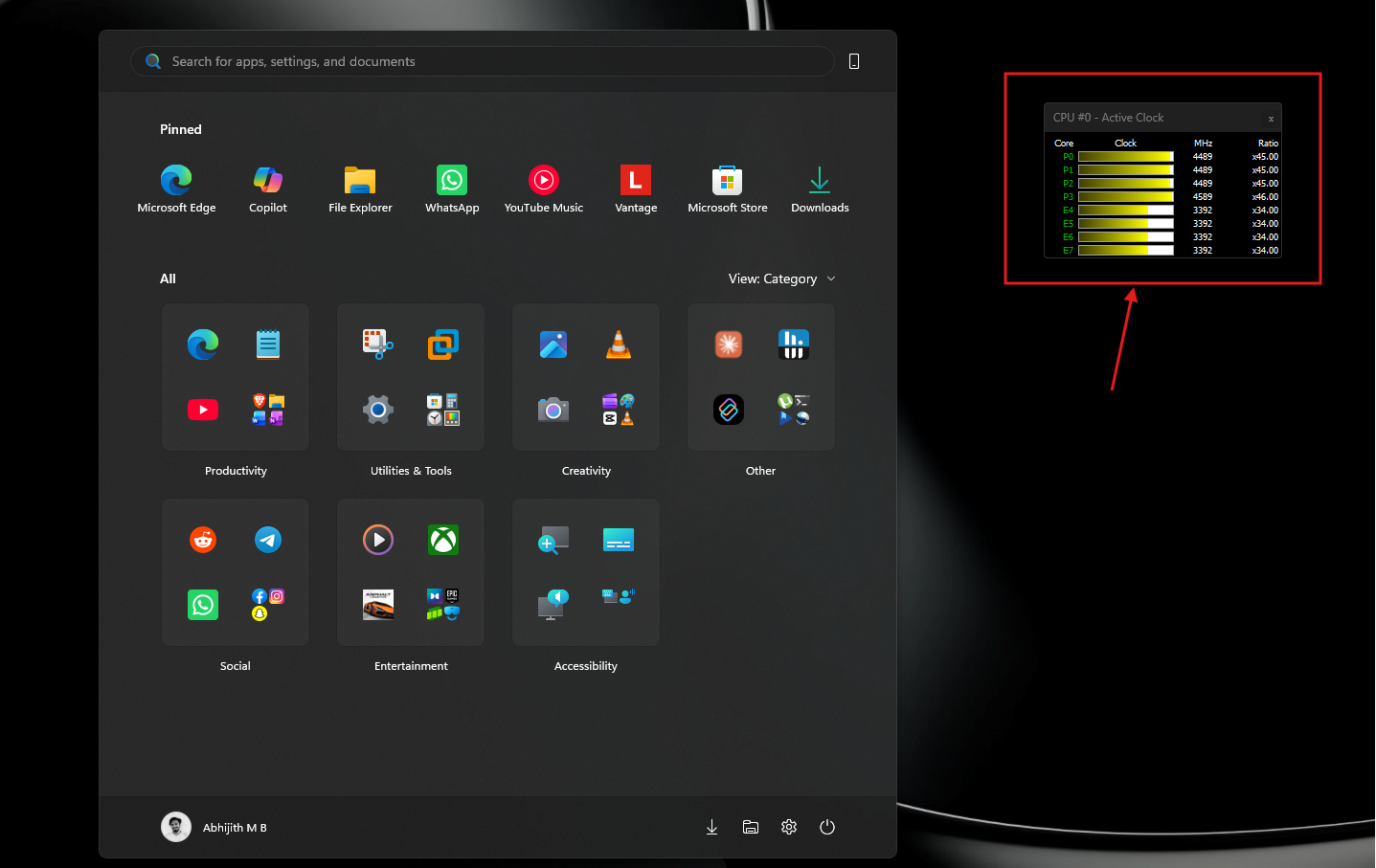
Microsoft’s original May changelog mentioned “app launch” as part of the feature’s scope too, but it didn’t work yet at the time, something we confirmed when we first tested the hidden feature back in May.
With the August 2026 update, KB5121003, Microsoft has finally turned that switch on, and apps now benefit from the CPU boost the Start menu has had since June.
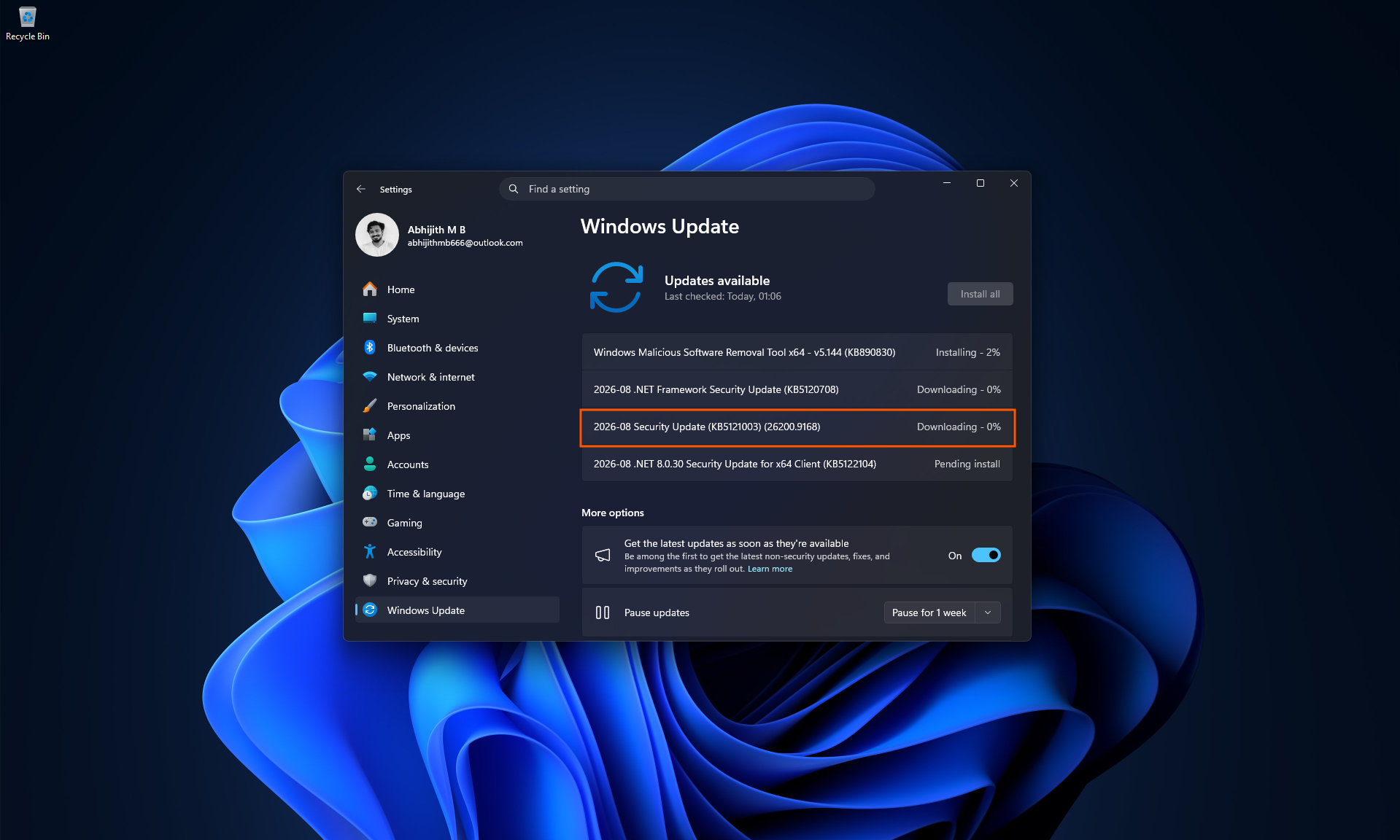
Apps open quicker after installing the Windows 11 August update, thanks to Microsoft’s CPU boost tech
The concept behind Low Latency Profile is called “race to sleep.” Instead of letting the CPU gradually ramp up clock speed as demand rises, which is how Windows traditionally handled things, the scheduler immediately jumps to near-maximum frequency the instant you launch something, finishes the heavy lifting fast, then returns to a deep idle state sooner than it would have otherwise.
A CPU that spends more time asleep overall draws less power than one grinding along at a moderate clock speed for longer.
Back in June, Microsoft didn’t really mention the name “low latency profile”; instead, it was categorized rather subtly in the changelog as: “[General Performance] This update accelerates app launch and core shell experiences such as Start menu, Search, and Action Center.”
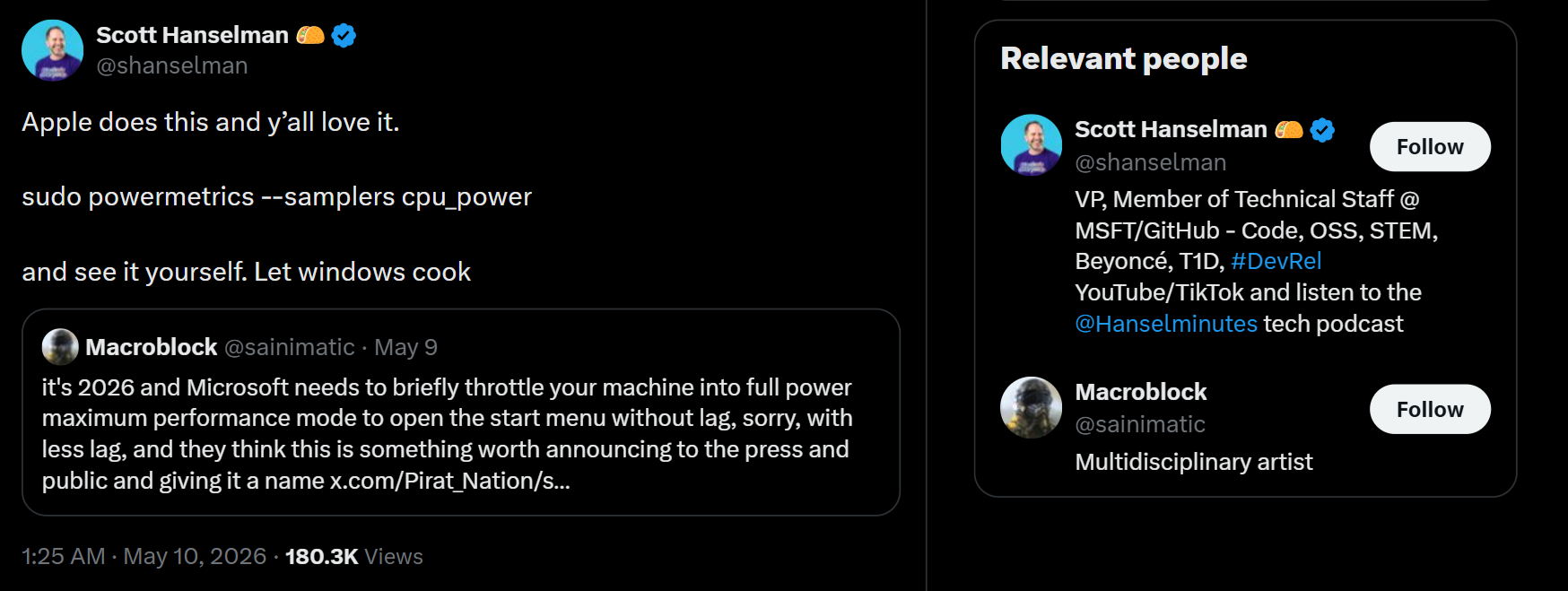
Note that Redmond isn’t inventing something new here, either. Scott Hanselman, Microsoft VP and member of technical staff, publicly defended the feature back in May after critics dismissed it as a lazy fix, pointing out that macOS and Linux have used the same race-to-sleep scheduling for years, and that the effect is even more pronounced on ARM chips like Snapdragon X2 and the upcoming NVIDIA RTX Spark, where power state transitions happen in microseconds.
Since this rolls out gradually through Controlled Feature Rollout, not everyone will get it the moment they install the update. The easiest way to check is with a free tool called HWiNFO, watching the CPU frequency panel while you open apps, which is the method Windows Latest first used in our guide to checking whether Low Latency Profile is actually working on your PC.
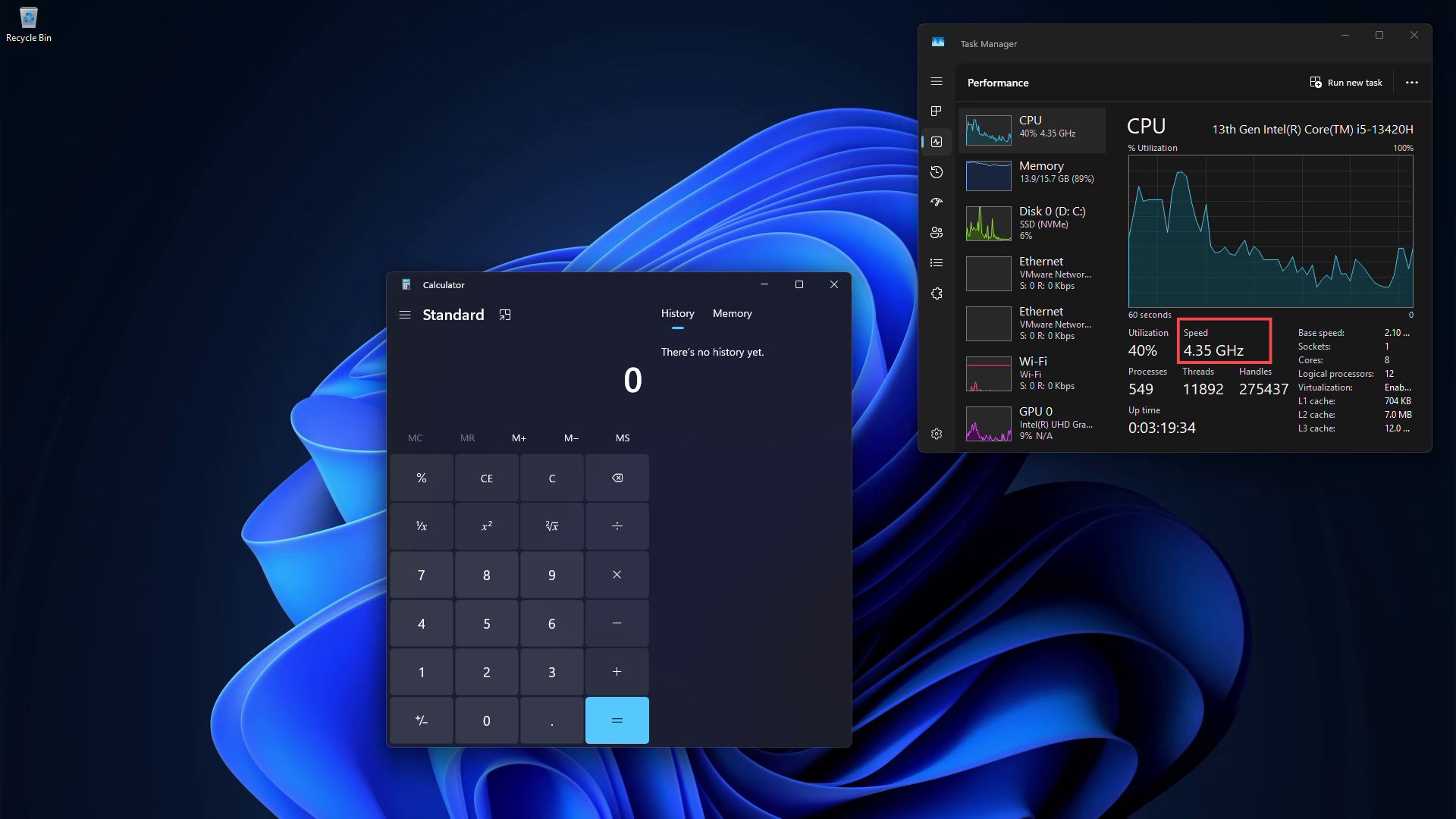
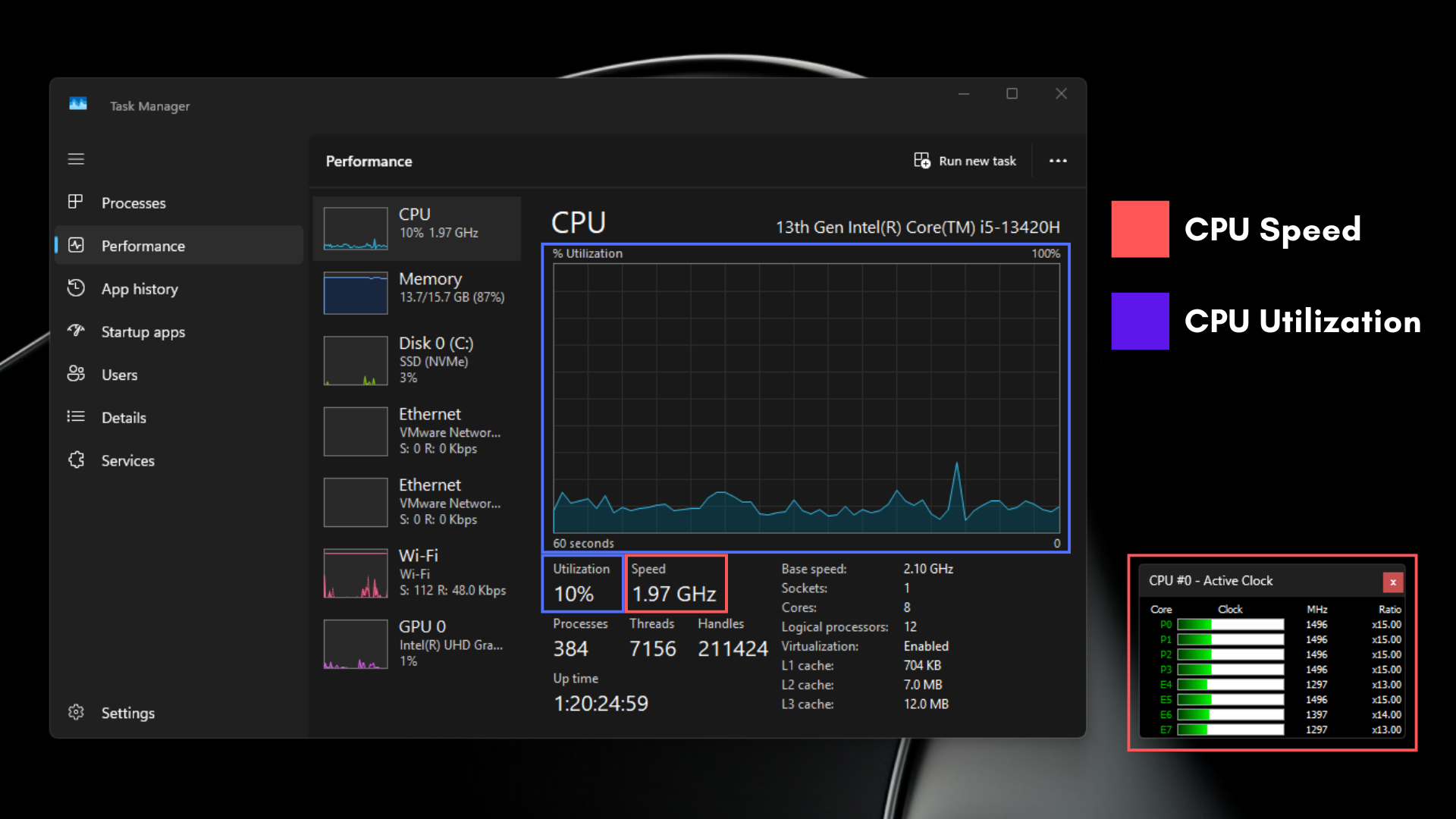
Task Manager’s Performance tab works too, just make sure you’re watching clock speed and not the utilization percentage, since those tell you very different things!
How to enable Low Latency Profile for apps if you haven’t gotten it yet
Low Latency Profile for apps is included in Windows 11 KB5121003 (Build 26200.9168 / 26100.9168 or newer), and it’s rolling out today. If Low Latency Profile for apps hasn’t reached your PC through Controlled Feature Rollout yet, you can technically force it on using a third-party open-source tool called ViVeTool:
Download and set up ViVeTool
- Go to the official ViVeTool GitHub releases page and download the latest .zip release.
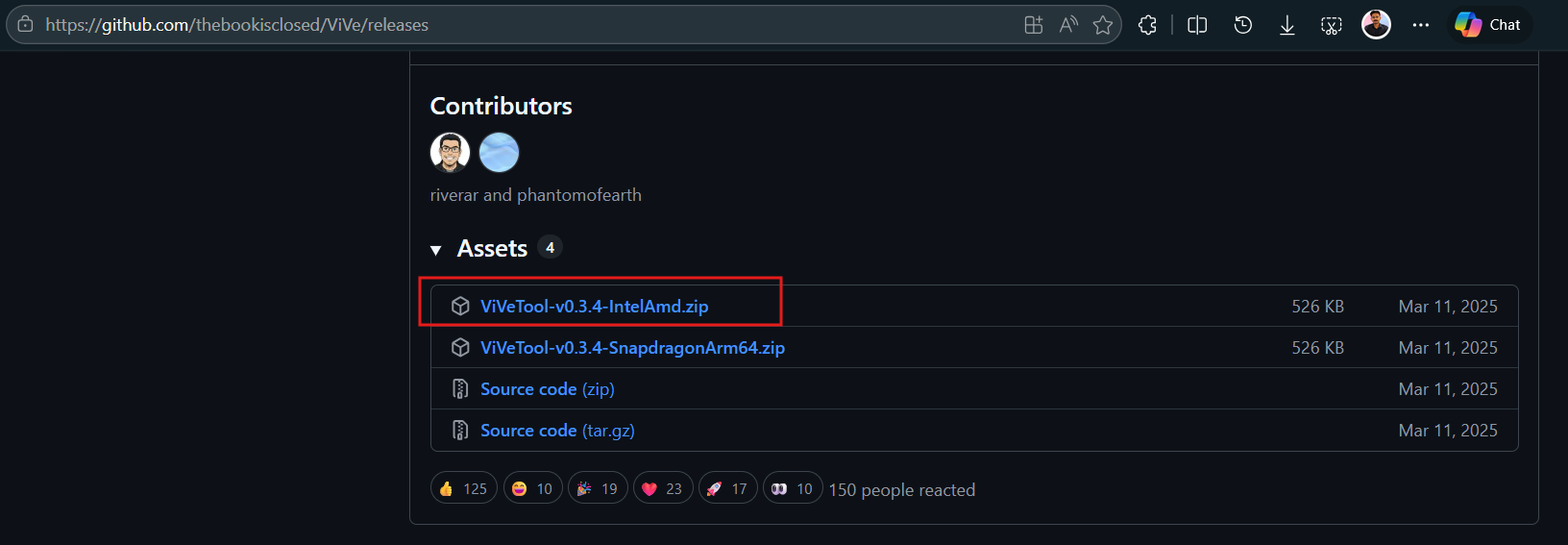
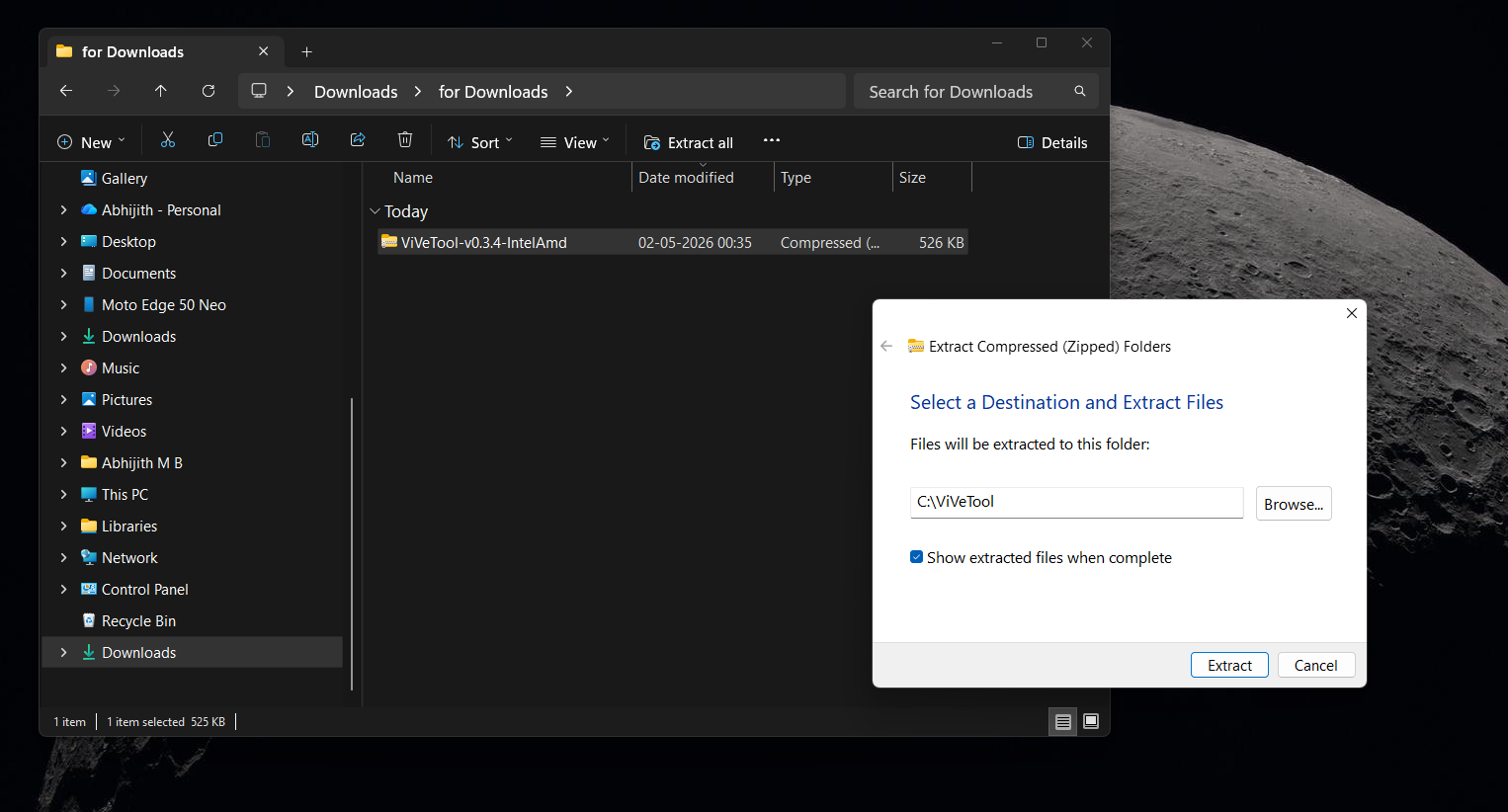
- Extract the contents of the .zip file to a folder. Extract it directly to C:\ViVeTool .
- Open Command Prompt in Administrator mode
- Type the following command to navigate to the ViVeTool folder:
cd C:\ViVeTool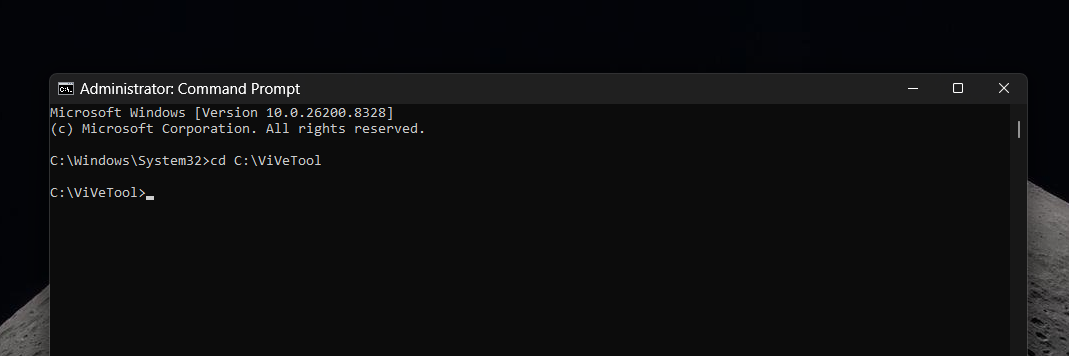
- Now, run the following command to enable Low Latency Profile:
vivetool /enable /id:58989092,58989177,61391826
- You should see a confirmation message saying the feature configuration was successfully set. Restart your PC.
Now, Low Latency Profile should be active for all Windows Shell flyouts as well as app launches. However, we’d recommend just waiting instead. Microsoft is rolling this out broadly, and it should reach your device naturally within the coming weeks.
We tested it, and apps really do launch faster now
Before installing the August update, we opened a stack of apps, Notepad, the Epic Games Store, Calculator, Chrome, the Weather app, PowerPoint, and VLC, with HWiNFO running to watch CPU clock speed in real time (Note that these apps are a mix of different UI frameworks).
Nothing unusual happened. Clock speeds moved a little as each app loaded, mostly just whatever bump came naturally from the app briefly using more CPU, but there was no deliberate spike to open anything. A heavy app like the Epic Games Store still took its usual few seconds to fully render its store page.
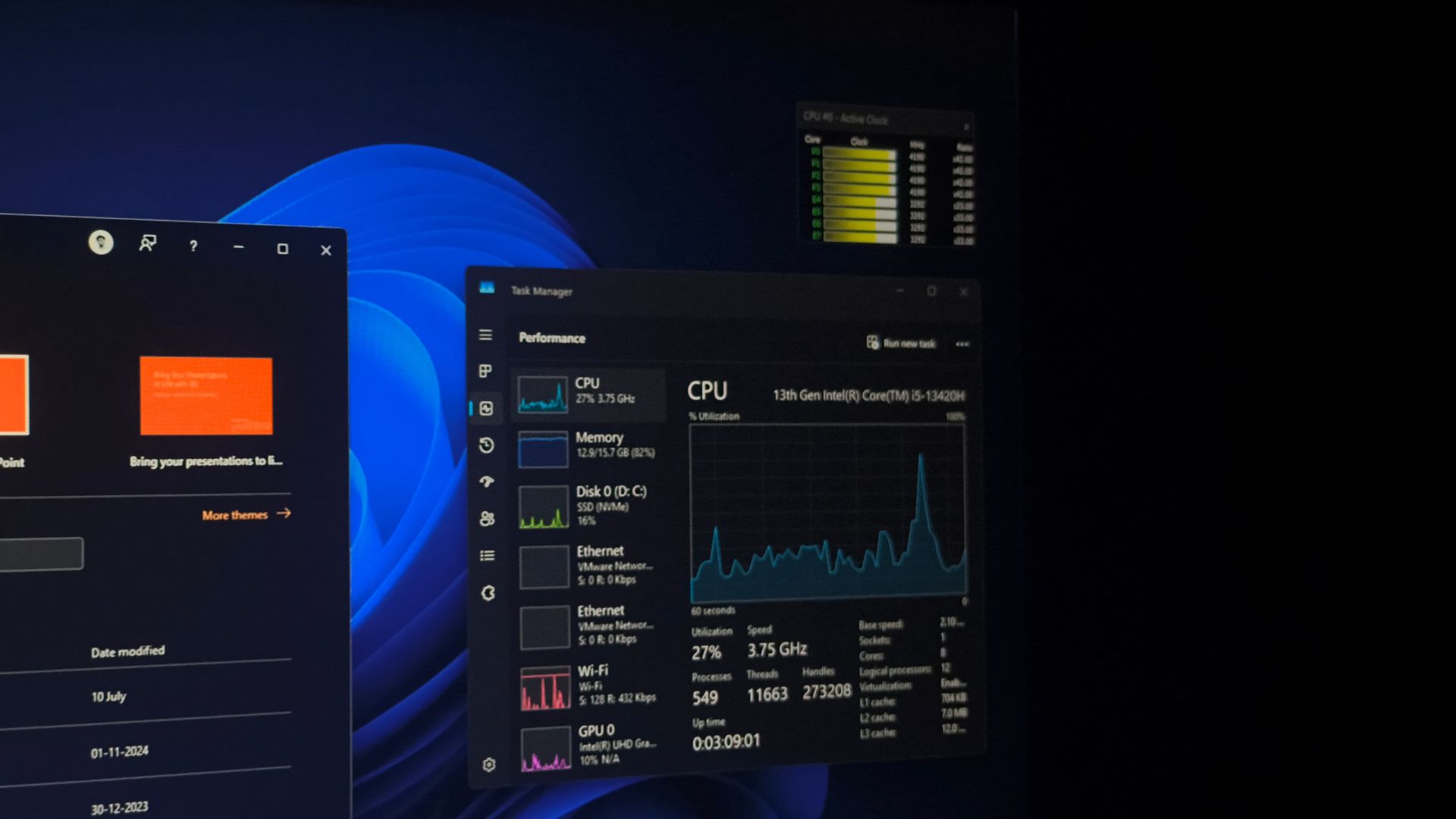
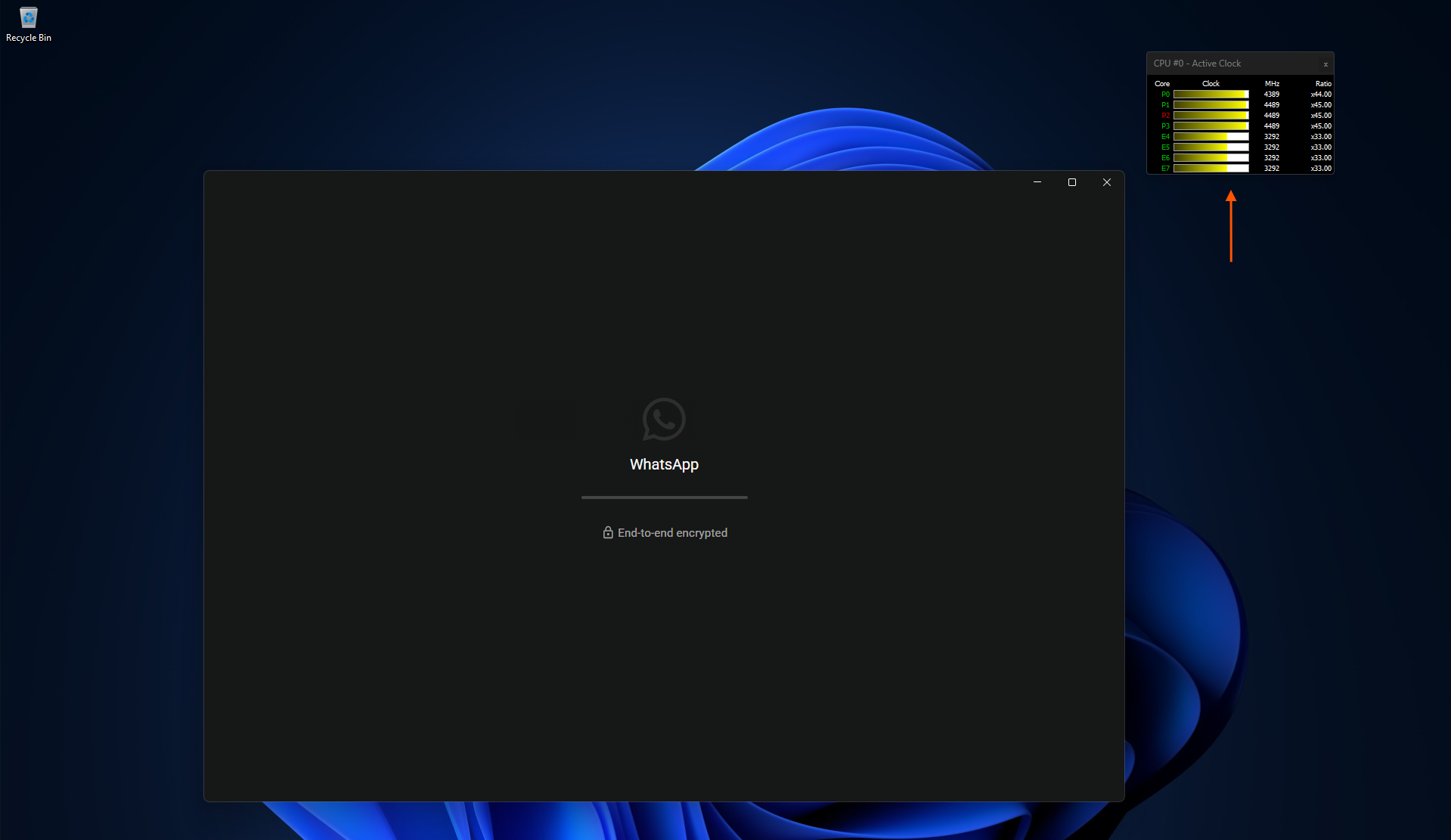
After installing the August 2026 update, I ran the exact same test, same apps, same PC. The moment I click to open an app, every P-core jumps toward its maximum frequency instantly, and the E-cores climb to roughly 80% of their ceiling.
Here is how the infamous RAM-hogging Weather app in Windows 11 fares against Low Latency Profile. Despite it being a WebView2 app, we can see much better loading speeds:
On the Intel Core i5-13420H we tested on, a Raptor Lake-P chip with 4 P-cores and 4 E-cores, that meant P-cores spiking close to their 4.6GHz max and E-cores climbing well past 2GHz, considerably higher than the idle baseline we saw before the update.
Of course, our goal is not to be entertained by CPU boosts. The Epic Games Store visibly opens faster now, loading its full store page in noticeably less time than before the update. And I can say the same about all the apps I tested. Everything opens faster now!
Based on what we already tested for Windows shell elements, we can confirm that this is the same CPU boost mechanism, just extended to cover apps as well.
No, this won’t damage your CPU or drain your battery
We’ve already tested this extensively for shell elements and found zero measurable impact on battery life or thermals. We repeated our before-and-after testing on both battery and charger, and saw no meaningful battery drain difference in either case.
It’s not surprising, since CPU utilization isn’t increasing, only frequency spikes briefly before returning to idle. A Speed burst that lasts one to three seconds doesn’t make your PC warmer, nor can it increase battery usage.
Windows 11 is its fastest version yet, and it’s only getting better
Low Latency Profile for apps is one piece of a bigger effort Microsoft has finally committed to this year. The company has admitted Windows 11 uses too much memory and promised optimization for PCs with 8GB of RAM and above by the end of 2026.
Also, as we first spotted, Scott Hanselman confirmed Windows 11 teams are working on making the OS faster.
Microsoft is also rebuilding legacy Windows 11 UI elements in WinUI, which is the native framework that uses less memory and CPU than the WebView2 and Win32 code it’s replacing.
Memory optimization, WinUI migration, fewer ads in Windows 11 and now Low Latency Profile reaching apps too, will eventually make the OS run faster and smoother in all hardware, including older and budget PCs.