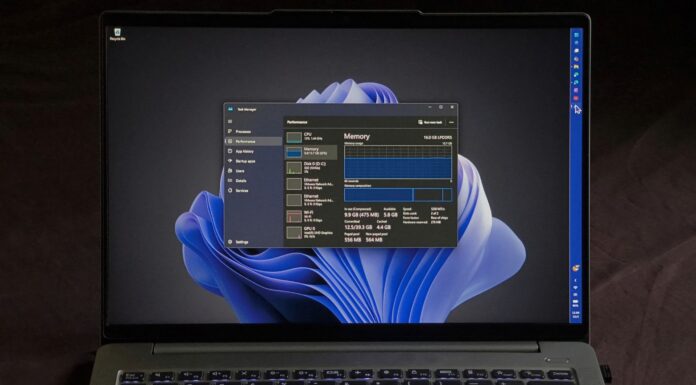








Disabling SysMain, the Windows service formerly called Superfetch, won’t make most Windows 11 PCs faster. SysMain uses spare RAM to preload apps you open often, and Microsoft says it also preps startup data for Fast Startup. In my tests on two PCs, turning it off barely changed boot time, and even made cold app launches slightly slower. The case for disabling it is limited to specific problems, like a PC with 4GB of RAM and a slow hard drive.
Search “speed up Windows 11” on YouTube, and SysMain is almost always on the list of services to kill, right next to deleting Prefetch, which we found doesn’t help either.
Windows 11’s SysMain service is supposed to make apps open faster
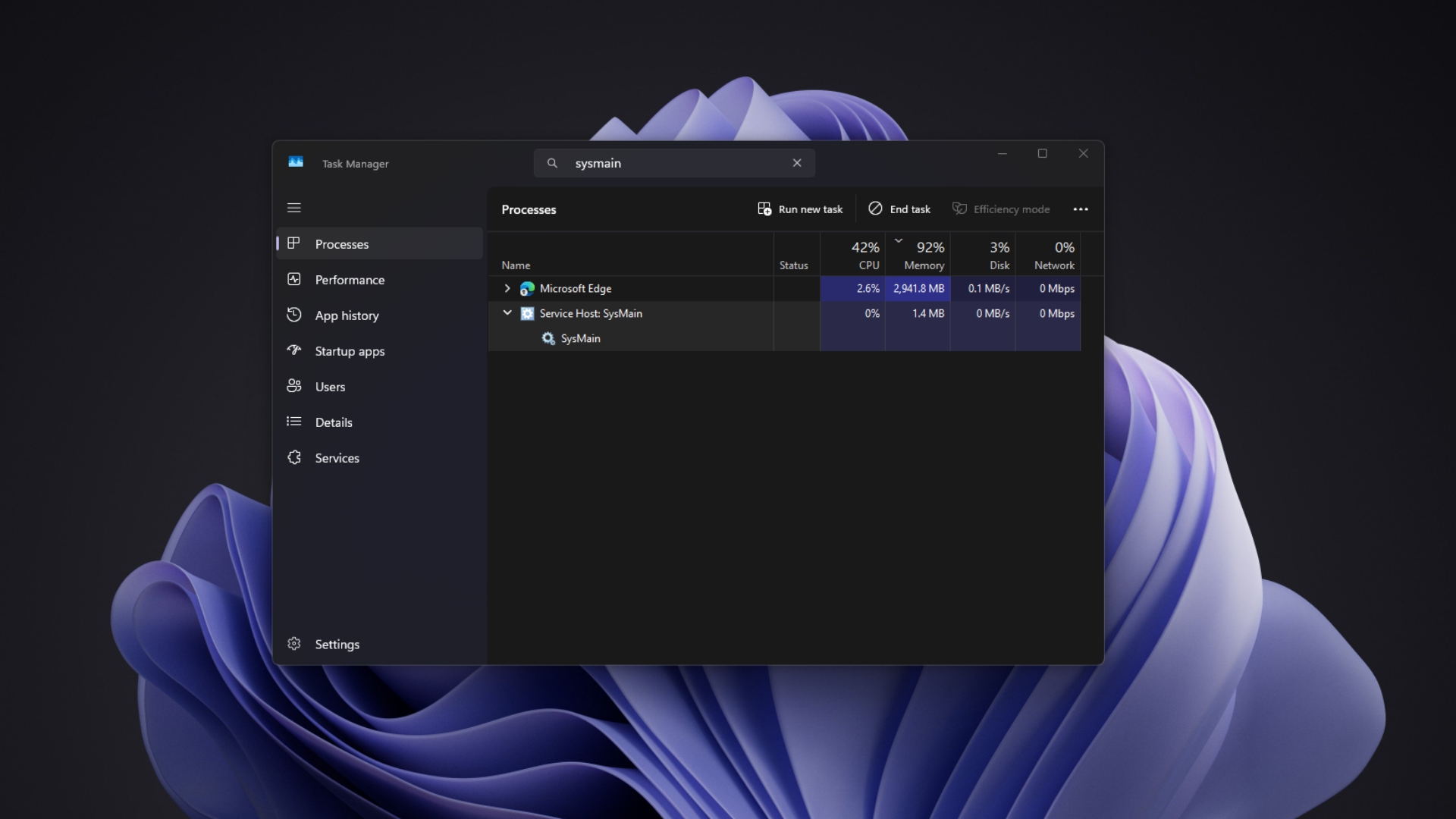
Open Services, and Windows describes SysMain as, “Maintains and improves system performance over time.” In Task Manager, it shows up as “Service Host: SysMain,” which is usually how people find it, usually while it’s using CPU or disk after boot.
SysMain learns which apps you use, then loads parts of them into RAM before you open them. Mark Russinovich, now Microsoft Azure’s CTO, explained in 2008 that whenever memory frees up, SuperFetch asks Windows to reload recently evicted data “at a rate of a few pages per second with Very Low priority I/Os so that the preloading does not impact the user or other active applications.”
The preloaded data goes into the Standby list, which Task Manager calls “Cached.” Russinovich wrote that Windows gives every page in that cache a priority from 0 to 7, and “takes pages from low-priority lists first” when an app needs memory. Basically, cached RAM is borrowed, and Windows does take it back if an app asks.
SysMain also helps boot. Microsoft’s hardware assessment documentation says Superfetch “pre-fetches data that is frequently accessed on startup” and stores it in the hiberfile for Fast Startup, “to avoid excessive disk accesses on resume.”
Do not confuse SysMain with Prefetch. Prefetch writes small .pf files that tell Windows what an app reads when it starts, while SysMain decides what to keep in RAM. SysMain’s database files are also stored in C:\Windows\Prefetch, a folder that keeps a record of the apps you run, as we found earlier.
On Microsoft’s Q&A forum, a thread from June 2023 asked what SysMain is and what happens if you disable it. An answer from Independent Advisor John Jefferson Doyon, marked helpful by over 40 people, says “it’s important to note that disabling it may negatively impact system performance,” and recommends keeping the defaults.
When should you disable SysMain, and when should you keep it on?
SysMain using CPU or disk for a few minutes after boot is normal, as it’s reloading what it thinks you’ll need. But it’s a problem if it keeps doing that for hours.
One user on that Microsoft Q&A thread said SysMain was using 96% of the CPU on a small HP all-in-one, which they thought had 4GB of RAM, right after a Windows update. On a PC like that, with little RAM to cache into and an old drive, stopping SysMain makes sense, at least until you can upgrade the RAM.
Microsoft has also documented a specific Windows 7 bug, KB2723033, where SysMain spiked the CPU for 1-2 minutes, over and over, when a 64-bit app was compiled with a particular flag. It’s an old, niche issue, but it shows that a misbehaving SysMain is usually a bug and doesn’t mean that the service is useless.
If you suspect SysMain, check Task Manager first and confirm that “Service Host: SysMain” is the process using resources, and that it continues after the first 10 minutes. Then, stop it from Services without changing its Startup type, and use your PC for a day. If nothing improves, start it again. Only set it to Disabled if the problem goes away and comes back when you turn it on.
Having an SSD isn’t a reason to disable SysMain, and neither is a high RAM number in Task Manager. Microsoft is already working on faster app launches in Windows 11 from other angles, like skipping an extra process for apps that are already running, and SysMain was built for that goal long before.
Like the page file, SysMain is a Windows memory feature that looks like waste in Task Manager but exists to help. If your Windows 11 PC isn’t struggling, don’t mind that it’s on. Have you disabled SysMain on your PC?