

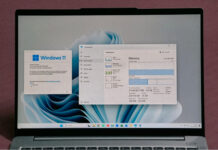


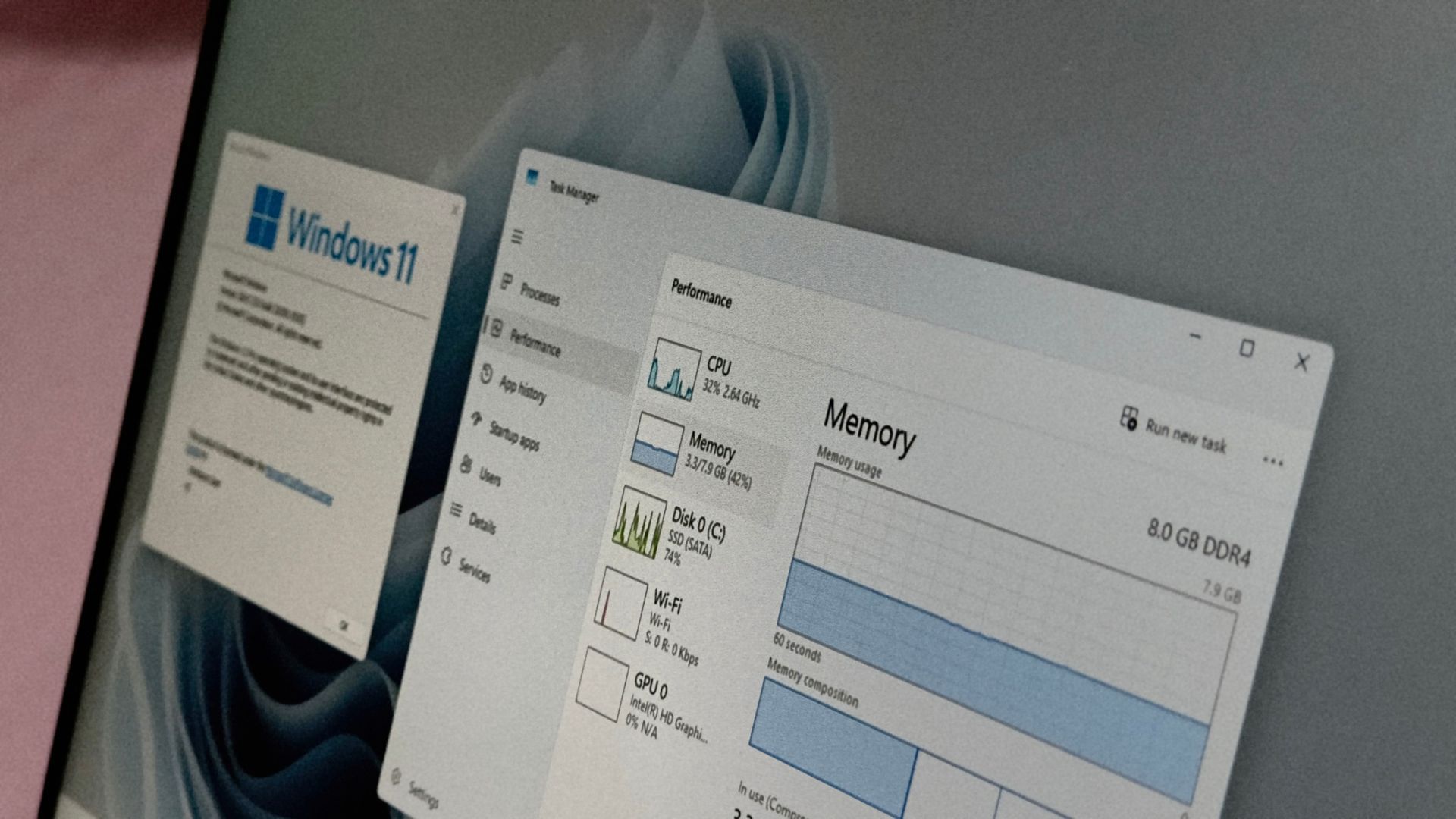
Task Manager showing 70% or even 90% of your RAM in use doesn’t mean your Windows 11 PC is running out of memory, according to Windows boss Pavan Davuluri. Windows keeps apps and data you might need in spare RAM, and hands it back when another app asks.
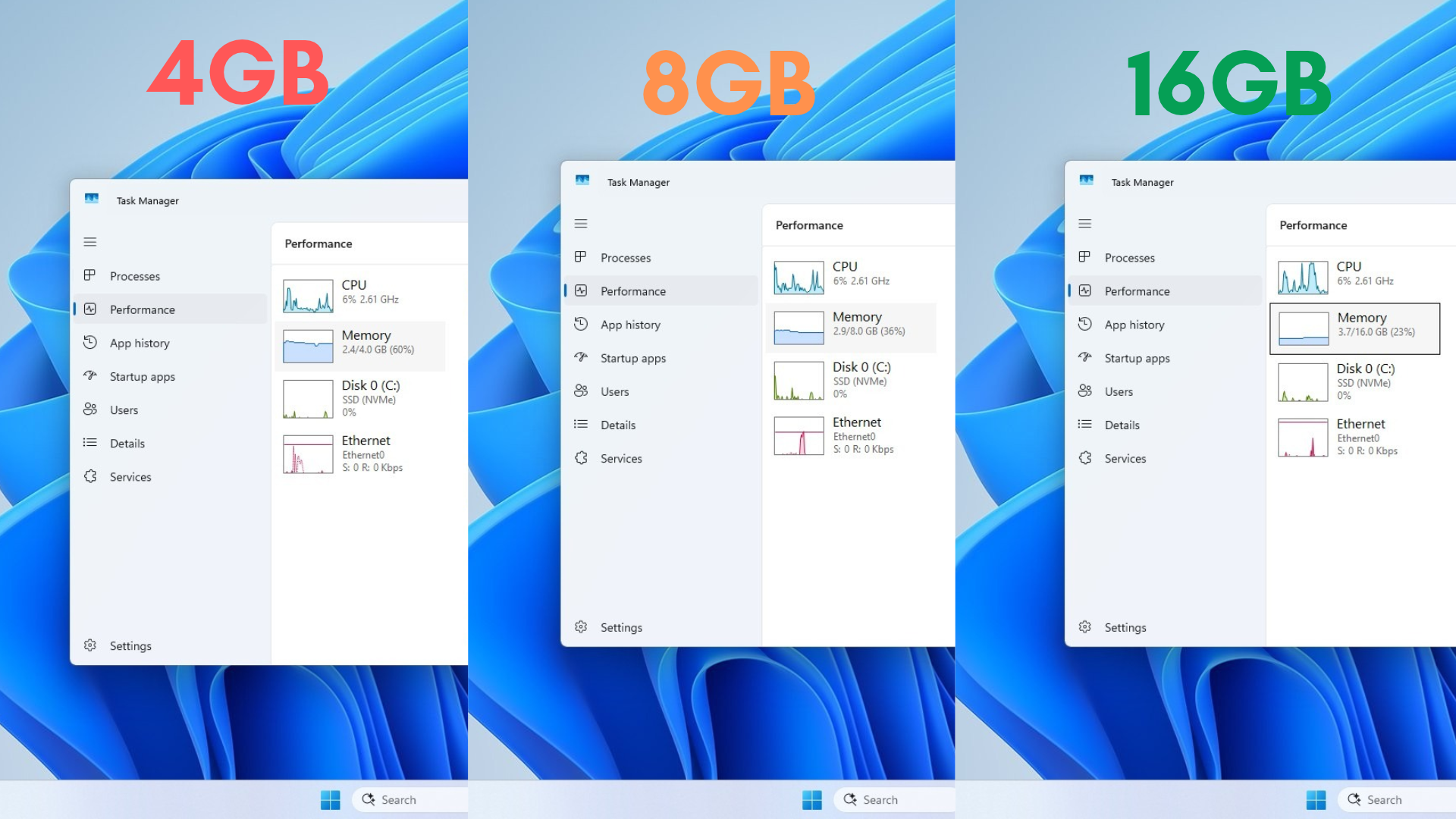
Funnily enough, Davuluri explains it with a desk and a drawer, just like I did in my page file explainer two weeks ago. To make things interesting, I also restarted a Windows 11 virtual machine with 4GB, 8GB, and 16GB of RAM, and the more memory I gave to Windows, the more it used.
Why a nearly full Task Manager doesn’t mean Windows 11 is short on RAM
In his November 3 blog post on 8GB PCs, Davuluri compares RAM to your desk and your SSD to a drawer. Anything moved to the drawer takes longer to fetch, which is why an app you left open can take a second to come back. “A full desk is a good thing,” he wrote, and “The real test is whether your PC stays responsive, not how much memory remains unused.”
I’ve seen people on socials say unused RAM is wasted RAM, and Microsoft’s Memory Footprint documentation tells us the origins of this idea. It splits RAM into In use, which covers the working sets of Windows and your apps plus non-paged memory and modified pages, and Available, which is free memory plus standby memory, or “cached data and files that are in memory but not in active use.”
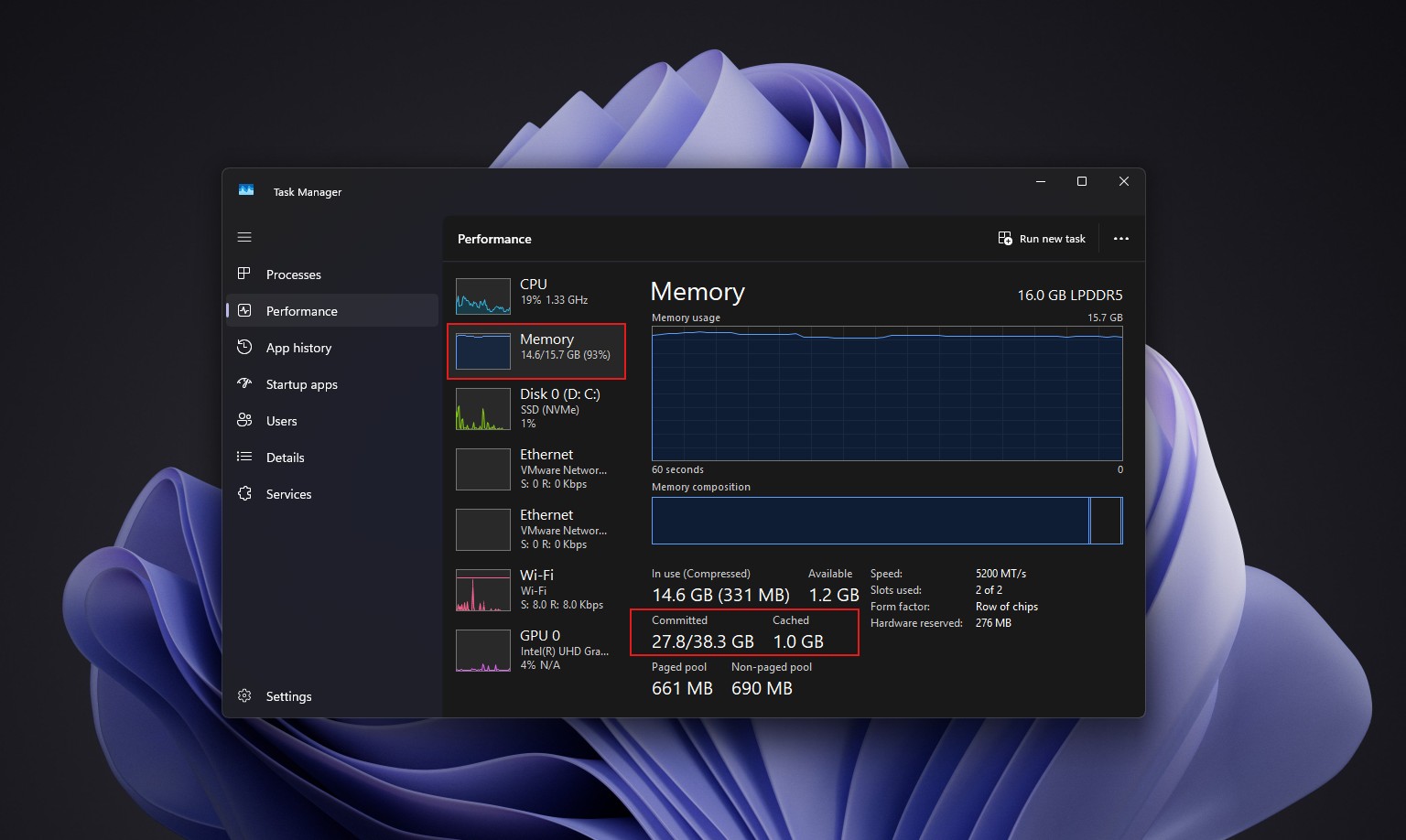
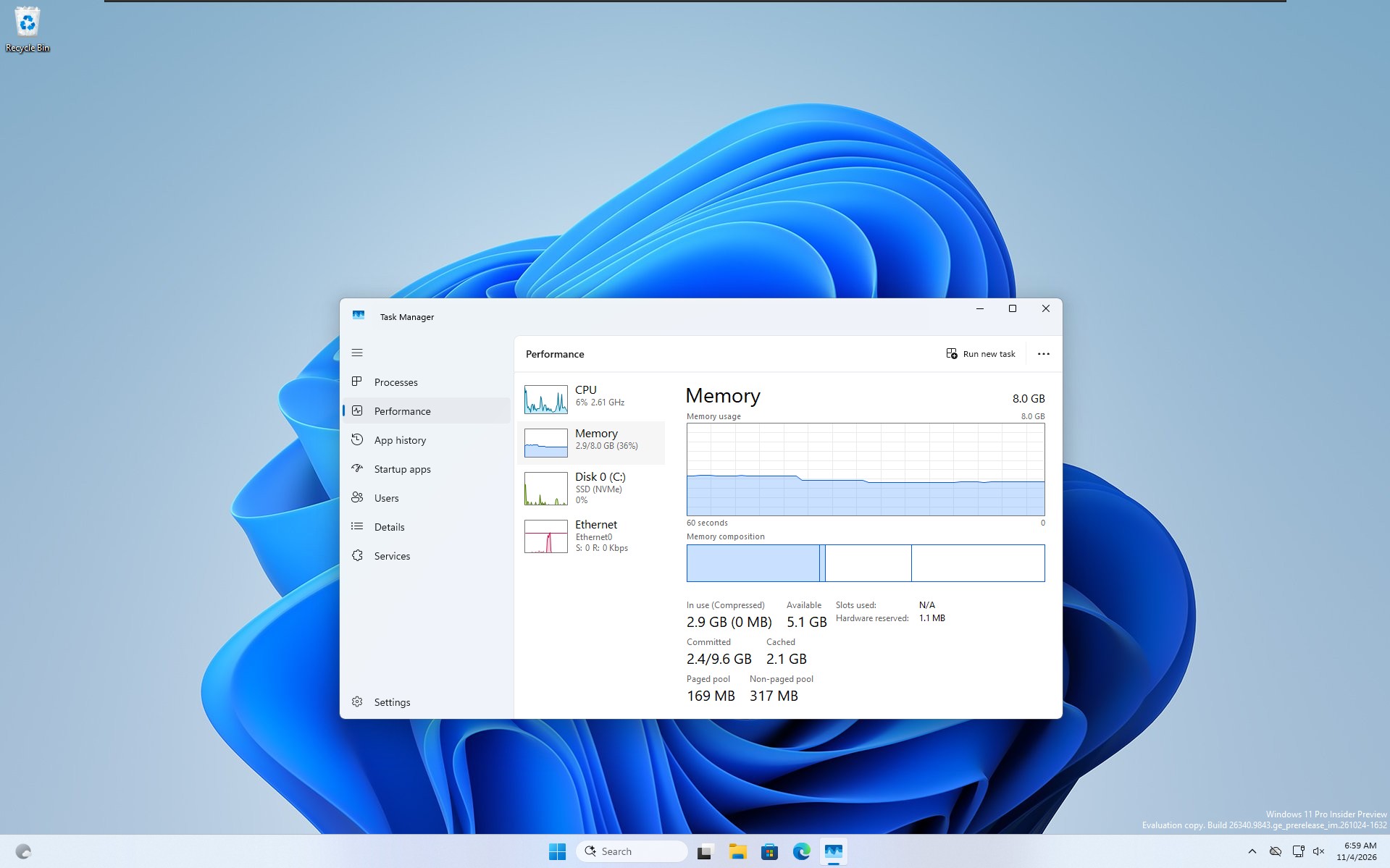
Standby memory “becomes available as an application needs it,” so Task Manager’s Available number already includes cache Windows can give away. Cached is complicated, as Microsoft’s AskPerf team explains that it adds up the system working set, the standby list, and modified pages, overlapping both In use and Available. On my 8GB VM, 2.9GB in use and 5.1GB available make up the full 8GB, and the 2.1GB cached is spread across both.
Windows also compresses less-active data, and Davuluri says new tuning on 8GB PCs keeps up to 2GB more of your active data in RAM, so fewer apps reload.
I checked Windows 11 on 4GB, 8GB and 16GB VMs, and RAM usage grew with more RAM
Windows Latest set up a VMware virtual machines on Windows 11 26H2 Build 26340.9843, and doubled the RAM two times, starting with 4GB. I restarted after each RAM increase and opened Task Manager > Performance > Memory.
| VM RAM | In use | Available | Cached | Committed |
|---|---|---|---|---|
| 4GB | 2.4GB (60%) | 1.6GB | 1.3GB | 2.2GB / 5.6GB |
| 8GB | 2.9GB (36%) | 5.1GB | 2.1GB | 2.4GB / 9.6GB |
| 16GB | 3.7GB (23%) | 12.3GB | 1.9GB | 3.3GB / 18.4GB |
The 16GB VM used 1.3GB more than the 4GB one. Compressed memory was strangely 0MB on all three, so none was under pressure after boot, probably because the VM is devoid of any memory-sucking apps and is mostly clean.
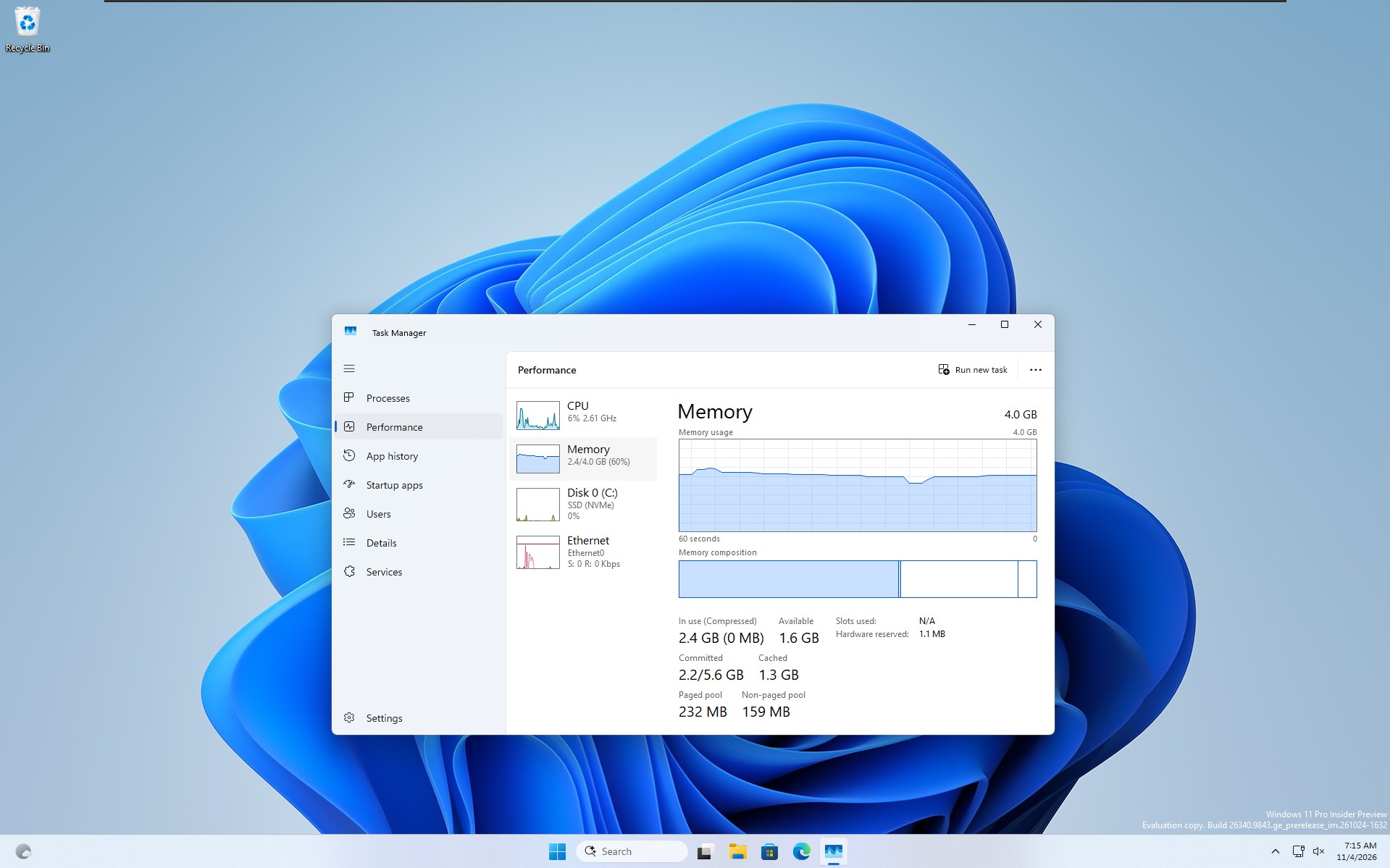
Interestingly, committed memory barely moved between the 4GB and 8GB VMs (2.2GB vs 2.4GB), while In use grew by 0.5GB. Microsoft’s Raymond Chen describes commit as “the promise to produce memory upon access,” which suggests the 8GB VM kept more pages in RAM instead of allocating more memory.
Microsoft’s SetProcessWorkingSetSizeEx documentation says, “If memory is abundant, the system might allow an application to exceed its maximum working set limit.” My educated guess is that with 12.3GB available, Windows had little reason to trim anything on the 16GB VM.
In addition to that, Windows loads different things depending on your RAM. Davuluri’s post says Widgets now loads only when you open it on PCs with 8GB or less, cutting roughly 200MB of committed memory, and my 16GB VM doesn’t qualify, which could explain part of its jump in committed memory from 2.4GB to 3.3GB.
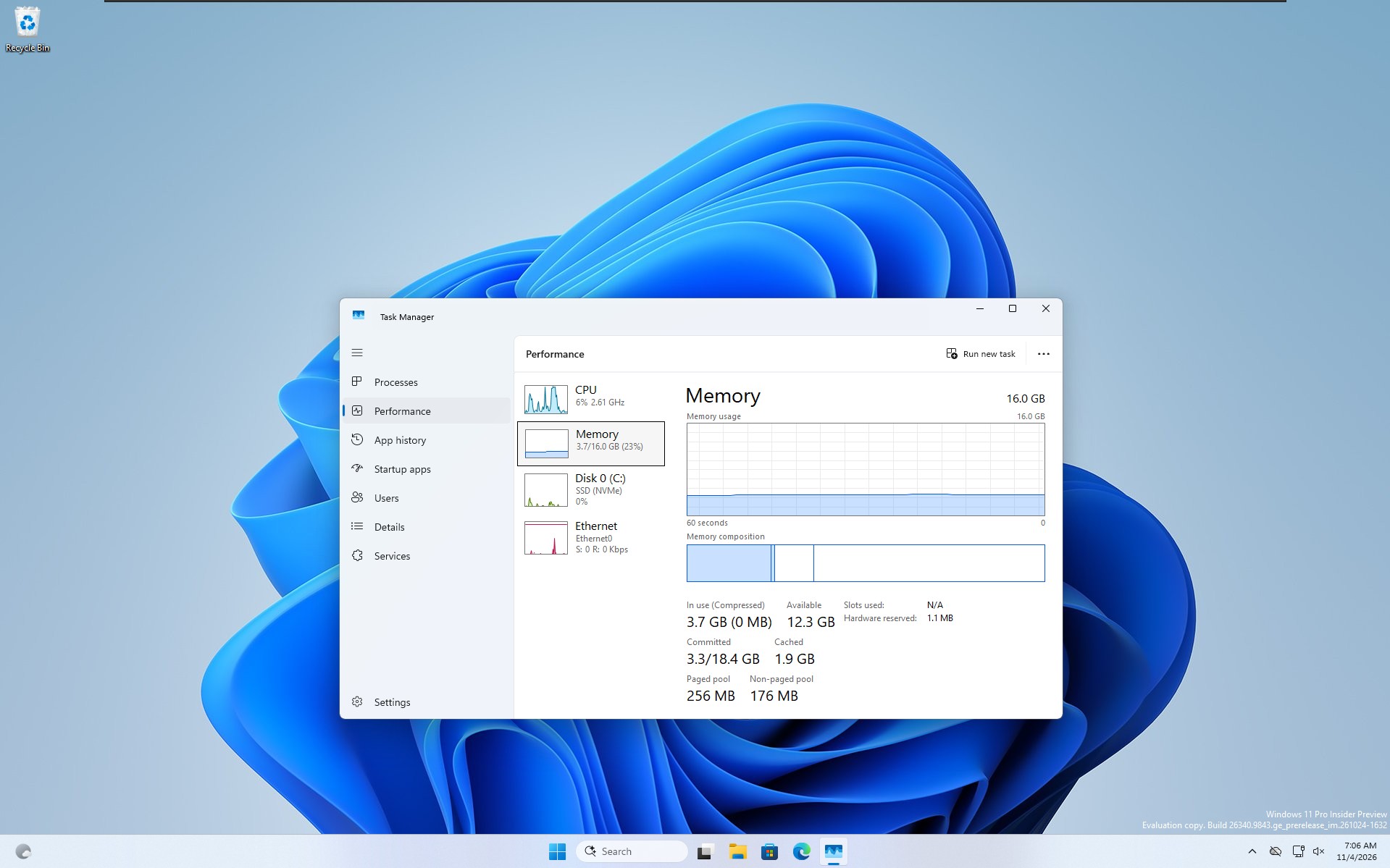
However, the theory that Windows caches more apps when it has more RAM didn’t quite hold up as well as I presumed, as Cached was 1.9GB on the 16GB VM, lower than 2.1GB on the 8GB VM. Of course, these are snapshots after a restart on an Insider build, and only Sysinternals RAMMap can show which pages belong to what.
Microsoft may be right about the desk thing, but the truth is that some of what filled it wasn’t useful. After I updated my dad’s 8GB laptop to 26H2, RAM usage after a restart fell from 5GB to 3.3GB, and my 16GB laptop used up to 2GB less. 26H2 is just an enablement package that switched on months of work, so Windows 11 was eating more RAM than it needed long before Microsoft fixed it.
When high RAM usage on Windows 11 becomes a problem
Microsoft’s Working Set page says a soft page fault is resolved without having to read from the drive, like when a page is still cached in RAM. But a hard page fault reads it back from the page file or the original file, and these trips to the drawer are what we perceive as lags or jitter.
In Task Manager, you only need to worry when Available is close to zero, Compressed keeps climbing, and Committed nears its limit, which is your RAM plus the page file (5.6GB on my 4GB VM). Microsoft warns that reaching the commit limit “can cause freezing, crashing, and other malfunctions.”
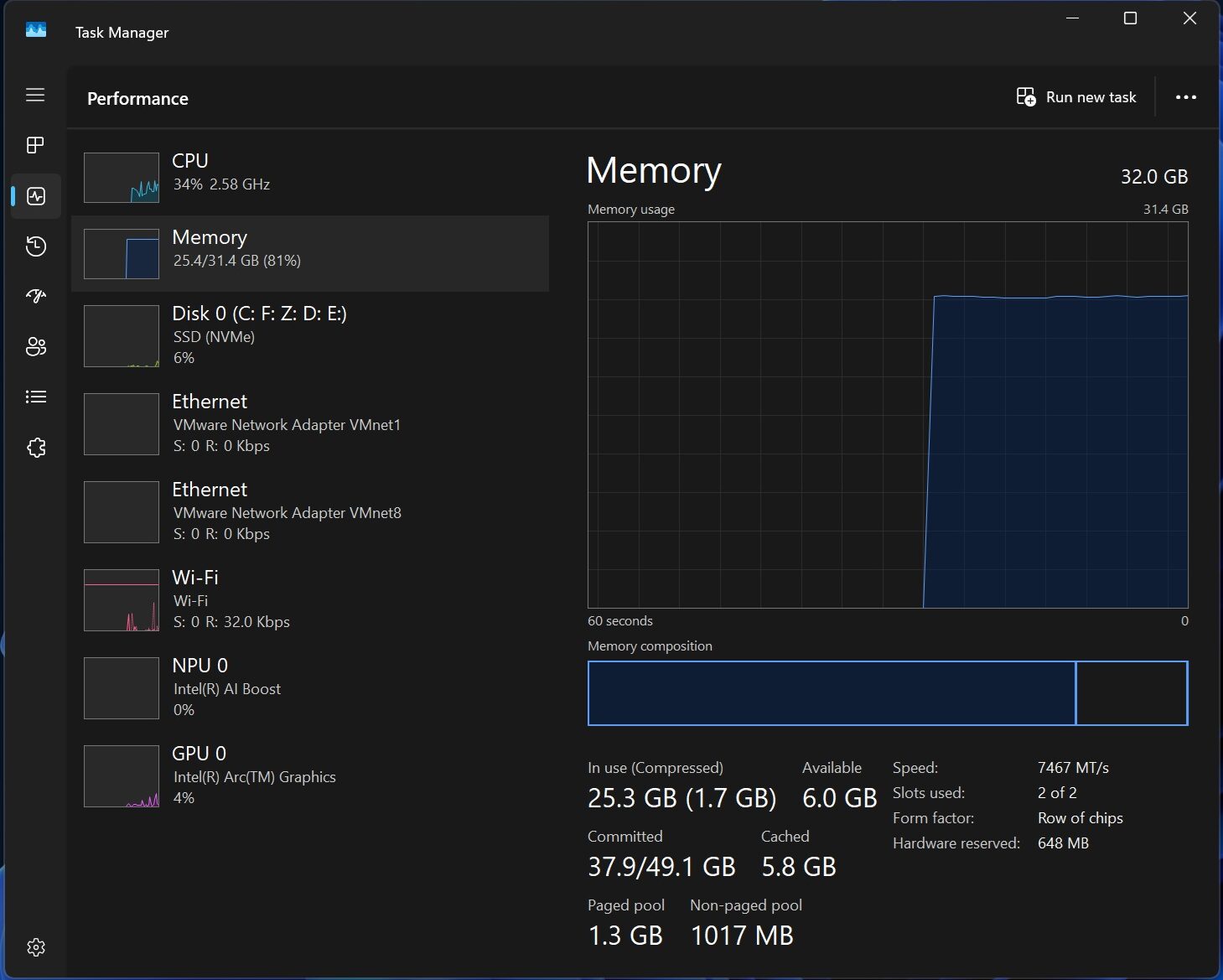
If that happens, first, panic; second, go find the culprit from Processes, which on my PCs is almost always a browser or a web app like WhatsApp. Remember that most RAM cleaner apps empty standby memory and it won’t help, as Windows has to read that data from your drive again.
Activity Monitor on Mac shows a Memory Pressure graph that takes into consideration the free memory, swap rate, and cached files, while Windows 11’s Task Manager forces us to decode a bunch of numbers.
Does your PC show over 80% RAM usage while still feeling snappy?