







Windows 11’s Optimize Drives tool, which defragments hard drives and trims SSDs, is on Microsoft’s list for a modern update, according to March Rogers, Partner Director of Design at Microsoft. Windows Latest spotted the reply on X, where a user asked Microsoft to rebuild the tool in WinUI 3 or move it into the Settings app.
Microsoft hasn’t said what the update will look like or when it will arrive. But Optimize Drives has barely changed since Windows 8, and it still, quietly, maintains your drives every week. Now that’s a good tool!
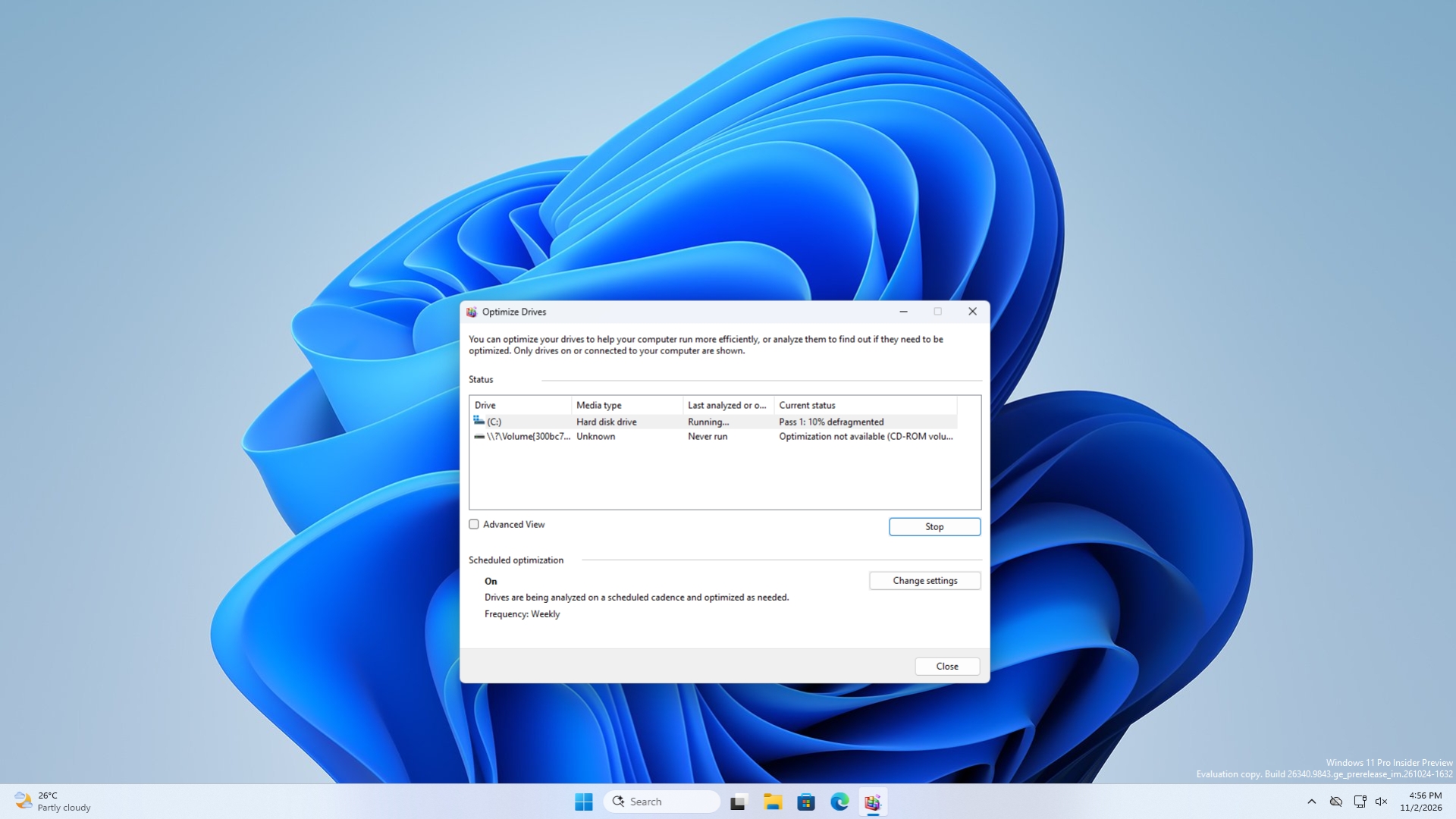
Microsoft confirms Optimize Drives is on its modernization list
On October 15, Diego Baca, Microsoft’s Vice President of Design for Windows, shared the company’s latest Windows 11 improvements, saying, “We continue to deliver on our commitment to quality, craftsmanship, and polish.”
A user replied asking when WinUI 3 would come to “Optimize Units,” adding, “It would be best if this feature were incorporated into the Settings app.” The next day, Rogers responded, “Hi Leandro – Optimize Drives is on our list!”
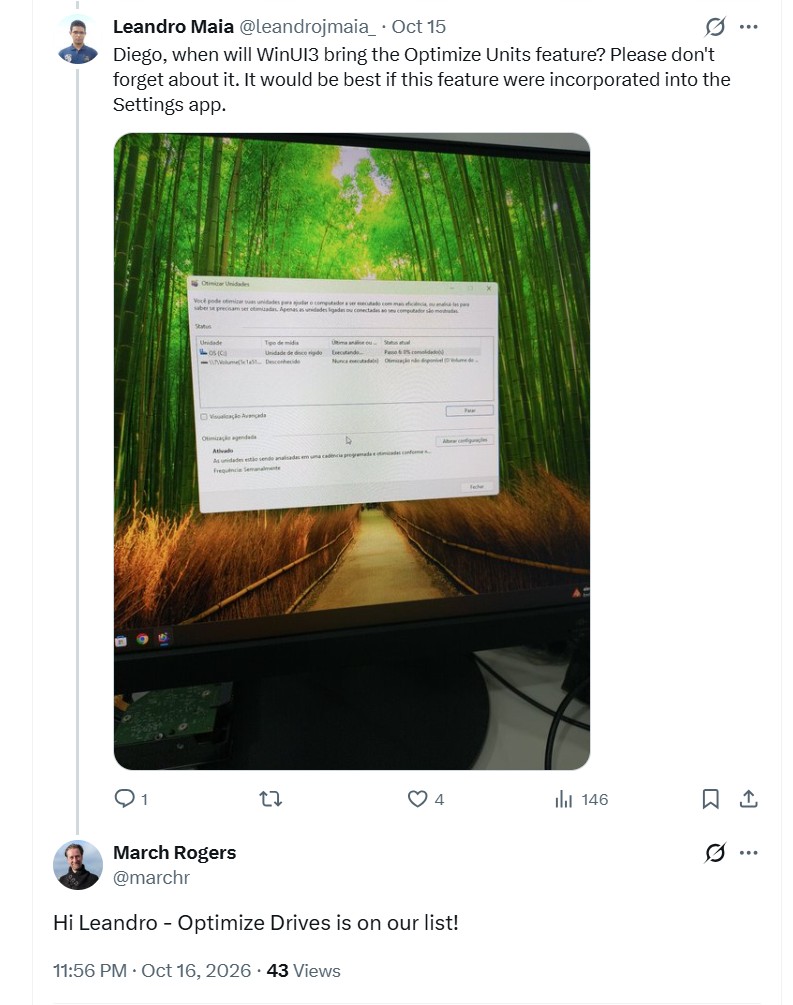
Unfortunately, that’s all Microsoft has said. Rogers didn’t confirm if it’s going to be a WinUI 3-designed tool or if it will move to Settings. We also don’t have a timeline, as it is just on the “list”.
Optimize Drives is still useful, even if your PC has an SSD
Optimize Drives started life as Disk Defragmenter in Windows 95 and got its current name in Windows 8. I used it a lot in college on my Windows 10 laptop, which still had a hard disk.
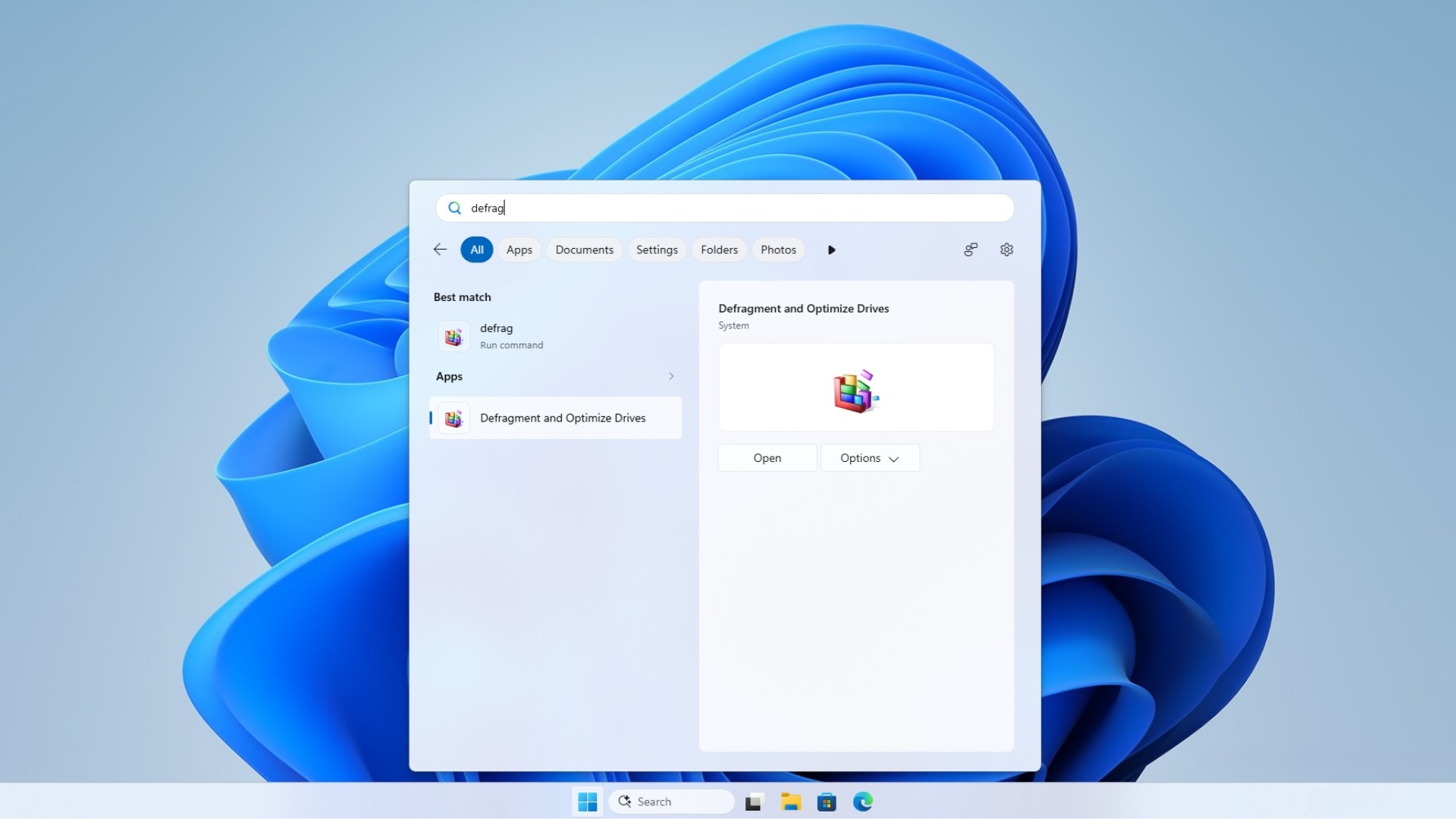
You can actually open it by searching for “defrag” and selecting Defragment and Optimize Drives. Microsoft’s support page says hard drives are defragmented, “reorganizing the files so that they are all lined up,” while SSDs are “trimmed,” which means “telling the drive where it can safely do cleanup work when it’s not busy.”
I read Microsoft’s Optimize-Volume documentation to find out the default behaviours for different types of drives. Hard drives get analyzed and defragmented, SSDs with TRIM support get a retrim, and tiered Storage Spaces get tier optimization. Also, “By default, Windows automatically optimizes your drives once a week,” so you rarely need to run it yourself.
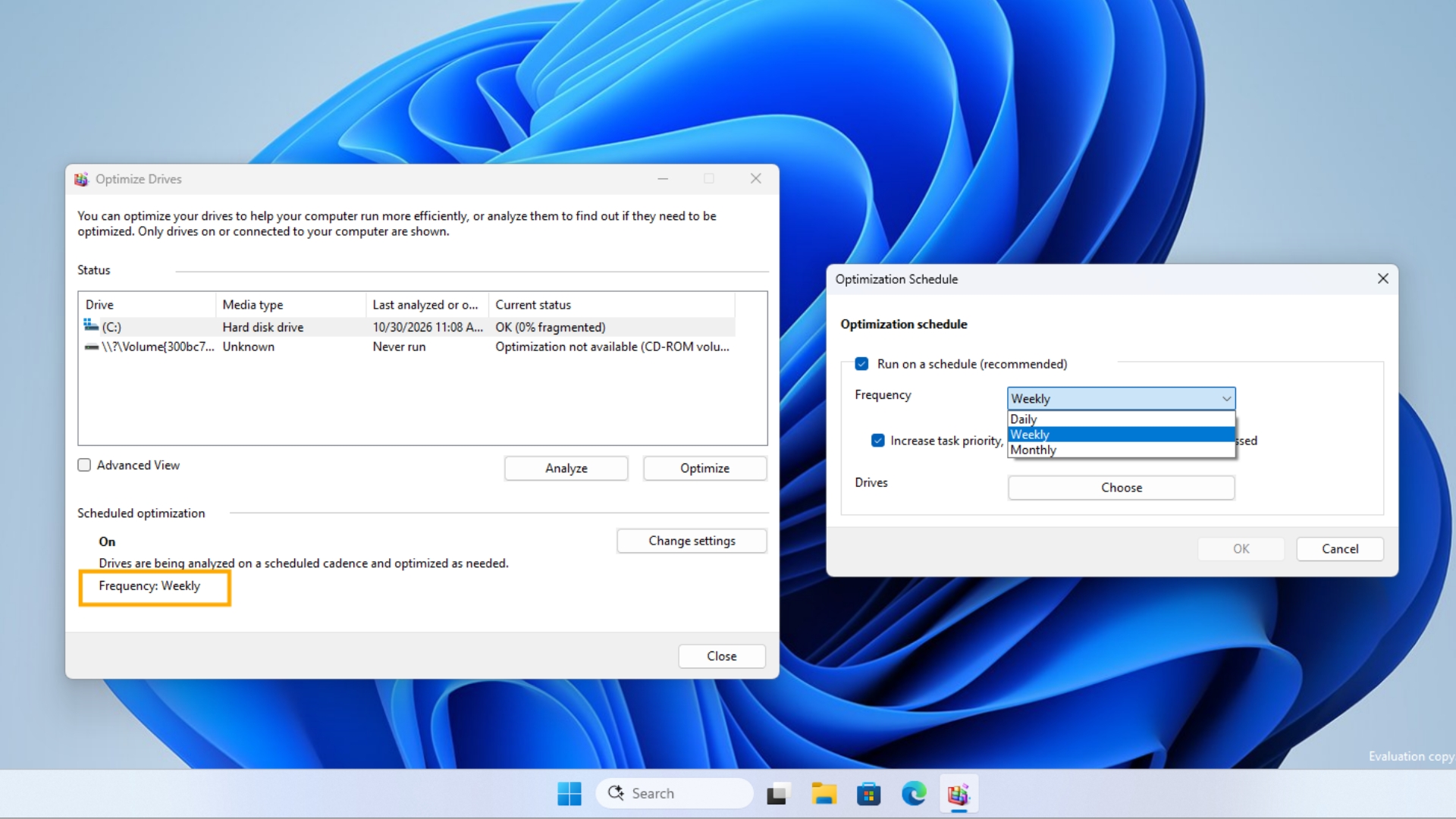
The tool works fine. It just looks like it belongs to an OS from a past life. At least it’s way better than the WebView2 parts of the OS, like Widgets, for example.
WinUI 3 or Settings, Optimize Drives joins a long queue
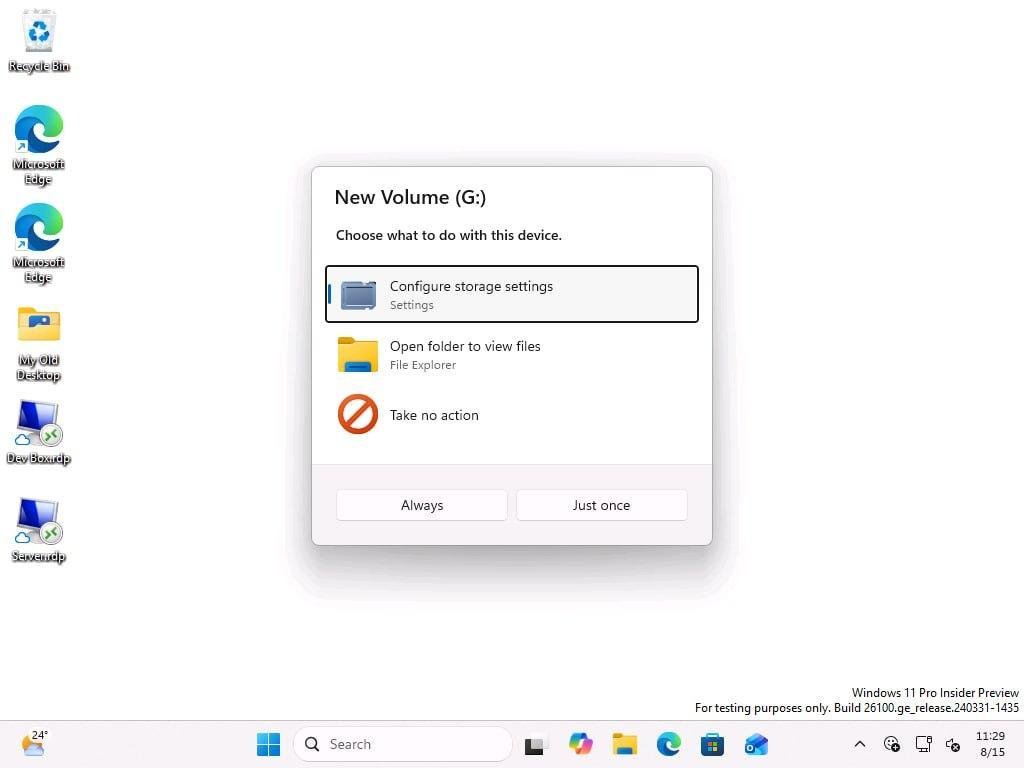
Microsoft has been moving old parts of Windows 11 to WinUI 3 one by one. The Properties dialog is being rebuilt with dark mode, and AutoPlay is next, with its new WinUI 3 design already showing up in preview builds. In July, Windows president Pavan Davuluri said, “We’ve strengthened the fundamentals of WinUI 3 and extended it into more of the Windows shell.” WinUI is also finally getting basic features it lacked for years.
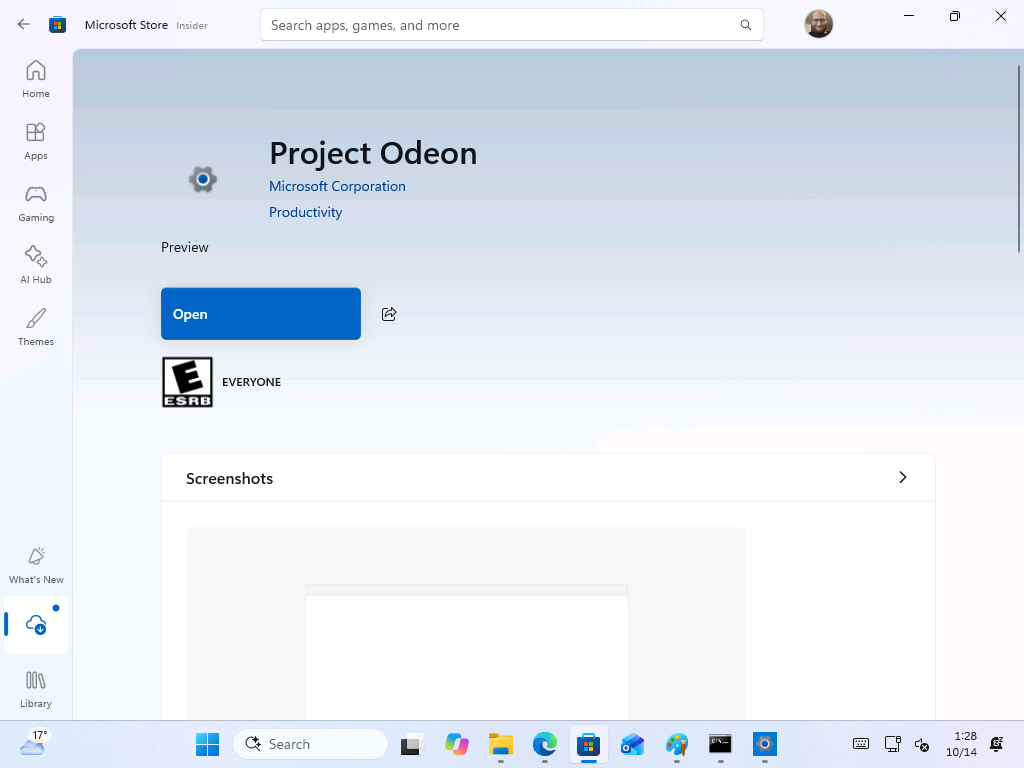
As for Settings, Rogers previously explained that the team is “working our way through migrating all the old control panel controls into the modern Settings apps,” carefully, because there are “a lot of different network and printer devices & drivers we need to make sure we don’t break.” Microsoft is even testing a Settings-like app in the Microsoft Store, codenamed Project Odeon.
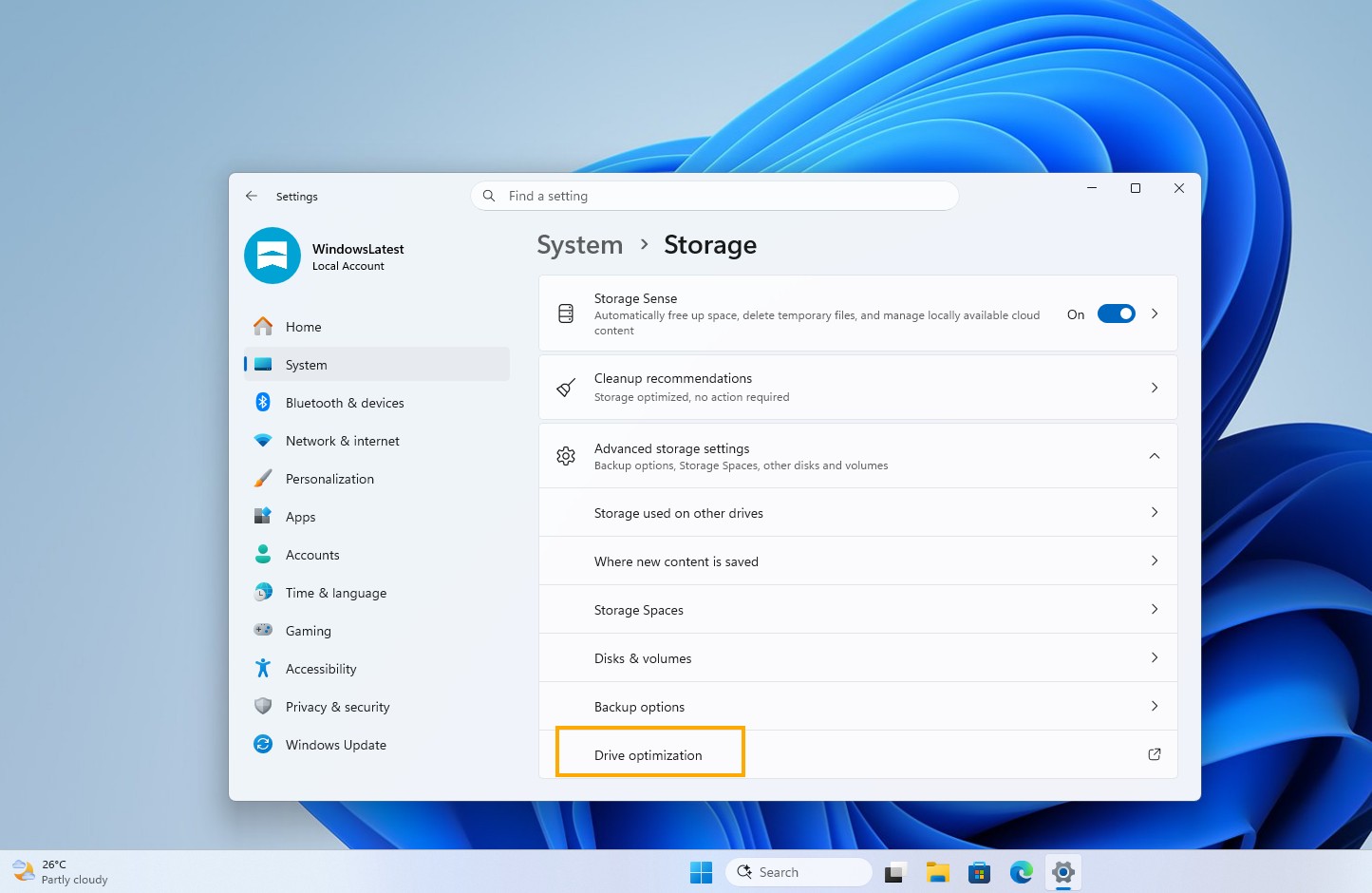
Personally, I’m with Leandro here. Settings already has a “Drive optimization” link under System > Storage > Advanced storage settings, a page Microsoft recently made faster, but it simply opens the old window. Bringing the controls into Settings would make far more sense than another standalone app. But I do understand the appeal of typing defrag, seeing the tool, and optimizing it yourself.
Either way, it’s good to see Microsoft continuing their already late efforts to make Windows 11 a more consistent OS.