





Microsoft says it’s fully committed to building native apps and features for Windows 11 and ditching WebView entirely, but don’t expect Teams and Outlook to go native, probably, as it’s almost impossible at this point. Instead, Microsoft is rolling out a feature that could make you look worse in meetings if your PC has 8GB of RAM or less.
In June 2026, Microsoft said it made Teams launch faster on PCs and reduced the time it takes to load all your chats on mobile. I personally did not notice any visible differences, but Microsoft promised it was only the beginning, and that performance concerns remained its number one priority, without sharing a timeline for the next big update.
Now, Microsoft says it has begun shipping Efficiency mode, which I covered in June 2026 and found that it does help Teams run better on low-end PCs. In fact, it could also make a difference on a PC with 16GB of RAM because, at the end of the day, Teams itself is a resource hog, a bloated app, and it will not spare any hardware.
Microsoft says it has “continued to raise the bar,” but again, I have not seen anything change meaningfully outside Efficiency mode.
“From hardware-constrained devices to employees working on the go from mobile phones, delivering a consistent, high-quality experience across every platform remains a key focus for the Teams engineering team,” Microsoft noted in a support document seen by Windows Latest.
If your meetings suddenly look worse, it could be due to Teams Efficiency mode
Microsoft Teams usually adjusts the meeting resolution automatically, so you don’t have control over it. When Efficiency mode is turned on, you may notice that you look worse in meetings. This happens because Teams can reduce camera resolution to reduce resource consumption.
“This mode reduces processor, memory and network usage and is ideal for lower performance devices or those under heavy load. Turning this on may affect some functionality such as camera resolution,” Microsoft warns.
Microsoft calls it a “better experience,” but I don’t think that’s fair terminology because there’s a clear tradeoff here. And you shouldn’t have to make yourself look worse or make screen sharing terrible because your PC doesn’t have 32GB of RAM to satisfy Microsoft Teams’ RAM-hogging architecture.
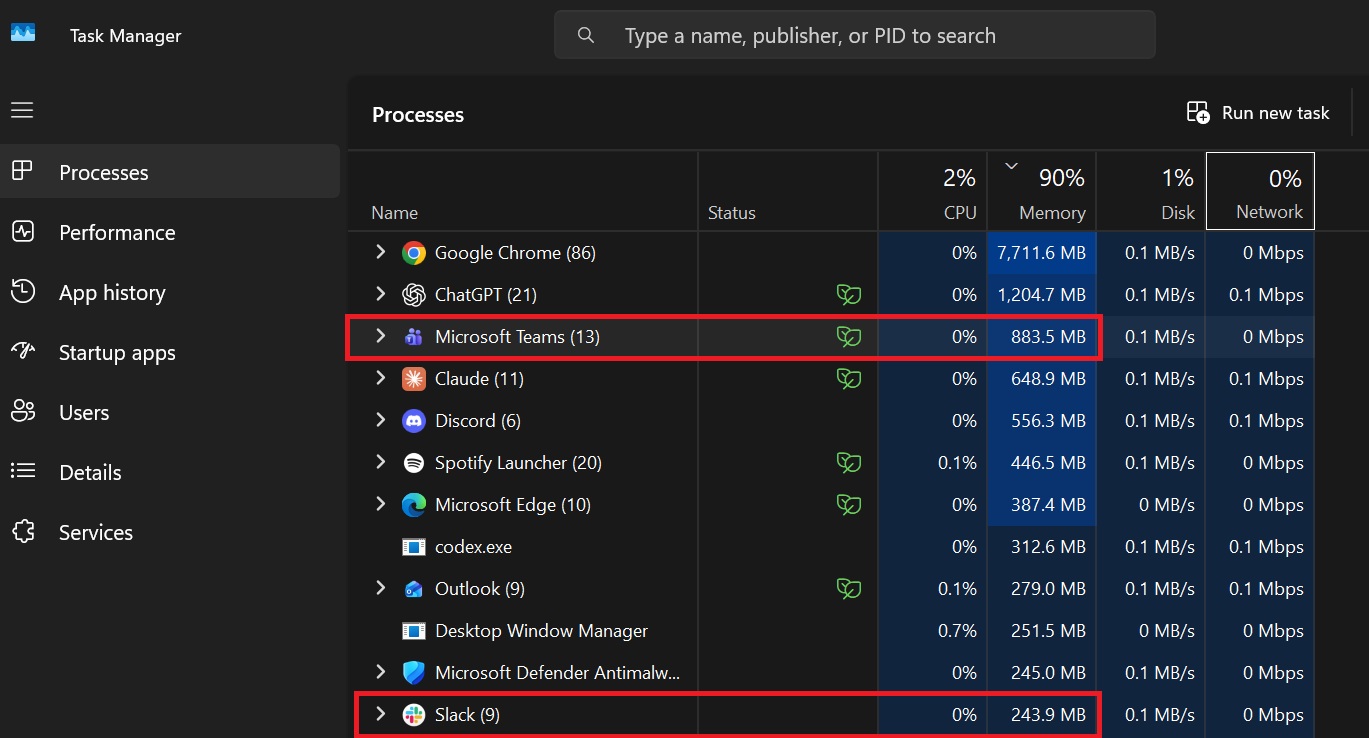
According to Microsoft, Efficiency mode is meant for PCs with 8GB of RAM, and it argues that “Great collaboration experiences shouldn’t depend on having the latest hardware. Many of our customers rely on older devices, entry-level laptops…”
Fair enough, but when I opened Teams on my $2,500 HP Spectre with 32GB of RAM, I noticed that Efficiency mode was already turned on. It would, however, go into effect only when it detects that my PC is low on free resources.
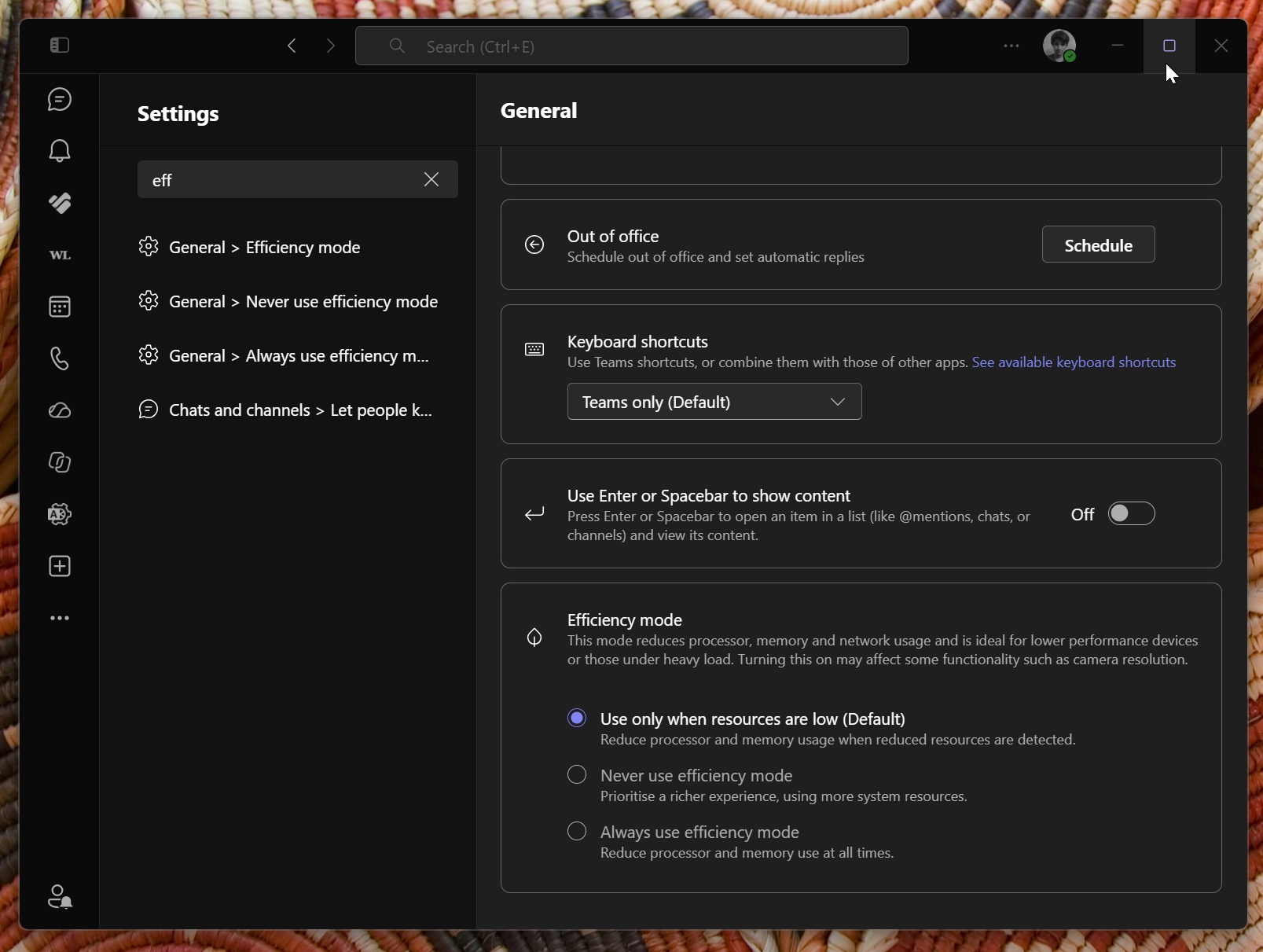
There are three options under Efficiency mode:
- Use only when resources are low (Default): Reduce processor and memory usage when reduced resources are detected.
- Never use efficiency mode: Prioritise a richer experience, using more system resources.
- Always use efficiency mode: Reduce processor and memory use at all times.
Although Efficiency mode can make you look worse in meetings and comes with other compromises, Microsoft believes the feature exists to ensure a “high-quality of experience across all configurations,” which is an “important priority” for the company.
Teams can launch faster on PCs with less RAM
Microsoft found that Teams can launch up to 20% faster on PCs with 8GB of RAM or less. Efficiency mode can also make compromises to camera, screen-sharing, or audio quality when resources are low.
However, as I showed above, it’s not strictly limited to PCs with 8GB of RAM. Even on a PC with 32GB of RAM, Teams can automatically enter Efficiency mode when the system is already using most of its resources.
Efficiency mode also keeps an eye on CPU usage, and your camera resolution can be reduced based on that. But if Teams has to choose between camera resolution and audio on a CPU-constrained PC, it will optimize for audio.
“As a result, users on hardware-constrained devices can maintain a high quality of their meeting experience despite the disproportionately higher thermal throttling rates,” the company explained.
Teams for Windows 11 and Windows 10 will eventually get another big upgrade, where you’ll see more optimizations applied when a PC doesn’t have enough RAM. For example, you can expect Teams to stop downloading images in the background or make similar changes to keep it efficient.
Efficiency mode is not a terrible idea, but I don’t think it was the right move to make it the de facto solution for faster performance on Windows. Instead, Teams should ditch WebView and consider moving to WinUI. Microsoft previously said it’s making WinUI faster and reducing overall RAM usage, which would benefit Teams.
Right now, Teams outside Efficiency mode is dependent on Chromium to reduce its memory footprint, which isn’t going to happen anytime soon.
With that said, Microsoft does understand that consumers “expect Teams to be fast, responsive, and ready when they need it,” but it still wouldn’t do anything about the underlying architecture.