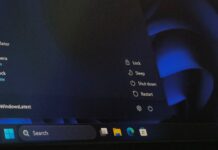




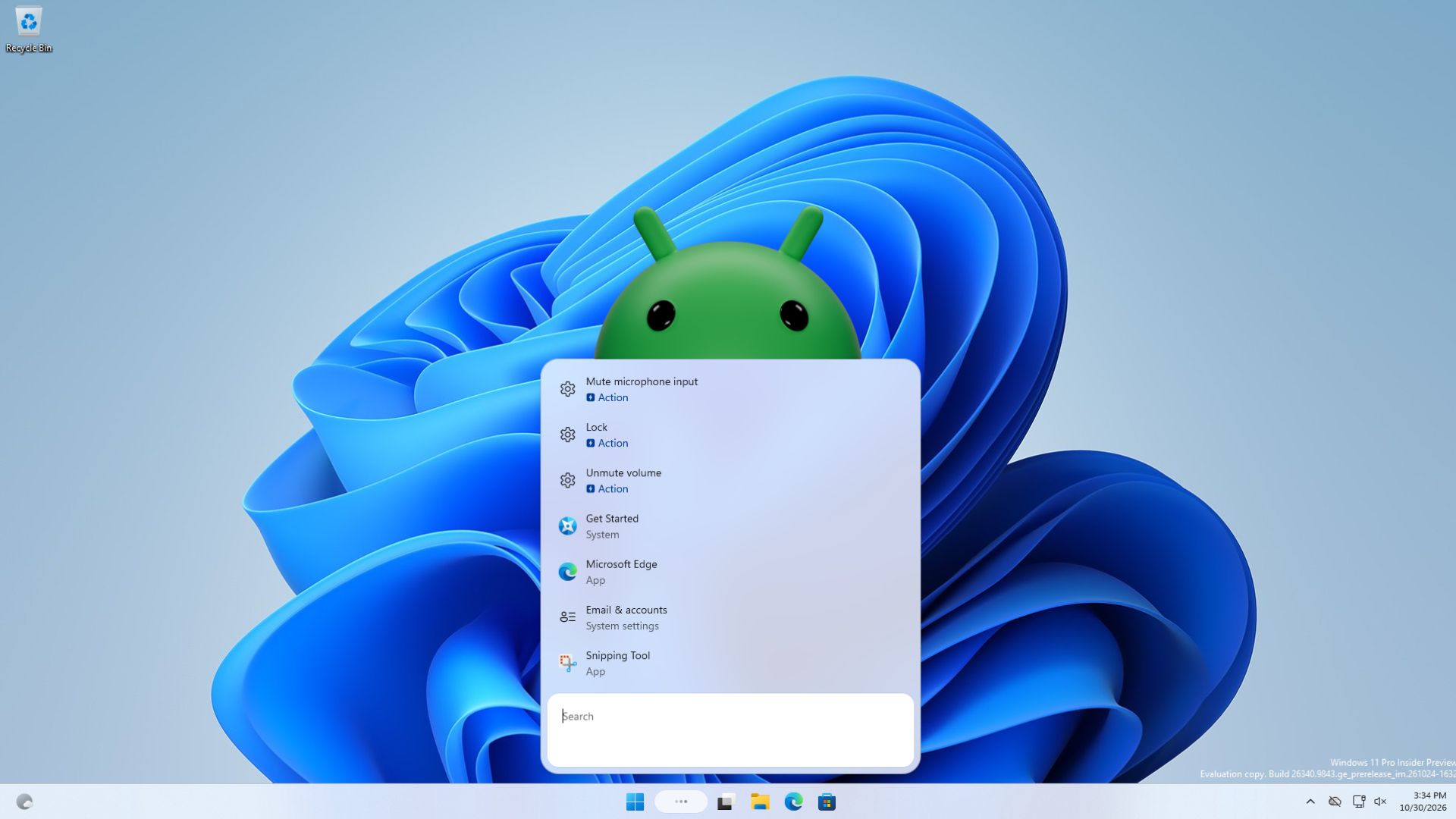
Windows Latest has found that Windows 11’s new taskbar Search can open apps from your Android phone. When I typed Bluesky into Search on my Surface Laptop, it showed the app installed on my Samsung phone as a “Mobile App” result, and clicking Open launched Bluesky on the phone and mirrored it to my PC through Phone Link!
Microsoft has since confirmed that Search can call, text, and toggle Do Not Disturb on a connected phone, but its release notes don’t mention opening phone apps. I found it while testing the new Search, and truth be told, it’s one of the neatest Windows and Android tricks I’ve seen.
Windows 11 Search now shows Android apps from your phone
For this test, I used my Surface Laptop 7th Edition on Windows 11 26H2, build 26340.9767, in the Experimental channel, paired with a Samsung Galaxy A26 running Android 16.
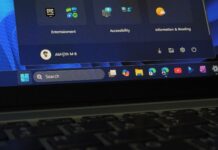
I searched for Bluesky and saw a result named Bluesky with “Mobile App” underneath, right at the top. Below it were the usual Bing suggestions and a couple of PNG files from my PC, so Search treats the phone app like any other app result.
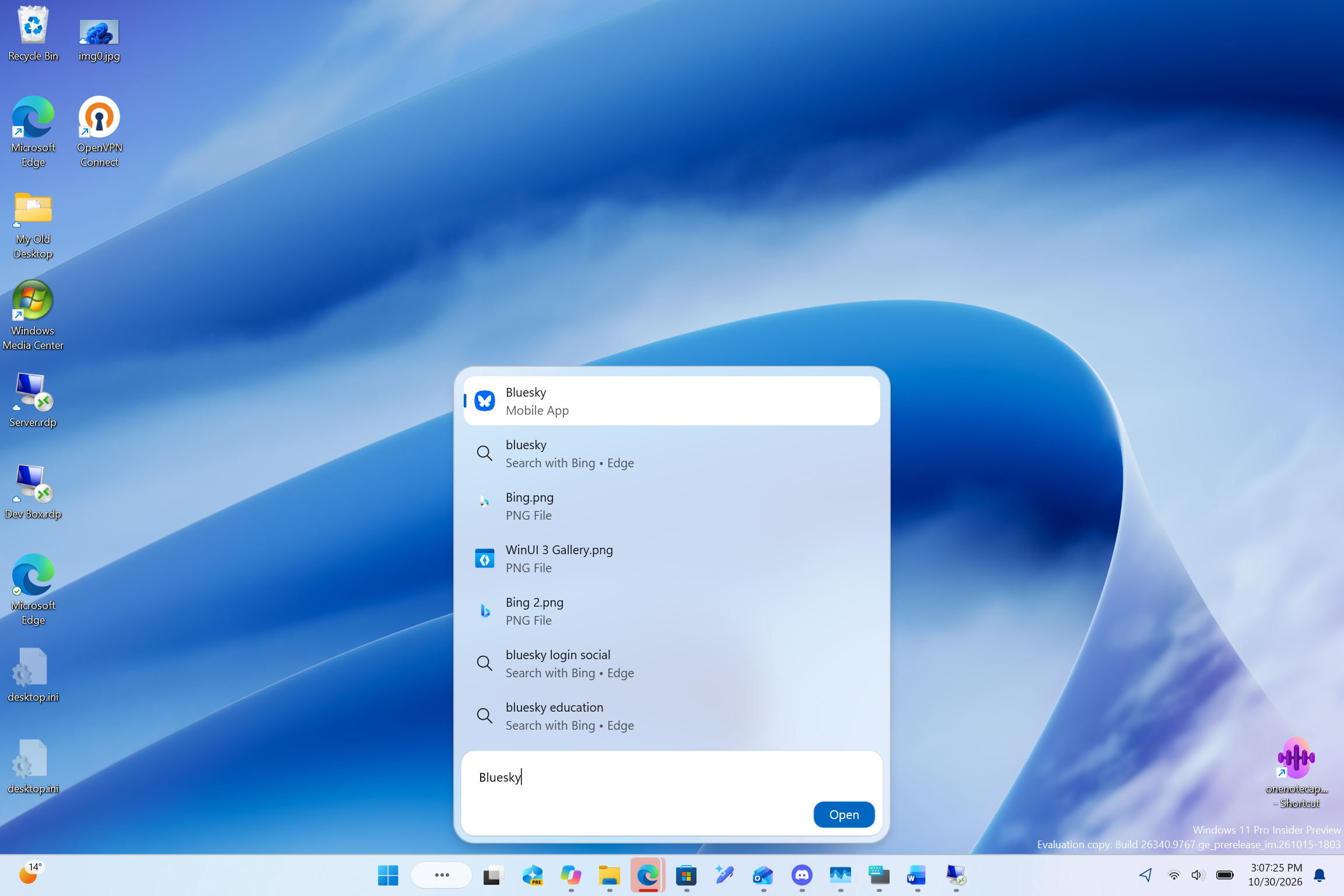
Search gives linked Android apps the same entry point as Windows software. To me, it looks like another attempt to reduce instances of us having to open the Phone Link app first and then mirror an app from our Android phone. You just type the app’s name and press Open. That’s convenience for the win!
Selecting the result mirrors the Android app through Phone Link
Clicking Open launched Bluesky on my phone, and a “Phone screen” window from Phone Link appeared on my PC a moment later, showing the app with my phone’s status bar on top.
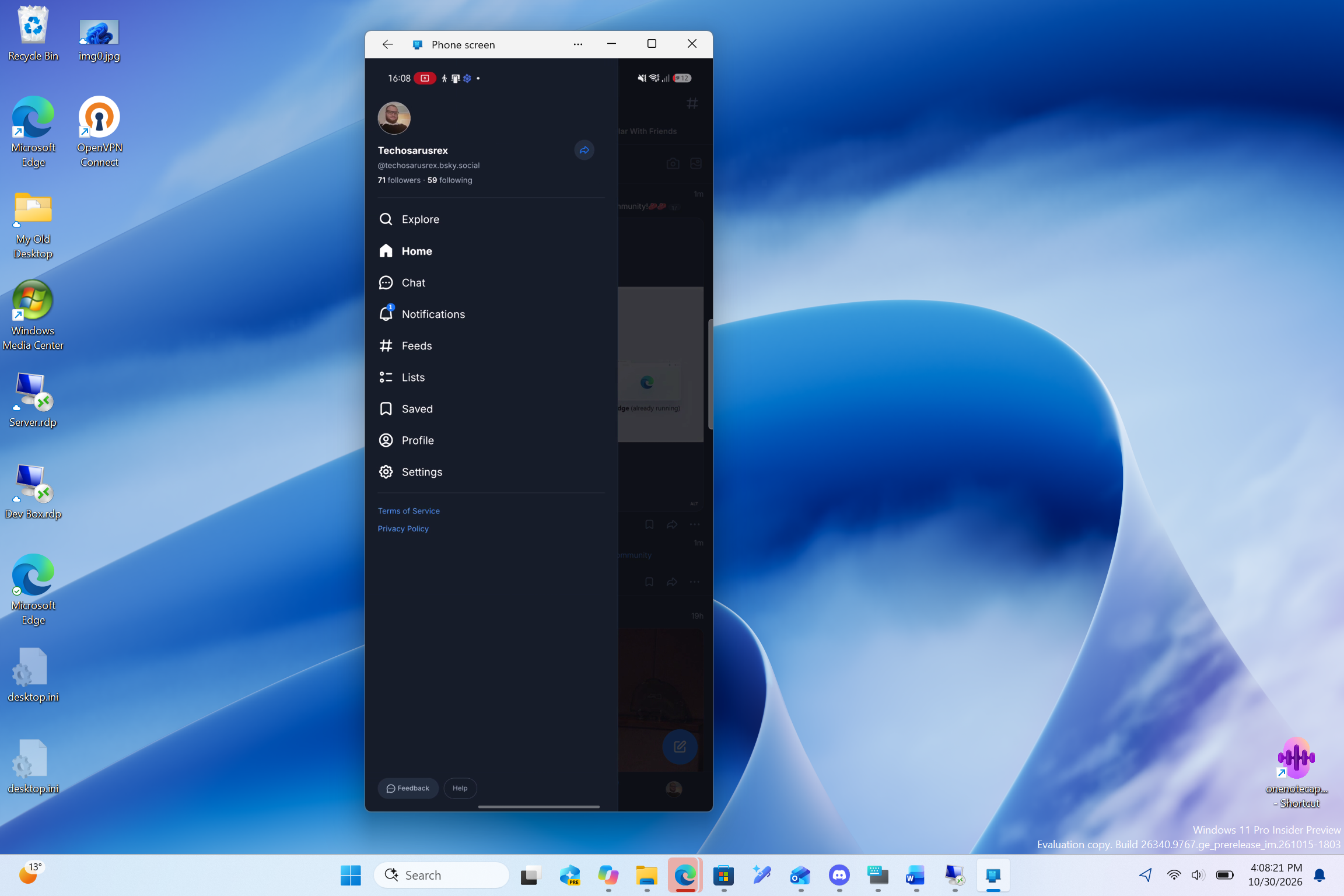
Just to be clear, Bluesky isn’t installed on Windows. The app keeps running on the phone, and the PC gives it a bigger screen, a keyboard and a mouse. Microsoft killed the Windows Subsystem for Android in March 2025, so streaming from the phone is now the only official way to use Android apps on Windows 11.
Yes, you could already open supported Android apps in Phone Link, add favorites, pin them to Start or the taskbar, and even run them almost full-screen. Search adds another way in, without creating a shortcut first, and if you usually open apps by typing their name, this feels a lot more natural.
My test only covered opening the app. I haven’t used it long enough to judge how reliable it is day to day, or if it works with multiple apps.
Microsoft confirms phone actions in Windows 11 Search
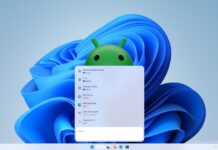
On October 30, Microsoft released build 26340.9843 with more features for the new Windows Search. “With a supported phone connected through Phone Link, you can now call or text a friend and access phone actions such as Do Not Disturb,” Microsoft says, adding that “Android support is available now with iPhone support coming early next year.”
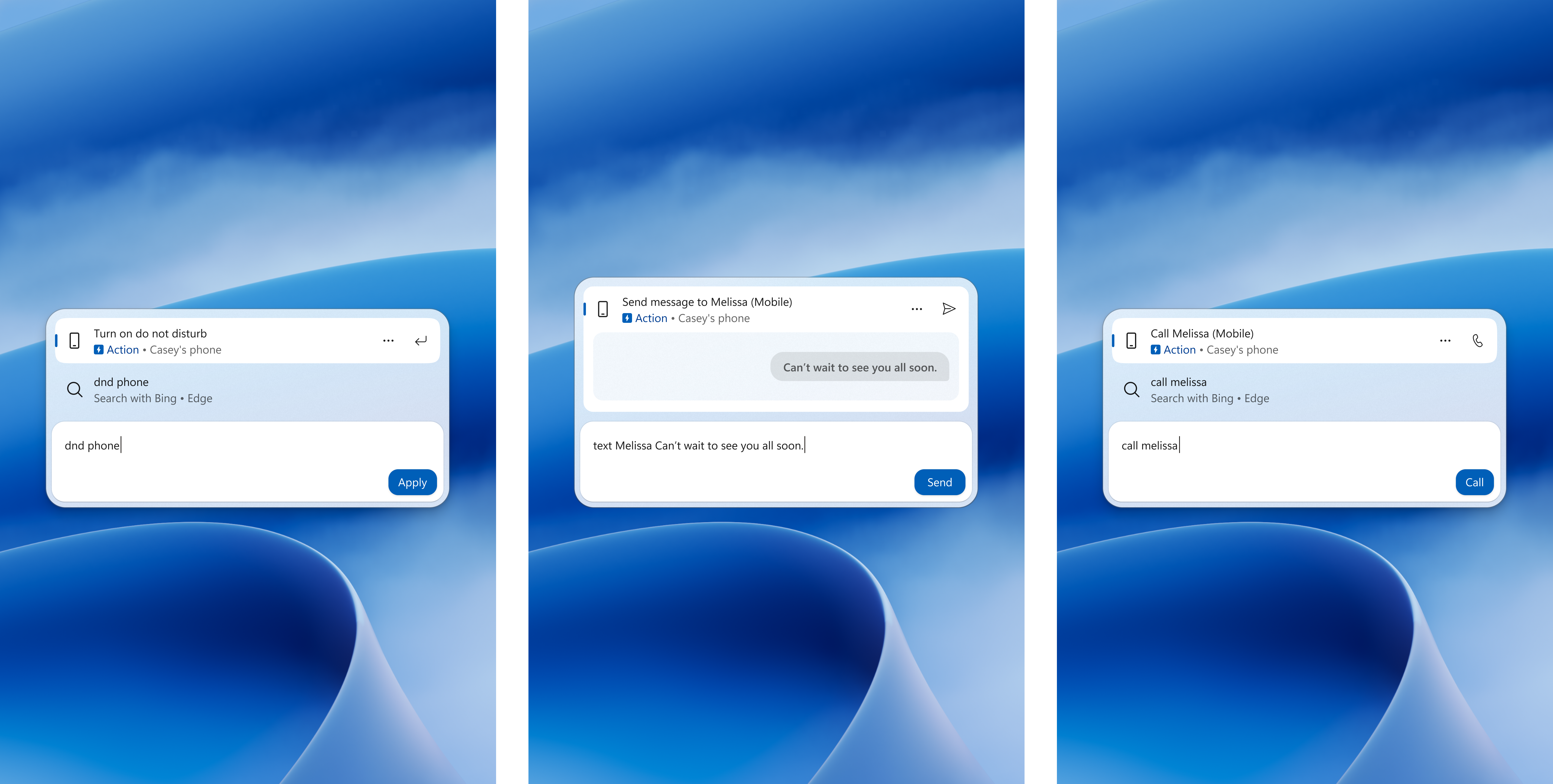
In Microsoft’s screenshots, typing “dnd phone,” “text Melissa” or “call Melissa” shows an Action result for the phone with an Apply, Send or Call button. Opening phone apps isn’t shown yet, but it fits right in with these actions and with the phone controls Microsoft is testing in Quick Settings.
Which Android phones work with apps in Windows Search
Only some phones that pair with Phone Link can stream apps. According to Microsoft’s Phone Link Apps requirements, you need select Samsung, HONOR, OPPO, ASUS, vivo or Xiaomi phones with Link to Windows preinstalled, running Android 10 or newer, connected to the Wi-Fi network your PC uses. Pairing for calls and messages doesn’t mean app streaming will work.
The new Search is also rolling out gradually to Insiders, and Microsoft hasn’t said when Phone Actions will reach everyone, let alone my discovery of phone apps shown in Windows Search. Either way, results may differ between setups, so take my test as a first look.
Credit where it’s due, typing an app’s name on my PC and having it open from my phone feels like the kind of Windows and Android integration that Apple fans brag about with iPhone Mirroring. I just hope Microsoft keeps it reliable when it reaches everyone.