









Microsoft plans to make the new Outlook the default for managed Enterprise users starting in March 2027, though they can still switch back, and Outlook Classic will be supported until at least 2029. As a Classic holdout, I used the new Outlook for three days of my daily work. Offline access and PST files now work, but with some obvious strings attached, COM add-ins still don’t, and it still isn’t as instant as Classic.
Redmond’s support page is pretty insistent about us making the switch. If you tried the new Outlook and went back, “we encourage you to give it another try, and even if you’ve never tried it, now is a great time!”
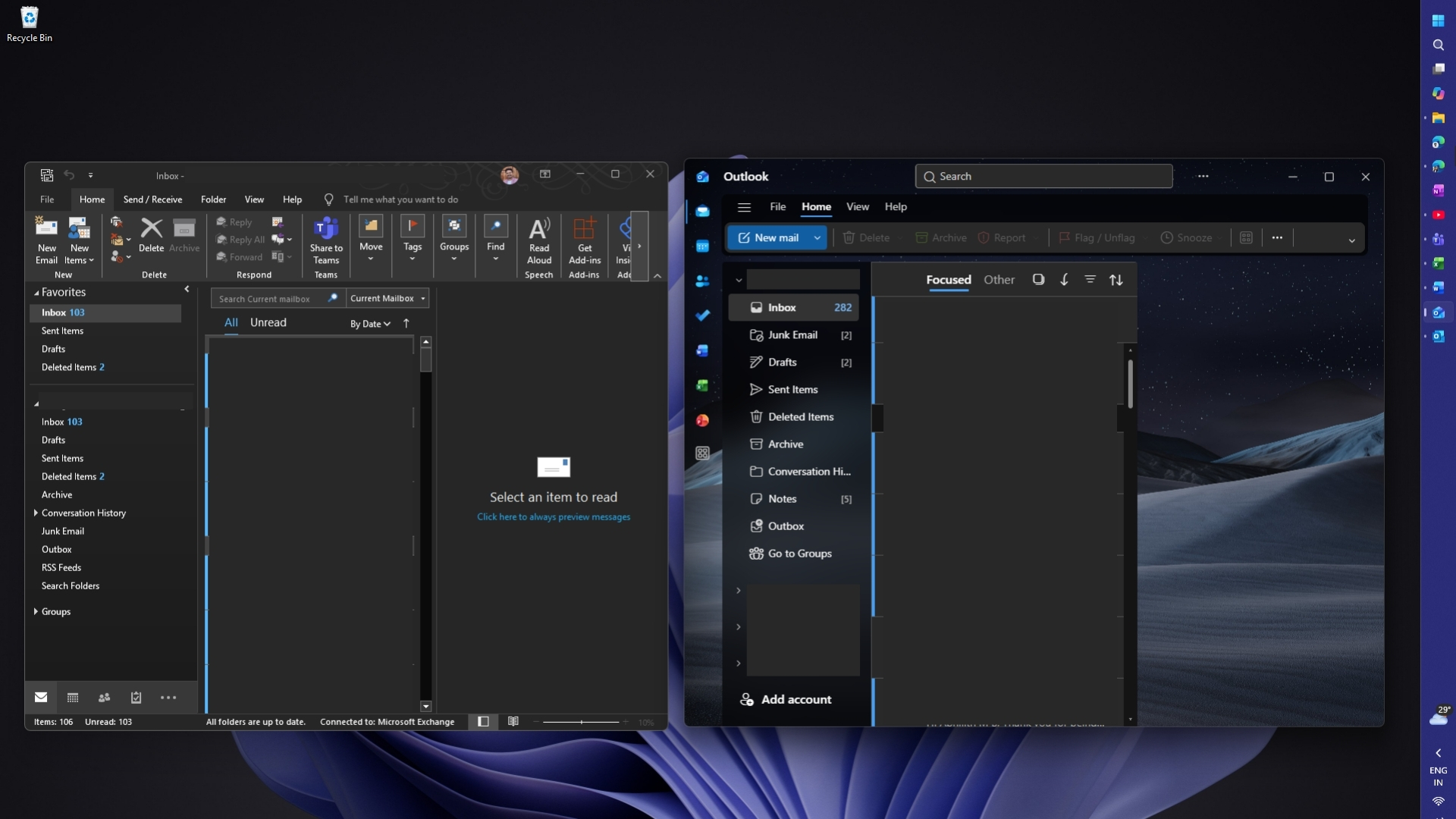
I used the new Outlook for three days, and it’s better than I remembered
I tested the new Outlook on Windows 11 Home 26H2, build 26300.9711, which is the October 2026 Patch Tuesday update, with the app on its October 16 release.
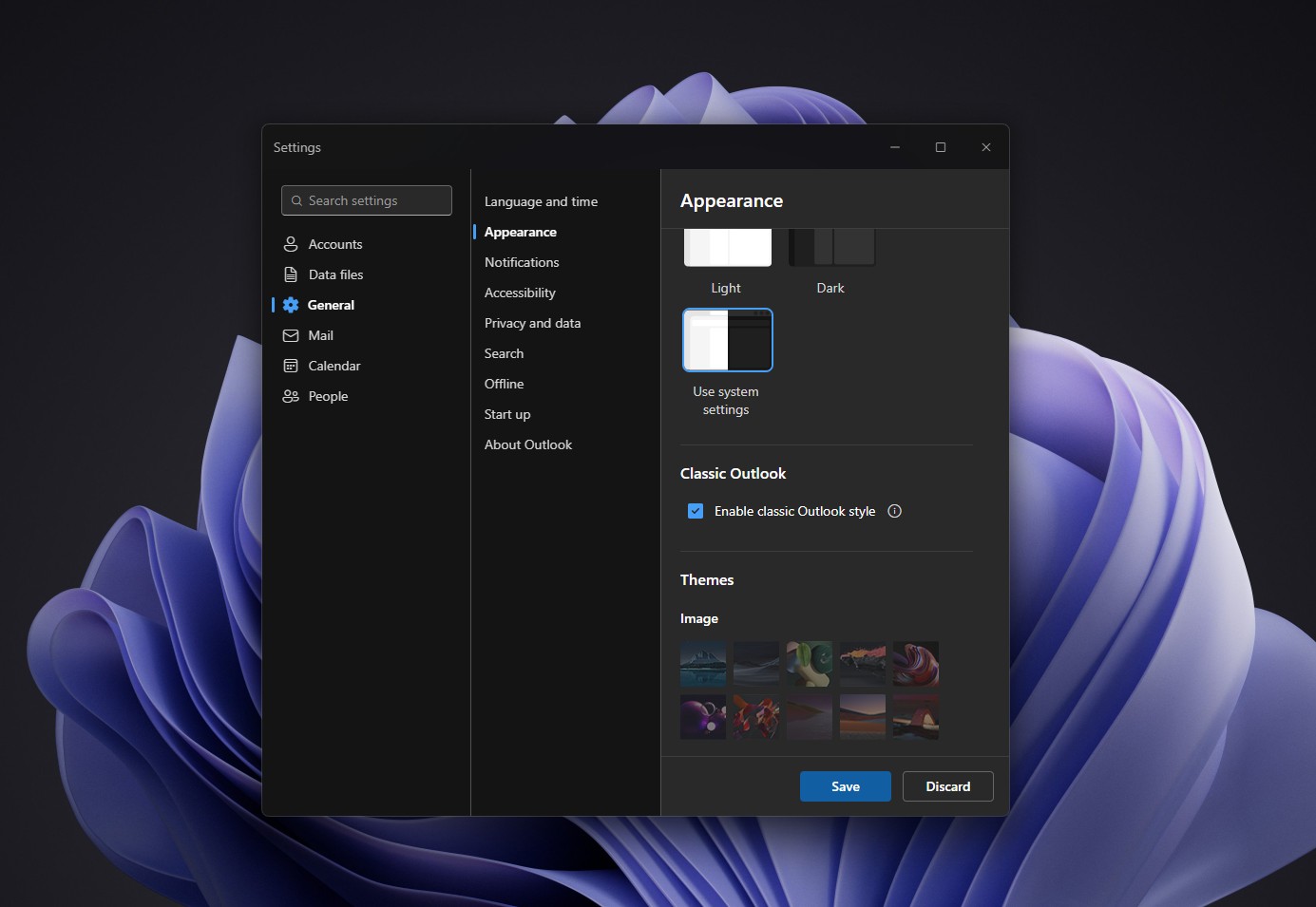
On day one, I turned on the Outlook Classic theme, which Microsoft added on October 2 under Settings > General > Appearance. It brings back Classic’s layout, fonts and icons, but not its features, though it made the app feel less alien, for lack of a better word.
Day two was regular work, with replies, attachments, calendar invites and a lot of search. Search is easily the best part of the new Outlook, with refiners and a Files tab that pulls up attachments without digging through threads. Snooze, Undo send and Schedule send became muscle memory by the afternoon.
Since September 25, it also groups new-mail notifications into one summary alert, which is a lot less noisy in the morning.
Day three was for the stuff that decides whether I stay, and that’s where things got complicated, to say the least.
Offline, PST files, add-ins, and speed are still where the new Outlook falls short
Offline works now, but it’s not Cached Exchange Mode
Offline access is on by default in the new Outlook. It saves 30 days of email from your Inbox, Sent, Drafts, Archive, Deleted, Snoozed and favorite folders, and you can stretch it to 90 or 180 days if you go to Settings > General > Offline.
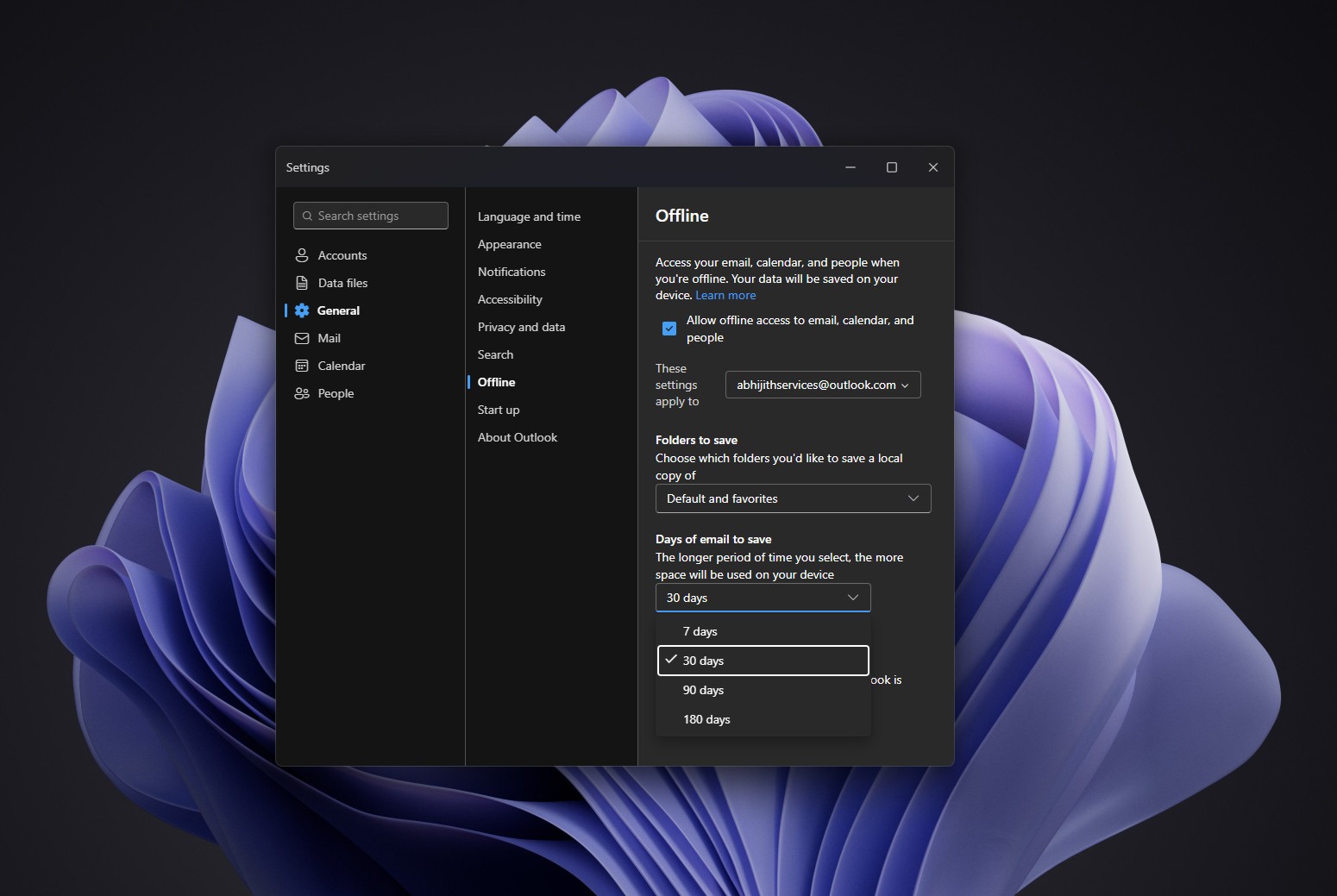
With Wi-Fi off, I could read, search, reply and queue emails in the Outbox, which went out once I reconnected. However, Microsoft’s list of what doesn’t work offline includes shared folders, the full global address list, add-ins, creating calendar events and even changing notification settings. Classic, being as mighty as it sounds, keeps 12 months of mail by default and has a proper “Work Offline” button.
PST files open, but only if Classic is still installed
Yes, the new Outlook can open PST files now. Go to Settings > Files > Outlook Data Files, select Add file, and you can browse, search, move, and delete emails in your old archives.
The caveat is that Microsoft says opening a PST “requires classic Outlook to also be installed,” and both apps need to match, either 32-bit or 64-bit. You also need a Microsoft 365 subscription, and PST files don’t work at all in the Arm version of the new Outlook, which rules out PCs like Snapdragon laptops and also the NVIDIA RTX Spark laptops, both of which are seemingly getting more popular.
Ironically, the new Outlook needs the old one to open your old emails. Microsoft says it plans to remove that requirement and add bulk PST imports, and that it doesn’t plan any further PST investments after that. Funnily enough, another Microsoft support page already walks you through importing a PST into your mailbox under Settings > Data files.
COM add-ins don’t make the jump
The new Outlook only supports web add-ins, which you install from “More apps” in the ribbon. Microsoft says COM add-ins “often lead to instability and crashes,” so the new app doesn’t load them, and neither does it support VBA macros.
For businesses, this is the major blocker. If a CRM plugin or archiving tool was built as a COM or VSTO add-in, its developer has to rebuild it as a web add-in, and even then, it won’t work offline.
The new Outlook still isn’t as instant as Classic
In June, I found that clicking a new Outlook notification took about 10 seconds to open the email, while Classic did it instantly. By July, a quiet fix cut that to around 5 seconds, but the app still loads the full inbox before showing the email.
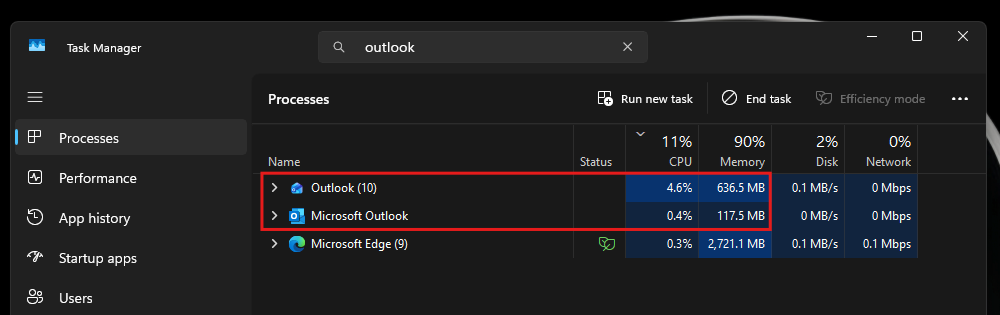
Microsoft calls the new Outlook a native application, but its documentation says the experience is “provided by Outlook on the web,” running in WebView2 with a Windows integration layer. In my June test, it ran as 10 processes and used 490MB to 636MB of RAM at idle, while Classic used 117MB to 148MB. It’s the same numbers even now.
Microsoft’s comparison chart shows what you gain and what you lose
Microsoft keeps a feature comparison between the two apps, last updated on September 23, and it isn’t afraid to hide Classic’s advantages.
New Outlook gets Snooze, Sweep, Pin messages, Undo send, Meeting recap, Follow meetings, work hours and location, and Copilot meeting prep, none of which exist in Classic. You also get folder colors and Teams meeting chat built in.
But Classic users lose voting buttons, rule import and export, business cards, custom forms, SharePoint calendar sync and files on network shares. Rules, Quick Steps, mail merge and .oft templates are only “partially available,” while multiple mail profiles and dragging emails into other apps are still marked “Upcoming.”
So, the TLDR is that if your Outlook is just an inbox and a calendar, the new app can replace Classic today. If you’ve built workflows in Classic for over a decade, it can’t.
What Microsoft’s March 2027 switch means for home and business users
Microsoft’s migration has three stages. Opt-in lets you choose to try the new Outlook, opt-out makes it the default but lets you switch back, and cutover removes the way back.
Home users with personal Microsoft accounts and a Microsoft 365 Personal or Family subscription have been eligible for an automatic switch since October 2024, and small businesses since January 2025. They can still switch back using the toggle in the new Outlook.
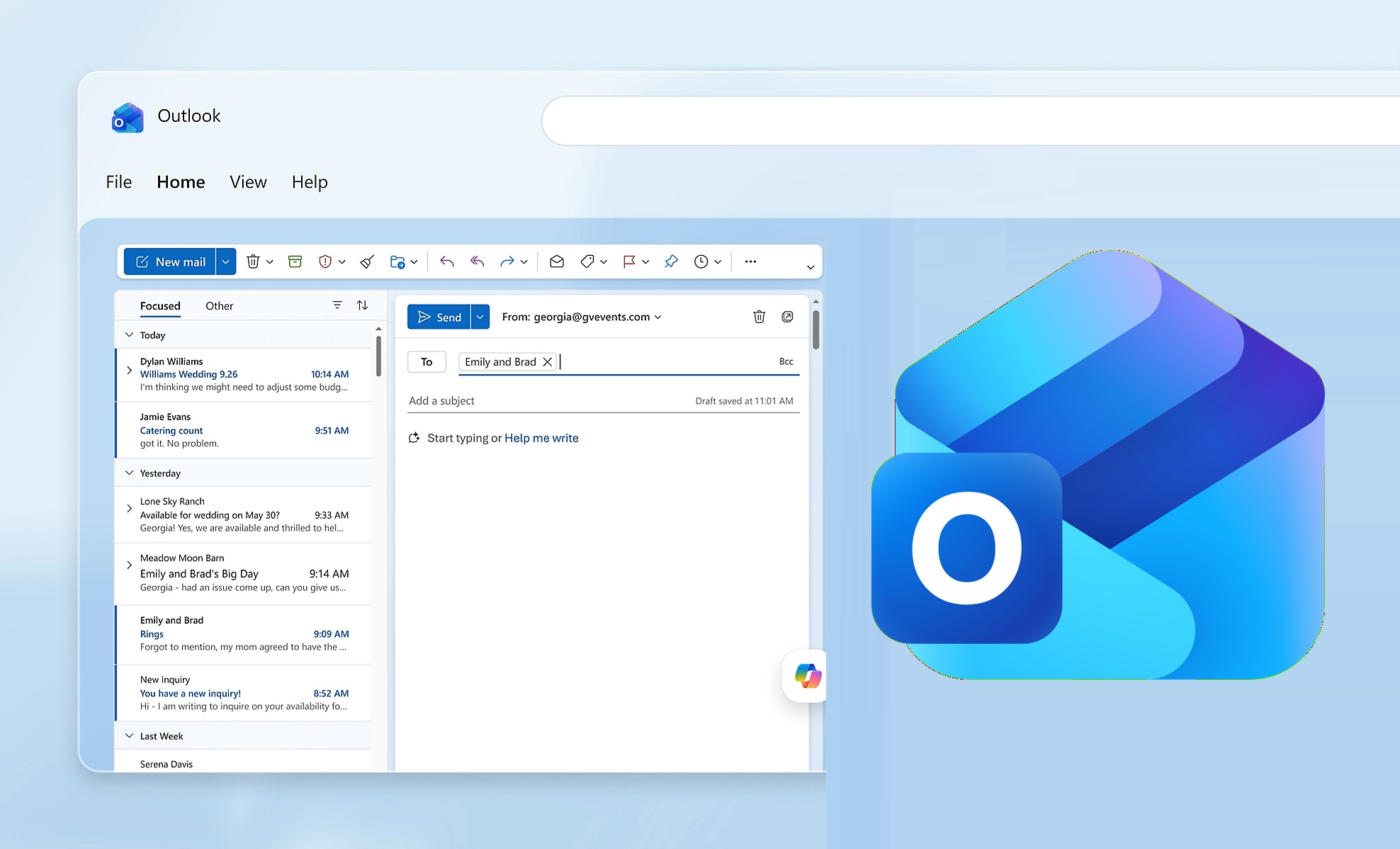
For Enterprise plans, Microsoft pushed the opt-out stage from April 2026 to March 2027, saying organizations need 12 months to prepare. Users won’t be migrated if their admin opted them out, hid the toggle, or if they use a perpetual license or an on-premises account. Microsoft says admins will get at least 12 months’ notice before cutover, and no cutover date has been announced yet.
Microsoft also says, “Existing installations of classic Outlook through perpetual and subscription licensing will continue to be supported until at least 2029.” Classic is even getting a visual refresh in November.
After three days, I’d gladly move to the new Outlook if it were a proper native Windows app. I despise web apps, and Microsoft plans to build 100% native apps for Windows 11 and is making WinUI apps easier to build. Outlook is Microsoft’s most important productivity app, and it deserves WinUI treatment first.
Outlook’s boss, Gaurav Sareen, said last year that Microsoft wants to “reimagine Outlook from the ground up.” Considering how complex Outlook is, I doubt a WinUI rewrite is coming anytime soon. Until then, I’m going back to Classic. Have you switched to the new Outlook yet?