



Microsoft’s November 2026 optional update for Windows 11, KB5132057, brings a fully rebuilt Windows Search that opens faster, shows results in a single list and lets you change settings like brightness or Bluetooth from the search box. It’s rolling out gradually on Windows 11 25H2 and 26H2, so if you don’t see it after updating, you can turn it on with ViVeTool.
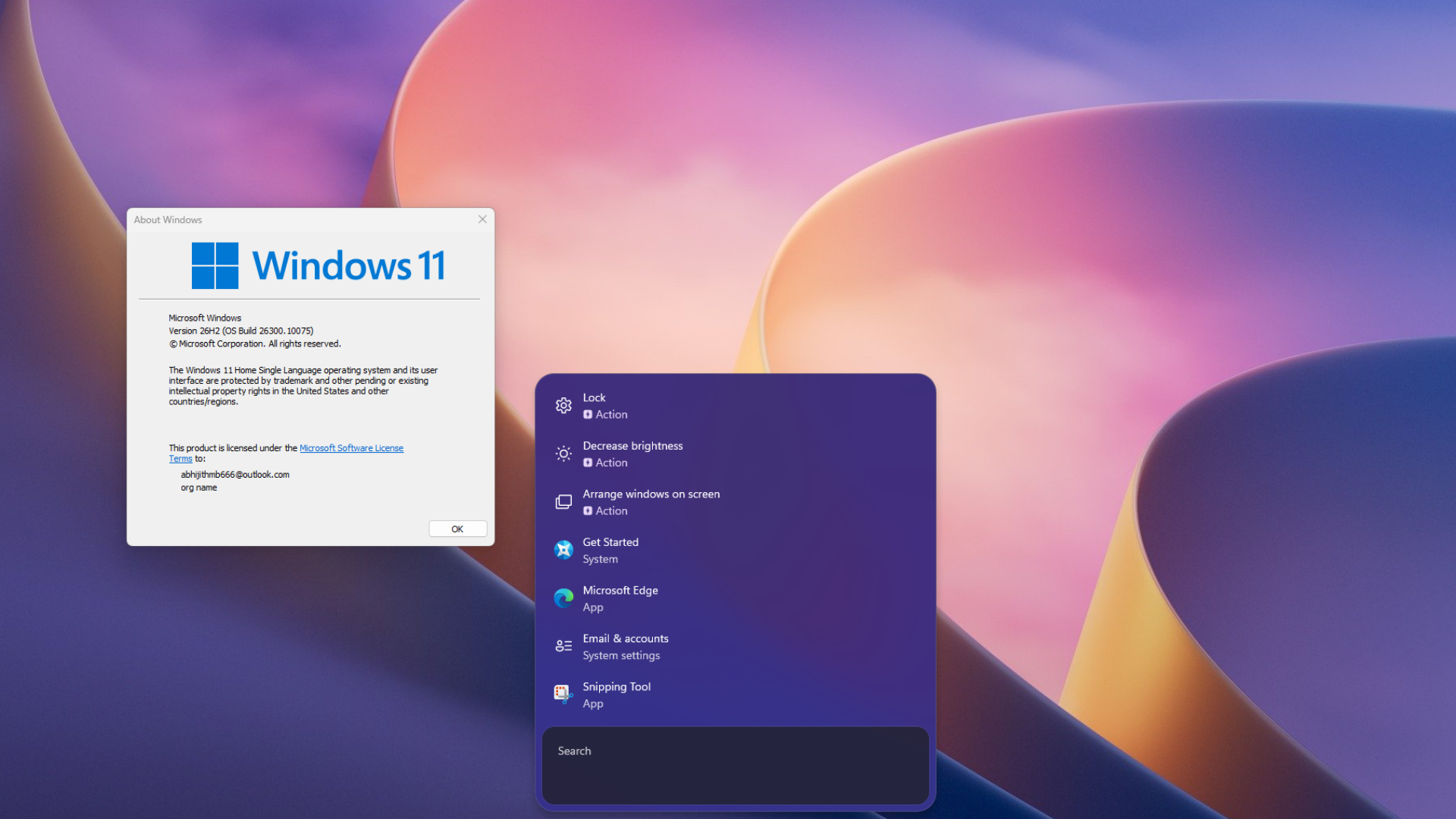
I installed KB5132057 on my laptop and force-enabled the new Search, and it’s among the smoothest experiences in the OS, let alone Windows Search. It opens instantly, with a cute bounce animation and typing doesn’t have that slight lag the old one had.
How to enable the new Windows 11 Search using ViVeTool
The short version is that even after installing the Optional update, your PC may not get the new Search due to Microsoft’s Controlled Feature Rollout policy. However, the code has already reached your PC, and all we need to do is turn on the switch that enables it. We can do that with a safe and open-source tool called ViVeTool.
The following are steps to force-enable the new WinUI Search in Windows 11:
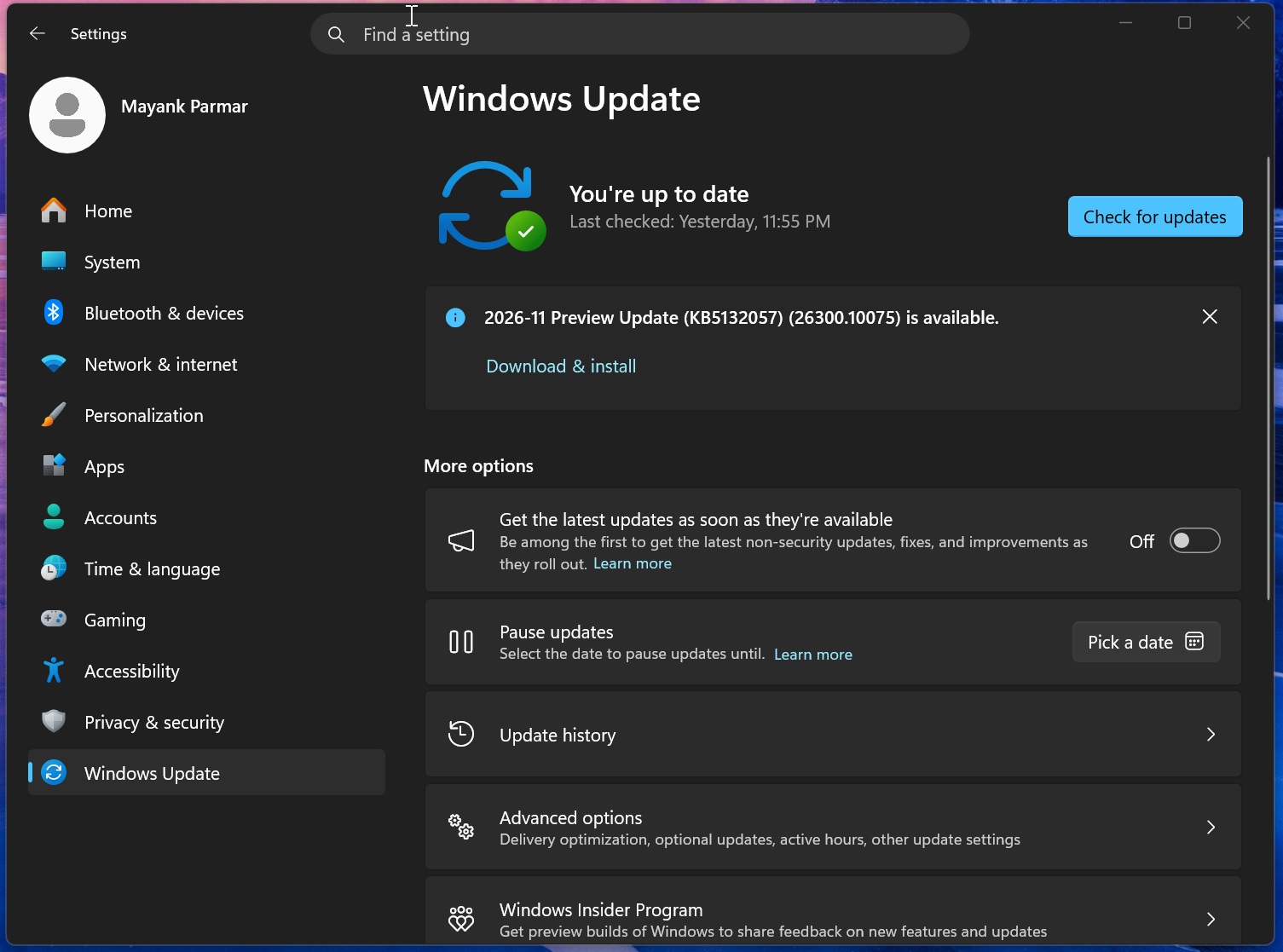
- Install KB5132057. Go to Settings > Windows Update, turn on “Get the latest updates as soon as they’re available” and click Check for updates. Install “2026-11 Preview Update (KB5132057)” and restart. Press Win + R, type winver and make sure you’re on Build 26300.10075 (26H2) or 26200.10075 (25H2). If you’re still on 24H2, you’ll need to move to 25H2 or 26H2 first.
- Download ViVeTool. Grab the latest release from the official ViVeTool GitHub page and extract the zip to C:\ViVeTool.
- Open Command Prompt as administrator. Search for Command Prompt, right-click it and select Run as administrator. Then type cd C:\ViVeTool and press Enter.
- Run the commands. Type the following commands one after the other, pressing Enter after each:
vivetool /enable /id:61161304
vivetool /enable /id:58381341
The first ID turns on the feature bundle for the November update, and the second one is for the new Windows Search. If you also want the faster, indexer-based search from This PC in File Explorer, run vivetool /enable /id:61188158 as well. You don’t need it for the new taskbar Search, though.
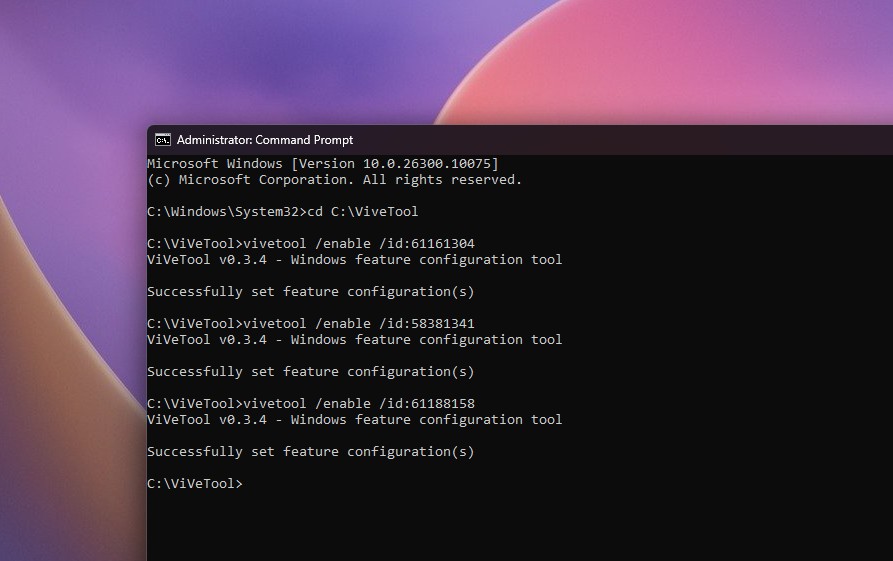
You should see “Successfully set feature configuration(s)” after each command.
- Restart your PC. Once you’re back on the desktop, click the Search icon on the taskbar or press Win + S, and you should see the new Search.
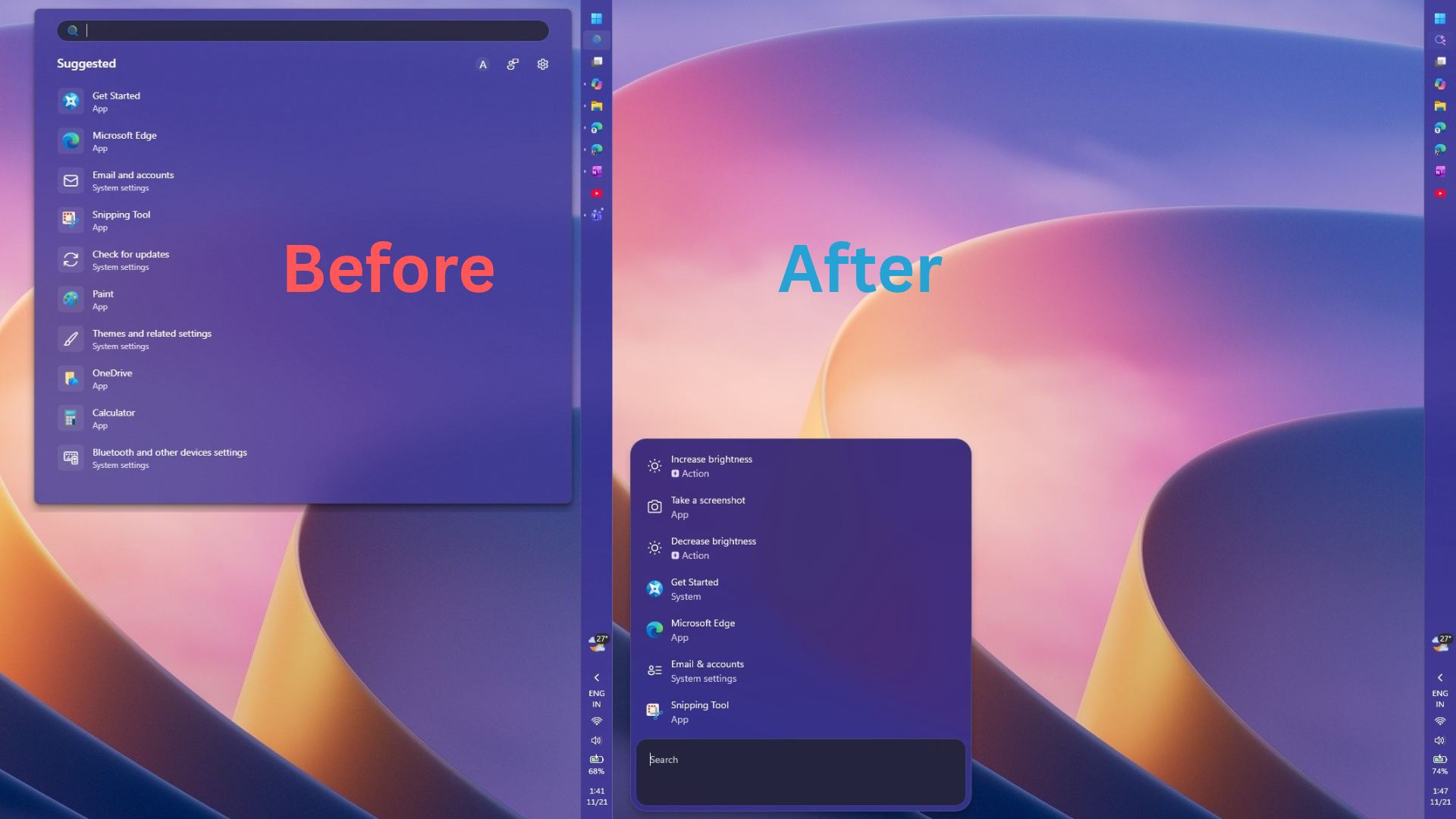
Yes, the new Search only comes on the bottom center (we’ll come to it later). So, if you change your mind, run those commands with /disable instead of /enable and restart. ViVeTool turns on features Microsoft hasn’t rolled out to your PC yet, and IDs can stop working in later updates, so use it at your own discretion.
What’s new in Windows 11 Search, and why it feels faster
The old Search was a big panel with a results list on the left and a large preview pane on the right. On my PC, with the vertical taskbar, you can see the wasted space under the search results. I always thought the old Search was too big.
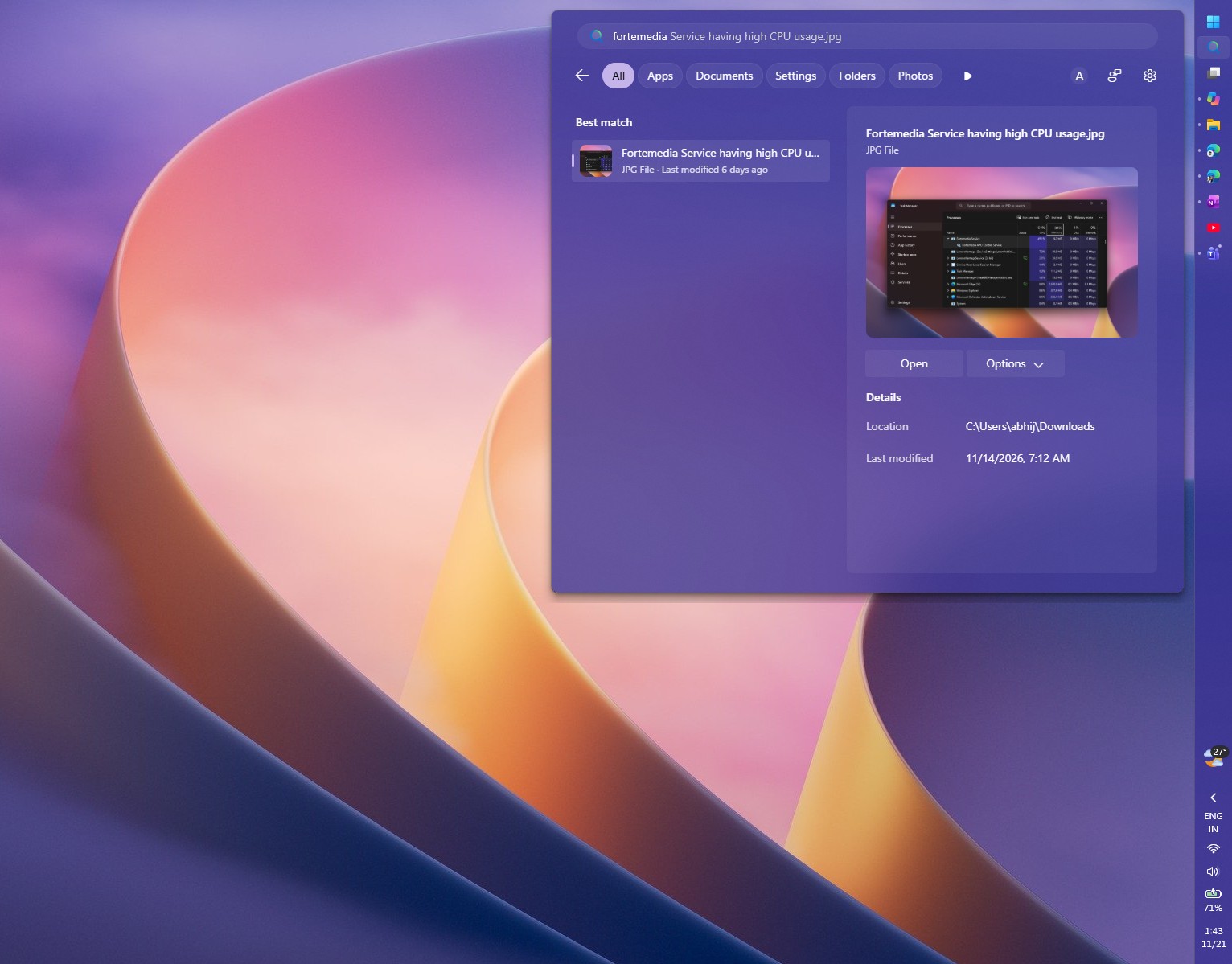
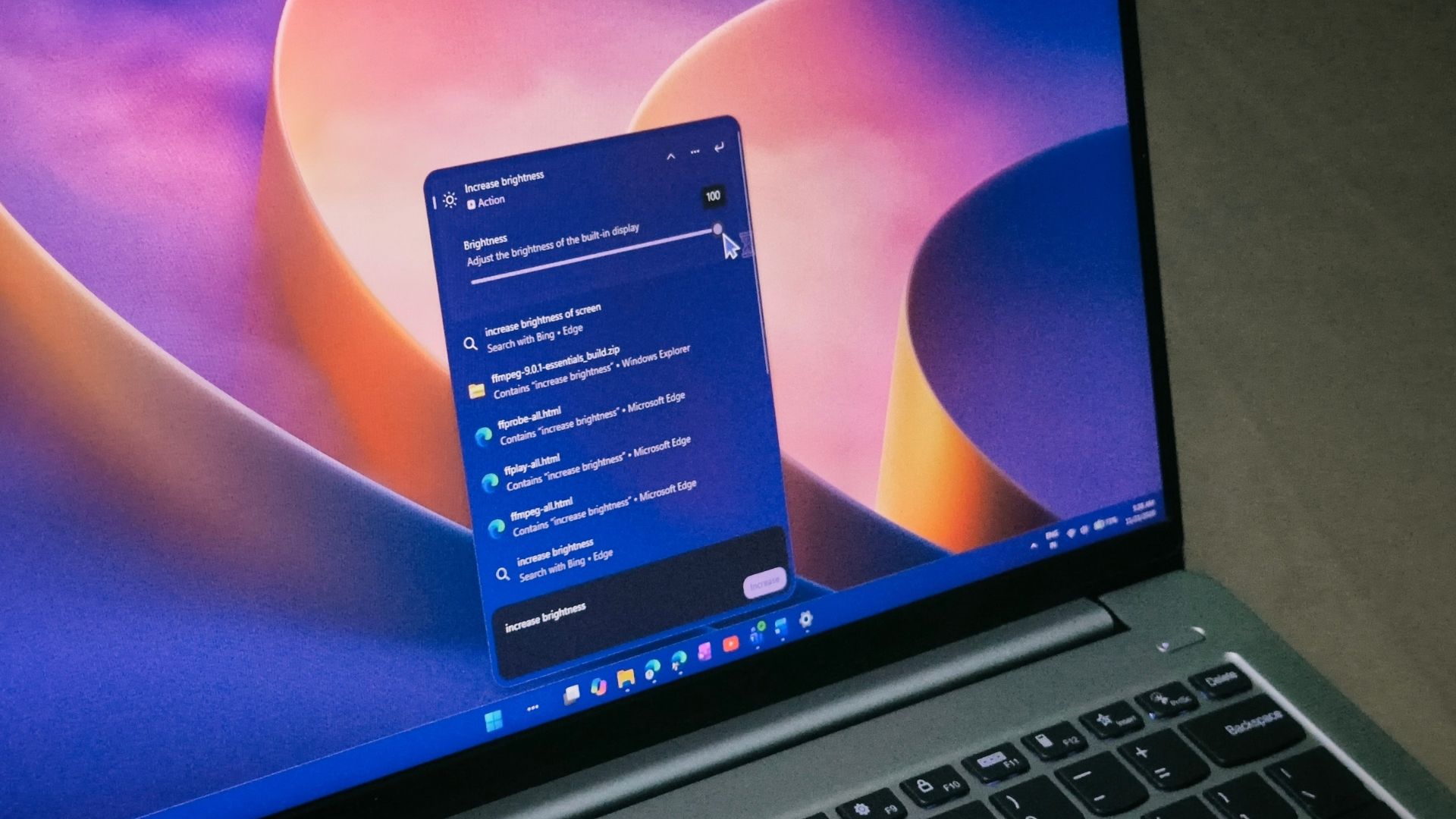
The new one is a compact list with the search box at the bottom, and it also changes it’s size depending on the results. Microsoft rebuilt it using WinUI 3 and says, “This modern foundation makes Windows Search faster and more efficient with resources.” Its reasoning for dropping the preview pane is pretty sensible, too, as “nearly all clicks in the current UX come from the results list on the left.”
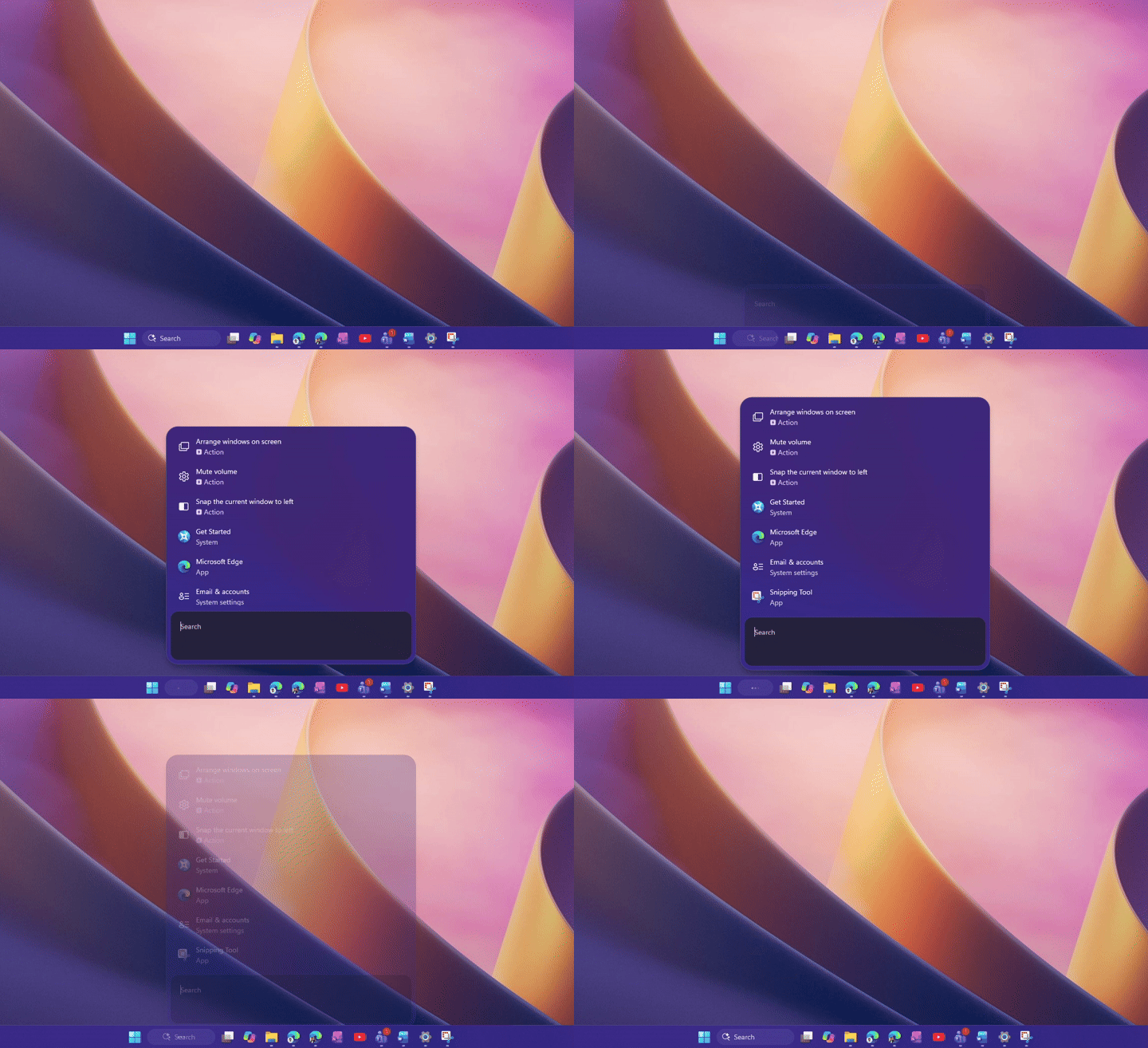
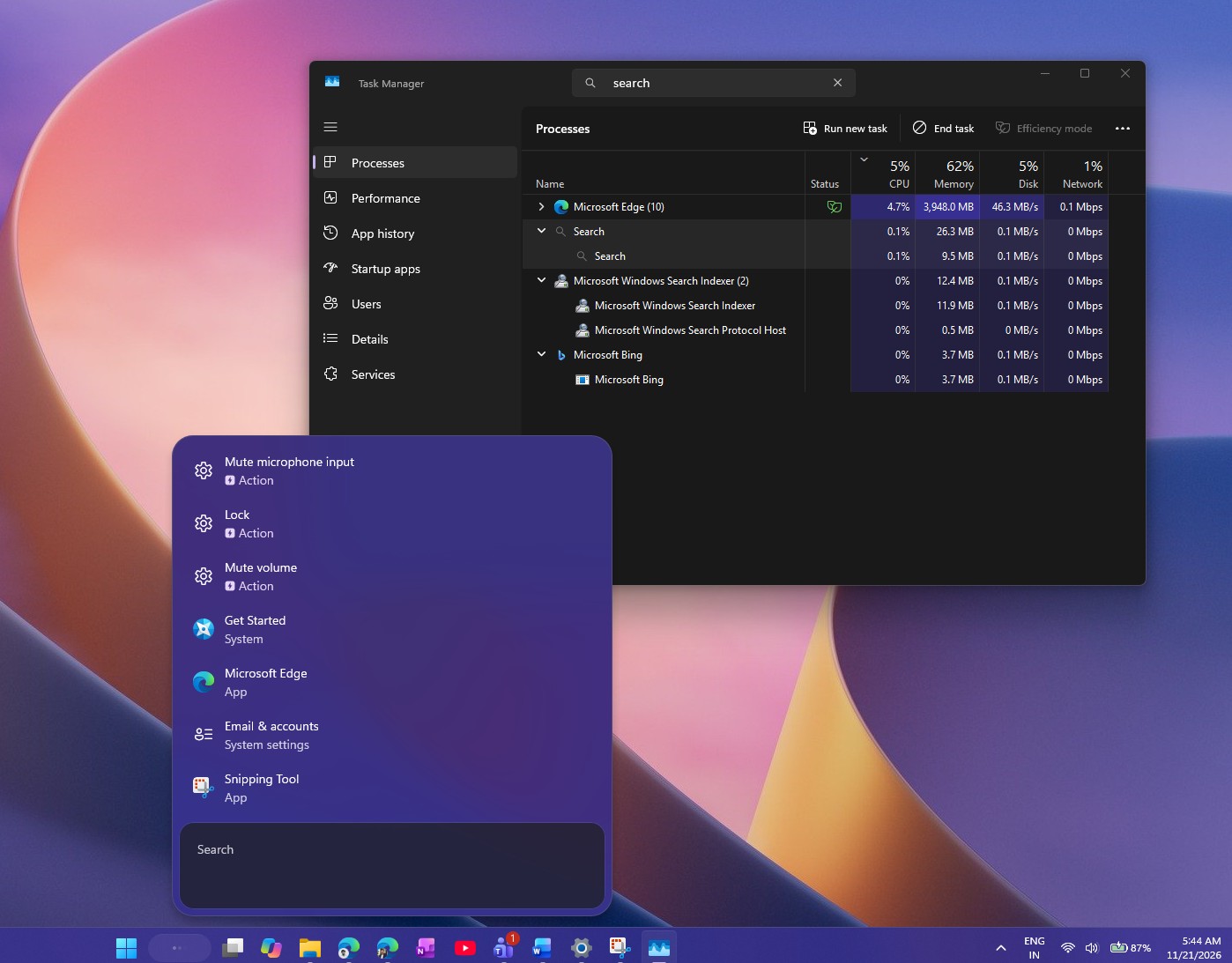
For context, the old Search ran on WebView2, so opening it called Microsoft Edge in the background (a slight oversimplification, but you get the point). Microsoft told us the new one is “fully native and built for performance,” and it uses roughly 15 to 20% less RAM, depending on the use case. As someone who despises web apps on Windows, I love the new Search.
Microsoft could’ve just stopped at the WinUI-fication and call it a day, and I would’ve still been happy, but they went ahead and added inline actions. So, instead of pointing you to a Settings page, Search now lets you do the task from the results. Microsoft’s examples include “switch to dark mode,” “turn on Bluetooth,” “dim my screen,” “mute,” and “minimize all my windows.” In my testing, Increase brightness and Decrease brightness showed up as Actions in the suggestions and sliding the bar actually worked. Neat stuff!
Microsoft says the new Search also shows file previews with details like when a file was last modified, where it’s saved and who created it, along with quick answers for weather, stocks and facts. It’s also better at handling typos and synonyms, so a sloppy “blutooth” still finds Bluetooth.
If your Android phone is connected through Phone Link, you can call or text contacts and use phone actions like Find my phone and Do Not Disturb from Search. You’ll need a supported phone for these, and we’ve already seen the new Search open Android apps from your phone through Phone Link.
Note that the new Search is English-only for now, and it only opens from the taskbar. Searching from the Start menu still opens the old experience.
All of this compounds on months of fixes to Search. Microsoft first tested a toggle that removes Bing results from Search, then cleared out the MSN tiles and trivia from the Search home, and shipped that faster, Bing-free Search with the August update.
Windows 11’s new Search still has one annoying limitation with vertical taskbars
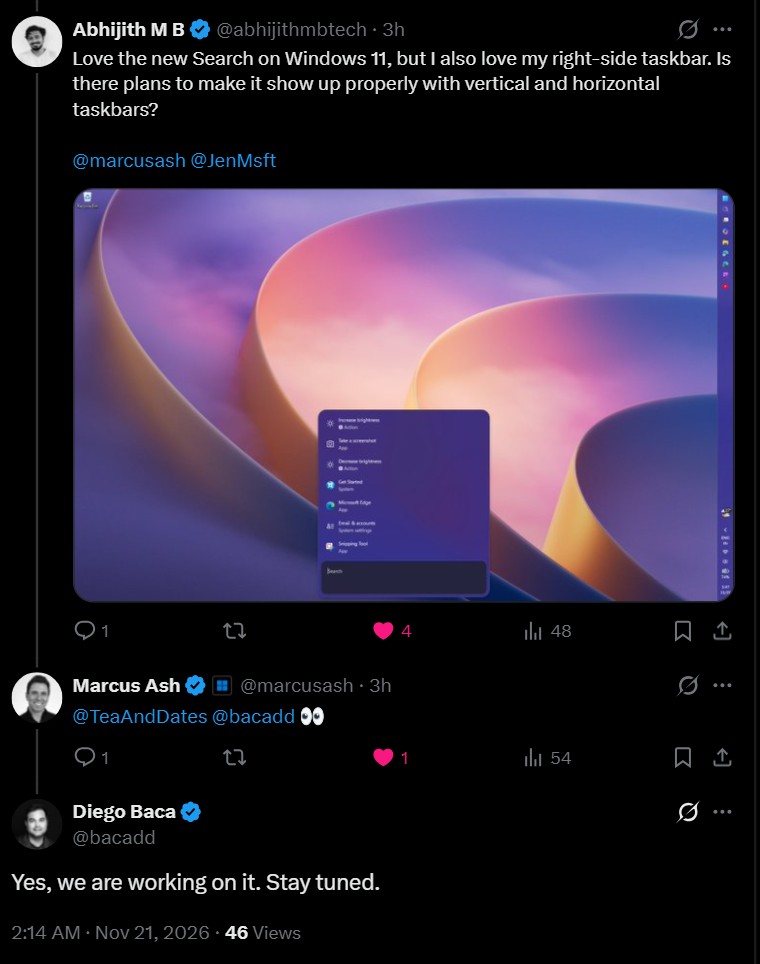
I keep my taskbar vertical on the right, and the old Search respected that. The new Search ignores it and always opens at the bottom centre of the screen, which ruins the continuity feeling.
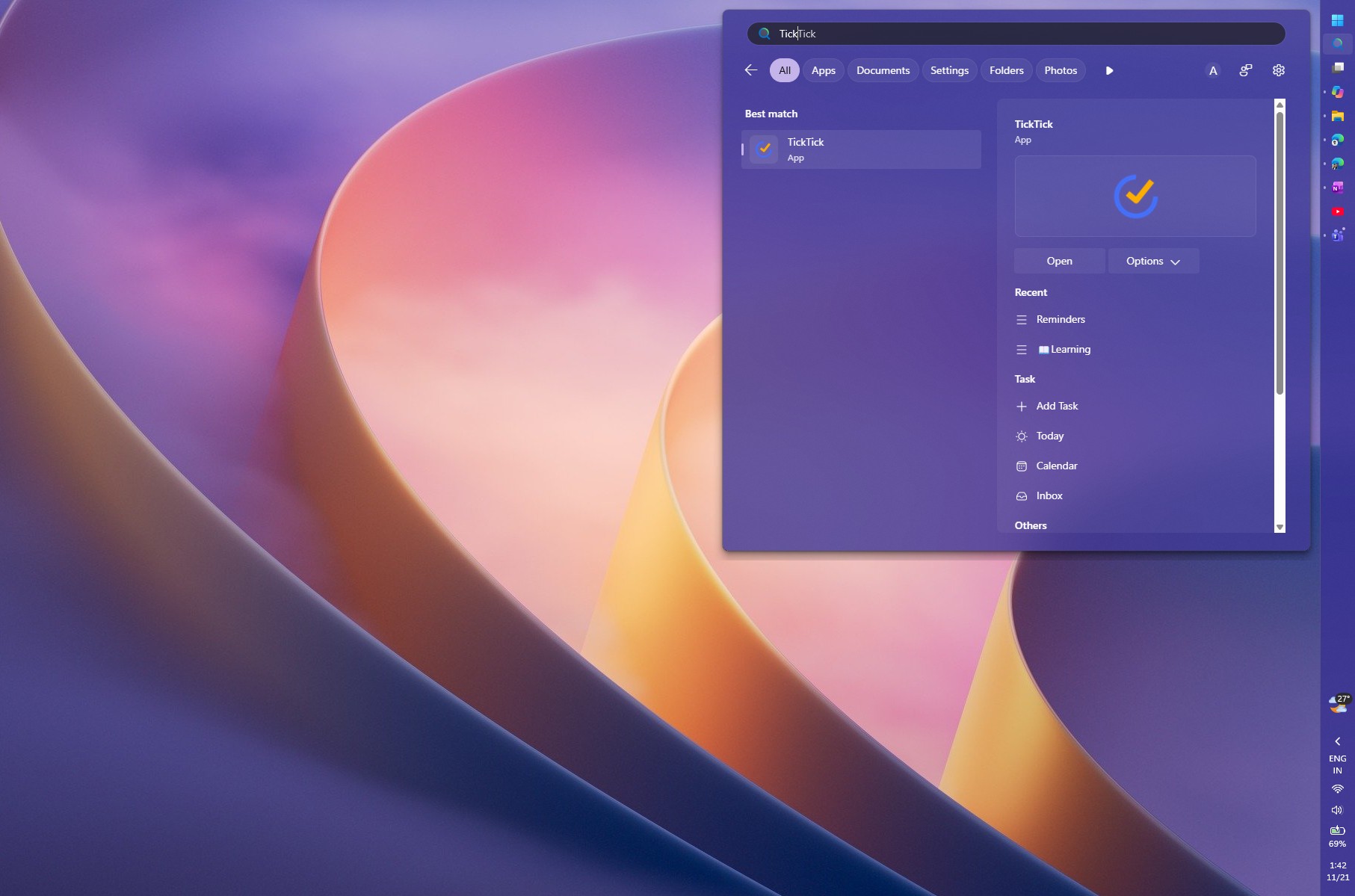
Microsoft already knows about it. In its October 7 announcement, the company said “work is already underway” to bring the new Search to the Start menu and “have it adapt naturally to different taskbar positions and Windows configurations.”
I asked Microsoft’s Marcus Ash and Jen Gentleman on X whether the new Search would show up properly with vertical and horizontal taskbars. Marcus tagged Diego Baca, Microsoft’s Vice President of Product Design, who replied, “Yes, we are working on it. Stay tuned.”
There’s no timeline yet, but it’s good to know the fix is on its way. Until then, if you use a bottom taskbar like most people, the new Search is literally the best version of Windows Search yet, and I’m not just talking about Windows 11. You can try it right now with the steps above.