






Windows Search has spent years shoving Bing, ads, and trivia in front of the apps and files you opened it to find. Microsoft is now rolling out a set of improvements to Windows Search to Insiders that walk back on all of it. The changes went live on the Experimental channel on July 13, and they are arriving gradually, so not every Insider gets them on day one.
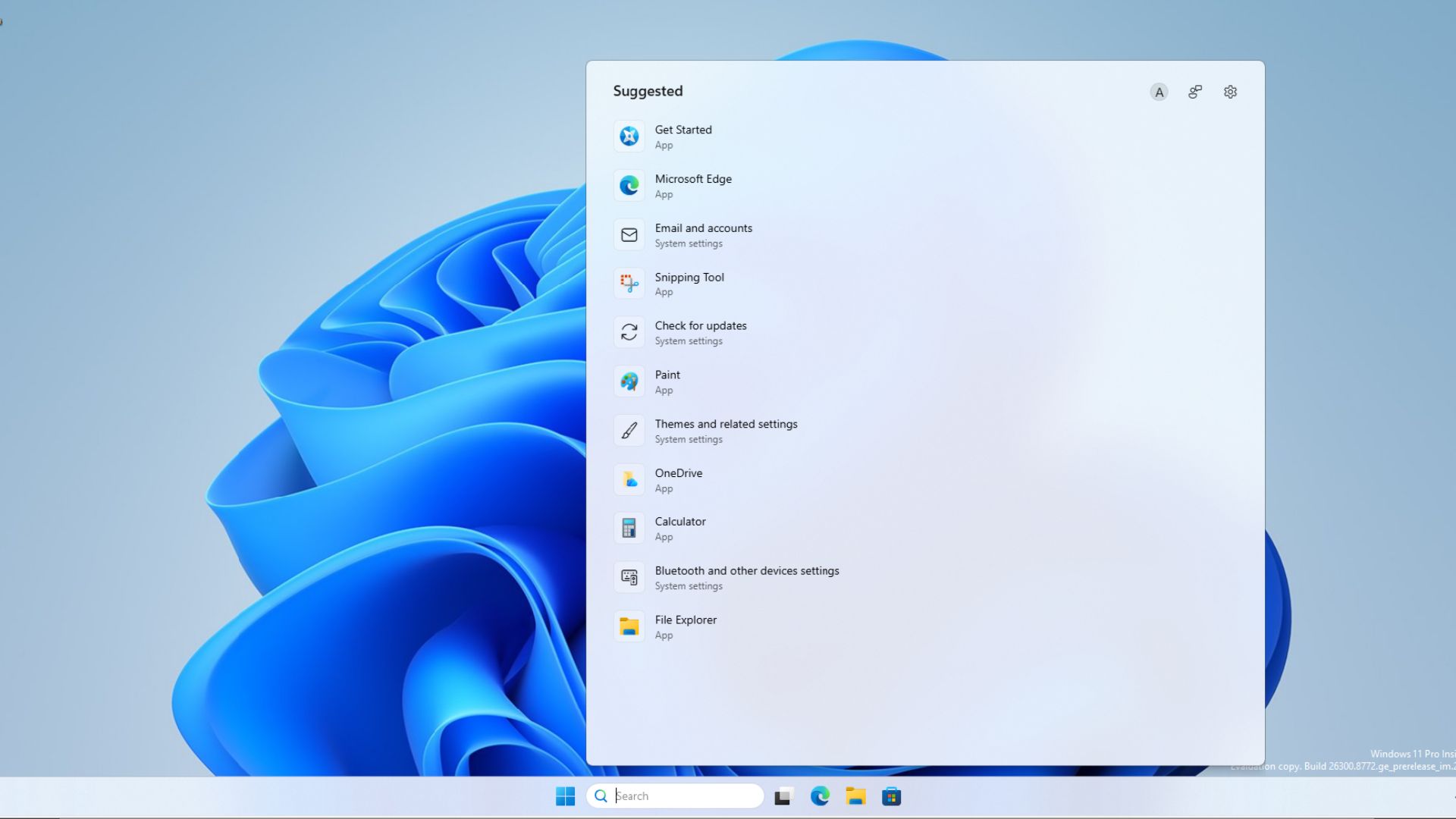
We tested this cleaner Search weeks before Microsoft made it official
Back on June 21, we force-enabled an early version of the new Search with ViveTool in Insider build 26300.8697, the first build to include Windows 11 26H2.
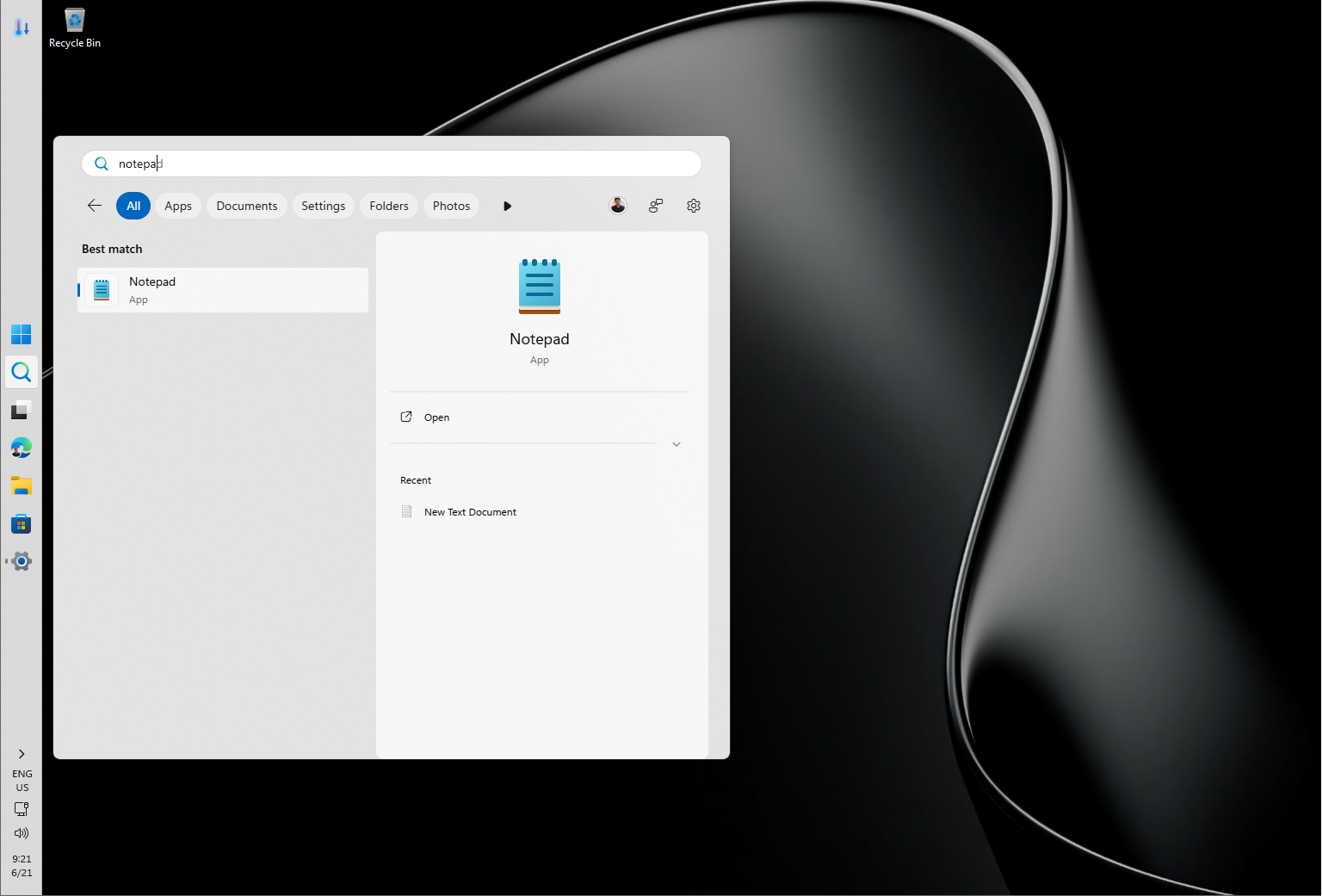
Stripped of web suggestions, it felt like a different tool, and we said then it was the cleanest Search we had used in Windows. Microsoft is now shipping that same experience the proper way. It reaches the Experimental channel via Controlled Feature Rollout, so a reboot alone might pull it in, and no ViveTool is needed this time.
Windows Search finally drops the MSN clutter
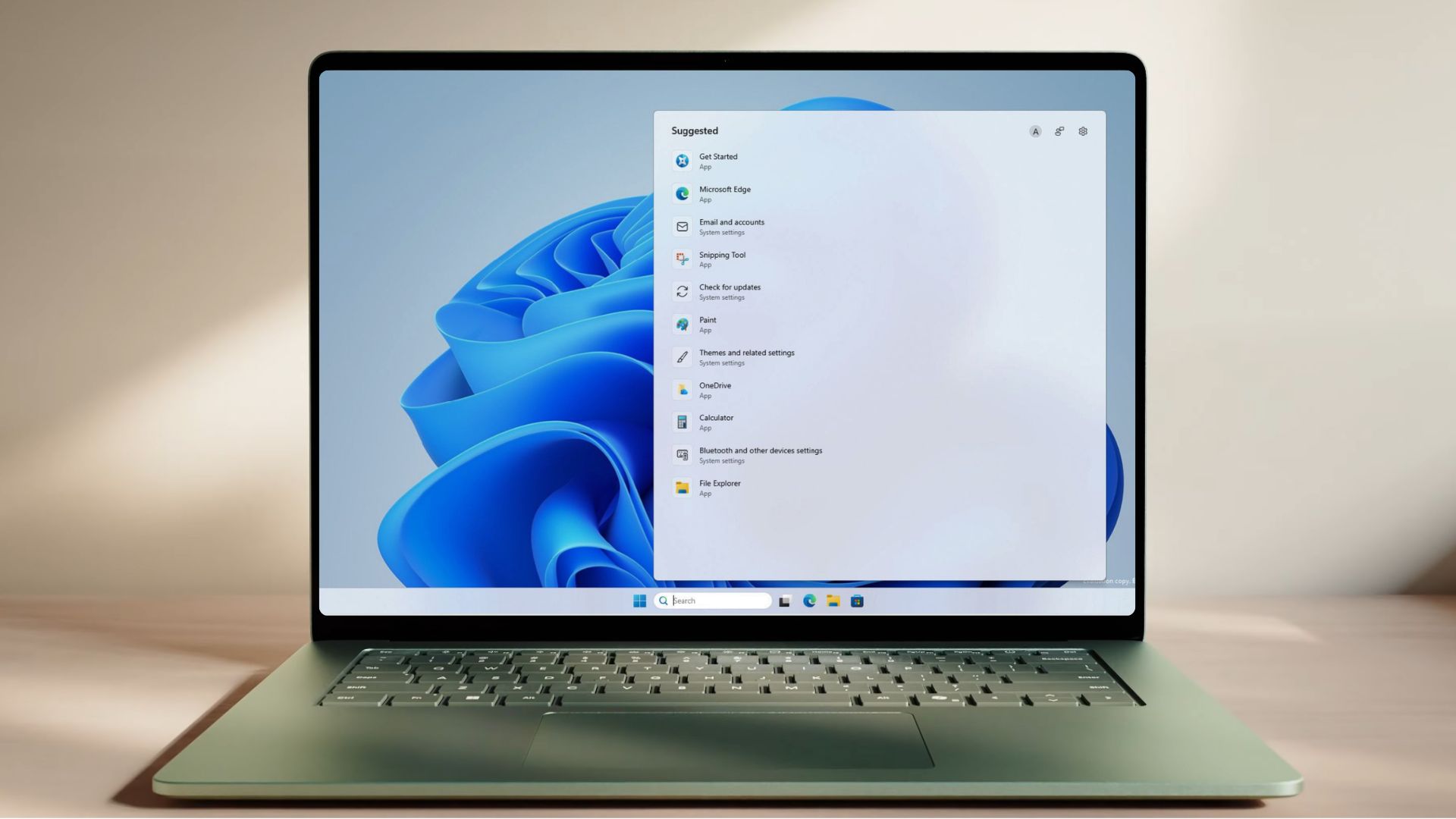
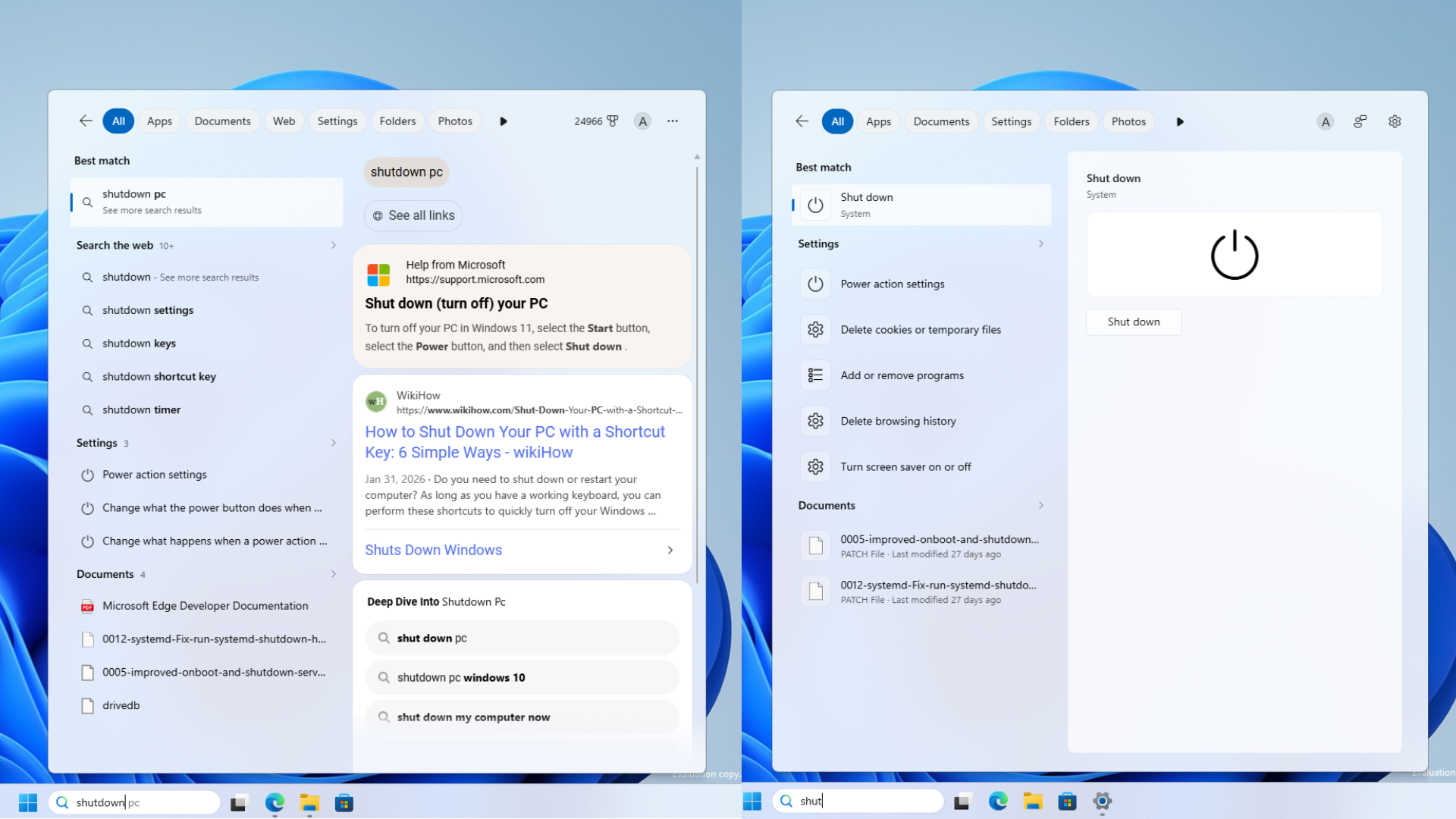
Open Search without typing anything, and the home screen looks clean and distraction-free. Gone are the image of the day, the daily quiz, trending searches, top apps, and the Games for you that used to pad out the panel. In their place, Search leads with your recent searches, so you can pick up where you left off.
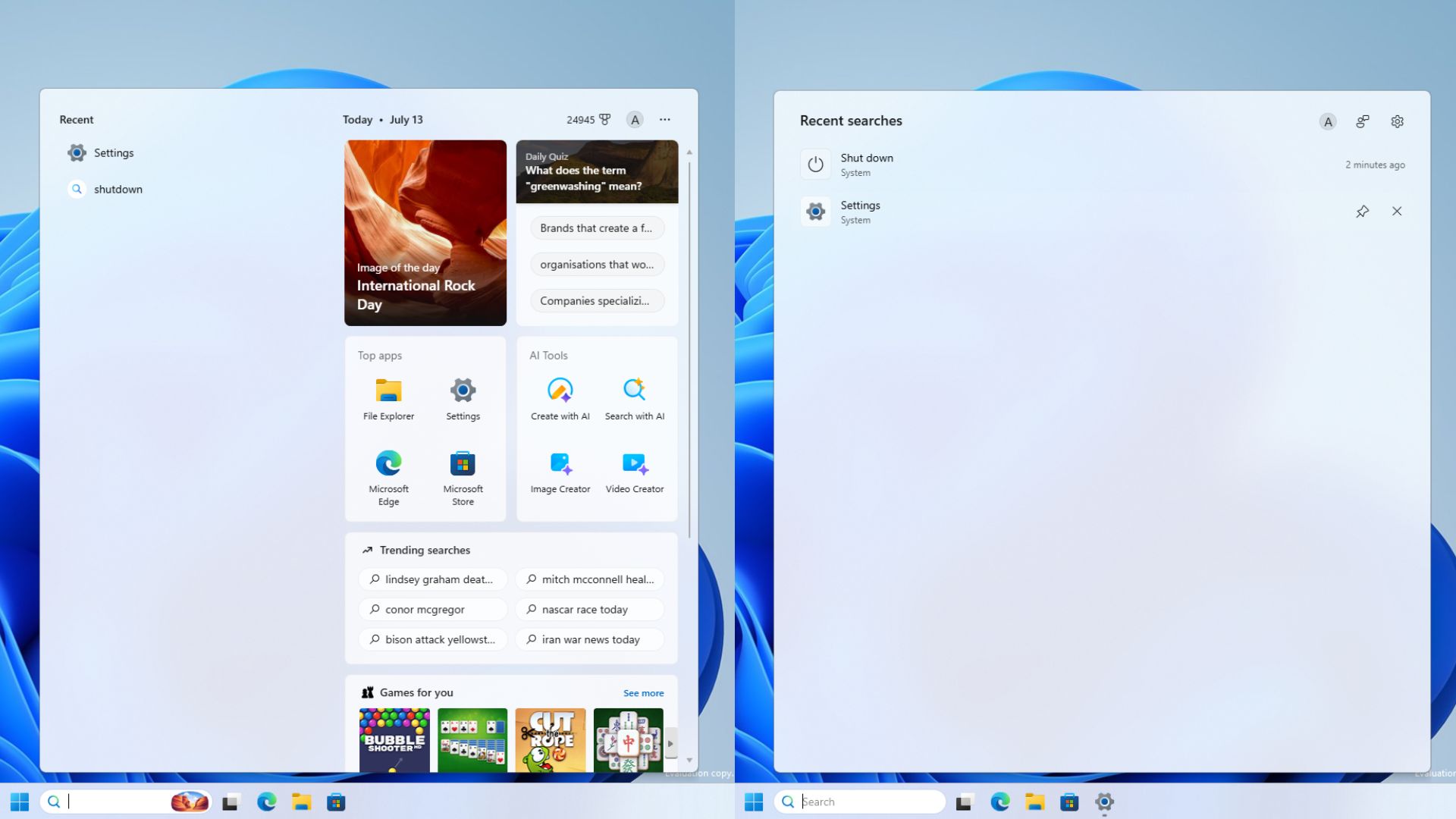
We have been moaning about that recommended junk for a while, and for good reason. None of it was native. Those tiles were web-based elements piped in from Bing, and they ate through RAM while offering nothing in return. A Search that shows your own recent activity and nothing else is how it should have been from the start (pun intended).
Search results now show where each hit will take you
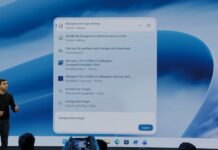
Every Search now carries a label for where it comes from, such as an app, a setting, a local file, a web result, or a Microsoft Store suggestion, so you can tell what you are looking at before you click.
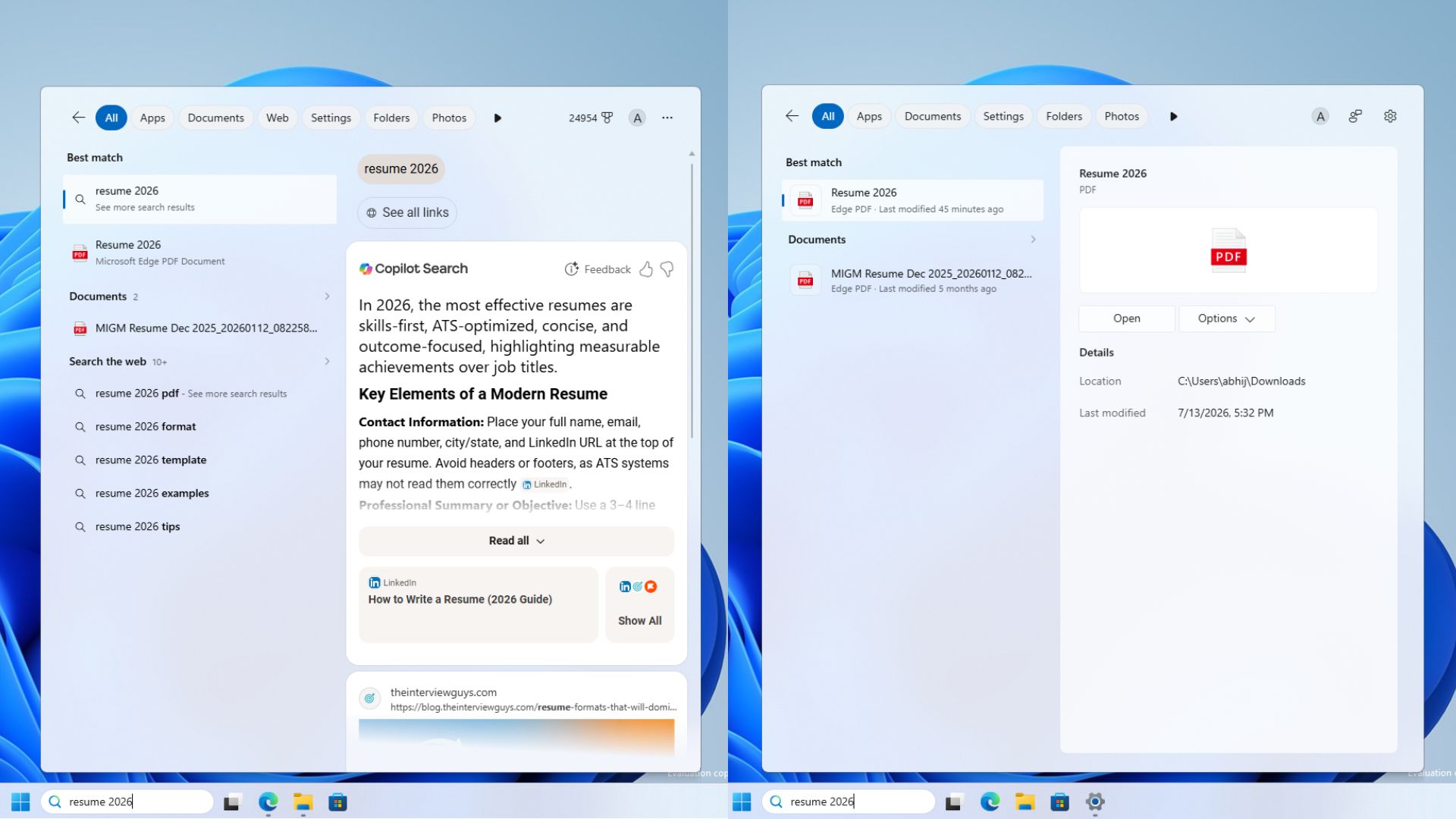
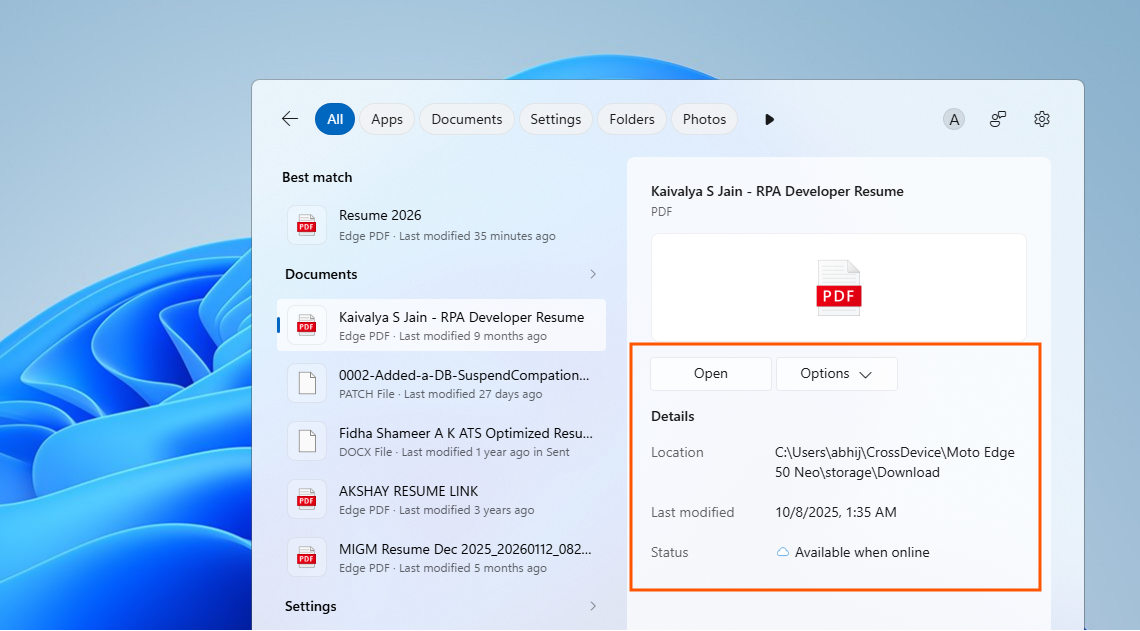
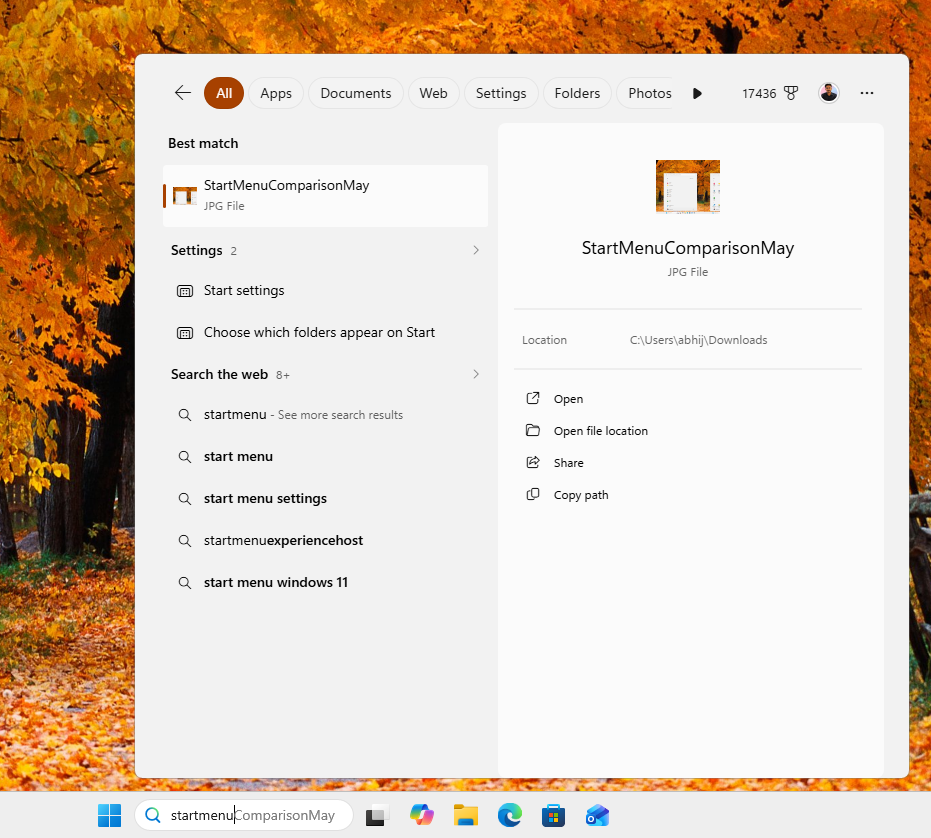
Spacing is looser, headers are cleaner, and the subtitle under each result shows useful metadata like file type and last-modified date. Search for a document, and the preview pane on the right shows a proper thumbnail, the file path, the modified date, and quick actions right there. The old layout crammed all of it together and hid the content type behind inconsistent thumbnails, while also showing web results.
Web results lose ads
When you need a web result in Search, it no longer opens with sponsored product cards. Search something like a running plan on current Windows 11, and the preview shows Sponsored shopping tiles and prices.
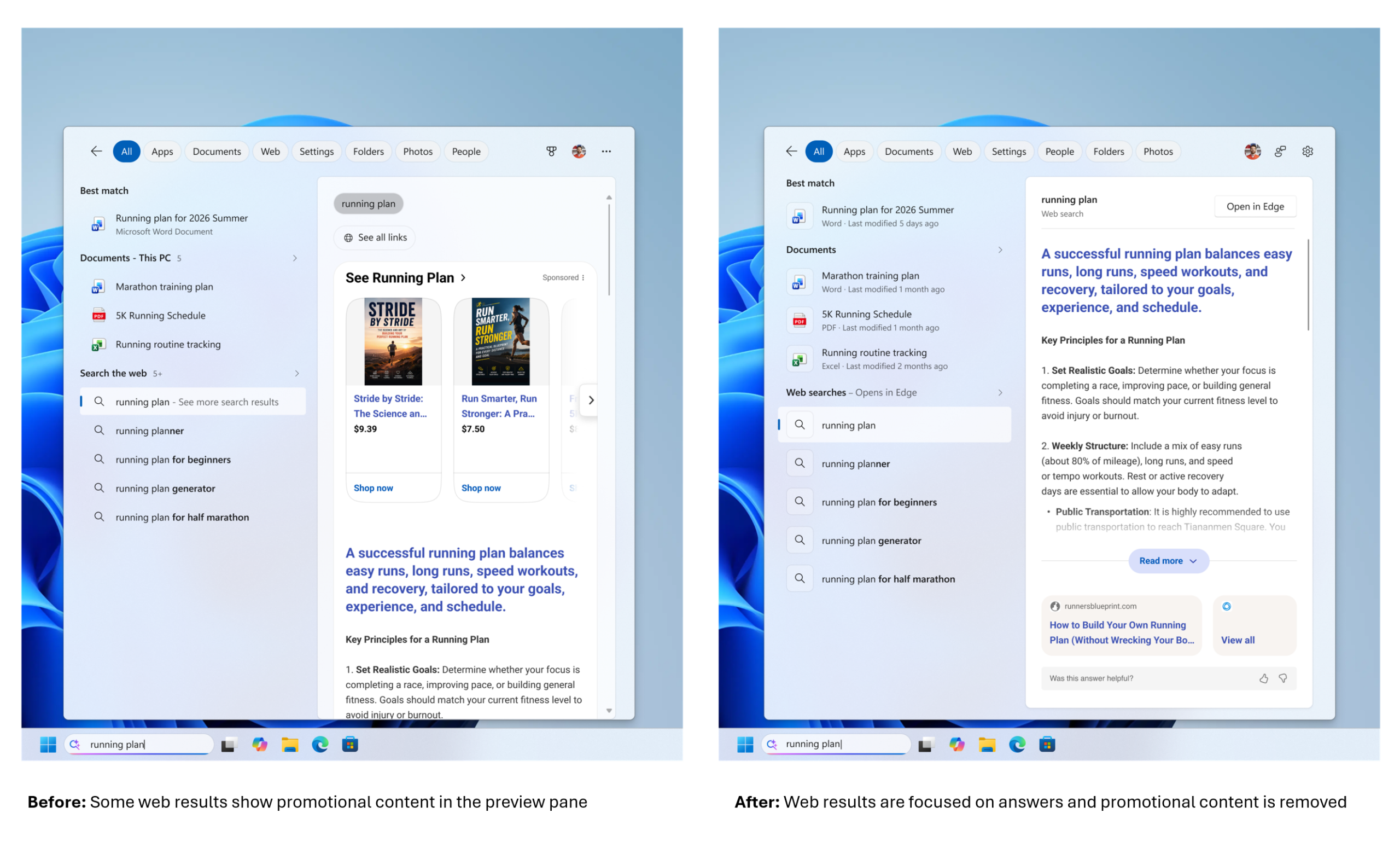
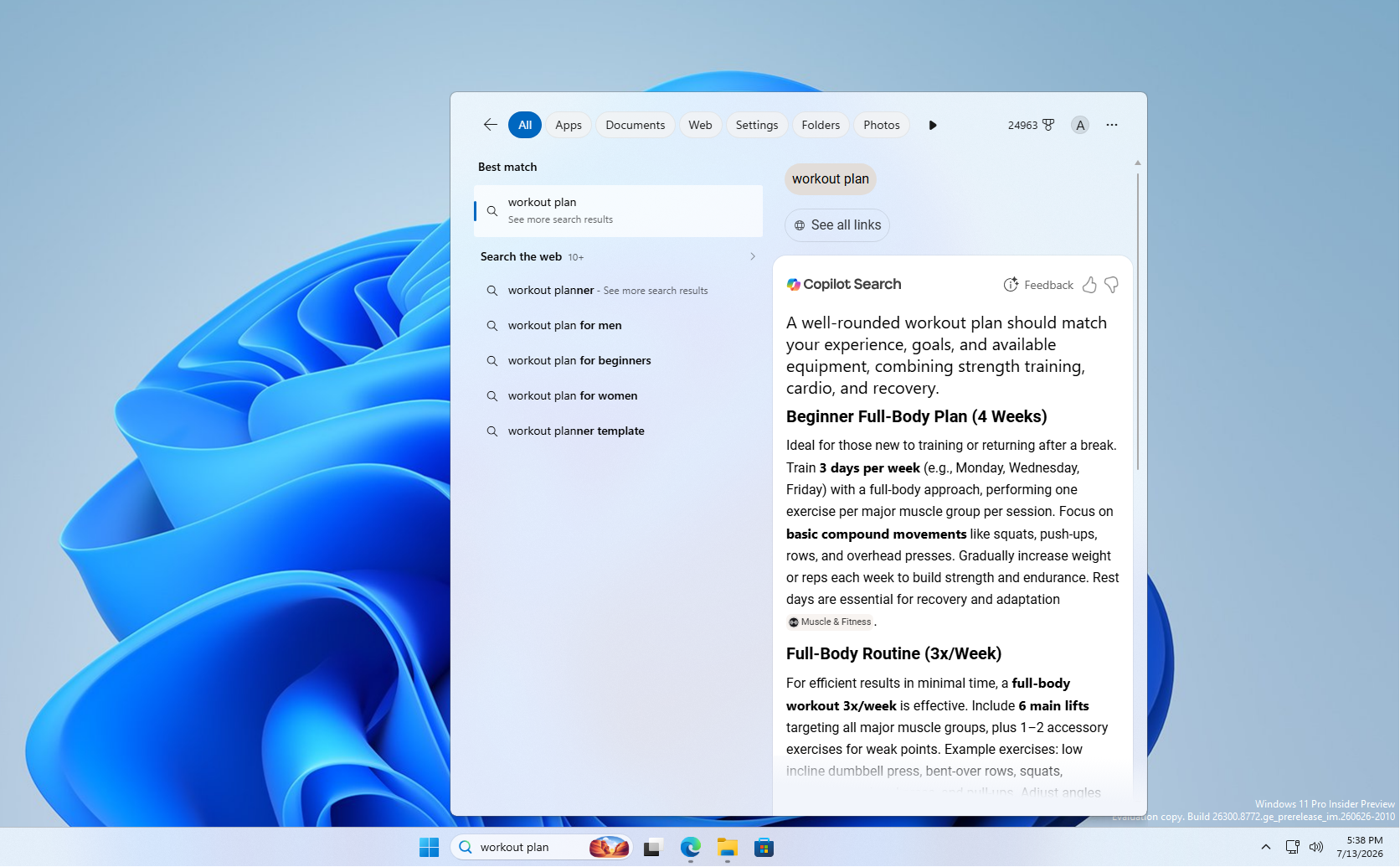
Microsoft has pulled out such promotional content, so the web preview jumps straight to the relevant answer with source links under it.
Microsoft kills off one of the more cynical parts of old Search, and I can’t help but wonder if the company is worried about revenue loss here. But let’s not forget, Windows 11 is not a free OS!
You decide whether Bing and the Microsoft Store show up
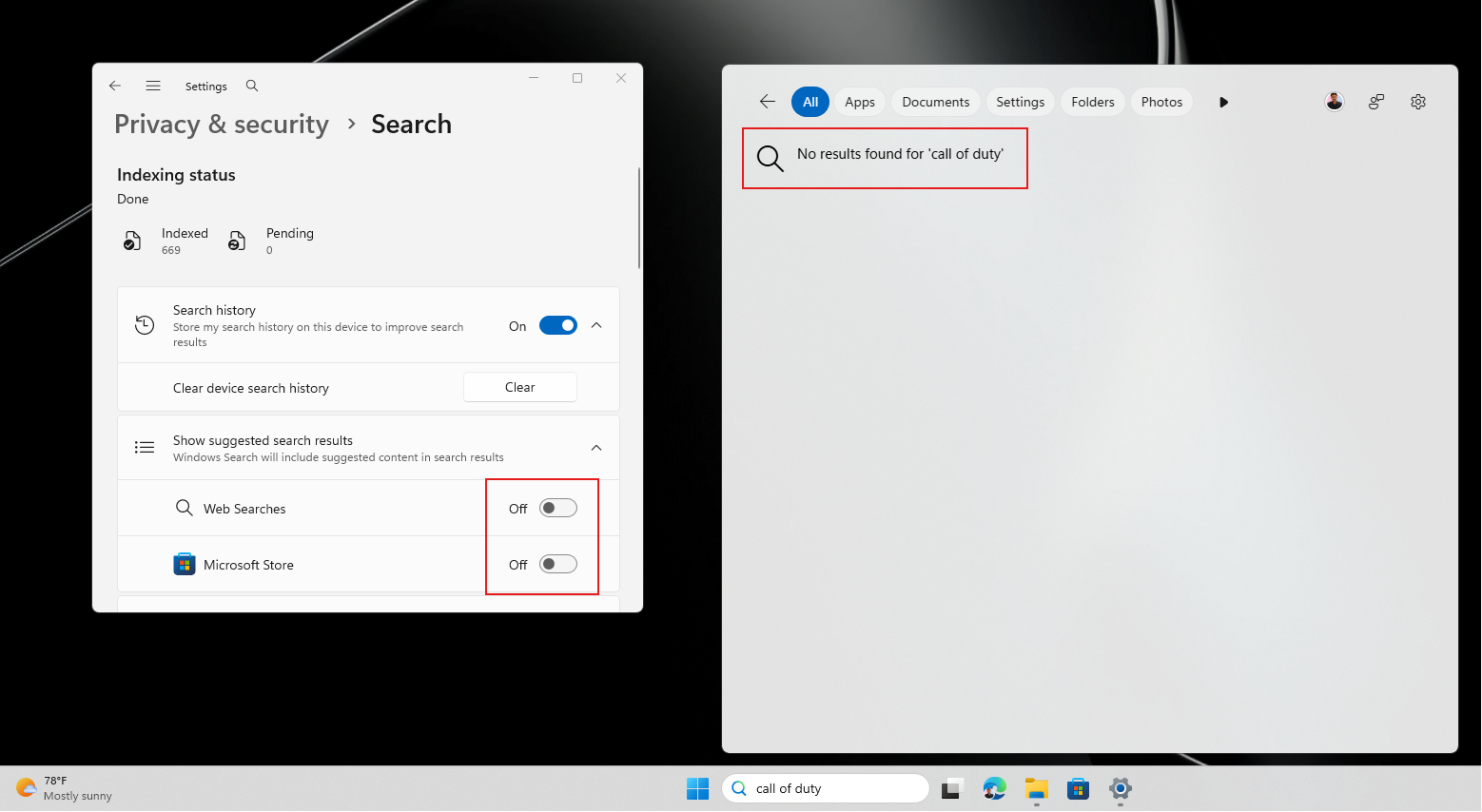
The biggest improvement in Search is enabled with two toggles in a new section called Show suggested search results, under Settings > Privacy & security > Search. One for Web Searches and one for Microsoft Store suggestions.
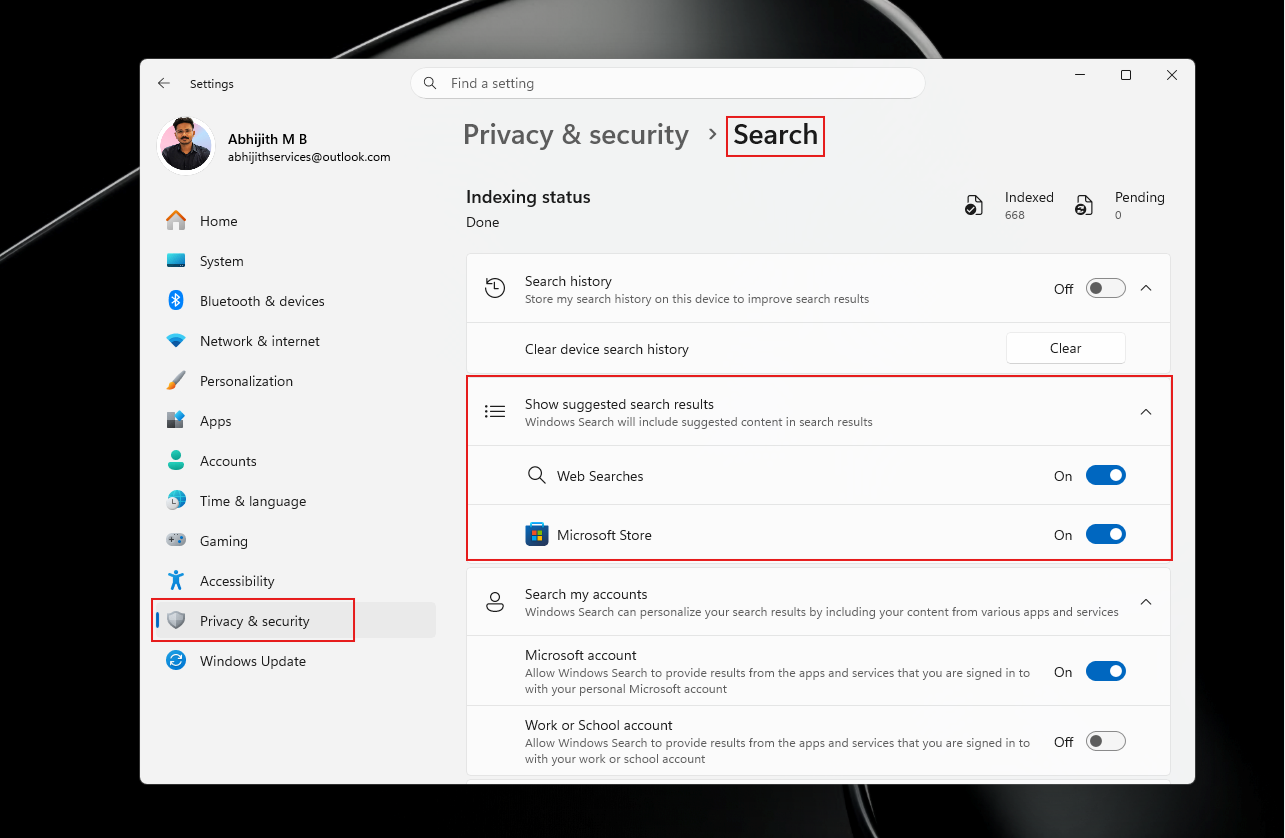
You can cut off Bing web results while keeping Store app results, or flip both off for a strictly local Search experience. We put both through their paces in June, and turning off Web Searches is where the speed comes from, since Search doesn’t have to deal with the millisecond latency of a web result.
With both off, a query that has no local match just returns nothing, which is the right call.
Your apps and settings stop losing to Bing
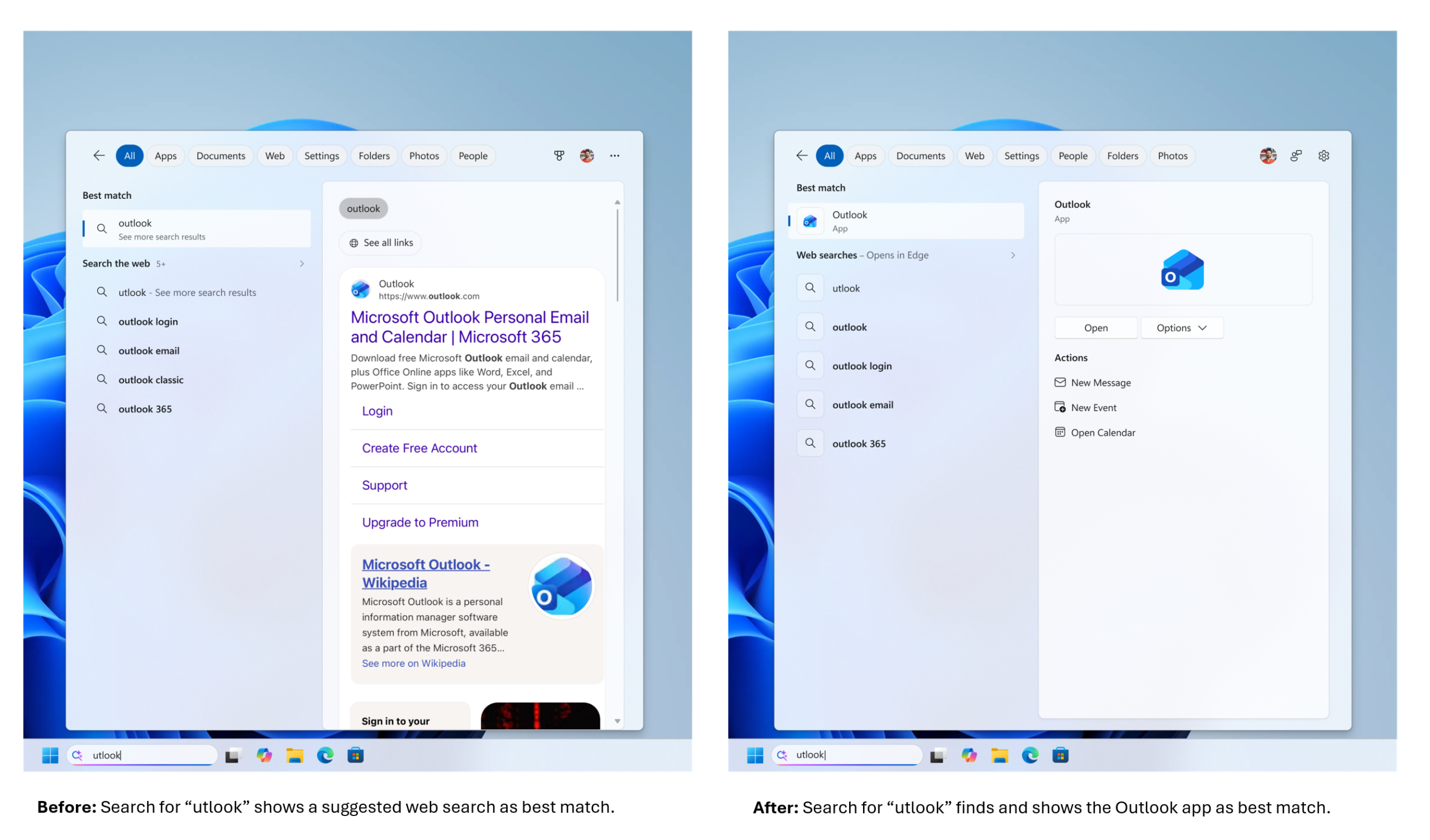
Local matches now rank ahead of web and Store suggestions when your own content is the stronger fit. Type utlook and Search shows the Outlook app as the best match, instead of a Bing search for the typo.
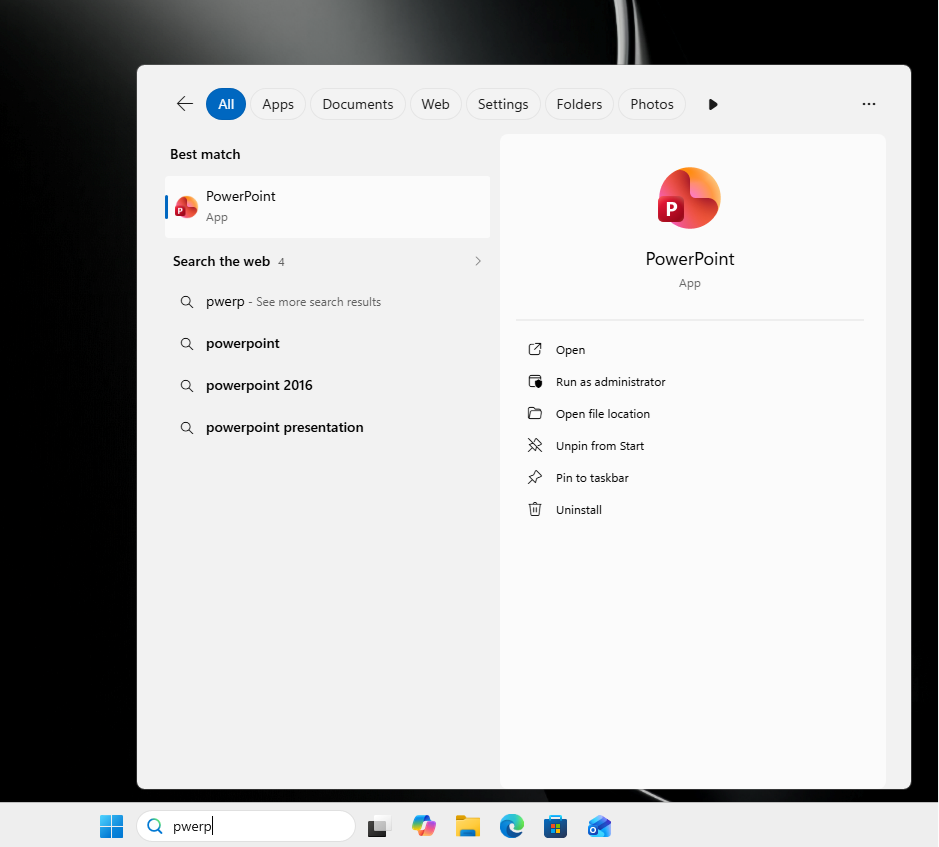
The same forgiveness covers dropped letters, extra letters, and partial words, so pwerp brings up PowerPoint and tskm finds Task Manager.
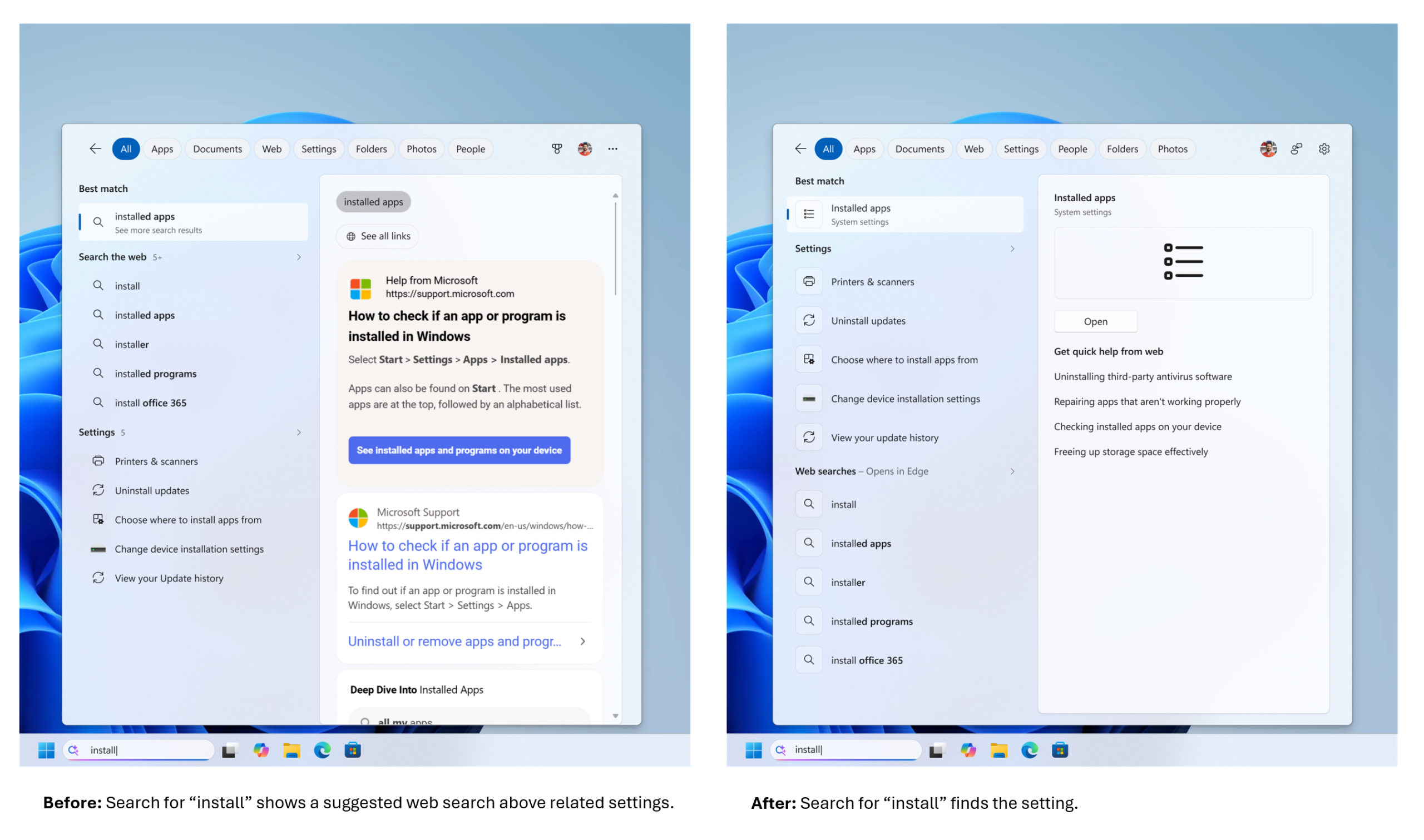
Windows settings got a first round of ranking tuning too, so searching install now points you at the Installed apps page instead of a support article about installing something.
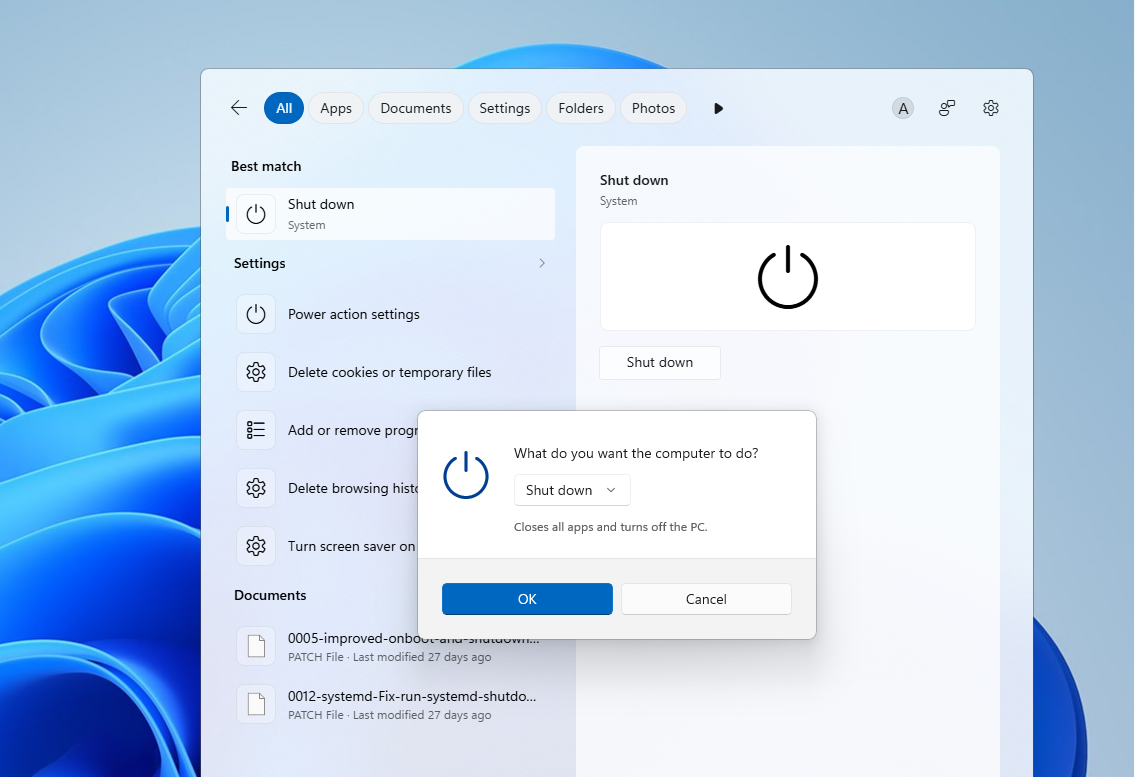
Interestingly, clicking the Shut Down menu in the new Search shows a modern Windows 11 style dialog instead of the older layout, which suggests Microsoft is hard at work in removing legacy Windows dialogs in favour of new WinUI elements.
Finding local and cloud files gets less painful
File search keeps building on changes that already reached stable PCs. Since the June 2026 update, Search fires off file results after just two characters instead of three, and substring matching lets you pull up a compound name like StartMenuComparisonMay by typing menu or may.
The new build pushes it further by showing cloud and connected files when they are the stronger match, so a document in OneDrive or a linked account can appear right next to your local ones. For anyone who never kept tidy file names, it means a lot less time spent renaming things just to make them show in Search.
Search should also crash less often
Microsoft says it has improved Search reliability too, cutting the odds of crashes and loading hiccups, with more fixes still on the way. On the low-spec PC we tested, Search held up without random hangs.
But what’s immediately noticeable is how fast Search has become, and I’m not just talking about the actual speed of showing search results (which has already improved by leaps and bounds). The animation speed of Search UI is now considerably faster, as it is not bogged down by a web-based framework anymore.
What I would like to see in Search
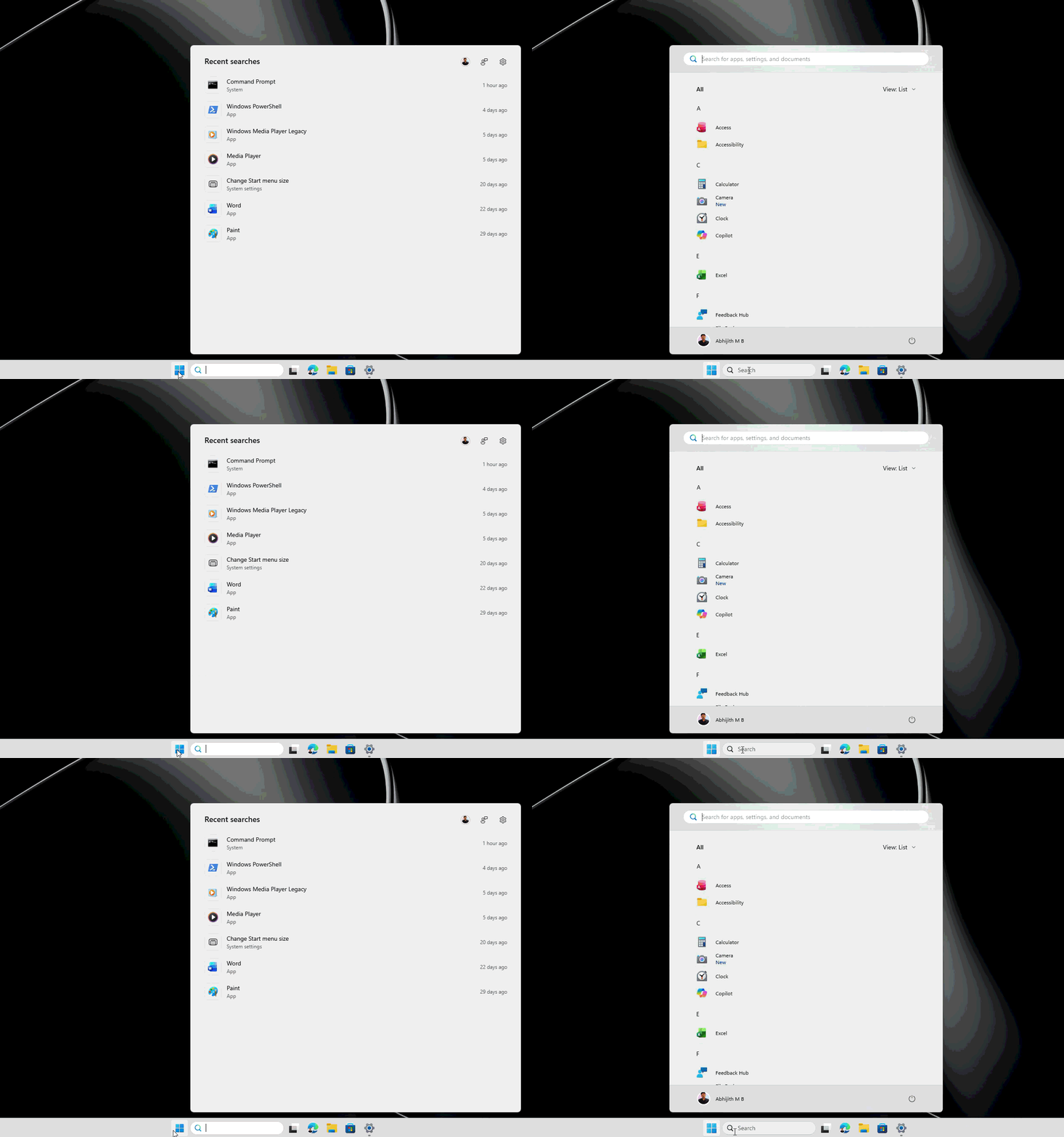
While all of these are very welcome changes, I can’t help but notice a lot of white space here in Search. I understand that Search and the Start menu need to be the same size, but the latter was already huge to begin with. Although a smaller Start menu is on the way, and it may reduce this minor nitpick that I have, still I feel a smaller Search UI, without all this wasted space, would be a better design.
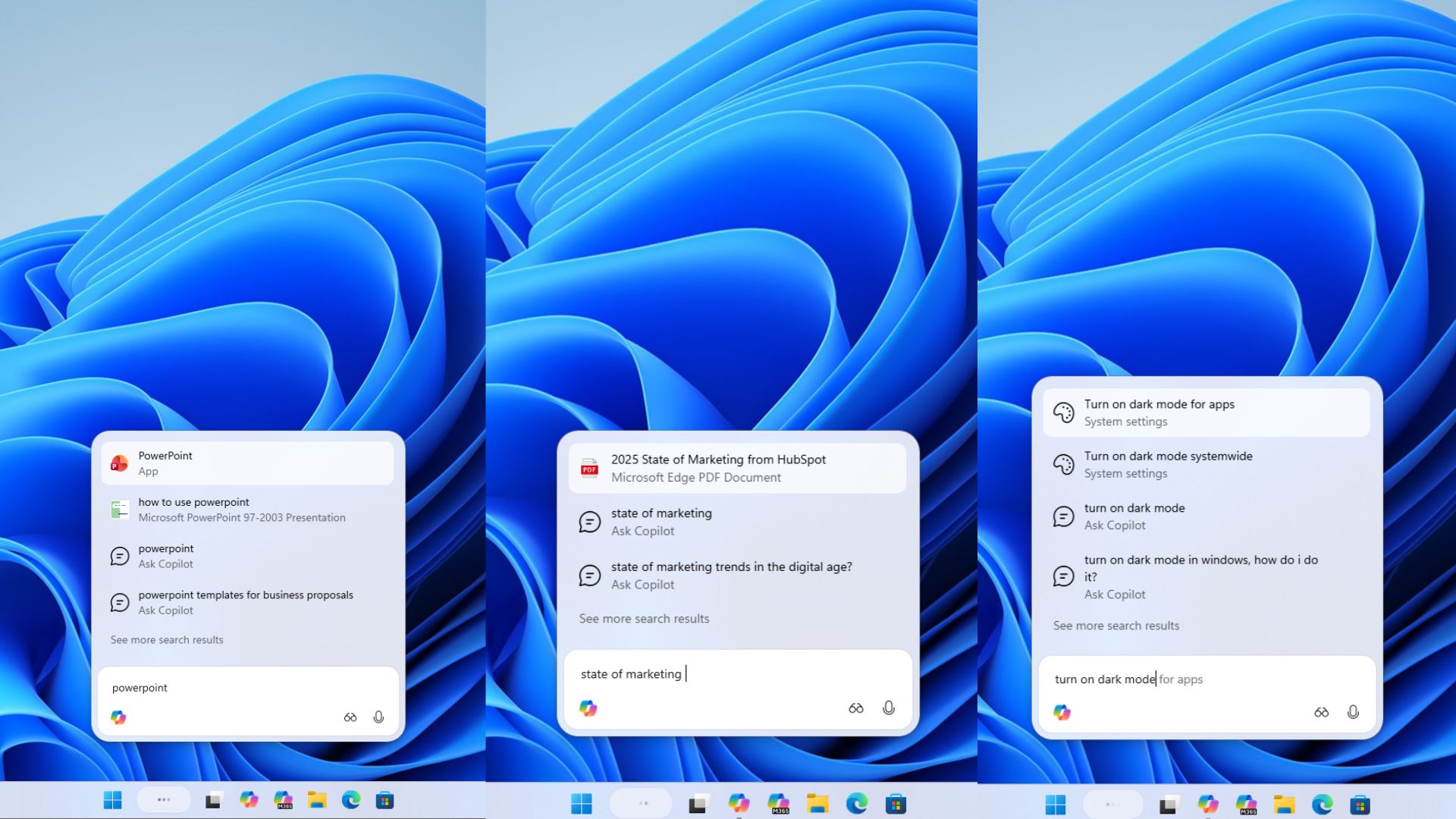
This, obviously, doesn’t mean that I’m asking for Copilot in Search. Ideally the same UI as Ask Copilot, without Copilot, if that makes sense.
How to turn on the new Windows Search as an Insider
If a reboot does not pull the changes in, you can force them from the Feature flags page, which does the job ViveTool used to.
Head to Settings > Windows Update > Windows Insider Program > Feature flags, then set Refined Windows Search, Searchable System Components, and Short Query File Search support to Enabled. Hit Apply Changes and restart.
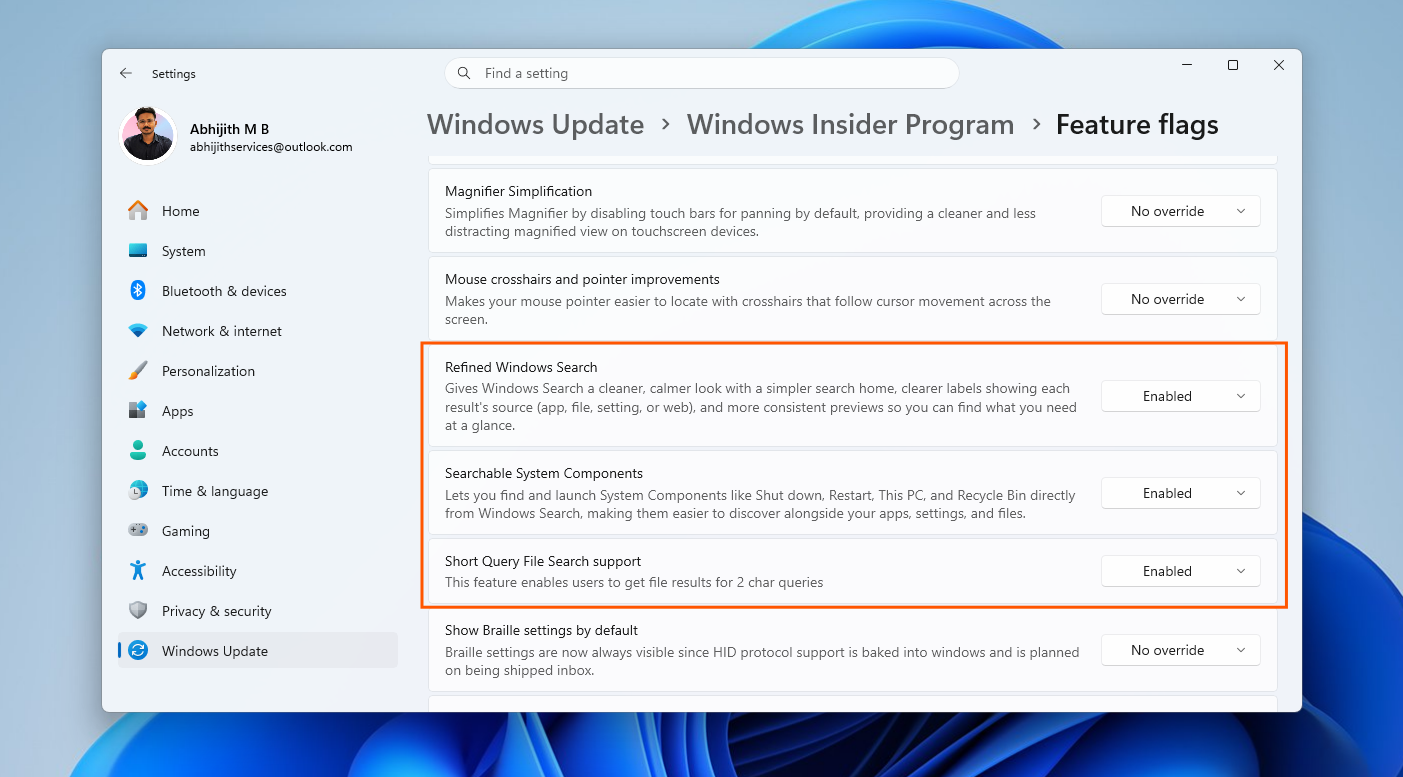
The page only shows up on the Experimental channel and needs an administrator account, and Microsoft notes that experiences vary by region. Once you are back in, the web and Store toggles are ready to use.
And in case you’re skeptical of all this, a Search box that just finds your stuff should not feel like a breakthrough, yet here we are, and I am glad we have it here.
We have no word on when these Search improvements reach regular Windows PCs, but considering the feature works well, we expect it to arrive sooner rather than later.