








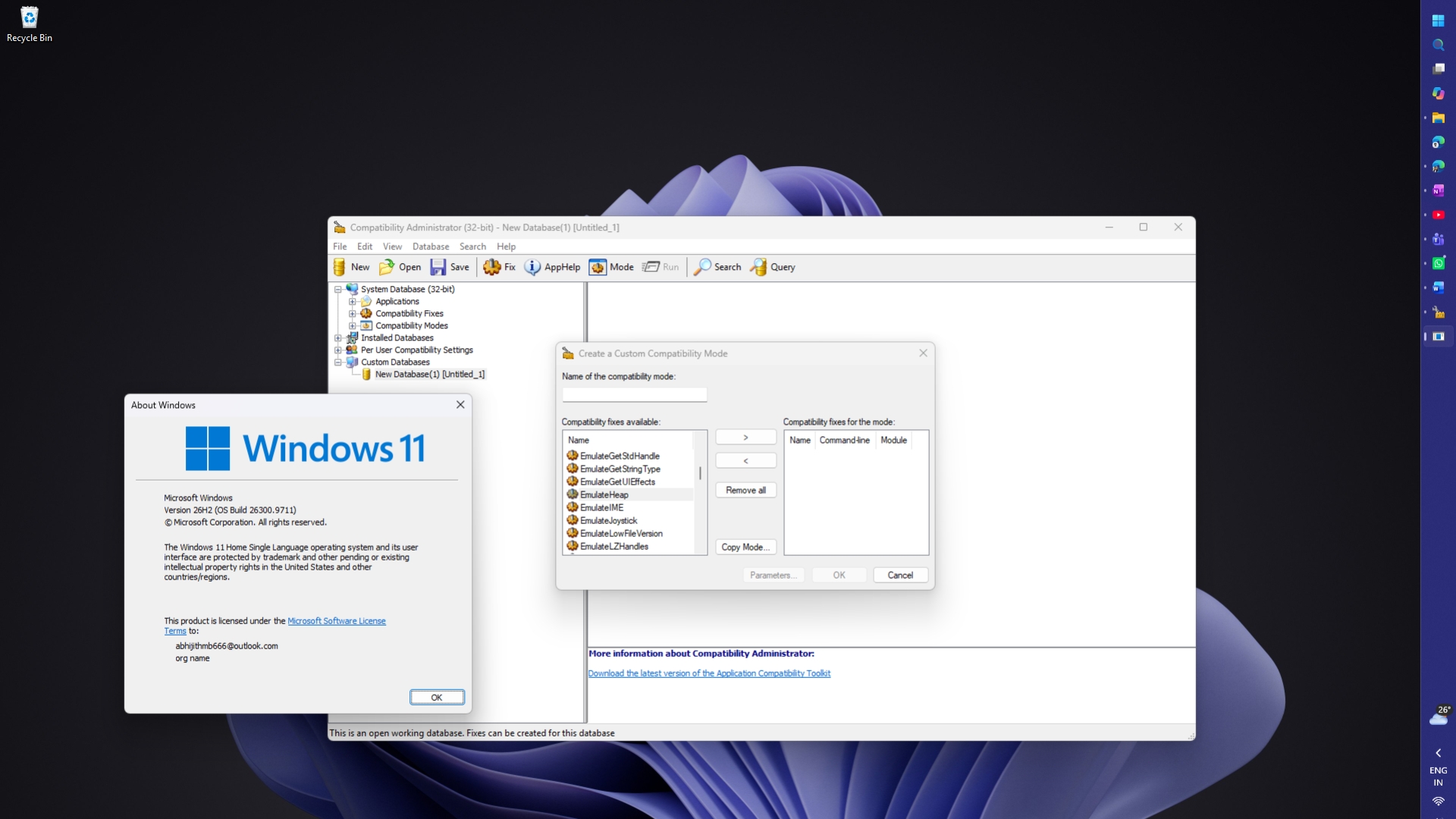
You’ll probably not be surprised to know that Windows 11 still carries a working piece of the Windows 95 kernel. A compatibility fix called EmulateHeap gives old apps Windows 95’s memory manager when they depend on its forgiving nature, and you can find it on a Windows 11 26H2 PC today.
The tradition goes back to SimCity, which only ran on Windows 95 because Microsoft wrote special code for it.
Microsoft changed how Windows 95 managed memory just for SimCity
Apps ask Windows for memory while they run and free it when they’re done. If that memory is still read after being freed, it is a bug known as use-after-free, and the original SimCity for Windows 3.x had one.
Joel Spolsky, Stack Overflow co-founder and former Microsoft engineer, shared the story in a 2000 essay, citing Jon Ross, who wrote that version of SimCity. Ross admitted he accidentally left a bug where the game “read memory that he had just freed,” and Spolsky explains why nobody noticed. “It worked fine on Windows 3.x, because the memory never went anywhere.”
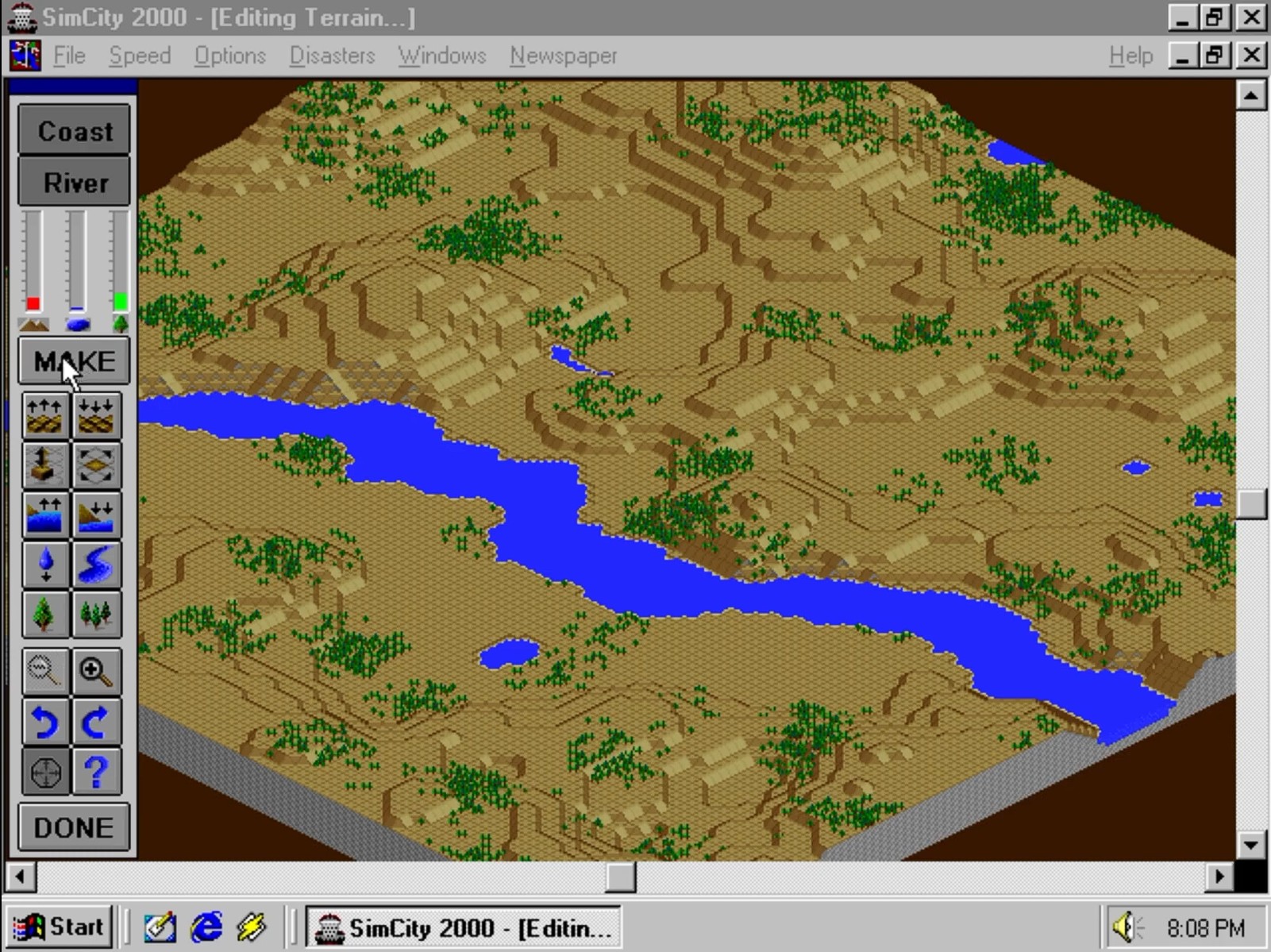
SimCity broke on the Windows 95 betas, and instead of waiting for a patched game, Microsoft added code to Windows 95 that looks for SimCity. “If it finds SimCity running, it runs the memory allocator in a special mode that doesn’t free memory right away,” Spolsky wrote.
Yes, Microsoft modified its OS just to cover up one game’s bug.
Microsoft recompiled Windows 95’s heap manager to keep old apps alive
The SimCity hack was a one-off, but other apps made similar assumptions. Microsoft engineer Raymond Chen explained in his Windows Confidential column in 2010 that some programs used the quirks of the Windows 95 heap, such as reading freed memory and expecting the old values to still be there.
Unfortunately for those apps, they crashed on later versions of Windows, which manage memory differently.
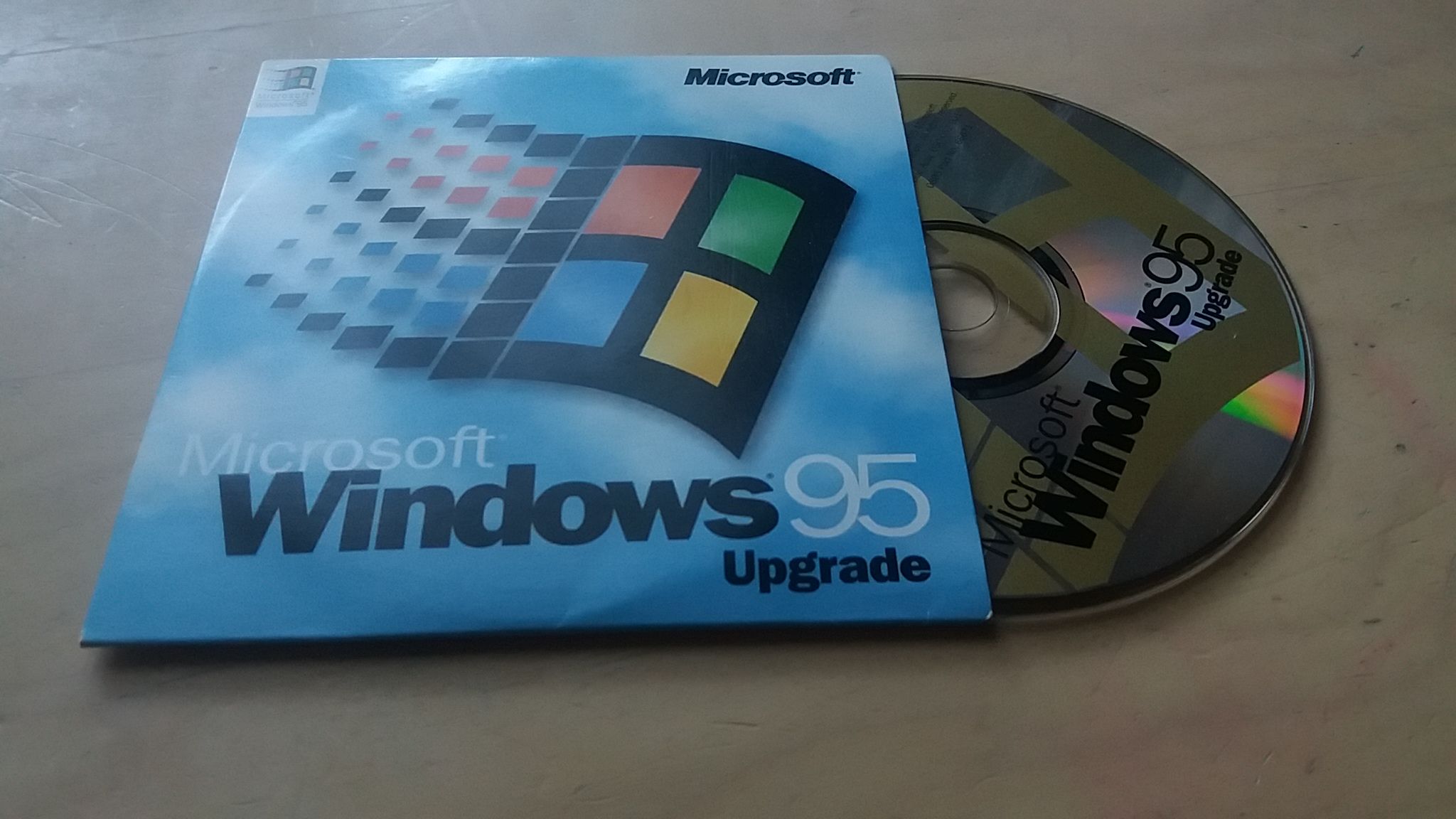
The solution was EmulateHeap, which fixes this issue by redirecting an app’s heap calls, “from HeapCreate to LocalLock to GlobalReAlloc and everywhere in between,” to replacements that mimic Windows 95. Chen describes it as “extremely simple” yet “completely crazy,” and the even crazier part is how Microsoft built it:
“…they simply took a copy of the Windows 95 Heap Manager source code, recompiled it, and added it to the compatibility infrastructure.”
In Chen’s words, “there’s a copy of a significant chunk of the Windows 95 kernel inside the Windows application compatibility framework.” Chen notes the old code only loads from the hard drive when EmulateHeap is enabled for an app, so your PC isn’t quietly running Windows 95 in the background.
To be clear, EmulateHeap isn’t the code Microsoft wrote for SimCity. Both come from the compatibility obsession behind Windows XP’s hidden database of app fixes, but they’re separate fixes.
How to find EmulateHeap in Compatibility Administrator on Windows 11
You can see EmulateHeap in Compatibility Administrator, a free Microsoft tool for IT admins that lists the compatibility fixes Windows comes with. Microsoft describes a compatibility fix (or shim) as “a small piece of code that intercepts API calls from applications.”
Compatibility Administrator comes with the Windows Assessment and Deployment Kit (ADK), and the September 2026 release officially supports Windows 11 26H2. I found EmulateHeap on my 26H2 PC with these steps:
- Download the Windows ADK from Microsoft and run the installer.
- Select only Application Compatibility Tools from the list of features and finish the install.
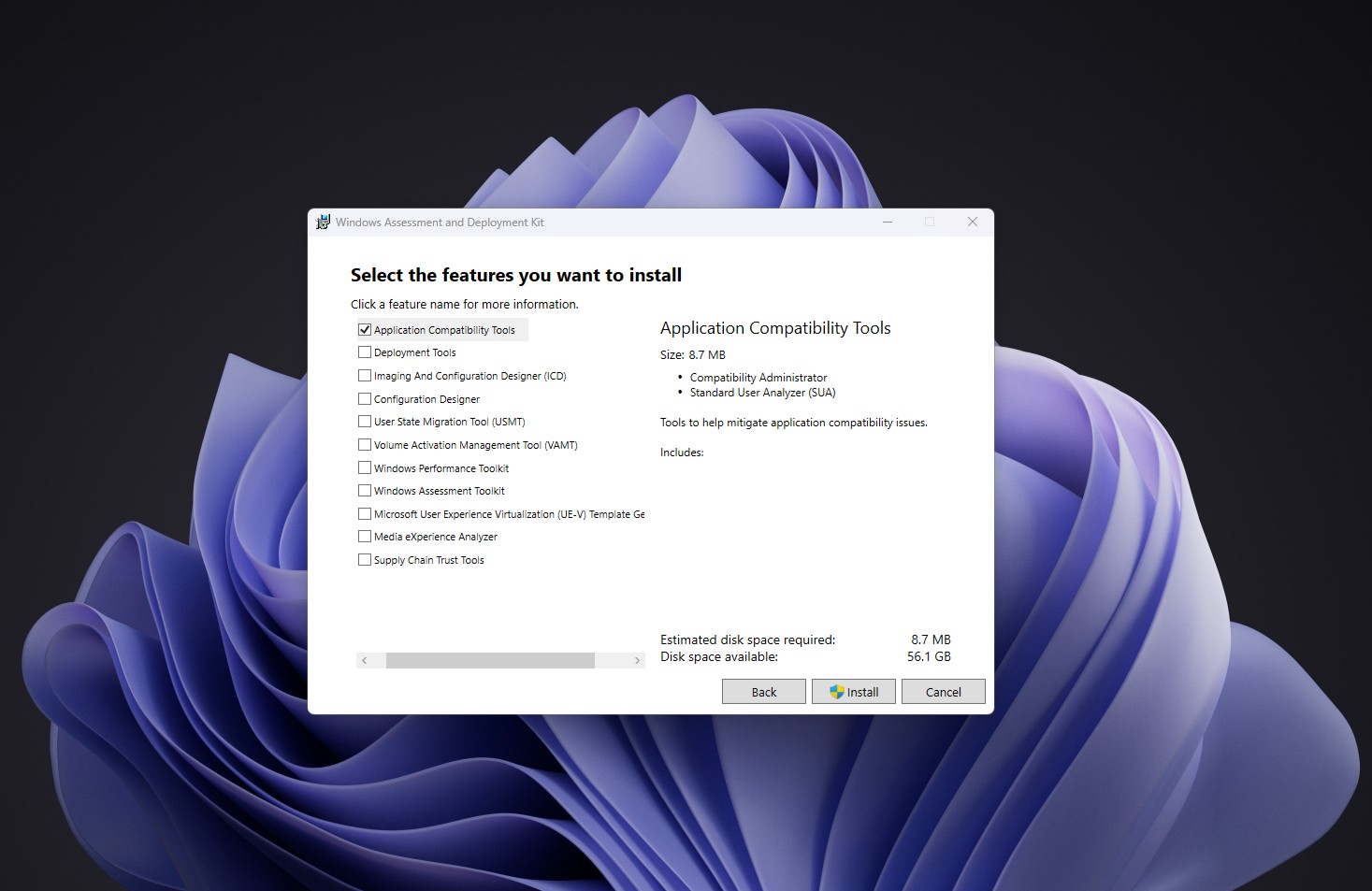
Selecting Application Compatibility Tools in Windows Assessment and Deployment kit. Credit: Windows Latest - Search Start for Compatibility Administrator and open the 32-bit version, as most Windows 95-era apps are 32-bit.
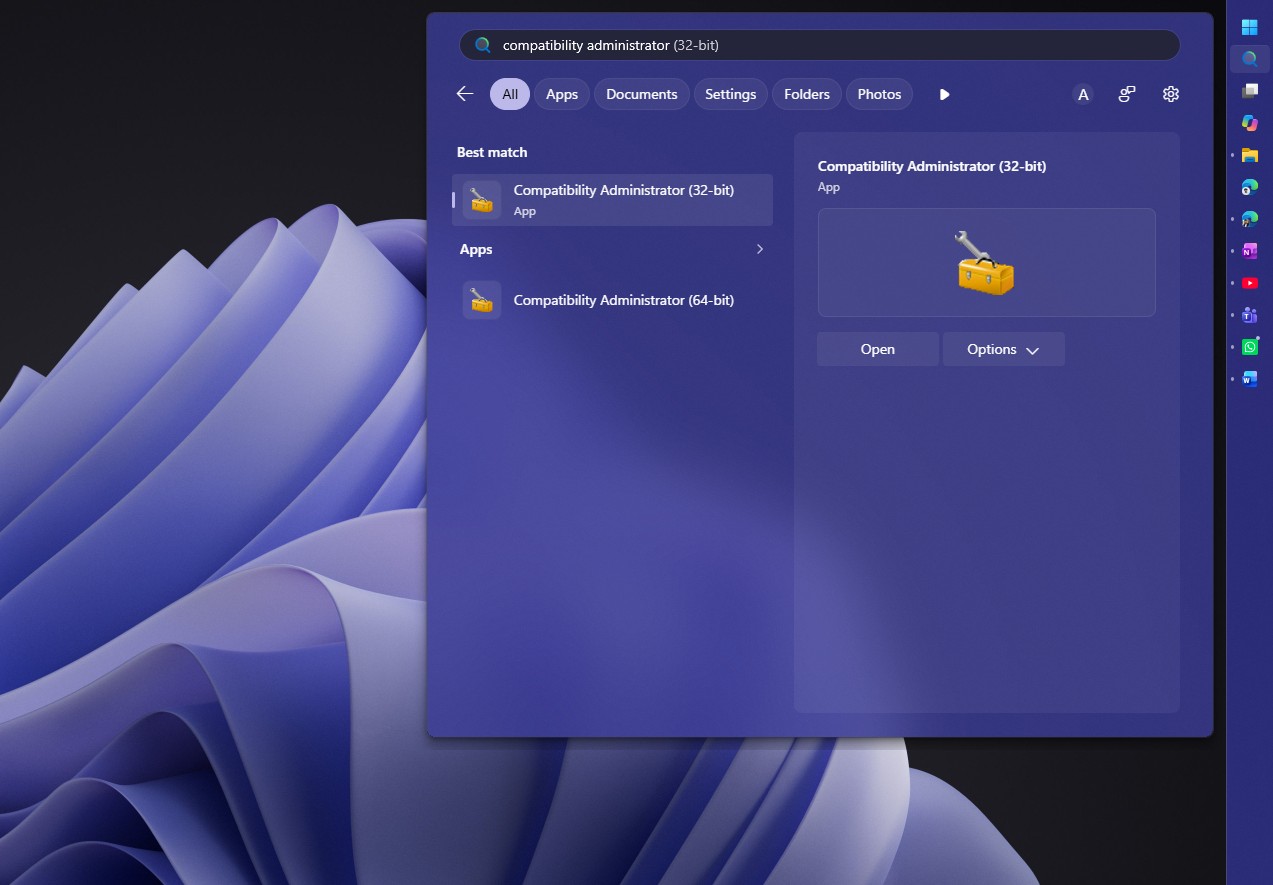
Compatibility Administrator 32 bit in Start. Credit: Windows Latest - Under Custom Databases, right-click New Database, then select Create New > Compatibility Mode.
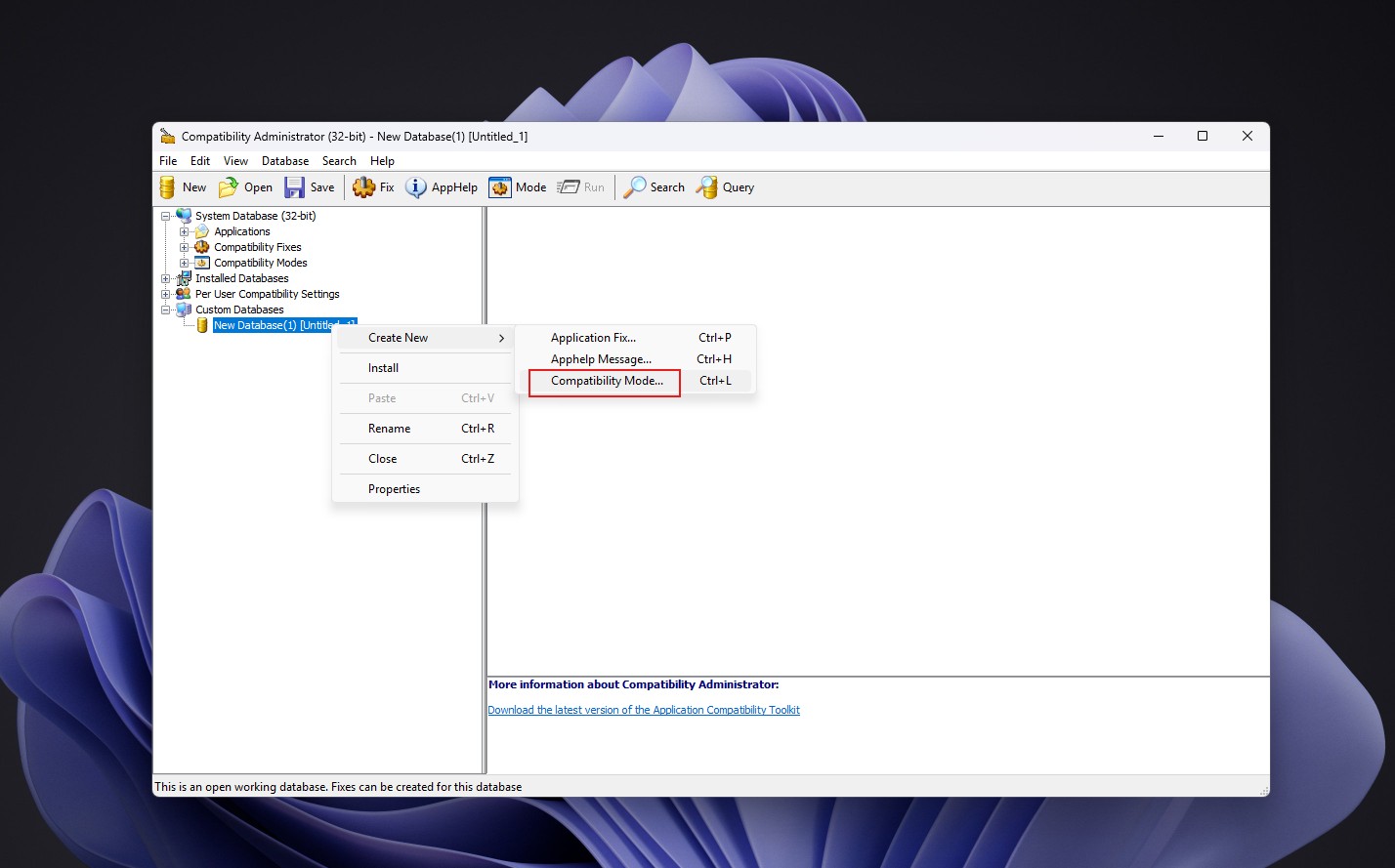
Creating a new database of Compatibility Mode. Credit: Windows Latest - Scroll the list of available compatibility fixes to EmulateHeap.
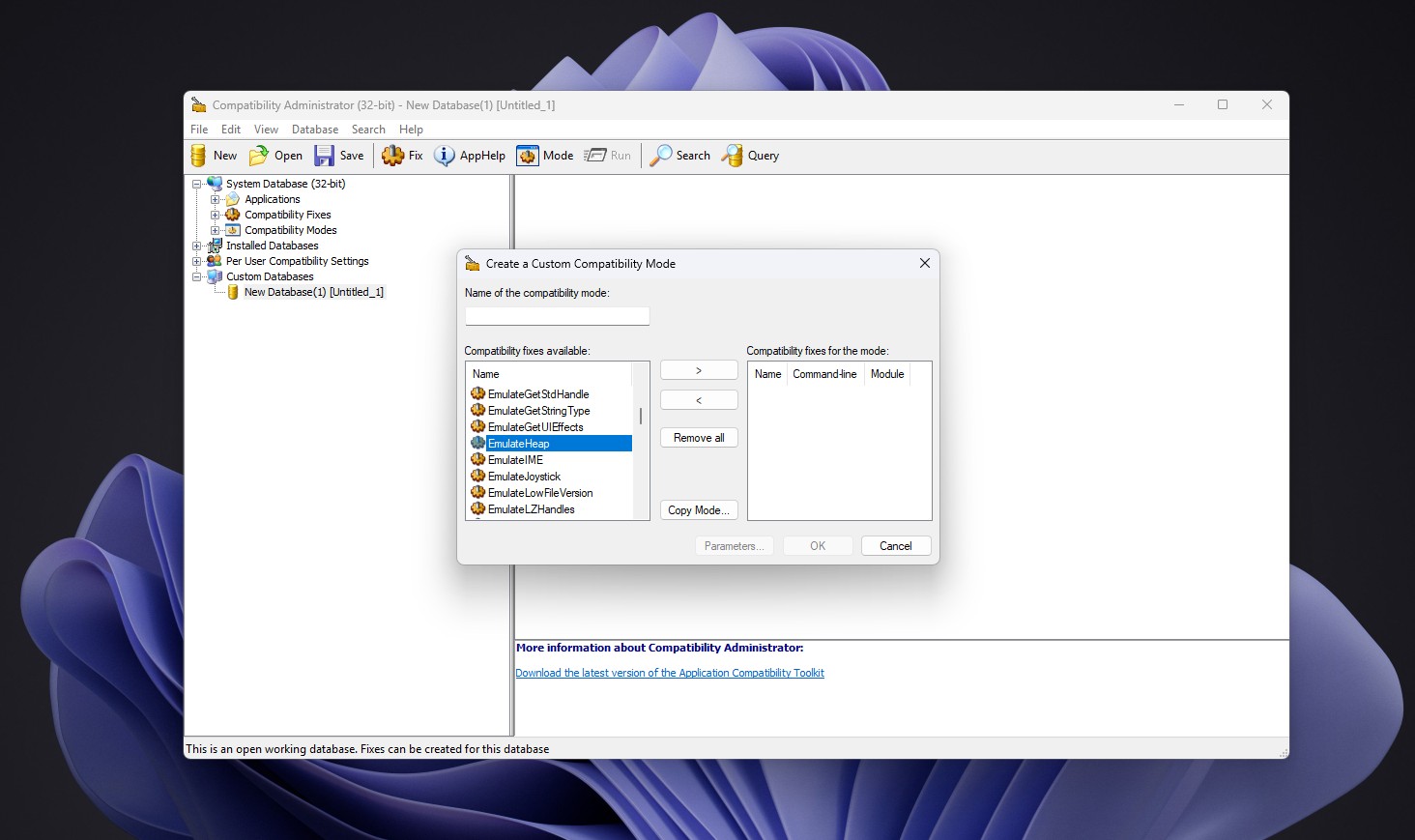
EmulateHeap in Compatibility Administrator’s list of compatibility fixes on Windows 11 26H2. Credit: Windows Latest
Of course, a listed fix isn’t a working fix. After the Windows 11 22H2 update, users reported that games like GTA Vice City lost sound and Need for Speed: Most Wanted crashed with the shim enabled.
Ironically, Microsoft is replacing the Windows 95-era Properties dialog with WinUI 3, while it still keeps Windows 95’s heap manager around for a handful of old apps. Microsoft wasn’t kind enough to extend this effort to 3D Pinball, which was dropped because of a 64-bit bug the team couldn’t afford to spend days on.