




Windows 11 KB5127648 is rolling out now, and it’s the first cumulative update for Windows 11 26H2, but it’s not a huge release compared to the previous update. It significantly improves Bluetooth, adds Emoji 17.0 support, and more. Microsoft is rolling it out via Windows Update, but it has also posted direct download links for offline installers for KB5127648.
KB5127648 is an October 2026 Patch Tuesday update, and it’ll download and install automatically unless you’ve paused Windows Update. In my tests, the update showed up as “2026-10 Security Update (KB5127648) (26300.9711)” and began installing automatically.
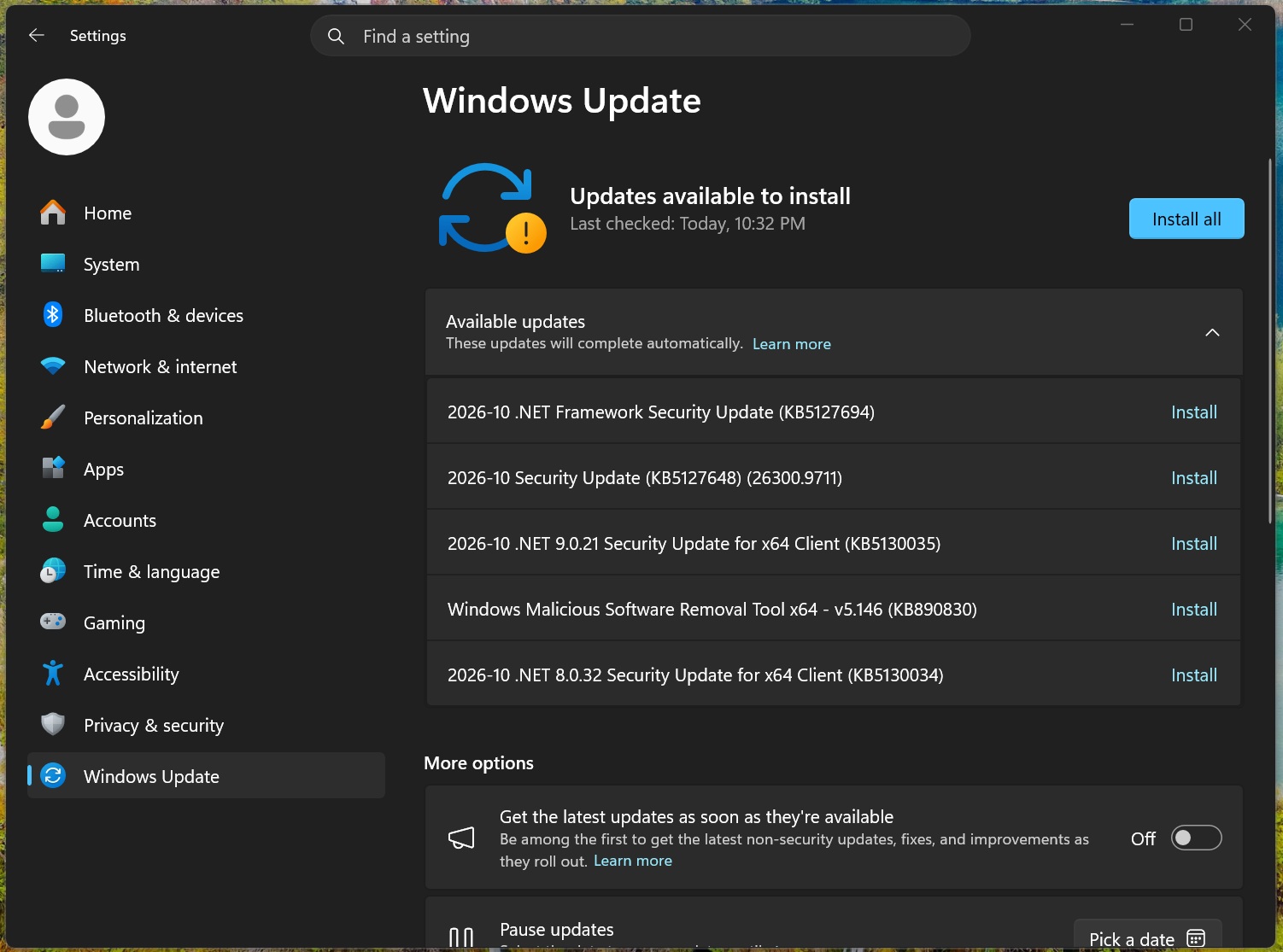
As I noted, this is Windows 11 26H2’s first cumulative update, and it bumps the OS to Build 26300.9711. If you’re on Windows 11 25H2, you’ll be getting 26200.9711. And for those still on Windows 11 24H2, 26100.9711 is what you’ll get today. Remember that it’s the last update for Windows 11 24H2, so you’ll need to move to either 25H2 or 26H2.
Since it’s October 2026 Patch Tuesday, there are updates for other Microsoft products as well. Windows is also getting a new .NET Framework security update, and you can’t (and you must not) skip these critical updates:
- 2026-10 .NET Framework Security Update (KB5127694)
- 2026-10 .NET 9.0.21 Security Update for x64 Client (KB5130035)
- 2026-10 .NET 8.0.32 Security Update for x64 Client (KB5130034)
There’s also “Windows Malicious Software Removal Tool x64 – v5.146 (KB890830)” rolling out today, but it’s not exactly news because it rolls out every week.
Download Links for Windows 11 KB5127648
Windows 11 KB5127648 Direct Download Links: 64-bit and ARM64 | This opens the Microsoft Update Catalog, where you can download .msu installers for October 2026 updates. It’s always better to use Windows Update, but in case Windows Update is throwing errors, I recommend going with .msu files downloaded from the Update Catalog.
An .msu file is larger than a Windows Update and takes longer than usual. However, Windows 11’s monthly updates are also growing in size lately. For comparison, Windows 10 updates used to be, and still are (if you use Windows 10 ESU), under 900 MB, but Windows 11 updates are usually in GBs.
Here are the sizes for the October 2026 Patch Tuesday update:
| Build Number | Size | OS Version | Architecture |
|---|---|---|---|
| 26300.9711 | 5062.9 MB | Windows 11 26H2 | x64-based |
| 26300.9711 | 4906.0 MB | Windows 11 26H2 | arm64-based |
| 26200.9711 | 5062.9 MB | Windows 11 25H2 | x64-based |
| 26200.9711 | 4906.0 MB | Windows 11 25H2 | arm64-based |
To download Windows 11 Build 26300.9711 (26H2) or Build 26200.9711 (25H2), open Settings > Windows Update and check for updates.
What’s new in Windows 11 Build 26300.9711 (26H2) / Build 26200.9711 (25H2)?
Here’s everything new in Windows 11 versions 26H2, 25H2, and 24H2 (KB5127648 – OS builds 26300.9711, 26200.9711, and 26100.9711). All the features are rolling out gradually, so they may not show up right away:
1. File Explorer’s preview pane finally works
I do not know how many of you care about it, but I frequently use the preview pane of File Explorer to quickly glance over the documents I have. And it’s actually super handy if you haven’t used it before. You can also zoom in, navigate pages, and read almost everything with ease unless you totally hate the small screen space.
But an update in October 2025 made a change to improve the overall security of Windows, and that made it difficult to preview downloaded files, including PDFs. That means if you tried to preview a PDF that you downloaded from the internet, let’s say OneDrive or Google Drive, you’d be blocked from previewing it.
File Explorer would show an error message saying it’s unsafe to preview the file:
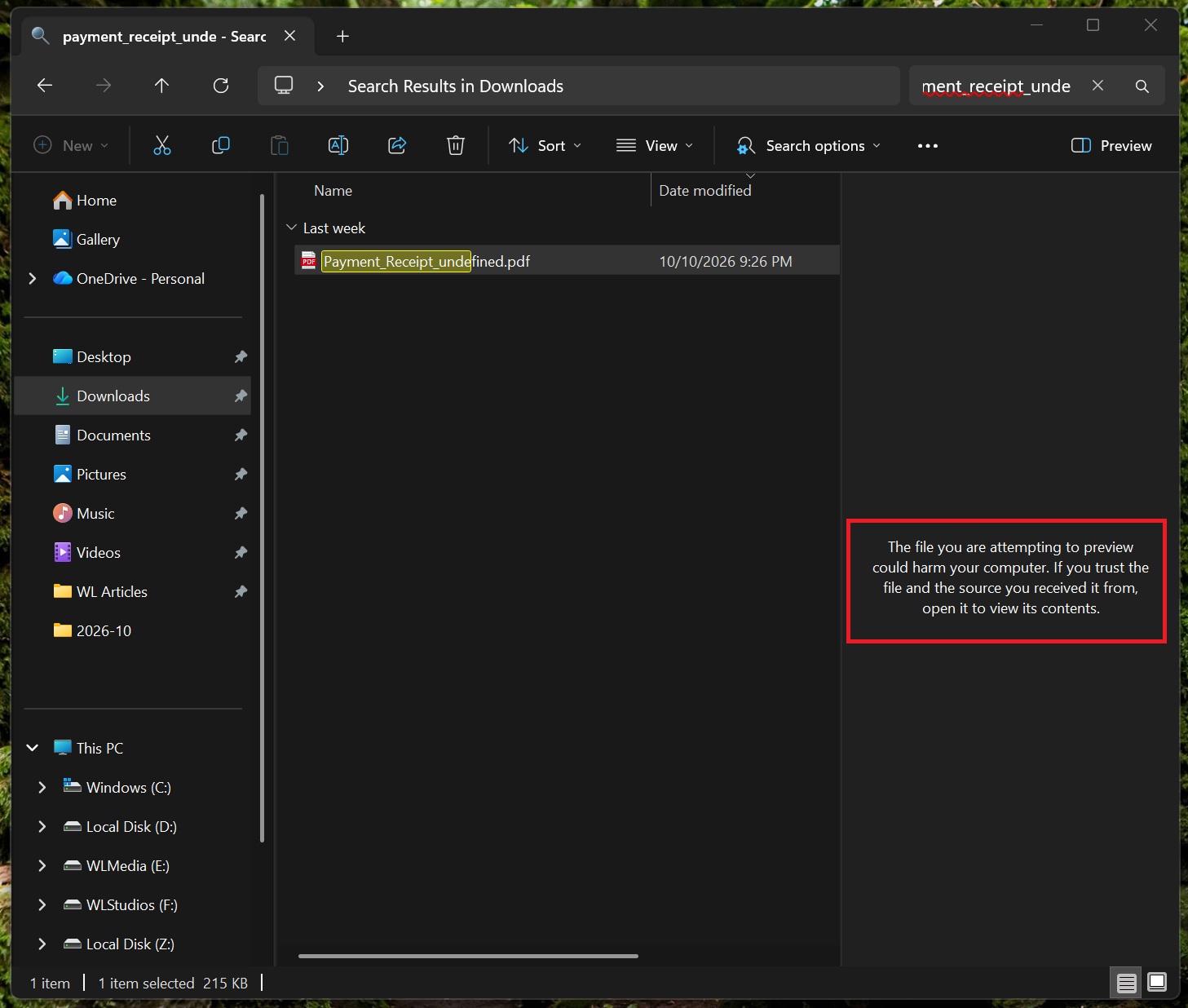
“The file you are attempting to preview could harm your computer. If you trust the file and the source you received it from, open it to view its contents,” the error reads, and it would appear for almost everything downloaded from the internet. This includes your own personal or OneDrive files, as Windows can’t decide how secure a downloaded file is.
If you’ve run into the above error, you’d need to open the file’s properties and unblock it to preview it, but that defeats the purpose of quickly previewing documents you just downloaded.
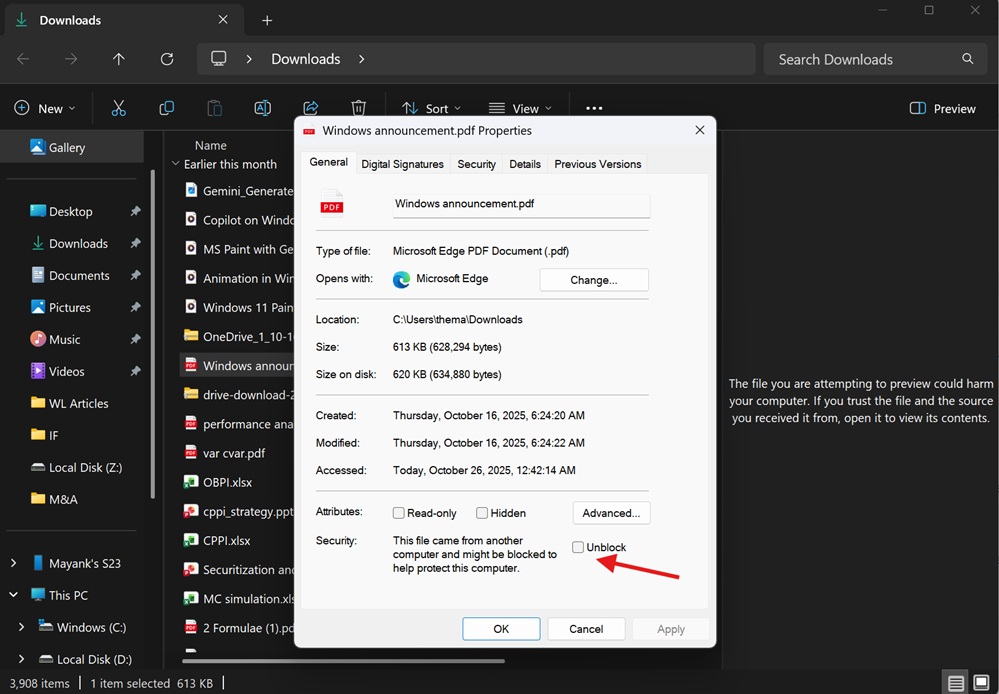
Thankfully, it’s getting fixed today. Windows 11 KB5127648 now allows you to preview files downloaded from the web, so you can read most of the documents. However, you still cannot preview HTML files, and I don’t think that’s a big deal, as Windows is also adding a new “Preview anyway” button:
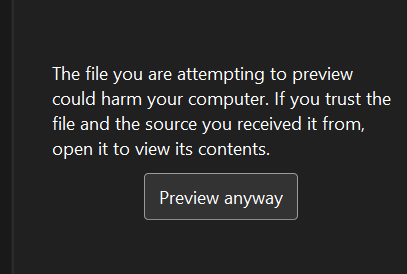
For the most part, files such as PDFs are now previewed automatically!
Another notable change in today’s update for File Explorer is that the “Home” tab now remembers the state of sections (Recent/Favourites). For example, if you collapsed the Recent section, closed File Explorer or rebooted Windows, and reopened File Explorer, you’d notice that the section remained collapsed.
Microsoft previously rolled out a similar update for File Explorer where filter/sorting/view-related customizations started to apply across all folders and entry points. For example, if you changed how your files appear in a particular folder, and then accessed the same folder via another app, such as Chrome, you’d now notice that the customization is not lost and is retained.
2. You can now remap the Copilot key to Right Ctrl or Context Menu
After years of complaints, Windows 11 KB5127648 is letting you remap the Copilot key without third-party tools. Go to Settings > Bluetooth & devices > Keyboard, and you can make the key work as Right Ctrl or the Context Menu key.

Microsoft says the change helps preserve familiar keyboard shortcuts and accessibility workflows, which is a polite way of saying a lot of laptops lost their Right Ctrl key to Copilot.
If you choose Right Ctrl, shortcuts like RCtrl + Win may not work as expected, so Microsoft recommends using Left Ctrl for those. If your laptop maker already has a remapping tool, use either that or the Windows setting, not both.
3. Open apps maximized is a new accessibility setting in Windows 11
With Windows 11 KB5127648, Microsoft has added a new toggle called “Open apps maximized.” This new Open apps maximized toggle does what the name suggests.
You can turn it on in Settings > Accessibility > Visual effects, and every app opens maximized instead of at its last window size. Microsoft says it helps screen reader and magnifier users, people in tablet mode (which I agree with for smaller screens), or anyone who wants a consistent full-screen workspace.
When we tested it, it worked for every app we tried, including File Explorer. Keep in mind that turning it off doesn’t restore old window sizes, as apps remember they were last maximized. In my opinion, it’s most useful on 13 and 14-inch laptops, where you hit the maximize button for almost every app anyway.
The Bluetooth quick settings page is also easier to navigate with a keyboard, gamepad, or Narrator.
4. Bluetooth gets its biggest reliability update in a while
Microsoft acknowledged a long list of Bluetooth problems in September, and the fixes come with Windows 11 KB5127648. My OCD brain loves seeing so many fixes at the same time:
- During voice calls, changing the volume on a Bluetooth Classic Audio headset shows the Windows volume flyout, so you can see the new level.
- Windows shows a more accurate connection state for accessories that have disconnected.
- The Bluetooth & devices page in Settings is more stable when managing Bluetooth and audio devices.
- The Bluetooth toggle in Settings no longer shows on when the radio is off.
- Microphones work better with certain Bluetooth Classic audio accessories.
- A crash with error code 0x139 while streaming Bluetooth audio is fixed.
- LE Audio accessories are more reliable and perform better.
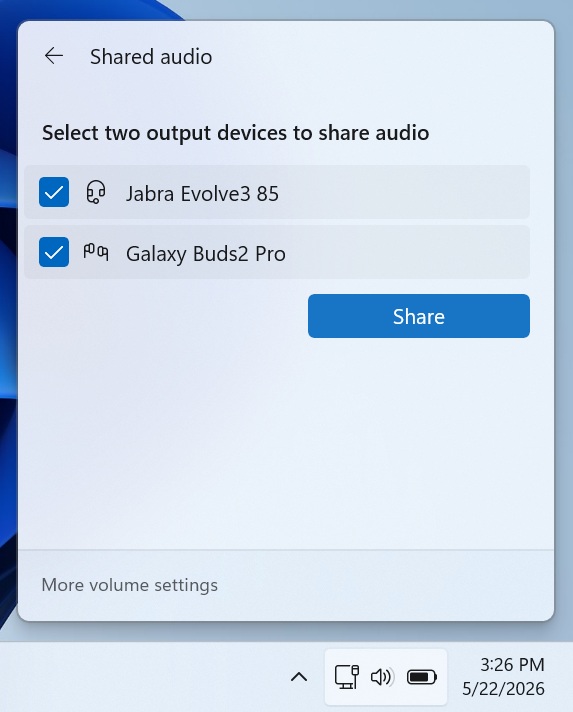
- Shared audio is more reliable.
July’s update already made AirPods and Beats work better, and with these fixes, Bluetooth on Windows 11 should be a lot less frustrating.
5. Emoji 17.0 adds distorted face, fight cloud and hairy creature
Windows 11 KB5127648 supports Emoji 17.0, seven months after Emoji 16.0 arrived in March. New emoji include distorted face, fight cloud and hairy creature, and you can find them by pressing Windows + . to open the emoji panel.
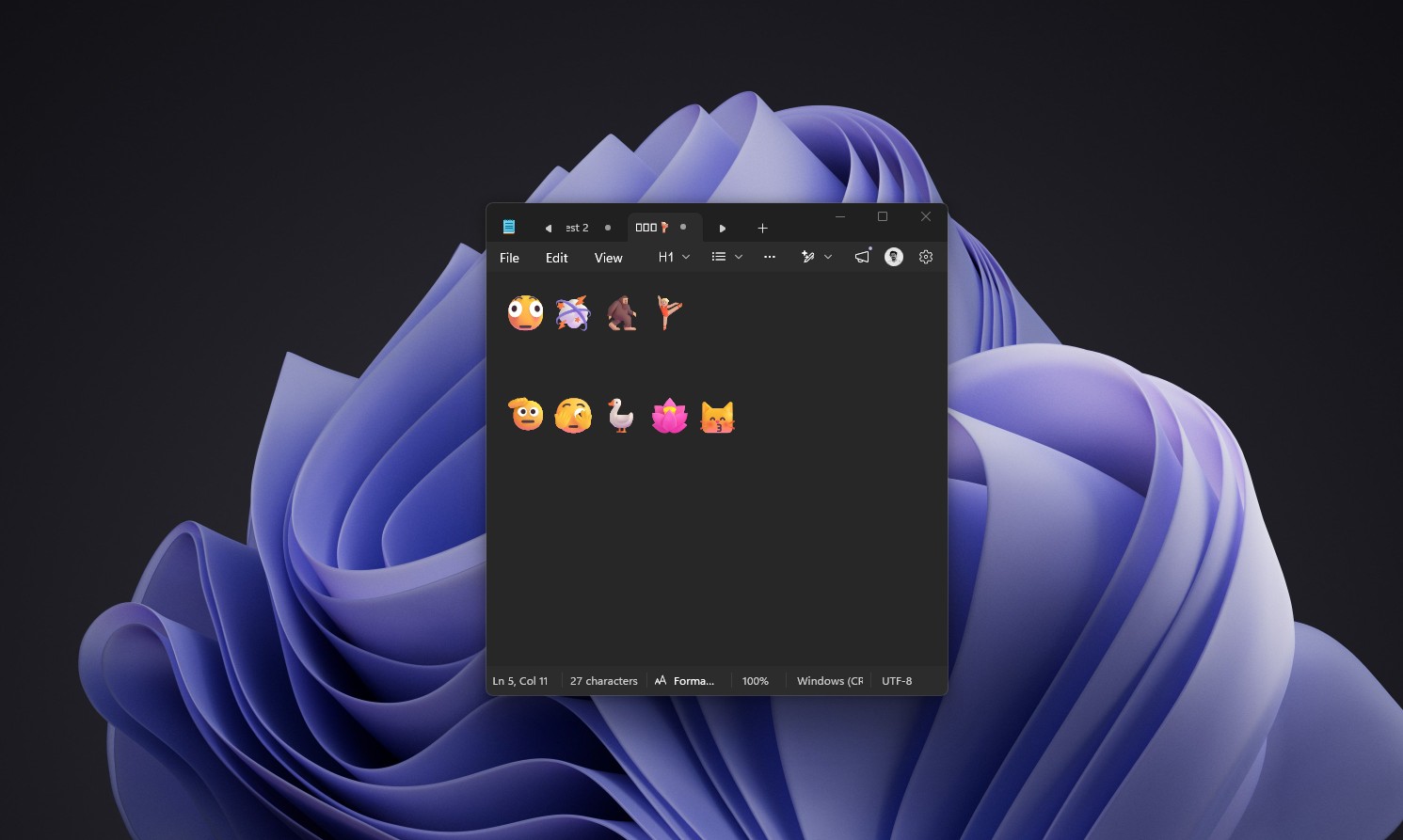
Microsoft also refined several existing designs for better consistency with other platforms, including the saluting face, face with peeking eye, goose, lotus, and kissing cat.
6. There’s a new Windows widget for Windows tips
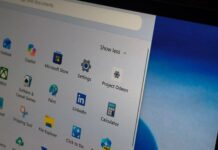
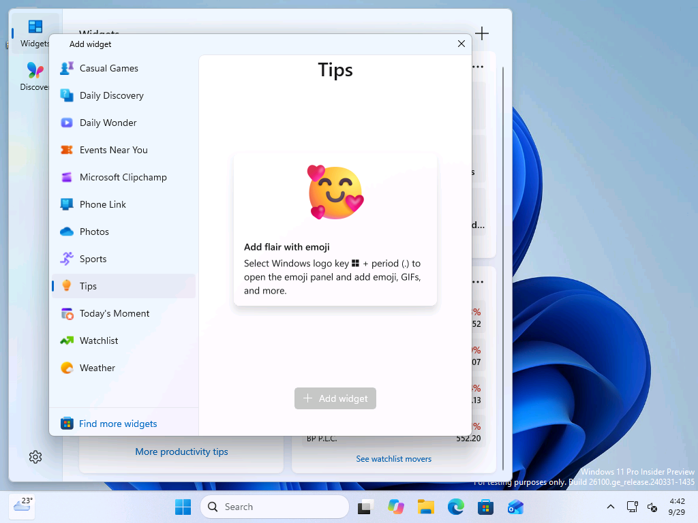
There’s a new Windows widget that I found after installing Windows 11 KB5127648. It’s called “Tips,” and as the name suggests, it lets you find out more about Windows.
For example, if you look at the screenshot below, one of the lesser-known tips, which tells you to use Windows Key + . (period) to open the emoji panel, has appeared on the Widgets board:
7. Microsoft is killing off the PC-to-PC migration tool it built, to push OneDrive
Microsoft is just as bad as Google when it comes to killing off products or features, and one of the great ideas that is losing support today is the “PC-to-PC” migration tool. For those unaware, Microsoft quietly built an offline PC-to-PC Migration feature for Windows, and it allowed you to connect two PCs using LAN and transfer files.
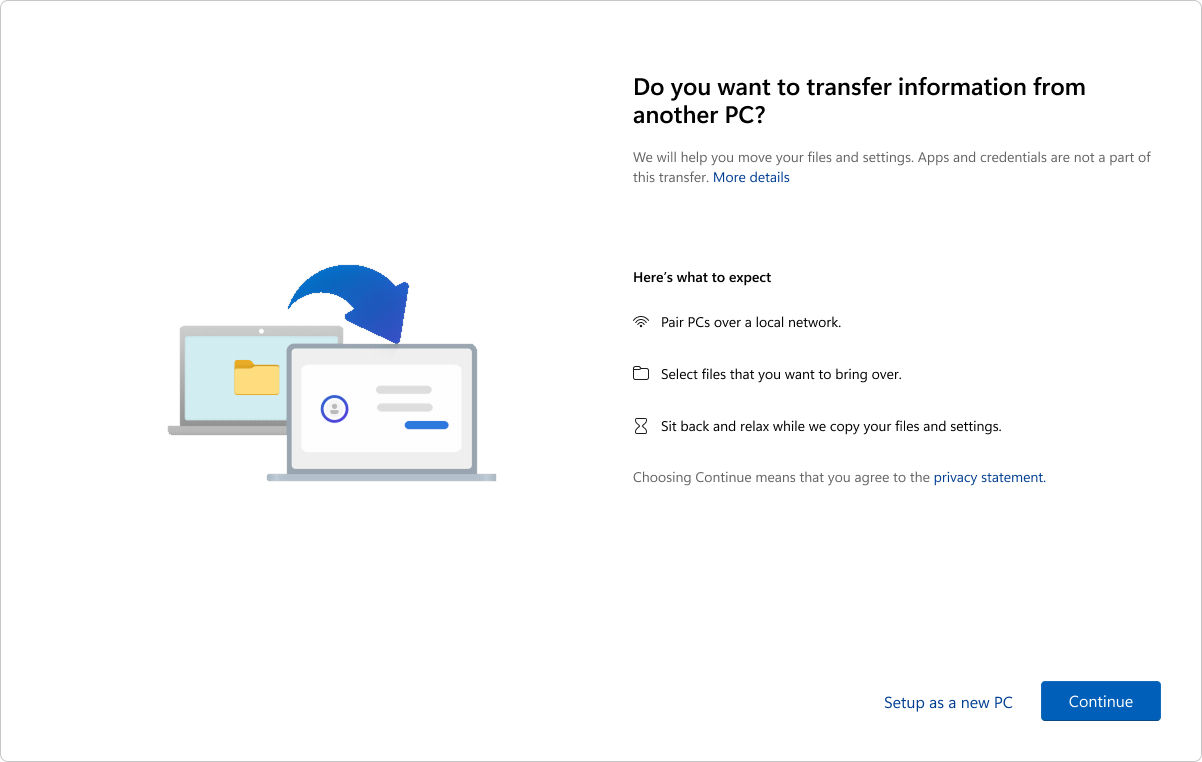
The idea was similar to Windows 7’s Easy Transfer, but it looks like Microsoft may have feared that an offline solution would hurt OneDrive more than anything. Today’s Windows 11 KB5127648 removes it from all PCs before Microsoft even rolled it out to users.
“To back up and restore your files, settings, and other supported items when moving to a new PC, use Windows Backup,” Microsoft told us. For those unaware, Windows Backup works only using OneDrive.
8. New gestures for precision touchpads
If you’ve got one of the laptops with a precision touchpad, there’s a new feature for you to try. Microsoft is adding new gesture controls, such as the ability to scroll vertically with one finger if you scroll at the left or right edge of the trackpad.
Another gesture is called “Automatic scrolling,” which lets you continue scrolling without lifting your fingers. This works when you move your finger to the edge of the touchpad while scrolling.
After installing Windows 11 KB5127648, you can find the new gestures under Settings > Bluetooth & devices > Touchpad.
9. Other improvements rolling out with today’s update
Windows 11 KB5127648 is not a huge release, which is why I did not have any headline features to talk about. There are several quality-of-life improvements and bug fixes.
For example, Microsoft is testing new modern icons for the Magnifier toolbar, so it aligns with the overall aesthetic of Windows 11. It’s also improving the spacing/padding to make it look modern. However, Microsoft is not rebuilding Magnifier in WinUI.
Here’s the full list of improvements and fixes rolling out with Windows 11 KB5127648 for 26H2, 25H2, and 24H2 PCs:
- Windows now lets you use DIB image files as desktop backgrounds.
- You’ll notice that wallpapers, slideshows, and other personalization features are now more reliable, and there’s better support for those with portrait monitors.
- You can now use slideshow wallpapers with multiple desktops.
- Secure Boot certificate update is rolling out to more PCs.
- A bug where AC audio playback crashed apps and games has been fixed.
- A bug has been fixed where Always On VPN connections failed to work since Microsoft released/installed Windows 11 KB5124008.
- A bug has been fixed where games would stutter, and Microsoft confirmed this issue was caused by a Windows update, not the mouse or driver.
Microsoft is not aware of any new issues in the October 2026 Update for Windows 11.