









Excel just had a bad week after Microsoft accidentally broke copy and paste in several versions, but there’s a new update rolling out in preview, and it adds a useful feature: the ability to have multiple values in a single cell. And it’s a big deal, since Microsoft is changing Excel’s decades-old one-value-per-cell approach!
For those who don’t understand what I’m talking about, hear me out. Right now, if you enter something like “Carlos, Henrietta, Jacob” in a single cell, particularly when you’re working on a project tracker, Excel treats the entry as one piece of text.
That means if you have a task and type three names next to it, hoping to filter by each person separately, Excel won’t automatically recognize them as three individual items. It treats the whole string as a single entry. Your workaround is to have multiple cells for multiple values.
Now, Microsoft is rolling out a feature that lets you have multiple values in a single cell, which means you can have several people, locations, tags, and other items clubbed together, and Excel will recognize them as different items. In the case of numbers, you can also use those values in calculations without first spreading everything across extra rows and columns.
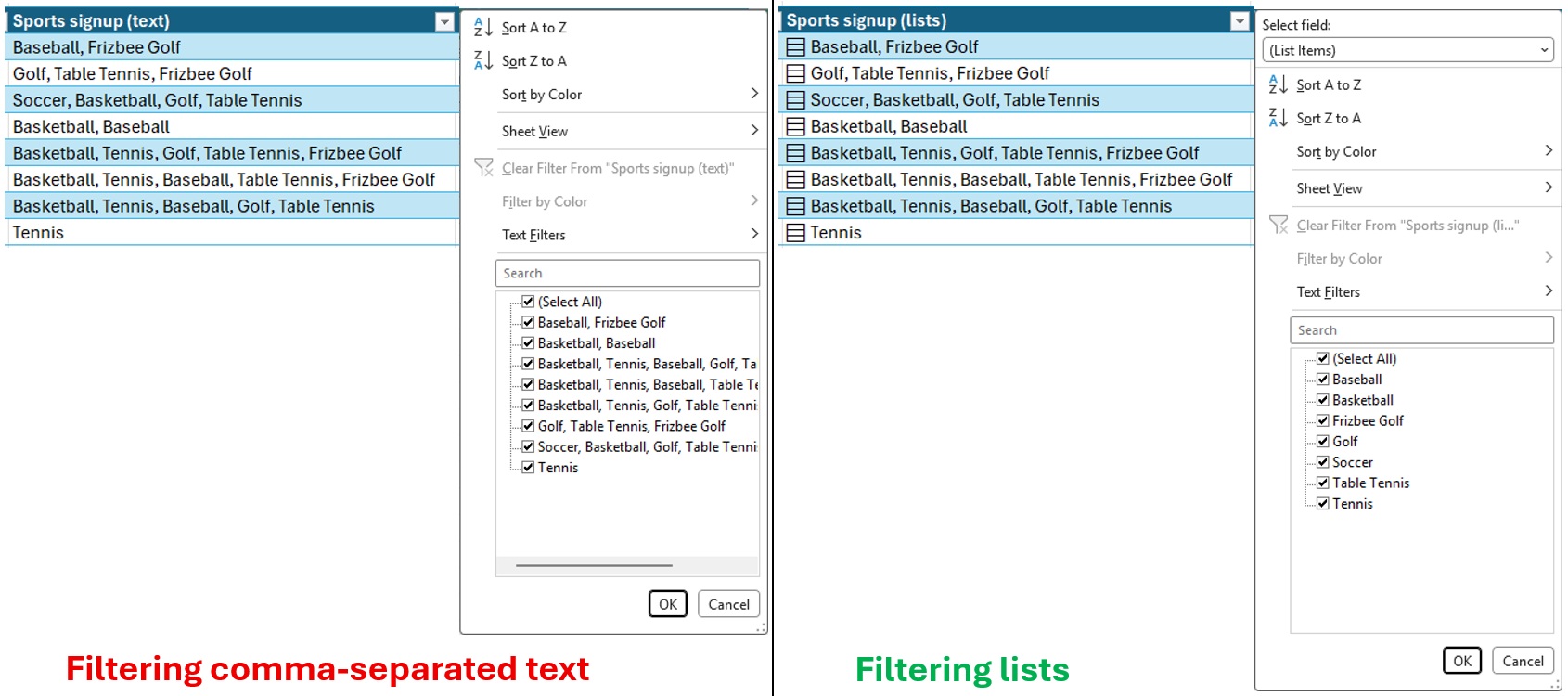
It also makes filtering things a lot easier. Even if you have “Carlos, Henrietta, Jacob” in a single cell, Carlos can appear as an individual choice in the filter, instead of all three names appearing together as one entry. This is particularly useful when one person shares projects with different people, like in the example above.
Excel users have been asking for this for years
You might have run into this limitation when you first started using Excel. I still remember seeing plenty of Microsoft community threads about it.
For example, a thread from 2021 asked how to filter individual values stored in the same cell, with at least 20 people indicating that they had the same question.
“Excel is not really happy working with ‘multiple values’ in a single cell,” one community reply noted. Another user raised almost the same problem in November 2022. “When I try to search in the list, all the values in a cell merge together to form one longer string,” the user wrote. And there are hundreds of similar complaints.
So why didn’t Excel already support this, even though it was one of the most requested features? We don’t have a definite answer for why it took this long, and I don’t think we’ll ever get one. But some of the older documentation I found does explain how the limitation worked.
Joe McDaid, who was then an Excel program manager, explained how ordinary formulas could silently select one result from a group of values.
“Regular Excel formulas had a calculation behavior called implicit intersection that would silently select a single value from an array of values. This ensured formulas would always return just one value as that’s all a cell could hold.” McDaid explained.
McDaid’s explanation does tell how the old calculation worked, but it doesn’t justify why Microsoft waited until now to add lists and nested arrays.
Regardless, it’s well that ends well, so I’m glad Excel is getting a feature users have been asking for. It’s still in preview, though, and I found some more details.
How Excel’s new lists work, and where they could help
Once the feature reaches your Excel Beta Channel build, you can create a list by selecting a cell and choosing Insert > List, or pressing Ctrl+J. You can then type or paste items separated by commas or semicolons, depending on your regional settings, and Excel will recognize multiple values.
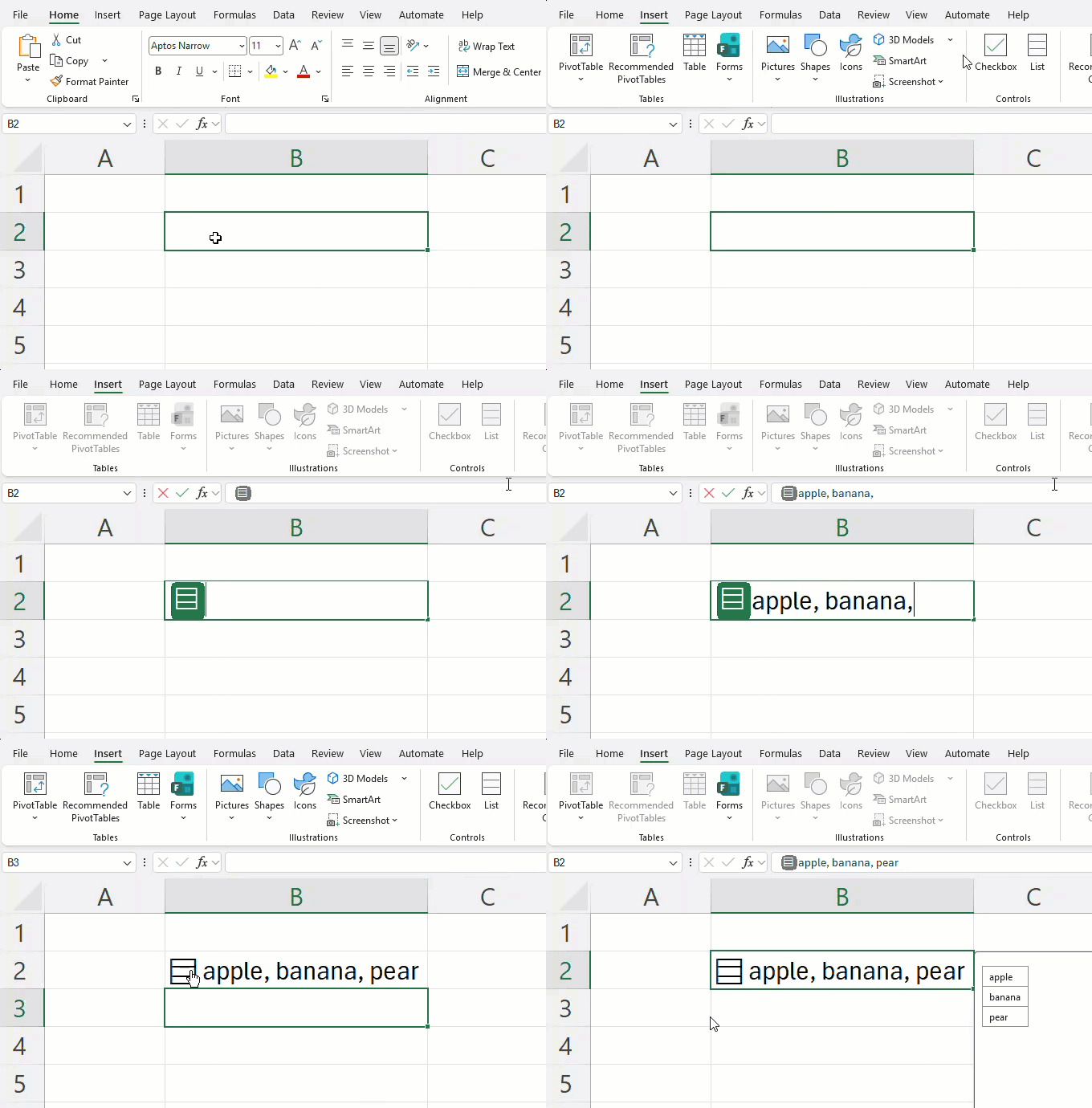
Here are some of my ideas on how you can use Excel’s new feature:
| Sheet name | Items you can club together in a single cell and let Excel do the magic | How multiple values can help with filtering and analysis |
|---|---|---|
| Survey responses | Several topics selected by one respondent | Find everyone who selected “Battery life,” including people who also selected “Performance.” |
| Product catalogue | Tags such as “Laptop,” “Gaming,” and “OLED” | Filter by an individual tag while keeping one row per product. |
| Staff training tracker | Several completed certifications | Check whether someone has one particular qualification or all the qualifications required for an assignment. |
| Customer tracker | Multiple product interests for each customer | Find customers interested in a particular product without creating a separate row for every interest. |
Excel is also getting four functions to work with the new feature. For example, there’s a function called HAS, which checks whether one item is present. Then you have HASANY, which checks whether any of the specified items are present, while HASALL checks whether all of them are present.
For example, if D2 contains a list of project owners, you can use =HAS(D2,"Carlos") to check whether Carlos is included.
Finally, you have a fourth function, FLATTEN, which lets you simplify nested arrays so that their contents can be brought together for further work.