








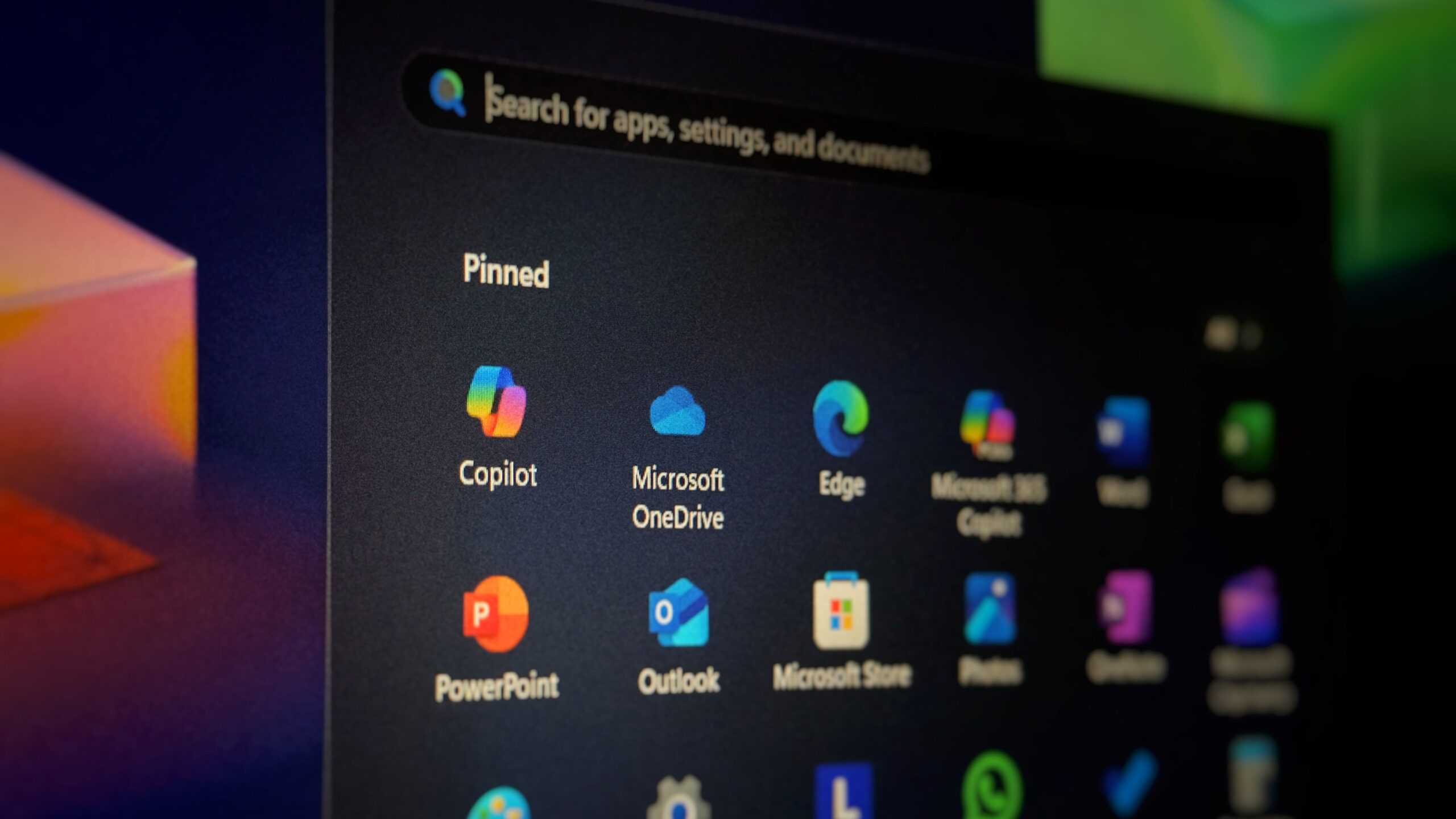
In early 2025, Microsoft built three Copilot-focused apps called “People,” “Files,” and “Calendar,” in hopes of making you more productive. Less than a year later, Microsoft is killing these apps, even after the company tried to force-install them on PCs with Microsoft 365 Enterprise.
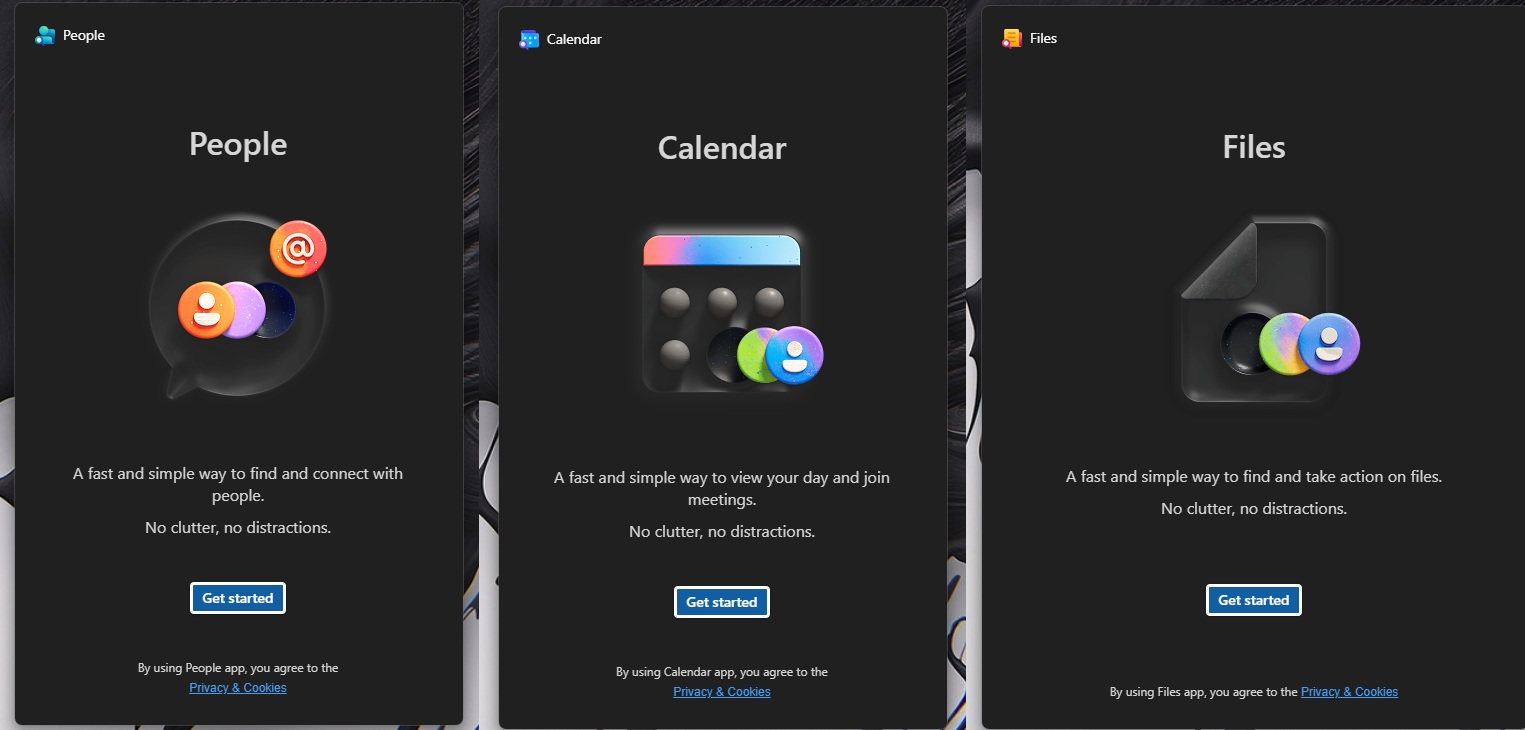
Microsoft strongly believes that the Windows 11 taskbar should be the place to manage Microsoft 365 and Copilot-related features. And based on that belief, the company launched these three “mini” apps for eligible Microsoft 365 users.
At that point, Microsoft was convinced you needed this mini bloatware to save time and become more productive. Microsoft eventually force-installed the apps and even pinned them to the taskbar. Here’s my taskbar with these mini apps pinned, and I never installed them. I only had Microsoft 365 with an Enterprise license:

Admins could opt out, but otherwise, Windows 11 devices could receive the apps automatically through Microsoft 365 updates.
How People, Files, and Calendar mini apps worked
With People, you could learn about a person in your organization. It’s similar to the people card you have in Outlook, but the idea was to bring it directly to the taskbar, so you could look someone up during a meeting. That was the whole pitch for forcing this bloatware.
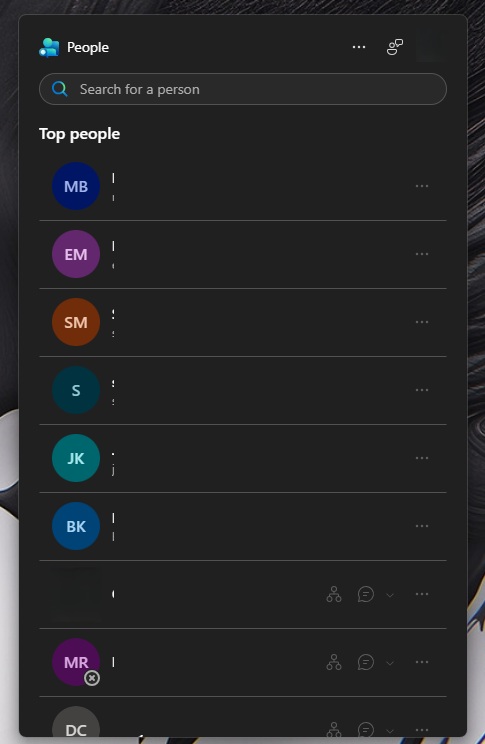
Microsoft hoped you’d be in a call and just click one of these mini apps to view a contact card, find files in Microsoft 365, or take a look at your calendar.
In my tests, I found that these three apps were WebView2 wrappers. People pulled details like contact information or a person’s role within the organization. You could also quickly drop someone a message by selecting the Teams chat icon next to their name. On the other hand, Files allowed you to search for files in OneDrive or SharePoint.
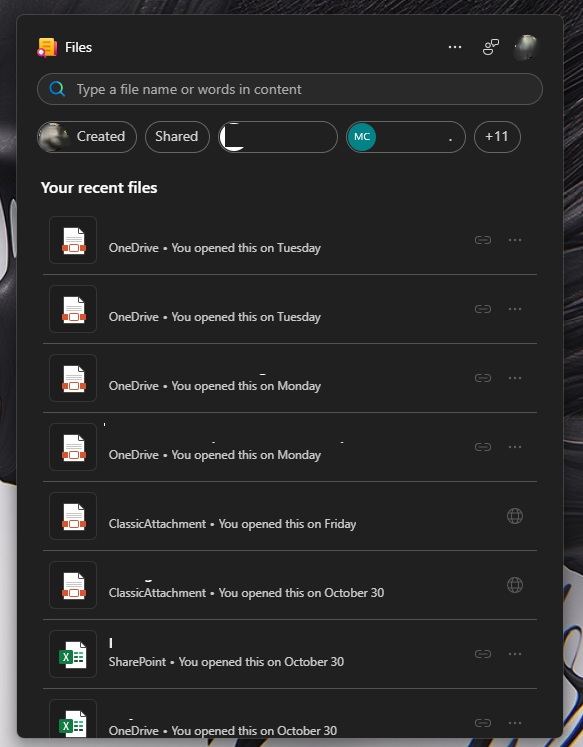
And granted, they can be useful, especially if you frequently switch back and forth between Microsoft 365 apps during a meeting. But at the same time, it was never a good idea to force them on people, and now Microsoft is asking users to clean up the apps it pushed onto their PCs.
In an updated support document, Microsoft confirmed that Microsoft 365 companion apps will retire by December 16, 2026, but it doesn’t explain why it’s taking down these apps that it once hyped for productivity.
Microsoft only argues that “companion apps were an additional way” and shared the following statement:
“The companion apps were an additional way to find calendar information, people, and files. Removing them doesn’t delete or affect any existing capabilities or Microsoft 365 data. You can continue finding the same information by using existing Microsoft 365 and Windows experiences,” the company noted.
Microsoft confirmed that these apps will automatically stop working, and you’ll need to remove them manually. Although the company force installed these apps, it doesn’t have a way to remove them automtically.
For now, Microsoft has stopped automatic installations through Microsoft 365 updates, but it’s also your responsiblity to make sure these apps are not added again.
Some of you may not even be aware that these apps were added to your Windows installation, so you should check whether they’re still installed. If you never opened them, their retirement probably won’t change how you use your PC.
How to remove Microsoft 365 companion apps from Windows 11
You just need to open Windows Settings > Apps > Installed apps, search for “Microsoft 365 companions,” click the three-dot menu, and select Uninstall.
You can also search for People, Files, or Calendar in Windows Search, right-click the companion app, and select Uninstall. Uninstalling one removes all three.
Some PCs may need a restart to finish removal, while others need users to close the apps or sign out. Or you can use PowerShell to remove Microsoft 365 companion apps. For your current user account, use:
powershell -NoProfile -Command "Get-AppxPackage Microsoft.M365Companions | Remove-AppxPackage"
If you have multiple users and want to remove the apps for everyone, run this command as administrator:
powershell -NoProfile -Command "Get-AppxPackage -AllUsers Microsoft.M365Companions | Remove-AppxPackage -AllUsers"
To clear any leftover local app data for your account, close the apps and run this optional command in Command Prompt:
rmdir /s /q "%LOCALAPPDATA%\Packages\Microsoft.M365Companions_8wekyb3d8bbwe\LocalState"
I never liked the idea of these mini apps, and no wonder others felt the same, which is why Microsoft had no other option but to pull back the mess it created.