








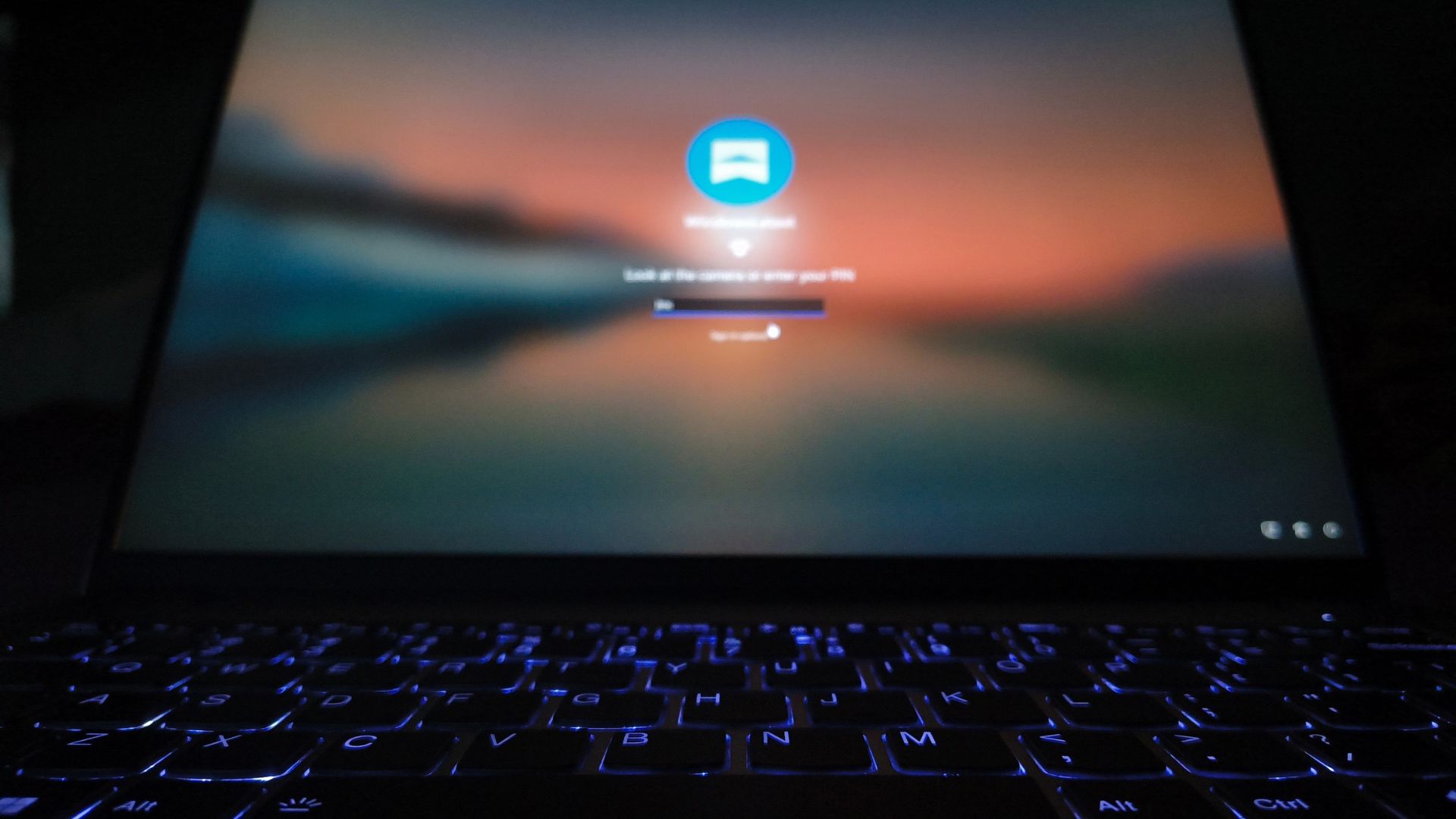
Microsoft is testing a small but (very) welcome change to the Windows 11 sign-in screen, where you can type your PIN while Windows Hello is still trying to recognize your face or fingerprint. It’s part of Windows 11 Insider Experimental Build 26340.9882, released on November 6, and we tested it on a Lenovo laptop with an IR camera.
Until now, Windows Hello made you wait for face recognition to finish or fail, unless you clicked Sign-in options and picked PIN yourself. If you’re in a dim room, your fingers are wet, or someone else who knows the PIN needs to get in, that’s two extra clicks every time you sign in.
Windows 11 now lets you enter your PIN without waiting for Windows Hello
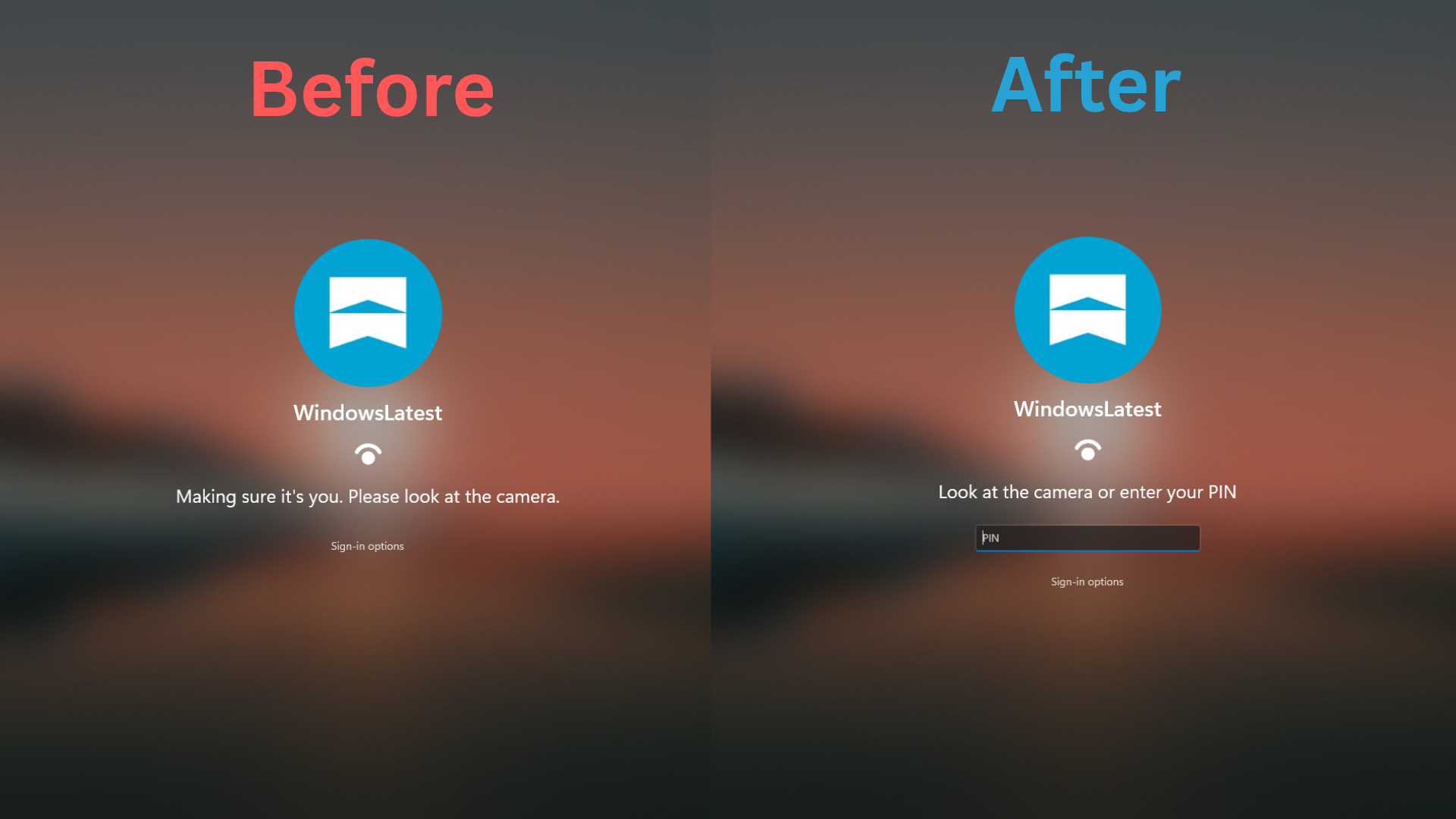
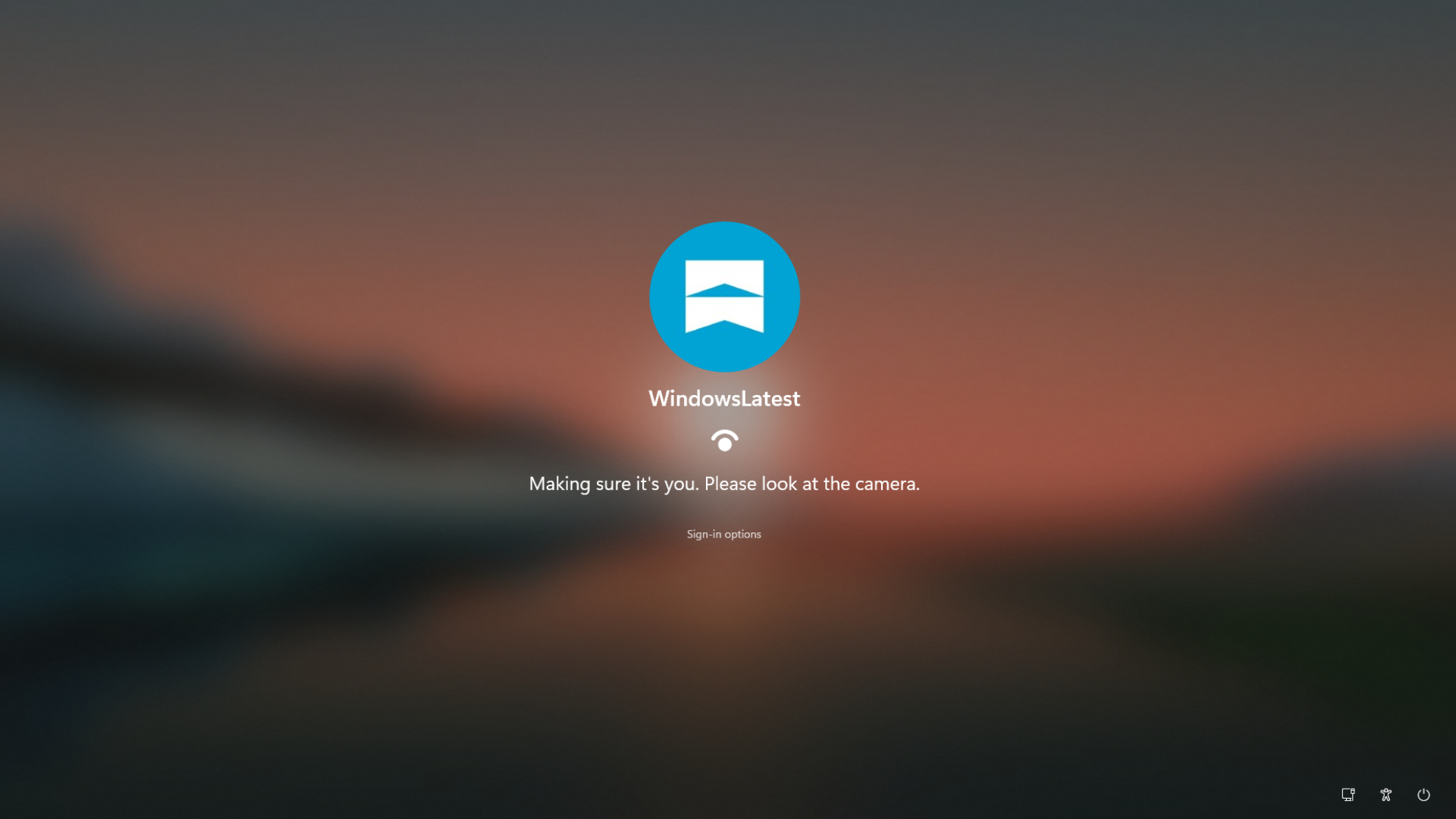
Before the update, my laptop showed “Making sure it’s you. Please look at the camera” every time I was in a dim room. Of course, it unlocks instantly when there’s light. If Windows Hello couldn’t recognize me, it eventually switched to “Enter your PIN”. If I’m already sure that the RGB webcam can’t recognize my face in the dim light, I had to click Sign-in options and select the PIN icon.
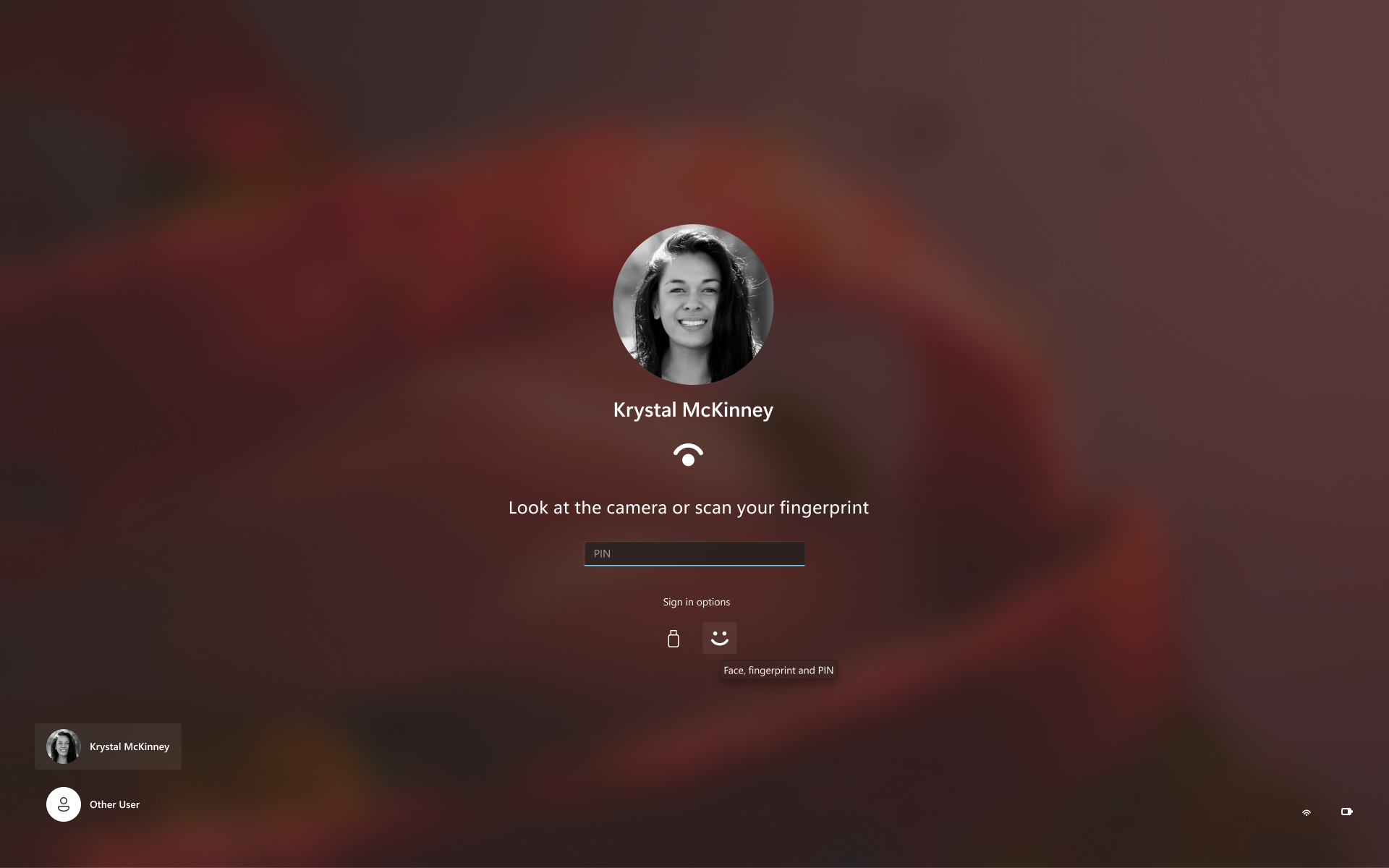
After installing Build 26340.9882, the lock screen says “Look at the camera or enter your PIN,” and the PIN field is ready while the camera is still scanning. Microsoft’s release notes say you can now “use whichever method works first,” so you can start typing your PIN right away.
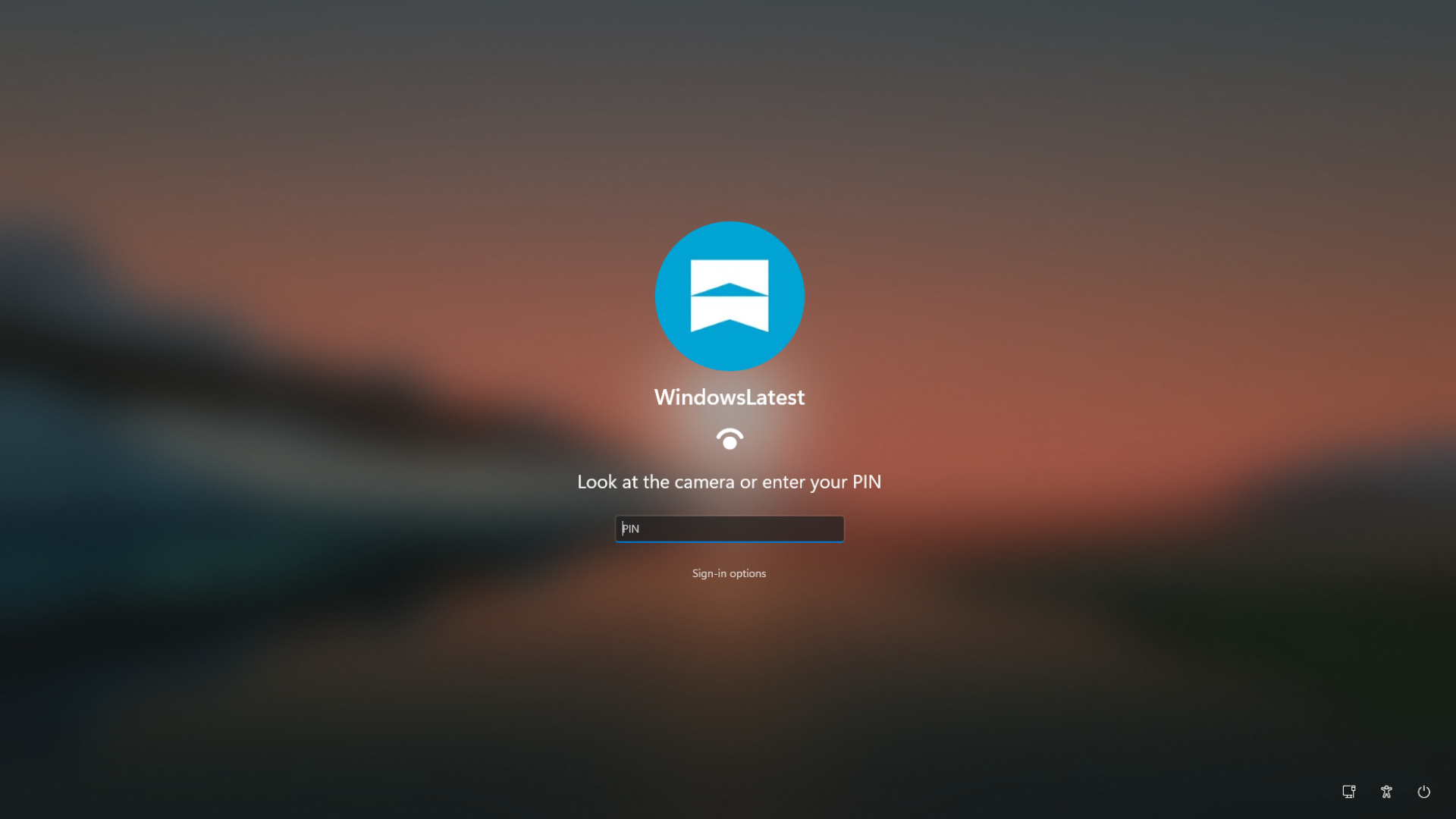
Interestingly, this new sign-in experience showed up as soon as the build was installed, without needing ViVeTool or any registry tweaks.
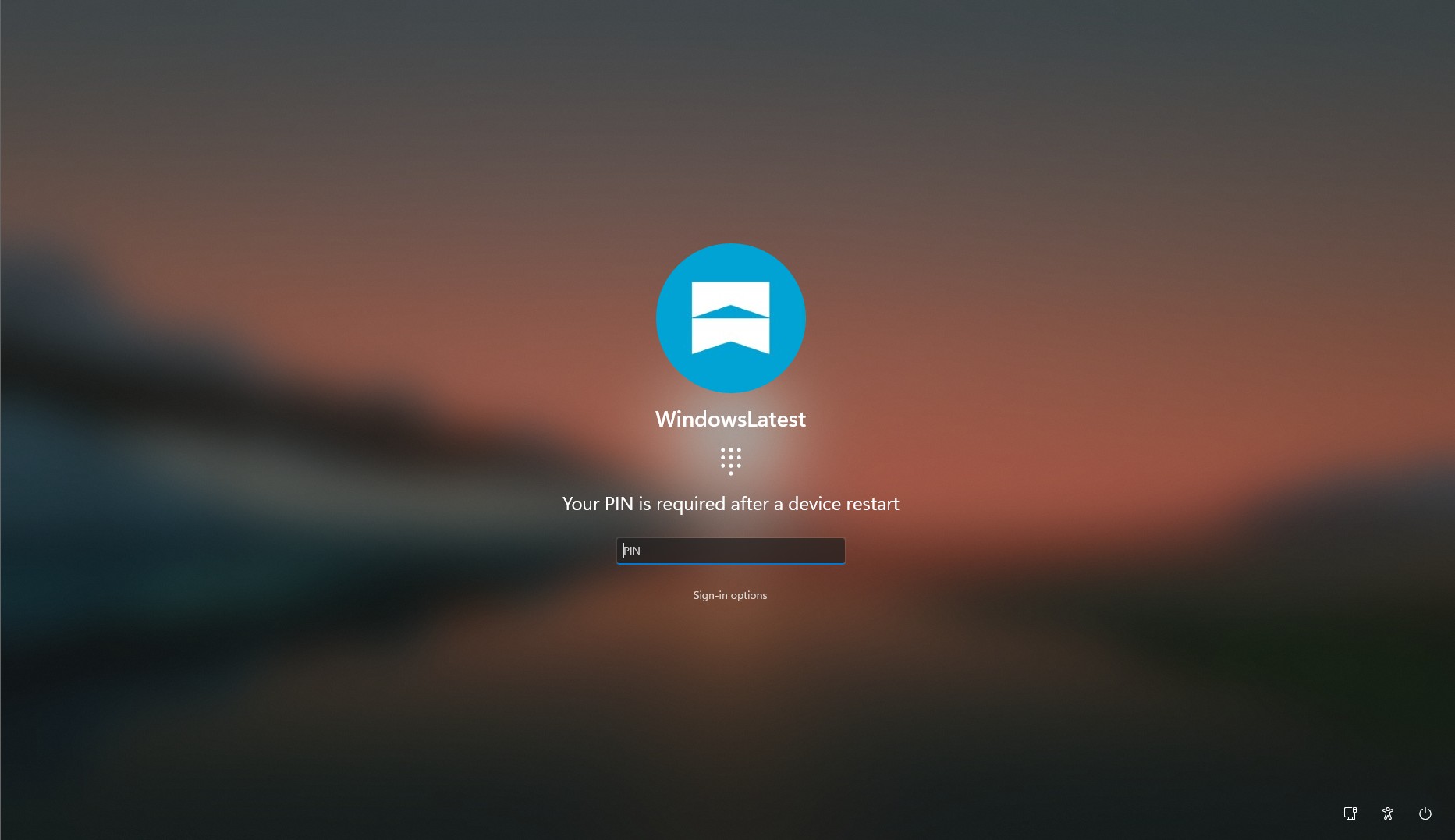
Of course, Microsoft hasn’t dropped the extra security. After a restart, Windows says “Your PIN is required after a device restart,” and face or fingerprint sign-in works as usual after that.
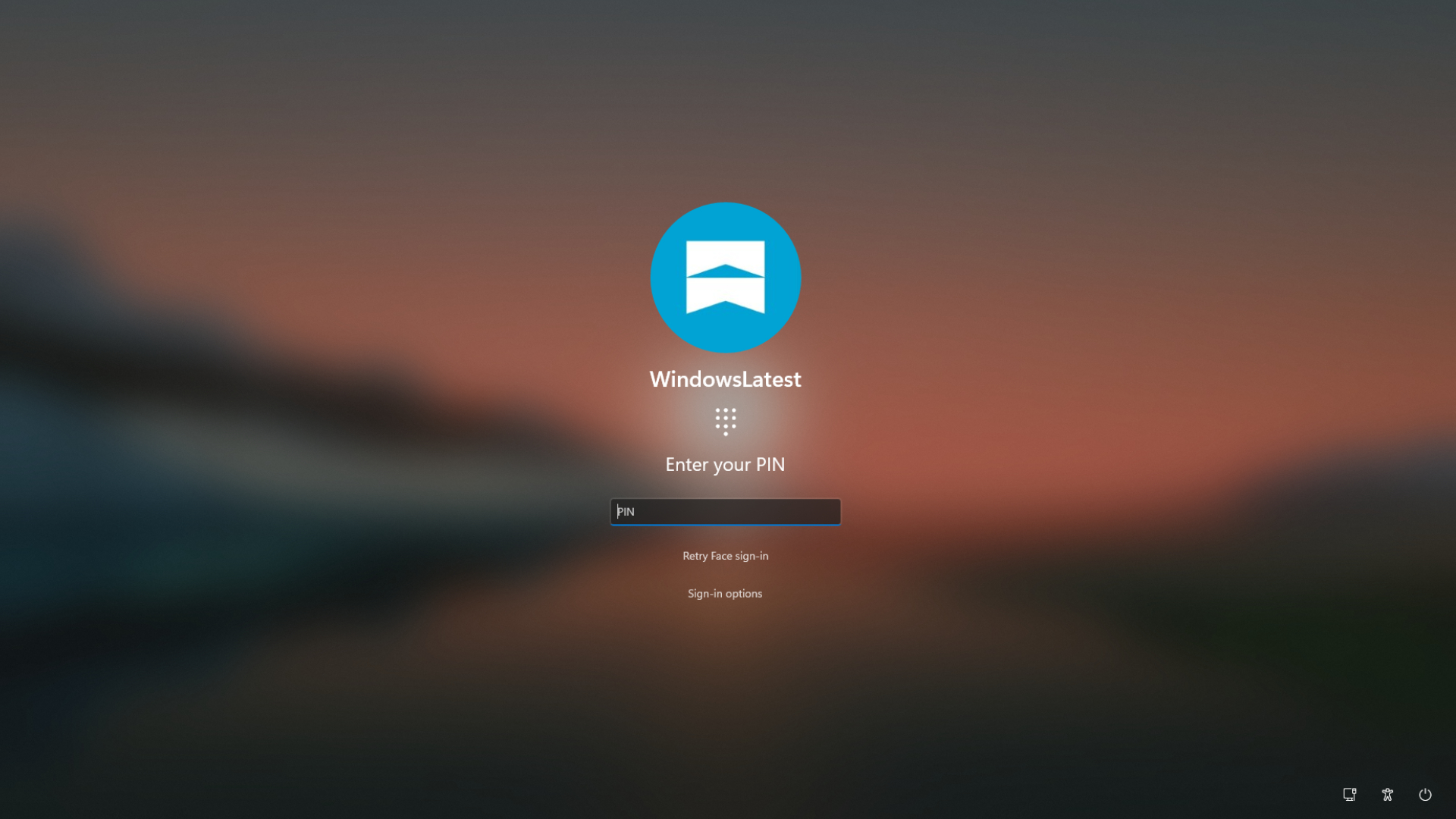
Also, if Windows Hello couldn’t recognize you, while it earlier said the same thing and prompted you to Sign-in options if you want to try face unlock again, now, after the update, it says “Retry face sign-in”. Again, another two clicks saved.
On PCs with both a fingerprint reader and an IR camera, Microsoft’s screenshot shows the prompt changing to “Look at the camera or scan your fingerprint,” with the PIN box right below.
To try it, go to Settings > Windows Update > Windows Insider Program, link your Microsoft account, choose the Experimental channel, and check for updates. Build 26340.9882 is based on Windows 11 26H2, and Microsoft is rolling features out gradually, so it may not show up for everyone right away. Experimental builds can be buggy (Task Manager’s CPU speed doesn’t update in this one), so use a VM or back up your files first.
Windows Hello face recognition is also getting better in low light
Face recognition in the dark got worse last year, and that was by design. With the April 2025 update KB5055523, Microsoft started requiring the color camera to see a visible face for security reasons, which broke Windows Hello for many users with privacy shutters, including on our HP Spectre.
Microsoft’s fix is to use your display’s light. Build 26340.9750, released to Experimental on October 16, added an “Automatically adjust screen brightness during face recognition” toggle under Settings > Accounts > Sign-in options > Facial recognition (Windows Hello).
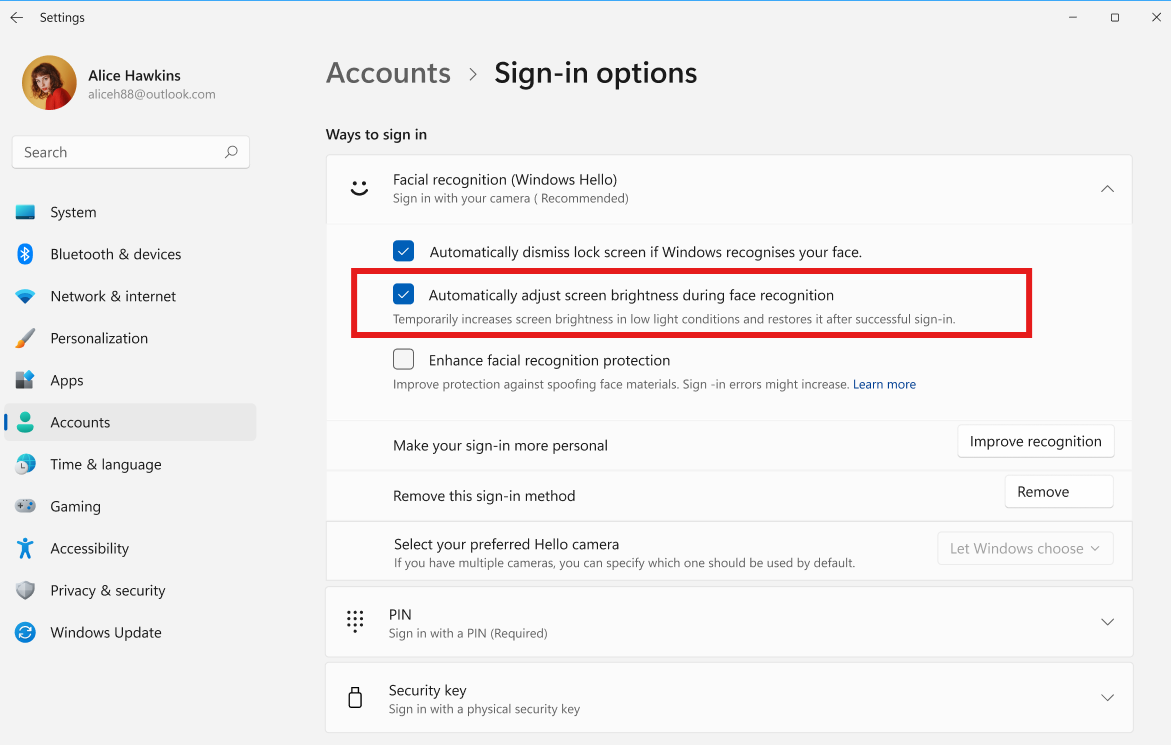
According to Microsoft’s support document, it only kicks in when the IR camera can see your face but the color camera can’t, and brightness returns to normal afterwards. I spotted the toggle on my PC too, but Microsoft has since pulled it based on feedback, and says it will return starting November 2026, turned off by default.
My Lenovo has both an IR sensor and a regular RGB webcam. In low light, the IR camera sees me just fine, but the RGB camera doesn’t, so I end up typing my PIN anyway. My workaround is to disable the RGB camera in Device Manager, after which Windows Hello logs me in almost instantly, even in pitch black.
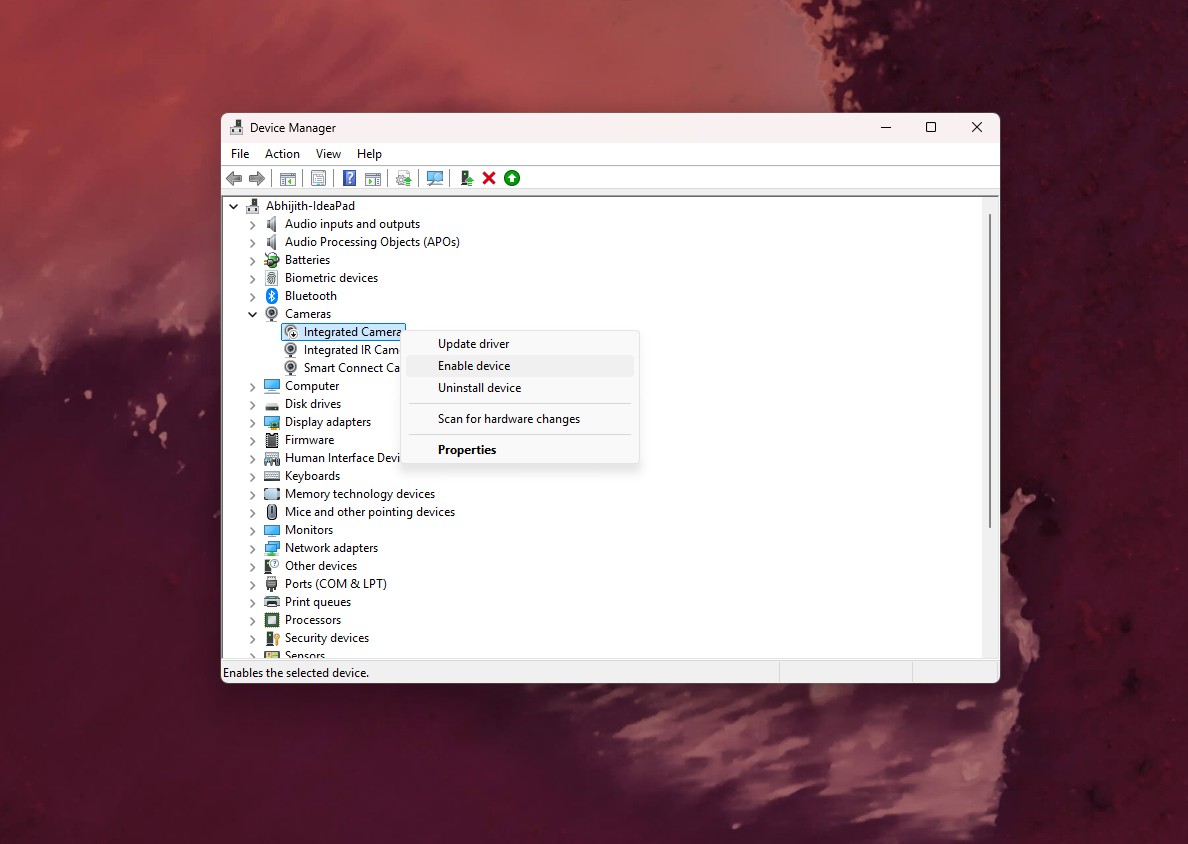
For obvious reasons, I wouldn’t recommend it for everyone. It goes against the security check Microsoft added, you lose the webcam for video calls until you turn it on again, and back in 2025, some of our readers said it didn’t help on their PCs.
Windows Hello sign-ins are also easier to track for IT admins
Build 26340.9882 also adds new Windows Hello logging. In Event Viewer > Windows Logs > Security, event 4628 records which Windows Hello methods a user has set up and which one they signed in with, while event 4629 logs failed attempts. Both use the existing Audit Logon policy. For troubleshooting, events 5010 and 7010 under Applications and Services Logs > Microsoft > Windows > HelloForBusiness > Operational record each sign-in and unlock along with the result.
Windows Hello is great when it works, but the old sign-in screen took extra effort. Anyway, now there’s a tiny but useful change. And it’s a UI polish you notice every single time you open the lid. Microsoft hasn’t said when it will reach regular Windows 11 PCs, and I hope it doesn’t take its sweet time.