





Classic Outlook for Windows is already rolling out a Copilot button in the ribbon menu, so you have an experience similar to other Office apps, but is that it for AI? Well, no. Microsoft now says it’s adding a new AI-powered feature called “Explain This,” which will generate contextual explanations for text you highlight, and it’s actually a pretty good idea.
Right now, most email clients are either integrating AI into the compose box or offering summaries. New Outlook is already doing something similar, as you can access Copilot summaries from the ribbon menu in a sidebar or open Copilot in full screen from the left sidebar shortcut. We also have Copilot in the inbox as a “Wrap up” feature.
All of that will eventually come to Outlook Classic, but “Explain This” could be the most useful addition, and it’s shipping sooner rather than later.
What is “Explain This” in Outlook Classic?
In Outlook Classic, you can open an email and select text within it, and immediately let Copilot explain it to you with contextual understanding.
For example, if there’s an email about BSODs affecting certain PCs in your organization and how you can take action, you can select “BSOD,” and Copilot will take the email’s content as context and explain what BSOD means in that specific message.
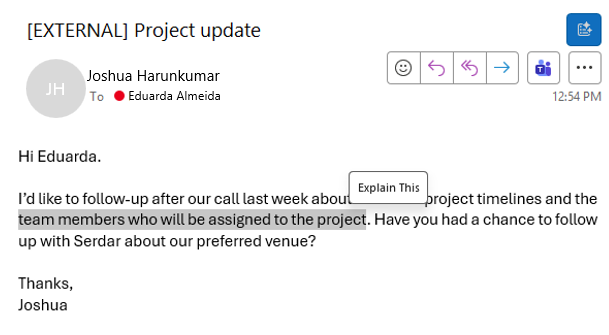
Unlike Copilot in the sidebar or inside the compose box, “Explain This” is something you have to trigger. So if you don’t like the idea, you simply don’t click Explain This, and nothing changes. Microsoft found that giving users more control over Copilot actions is more useful than forcing AI everywhere.
“This enhancement gives users greater control over when and how Copilot assists them, improving productivity, clarity, and decision-making directly within their workflow,” Microsoft noted in an admin portal update spotted by Windows Latest.
Microsoft expects Outlook Classic’s AI-powered Explain This feature to finish rolling out by the end of September, but most of you should already have it by early September.
It is worth noting that a Microsoft 365 Copilot subscription is required for Outlook Classic’s AI-powered Explain This feature to work.
I’m also not aware of whether you can turn off the feature entirely, but it’s most likely tied to the existing Copilot settings. In the worst-case scenario, you could downgrade to a standard Microsoft 365 license that does not include Copilot.
Microsoft says it’s making it easier to turn off Copilot in Outlook Classic
As more and more AI features land in Outlook Classic in the coming weeks, Microsoft also confirmed that it has finished rolling out “Copilot Settings” to everyone in Outlook Classic. You can click File and find the Copilot Settings button. Opening these settings lets you decide how Copilot is handled in Outlook, and there’s a toggle to turn it off entirely.
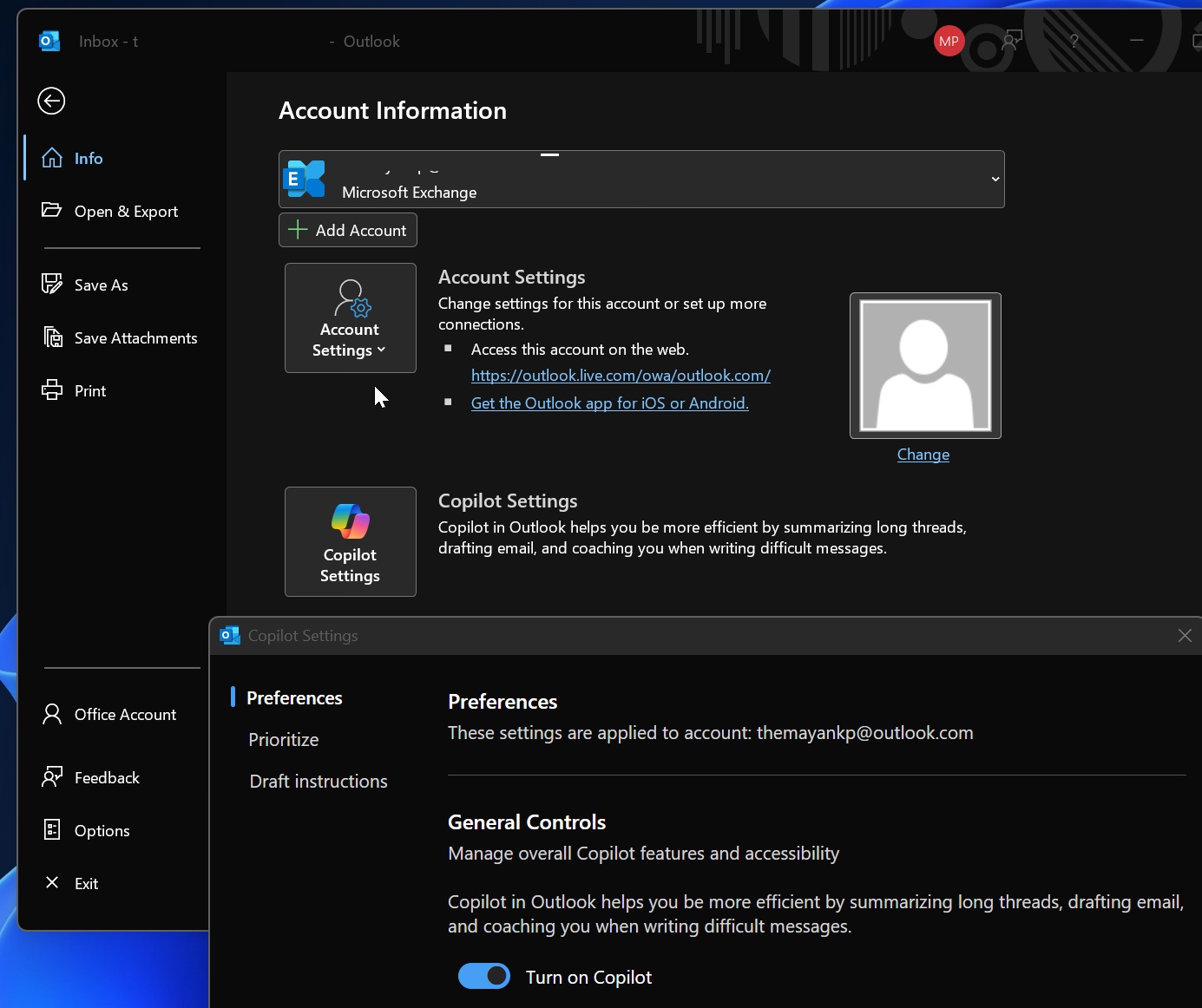
You also have “Draft Instructions” in the settings, which is turned off by default.
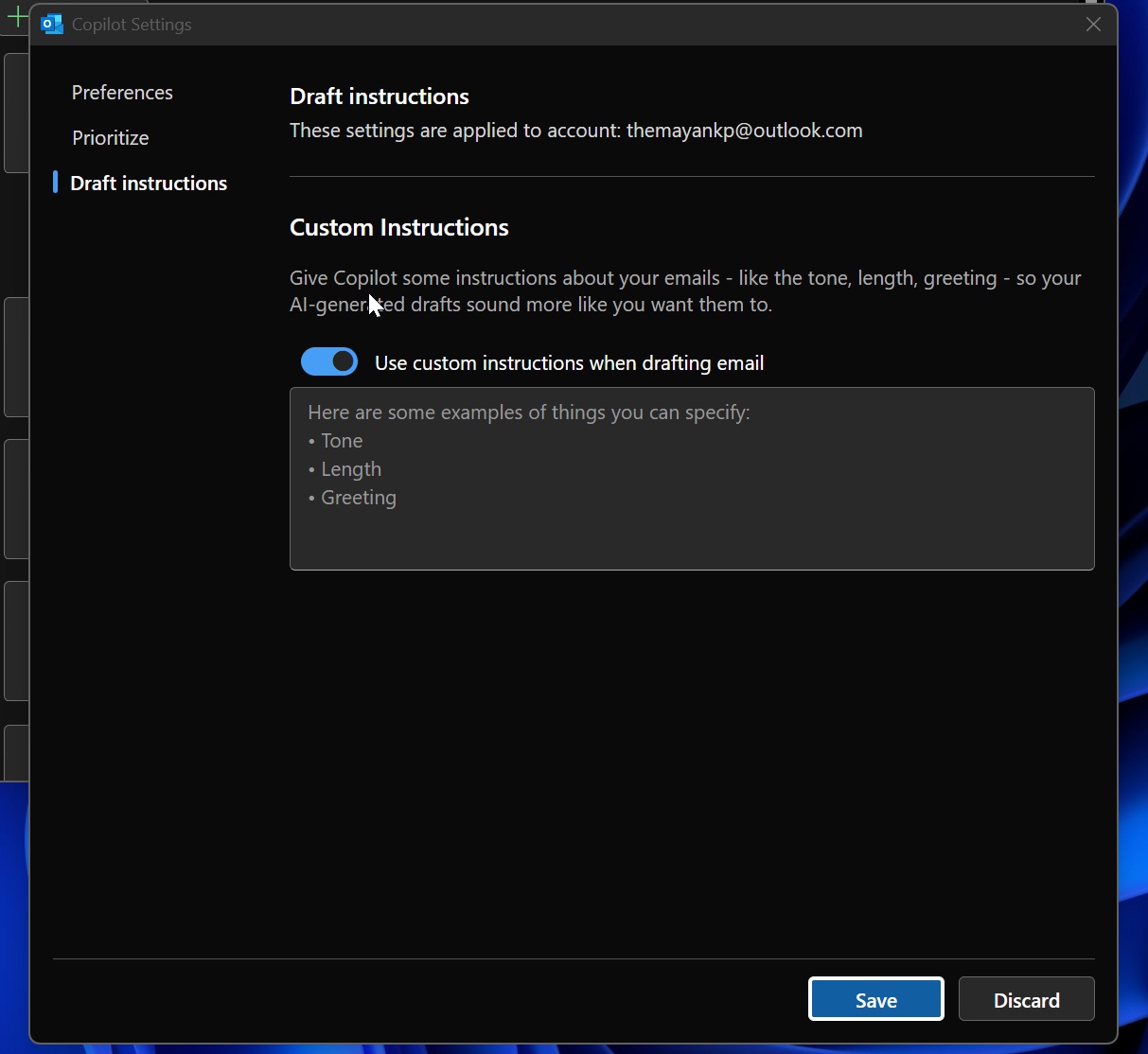
If you choose to turn it on, you can give AI a better idea of how you like to write emails, such as your preferred tone, how long they should be, and how you usually greet people. This acts as a prompt for Copilot, so its AI-generated drafts are closer to your preferences.
New Outlook has a similar toggle, so it was only a matter of time until it rolled out to the Classic version.