


At Ignite 2026, Microsoft confirmed that you can soon let Copilot dig through your computer’s storage, such as your Downloads and Desktop folders, and clean it up for you or move files to your preferred volume. You’ll also be able to bulk rename files based on their context. It’s one of the things I’ve used Claude Code on Windows to do, and I’m glad to see it coming to Copilot.
In March 2026, Windows boss Pavan Davuluri confirmed Microsoft would only be “integrating AI where it’s most meaningful, with craft and focus,” and it eventually started scaling back Copilot across apps like Photos and Snipping Tool, where the integration made less sense.
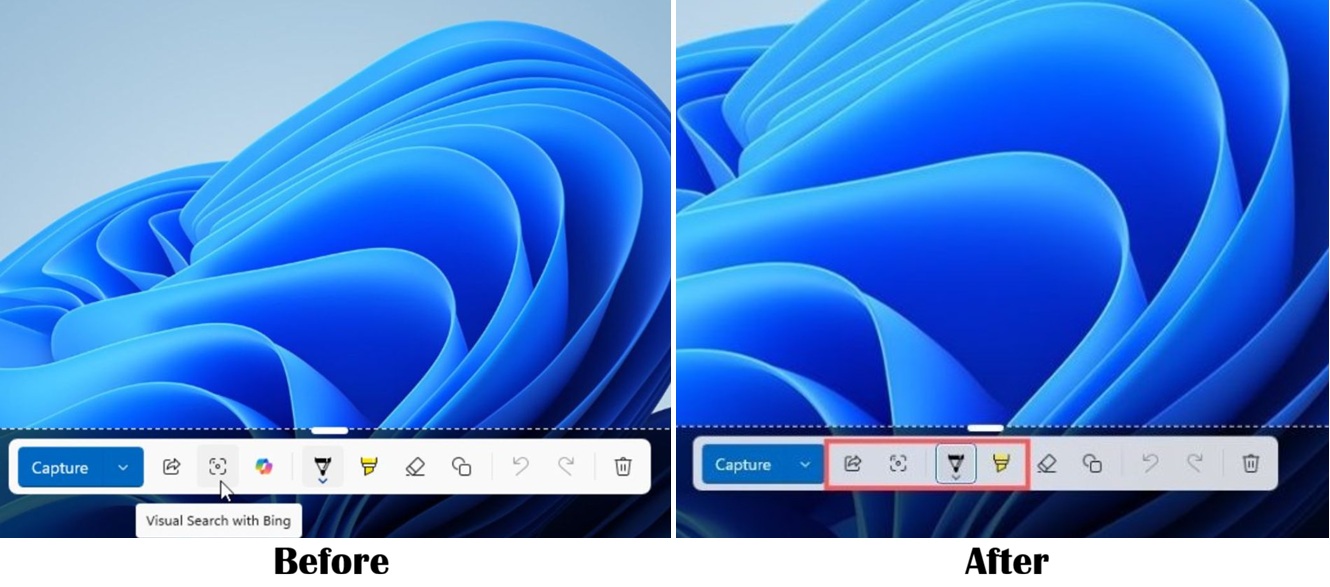
“You will see us be more intentional about how and where Copilot integrates across Windows, focusing on experiences that are genuinely useful and well‑crafted,” Pavan said in a statement.
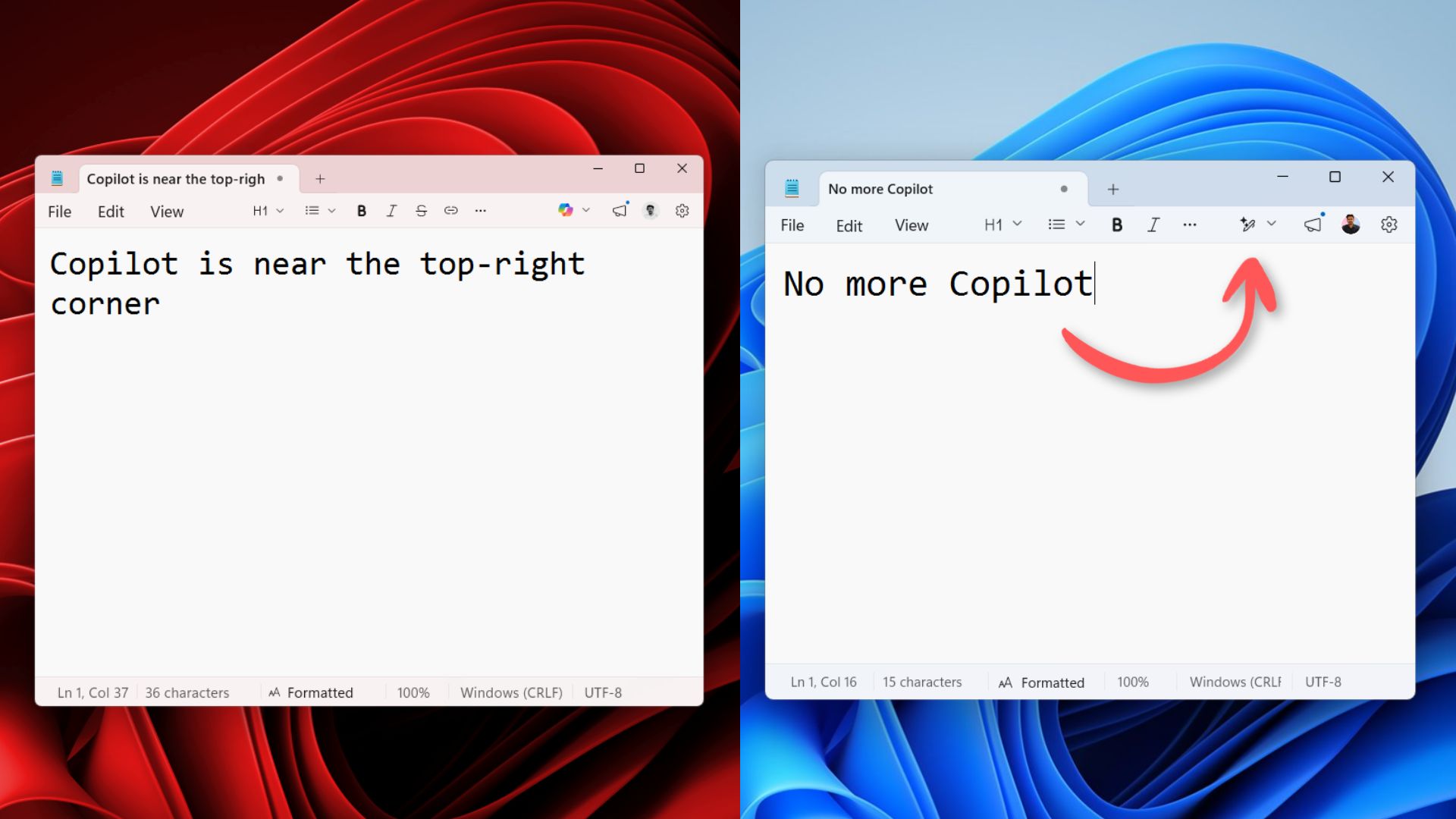
Microsoft also renamed Notepad’s Copilot button to “Writing tools,” although the AI features are still there.
But as I warned at the time, Microsoft was never suggesting it would not add more AI features to Windows 11, particularly optional features, and one of the biggest changes coming to Copilot is local file management.
Microsoft calls it “local file actions,” and if you turn on the optional feature in the Copilot app, which itself is optional, you can use everyday language to move files around your PC, rename them based on their content (you’ve got to let AI read the files), organize them by making folders, and, of course, find files based on their content.
The company argues that you don’t have to spend hours organizing your personal storage, as Copilot can do the work for you. Instead, you should be spending your time on “more important activities,” and it cited an example of employees who could focus on work instead of organizing their storage.
Microsoft explains how Copilot can read your PC’s local files with your permission
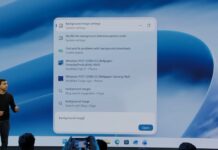
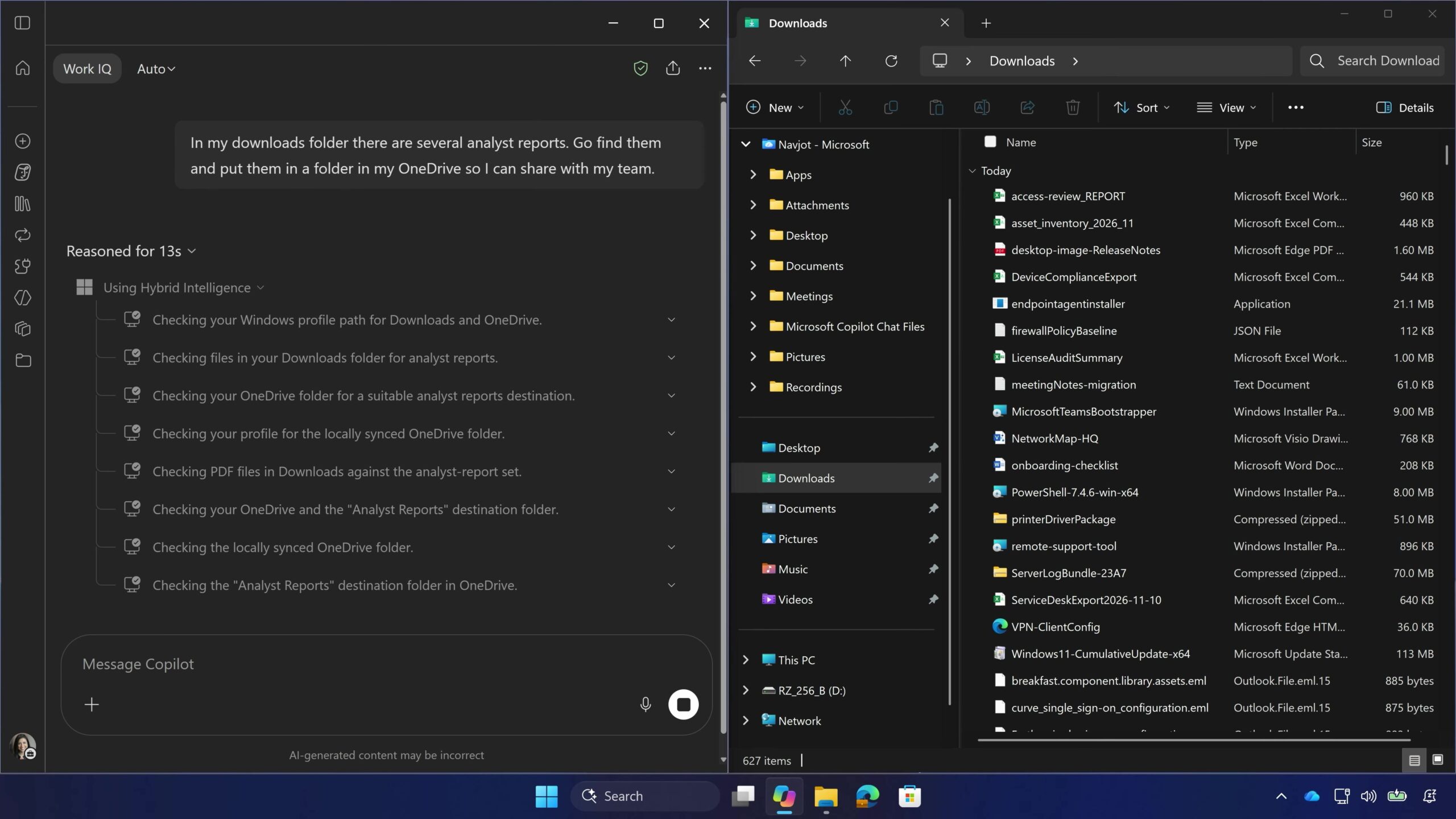
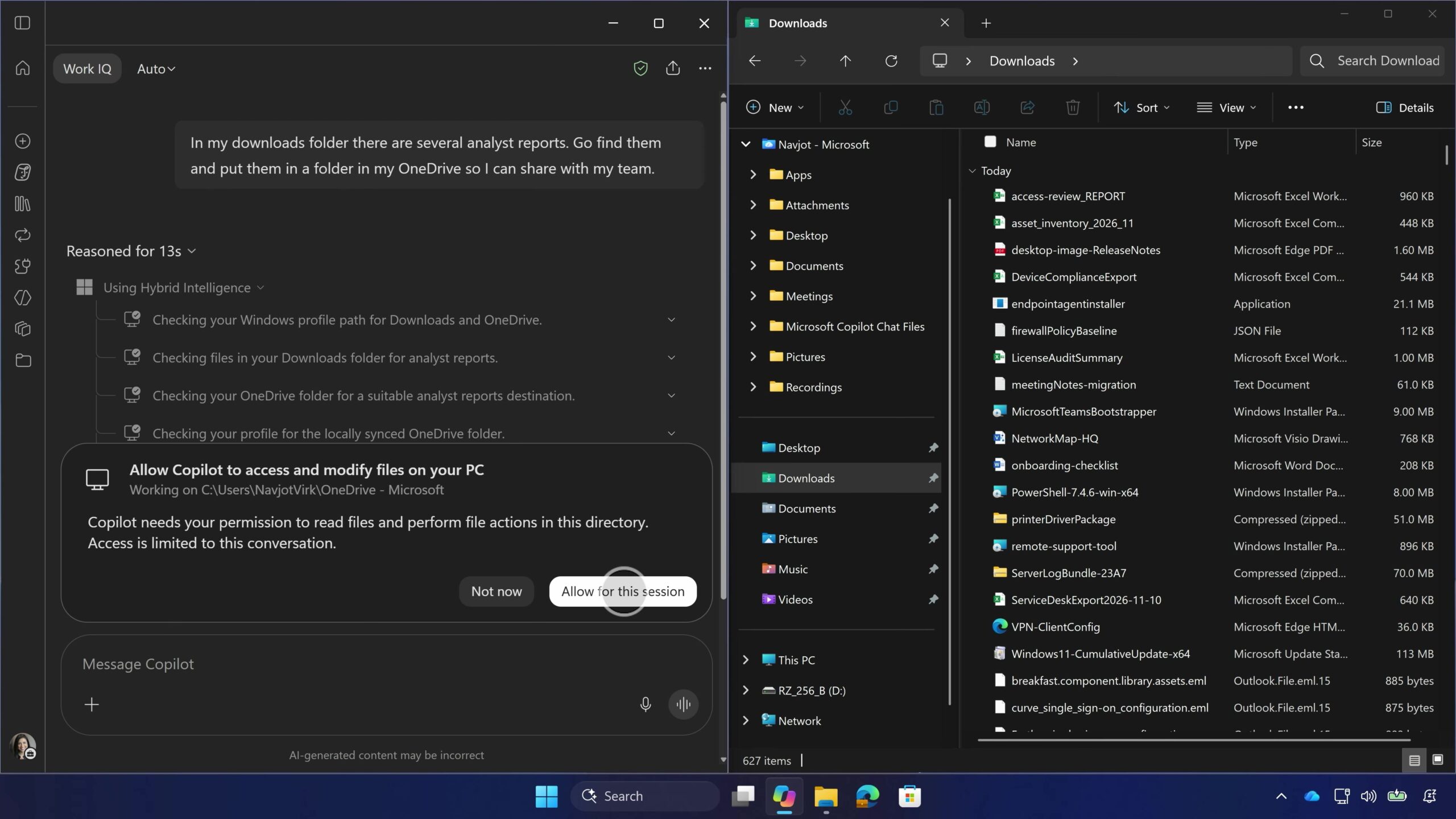
When you open the Copilot app on your PC, you can type a prompt that basically says there are several analyst reports in your Downloads folder, and you want to put them in a folder in OneDrive so you can share them with your team.
Since OneDrive is part of Windows and has its own section in File Explorer, copying files isn’t rocket science, and Copilot does it quite well.
Copilot first asks for your permission, checks the applicable policies to see if there are any safeguards, and says it’s “Using Hybrid Intelligence,” which is a new buzzword I’ve been hearing a lot from Microsoft lately. Satya Nadella also used “hybrid intelligence” and said it’s coming to every desk with RTX Spark and other Copilot+ PCs.
Copilot scans your Downloads folder and your OneDrive folder. It looks for analyst reports and finds the locally synced OneDrive folder where it saves the files.
That does mean Copilot needs access to your files to execute the task, and I wouldn’t freak out over it or call it an invasion of privacy because you’re literally asked multiple times before AI is given access to your storage.
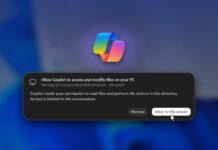
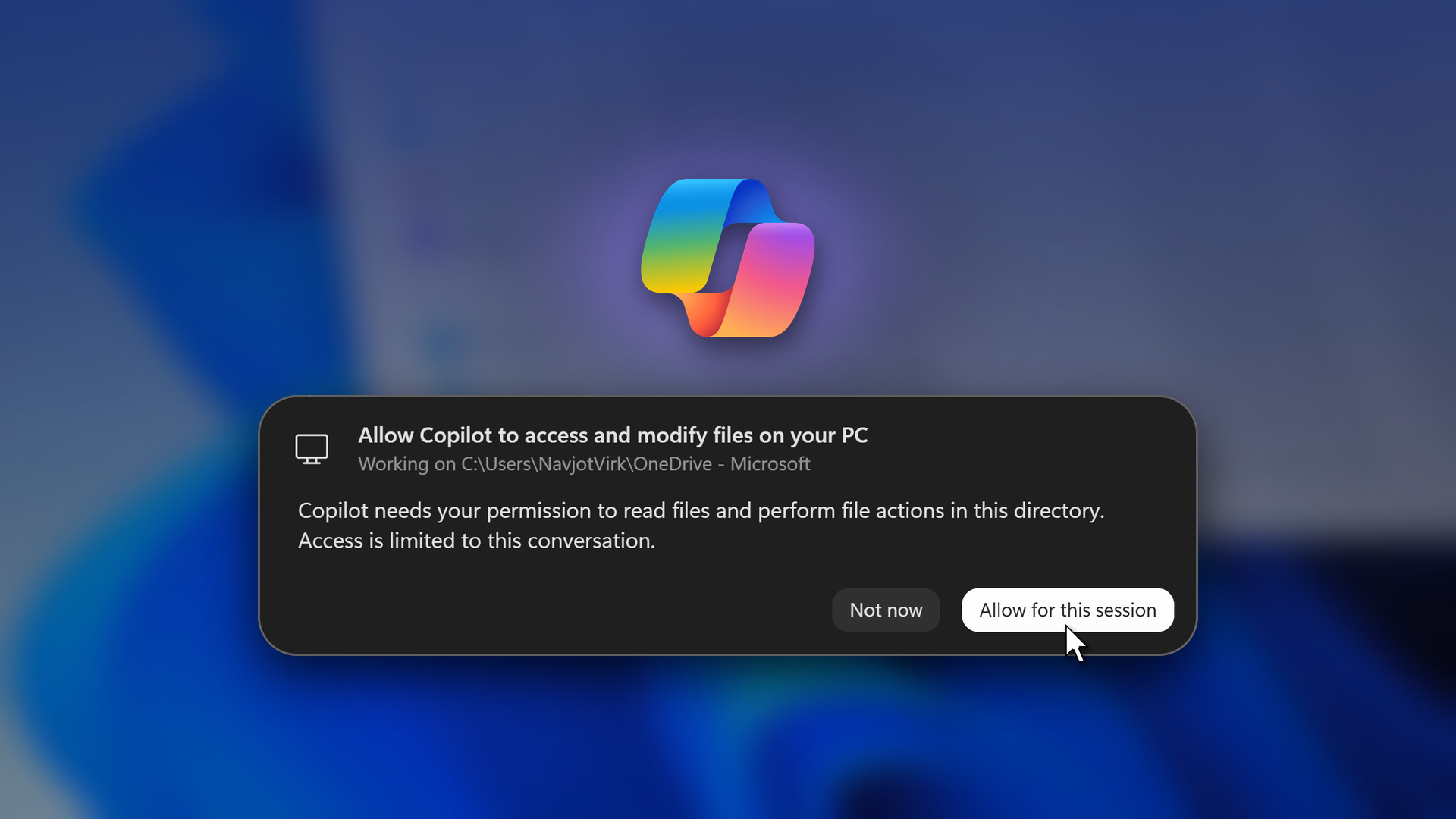
Windows Latest understands that Copilot asks for the following permissions to execute the task I typed above:
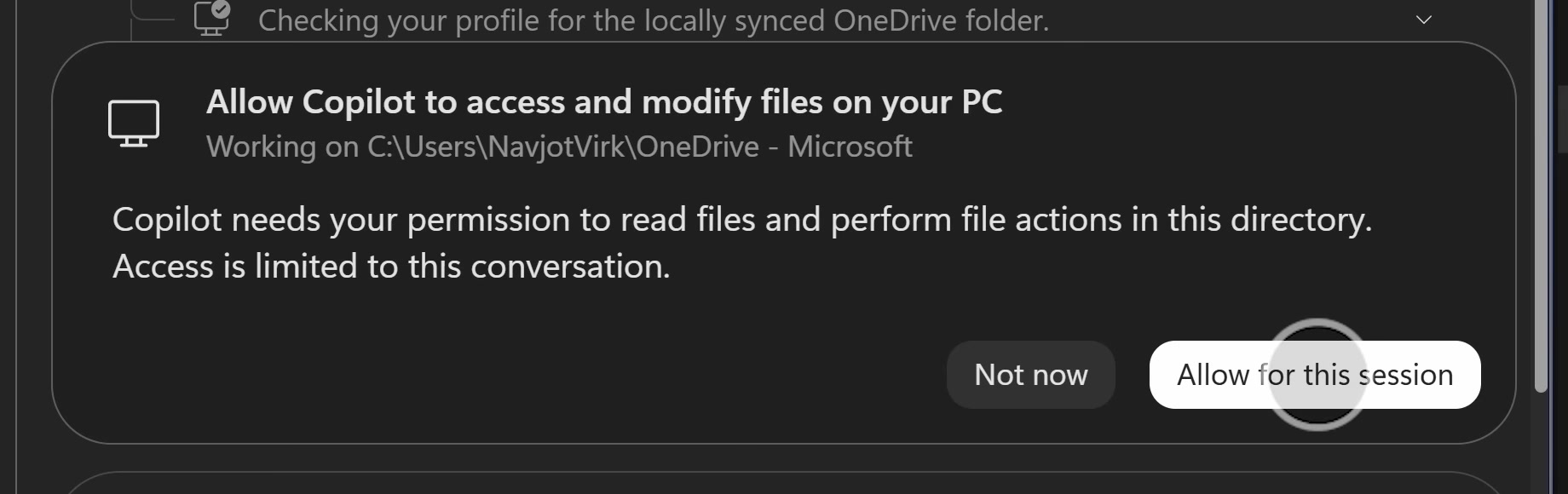
- Allow Copilot to access and modify files on your PC
- Copilot needs your permission to read files and perform file actions in this directory. Access is limited to this conversation.
Then, you’ve got two buttons: Not now and Allow for this session. That means there’s no “Always allow” option, which is a good thing. If you accidentally click Allow, Copilot will not have access to every folder and path on your PC. Microsoft is being more careful about giving Copilot access to local storage.
Once allowed, Copilot creates an “Analyst Reports” folder in OneDrive and moves the files one at a time, listing each move (“Moving ‘AU_DaaS_Model_Oct26.pdf’ to ‘Analyst Reports’”).
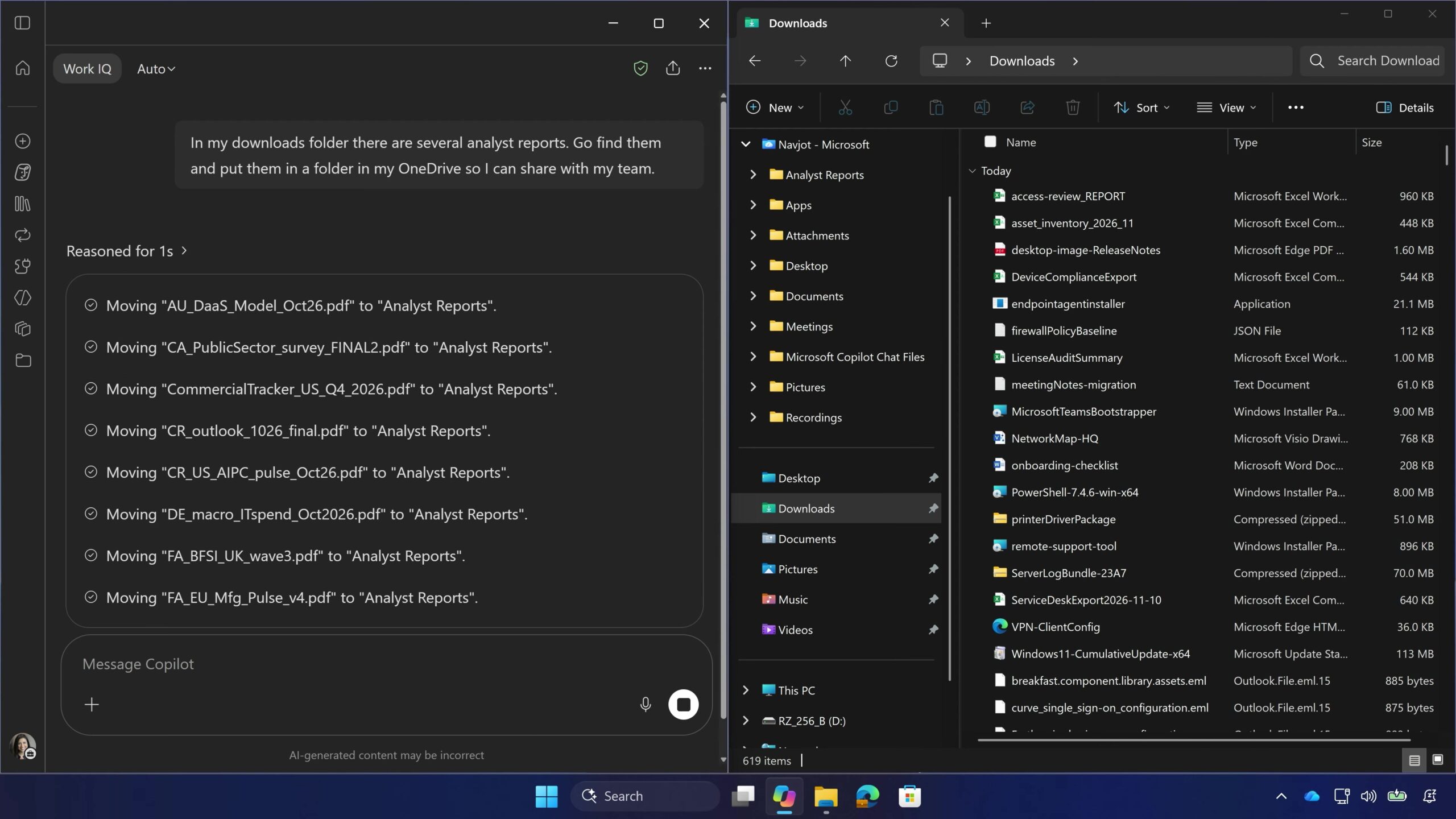
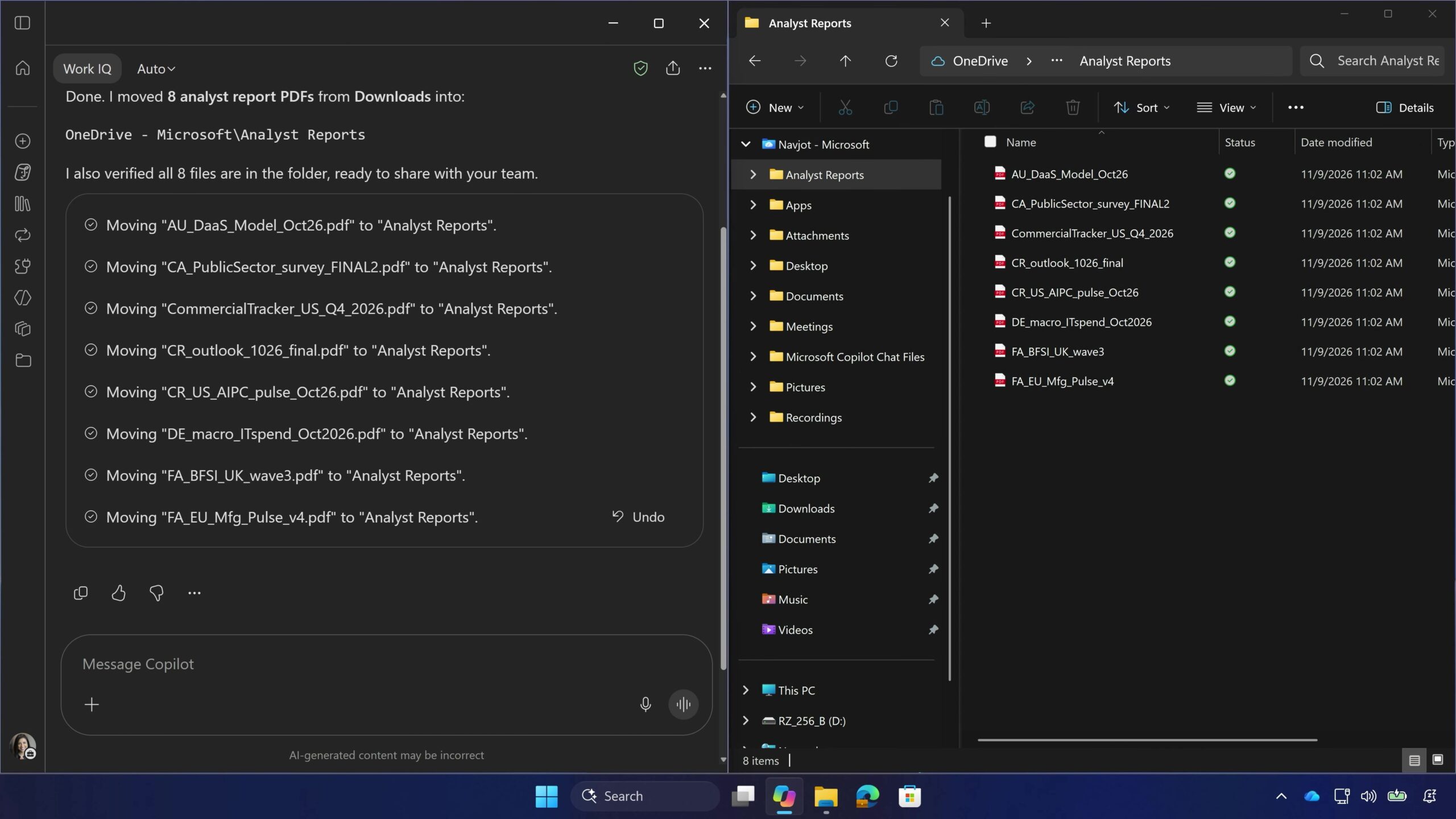
There’s also an Undo button next to the list of moves, and File Explorer then shows the new folder with all eight PDFs.
Also, if you closely look at the screenshots or watch the video I’ve included above, you’ll notice that none of the eight file names say “analyst report.” Copilot actually went ahead and read the files, which is how it identified files like “CR_outlook_1026_final.pdf” and “FA_BFSI_UK_wave3.pdf.” This probably explains why Copilot asked for permissions not once, but twice.
Anyways, I don’t think an optional local file access feature in the Copilot app is harmful. Plus, if you hate Copilot, you can always remove it, and it won’t come back unless there’s an odd bug.
Microsoft also confirmed it’ll allow Copilot to troubleshoot your PC, and it’s even built a separate PC optimizer called PC Assist that pushes Bing.