



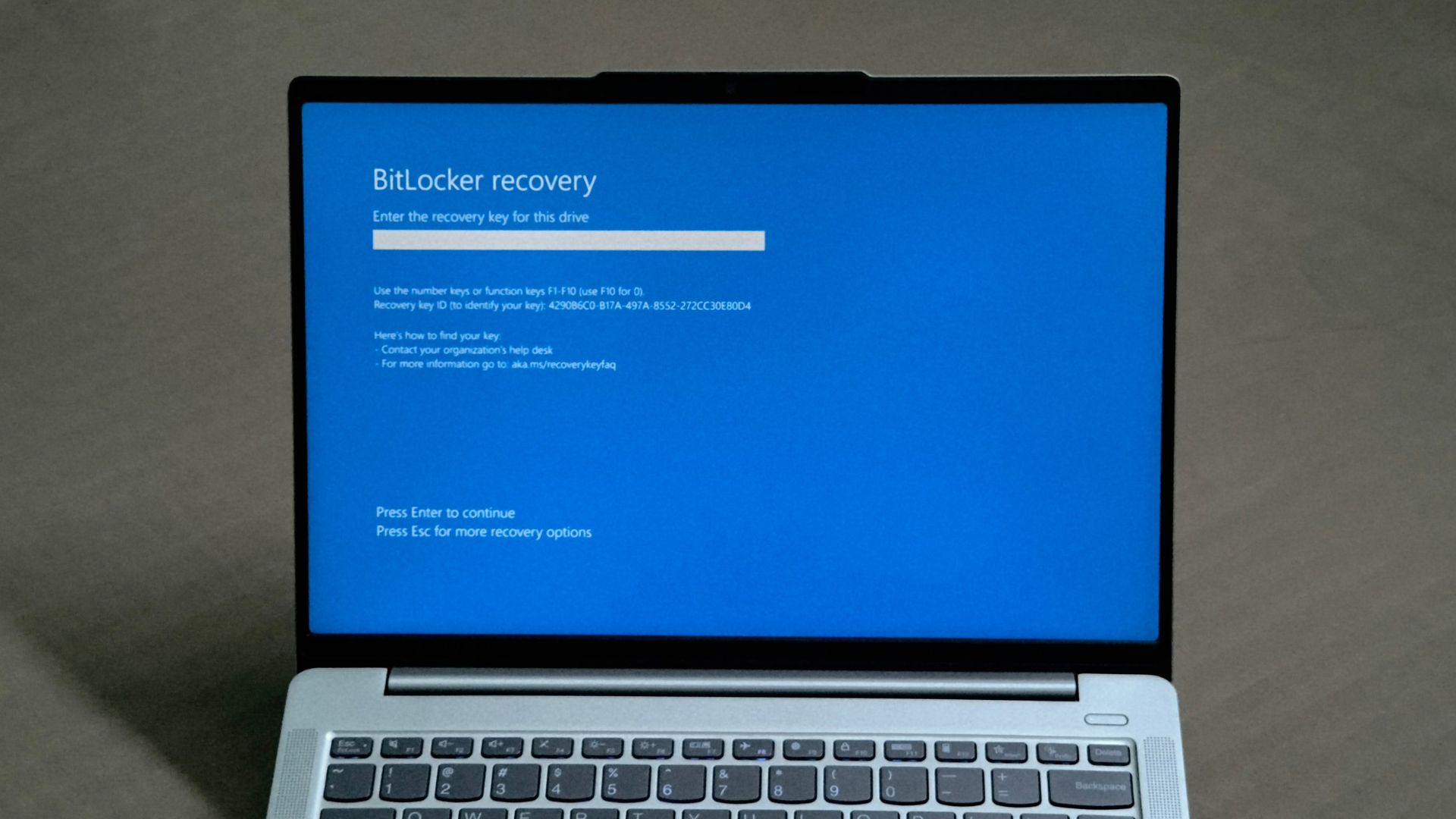
Microsoft is testing a new prompt in Windows 11 that asks you to back up your BitLocker recovery key when you switch from a Microsoft account to a local account. Of course, switching accounts won’t lock you out of your PC, but if Windows later asks for that 48-digit key and you can’t find it, your encrypted files are as good as gone.
The truth is that most people are unaware that their drive is encrypted. A Windows 11 PC set up with a Microsoft account usually turns on encryption quietly (which is alright, as it helps with security) and stores the key in that MSA, making it easy to forget once you stop signing in with it.
For context, unless you’re adept with the ways to skip MSA while booting into Windows 11 for the first time, you are forced to sign in with a Microsoft account, and then once you log in, you can switch to a local account by going to Settings > Accounts > Your info > Sign in with a local account instead.
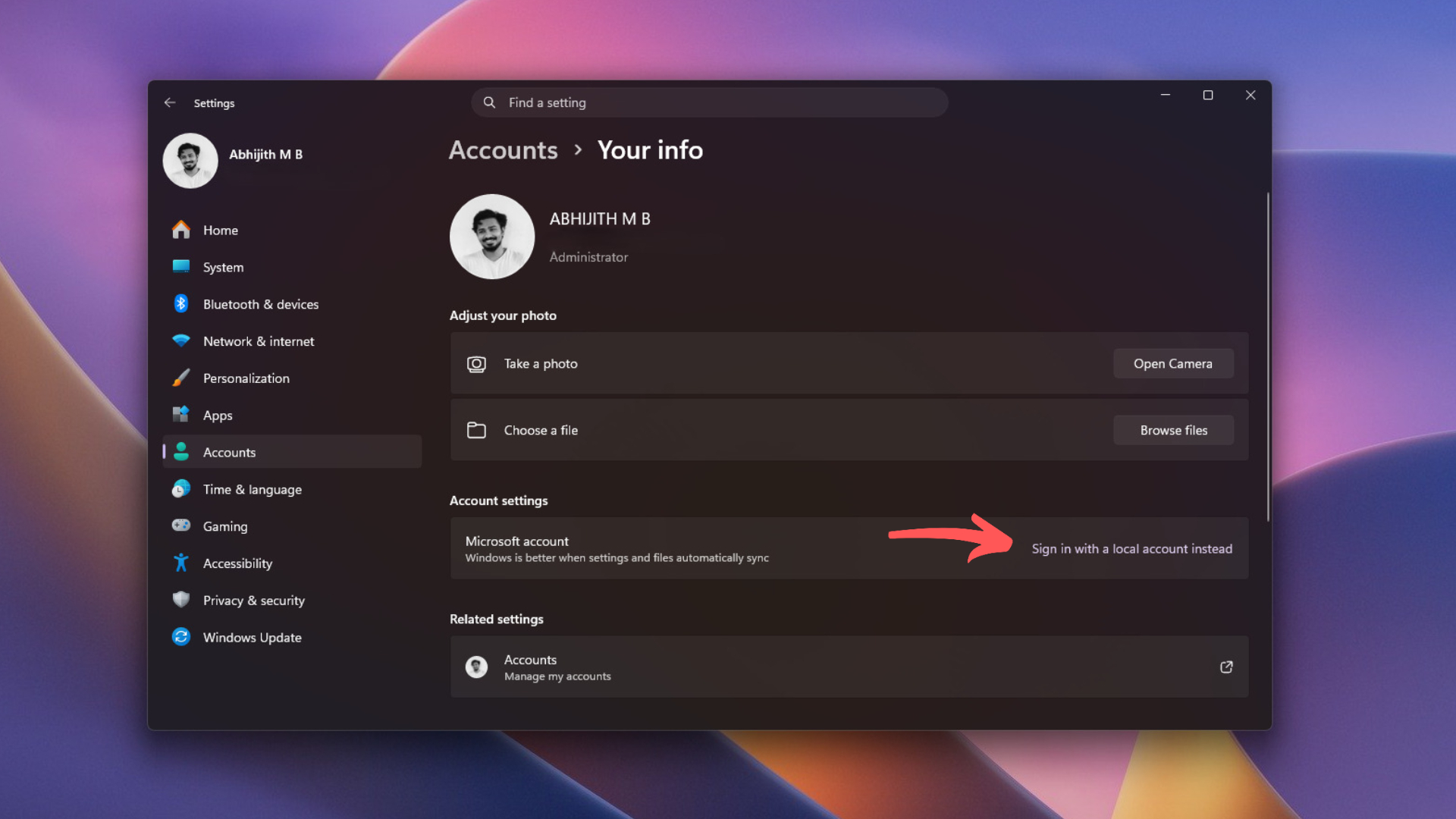
Windows 11 will remind you to back up your BitLocker recovery key before switching accounts
We found the change in Windows 11 Insider Preview Build 26340.10013, which Microsoft released to the Experimental channel on November 16. Under “Secure switch from MSA to Local account,” the release notes say people who make the switch from Settings would be “always prompted to back up their BitLocker recovery key,” with updated instructions to prevent data loss.
Interestingly, this Build is pretty security-focused as it also brings Remote Lock for IT admins and TPM+PIN support for standard users on managed PCs.
In case you’re still in doubt, the prompt doesn’t stop you from switching to a local account, and it doesn’t turn off encryption. Sadly, Microsoft hasn’t included a screenshot of the dialog, so we don’t know if you can skip it or if it also shows on PCs with no encryption. Also, this Secure switch is still in Experimental, and it may change or may not even ship.
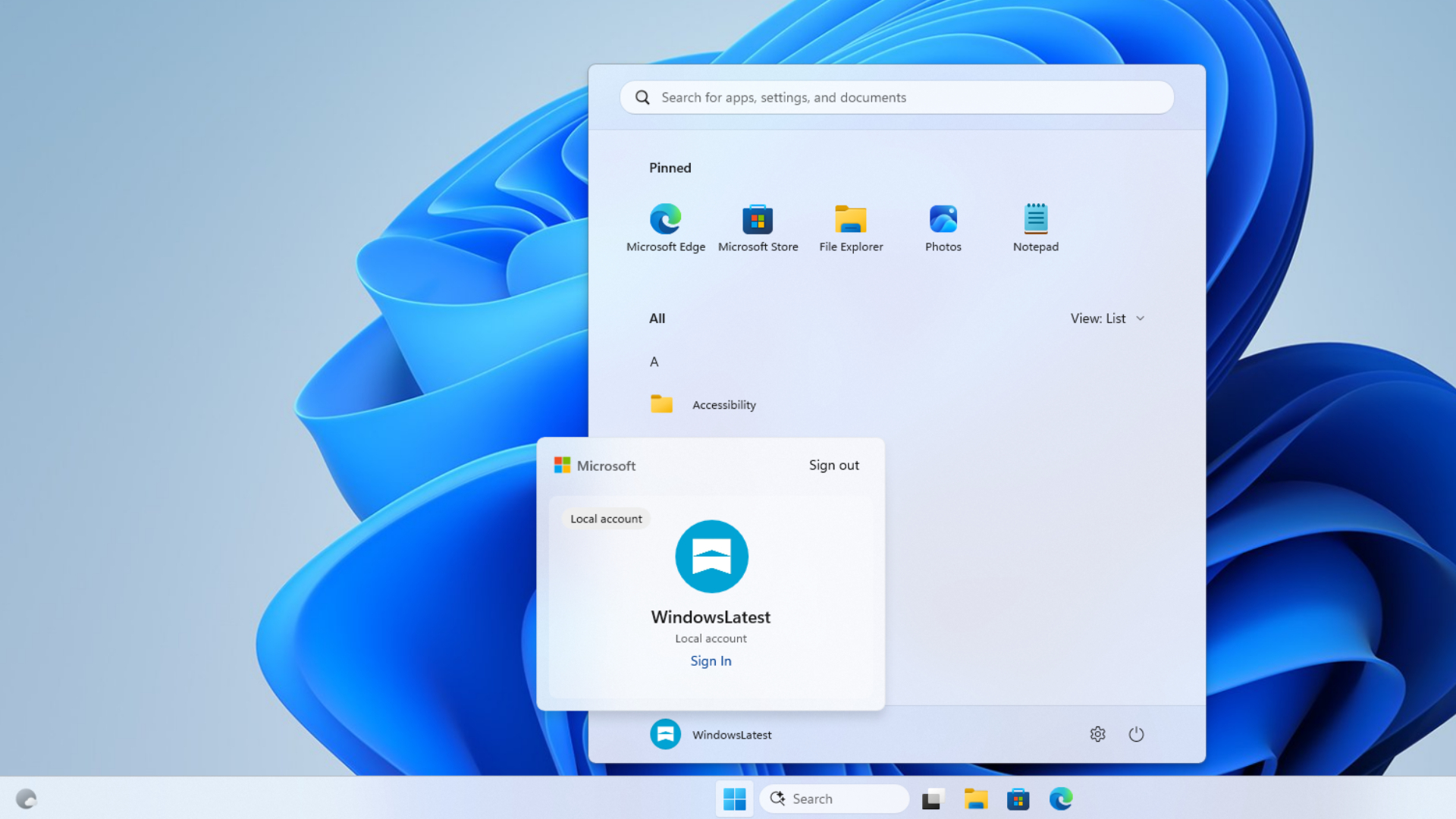
Of course, the support page for switching to a local account says that Microsoft “recommends using a Microsoft account, not a local account,” and now there’s one more reason to make you think about leaving MSA!
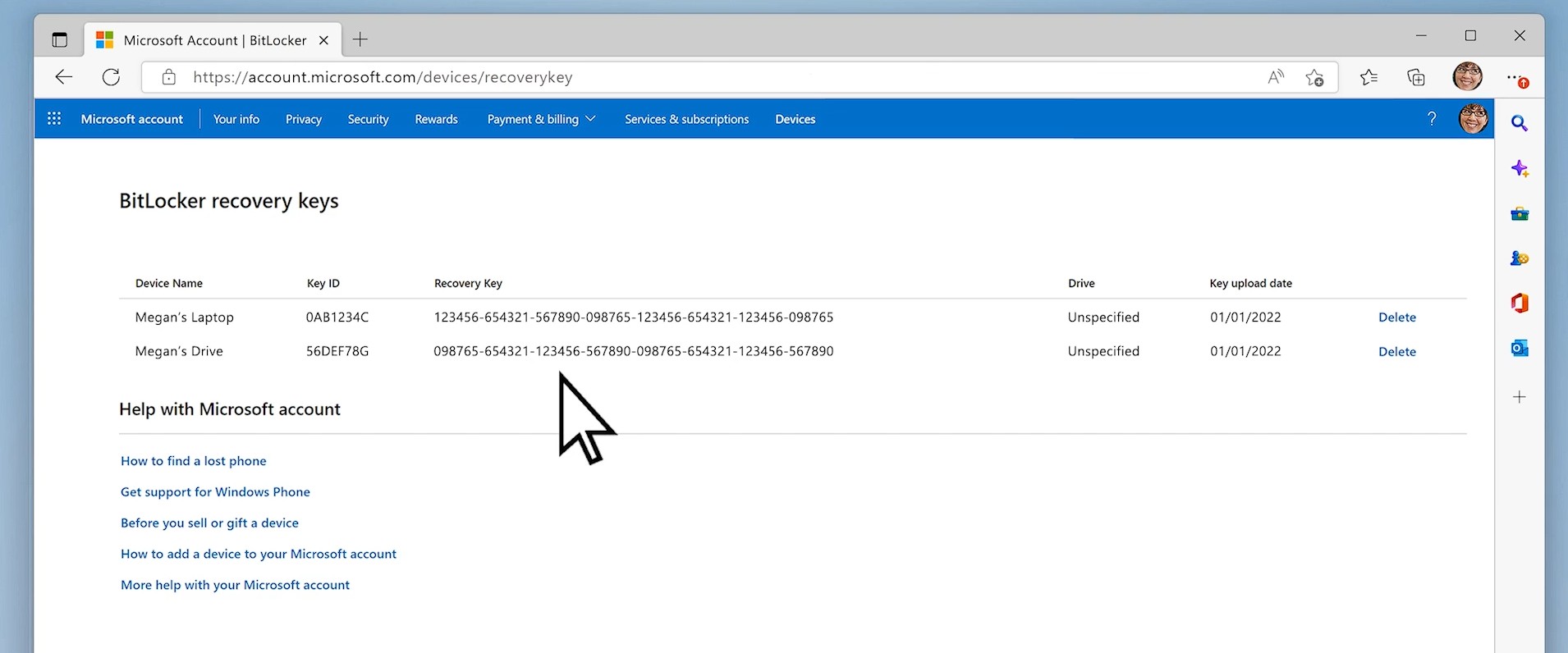
Why losing your BitLocker recovery key can leave you locked out of Windows
The whole point of BitLocker is that it encrypts your drive so nobody can read your files if your laptop is lost or stolen. Device Encryption, the simpler version that also works on Windows 11 Home, turns on when you first set up a PC with a Microsoft account, and Microsoft says “a recovery key is attached to that account.”
Since 24H2, Microsoft has dropped some of the hardware checks for automatic encryption, so many more PCs now encrypt themselves on a clean install. And as we’ve covered, Windows 11 no longer lets you skip the Microsoft account during setup without a workaround, and Microsoft keeps closing those too, the “Learn more” trick being the latest casualty.

Normally, the TPM chip quietly unlocks the drive at boot. But if it notices a change (like a BIOS update, a cleared TPM, or a new motherboard), Windows shows the BitLocker recovery screen and asks for the key. Earlier this year, the Secure Boot certificate update left some PCs in BitLocker recovery loops.
Now imagine you bought a laptop, signed in with a Microsoft account, then switched to a local account because you have no reason to trust Microsoft. But two years later, you get a firmware update that puts you on the recovery screen, and unfortunately, you’ve lost access to that old account and didn’t save the key anywhere else.
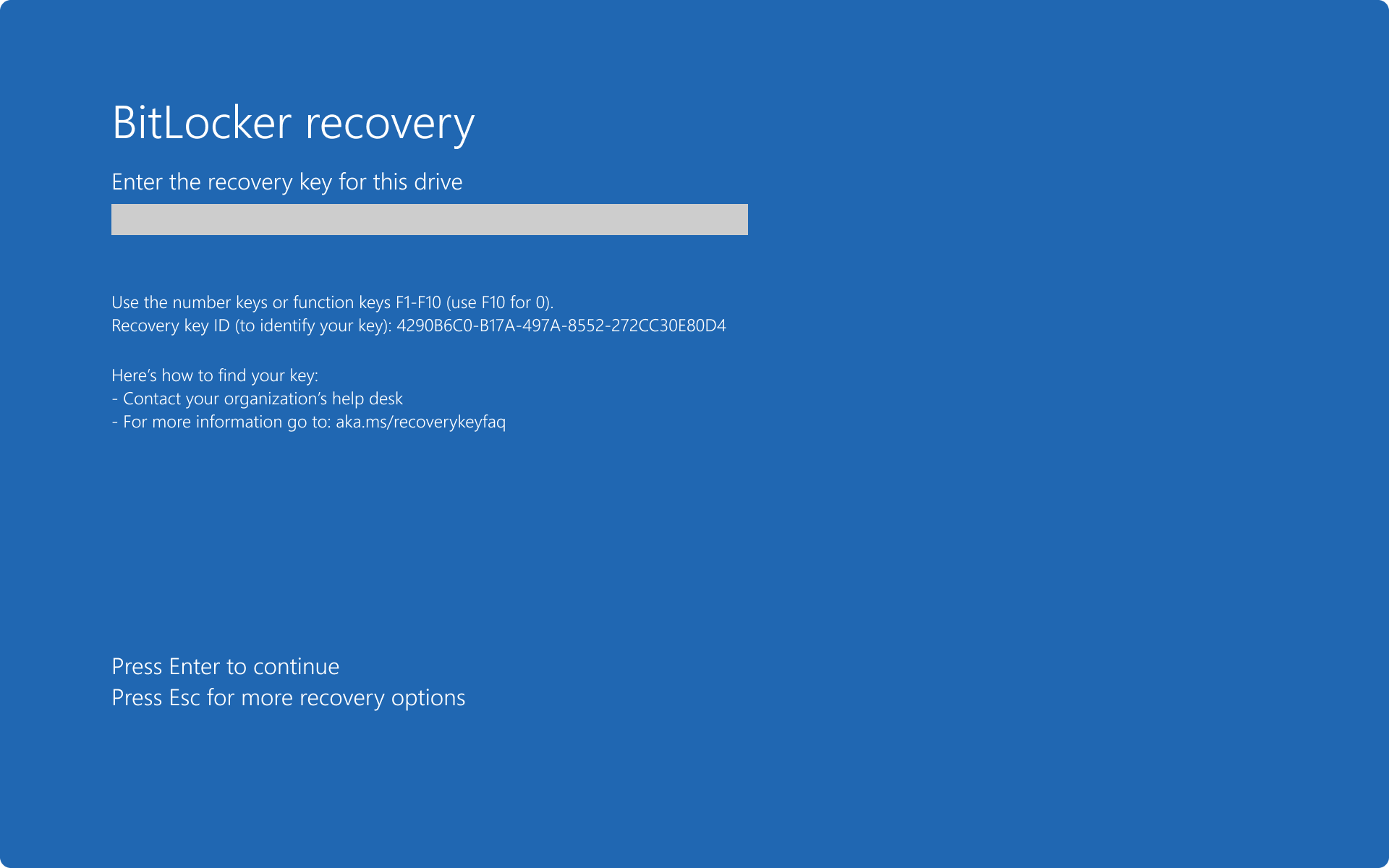
Well, “Microsoft Support doesn’t have the ability to retrieve, provide, or recreate a lost BitLocker recovery key,” and resetting the PC removes all your files.
Note that switching to a local account doesn’t delete your Microsoft account or the key stored in it. As long as you can still sign in, you can get the key from another device, and since 24H2, the recovery screen even shows a hint of which account holds it.
How to back up your BitLocker recovery key before switching to a local account
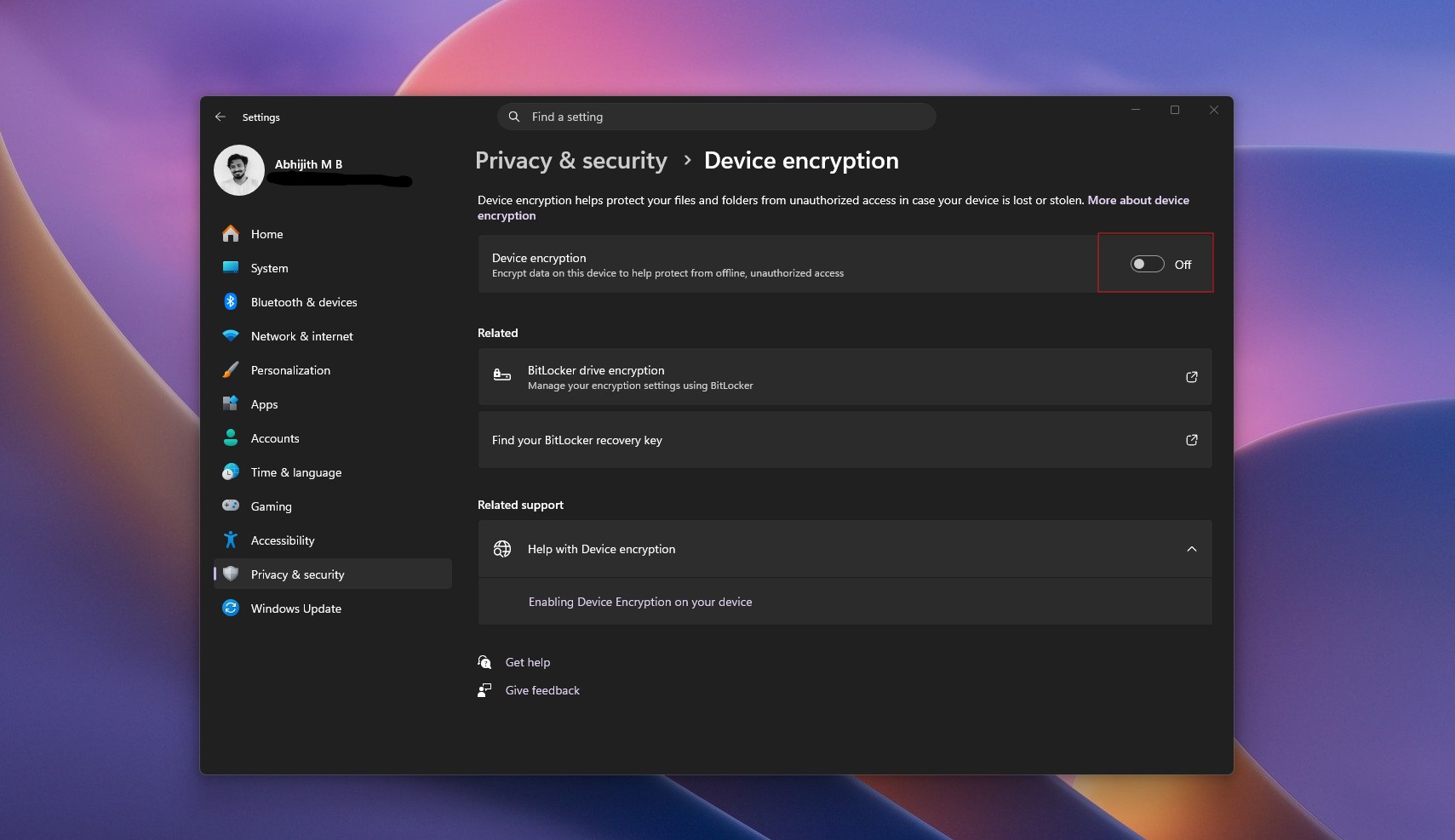
First, check whether your drive is encrypted under Settings > Privacy & security > Device encryption. Next, sign in at aka.ms/myrecoverykey and check that your PC’s key is listed, as Microsoft says, “It’s important to verify that this backup exists and is accessible.”
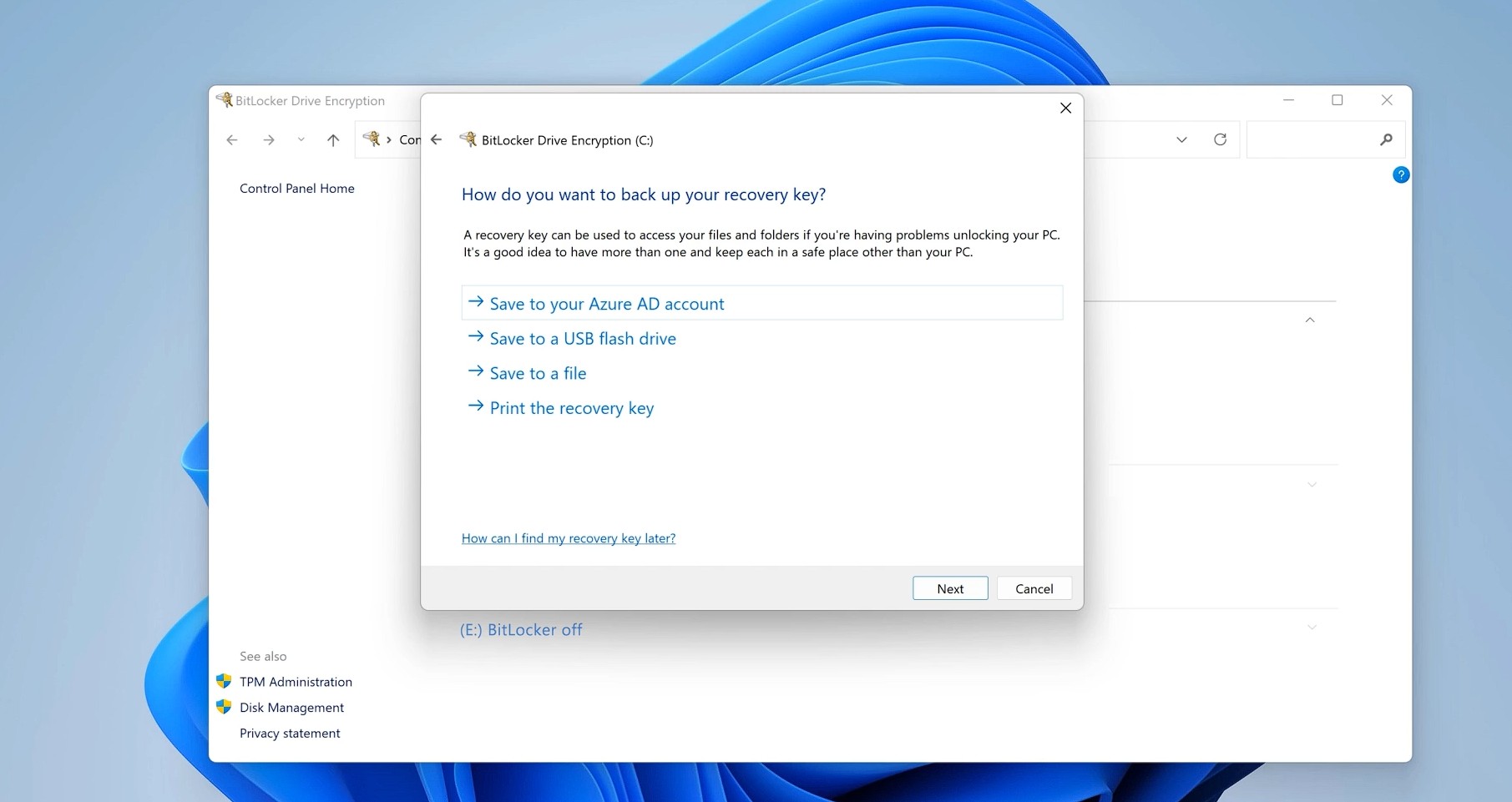
On Pro, Enterprise, and Education, you can also search for Manage BitLocker and select Back up your recovery key to save it to a USB drive, a file, or a printout. On Home, just copy the key from that page into a file on another drive or print it. Either way, don’t keep the copy with the PC.
And if you’re switching for the sake of privacy, the key will be stored on Microsoft’s servers until you delete it from there, so save another copy first.
Again, for the sake of clarity, Microsoft isn’t blocking local accounts. The company is making sure you don’t walk away from the only copy of a key you probably didn’t know you had, and for a change, I actually wish the prompt had been there since the day Windows started encrypting drives by default.