





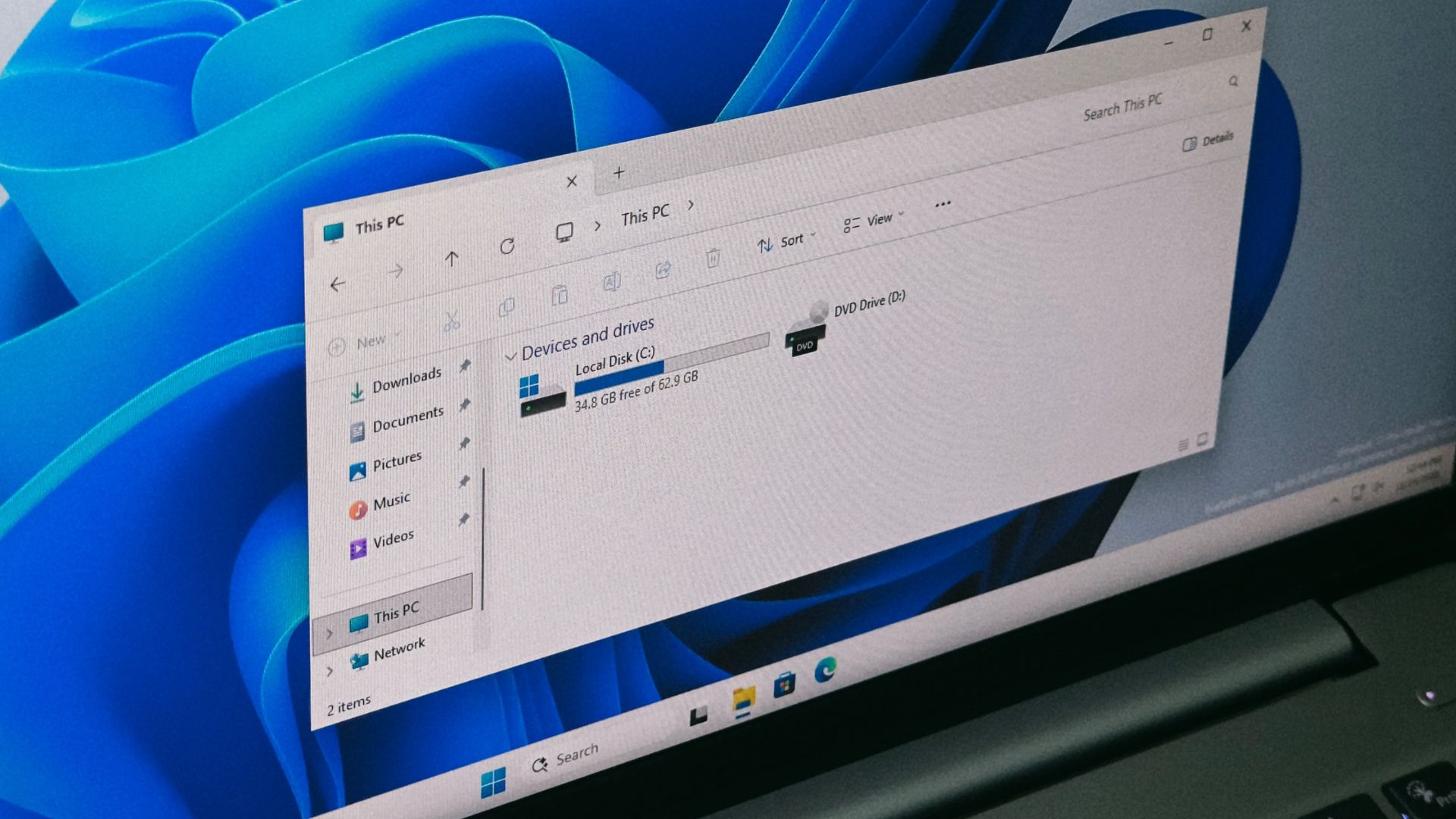
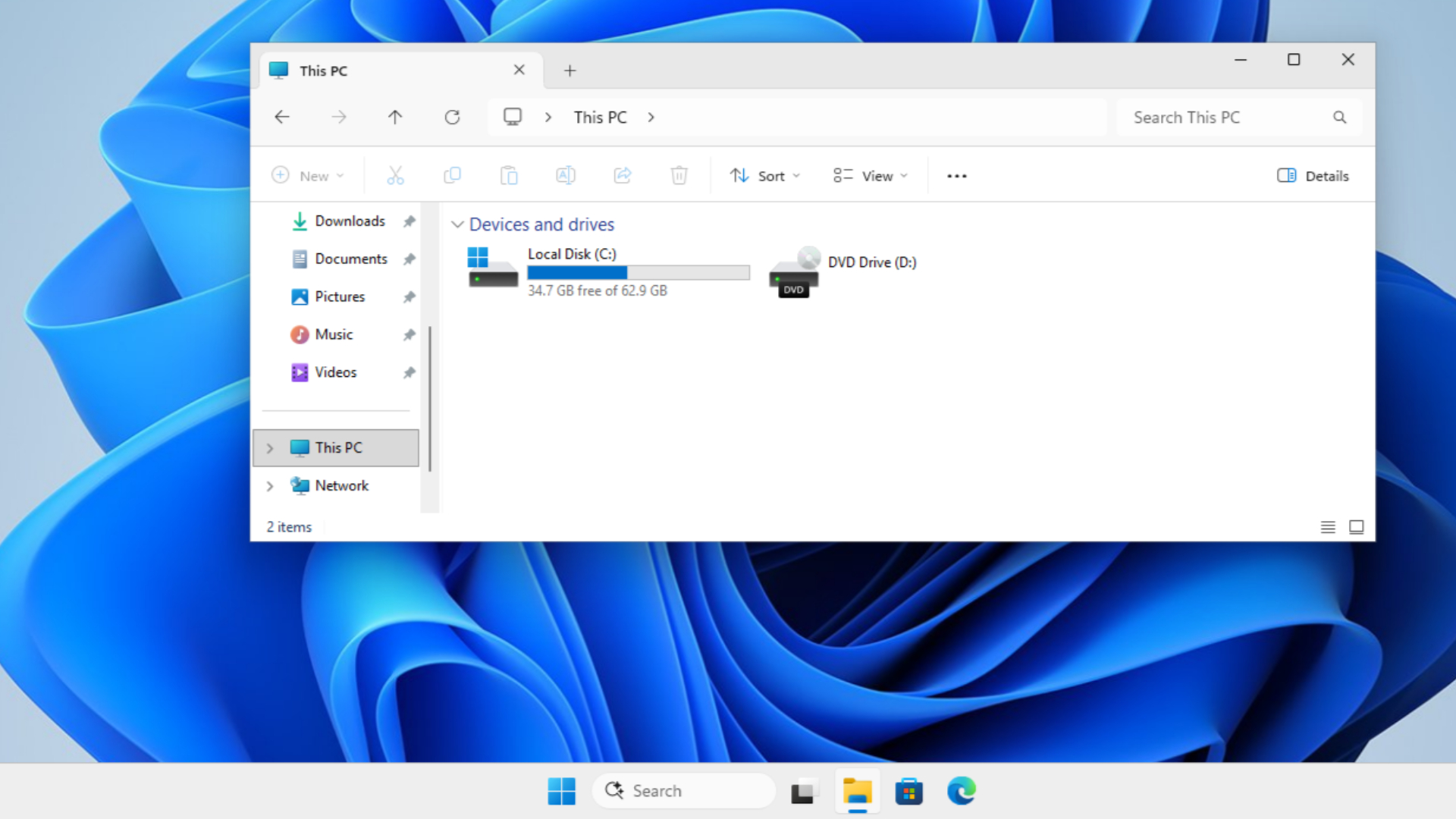
Most of us already have our minds accustomed to seeing Local Disk (C:) and not wonder where A and B went. It has been like this since I had my first Windows XP PC with a whirring hard drive, and now Windows 11 with a Gen 4 NVMe SSD. But when I connect my external hard disk and see the partitions go to D:, E:, and F:, I sometimes wish Windows started with the A: drive.
Well, it turns out, Windows inherited drive letters from MS-DOS, which first borrowed from CP/M, an OS from the 1970s. Early IBM PCs reserved A: and B: for floppy drives, so when the hard disk came in 1983, it was given drive C: because floppies hadn’t died yet.
Microsoft has kept this naming scheme ever since and Windows 11 still comes with Local Disk (C:) or Windows-SSD (C:). Of course, there’s more to the story, and if you want to take a trip down memory lane, read along…
Windows got its drive letters from CP/M, an operating system older than MS-DOS
Years before the first IBM PC launched, computer scientist Gary Kildall created CP/M in 1974, and his company, Digital Research, made it the go-to operating system for microcomputers. I saw Digital Research’s guide to CP/M 1.3 (from 1976), and it says the standard system could address only two disk drives, and the first one was disk “A”. Naturally!
CP/M 2.2 took that number to 16, and its operating system manual says “These disk drives are labeled A through P.” Typing B: switched you to the second drive, and B:NAME pointed to a file on it.
MS-DOS copied the idea, and Raymond Chen, who has been involved in Windows for more than 30 years, confirmed it in a 2010 post on The Old New Thing. While explaining why each DOS drive had its own current directory, Chen wrote, “This behavior was carried forward from CP/M.”
DOS 1.0 didn’t even have folders, so programs referred to files like B:PROGRAM.LST, as Chen puts it.
To be clear, CP/M didn’t reserve A: and B: for floppy drives, as they were simply the first two letters in line. It was the IBM PC and MS-DOS that made them synonymous with floppies.
The original IBM PC had no hard drive, so A and B went to the floppy drives
IBM unveiled its Personal Computer (model 5150) on August 12, 1981, and IBM’s history page says the USD 1,565 base model had “16 kilobytes of RAM and no disk drive.” To add a display, two diskette drives and a printer, it costed nearly USD 3,000 more, which doesn’t sound as insane as it would have been if I wrote this a year ago!
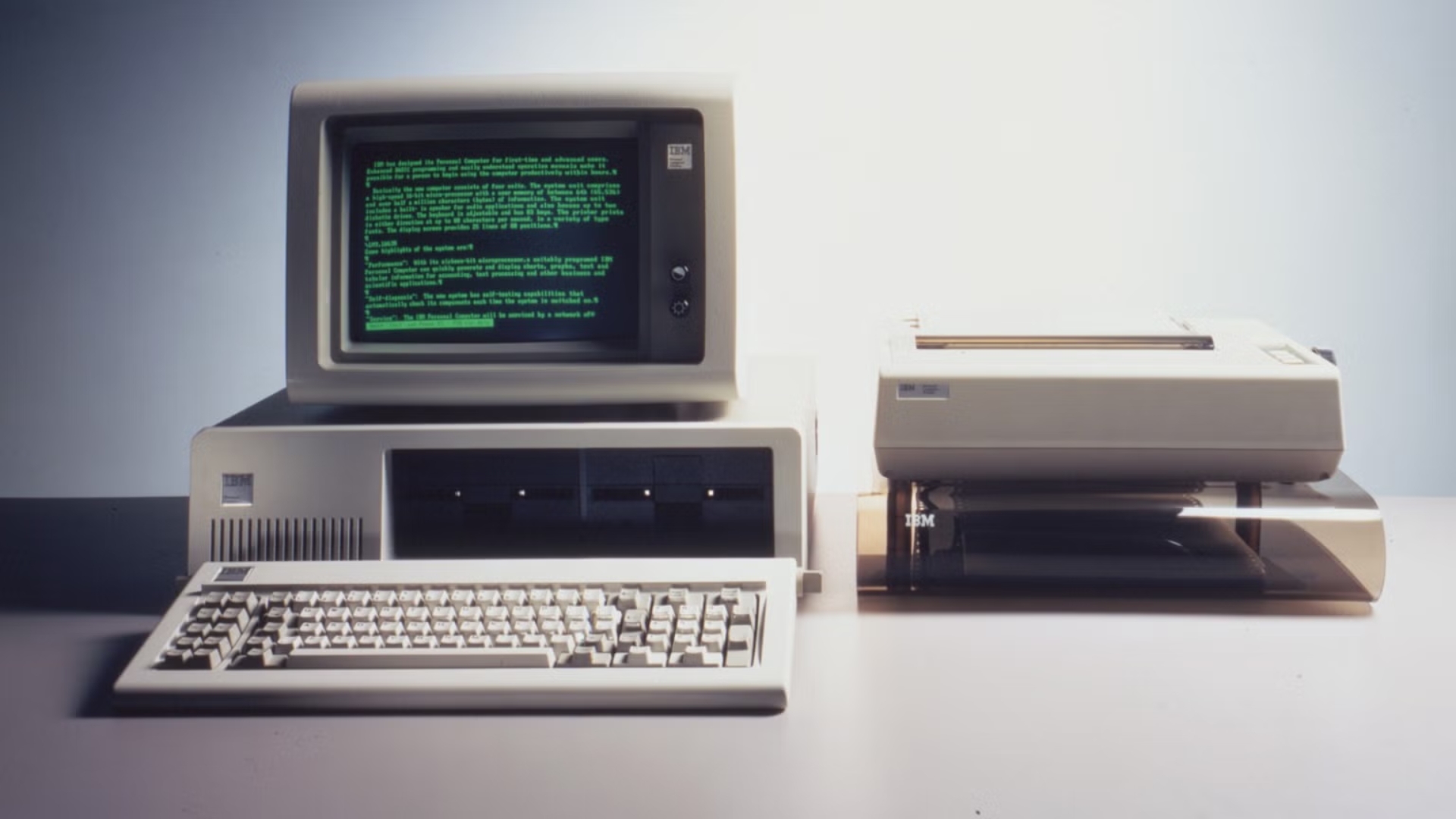
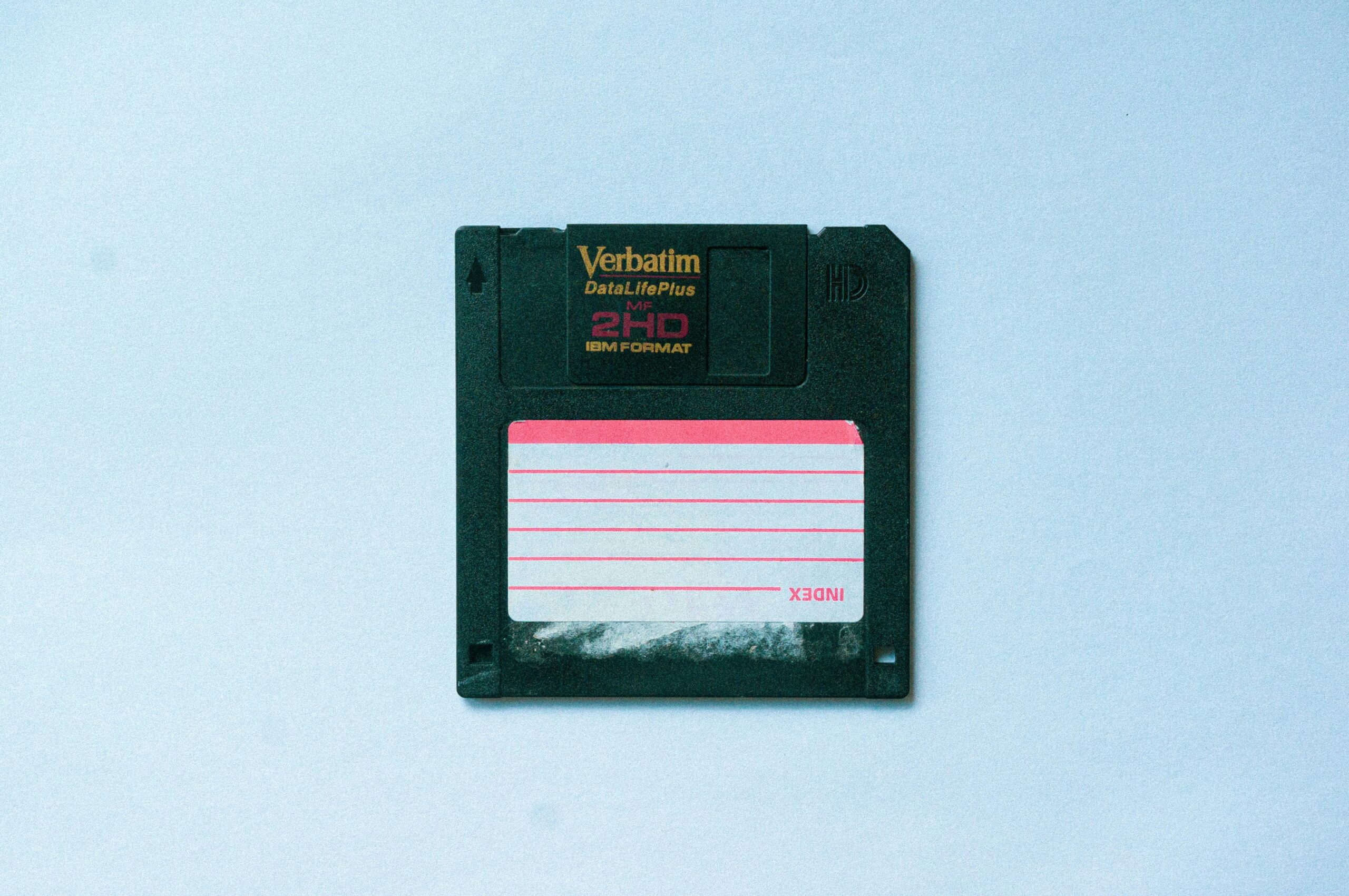
With no hard drive in sight, DOS, apps (called programs back then) and documents were all stored on 5.25-inch floppy disks. The first floppy drive was A:, the second was B:, and a common setup was to run DOS and programs from A: while saving work to the disk in B:. But it was not like every PC had two drives. Single-drive setups were common too.
Then came the IBM PC/XT in March 1983, with a 10MB hard disk and a single floppy drive. The hard disk became C:, even though the standard XT had no second floppy to claim B:.
So, why not B: you ask? Because DOS had already given B: a job.
Microsoft made one floppy drive pretend to be two
Microsoft’s 1983 MS-DOS 2.0 User’s Guide has an appendix titled “Instructions for Users With Single-Drive Systems”, which asks you to “think of the single-drive system as having two drives”. On such PCs, A: and B: represent two disks instead of two physical drives.
So, if you typed COPY COMMAND.COM B:, DOS read the file, then paused and asked you to insert the diskette for drive B: and press a key. Go back to A:, and DOS asked for the A: disk again.
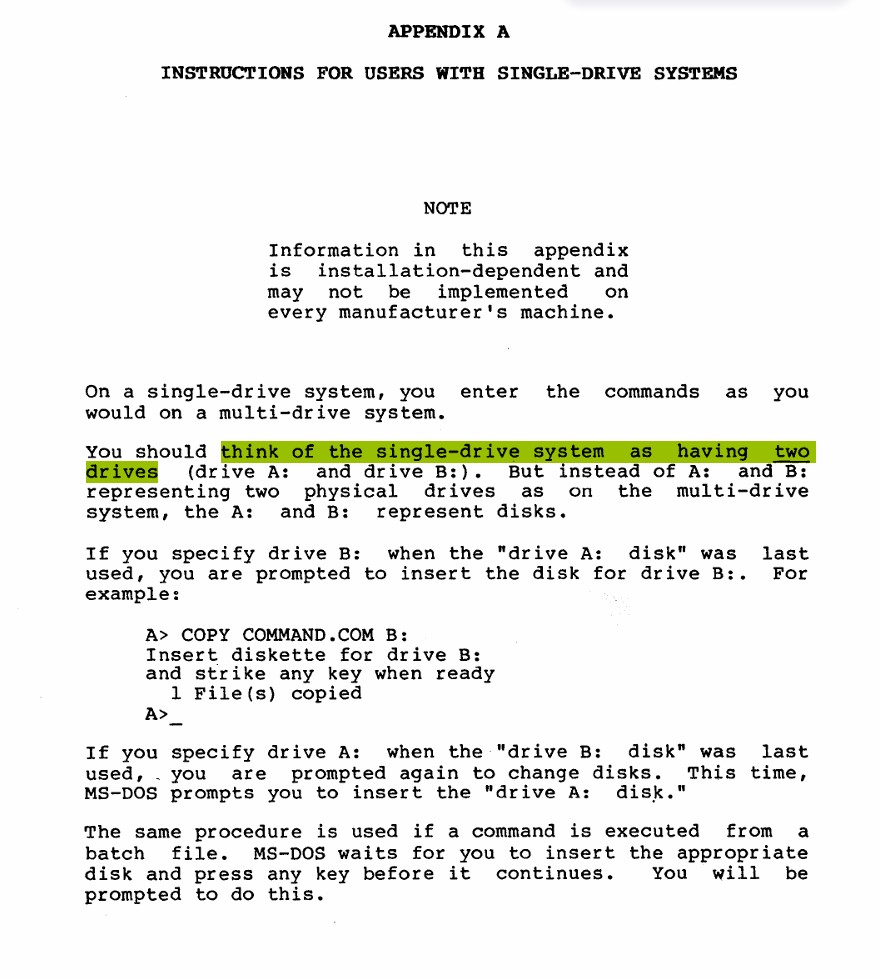
Yes, you were the second floppy drive.
DOS kept B: for this phantom drive even when only one floppy drive existed, so the XT’s hard disk had nowhere to go but C:. Microsoft’s old Knowledge Base article Q51978 describes the order, with MS-DOS handing A and B to the floppy drives before giving C to the first hard disk.
Microsoft kept Windows on the C drive because software expects it there
In a 2005 Old New Thing post, Chen recalls DOS-era programs that assumed every path began with a drive letter. “They insisted on a drive letter, and you darn sure better give them one,” he wrote.
We now have four decades of installers and scripts, some with C:\Program Files hard-coded into them, and if we move Windows to A: it would cause an avalanche of system issues. It’s also why Windows 11 still uses MS-DOS-style names for its oldest system files.
Microsoft’s Disk Management documentation warns that if you change the letter of a drive with Windows or apps, “the apps might have trouble running or finding the drive.” Even its developer documentation on MS-DOS device names says global drive letters should be allocated “starting with C: and ending with Z:”.
Interestingly, the NT kernel under Windows 11 doesn’t need letters, as Microsoft describes a drive letter as a junction pointing to a device. But a 1997 Knowledge Base article (Q101703) notes that Windows NT tries to hand out letters the way MS-DOS did.
C: is so central to Windows that when a Samsung app bug locked people out of their C: drive earlier this year, even basic file operations stopped working. Truth be told, if Microsoft moved Windows to A: tomorrow, the only thing it would make the recent Microsoft 365 outage look puny.
You can still use the A and B drive letters in Windows 11
Surprisingly, A: and B: aren’t banned. Microsoft’s Windows Server 2003 documentation says they’re typically kept for floppy drives, but if a PC doesn’t have one, “you can assign drive letters A and B to removable drives”, hard disks or mapped network drives.
In Windows 11, you can do this from Disk Management by right-clicking a drive and choosing Change Drive Letter and Paths. Just don’t try it on C:, for the reasons I said.
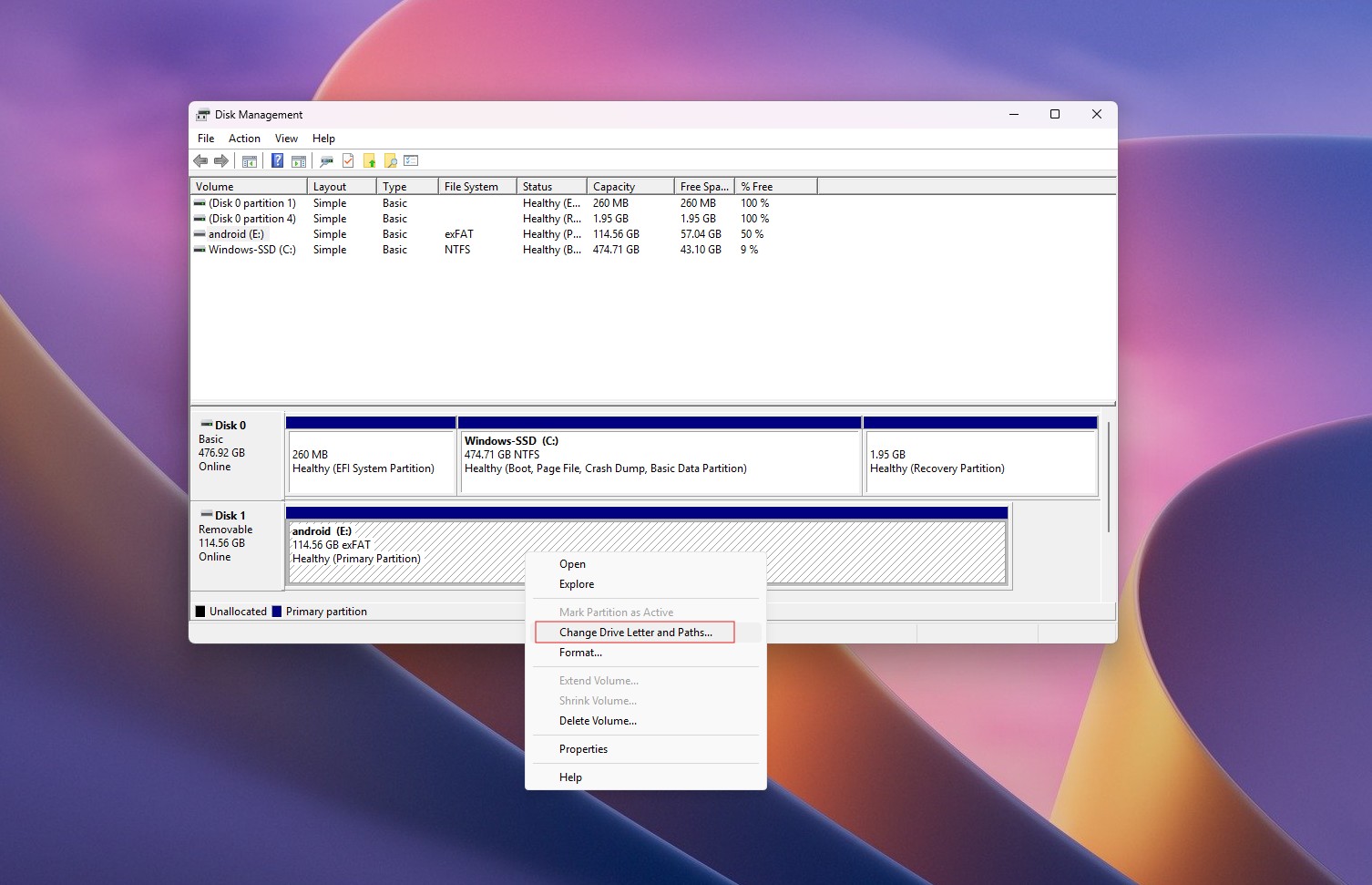
Actually, you don’t even need a letter. Windows can mount a drive inside an empty folder on an NTFS or ReFS volume, so a second SSD can show up as C:\Games instead of D:.
Linux and macOS don’t have a C drive, or any drive letters
Mounting drives into folders is how Linux and macOS work by default. On Ubuntu, everything starts at the root directory (/), and Canonical’s documentation says /media holds mount points for removable media like USB drives.
Apple’s File System Programming Guide says macOS keeps a subdirectory for each mounted disk under /Volumes, though Finder hides it and shows drives by name.
In Windows, every letter has its own tree, so searching This PC means going through each drive, which Microsoft made faster in March. Funnily enough, Windows 11’s File Explorer has started borrowing from the Unix world, as it’s getting support for the ~ key as a shortcut to your user folder.
So, Mac and Linux users don’t have to wonder where A: and B: went. Windows users do, and the answer is a floppy drive most of us only know as the Save icon.