






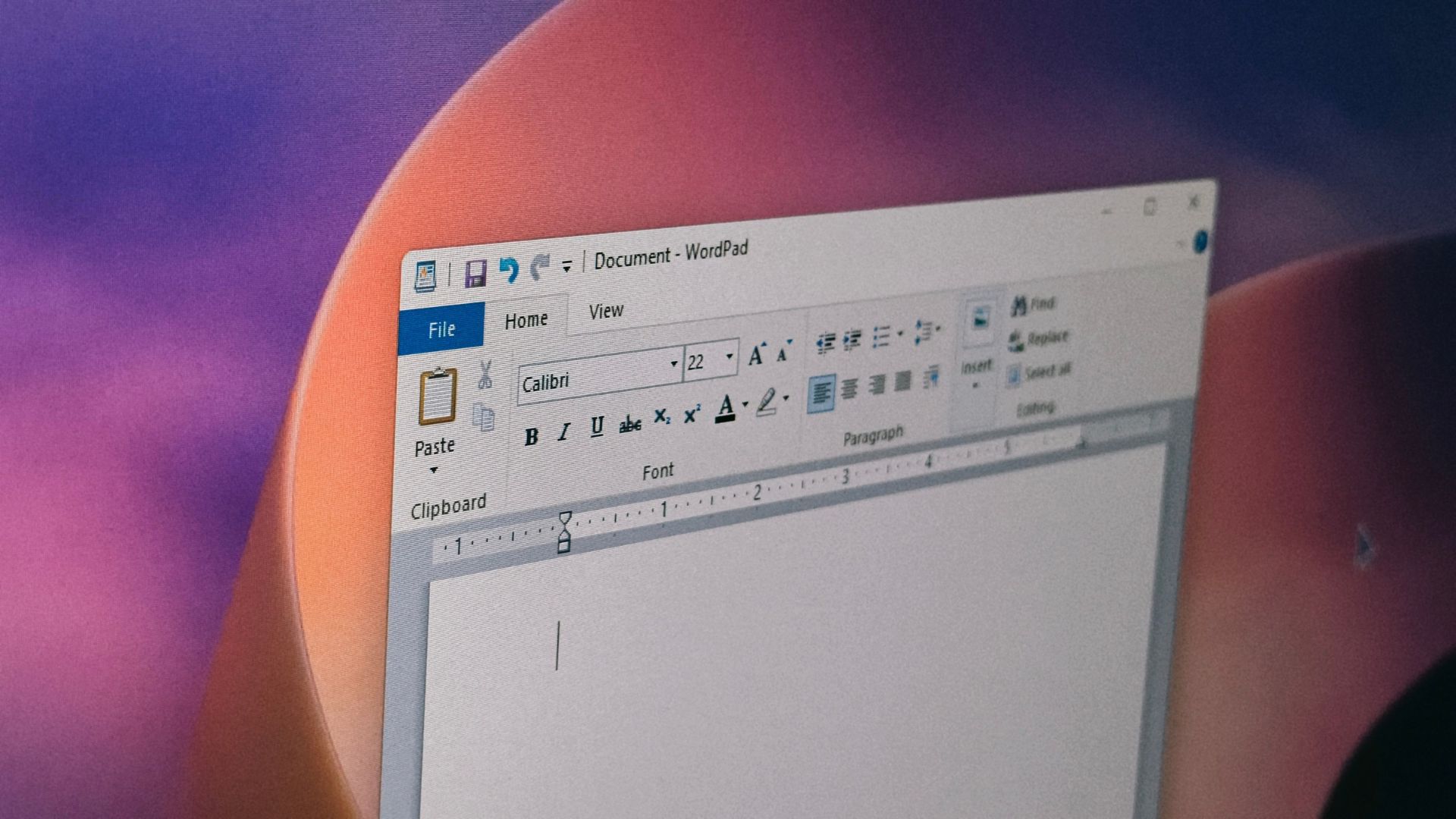
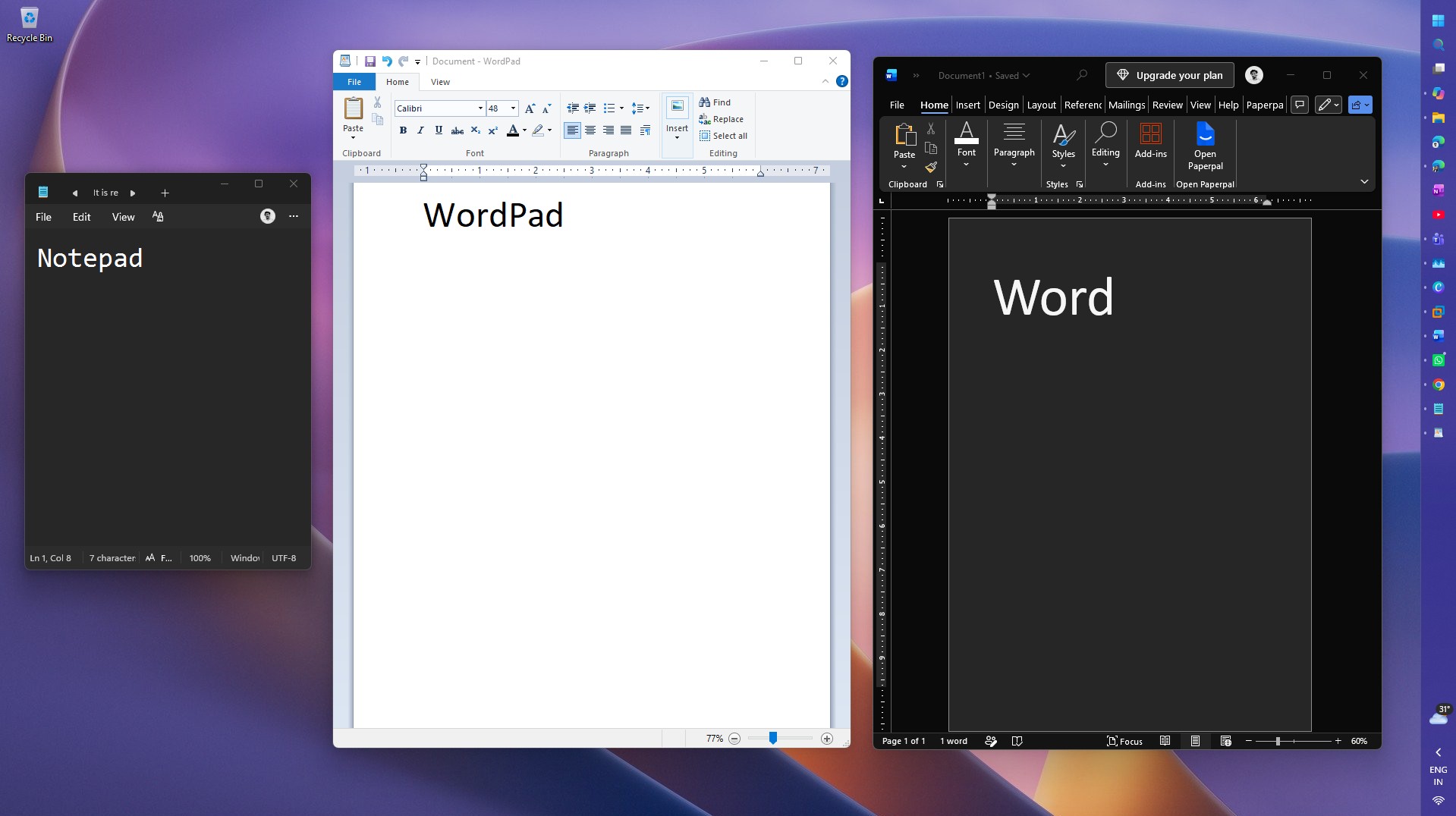
For all us folks of culture, WordPad was the proper middle ground between the basic Notepad text editor and the full-fledged Word. Unfortunately, it was mercilessly removed from Windows 11 version 24H2. But it’s not like the OS can’t run decades-old programs! So, I copied WordPad from a fresh Windows 10 installation and pasted it to my Windows 11 26H2 PC. It can format text, add pictures, and open RTF files, all without sign-in prompts or AI features.
A few days back, I saw someone on X complain about the new Notepad. I couldn’t comprehend the hate, because the Copilot branding is gone, the Writing Tools can be switched off, and formatting or tables isn’t hurting anyone. But most replies were in favour of the post, with people wishing for an old app that just works. Well, nothing fits that description better than WordPad.
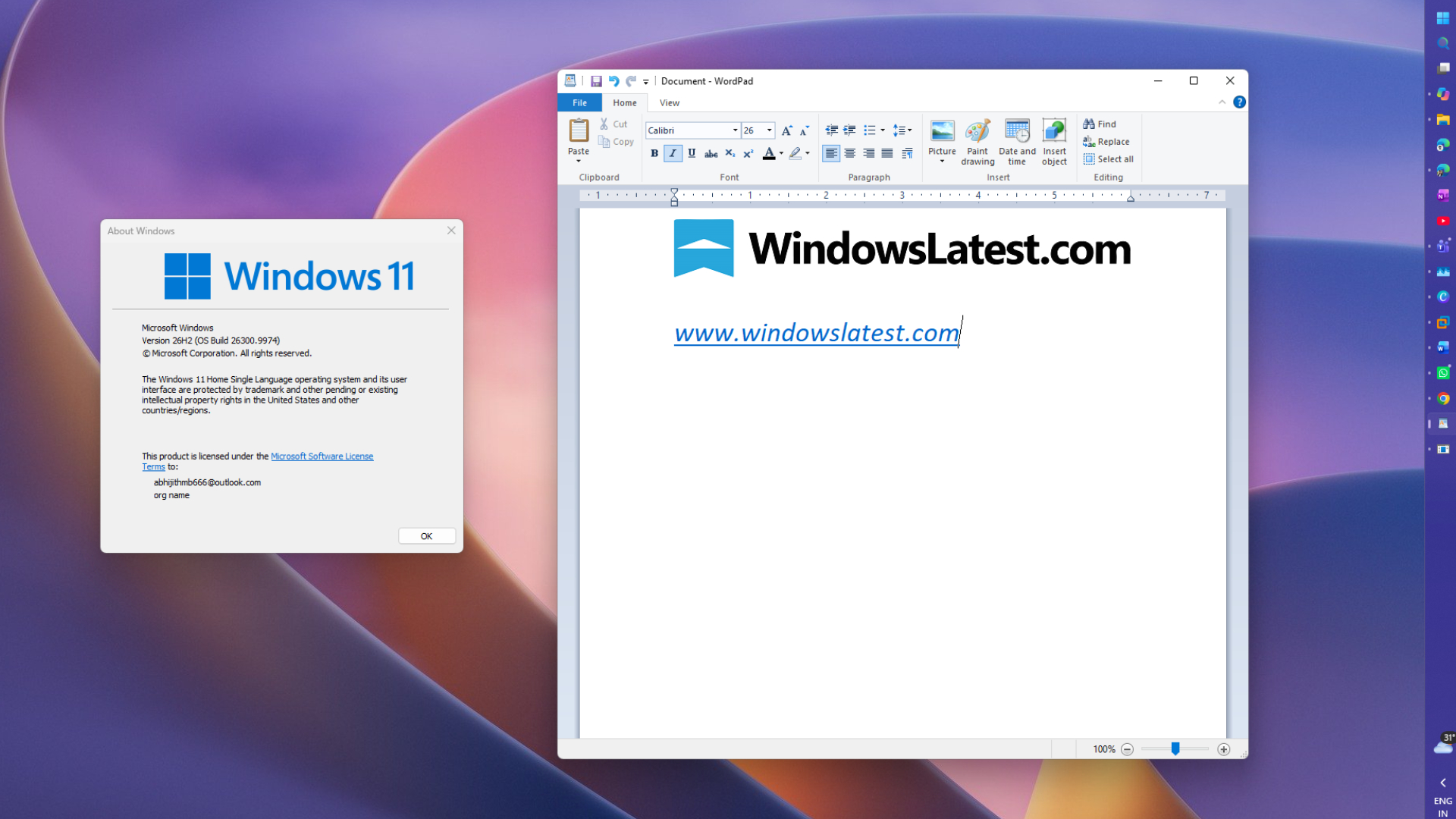
Microsoft removed WordPad in Windows 11 24H2, and it’s still missing in 26H2
Microsoft deprecated WordPad in September 2023, saying it was “no longer being updated and will be removed in a future release of Windows.” In March 2024, the company confirmed WordPad would be gone from all editions of Windows 11 24H2 and Windows Server 2025, and they kept their promise when the 2024 update rolled out later that year.
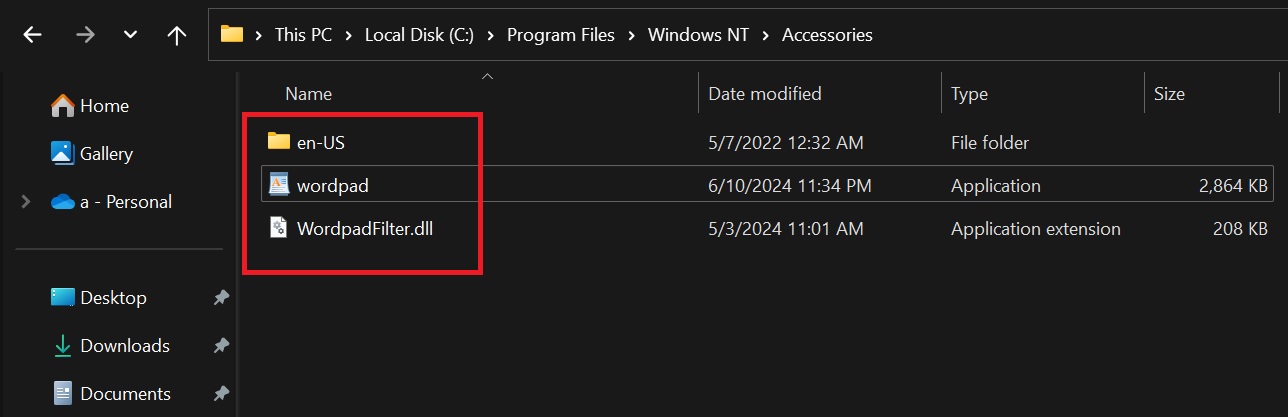
There were specifically three files that got removed, as Microsoft’s developer documentation mentions: wordpad.exe, wordpadfilter.dll, and write.exe. It also confirmed that Windows no longer has a built-in RTF reader. Microsoft recommends you to Word for rich-text documents like .rtf and .doc, and Notepad for .txt files. Although the software giant didn’t give a reason for killing WordPad, they probably wanted one less app to update in Windows 11.
I recently updated my father’s PC to Windows 11 26H2, and he asked me if it had WordPad. When I told him Microsoft had deprecated it, he just sighed and said it was enough for him. Yes, he has a point. A letter or a list doesn’t need Word. He just wanted a digital version of his notepad (the physical one, that is).
WordPad does proper rich text, while Notepad’s formatting is Markdown
WordPad sat gracefully in between Notepad and Word for almost three decades. Its Office-style ribbon came with Windows 7, and the Home tab has fonts and sizes, bold, italic, underline, strikethrough, subscript and superscript, text highlighting and font colors, plus alignment, indentation, line spacing and bulleted lists.
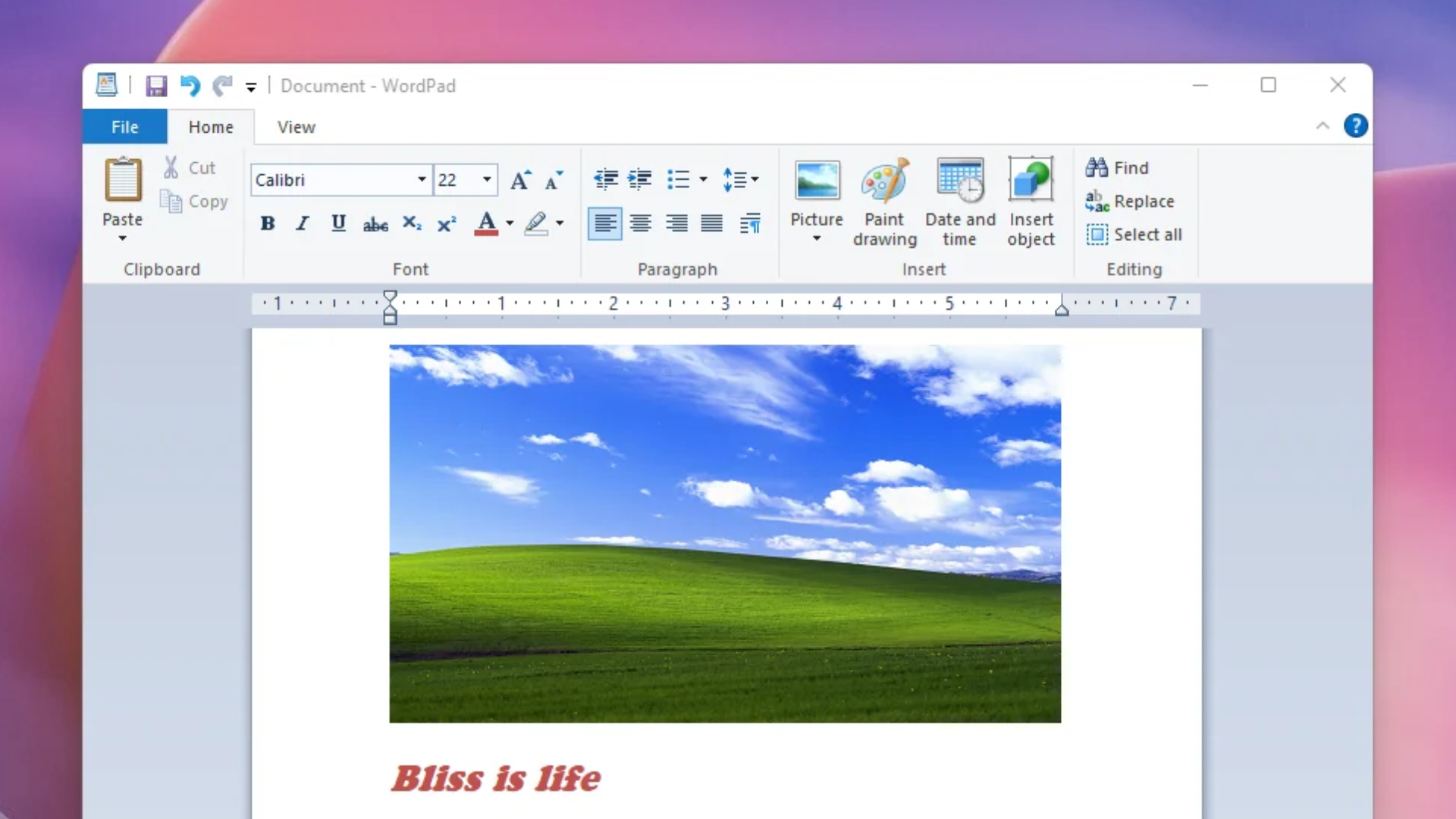
The Insert group lets you add pictures, date and time, and objects from other apps. It even has a ruler that lets you drag paragraph margins. This might come as a surprise for a few, since WordPad documents save as RTF by default, but it can also save .docx, .odt, and plain text files.
But where I see people misunderstand WordPress is with Tables. It has no option to insert or edit a table, and Microsoft’s old Knowledge Base article Q135079 lists tables, borders, shading and columns among the Word formatting that disappears in WordPad, calling it “a design limitation of WordPad.”
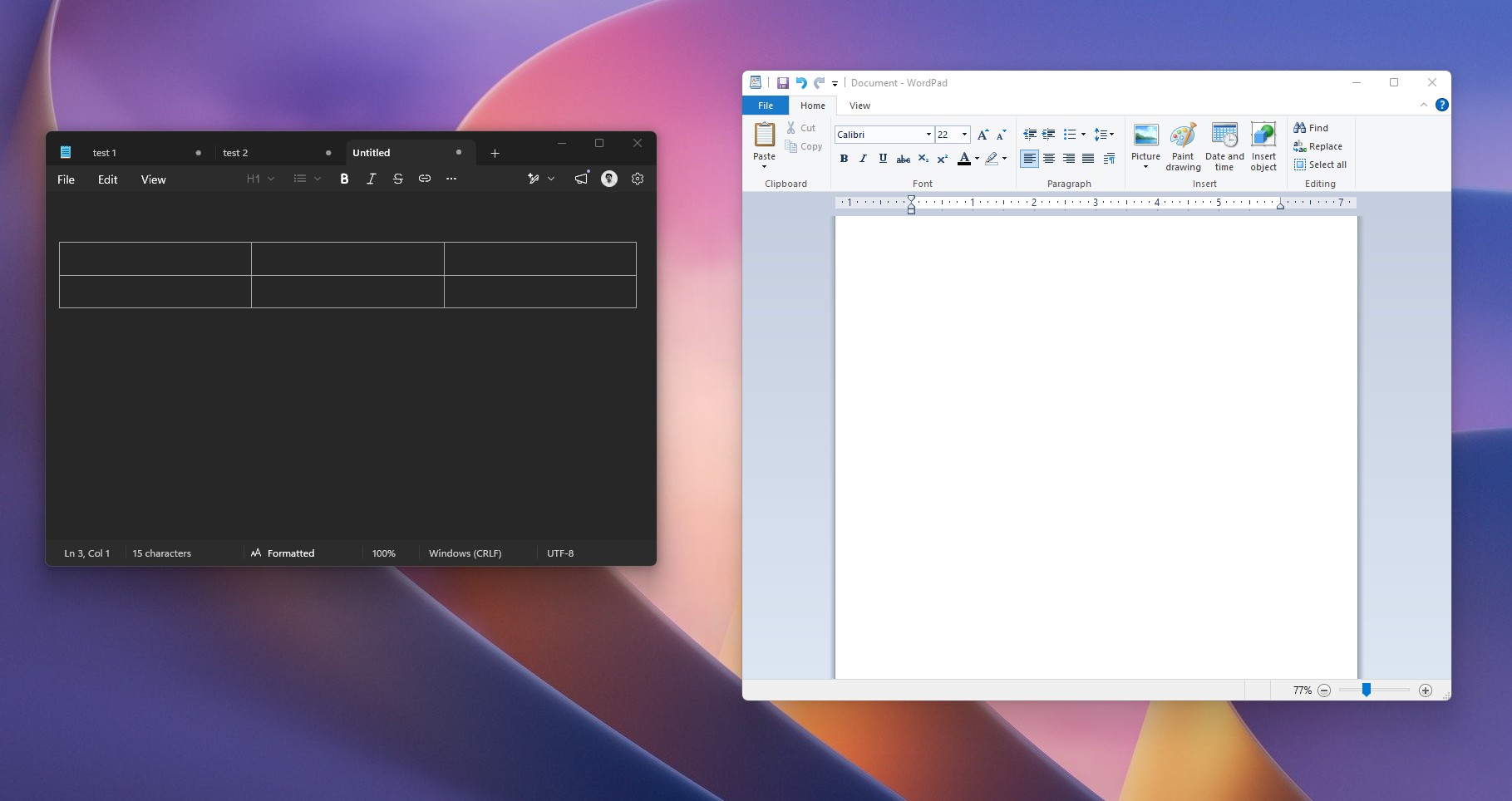
Funnily enough, what was supposed to be the basic text editor, Notepad, got a Create a table option for everyone in January 2026. But those tables, along with bold, italics, headings, and lists, are stored as Markdown in a plain-text file. So, Notepad is great for quick notes, while a letter with your choice of font, color, and a photo is still WordPad territory.
Notepad’s AI Writing Tools are optional, but WordPad doesn’t have any
Heavy backlash has forced Microsoft to drop the Copilot branding in Notepad, but the AI is still there under a new name, Writing Tools. Write generates text from a prompt, Rewrite changes the tone or length of what you’ve written, and Summarize shortens it. Microsoft’s support page says these features are powered by GPT, which also means that you have to sign in with a Microsoft account to use them.
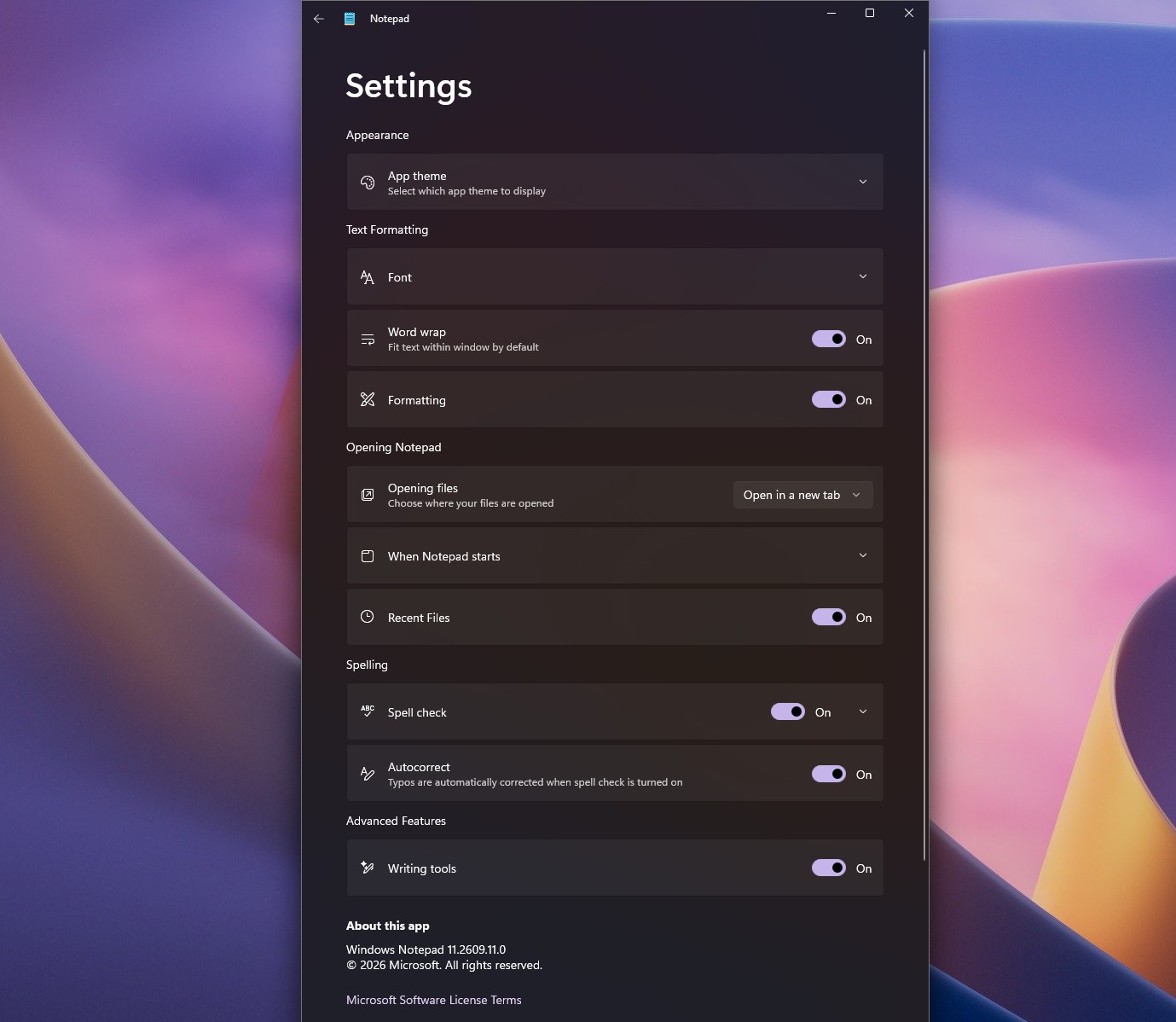
Fortunately, you can turn the Writing Tools off from Notepad’s Settings under Advanced features, and disabling formatting gives you back the barebones Notepad. Personally, I don’t mind these new features, and I sometimes use them.
But WordPad has no account prompt or AI button, and it won’t get any updates. Ironically, Microsoft did test Office banner ads inside WordPad in a January 2020 Windows 10 Insider build, but they were hidden behind a feature flag, and regular users didn’t see them.
WordPad can’t replace Microsoft Word, and here’s what it can’t do
| Feature | WordPad | Microsoft Word |
|---|---|---|
| Fonts, colors, bold and italics | Yes | Yes |
| Pictures and bulleted lists | Yes | Yes |
| Tables | No | Yes |
| Spell check and word count | No | Yes |
| Track changes and comments | No | Yes |
| Headers, footers and footnotes | No | Yes |
| Mail merge and citations | No | Yes |
| AI writing tools | No | Yes (Copilot) |
| Cloud collaboration | No | Yes |
For me, a missing spell check is the one that hurts the most, especially when the new Notepad has it. Also, if you open a Word document with headers, footers or comments and save it in WordPad, Microsoft’s old WordPad help page warned that you’d lose that content.
So, for a resume or a document with tracked changes, Word (or the free Word for the web) is still the right tool. For letters, notes, and simple memos, WordPad does the job.
How to restore WordPad on Windows 11 26H2 using files from Windows 10
I recently installed a fresh copy of Windows 10, and as expected, WordPad was there in C:\Program Files\Windows NT\Accessories.
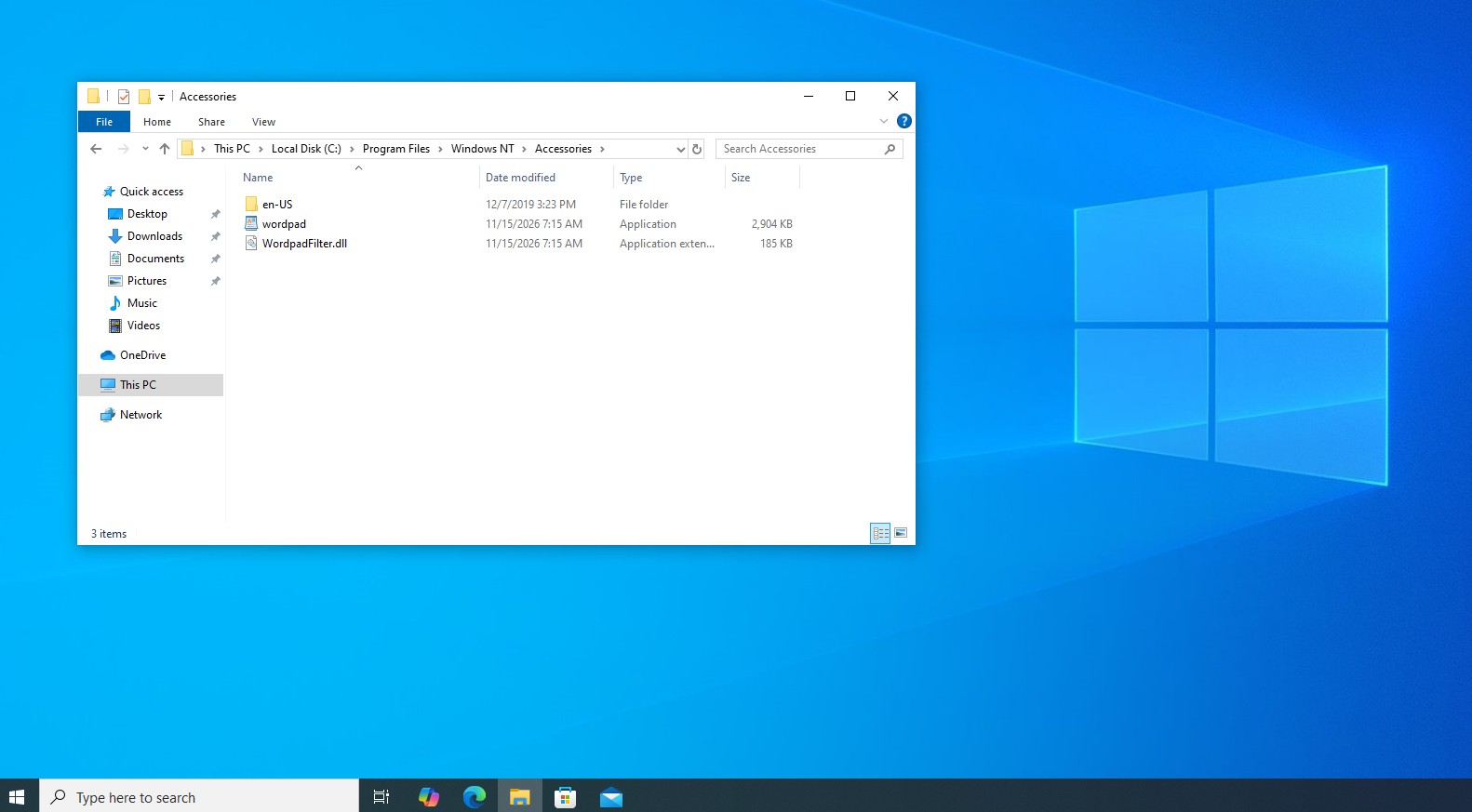
On my Windows 11 26H2 PC, the folder still exists, but only the en-US folder is left inside. I copied WordPad’s files without modifying them and uploaded the archive to Windows Latest, so you don’t need an older PC.
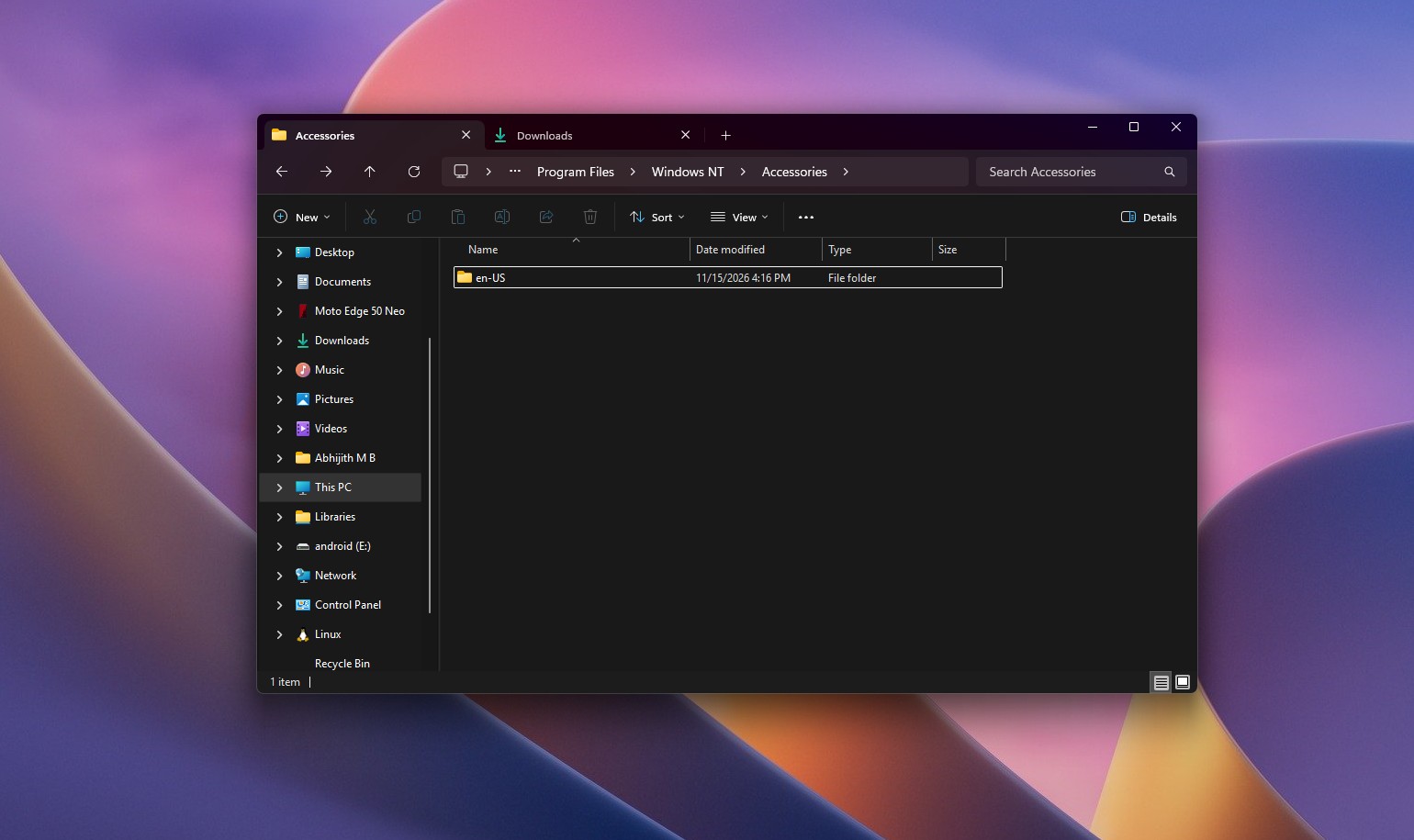
Copy WordPad’s files to the Accessories folder
The archive has wordpad.exe, WordpadFilter.dll and an en-US folder with wordpad.exe.mui, which holds WordPad’s English text.
- Download the WordPad archive and extract it.
- Open File Explorer and go to C:\Program Files\Windows NT\Accessories.
- Copy wordpad.exe, WordpadFilter.dll and the en-US folder into it, and approve the administrator prompt.
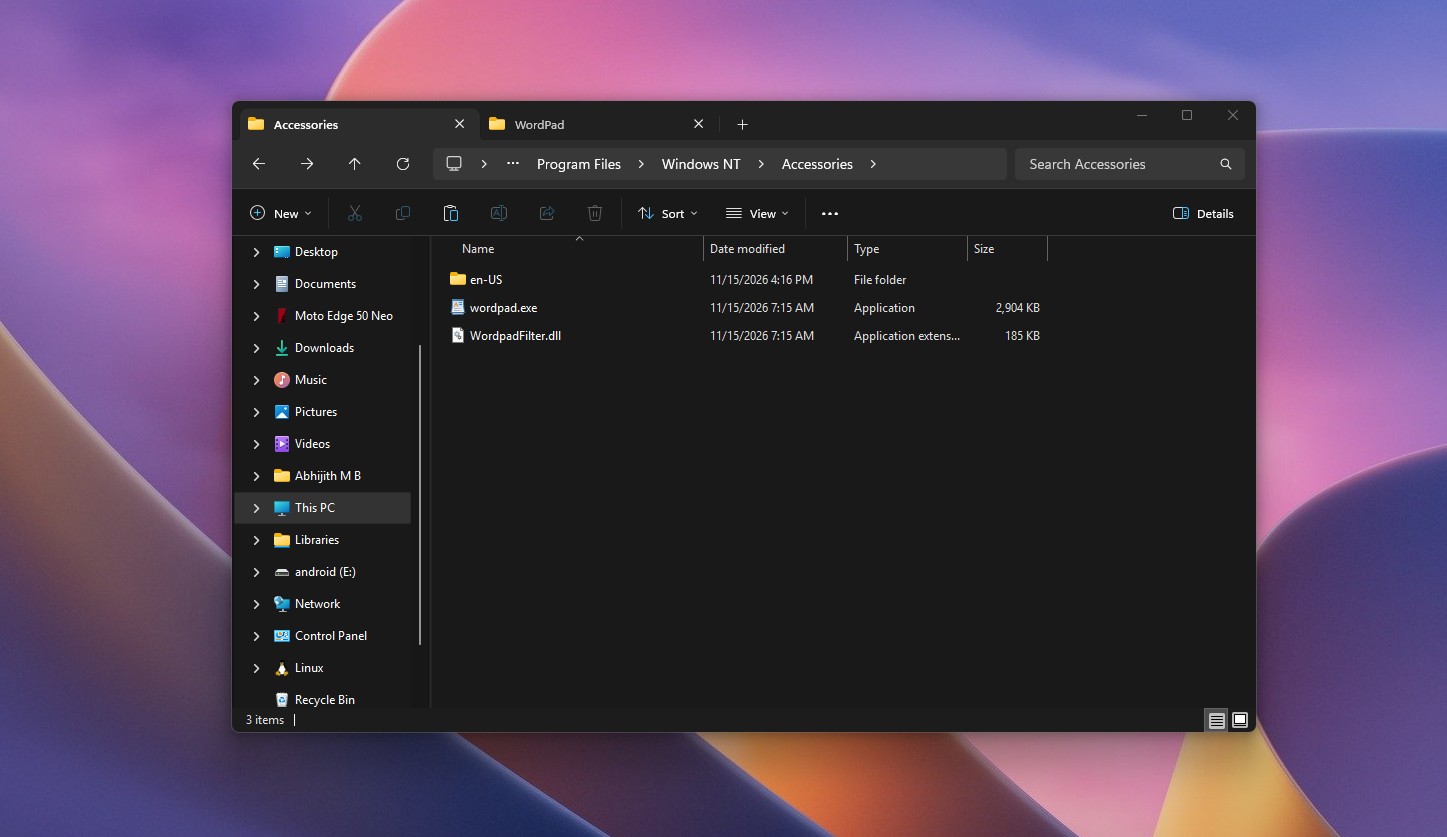
Windows 11 26H2 with WordPad files pasted. Credit: Windows Latest - Double-click wordpad.exe to open WordPad.
If your Windows display language isn’t English (US), you’ll need the matching language folder from a PC that uses it. WordPad also won’t appear in the Start menu search this way, so pin it to the taskbar, and set it as the default app for .rtf files from Open with > Choose another app.
Keep in mind that WordPad doesn’t get security fixes anymore, so avoid opening RTF or DOCX files from people you don’t trust.
WordPad is a reminder of when Windows apps did one job well
WordPad arrived with Windows 95 in August 1995, replacing Microsoft Write, and the Windows 95 Reviewer’s Guide admitted that “it is not a full-blown word processor.” It didn’t need to be. It came free with every copy of Windows, and small tools like it are a big part of why people still remember Windows XP and 7 so fondly.
Credit where it’s due, Windows 11 still runs a Windows 10 copy of a 1995-era app without complaint, which is more than macOS can say for 32-bit apps after Catalina dropped support for them in 2019.
My father doesn’t need Copilot or a Microsoft 365 subscription to write a letter. He needs WordPad, and it takes two minutes to bring it back.