








There’s a new Windows 11 update that will soon give the squiggly ~ key a job, and that is to quickly open folders like your user profile, Documents, Downloads, and, sometimes very importantly, the AppData folder. Right now, if you use the full path to open AppData, you need to enter `C:\Users\username\AppData` in File Explorer, but with this change, you can just use `~\AppData`.
This feature is still being tested in preview builds, and it’ll roll out to everyone in the next few weeks. And it’s not the only improvement coming to File Explorer (more on this later).
I personally think using ~ to jump to a specific folder in Windows is a great idea, especially because quite a lot of us do not remember the exact name Windows gave our user folder.
Remember that your Windows account’s display name does not always match the name of its folder under `C:\Users`. As we explained in our article about Windows 11’s five-character user folder naming scheme, Windows uses the first five characters of your Microsoft account email address by default.
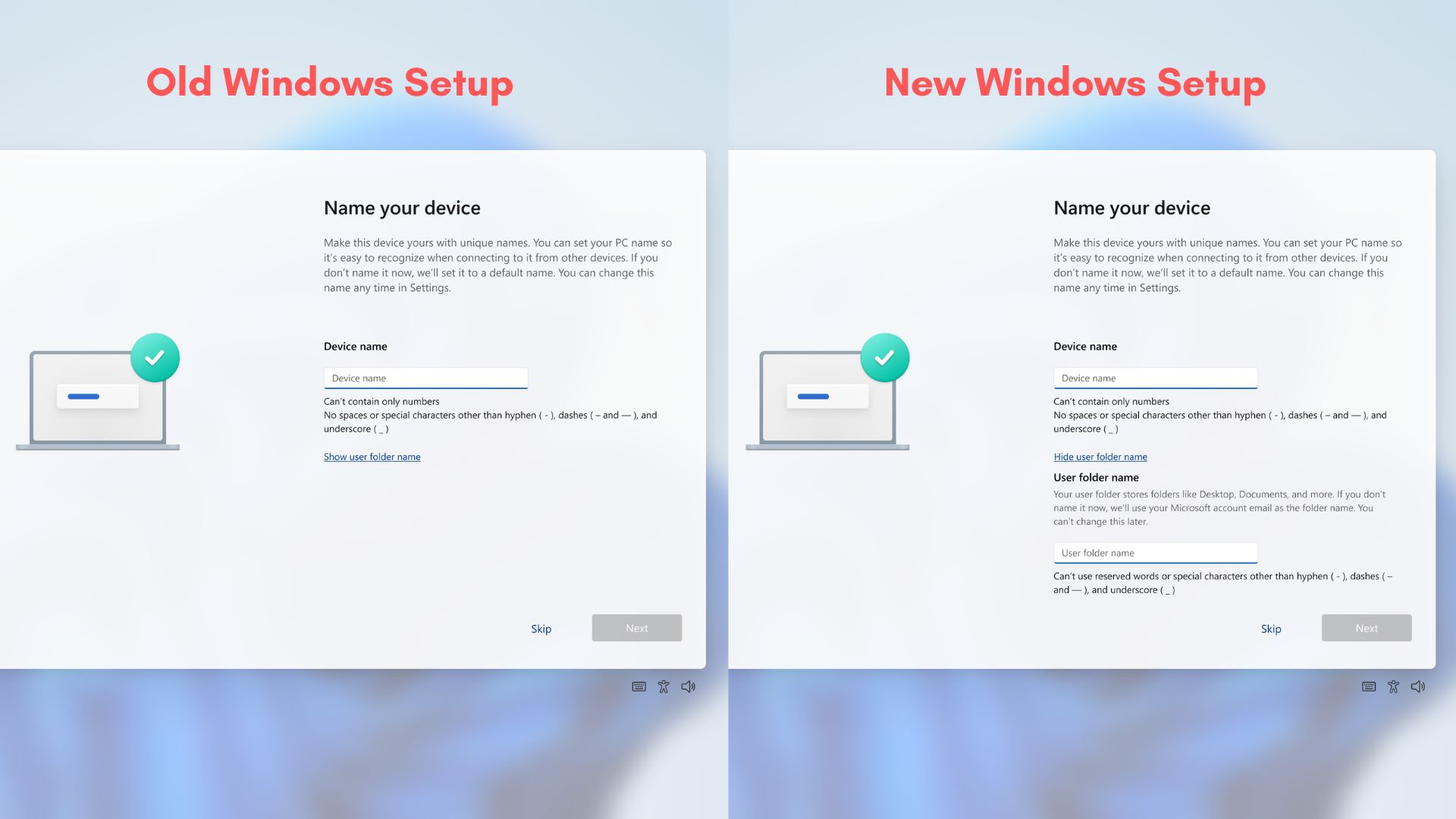
That means, if your email address starts with “michael,” your user folder could be `C:\Users\micha`, even though your display name is Michael.
So, you might try to open `C:\Users\Michael\AppData` without realizing that Windows used a different folder name. Now, you can just use ~AppData and go straight to the folder. There are other use cases:
| Use case (File Explorer address bar) | Before | After |
|---|---|---|
| Open your user profile folder | C:\Users\Username | ~ |
| Find downloaded files | C:\Users\Username\Downloads | ~\Downloads |
| Access the hidden AppData folder | C:\Users\Username\AppData | ~\AppData |
| Find local app data for troubleshooting | C:\Users\Username\AppData\Local | ~\AppData\Local |
| Access app settings stored in Roaming | C:\Users\Username\AppData\Roaming | ~\AppData\Roaming |
What else is improving for File Explorer?
Folder sorting, icon size preferences, and quoted paths
If you set the Downloads folder to sort files by size, and you access the same folder via Chrome’s upload dialog, you might notice that it still follows the default sorting. It might make you wonder why the same customization is not applied here. The same can happen the other way around.
Microsoft is already rolling out this change, which allows File Explorer to remember your sorting and even icon size preferences across these different ways of accessing a folder.
There’s another notable improvement that allows both `C:\Users\user` and `”C:\Users\user”` to work in the address bar, so you don’t have to remove the quotation marks from a copied folder path.
Modern Properties dialogs and more dark mode support
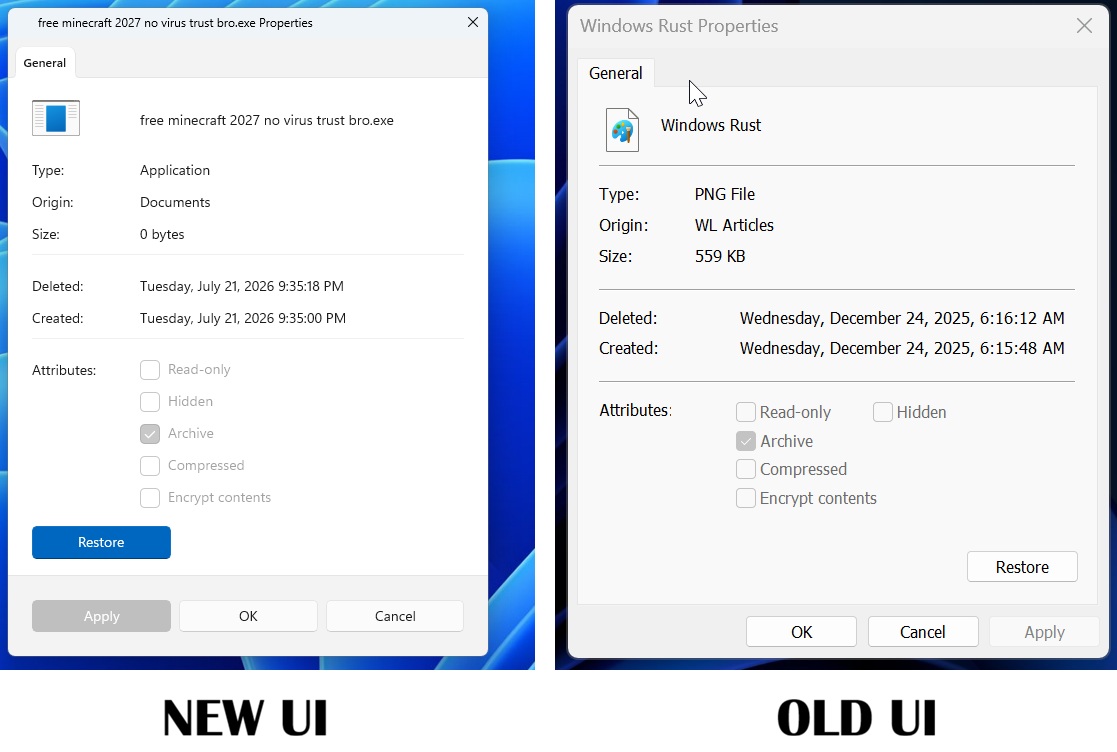
File Explorer is getting a few fancy things like modern dialogs for the Properties sheet and dark mode support, and I’m told that dark mode support will expand to cover other dialogs as well.
“This PC” search in File Explorer is finally getting better
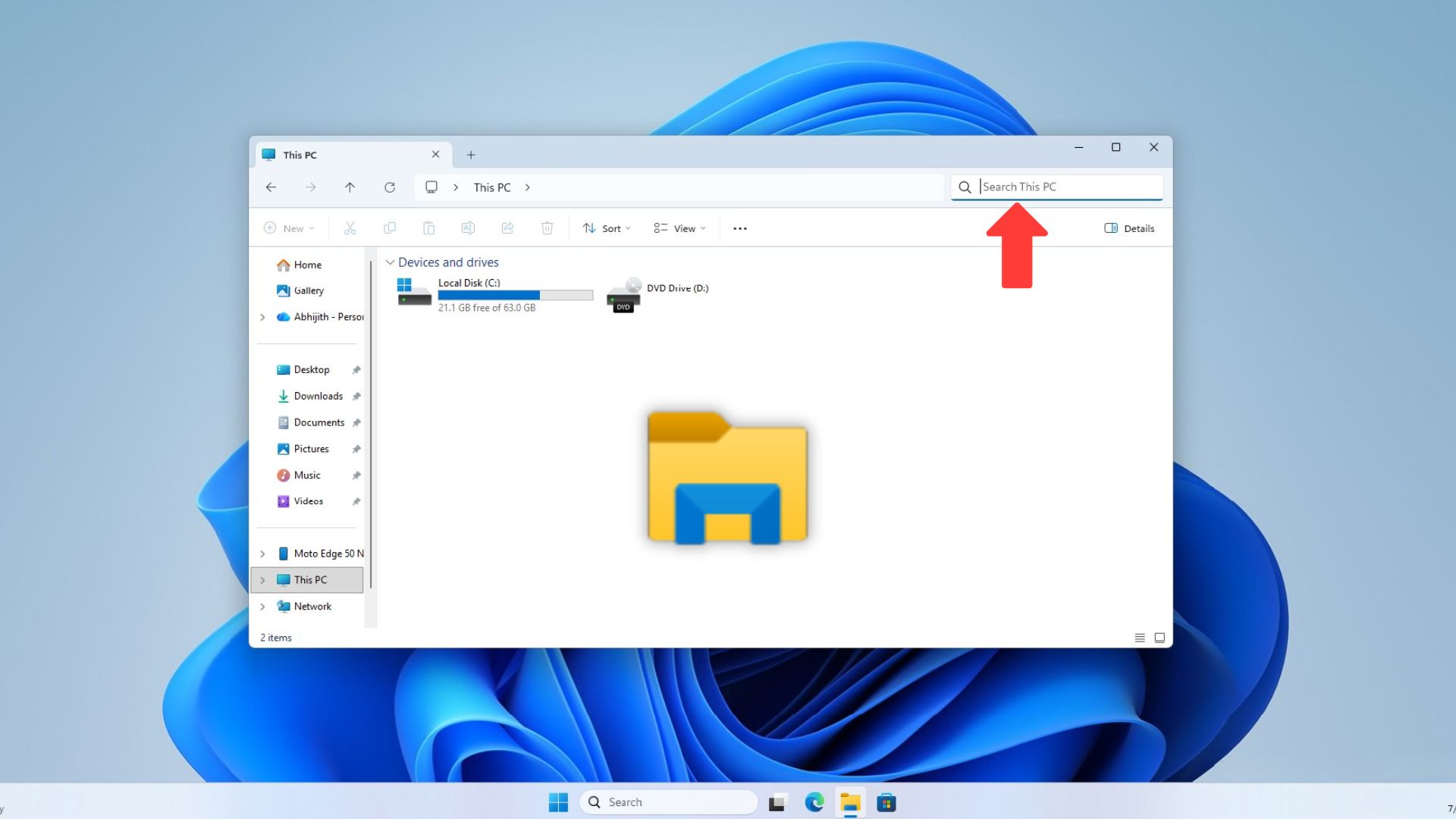
You might not be aware of it, but if you searched for files or folders in File Explorer from “Home” versus “This PC,” you could get two different search experiences.
In our tests, Windows Latest recently observed that “This PC” search in File Explorer is now in line with the Home search experience in Windows 11 preview builds. Turns out it’s an intentional change, and Microsoft documented it in a short paragraph in its release notes I spotted earlier today:
“Search from This PC in File Explorer is now indexer-based, making it much faster and consistent with search from File Explorer Home,” Microsoft noted.
What does that even mean? Did File Explorer’s This PC have a separate search “index” compared to File Explorer’s Home and Windows Search? Well, not really, as File Explorer already used the Windows Search index, but “This PC” used a broader search approach that could include non-indexed locations.
For those unaware, Windows has an indexer, similar to search engines, that remembers your file and folder names in known places like Documents and your Desktop, so you can find your things without searching through folders each time.
Microsoft describes it as a “slow but in-depth search.” However, it’s actually useful when you’re trying to find something you wouldn’t usually find in Windows Search.
In fact, I previously recorded a comparison that shows just how slow This PC search could be before these improvements. I searched for a recently opened image named “Secure Boot” in both This PC and Windows Search at the same time. Windows Search found it in about a second, while This PC couldn’t find it even after eight minutes:
This is now fixed, and you should be able to try it in production builds as well. But does it still look through the rest of your drives for files outside the index? Yes, based on our tests, you’d get the best of both worlds.
I’m told that there are plans to make search in File Explorer a lot smarter, even without AI.