



Windows 11’s modern redesign efforts have finally started shipping, and the first feature is AutoPlay. The November 2026 update replaces one of the oldest pop-ups in Windows and makes it far more useful than the old version carried over from Windows 8.
If you often connect a USB drive, an SD card from your digital camera, or a mobile device, you’ve probably seen a pop-up in the top-right corner of your desktop. That dialog is called AutoPlay, and it exists for one simple reason: Windows wants you to decide what to do with the connected device.
Here’s what the old AutoPlay dialog looks like when you connect your mobile device via USB:
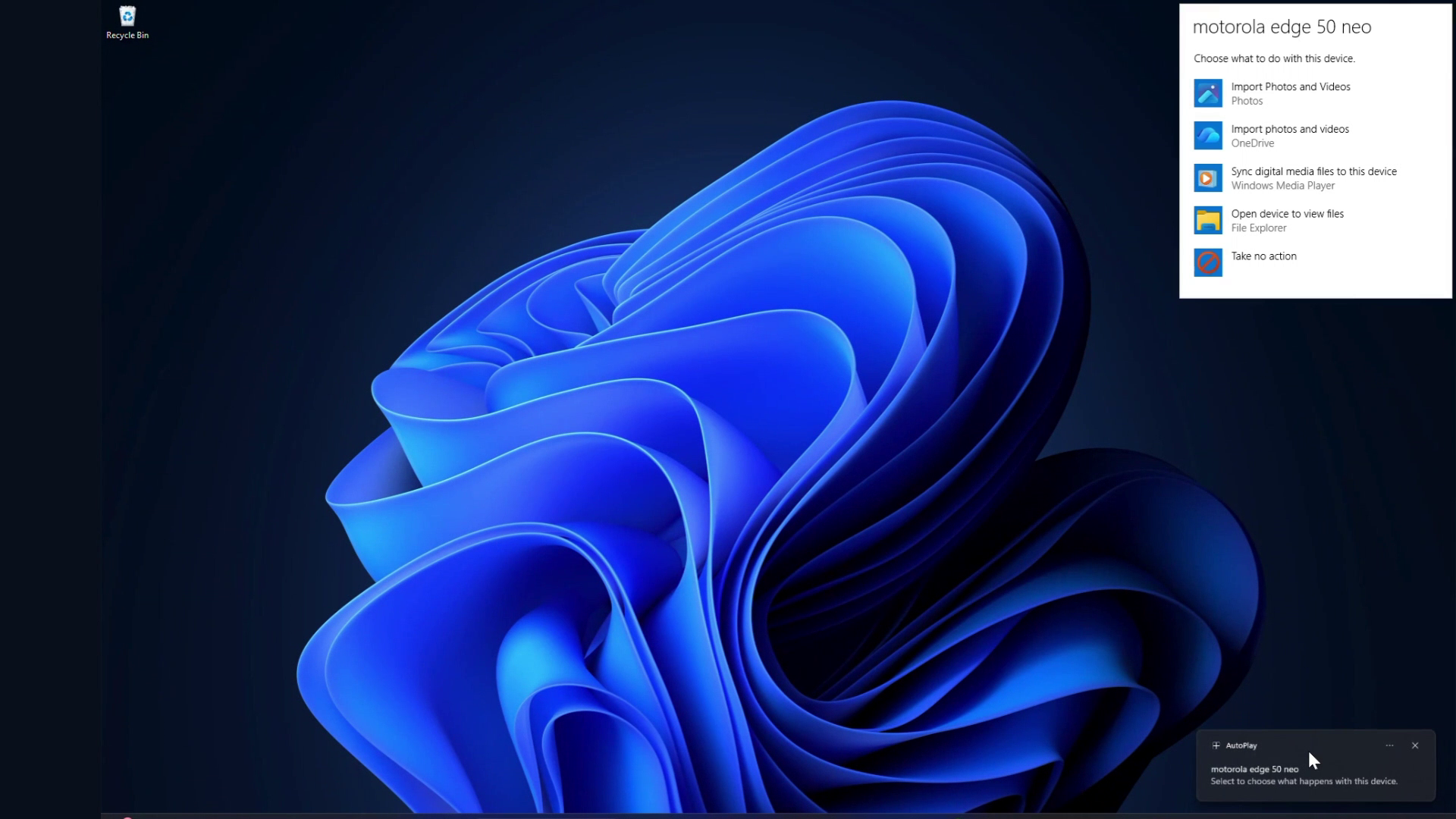
It asks me to choose what I’d like to do with the device, and the five options in the screenshot must be familiar to you if you frequently connect drives or devices to your computer. The first option is to import photos or videos to local storage, while the second option does the same thing but to your OneDrive.
You also have the option to sync digital media files to the device using Windows Media Player. You can choose to “Open device to view files,” which opens File Explorer. And the last option is basically dismiss, aka take no action.
Here’s the old AutoPlay experience in action:
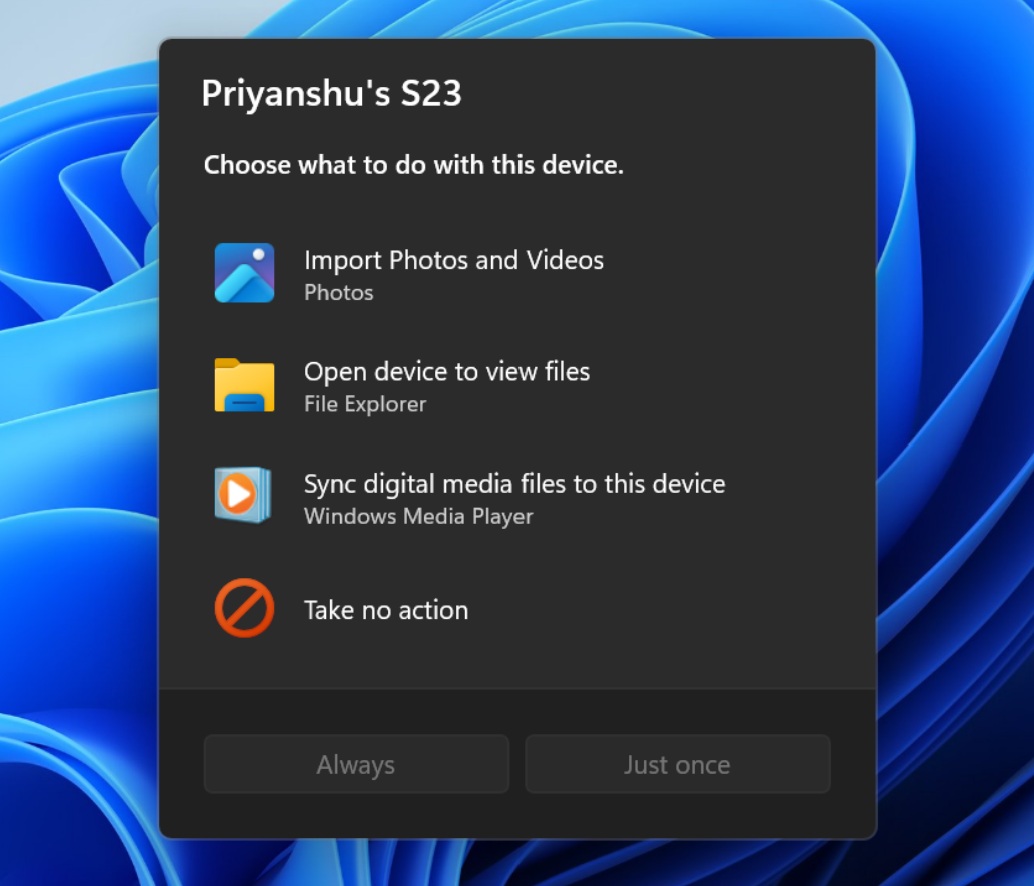
And here’s the new AutoPlay dialog for comparison:
Since Windows 11 still runs code from different eras of Windows, it’s no surprise that the old AutoPlay dialog comes from Windows 8. Microsoft hasn’t touched it in years, but as we reported previously, the company confirmed it’s planning to kill every ancient dialog and even move Control Panel entirely to Settings. It does not plan to disrupt the experience with half-baked replacements.
AutoPlay is not a new idea, as the feature has been around since the early days of Windows XP, but its purpose has evolved over time. In 2001, you’d use AutoPlay for your disc or drive instead of your mobile device. Later, it was updated with Windows Vista with better security, and it received its last facelift in Windows 8.
The new AutoPlay can remember what you want to do
This modern AutoPlay is a good example of how Microsoft can modernize Windows without dumbing things down. In fact, modern AutoPlay is actually better than the version we’ve had since the Windows 8 era.
First, the modern AutoPlay is centered, so it doesn’t appear in the top-right corner of the screen, which never made sense to begin with. It also supports dark mode, has rounded corners, and feels in line with Windows 11’s overall design guidelines. And most importantly, you’ve got an option to make AutoPlay remember your preference directly from the dialog.
That means if you connect your phone, choose the option to open File Explorer, and select “Always,” you won’t be asked again the next time you connect your phone. File Explorer will automatically open as soon as you connect your mobile device!
It’s a small but nifty addition, and it’s useful compared to what we have right now. The old dialog doesn’t have “Always” or “Just once” buttons.