







Windows 11 replaced the legacy context menu (right-click), which was not only faster but also far more powerful, with a modern counterpart. The modern context menu isn’t in a terrible state, but it’s been missing one of the most-clicked options, and that is, of course, a ‘Refresh’ button. This feature is returning to Windows in the coming weeks.
Right now, and for the foreseeable future, File Explorer has two right-click menus. The default is called the modern context menu, and it’s written in WinUI. The optional, but more powerful, option is called the ‘legacy’ context menu, and you can open it from the modern context menu.
The two look very different, but they work in a similar fashion, except that the modern context menu has been missing the ‘Refresh,’ ‘Print,’ and other buttons.
Microsoft’s argument has been that the feature already exists in the address bar, which is a fair point, but at the same time, I’d like to right-click anywhere to refresh the folder, especially when I’m working on a wide display.
Thankfully, Microsoft is testing a ‘Refresh’ button for the right-click menu in File Explorer, and it’ll begin rolling out soon.
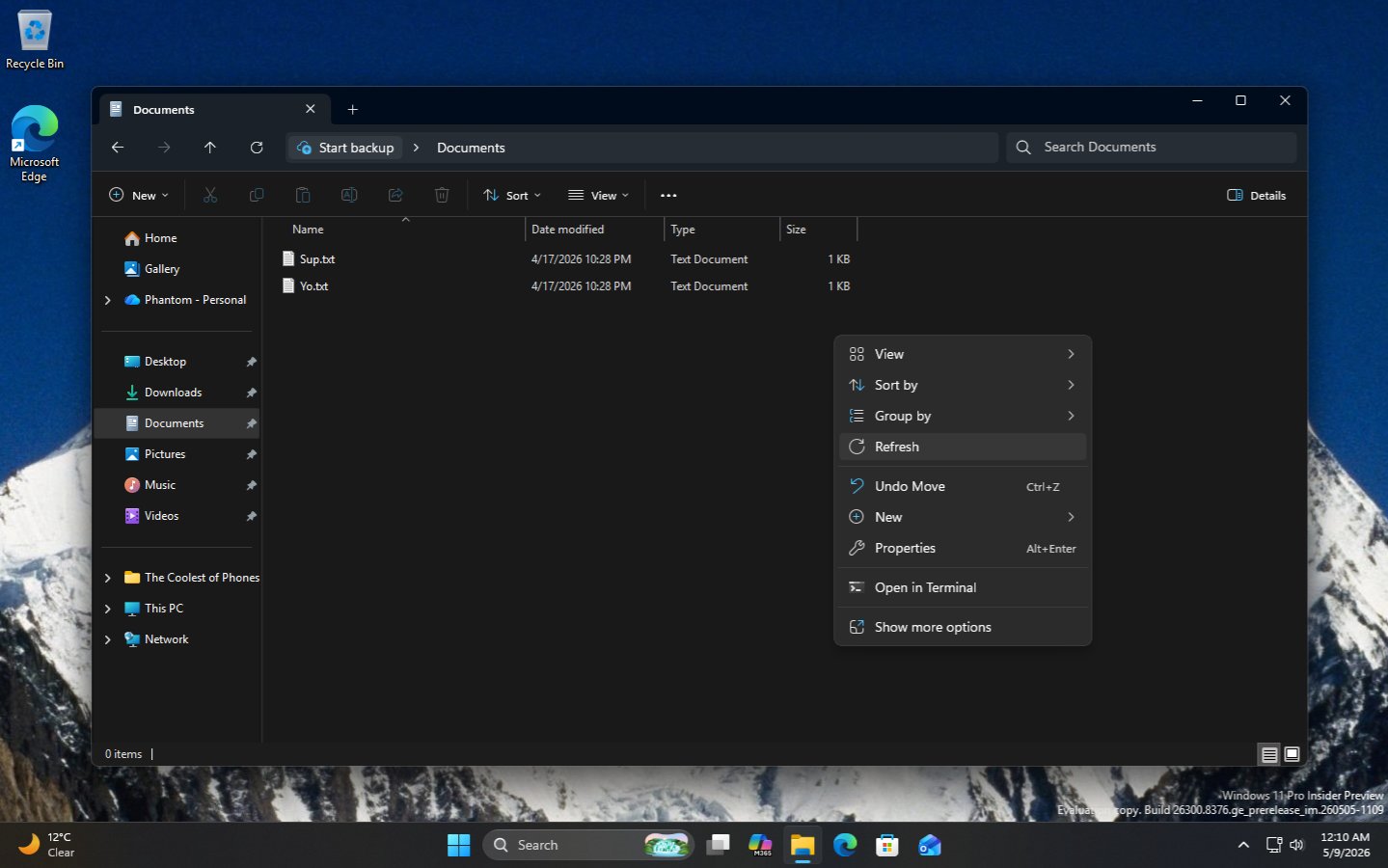
In addition, it’s possible to print files directly from the right-click menu. Previously, the “Print” option only showed up when you opened the legacy menu, but that’s no longer the case.
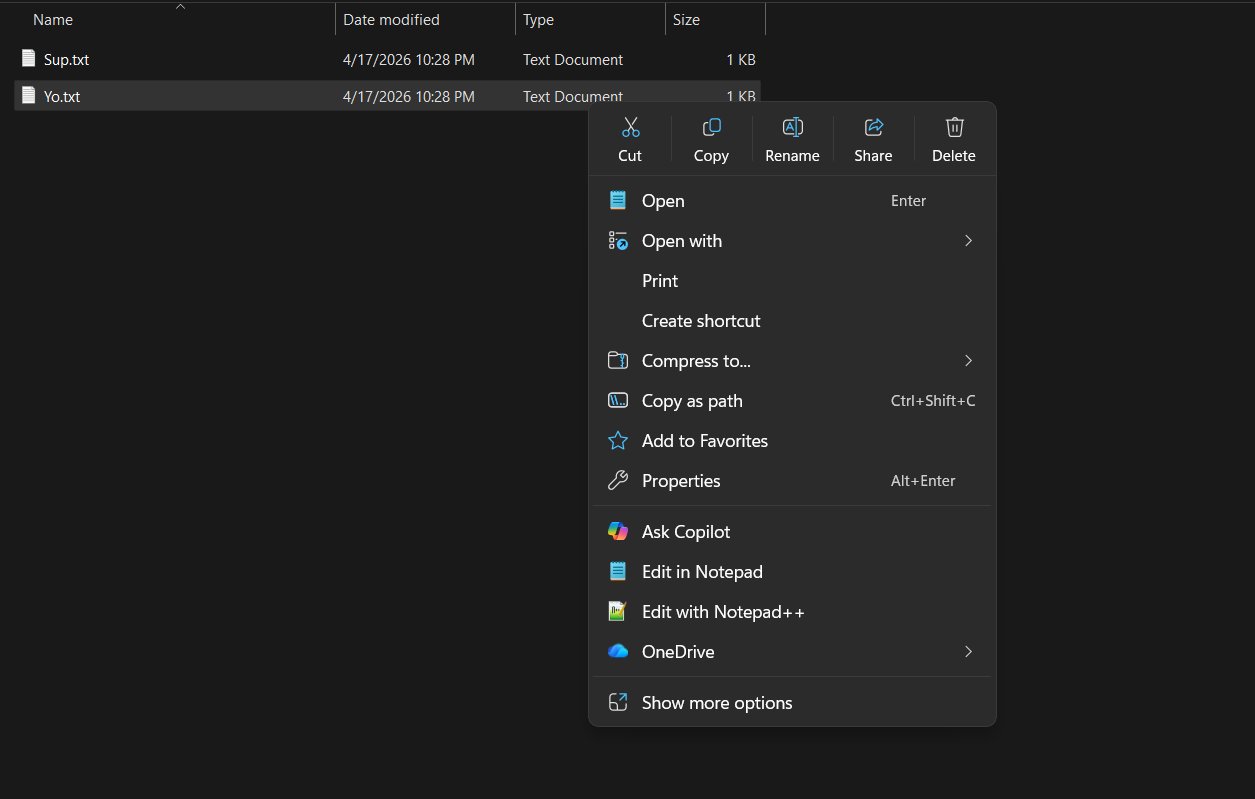
There are also plans to reduce clutter in the modern right-click menu and make it faster in a future release. But it’s not just right-click menus that are getting updated, as Microsoft says it’s adding more readable file-size support to the Details view in File Explorer.
File Explorer’s Details view now shows more readable file sizes
Right now, if you download a 5KB file or an 8GB Windows 11 ISO and look at the file size under the Details view, it’s going to be displayed in KB regardless. So that means a 5KB file would be shown as 5KB, which is expected behavior, but your 8GB file will also appear in KB (8,388,608).
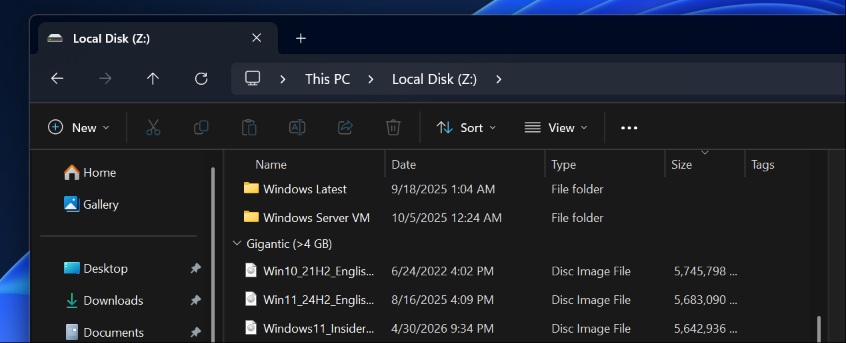
File size format is not an issue as long as you’re familiar with the conversion, but in all other cases, it’s unnecessarily complicated. Thankfully, it’s changing soon.
File Explorer now makes it easier to understand file sizes at a glance. Unlike the current behavior, you can now see the Details view display appropriate units (KB, MB, GB) instead of KB only. This change also affects the Details pane that appears on the right side.
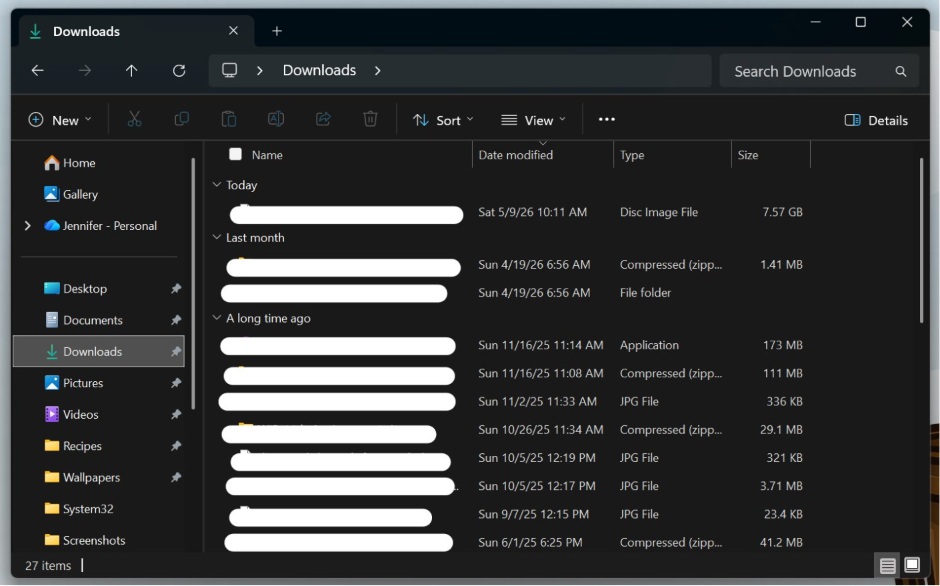
Moreover, Microsoft has plans to make the address bar in File Explorer less annoying. For example, it’s getting support for paths containing double backslashes or quotation marks. This means you can go to a specific directory with either just C:\Users or “C:\Users”, as Microsoft hopes to improve compatibility.
Here’s the full list of changes I spotted in File Explorer:
- File Explorer correctly and reliably shows renamed files.
- File Explorer’s address bar can now close correctly when an item is selected from the suggestions.
- Keyboard shortcuts and navigation are now handled more smoothly in File Explorer flyouts, including the context menu.
All these changes are already live in Windows 11 Experimental Build 26300.8376, which also comes with new touchpad gestures. I’m told they’ll begin rolling out to everyone in the coming weeks.