

Microsoft’s new Windows baseline protection, now in preview for Windows Insiders, rolls eight existing security features, including Secure Boot and Memory Integrity, into one yes-or-no answer for apps to interpret. If your PC fails, the app’s developer can decide what happens next, which can be a warning, maybe fewer features, or worse, the app refusing to run. General availability is planned for 2027.
I’ve received several emails asking if it was okay to turn off Memory Integrity or disable Secure Boot to dual-boot Linux. Well, for those of you who did, your PC won’t pass Windows baseline protection, and Adobe, Battle.net, 1Password, and Schoolyear are already testing the check.
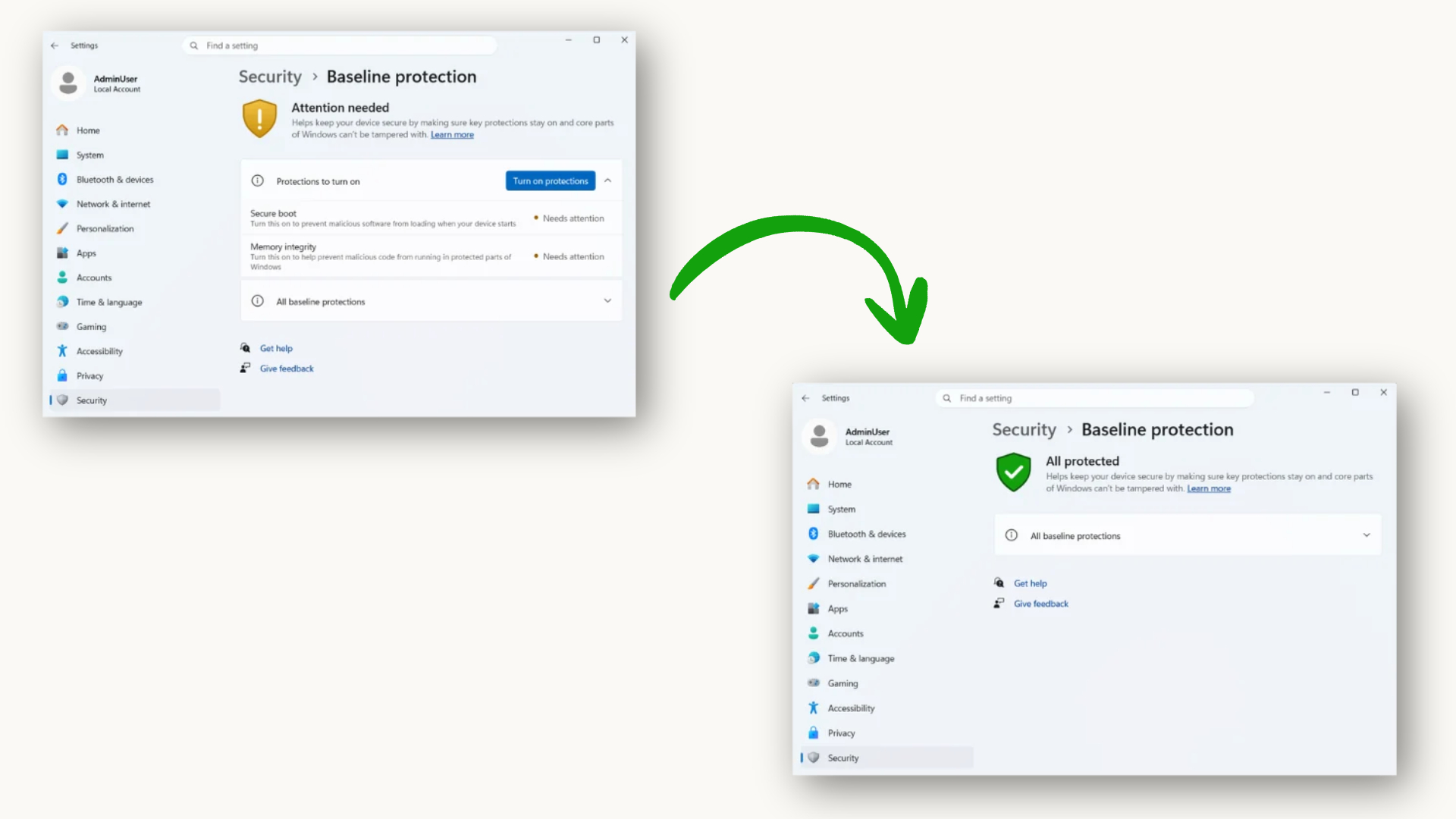
Microsoft lets app developers decide what happens when your Windows 11 PC fails the security check
Actually, apps that care more about security already run their own checks. In Microsoft’s announcement, Brandon Bray, Principal Group Product Manager for Windows, mentions a bank’s app looking for a TPM and a game’s anti-cheat checking driver signing. Battlefield 6, for example, won’t start without Secure Boot because of EA’s Javelin anti-cheat. So what’s different here?
Baseline protection swaps those one-off checks for a single question. Apps get a plain yes or no, a list of what’s missing, or a hardware-backed attestation token that the developer verifies on their servers, which is practically much harder to spoof than a local check.
Microsoft says developers can allow the app, warn you, lock a feature, reduce functionality or block the app. Bray says, “The platform reports the state; you own the policy.”
Pavan Davuluri, Executive Vice President of Windows + Devices, confirmed at Microsoft Ignite 2026 that developers can use it to “verify that the devices running their applications meet their security requirements.”
Not that the others wouldn’t use this well, but I think Schoolyear has the clearest use case for Windows Baseline Protection. Gergely Homonnai, its Lead Security Engineer, says the company uses the API to confirm if a student’s PC meets the standard before an exam starts.
So, will Battle.net refuse to launch on your gaming PC? Not necessarily. John Yaney, VP of Engineering at Battle.net, says baseline protection helps Blizzard raise its security bar while keeping friction low for players.
As for Adobe, Michael Draper, Vice President of Global Consumer Trust, says the feature works together with Adobe’s (already livid) efforts to catch counterfeit and malicious software, which they are not giving a reason to stop existing (hint: check how much they have increased their subscription fees). Note that these companies haven’t said that they will block PCs that fail.
The check is the first concrete result of Microsoft’s February plan to run only properly signed apps and drivers by default, when Logan Iyer, Distinguished Engineer for Windows Platform + Developer, wrote that “Windows must both remain an open platform and be secure by default.” Microsoft’s push also brought individual camera and microphone permissions for desktop apps, which is great and should’ve been the default a long while ago.
Windows baseline protection checks eight security features, including Secure Boot and Memory Integrity
Dana Huang, Corporate Vice President of Windows Security, calls it “a single, versioned security state,” and Microsoft plans to raise the bar with each version, which in hindsight means that my PC that passes these today may not pass the next one!
Windows checks the state when the OS boots using measurements from the security processor, and turning off any requirement needs a restart, so apps only need to ask once. The first version requires these eight protections.
| Protection | What it does |
|---|---|
| Security processor (TPM 2.0) | Protects sensitive data in hardware |
| Secure Boot | Stops malicious software at startup |
| Virtualization-based security | Isolates critical processes |
| Memory integrity | Blocks malicious code in protected parts of Windows |
| Signed drivers only | Loads only signed drivers |
| Windows-certified drivers | Allows only drivers meeting Windows signing rules |
| Kernel debugger protection | Stops tools from bypassing Windows security |
| Vulnerable driver protection | Blocks drivers with known flaws |
In all honesty, this does seem to be a comprehensive list and I wonder what more Microsoft will add to the list. Interestingly, I found that Microsoft’s support document lists seven checks, as it combines the two driver rules into one “Test signing protection” entry.
If you’re a gamer, you may want to keep an eye on Memory Integrity. Ironically, Microsoft told gamers in 2022 to turn it off for better frame rates, and now Windows 11 is enabling Memory Integrity automatically on more PCs. If you turned it off yourself, Windows leaves it off, which would’ve been alright, but now your PC fails the baseline.
Of course, Secure Boot is no stranger to headlines, as Microsoft spent most of 2026 replacing its expiring certificates with mixed results on many PCs, although I never had an issue with it.
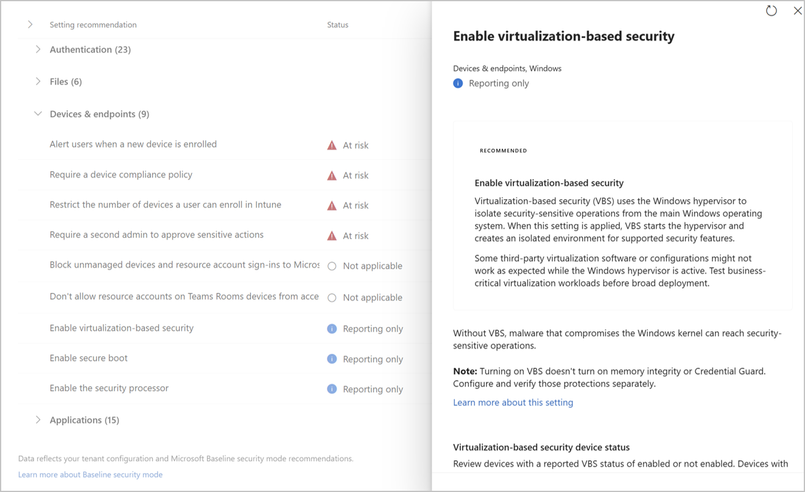
IT admins will see these checks in the Microsoft 365 admin center’s Baseline Security Mode, where VBS, Secure Boot and the security processor are marked “Reporting only.” The panel also warns that turning on VBS doesn’t turn on Memory Integrity or Credential Guard.
In case you’re wondering, Smart App Control is what decides whether an app can be trusted, while baseline protection tells the app whether your PC can be trusted. Of course, it’s not like a PC that passes all this will be immune to all kinds of malware, so don’t think this gives you the safety to view or download shady installers.
Windows 11 Settings now shows which protections are missing, and turns most of them on for you
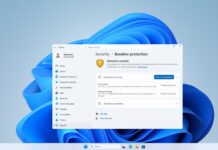
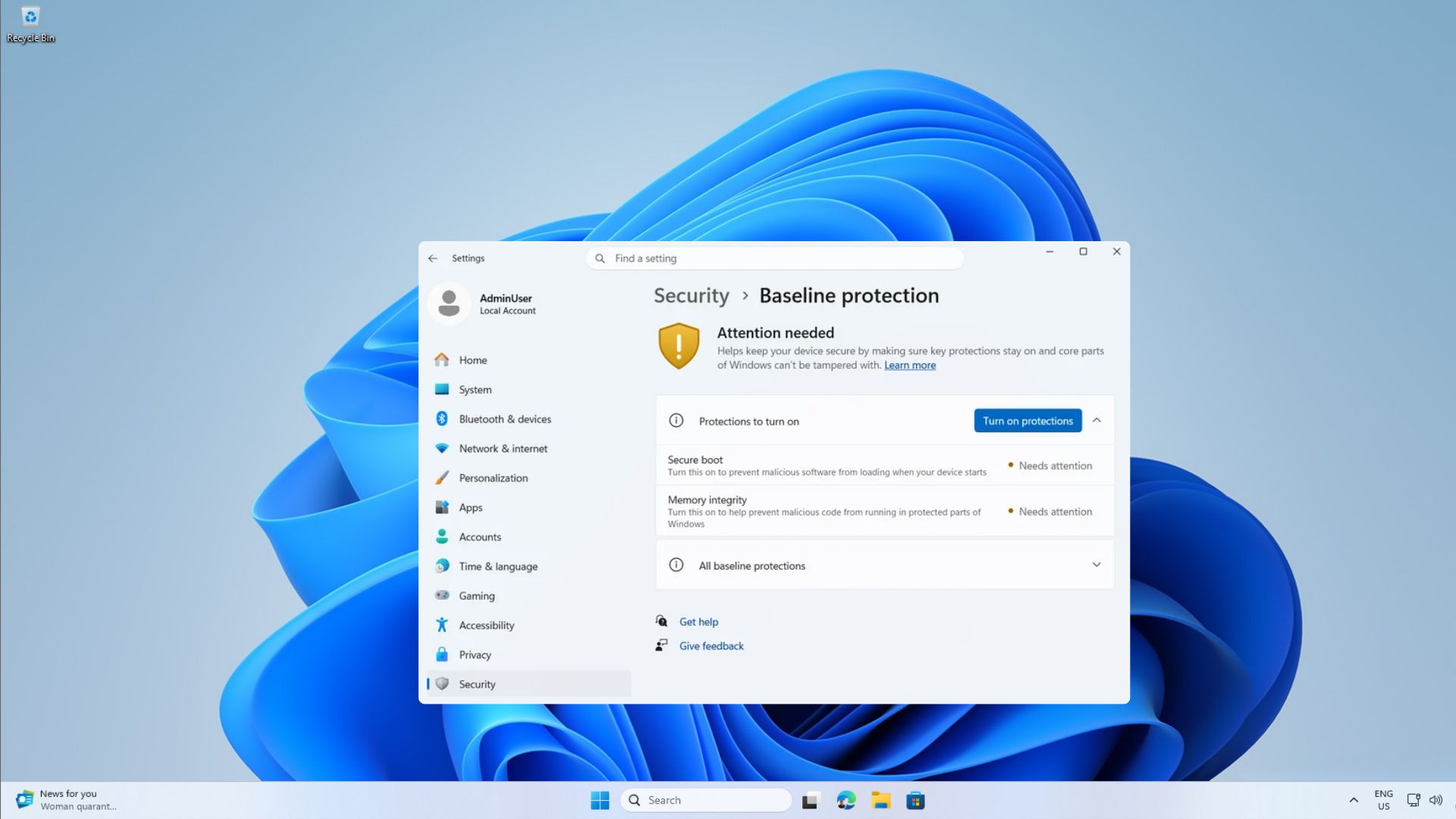
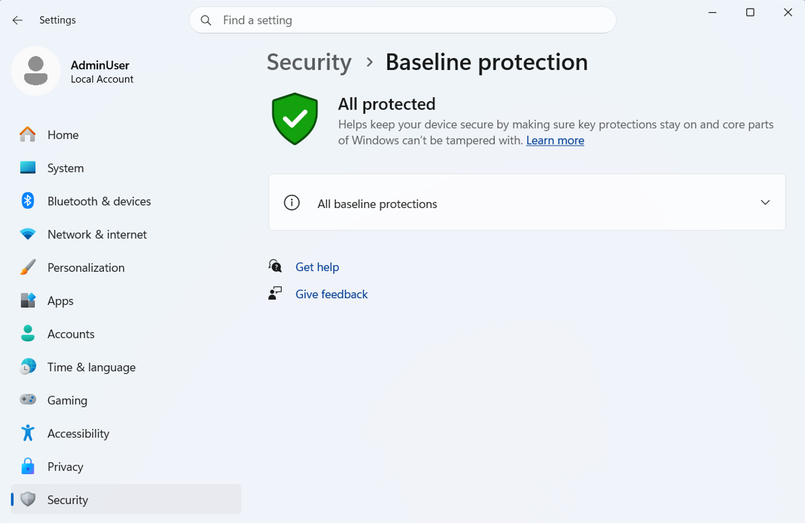
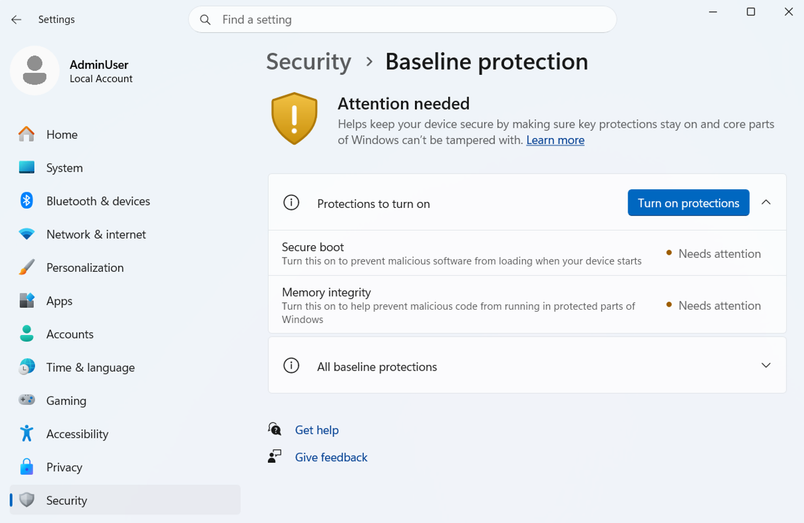
Baseline protection appears on a new Security page in Settings, which Microsoft has split from Privacy. Once your PC gets this change, go to Settings > Security > Baseline protection, and if your PC passes, you’ll see a green shield with “All protected.”
If a protection is off, the shield turns yellow and says “Attention needed.” In Microsoft’s screenshot, Secure Boot and Memory Integrity show “Needs attention,” and a “Turn on protections” button switches on whatever Windows can, followed by a restart.
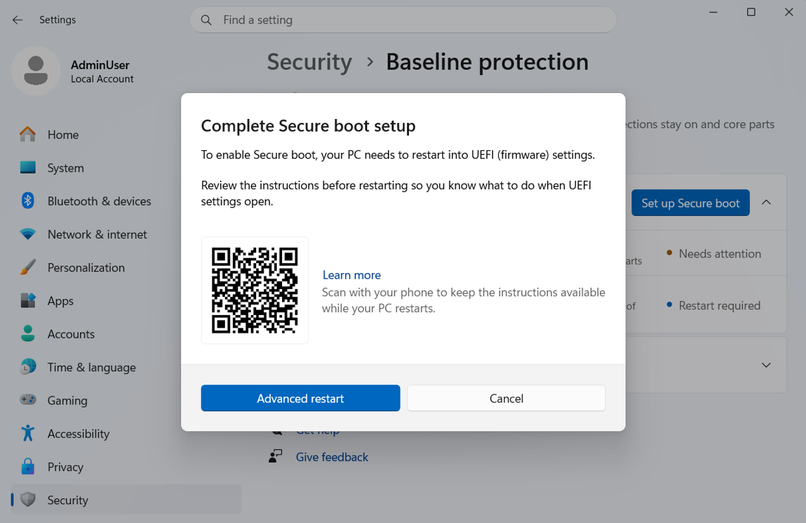
What’s tricky about Secure Boot is that it has to be enabled in UEFI. Windows shows a “Complete Secure boot setup” dialog with an Advanced restart button and a QR code, so you can keep the instructions on your phone while the PC restarts. It’s a nifty idea, as UEFI menus may differ between manufacturers.
Apps can also send you to this page if or when your PC fails. On work PCs, though, your IT admin may control these settings.
I test multiple Insider builds in VMware virtual machines, so I’m curious whether a VM can pass all this without a virtual TPM and Secure Boot.
That said, one page definitely beats the entire process of digging through Windows Security, Core isolation and UEFI menus. But once apps start reading the result, you’re at the mercy of your PC’s security settings that decide which apps you get to open, and I hope most developers pick a warning over a block.