









On September 8, Microsoft rolled out KB5002914 for Excel, but it apparently has a bug that makes it impossible to copy and paste in certain cases. Microsoft confirmed it’s aware of the issue, which affects all supported versions of Excel, including Excel 2016, 2019, 2021, and 2024.
This comes days after Windows 11’s September 2026 update killed audio, Remote Desktop, and caused havoc on some AMD PCs. Microsoft is apparently having a tough time with September 2026 security updates across its product line, and it’s likely because it’s an extensive release with AI-assisted fixes.
KB5002914 is a security update for Excel, and it patched over 29 security issues, which is why it was automatically applied to all PCs. But as soon as users installed it, they noticed copy and paste was broken.
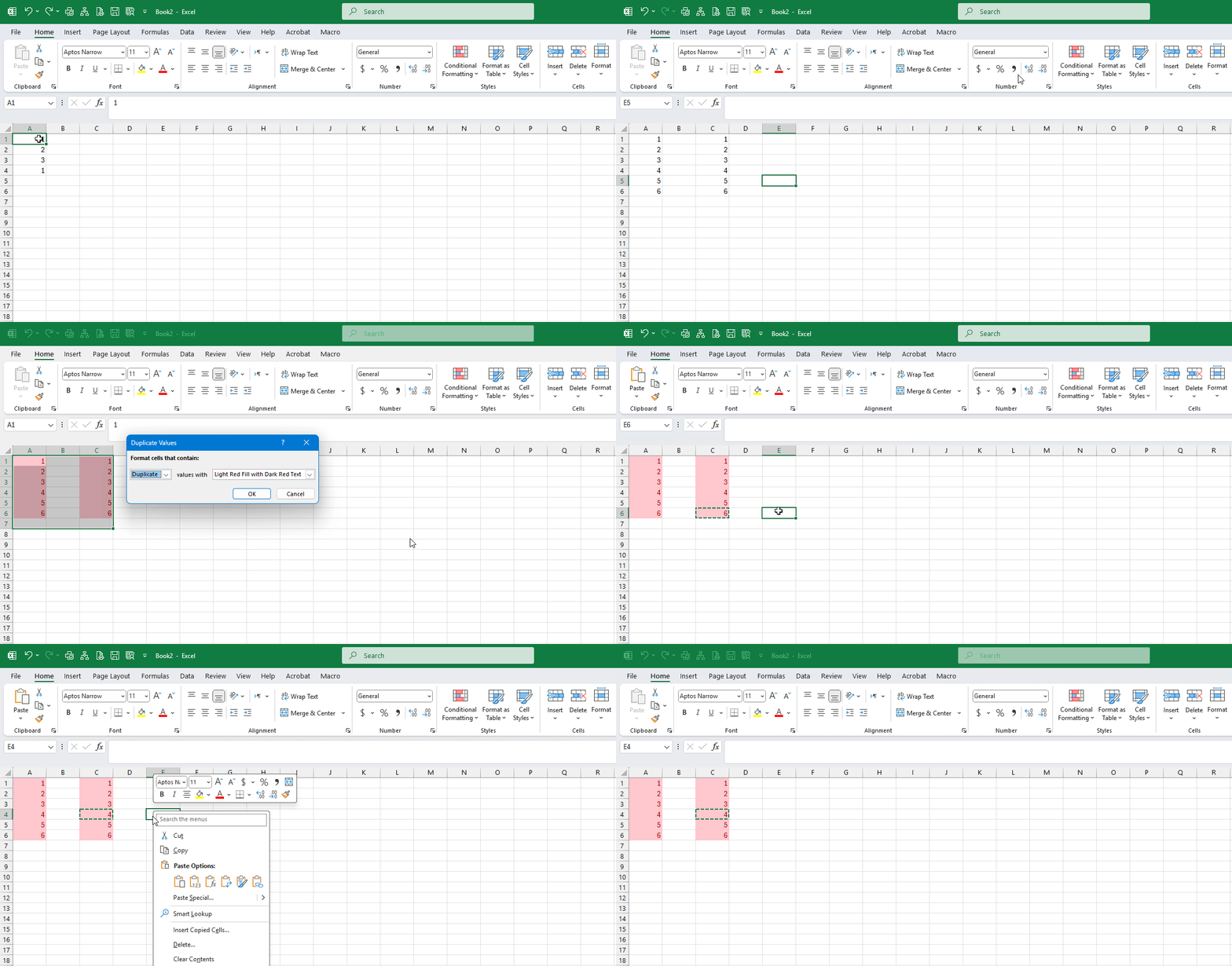
Users also told me that dragging cells to copy formulas stopped working, but Microsoft has not confirmed the second bug yet.
How Excel broke copy and paste with the September 2026 update
After the update, if you copy a cell and try to paste it into another sheet or even on the same sheet, Excel can simply do nothing. The bug remains even if you open another instance of Excel and try pasting there. In our tests, we noticed that the original cells remain selected when you copy, and there’s no error suggesting that nothing was copied.
It’s actually not rare for Excel to fail at copying and pasting, but that usually happens due to a Windows design choice. On Windows 11 (and older versions), if you copy and try pasting while the clipboard is locked by another process, the paste fails.
So you might have had a similar copy and paste issue with Excel in the past, but that was largely due to Windows. This one is an Excel-specific issue, as copy and paste works across Windows unless another process has locked the clipboard. And it’s also widespread enough for Microsoft to admit it messed up.
In an updated support document, Microsoft confirmed that it broke copy and paste in all Excel versions.
“In Microsoft Excel 2024, 2021, 2019, and 2016, the paste operation might fail silently. Although users try to paste content, the source remains selected and the destination is unmodified. When this issue occurs, users receive no indication of the failure, such as a beep or error message,” Microsoft explained in a document.
Microsoft says it is investigating and isn’t aware of any workaround for now, so if you’ve run into the Excel issue, there’s not much the company can do for you at the moment. It’s also not recommended to remove recent updates due to the severe security fixes included in them.
Excel’s copy and paste problem is widespread
Microsoft appears to have broken Excel’s copy and paste across thousands of installations, so the issue is clearly widespread.
We first saw reports around September 9, a day after the September 8 security update was released, and there are complaints all over Reddit and Microsoft’s own forums.
In a forum post, one user noted that they had issues with older versions of Excel as well, including Office Standard 2016 64-bit. For example, when one user entered values into A1:A3, copied them, and tried to paste them into C1, Excel simply did nothing.
In another case, Excel crashed and relaunched on its own, and there was a pop-up confirming the operation failed. If Excel crashes on your PC as well, you can use Event Viewer to track down Excel-related activity. One user found Excel.exe version 16.0.5569.1003 and exception code 0xc0000005 in Event Viewer.
Also, as I noted above, it’s an Excel problem, so different versions of Windows have run into the issue, including Windows 10 22H2 and Windows 11 25H2.
“I spent almost the whole day with the IT team at my company trying to figure this out,” one affected user wrote in a separate discussion.
How to fix Excel’s copy and paste issue after September 2026 update (KB5002914)
1. Use Paste Special
If you’re unable to copy and paste using the usual keyboard shortcuts, you can try to paste values or formulas separately.
To do this, just copy the cells you need and select the destination cell. Now, try using Ctrl+Alt+V, and it’ll open Paste Special, where you can choose Values or Formulas. In my case, since I was copying values, I selected Values and clicked OK.
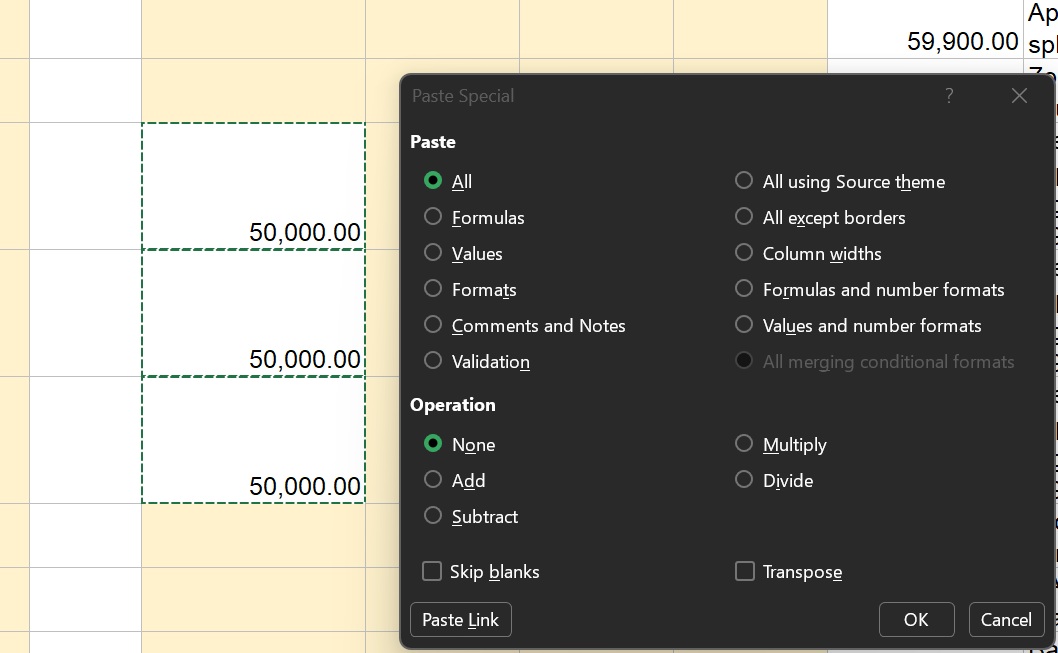
Also, if you don’t use Paste Special frequently, remember that “Values” and “Formulas” are pasted differently. When you choose Values, it pastes the displayed results and does not try to calculate anything. So if you end up pasting a calculated number using Values in Paste Special, it becomes a fixed value in the destination.
On the other hand, Formulas retains the formulas but does not retain all of the source formatting.
2. Use Microsoft Word as a medium
Microsoft Word can recognize Excel content, and it can act as a medium to copy and paste across sheets. You just need to copy the Excel content, paste it into Word, copy it again from Word, and then paste it back into Excel.
But you may not retain formulas or all formatting in most cases.
3. Use the Office Clipboard
You can also try the Office Clipboard, which shows the content you’ve copied in a separate pane inside Excel. To do this, open the Home tab and look for the Clipboard section on the left, where you’ll also find the Paste button. Now, click the small arrow in the bottom-right corner of that section, and you’ll have the clipboard:

4. Roll back the Office update
The other option is to roll back the Office update, which is not something you should attempt given the 29 security fixes.
First, open Excel and go to File > Account to check your Office edition and build, and use these steps:
For Click-to-Run installations:
Open Command Prompt (admin) and use the following command, replacing BUILDNUMBER with the full version number for your edition from the table below:
"%CommonProgramFiles%\Microsoft Shared\ClickToRun\OfficeC2RClient.exe" /update user updatetoversion=BUILDNUMBERThese builds were released before the September 8 update and should work for most users:
| Office edition | Replace BUILDNUMBER with | Release date |
|---|---|---|
| Office LTSC 2024 | 16.0.17932.20910 | August 11, 2026 |
| Office LTSC 2021 | 16.0.14334.20848 | August 11, 2026 |
| Office 2019, volume licensed | 16.0.10417.20197 | August 11, 2026 |
| Office 2021 or Office 2024, retail editions | 16.0.20326.20132 | September 1, 2026 |
For example, if you’re using Office LTSC 2024, the command would be:
"%CommonProgramFiles%\Microsoft Shared\ClickToRun\OfficeC2RClient.exe" /update user updatetoversion=16.0.17932.20910Now, sit back and let Office finish the update, then reopen Excel and check File > Account to confirm the build changed. This rolls back the Office installation, including MS Word and PowerPoint.
For MSI installations of Office 2016:
You can find “Security Update for Microsoft Excel 2016 (KB5002914)” in the installed updates list, and simply click Uninstall. Or you can choose to wait until a fix is available.
There’s no denying that it’a sad state of affairs for Microsoft Excel, and it’s also quite unfortunate that the company still has no complete fix for all affected users after the issue has been reported for over a week. But it’s not just Office that has issues this week.
As we previously reported, Windows 11 has its own share of issues after the September 2026 update, including multiple broken features. Microsoft has confirmed that the Windows update breaks audio, and reports also describe another bug that causes GPU errors on AMD systems.