




Microsoft is testing an optional onboarding experience along with a new Tips widget for the Widgets board and lock screen.
Windows 11’s setup now ends by offering to install apps like TikTok and Netflix on your new PC. Microsoft calls it Assisted Setup, and it started rolling out gradually to Insiders in the Experimental channel with Build 26340.9354, released on September 8.
Windows 11 setup already pushes Microsoft 365, Xbox Game Pass, OneDrive, and Phone Link on promotional cards, and Microsoft promised in March that setup would become “quieter and more streamlined, with fewer pages and reboots.” Assisted Setup holds its app suggestions until setup is over and puts them in an optional flow on the desktop, which is a fair compromise.
At the end of the out-of-box experience (OOBE), users may be asked whether they want additional help setting up their PC, which may sound annoying to us, but to someone’s grandma, this could help her avoid a call to her techie grandson.
How Guided Setup works
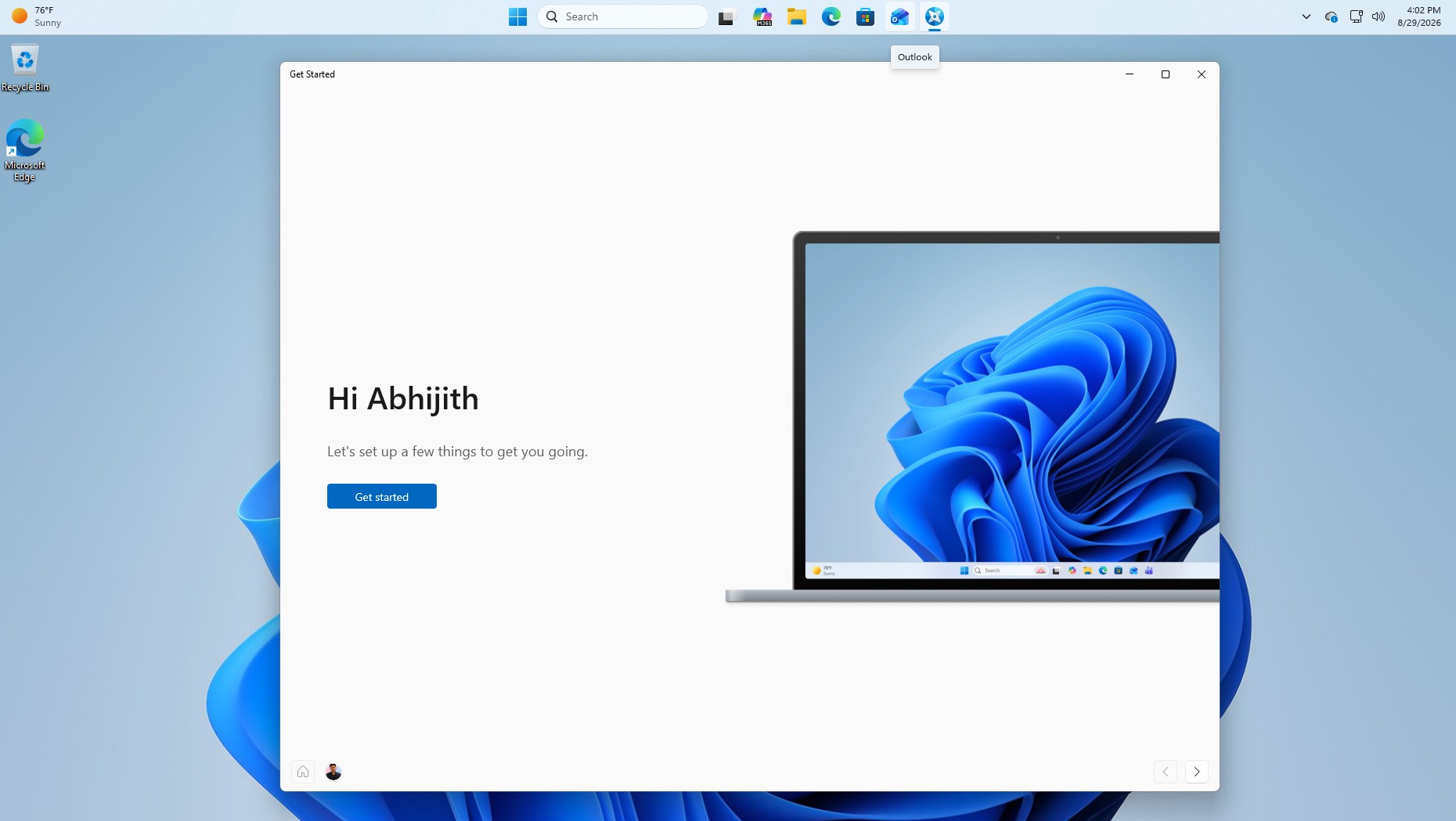
Choosing to continue takes them to the desktop, where the Get Started app opens and walks them through several onboarding tasks. If users choose to go directly to the desktop, Guided Setup will not open automatically; however, it can be accessed at any time through the Get Started app. I have also noticed that this experience is rolling out server-side.
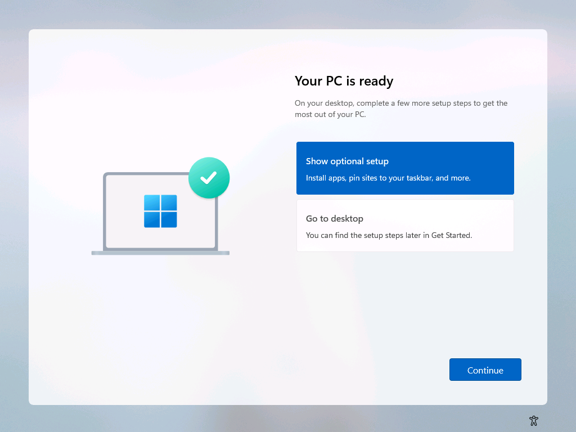
The last OOBE screen, “Your PC is ready,” now gives you two choices. “Show optional setup” promises to install apps and pin sites to your taskbar, while “Go to desktop” skips it and notes that the steps stay available in Get Started for later.
Both options take you to the desktop, but only the first one opens the Get Started app. It greets you by name and walks you through a handful of pages.
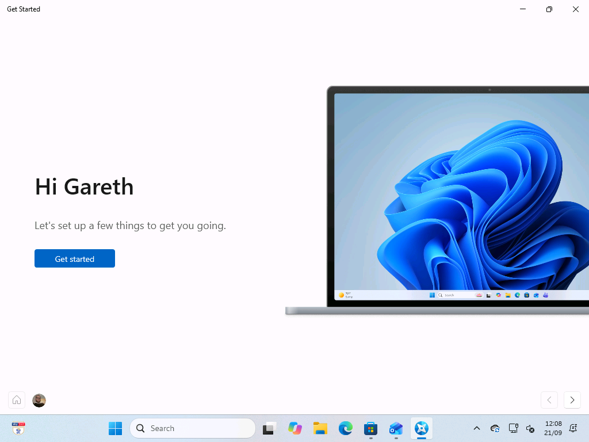
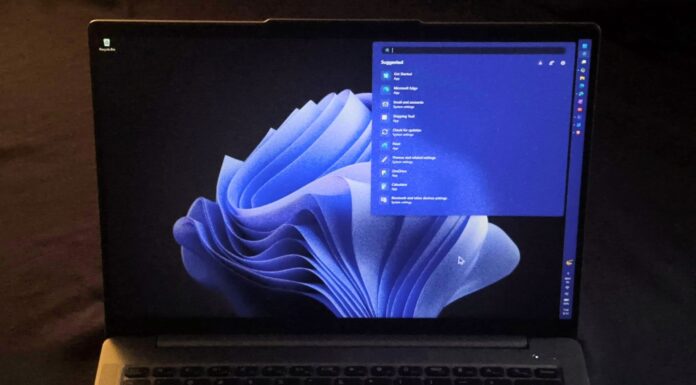
The Get Started app opens after OOBE and becomes the hub for the remaining onboarding steps. Microsoft has also updated its graphic: the laptop now displays a more recent version of the Windows 11 desktop.
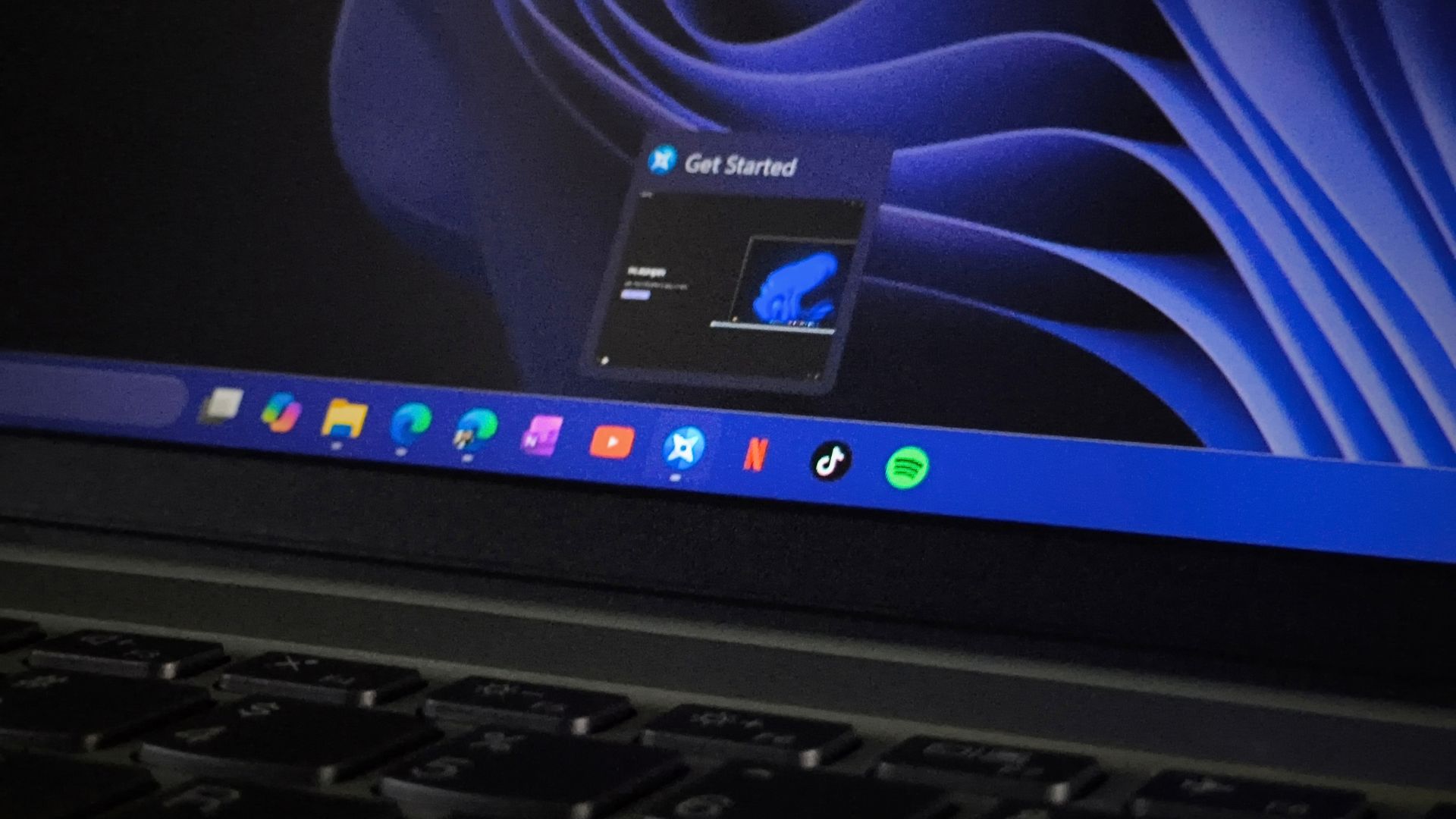
Get Started can install TikTok, Netflix and Spotify without opening the Store
The first page, “Add popular apps to your device,” lists WhatsApp, Duolingo, TikTok, Netflix, LinkedIn and Spotify, with a link to browse the Microsoft Store for anything else. I ticked TikTok, Netflix and Spotify to see how it works, and all three downloaded inside Get Started, each switching to an “Installed” label once done.
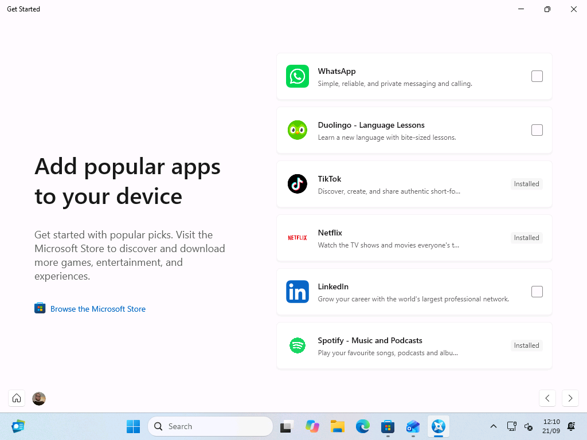
Credit where it’s due, installing three apps without opening the Store is quicker than the usual routine on a fresh PC. However, Microsoft doesn’t explain why these six count as “popular picks”.
Microsoft first added these pages in August with Build 26340.9212, and the refreshed Get Started app shipped to Windows 11 24H2 and 25H2 with the September 2026 Patch Tuesday update. Assisted Setup adds the part where Windows opens it for you at the end of setup.
The website list is regional, and it can pin sites to the taskbar
The next page offers ten websites to pin to the taskbar. My test PC is set up for the UK, and the list showed it, with BBC, Amazon UK, eBay UK and the Daily Mail next to YouTube, Reddit, Facebook, Instagram, X and Wikipedia.
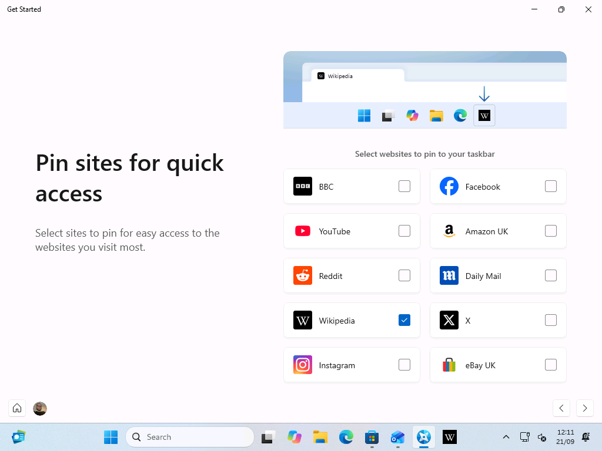
I picked Wikipedia, and its icon appeared on my taskbar right away. I’d have liked a box to type in a website, since the sites I open every day aren’t on Microsoft’s list.
The theme and update pages mostly send you to Settings
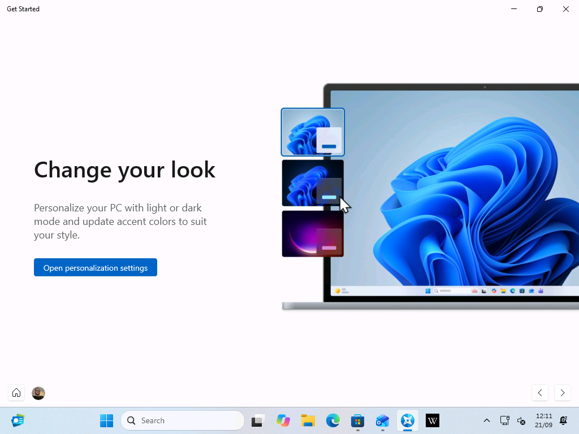
“Change your look” helps you choose light and dark modes and accent colors. The button opens the Personalization page in Settings. A first-time Windows user may find this handy.
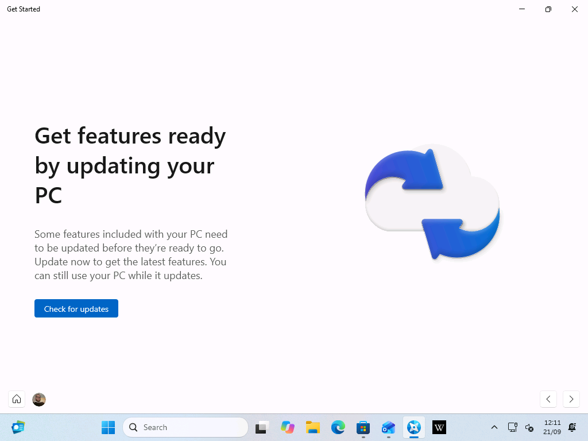
The update page says some features on your PC “need to be updated before they’re ready to go” and offers a Check for updates button. Ironically, Microsoft added an option in April to skip updates during setup so people could reach the desktop faster, and the post-setup flow now asks you to go back and install them.
The final page, “You’re all set,” points to aka.ms/windows-tips and offers to open the site in your browser.
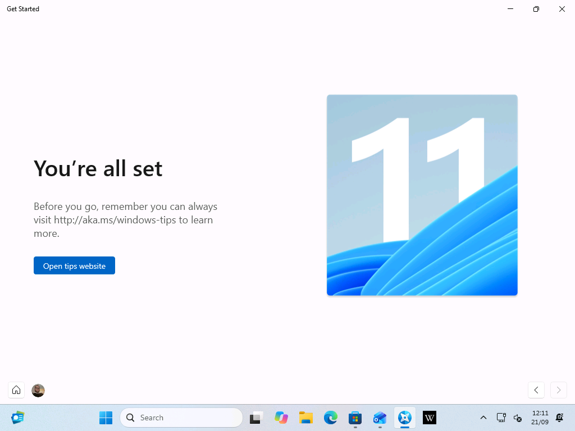
Visiting the site is optional, so users can simply close the window.
Guided Setup brings several common first-day tasks into one optional flow. Rather than leaving users to find apps, websites, updates, and personalization controls on their own, Windows 11 can introduce these choices immediately after setup.
The experience remains optional, but it gives Microsoft a more structured way to help people configure a new PC and discover useful features from the outset.
Windows 11 also gets a Tips widget for the lock screen and Widgets board
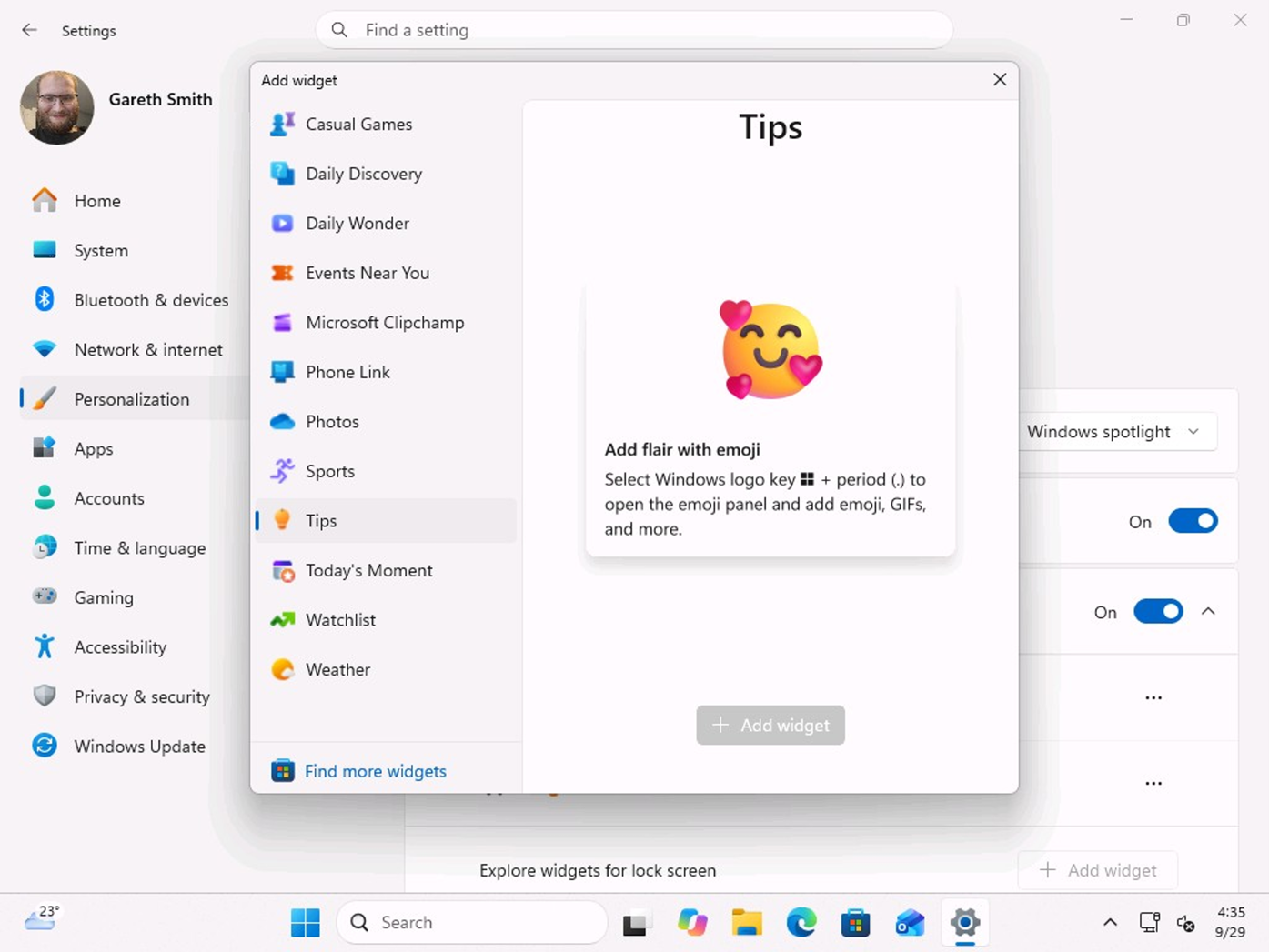
Microsoft deprecated the Tips app in 2023 and dropped it from Windows 11 24H2, and the September 2026 optional update (KB5124010) now brings tips back as a widget, available from both the Widgets board and the lock screen.
Microsoft says the Tips widget “provides short, helpful guidance about Windows features”
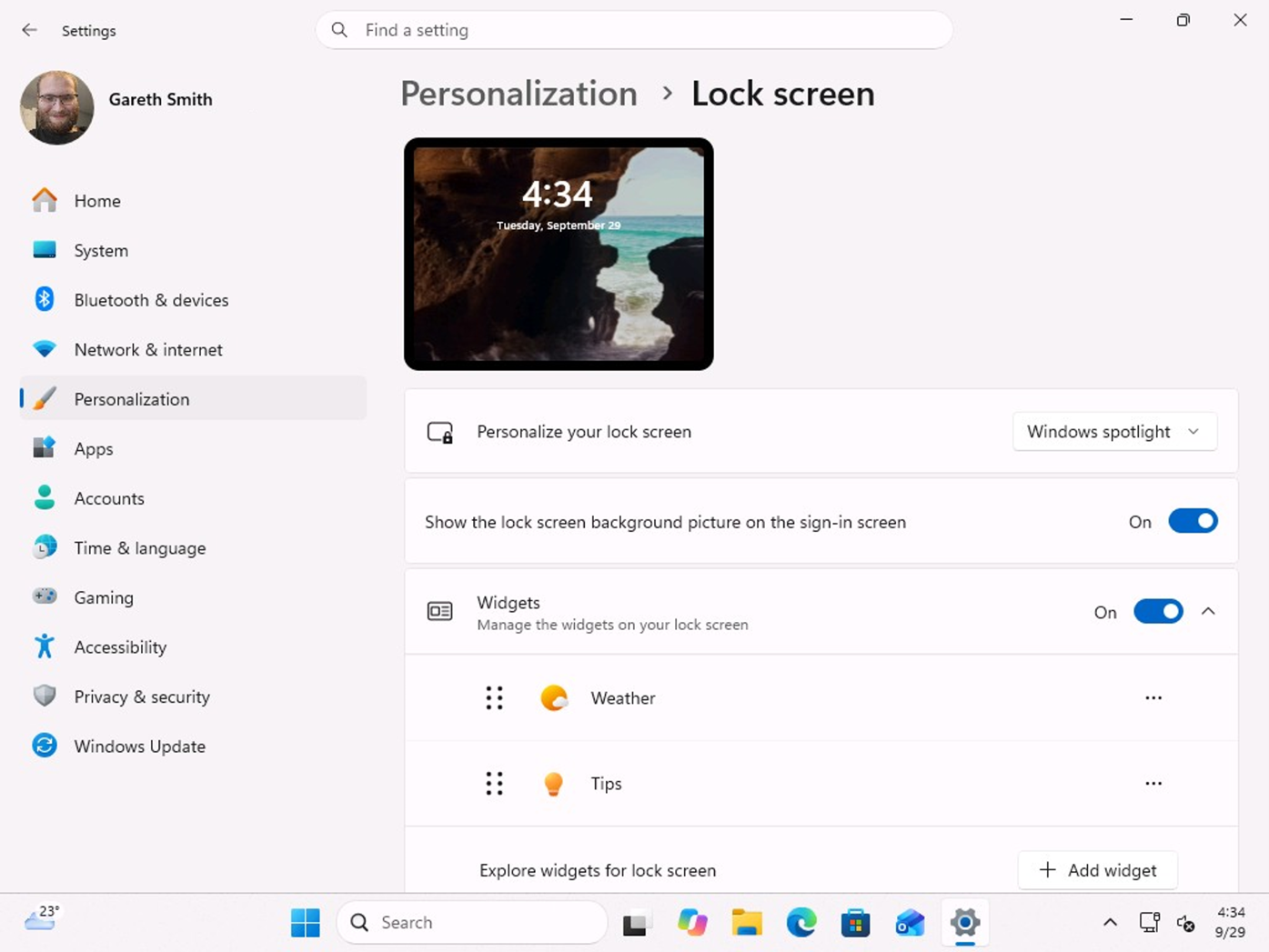
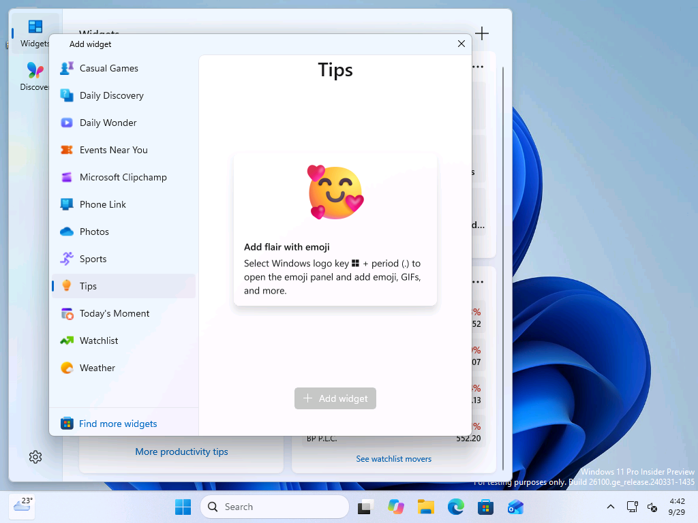
You can add it from Settings > Personalization > Lock screen or the Add widget button on the Widgets board, where it’s another addition to Weather, Watchlist, Sports, Clipchamp and the lot.
The preview in the widget picker suggested the emoji panel shortcut (Windows key + period), while the widget on my lock screen explained clipboard history (Windows key + V), both of which are features I feel every Windows user should know.
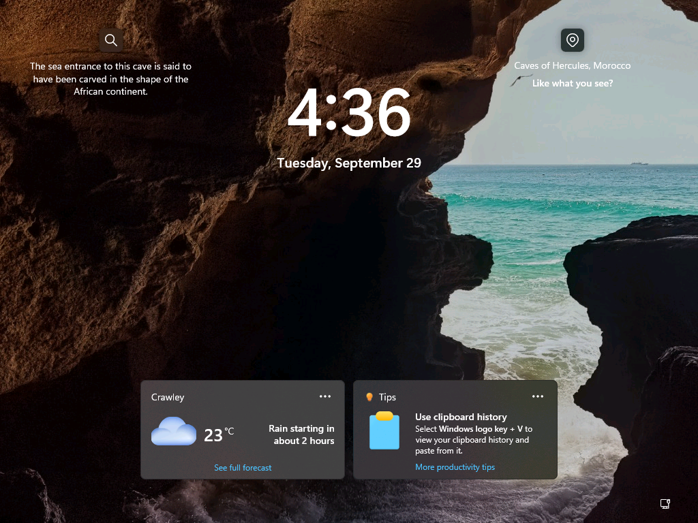
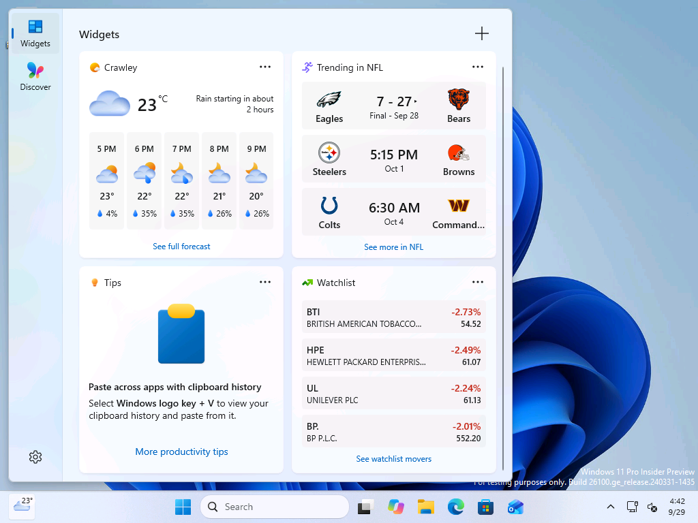
Clicking “More productivity tips” opens Microsoft’s Productivity tips page in Edge.
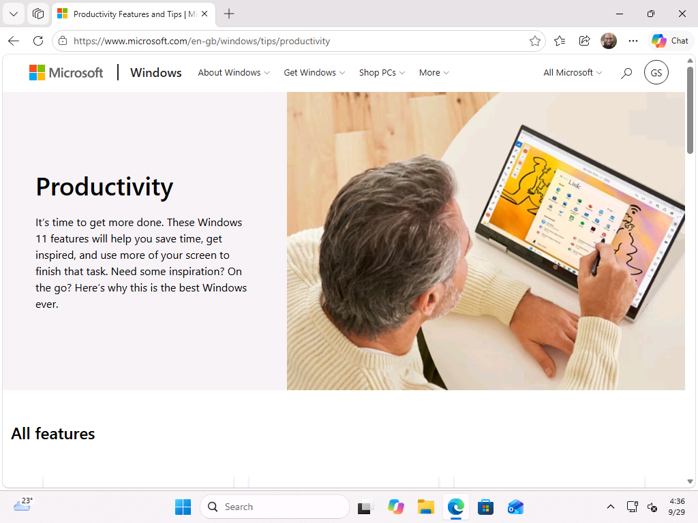
The new Tips widget can be pinned to both locations. Selecting a tip opens the Windows Tips website or launches the relevant feature or experience directly.
Microsoft recently cut the lock screen down to just Weather by default to make Windows 11 quieter, and since Tips is opt-in, it doesn’t undo that cleanup. KB5124010 is optional, so most PCs should get the widget with the October 13 Patch Tuesday update.
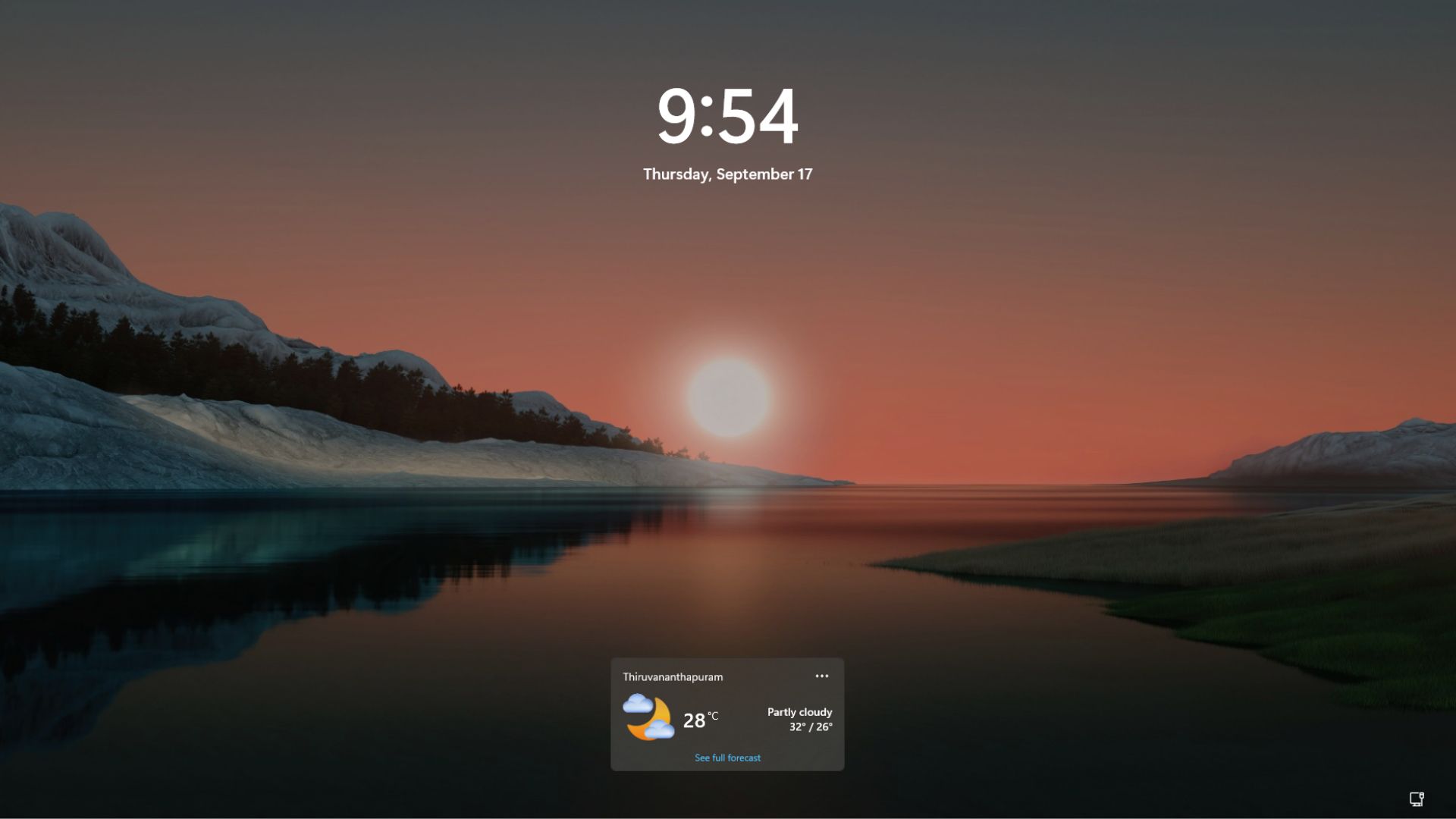
Assisted Setup is also optional and easy to skip, and I’ll give Microsoft that. But after promising a calmer Windows with fewer upsells, the first thing Windows 11 recommends on a brand new PC is TikTok and Netflix. Is this what a quieter setup was supposed to look like?
That said, these changes show Microsoft is putting efforts to make users aware that their favourite apps are available in Windows, and useful websites are easily accessible, while also teaching about useful tips that would make using Windows 11 a better experience.