




Microsoft is finally updating File Explorer in Windows 11 to display file sizes in appropriate units (KB, MB, or GB) in the Details view, rather than showing every file size in kilobytes regardless of its actual size. It might sound like a minor change until you realize it’s one of the most closely watched areas of File Explorer.
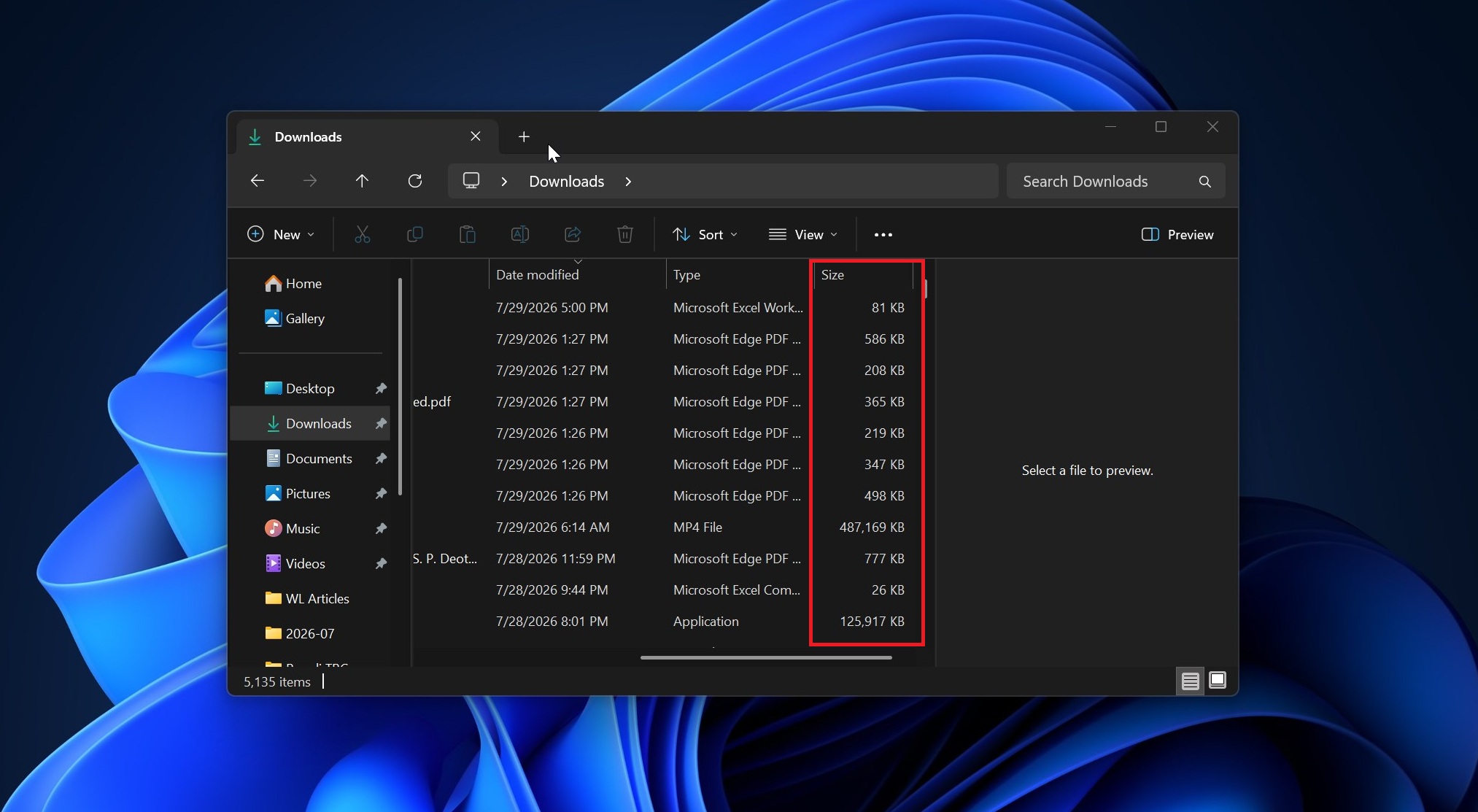
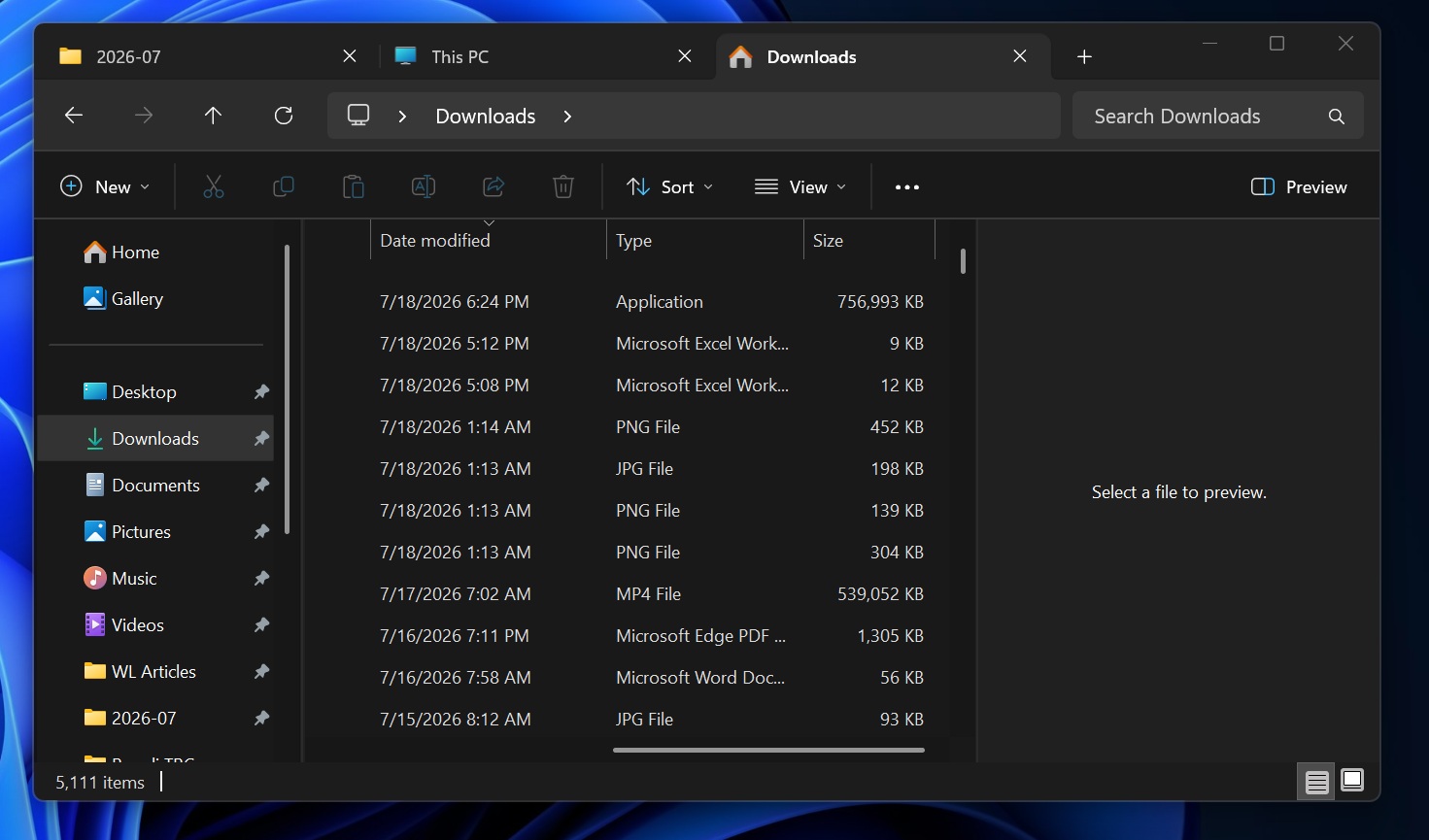
Right now, if you open File Explorer and pay attention to the ‘Size’ column in the Details view, you’ll notice that everything is displayed in KB. I am not saying that KB is not helpful, and it probably is for many of you, but you certainly do not want to see a 10GB file expressed in KB, especially when you’re cleaning up your drives.
Here’s what it looked like before the update:
I grew up using Windows, and I can naturally convert KB into GB without realizing that I am reading KB, but that’s not the case for everyone, especially casual users moving to Windows 11. Windows Latest understands that Microsoft is trying to optimize Windows for everyone, including those who have just moved from another platform.
In the release notes for Windows 11 KB5101684, Microsoft quietly confirmed that it changed how File Explorer size units work:
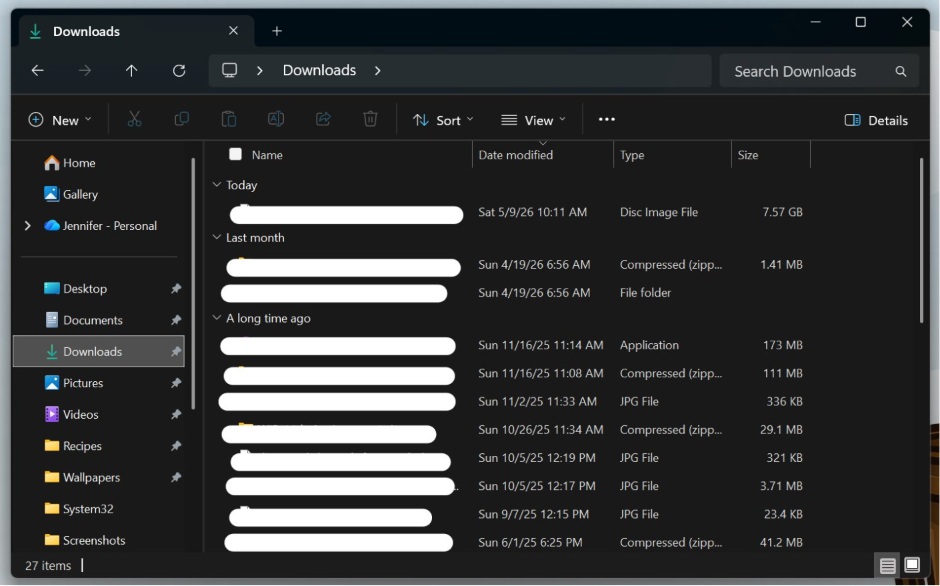
“File sizes in the Details view now display using appropriate units (KB, MB, GB) instead of KB-only, making them easier to understand at a glance.”
This change does not mean File Explorer will stop displaying sizes in KB. It’ll continue to do that, but only when it makes sense.
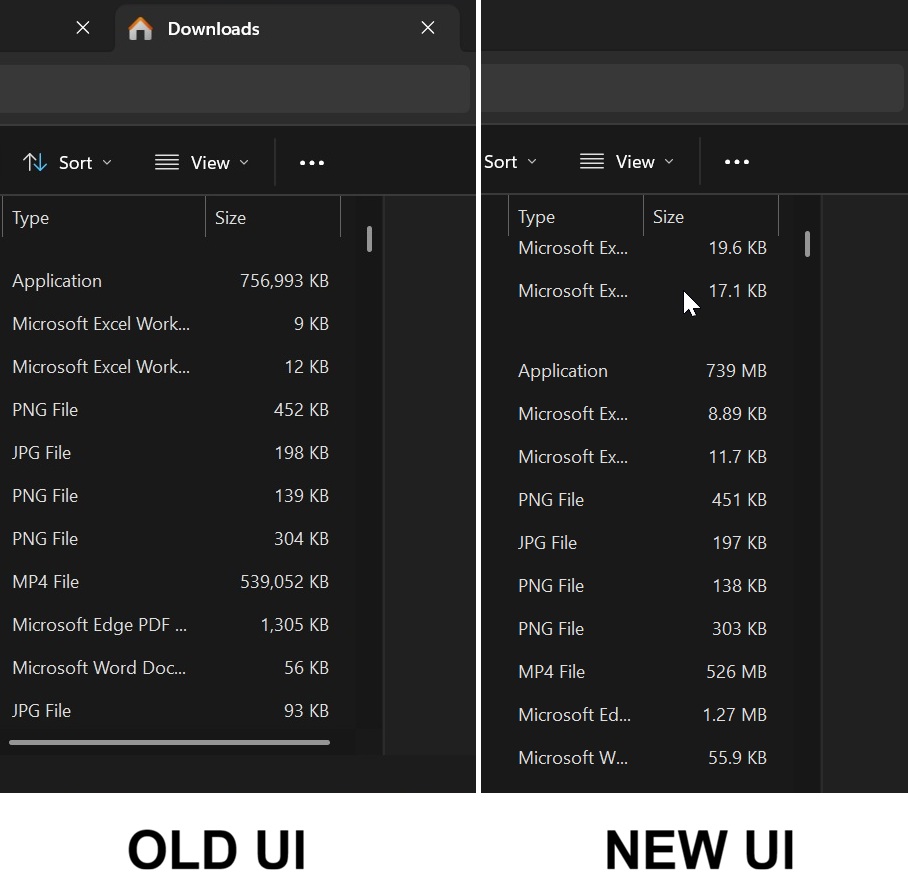
A 10MB file will not be displayed as 10,000KB, but a 10KB file will still be displayed in kilobytes because that makes sense. It’s more about making file sizes easier to understand than simply replacing KB with MB or GB.
How to enable or disable File Explorer’s new file-size feature in Windows 11
This feature is rolling out gradually, so it won’t be visible immediately after installing Windows 11 KB5101684 or newer. If you can’t wait, here are the steps you can follow to turn it on right away:
- Download ViveTool from GitHub. For those unaware, ViveTool is a third-party open-source app that allows you to unlock features that are rolling out gradually. It does not specifically cause any issues, but you might run into problems if Microsoft has paused the rollout of the feature on your PC due to compatibility issues.
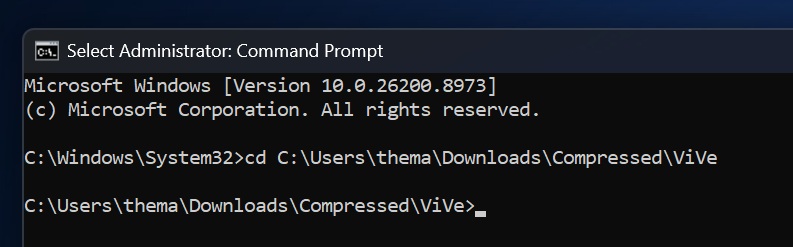
- Extract ViveTool and use
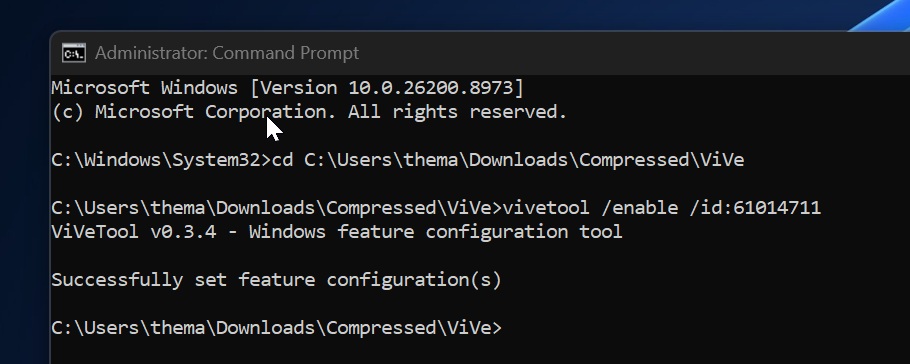
cdto navigate to the folder where vivetool.exe is located. - Run the following command:
vivetool /enable /id:61014711
- Open Task Manager > Processes, and find explorer.exe. Select and restart. If you can’t restart Explorer.exe, you can also reboot Windows.
Now, go to File Explorer, and the ‘Size’ column will automatically reflect the new units instead of showing everything in KB. If you don’t like it, you can always reverse the change using the following command:
vivetool /disable /id:61014711
I personally like how File Explorer shows file sizes now, but again, it’s subjective, and Microsoft has not added a toggle that lets you return to the original format. It’s unfortunate, but at this point, it’s quite obvious that Microsoft won’t add customization options unless enough users ask for them.
This also isn’t the first time a change has pleased one group of users while alienating another.
File Explorer is getting faster, and a major update is on the way
In addition to new file sizes, Windows 11 is rolling out a faster address bar in File Explorer, so you can easily switch back and forth between previously entered locations. Moreover, you can now middle-click a folder to open it in a new tab.
But the most exciting change, which isn’t live just yet, is related to File Explorer’s search bar.
Windows Latest understands that Microsoft is testing a major upgrade for File Explorer’s “This PC” search, where you’ll be able to find files faster and won’t get stuck on “Working on it.”
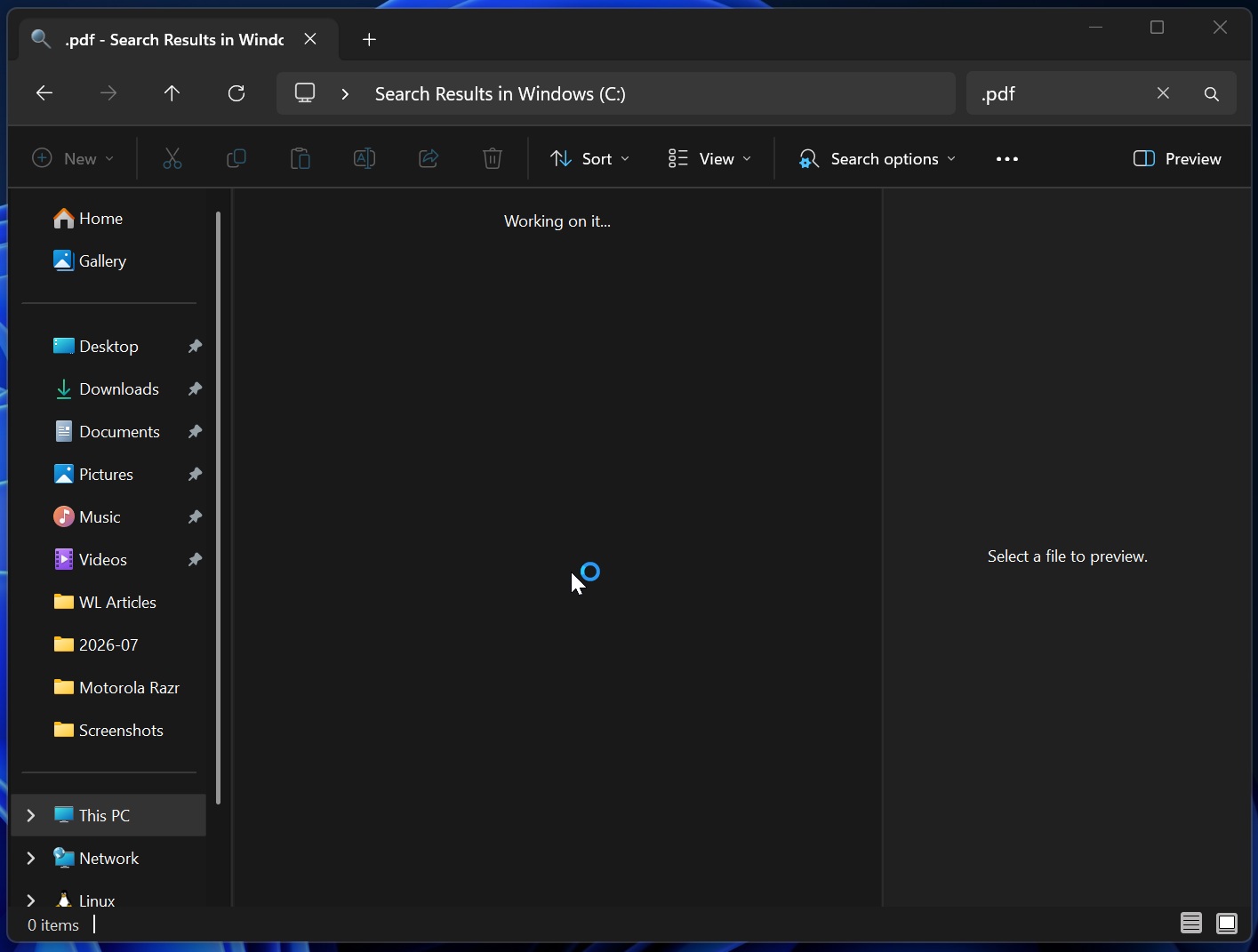
I’m told that Microsoft is bringing improvements from Windows Search’s recent upgrade to File Explorer, and bringing all ‘search engines’ together on Windows.
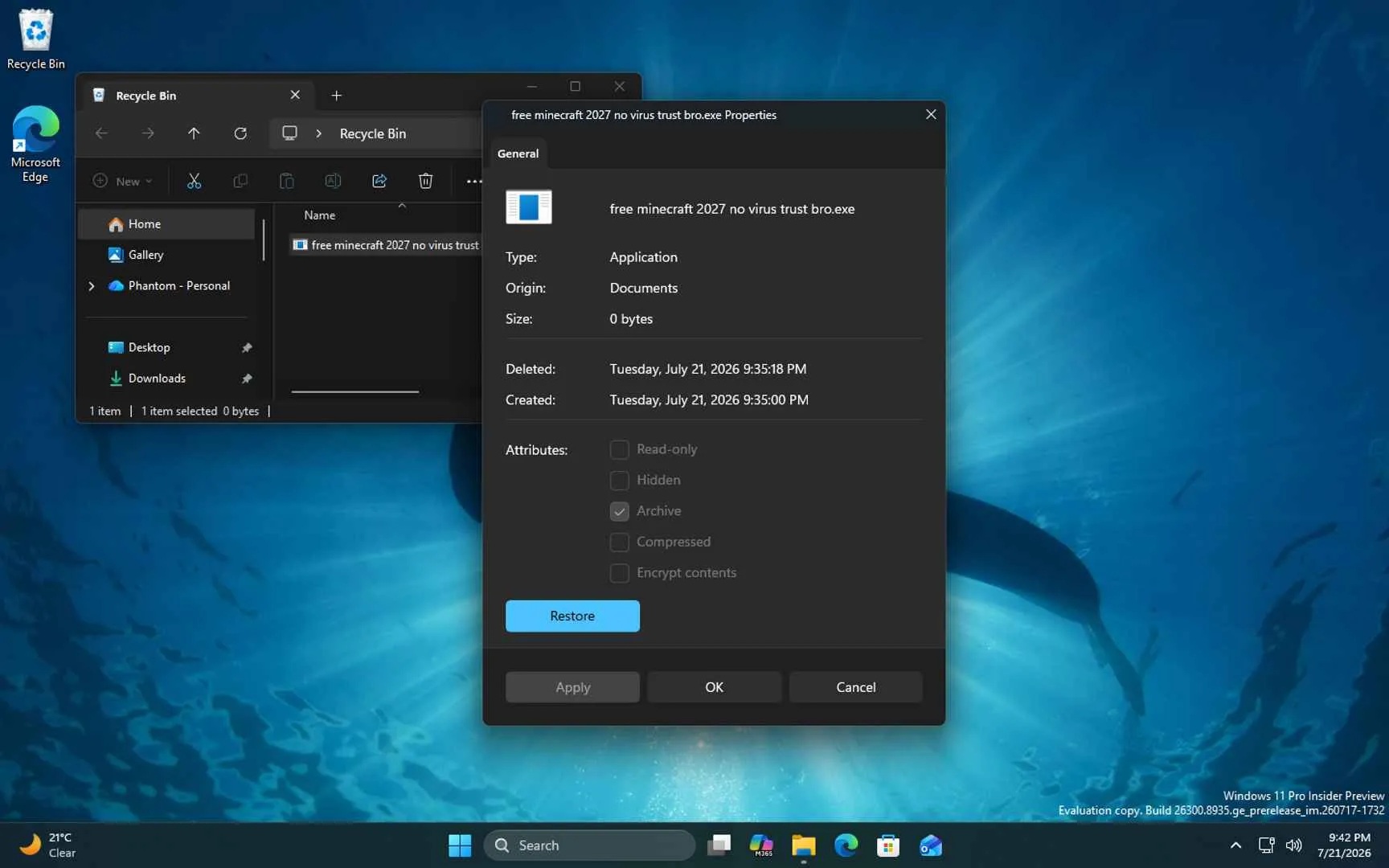
Last but not least, there are plans to modernize flyouts and pop-ups in File Explorer, including the Properties sheet in the next big update. This is stated to arrive later this year.
What else do you want Microsoft to improve in File Explorer? Let me know in the comments below.