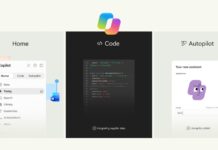









Microsoft accidentally broke Copilot integration in Outlook Classic while trying to integrate more AI-powered features, and some users are actually happy. I don’t blame them, given how Microsoft is aggressively pushing AI in Outlook, even when it knows it doesn’t work well and often refuses to follow instructions.
Microsoft no longer releases new features for Outlook Classic unless it’s AI-related, and the most recent update added the Copilot button to the Ribbon menu. We were later told that you’ll soon be able to create AI-generated emails directly from a new Copilot flyout that appears within the compose box.
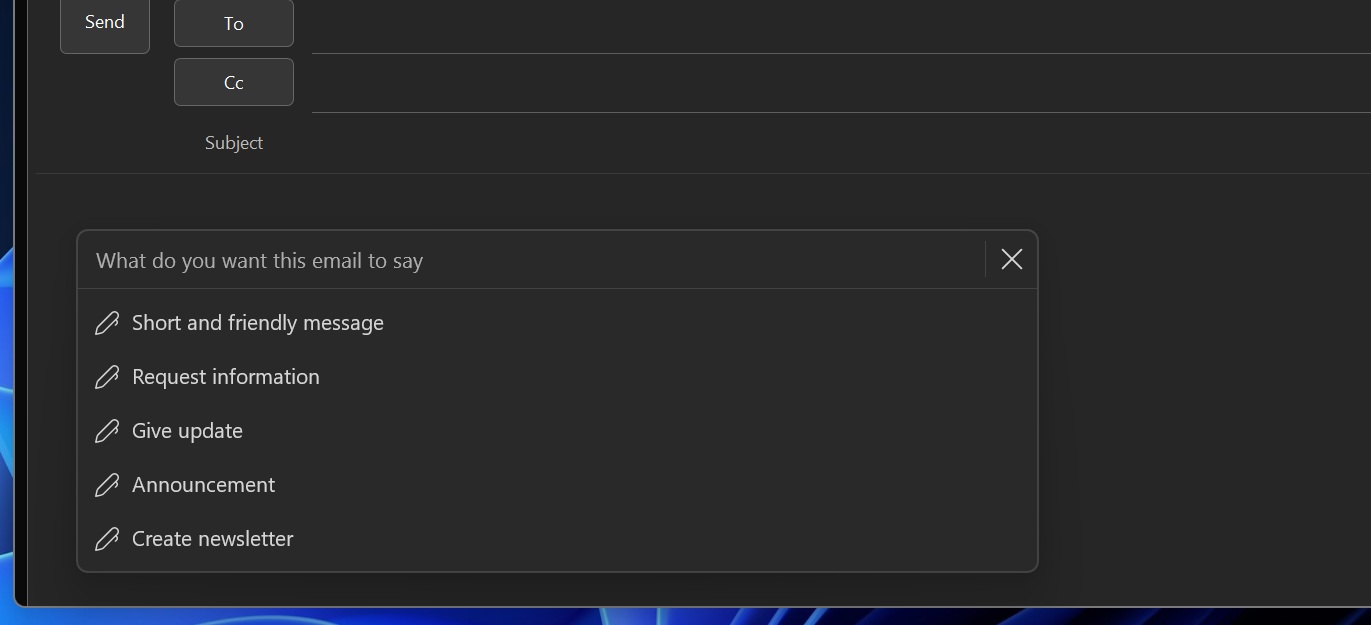
This was already available in Outlook (new), and it began rolling out to Outlook Classic recently.
Later, Windows Latest spotted that you can soon double-click text in Outlook and ask AI for a context-friendly explanation.
Turns out that at one point, while trying to add more AI features to Outlook Classic, Microsoft might have broken the entire integration. And that means Copilot disappeared from Outlook Classic entirely. It’s not exactly bad news, but it could be for those who actually paid for a Copilot license.
In a support document, Microsoft confirmed that it’s aware of the issue and plans to patch it up in the coming days.
“After classic Outlook for Windows updates to build 20026.20182 and higher, you no longer have Copilot Chat or Copilot entry points in Outlook,” Microsoft noted in a support document first spotted by Windows Latest.
“This issue happens if you have a Copilot Chat (Basic) license or a paid M365 Copilot (Premium) account. For more information about how to check your license, go to What Copilot license do I have.”
If you are affected, you’ll no longer have Copilot in Outlook Classic, and you can verify if you’re affected by following these steps:
- Look at the Ribbon menu. Is Copilot missing? It’s a bug, and it’ll be added back unless you turn it off from Settings.

- Copilot won’t open if it’s added as an app to Outlook.
- Copilot will be grayed out in the Ribbon menu.
If you use Outlook on the web or New Outlook, you will still be able to access Copilot.
For now, Microsoft recommends using Outlook on the web or the Microsoft 365 Copilot standalone app, but there are some workarounds you can try.
How to bring back Copilot in Outlook Classic if it’s gone missing
Microsoft found that Outlook is struggling to load Copilot-related settings because it’s unable to locate the MAPI property PR_PROFILE_USER_SMTP_EMAIL_ADDRESS_W, and it’s due to a bug affecting the profile section
That means Copilot itself still exists in Outlook, but it’s unable to load, and when it doesn’t load, you won’t see AI-related features in the email client.
Or you can also try creating a new profile, purging the Outlook cache, and deleting the local configuration.
Microsoft also suggests restarting Windows, which should always be the first thing to do, and rebooting Outlook if the issue persists.
“If the issue persists, continue to use Copilot through other supported Microsoft 365 applications where available while the investigation is ongoing,” the company added.