





Windows 11 KB5127936 is rolling out, and it FINALLY lets you customize the context menu, which means you can now choose what appears when you right-click anywhere. Microsoft has published direct download links for the KB5127936 offline installer (.msu), but in most cases, you should use Windows Update.
KB5127936 is an optional update, and it won’t download or install automatically on PCs where the toggle “Get the latest updates as soon as they’re available” is turned off. This update is listed as “2026-10 Preview Update (KB5127936) (26300.9818)” on PCs with Windows 11 26H2.
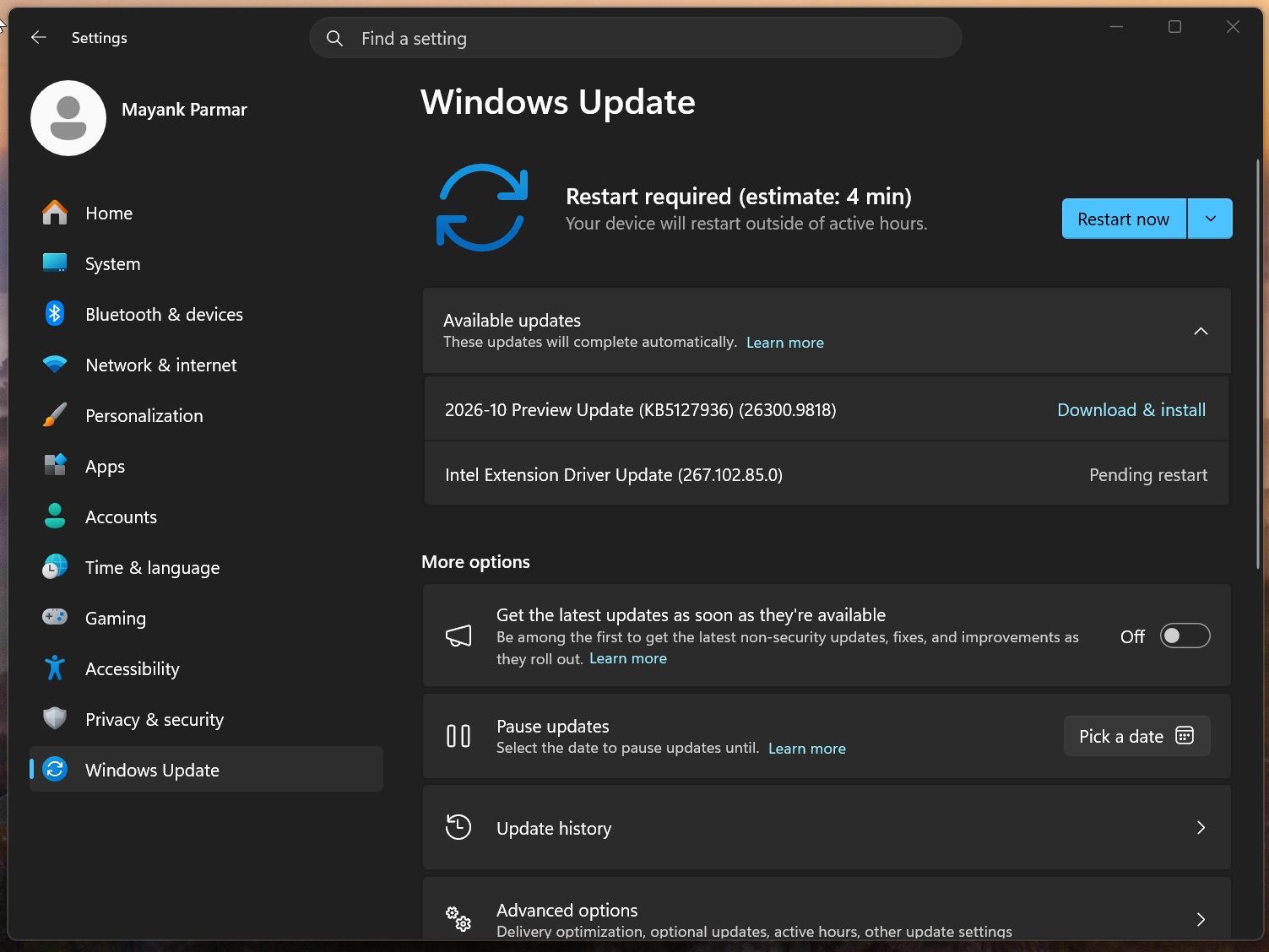
In case you’re on version 25H2, you’ll see 26200.9818, but the KB ID won’t change. Also, if you’re still on Windows 11 24H2, you won’t be getting today’s optional update or any updates going forward, as the OS version reached end of support on October 13. You should verify your Windows version under Settings > System > About.
Note: If you do not install an optional update like the one rolling out today, you do not miss out on anything. Optional updates are considered “production quality” despite the “preview” label (not to be confused with the Windows Insider Program), but you don’t have to rush its installation, as everything included in Windows 11 Build 26300.9818 will roll out to everyone on November 10, as part of Patch Tuesday.
Download links for Windows 11 KB5127936
Windows 11 KB5127936 direct download links: 64-bit and ARM64 | Like all updates, you again have the opportunity to use Microsoft Update Catalog to download offline installers for today’s update and update multiple PCs with or without an internet connection. I personally recommend Update Catalog only when Windows Update is not working.
In all other cases, you should use Windows Update. The size of the update is mostly under 2GB if you use Windows Update, but if you use Update Catalog and manually download offline installers, you’ll be downloading a whopping 5GB .msu installer. Windows 10 updates used to be less than 700MB via Update Catalog, but as Microsoft bundles AI models, even for unsupported PCs, the download size is higher.
| Build number | Size | OS version | Architecture |
|---|---|---|---|
| 26300.9818 | 4981.5 MB | Windows 11 26H2 | x64-based |
| 26300.9818 | 4825.6 MB | Windows 11 26H2 | arm64-based |
| 26200.9818 | 4981.5 MB | Windows 11 25H2 | x64-based |
| 26200.9818 | 4825.6 MB | Windows 11 25H2 | arm64-based |
Today’s update is a cumulative release, so it comes bundled with all previous changes, including those that rolled out in August 2026. It means if you skipped updates or paused updates, you can unpause and get all changes in a single update.
What’s new in Windows 11 Build 26300.9818 (26H2) / Build 26200.9818 (25H2)?
Windows 11 Build 26300.9818’s changelog is not huge, but I think there are quite a few notable changes, and my personal favourite is the ability to customize the right-click menu. However, like every monthly update, you’re not getting everything out of the box, as changes roll out gradually.
Microsoft confirmed that the new context menu is also rolling out gradually and won’t show up on all PCs. You can consider turning on “Get the latest updates…” toggle on the Windows Update page to increase your chances.
1. The context menu can now be customized in Windows 11
I still can’t believe it, but it’s actually happening: you can now right-click anywhere on Windows, choose the “Customize menu” button, and decide what appears the next time you right-click.
Microsoft officially calls the right-click menu the “context menu,” and now it’s letting you fully customize it. Previously, this was only possible via third-party apps, but now you can debloat the menu and make it as personal as possible!
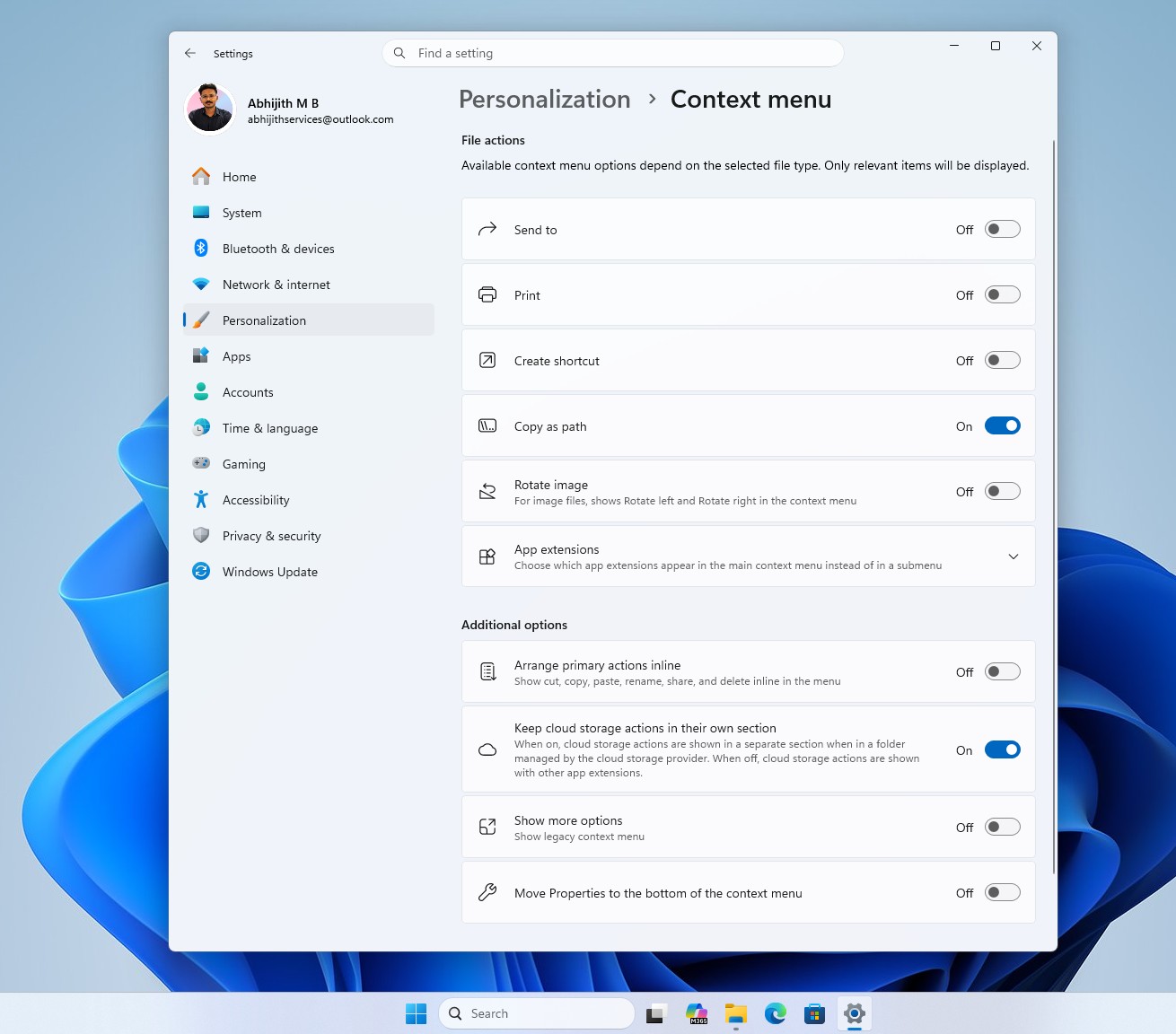
In Windows 11 KB5127936, with the new context menu settings, you can:
- Choose which app extensions appear in the main menu or a submenu, or hide the app extensions submenu.
- Display Cut, Copy, Paste, Rename, Delete, and Share directly in the menu instead of as a row of icons.
- Move Properties to the bottom of the context menu.
Microsoft told Windows Latest that making Windows 11 more customizable is one of its top priorities, and a customizable context menu is a step in the right direction. But it’s not the only customization improvement that landed this year.
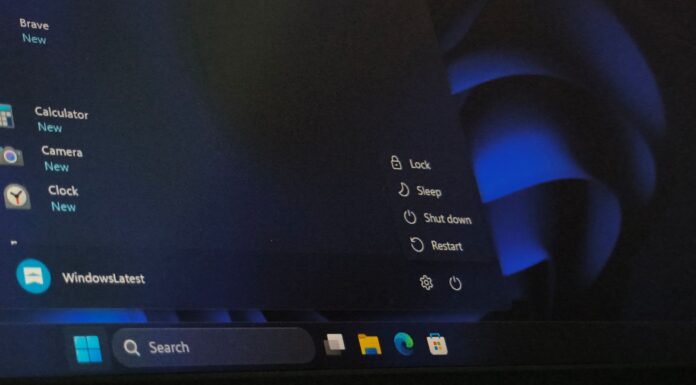
Microsoft now also lets you customize the Start menu and choose what appears, so you can have just the “Pinned” section if you prefer, or only “All apps,” letting go of the “Recommended/Recent” section entirely.
2. File Explorer is getting better
Microsoft says it’s making the search results page more “consistent,” whether you launch a search from a specific volume, This PC, or Home. Regardless of where you begin searching in File Explorer, information like the date, location, or name will appear in a better layout. It looks less of a mess compared to what we have now.
There’s another notable improvement, and it’s to the squiggly keyboard key, ~, which didn’t have much of a use on Windows. Now, after you install Windows 11 KB5127936, you can open File Explorer, click on the address bar, and use ~ to go to your profile folder or its subfolders, including the famous AppData.
That means you can now use ~\AppData in File Explorer or Windows Run to quickly open this particular location.
Last but not least, today’s update begins rolling out dark mode support for the Folder Options dialog in File Explorer!
However, we’re not seeing signs of the modern Properties sheet with WinUI and dark mode yet, as the feature still appears to be under development.