







I’m sure most of you have run into this at some point: you quickly press the Start button, start typing to find your app, and hit Enter, only to realize that you’re opening a Microsoft Edge tab with a Bing search. But you can now turn off these web results, as Bing-free Windows Search has begun rolling out to more users this week.
Microsoft began rolling out the Bing-free Windows Search experience in August 2026, but the gradual rollout meant most of us were hanging around without the actual feature, and we never knew when it would “fully” become available. In fact, it’s still not available to everyone, but turning on the “Get the latest updates…” toggle on the Windows Update page should bring it up for even more PCs.
How to turn off Bing and Microsoft Store results in Windows Search
Now, you’re not going to wake up and find Bing turned off by default in your search experience. Microsoft has no plans to kill off Bing by default, and this toggle is only for those who actually understand why Search is trash in the first place.
If the server-side change has reached your PC, you should be able to turn off Bing as well as Microsoft Store results by following these steps:
- Open Settings > Privacy & security.
- Open Search.
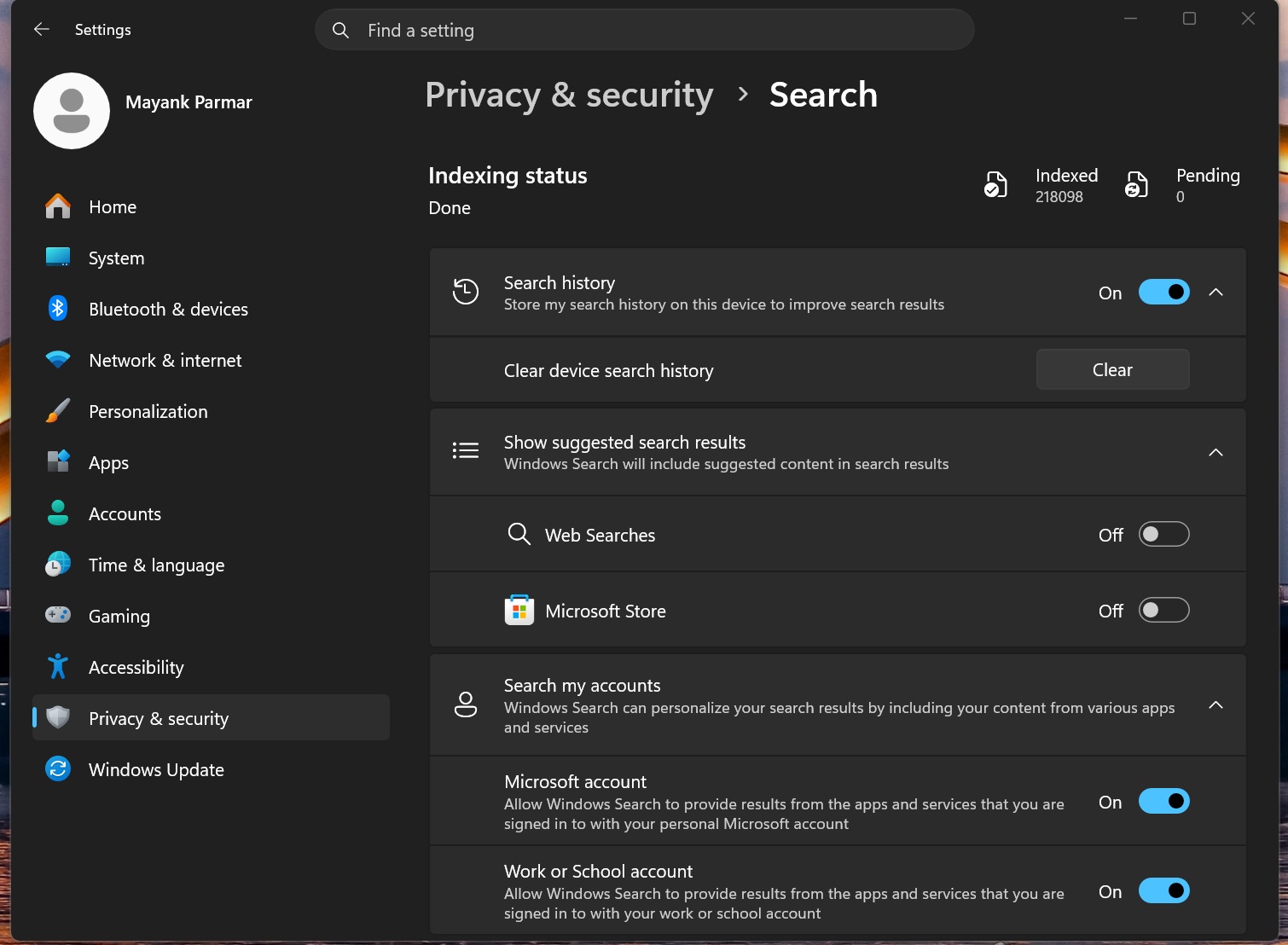
- Right below the indexing status, you’ll see the “Show suggested search results” section, with two toggles for web and Microsoft Store suggestions.
- Turn off web searches and, for the best results, Microsoft Store suggestions. Then reopen Windows Search.
Microsoft doesn’t call it Bing in Windows Search, but “web searches,” because in regions like Europe, you can set a search engine other than Bing as your preferred source.
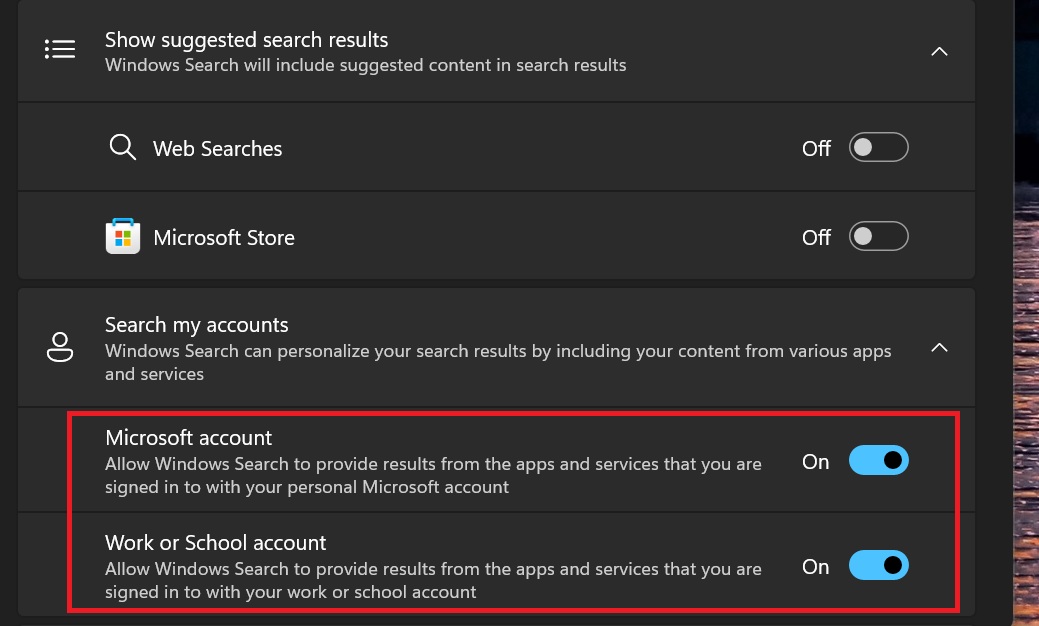
Funnily enough, you can’t find this toggle by searching for it in Settings. I typed “web search” and “turn off bing” in the Settings search box, and both returned “No results.”

The only way to get there from Settings search is to type “search” and pick “Suggested search results.” That list also still includes “Change the search provider in Internet Explorer,” which is a nice reminder that some parts of Windows haven’t moved on since 2022.
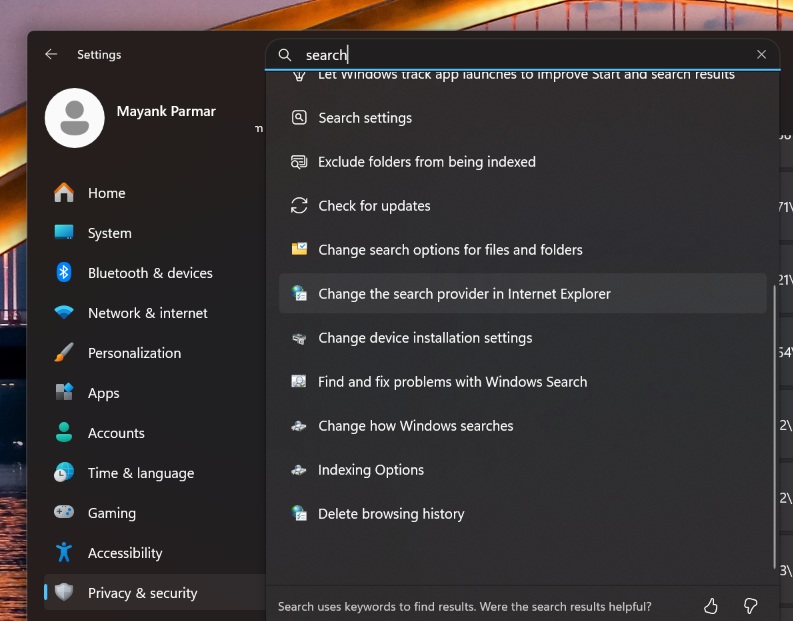
Also, turning off web searches doesn’t make Windows Search completely offline. Right below it, there’s a “Search my accounts” section with “Microsoft account” and “Work or School account” toggles, and both are turned on by default. When these are turned on, Windows Search can still pull results from services like OneDrive and Outlook. If you want Search to stick to your PC only, you should turn these off as well.
Windows Search feels much better without Bing. Seriously.
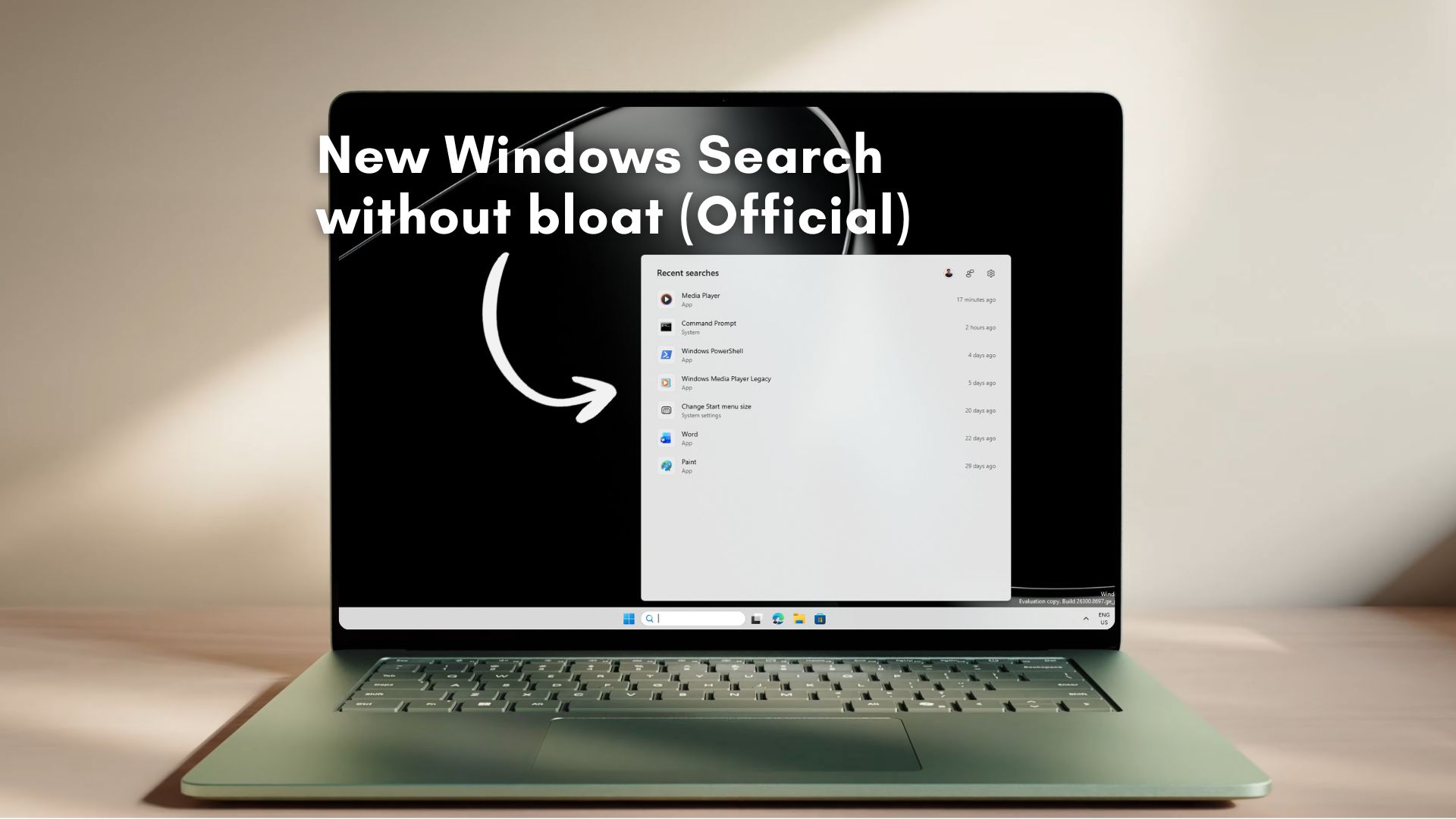
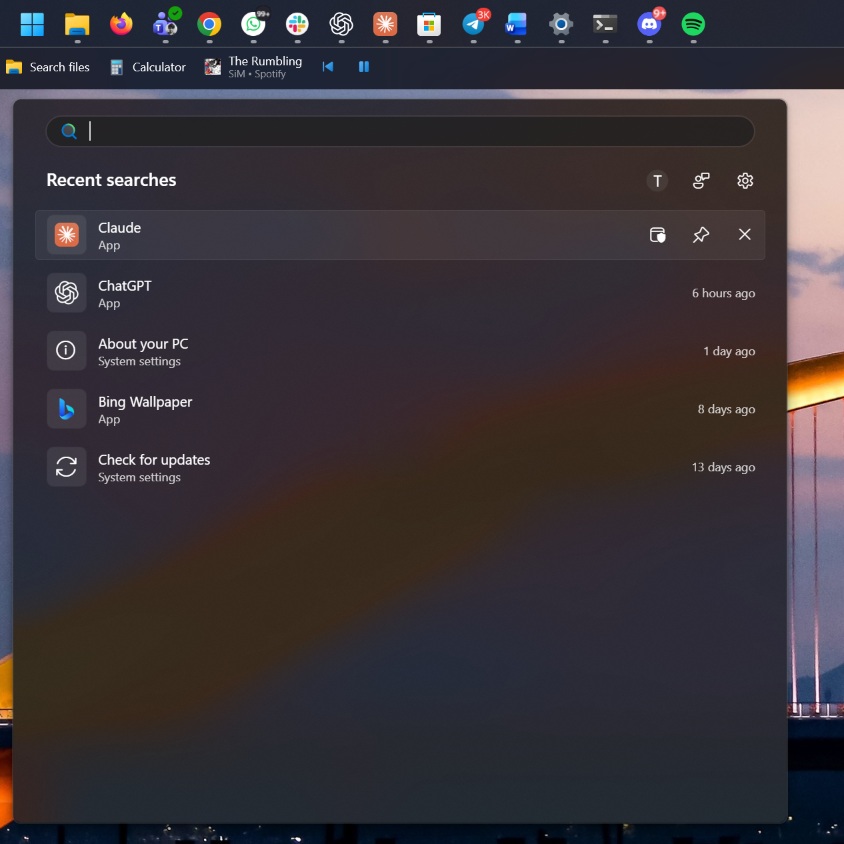
Now, if you open Windows Search, you’ll notice that the homepage no longer has Bing-related widgets, such as trending keywords, quizzes, and the so-called lesser-known facts of the day. All the Bing- and MSN-related adware instantly disappears from the Search homepage.
You’ll now be staring at a clean homepage with a few of your recent searches, and of course, even those will only include local searches. You can also hover over the items and remove whatever you want. I cleaned it up, and here’s what it looks like on my PC:
It’s a breath of fresh air, but if you’ve ever used the Windows Registry or third-party tools to force-disable Bing in Windows Search, this experience will feel familiar.
Then, I pressed the letter S on my keyboard, and it instantly brought up apps starting with S, including Spotify. I also noticed Windows settings, files, and folders that start with the letter or include it somewhere in the name.
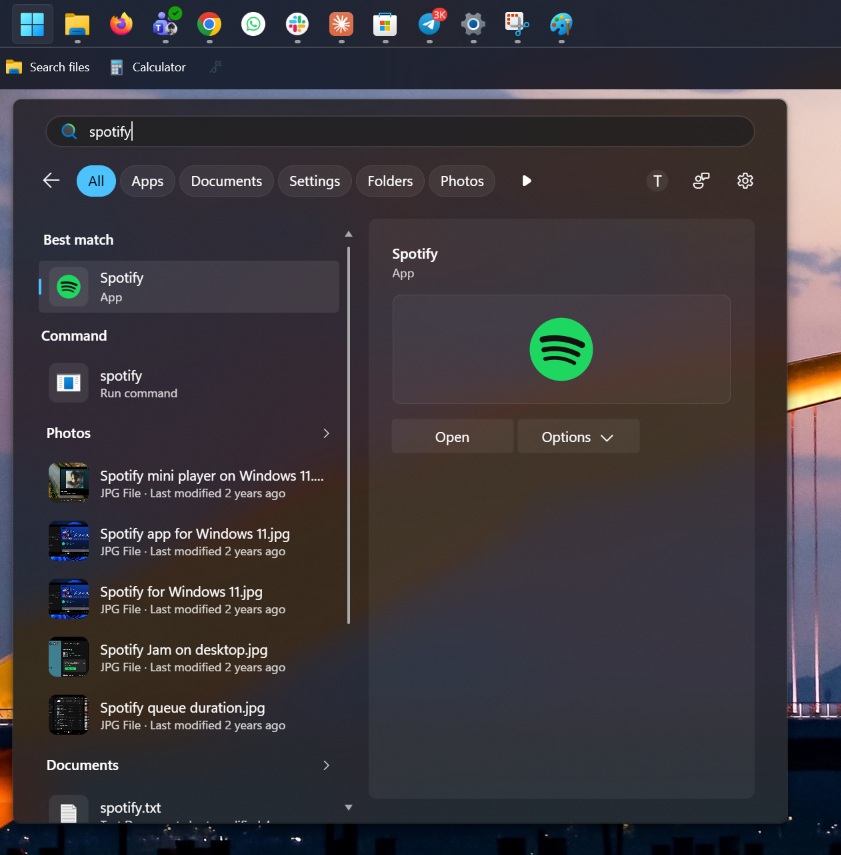
Now, try doing it on your PC with Bing search turned on, which is the default behavior. I bet you’re going to find a few Microsoft Store listings and queries from Bing alongside Spotify. And it wouldn’t be nearly as fast as Windows Search without Bing.
And I’m not even using the “Enhanced” mode, which indexes your entire PC. My laptop is on the default “Classic” mode, which only covers Documents, Pictures, Music, and the desktop, and Windows Search has still indexed 218,100 items with zero pending.

You usually won’t run into a blank result if you’ve got everything indexed. But if nothing on your PC matches your query, you’re more likely to see “No results found” than you would with Bing enabled.
Moreover, Windows Search is now much better at understanding typos, so if you type “Otl” when looking for Outlook, you’ll still get the email client in the search results. The same goes for “Putlook.”
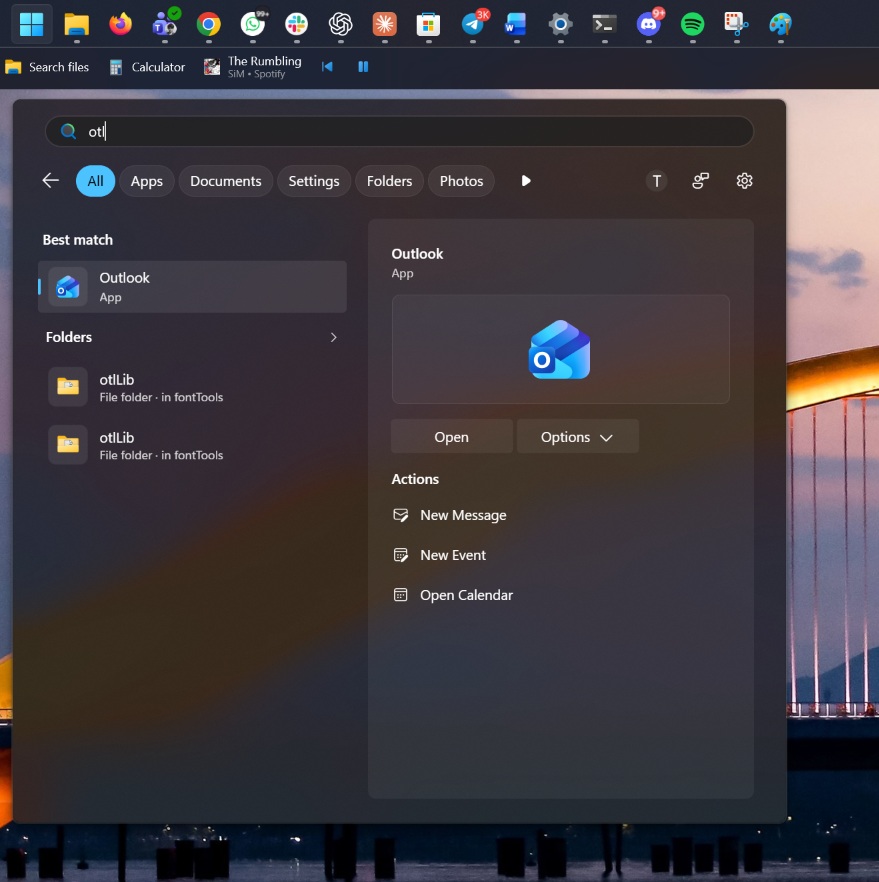
That said, it’s not magic, and there are rough edges that Microsoft still needs to address. For example, when I typed “ntpd” for Notepad, Windows Search came back with “No results found.” It is entirely possible Microsoft is still trying to get it right, but based on my understanding, Search handles misspellings well. However, it won’t guess an app from an abbreviation with the vowels removed.
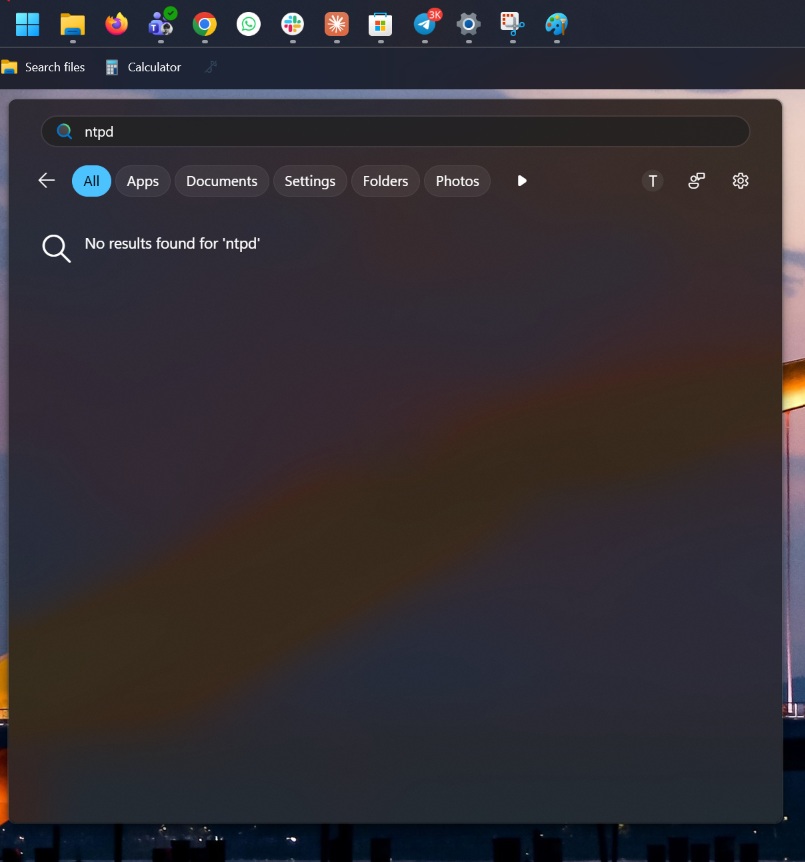
Settings, apps, and app shortcuts show up instantly
Windows Search is also pretty good at plain-English questions about settings. I typed “make text size bigger,” and the best match was the exact system setting, with an Open button in the preview pane. And this is not powered by any large or small language model, so it’s entirely a simple query-matching algorithm.
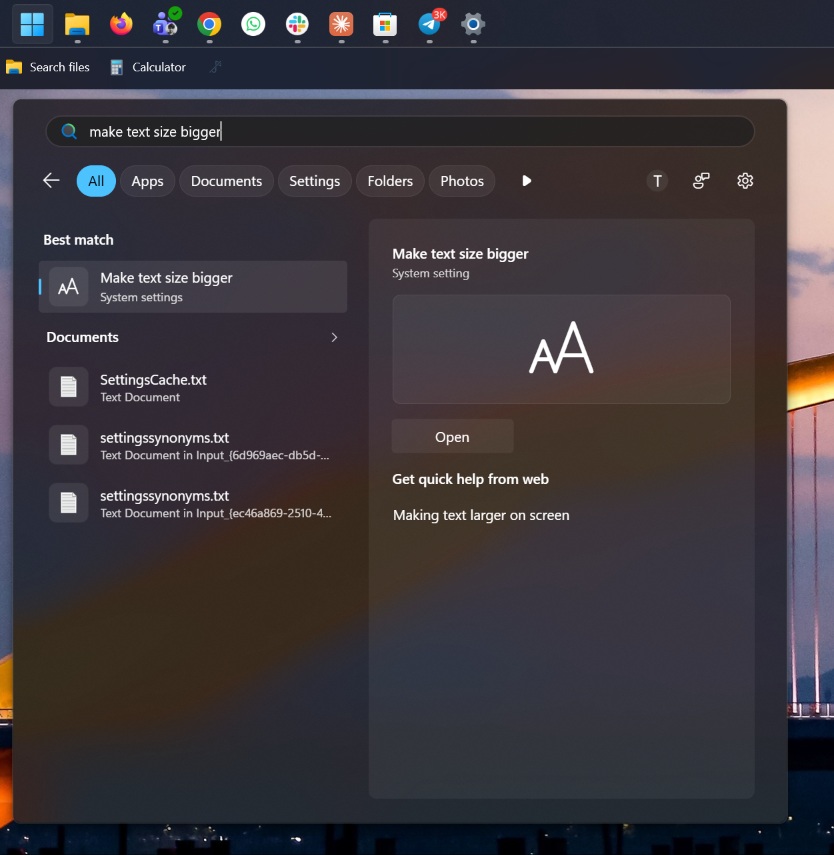
But there are two problems with the above test. As you can see, the preview pane still shows a “Get quick help from web” section with a “Making text larger on screen” link, even though I have web searches turned off. So Bing hasn’t fully left the building, and that explains why Edge-based WebView2 process is still running in the background.
Second, look at the Documents section. Windows Search is showing “SettingsCache.txt” and two “settingssynonyms.txt” files, which appear to be internal files Windows uses to match Settings queries. I wasn’t expecting these files to show up as I’ve only enabled classic indexing.
Next, I searched “chrome”; Windows Search showed Google Chrome as the best match, along with jump list actions like “New window” and “New Incognito window,” and my most-visited sites. Without Bing, there’s no “chrome download” web suggestion pushing me towards Edge.
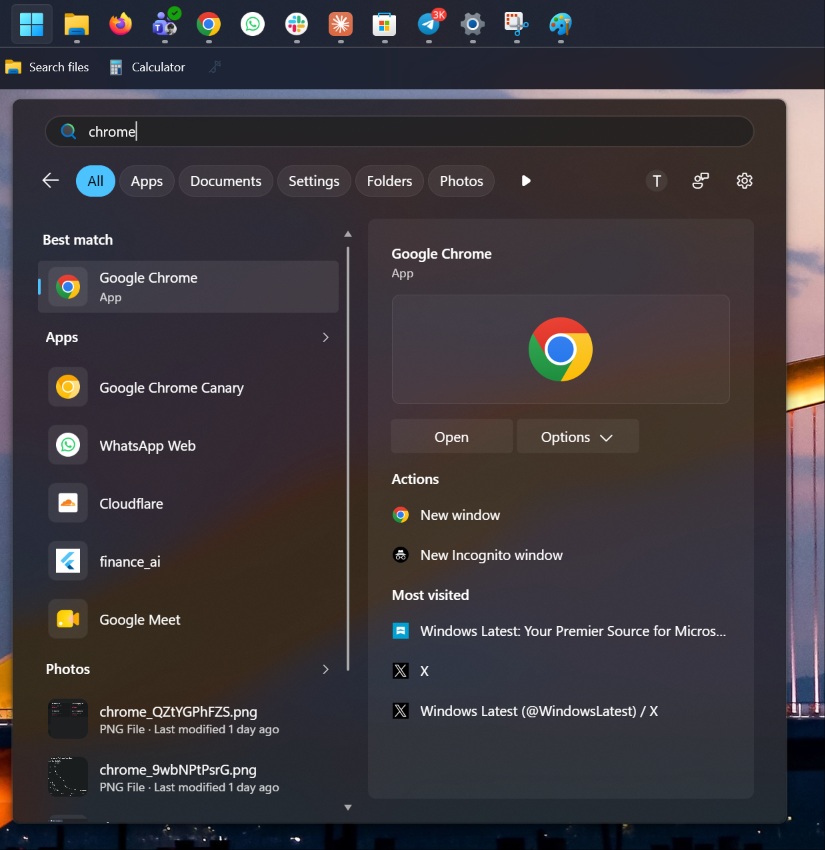
It also picks up Chrome’s web apps, such as WhatsApp Web, Cloudflare, and Google Meet, which are listed as regular apps.
What you lose without Bing in Windows Search
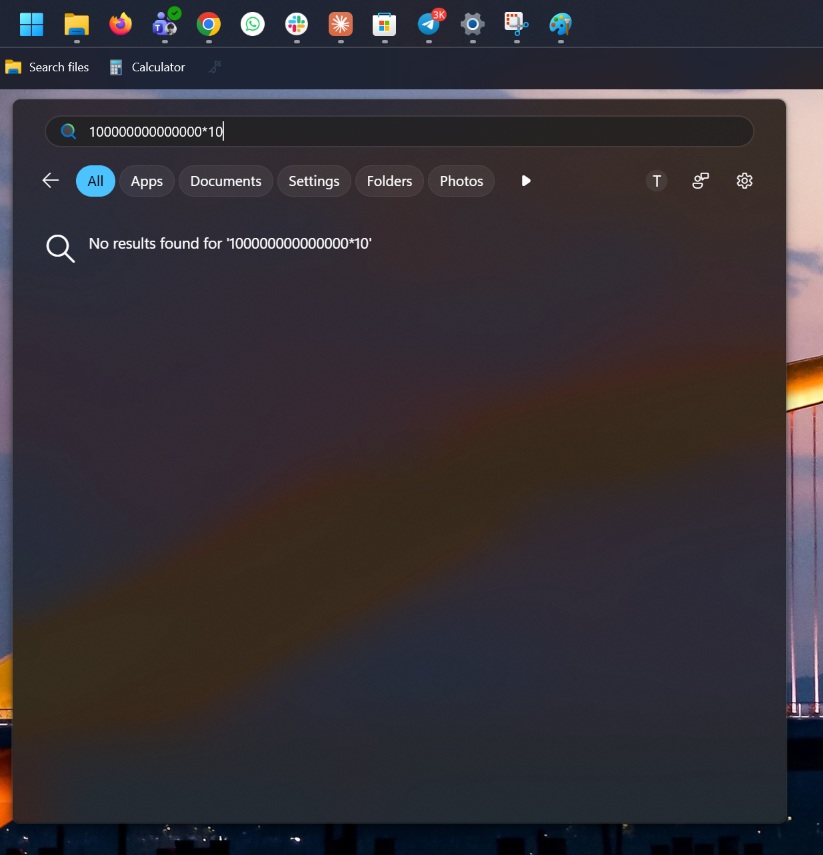
Of course, turning off Bing isn’t free. The first thing I noticed is that Windows Search no longer does math for you. I typed a simple multiplication, and it returned “No results found.” With Bing enabled, you’d get the answer inline, so you’ll now have to open Calculator.
When I searched “weather,” I didn’t get a forecast card like the one Bing used to show. Instead, Windows Search listed the Weather app as the best match, followed by Lively Weather, Weather for Command Palette, and a bunch of old screenshots on my PC that have “weather” in their names.
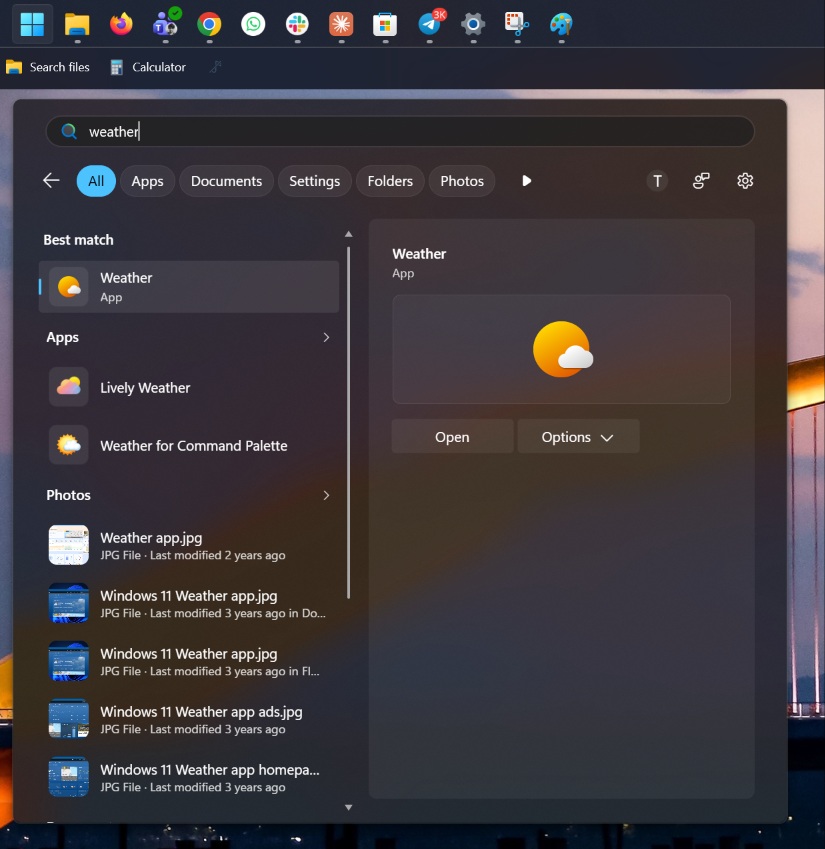
Honestly, I don’t mind. I’d rather open the Weather app than wait for Bing to load a card I didn’t ask for.
I’ve never been so impressed with Windows Search, and it’s quite interesting how turning off Bing just made everything better. Microsoft could have done it years ago, and that would have saved the company from all the embarrassment.
While this new Windows Search is available for more people, it’s still being “rolled out.” That means there’s a high chance some of you may not get it this week as well.