









The new Outlook for Windows now has an All Accounts view, Microsoft’s take on a unified inbox, which shows email from every connected account in one list while each mailbox is kept separate. It’s rolling out to everyone now, and I’ve been using it on my Windows 365 Cloud PC to go through mail from my work and personal accounts in one pass.
Of course, unified inboxes aren’t a new idea. The old Windows Mail app could link inboxes, and Outlook for Mac, iOS and Android have had one for years. But when Microsoft shut down Mail and Calendar and impelled people to the new Outlook, the feature didn’t come along.

New Outlook’s All Accounts view puts every inbox in one place
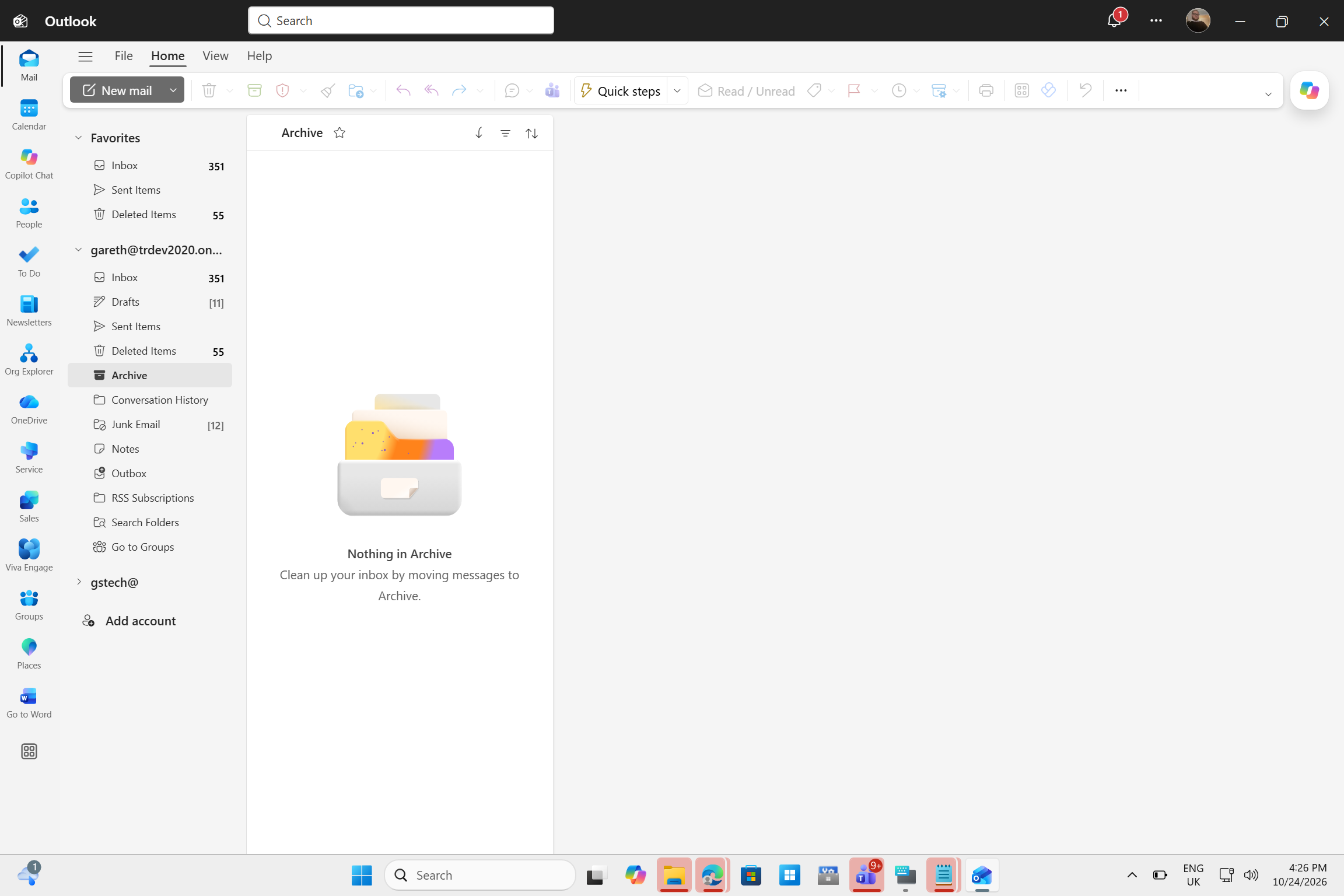
Before this update, I had to check each inbox one by one. Pinning inboxes to Favorites saved a little clicking, but it still didn’t give me one combined message list.
Microsoft confirmed the All Accounts view in June, and according to Message Center post MC1519843, the rollout started in late September and should finish by late October. “Users can read, delete, search, move, archive, and mark messages across accounts without switching between mailboxes,” Microsoft says, adding that it “does not merge mailboxes or move messages between accounts.”
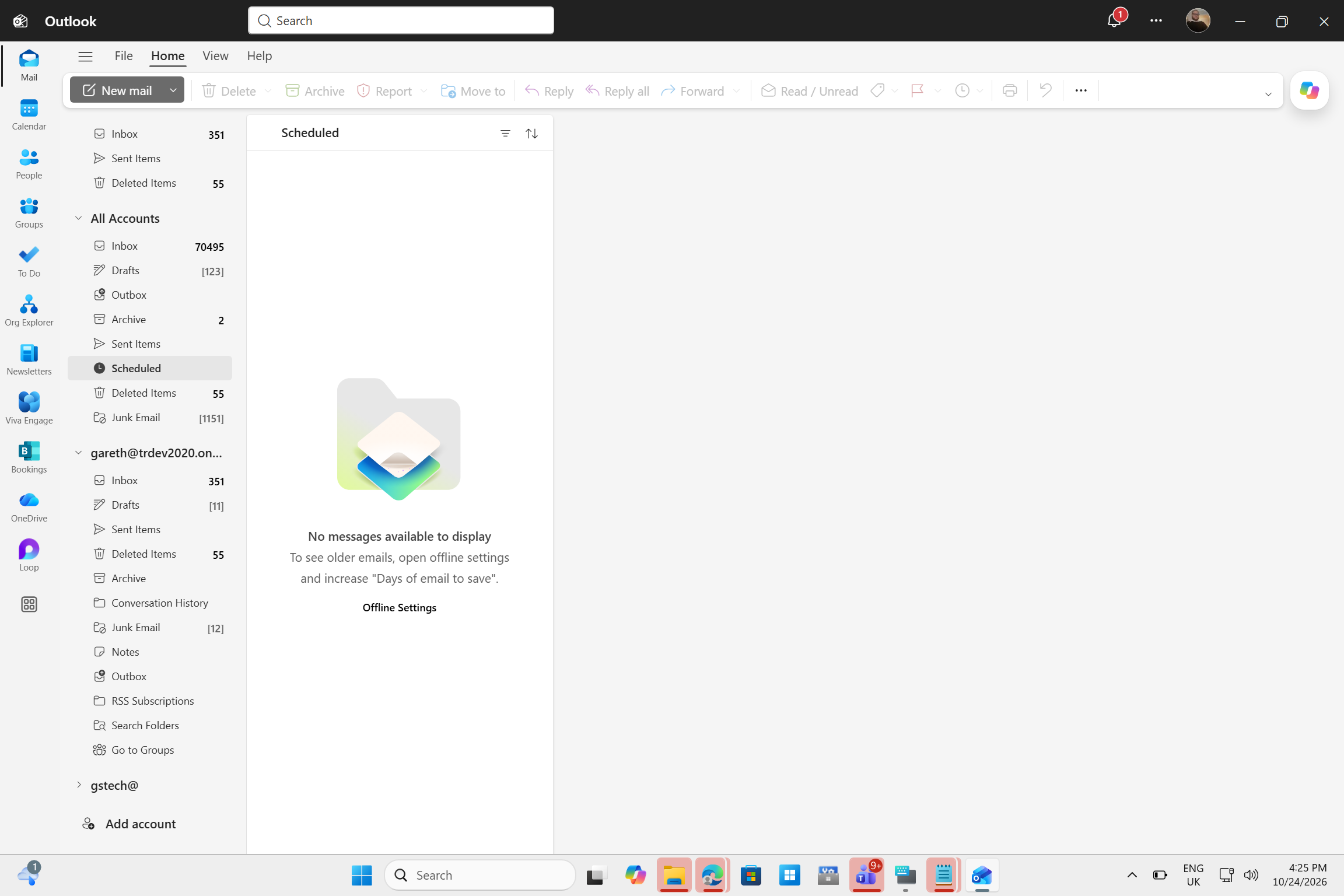
Once it’s on, a new All Accounts section appears in the folder pane above your individual mailboxes. It’s not the typical Inbox, as it also includes combined Drafts, Outbox, Archive, Sent Items, Scheduled, Deleted Items, and Junk Email folders. A combined Inbox with 70,495 unread emails could make some feel overwhelmed, though!
How to turn on All Accounts in the new Outlook for Windows
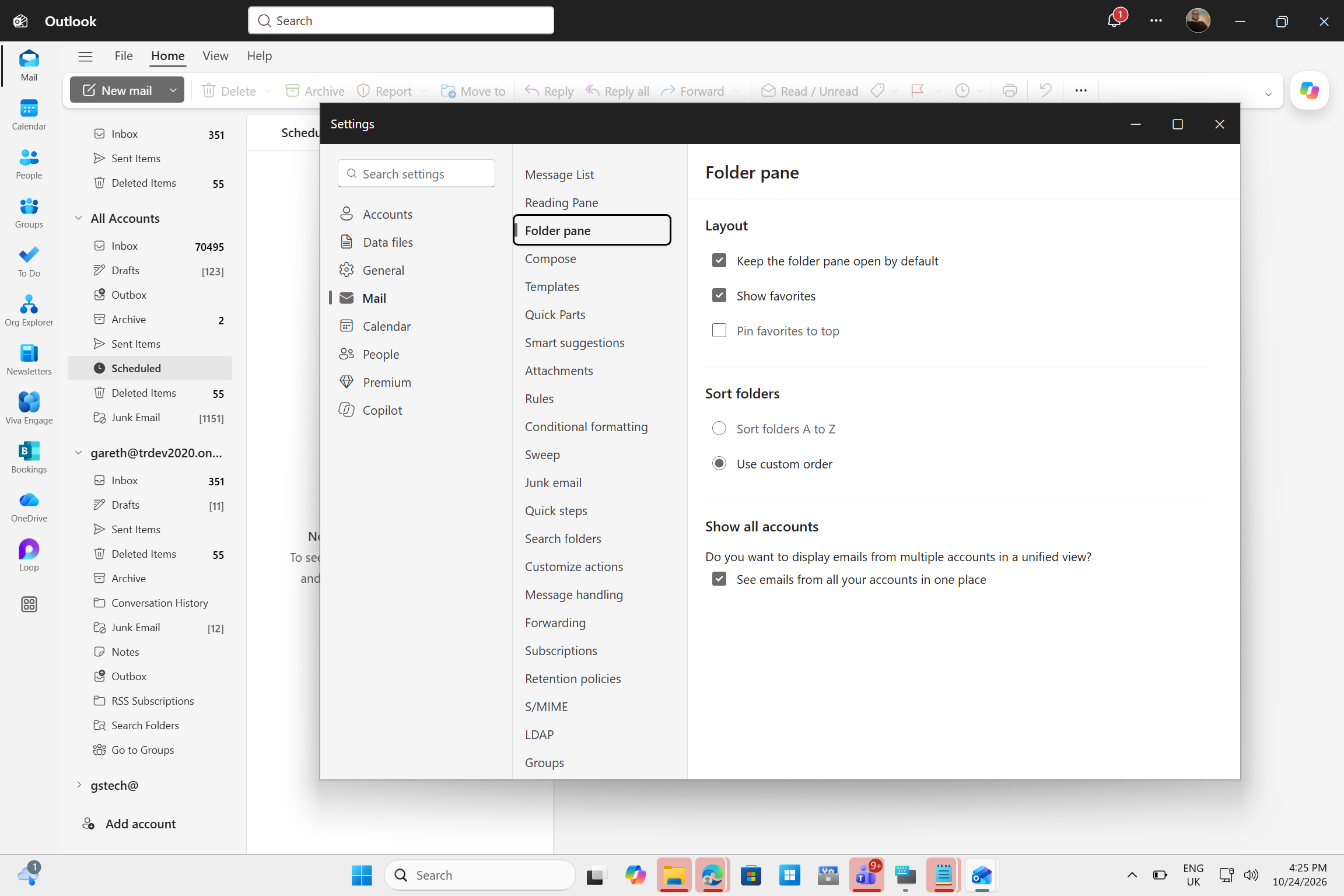
My Cloud PC got the feature through Targeted Release on new Outlook version 1.2026.922.300, while my laptop still hasn’t. To turn it on, open Settings > Mail > Folder pane and check “See emails from all your accounts in one place” under Show all accounts.
Some users may find it already enabled. Microsoft says admin controls are coming later this month, which will let IT teams decide if Unified Inbox is on by default and if users can change it.
Using one inbox for multiple Outlook accounts
My usual first pass is to handle urgent mail, archive reference messages and leave the rest for later. All Accounts let me do that once instead of repeating the process in every inbox, and I could archive or mark messages as read without leaving the combined list.
It also helped with quieter accounts. New mail from my secondary account showed up in the combined list, so I no longer had to open its folders or keep an eye on unread counts.
I still open individual mailboxes for focused work, and the combined view is right above them, so switching is just a click away.
Cross-account search and shared mailboxes are still missing
Microsoft mentions search among the actions you can do across accounts, but in the version I tested, searching for older messages only initiated a search in one mailbox, and I had to open the right account to find them. Microsoft also says Search with Copilot only finds messages in your primary account.
Shared mailboxes aren’t part of the view either, and Microsoft says support will come later. If you manage a team inbox, you’ll still be opening it separately, even though the new Outlook’s shared mailbox handling has improved this year.
All Accounts should have been in the new Outlook from the get-go
If you only have one email account, this doesn’t matter to you in the slightest. But if you move between work, personal, and other accounts every day, All Accounts removes a frustratingly tedious account-by-account routine, and I’m glad it’s finally here.
Still, the new Outlook launched as the replacement for both Mail and Outlook Classic without a feature that the free Mail app had. It’s a web app that can be painfully slow next to Outlook Classic, and with Microsoft set to make it the default for businesses in 2027, it still has plenty of catching up to do, as was evident from our 3-day testing.